Assignment 2-RADIOSS Engine File Editing & 3D Meshing Challenge
OBJECTIVE
- Check the material properties of the rail component and calculate the speed of sound in steel rail=_______
- The length of the rail is about 1000 mm.calculate the time takes for a shock wave to travel from one end of the rail to the other.
- Time for sound to travel length of rail=______
- Edit the engine file so that the stress wave can be monitored, moving from one end of the rail to the other during impact -this will require a termination time equal to the time it takes for the sound to travel the length of the rail(set on/RUN card)
- Set the frequency of animation output to a time that will give 20 animation steps(/ANIM/DT)
- Change /print -10.
- 3d meshing tetra mesh and hex mesh
- Repeat class examples and, maintain the quality.
- Target tet size=5mm,hex size=10mm,tet collapse=0.15.
SOLUTIONS
1. Check the material properties of the rail component and calculate the speed of sound in steel rail=5188.7452
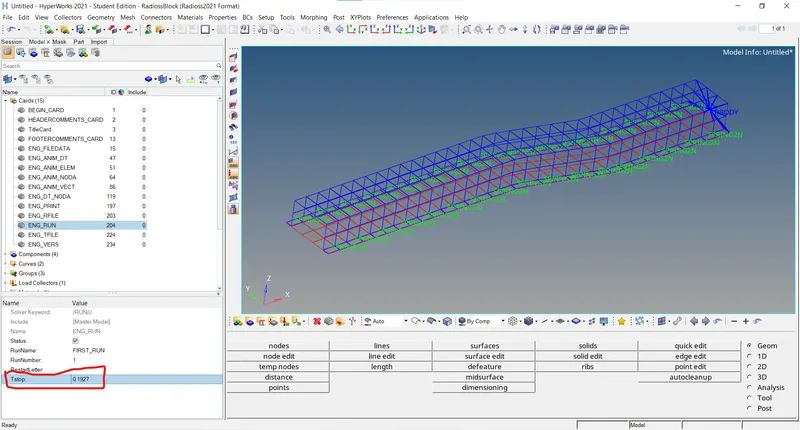
2. The length of the rail is about 1000 mm.calculate the time takes for a shock wave to travel from one end of the rail to the other. t=l/c 0.1927ms.
3.Time for sound to travel length of rail=0.1927ms.
4.Edit the engine file so that the stress wave can be monitored, moving from one end of the rail to the other during impact -this will require a termination time equal to the time it takes for the sound to travel the length of the rail(set on/RUN card)
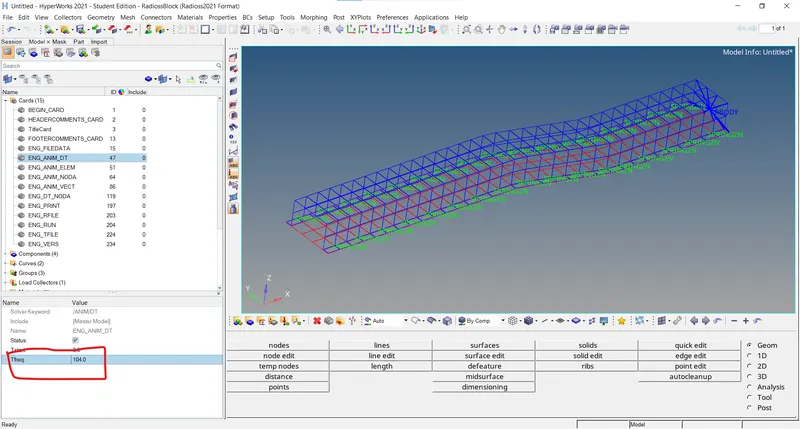
5.Set the frequency of animation output to a time that will give 20 animation steps(/ANIM/DT)
Frequency = (l/c)*time
= (1/0.1927)*20
= 104 Hz
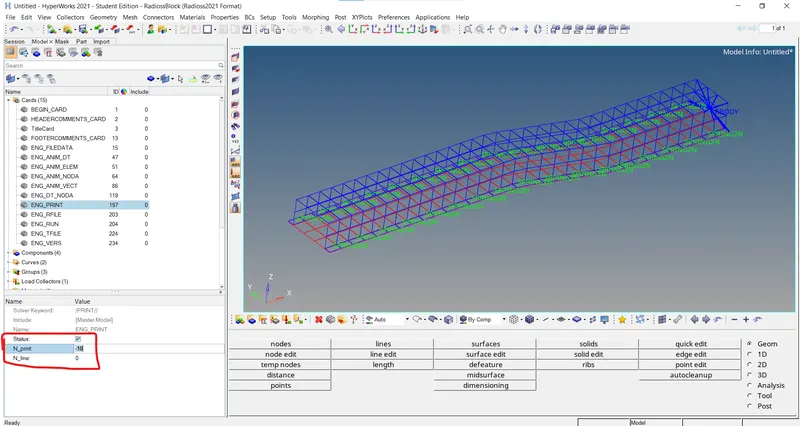
6.Change the N_print value as -10.
Importing and reading RADIOSS starter file to answer the given questions:
First, we have to check the material properties of the rail component.There are two multiple ways to check the material properties. One of the ways is to import the file in Radioss and check for the material properties, so after opening the hypermesh, we will choose our user profile as RADIOSS. We will import the starter file in Radioss. In our case,the given file name is FIRST_RUN_0000.rad, we will import this file under import solver deck browser as shown below.
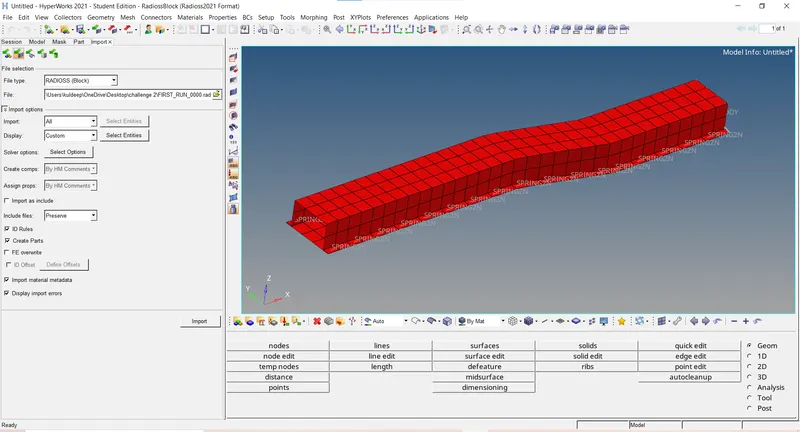
Then we will click on import command. After importing the component,we can see the rail component in the hypermesh graphic area. Now to calculate the speed of the sound in steel rail,we have the formula C= `sqrt E`/rho
Where, C is the speed of sound,E is the young's Modulus, and rho is density. so based on the formula,we will need the value of E and `rho` of the rail component. We can find these values of the rail component in the materail properties of the model as shown below.
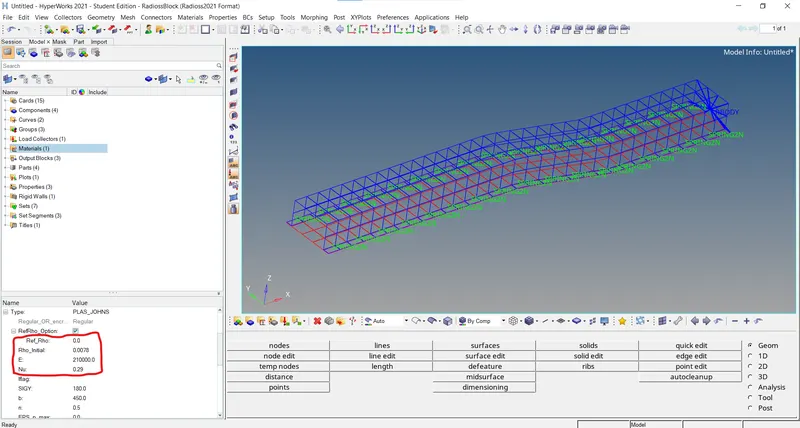
Calculation:
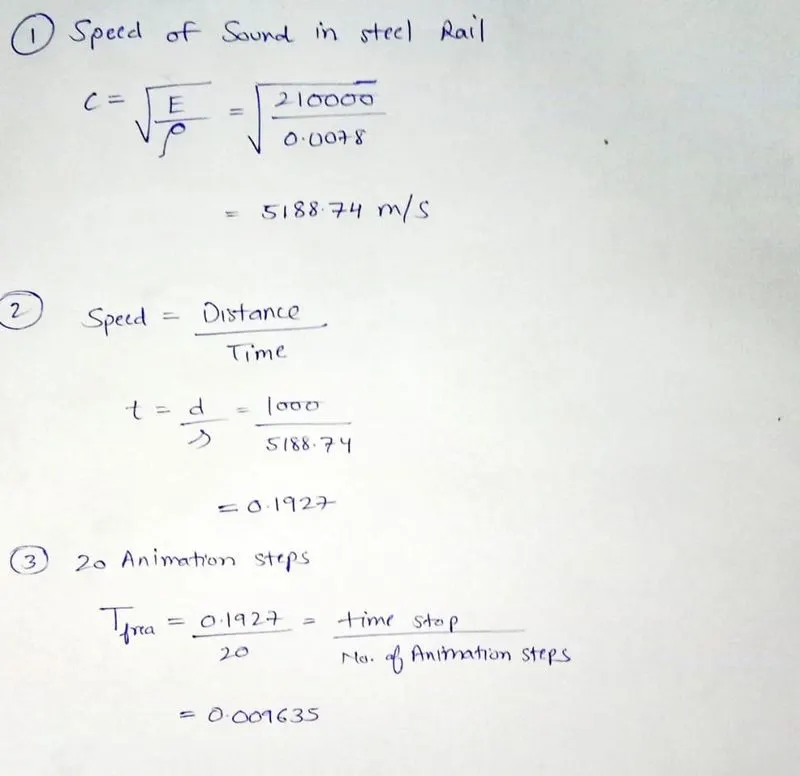
Thus the speed od sound in the steel rail is 5188.7452 m/s or 5188.7452 mm/ms.
Time required for sound to travel length of rail is 0.1927ms.
So, the animation has to be captured for every 0.009635 ms.
Now, we have to insert these values in the engine file. We can do this by directly typing these values in the engine file.
RADIOSS Engine file editing in notepad:
We will open FIRST_RUN_0001.rad file in the notepad. here we have to identify and change the values of termination time and animation frequency.
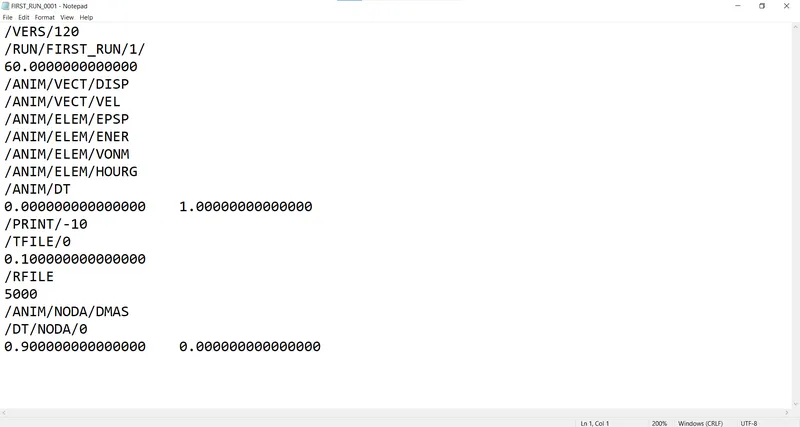
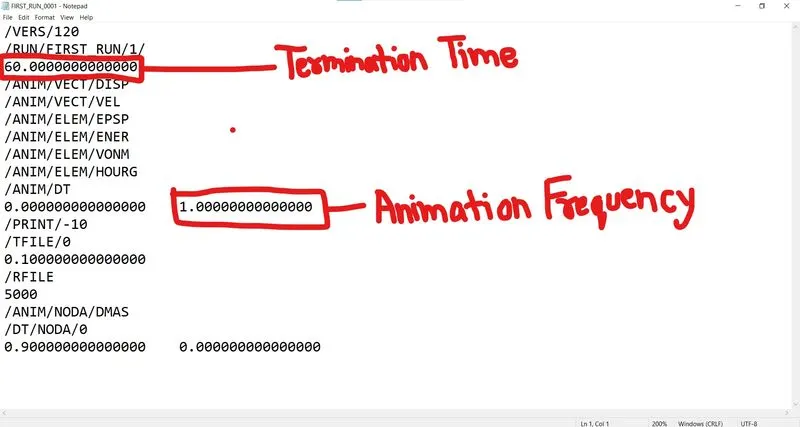
After identifying these values,we will edit them by inputing the values of termination time and animation frequency which we got through calculations.
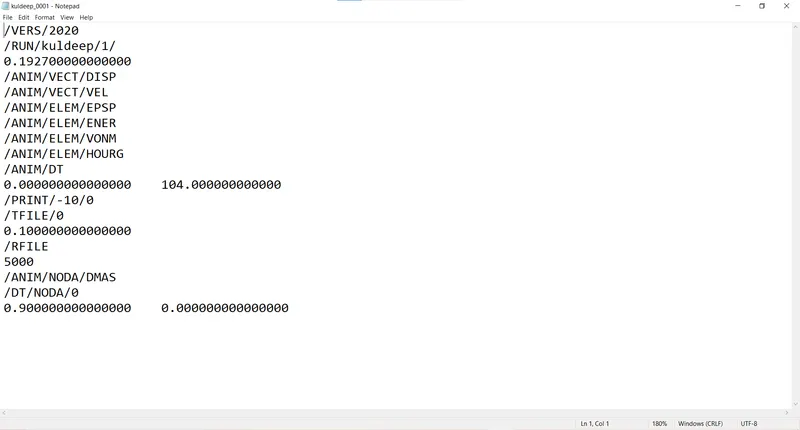
The valus edited in the engine file are in green box in the figure above,then we will save the file to complete the editing of the engine file.
OBJECTIVE
To mesh the given file and connect it by any one 1D connector
Import the the geometry
- File - Import - Geometry - File type " STEP" - Import
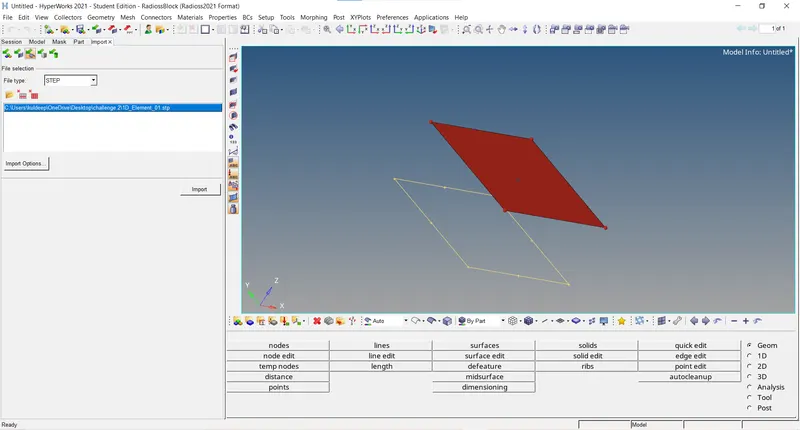
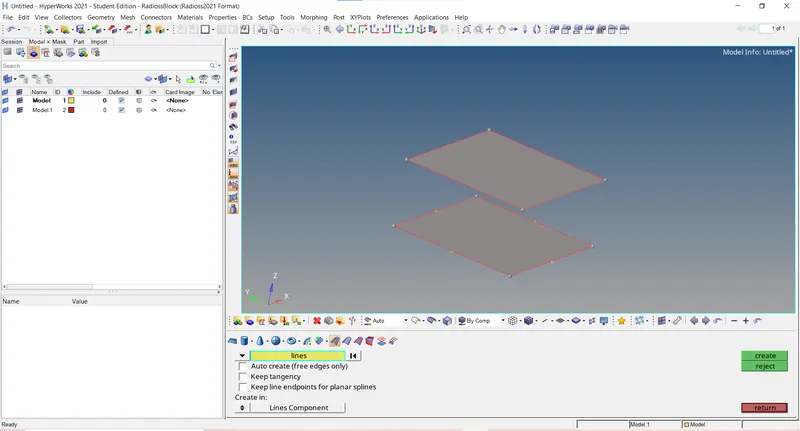
Create the surface of given shell by following steps
- Geom - surf - spline/filler - select the lines - create
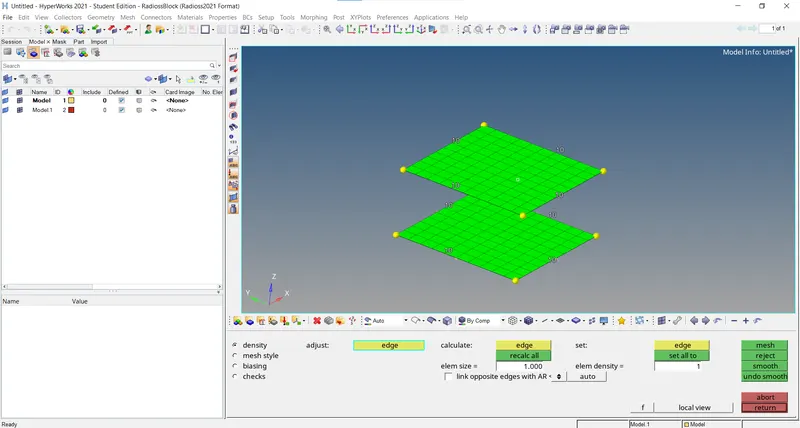
Mesh the given geometry by following step
- 2D - automesh - surf -element size (1) - select the surface - mesh
Create 1D element by following steps (MHPCLL)
- Geo - material - create - mat name (steel) - color - type( isotropic) - card image (Mat 1) - create/ edit
- 1D - hyperbeam - stand section - std section type( solid circle) - create - radius (0.25)
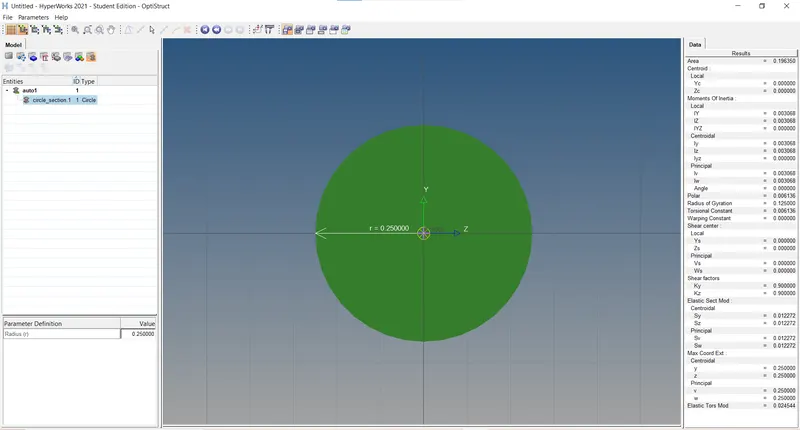
- Property - create - property name (rod) - color - type (1D) - card image (PROD) - Material( steel) - beam section - create
- Component - create - comp name ( rod) - color - create
- 1D - rods - property (rod) - element type( CROD) - Select the nodes from both shell to connect
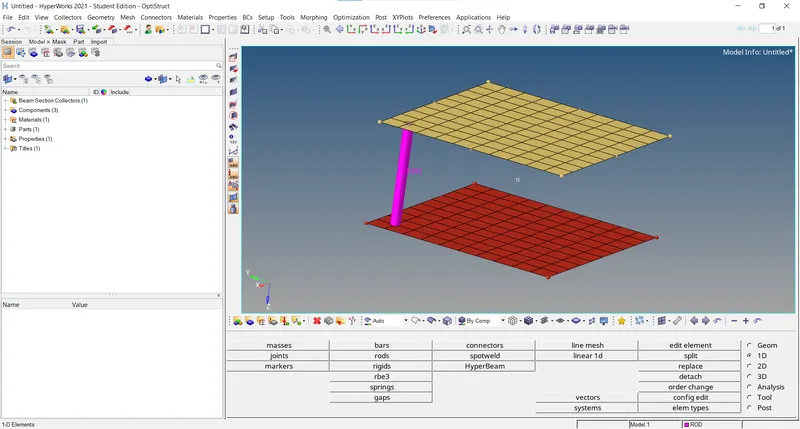
7. 3d meshing tetra mesh and hex mesh
- Repeat class examples and, maintain the quality.
- Target tet size=5mm,hex size=10mm,tet collapse=0.15.
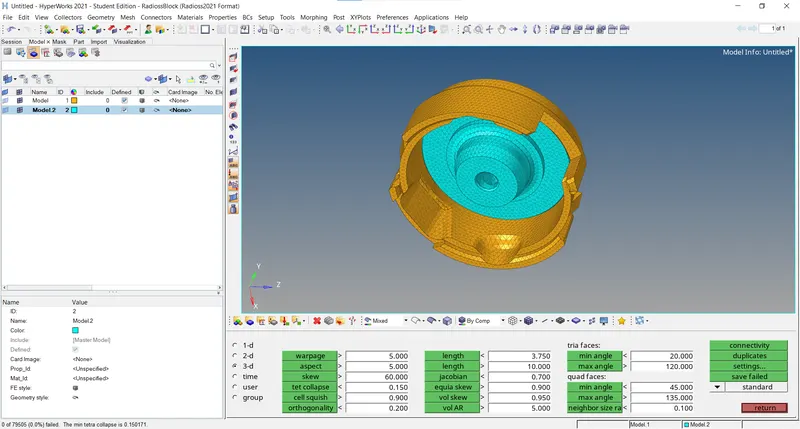
STEPS FOR 3D MESH MODEL (TET MESH)
- File - Import - Geometry - File type " STEP" - Import
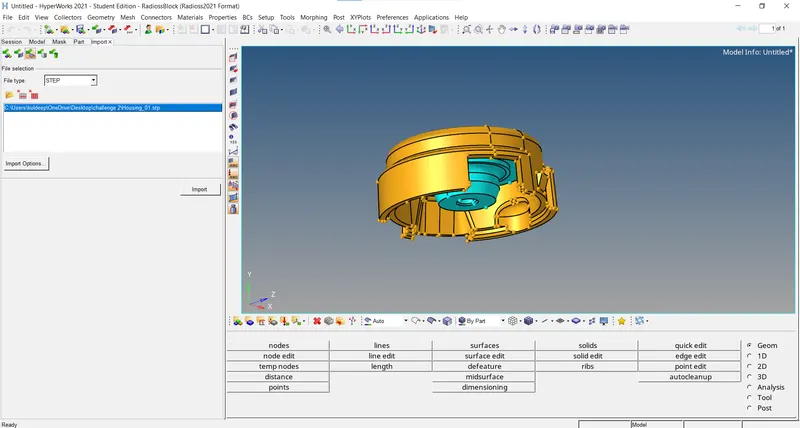
- Check for any geomertrical error, in this case we dont have any geometrical error.
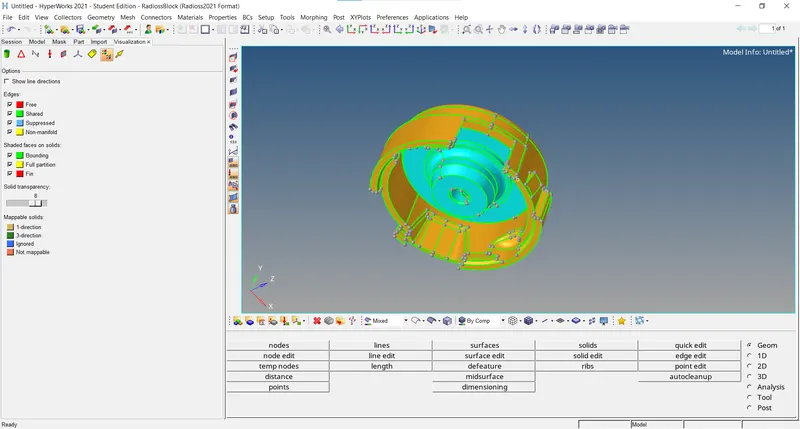
- We will perform 2D meshing to hud
2D - Automesh - Surfaces - Select all surfaces - Element size (5) - Mesh type (Trias) - Mesh
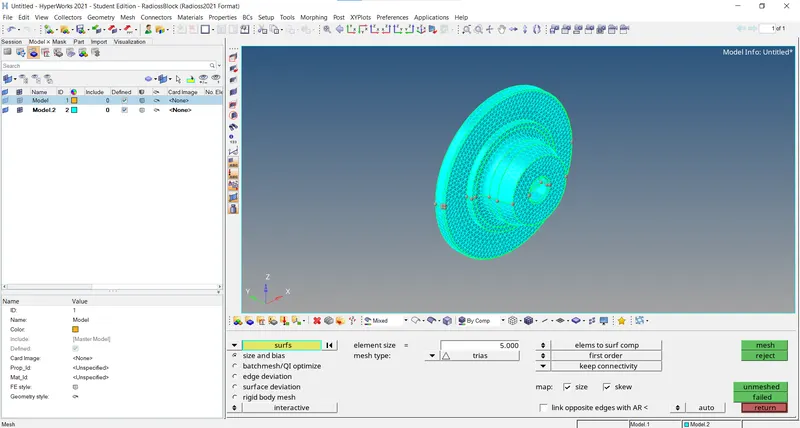
- Now we will convert this 2D mesh into 3D mesh by following step
3D - Tetramesh - Tetramesh Parameters - Tet collapse (0.15) - Tetra Mesh - Fixed trias/quads to tetramesh (elements) - select the all elements - Mesh
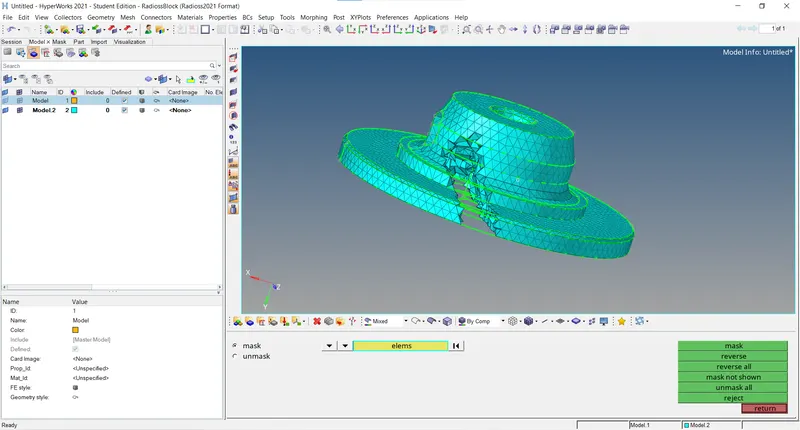
- To check the tet collapse for hub following steps to be followed
Tools - Check element- tet collapse (< 0.15) - save failed - mask - element - retrieve - reverse - mask
Geom - temp nodes - select the elements - add
Tools - Translate - select the nodes to move - magnitude (0.1) - translate +/translate -
To mesh the cover we will mesh directly with 3D tool
3D - Tetramesh - Volume tetra - enclosed volume (surf) - 2D type (trias) - 3D type ( tetras) - element size (5) - Select the surfaces - Mesh
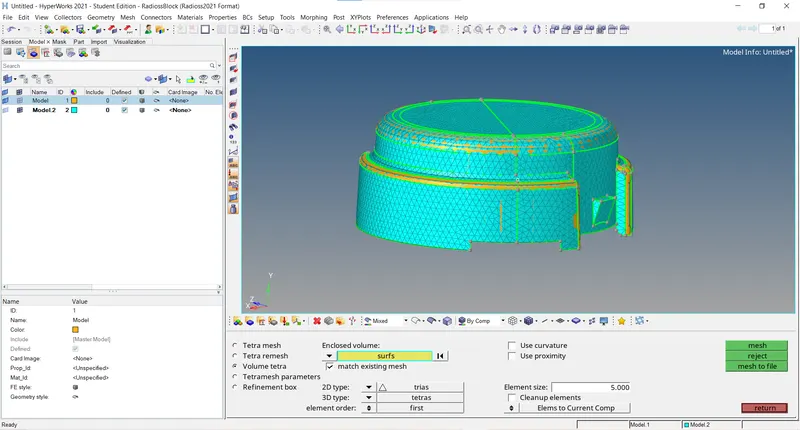
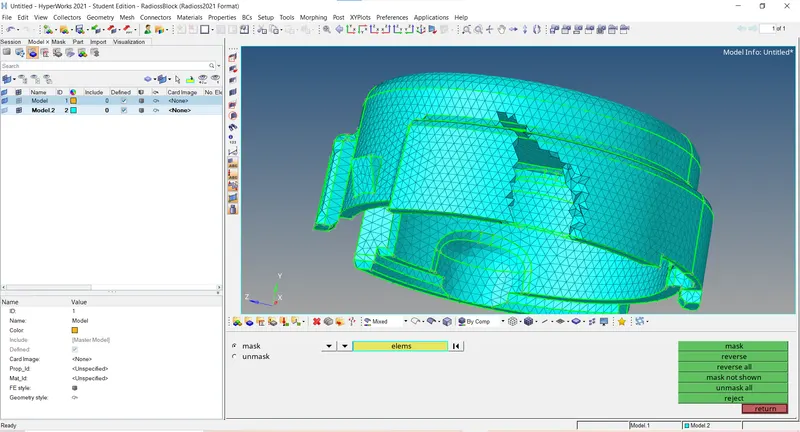
- To check the tet collapse for cover following steps to be followed
Tools - Check element- tet collapse (< 0.15) - save failed - mask - element - retrieve - reverse - mask
Geom - temp nodes - select the elements - add
Tools - Translate - select the nodes to move - magnitude (0.1) - translate +/translate -
To mesh the cover we will mesh directly with 3D tool
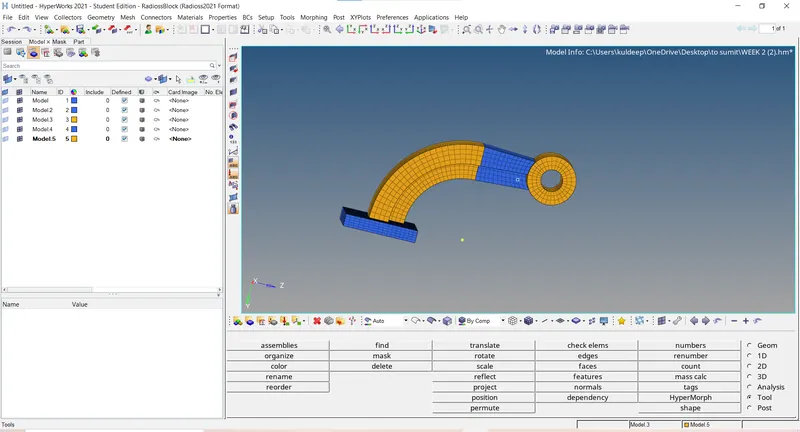
STEPS FOR 3D MESH MODEL (HEX MESH)
- File - Import - Geometry - File type " STEP" - Import
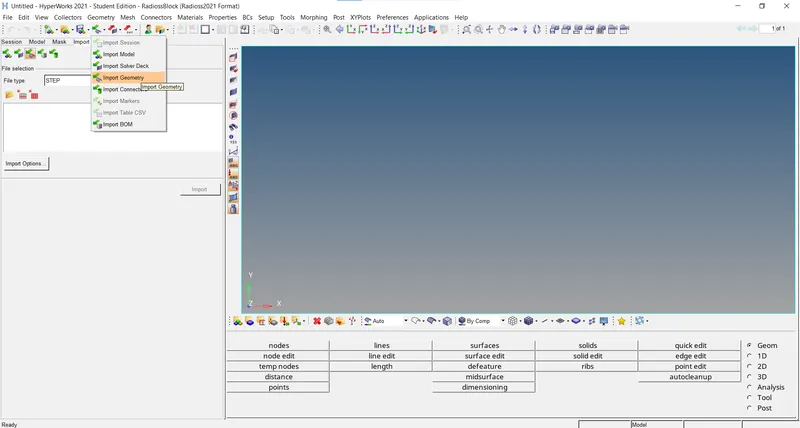
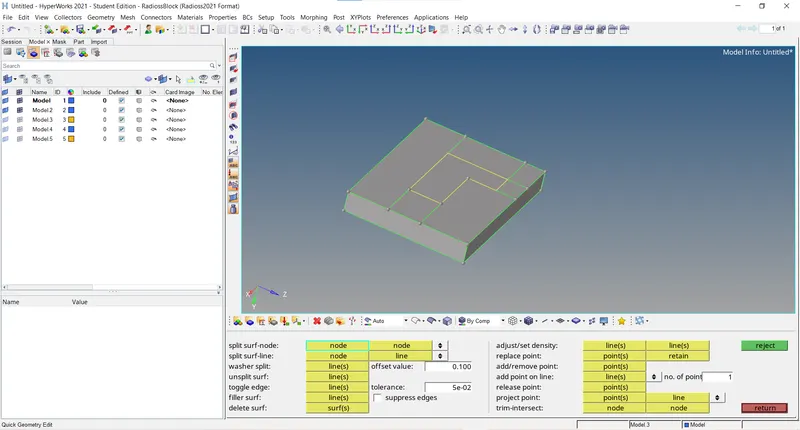
To perform good 2D mesh,we will divide the surface using following
- Geom - quick edit - project point
- Geom - quick edit - split surf-node
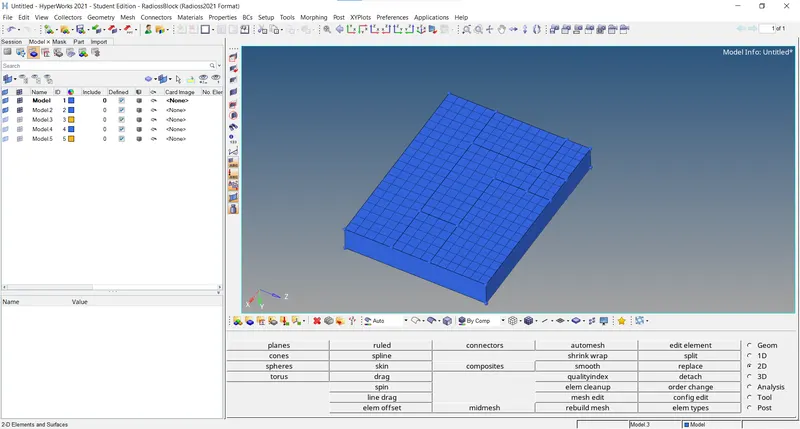
- 2D - automesh - surf - element size( 10) - mesh type( quad)
- 3D - elem offset - solid layers - select the elements from surface - numbers of layers (5) - total thickness (25) - offset +
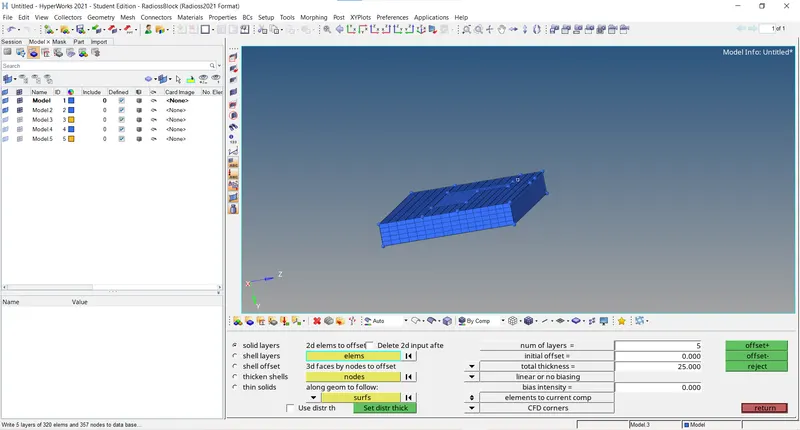
- Mask - elements - by config - config type (hex8) - displayed (all) - select entity - mask
- Geom - distance - three nodes - select the nodes on curve - circle center
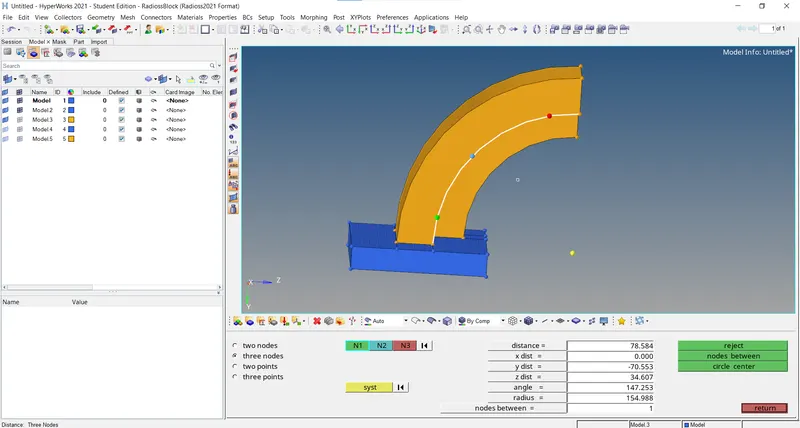
- 3D - spin - spin elem - select the elements - angle (90 degrees) - X axis - base point (B) - on spin (24) - spin (-)
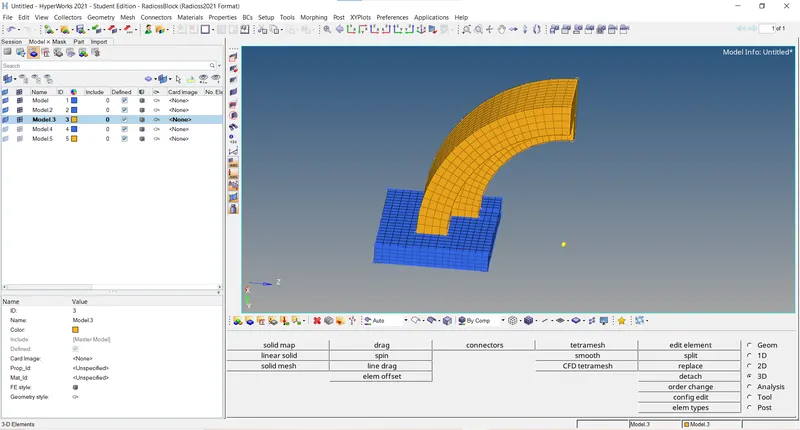
- Tools - faces - select the component - find face
- Delete - elements - by face ( un-needed face) -delete entity
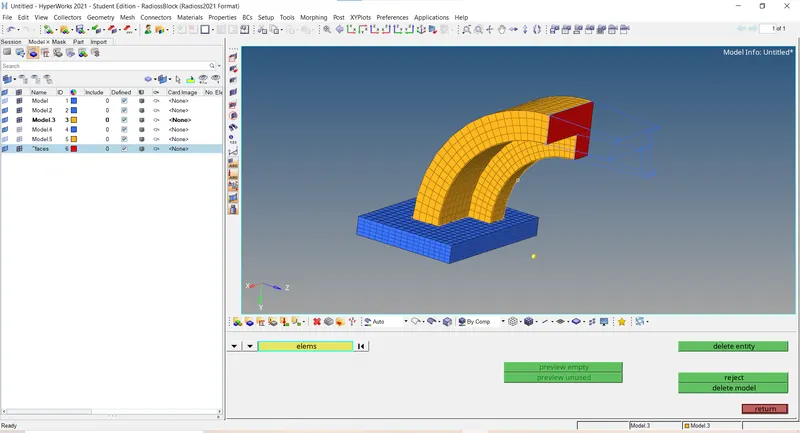
- 2D - automesh - select the surface - mesh
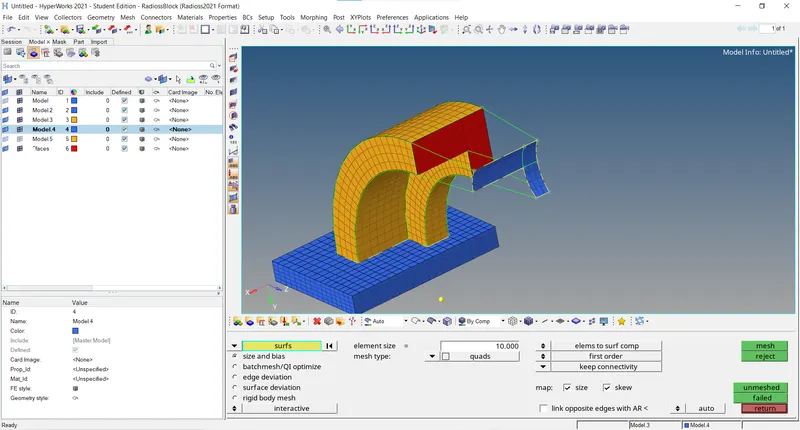
- 3D - linear solid - from (select face) - to (select face) - density (12) - solids
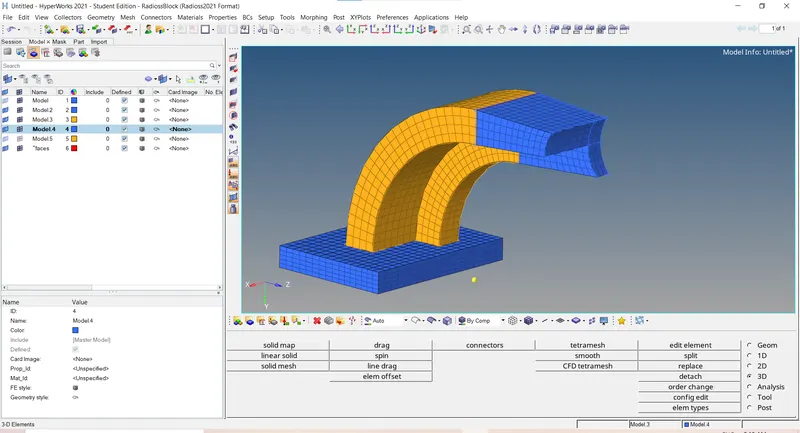
- 2D - automesh - select the surface - mesh
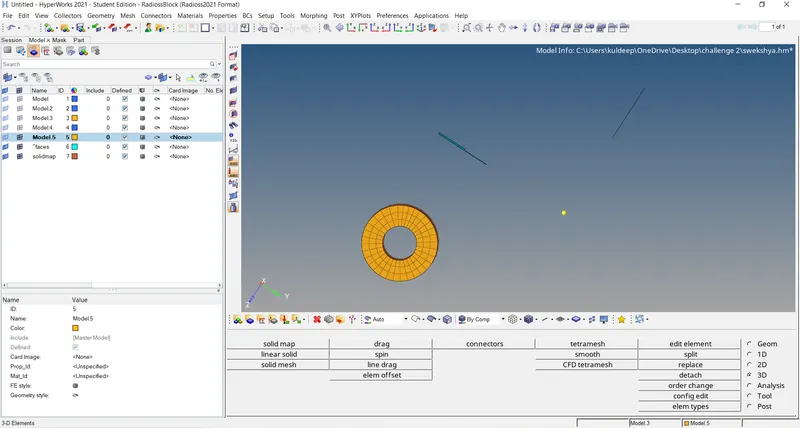
- Tools - project - to surface - node (dublicate) - to surface - select the surface - along vector ( surface normal)
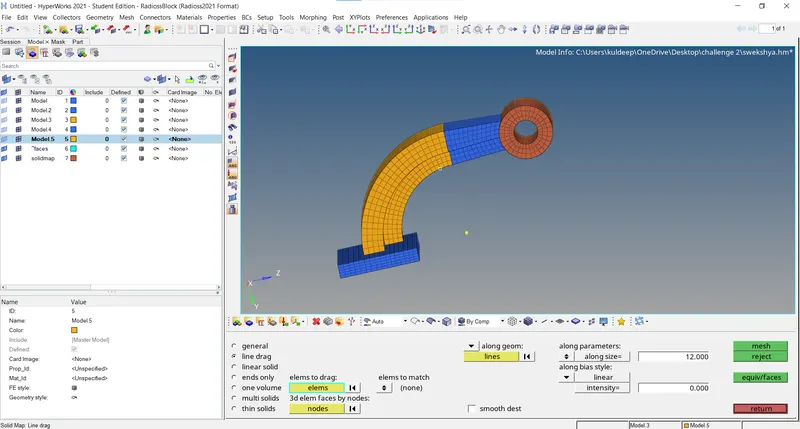
- 3D - solid map - general - source geom (none) - dest geom - select the surface - elements to drag - select the top elements - along geom (mixed) - node path (select the nodes) - line - select the line
- Delete - element - by cong - config( quad 4) delete entity
- Tool - organize - collector -select the elements - dest (boss) - move
CONCLUSION:
Understand how to calculate speed of sound in different material,frequency,time step.
Understand how to read input radioss file.
Understand how to import the radioss solver deck file and feed the value.
Understood how to export the the file in rad.format.
Got to know how to create 3D tetra mesh and hexa mesh.
Learnt how to give different type of 1D connection and hyperbeam concept.