Assignment 1-2D Meshing Challenge
Assignment 1-2D Meshing Challenge:
objectives:
- To create a mesh for the given geometry by extracting the mid surface and mesh the given geometry with shell elements and applying the property to it.
procedure:
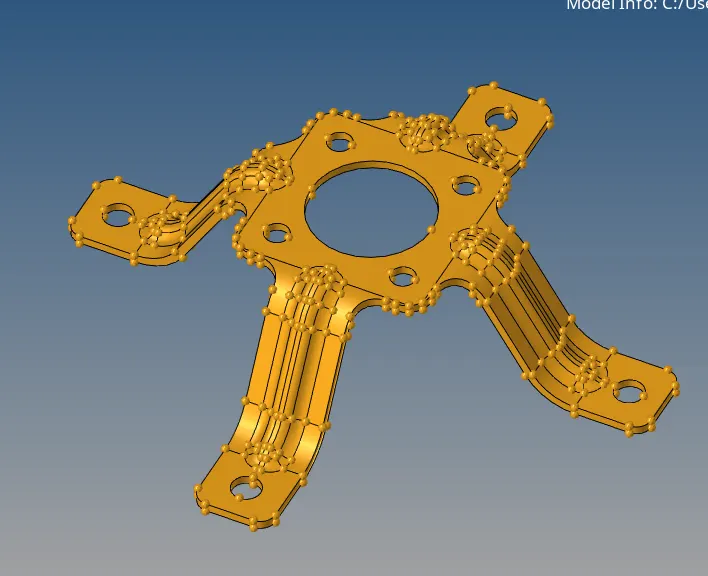
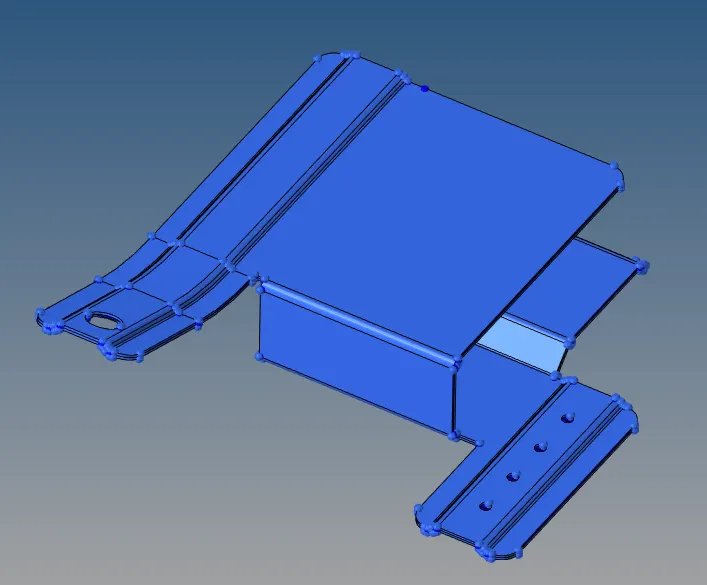
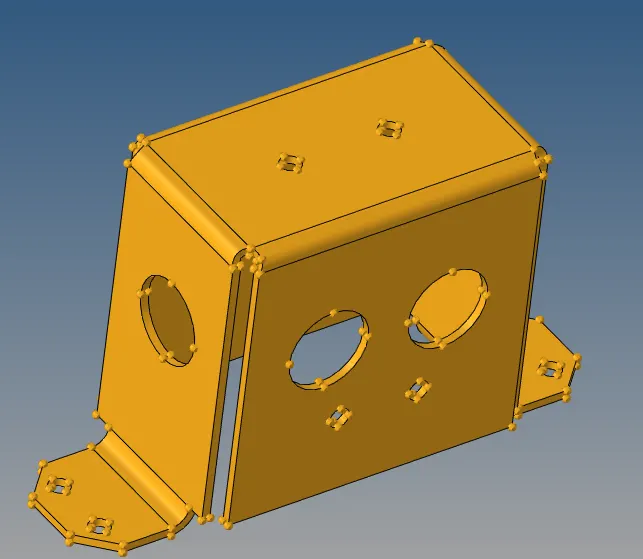
- first import cad model to the hypermesh by going to import -->import geometry--> file-->and click import.
img:model1
img:model2
img:model3
- once the back door file is imported extract the mid surface through the offset method by going to surface edit-->offset-->and select the surface which you want to offset. before offsetting duplicated the surface and again select the surface by face and enter the half of the original thickness value and check the normal and offset to its midplane.
- after midsurface is generated,mesh the geometry by spliting the geometry.
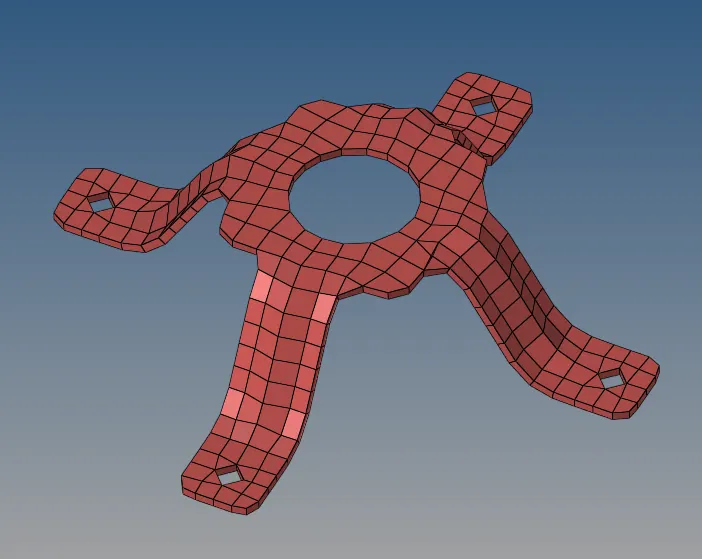
- go to the 2D --> automesh-->select the surface to mesh-->click 'ok'. choose the element size as 5 and choose mixed mode .
- use toggle ,point edit tool,quick edit tool to cleanup the geometry.
- click the geometry panel-->we can choose split node-node or split node-line for splitting the geometry.
- for toggle go the same panel-->click toggle to connect the adjacent surface.
- same we can add/remove point by going geometry-->add/remove point -->select the points-->add(left click).remove(right click).
- do the same thing rest of the component, extract the mid surface, and use the cleanup tool to split and generate the surface and mesh on the surface.
- use smooth option for aligning the mesh in a good fashion manner by going to 2D-->smooth-->select the elements-->and click smooth or click shift+F12, we can smooth with respect to the shape and size.
- once the model is meshed check for the free edge in between the node and elements because if the nodes are not connected the accuracy will not be good and the force transmission will not be good.
- we can close the free edge by two option by going F3 which is replace the node option used to connect the node for free edge and also to control the meshing error.
- free egde can be identified by going to Tool -->edges-->click the elements and select the displayed elements-->and click free edge.
- once the free edge is identified we can equalize it it is in the same option.
- while doing meshing on one side simultaneously check for the quality and rectify the element which fails for quality.
- always try to remove rotating quads and back to back triangular elements.
- maintain a mesh flow pattern as we meshing the geometry
- after meshing the component, create a property by right click on the tab side-->go to the property-->and enter the value for thickness.
- after entering the thickness value assign it to the component each respective component.
img:meshed model1
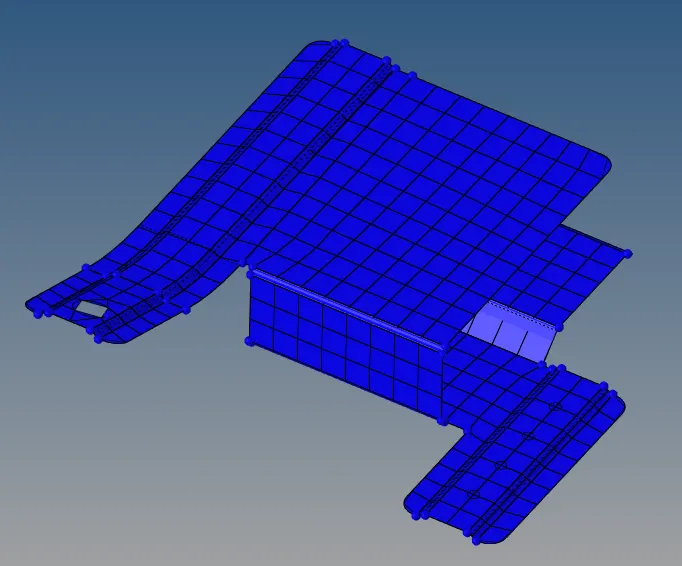
img:meshed model2
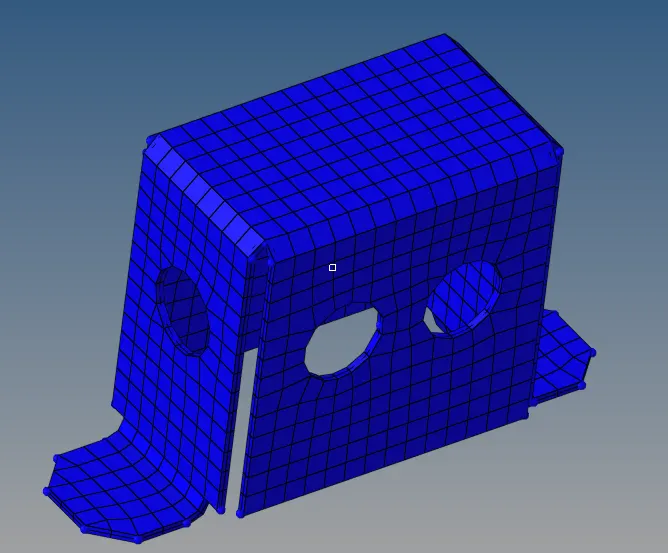
img:meshed model 3
result:
- the mid surface are extracted from the given model and mesh the model with mixed type of element with given element length with respect to the quality criteria.
- elements are created as per the criteria and elements quality are improved as much as possible with minimal error
- good mesh flow pattern is achieved.
- free edges are checked and removed.
- thickness has been assigned as per the model by creating property.
learning objective:
- learned how to extract the mid surface using surface offset method.
- learned how to import and change the criteria setting
- learned how to split a geometry to achieve a good mesh flow and mesh pattern
- learned how to assign thickness and how to check quality error and repair it.
- learned how the minimum error in the split or geometry error can cause large mesh pattern error.