Assignment 1-2D Meshing Challenge
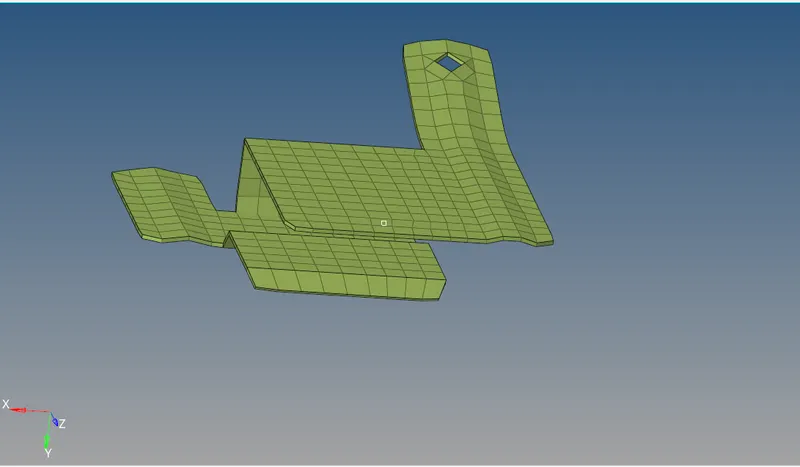
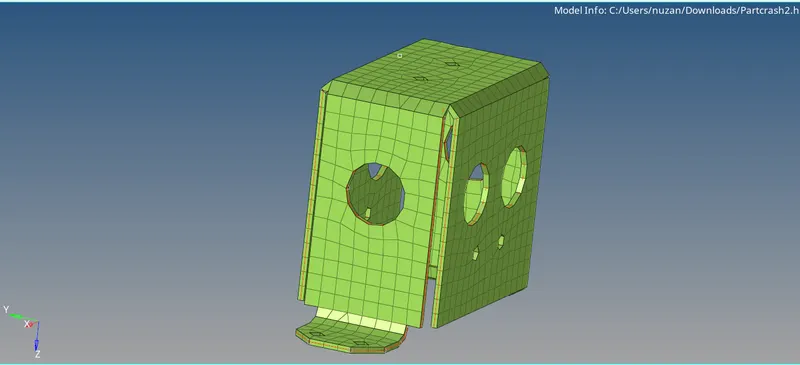
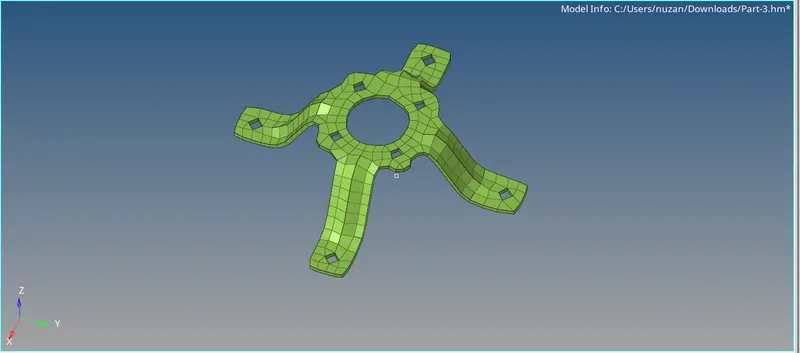
we have to perform geometry cleanup operation on the given 3 files.
- Practice
- Clip Repair
- Mounting Bracket
There should not be any free edges, convert all of them into refine geometry.
- Clean the geometry.
- Extract midsurface.
- Clean midsurface geometry.
- Ignore holes less than dia 5mm.
- Create 2D mesh with target length 5mm, min 3.5mm max 7mm.
- And assign proper thickness, by creating a generic proper
- procedure to import model into hypermesh GUI
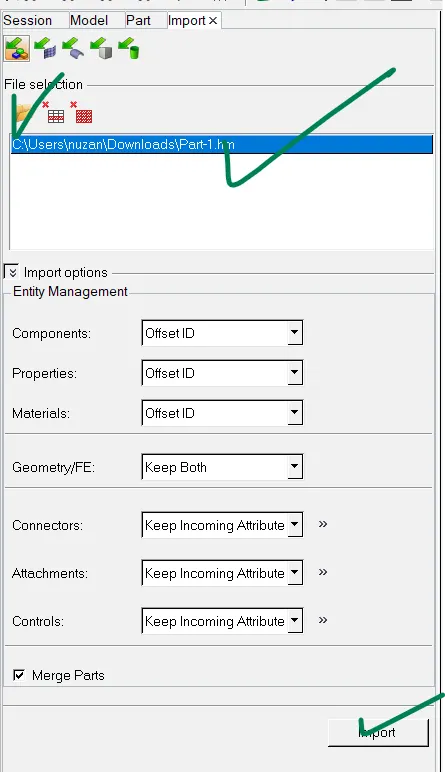
PROCEDURE TO IMPORT MODEL
click on import option from the main menu >click on import model >select a file from drive >hit on import
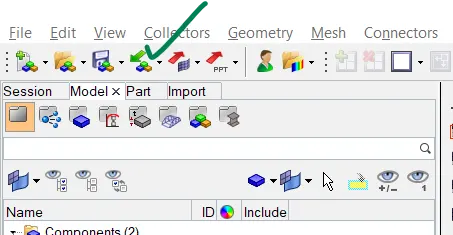
model has been succesfully imported into hypermesh GUI
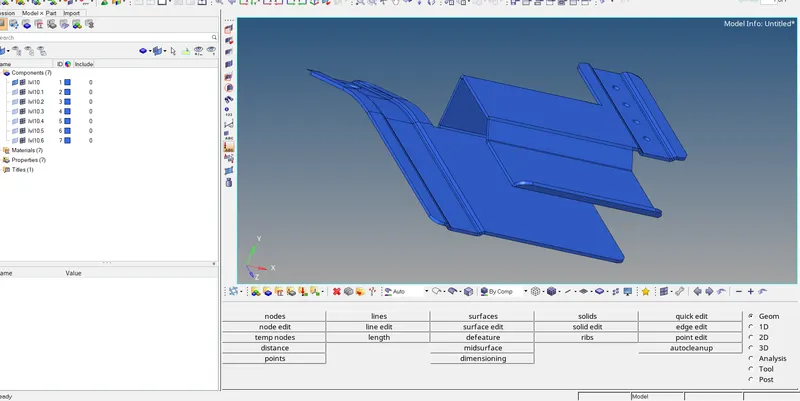
procedure to find out free edges
from the tool bar click on >select by topo mode
by clicking on the topo mode we can see whether the model contains any solids (if green in colour) else the model is surface only
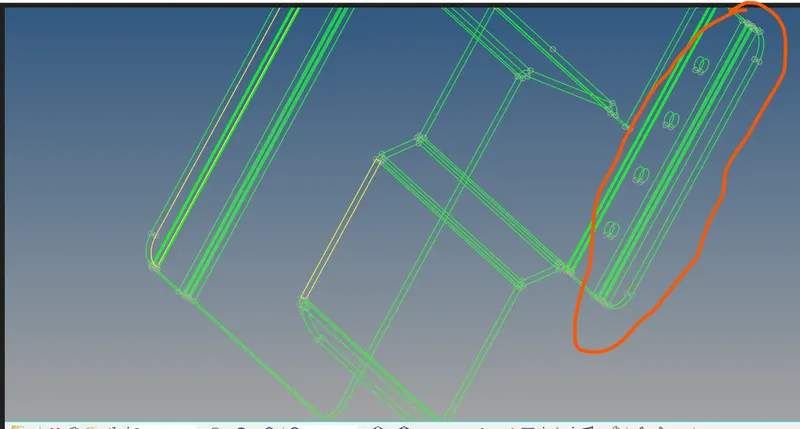
Now to view the free edges and any defected surface click on tool bar >select wire frame mode in this way we can see free edges lines and shared lines

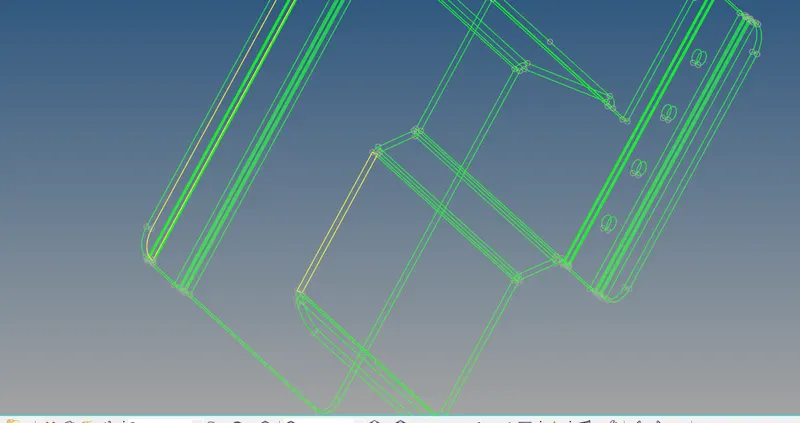
in the above image there are many free edges and some surfaces was missing and we fix to all of those errors by using some special toos in the quick edit pannel (toggle lines ,filler surface ,replace and retain )
before toggle operation
click on F11>select toggle lines from the pannel>select the lines that you want to toggle

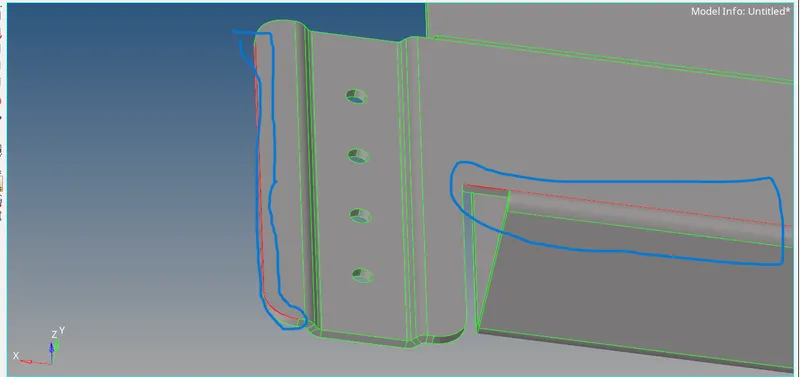
After toggle operation
we have succesfully removed the free edges by using toggle operation
once geometry cleanup is done the next step is to extract mid surface of the above component
click on 2d from the pannel >click on midsurface >select auto extract
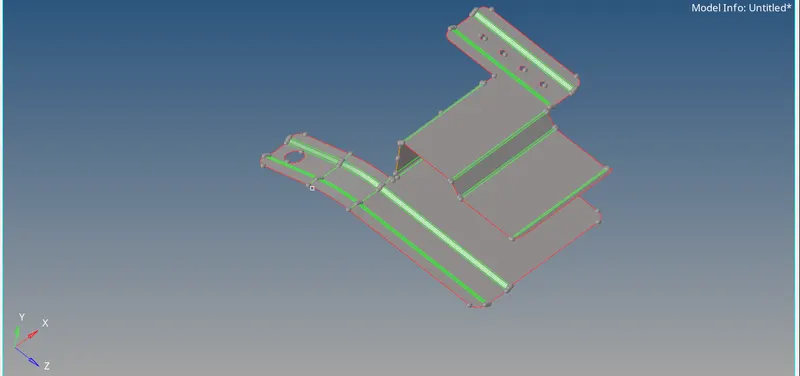
the mid surface is extracted properly from the component
the next step is to mesh the component followed by given quality creteria
Create 2D mesh with target length 5mm, min 3.5mm max 7mm.
click on f12(for auto mesh)>select element size 5mm>mesh type as mixed >click on mesh
once the mesh is generated the next step is to check the quality creteria
we have different element cleanup tools and we have to fix them accordingly
for quality check >click on on 2d>select quality index
the next step is to assign the thickness to the mesh model to convert it from 2d shell to 3d shell
click on the left open tab are select create>select property >set the thickness (0.91)>set card image as PSHELL
TO assign the property to the component click on the component >select assign , a window will open select property
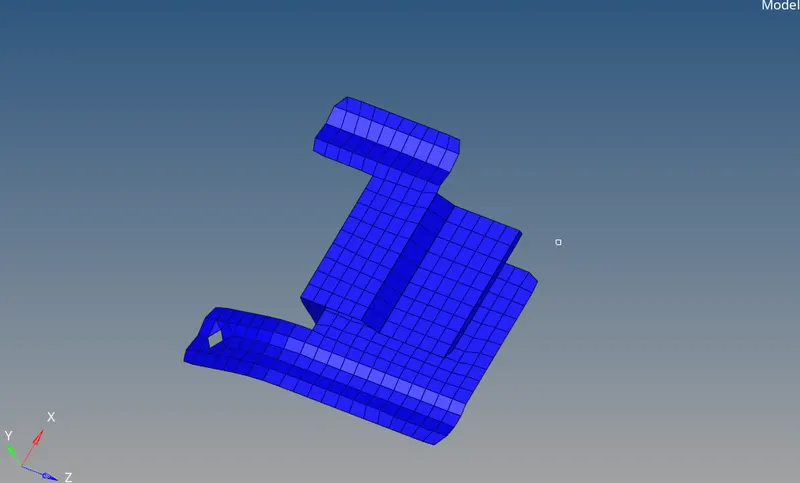
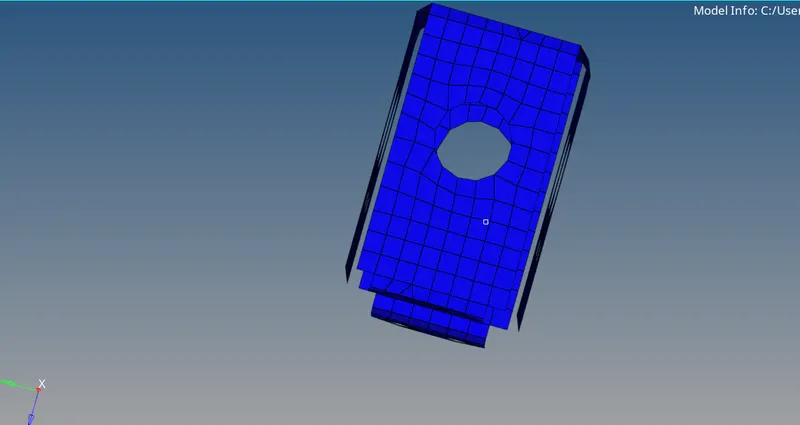
2D detailed representation
in order to see the elements in 3d shell click on 2d tradtional element representation>select 2d detailed representation