Assignment 1-2D Meshing Challenge
OBJECTIVE:-
To Clean the geometry. Extract mid surface. Clean mid surface geometry. Ignore holes less than dia 5mm.
Create a 2D mesh with target length 5mm, min 3.5mm max 7mm. And assign proper thickness, by creating a generic
property for given parts by using Hyper works 2021.
- Carry out geometry cleanup operation on the given models.
- Extract mid surface.
- Clean mid-surface geometry.
- Ignore holes less than dia 5mm.
- Create a 2D mesh with target length 5mm, min 3.5mm max 7mm.
- Assign proper thickness, by creating a generic property.
- Save in .hm format.
PROCEDURE:
Step 1:
IMPORT:
Given model is imported to Hyperworks using import model option.The given model is viewed in topo mode to view the surface edges.
Geometry Cleanup of Part 1:
Since the topo mode view shows the surface irregularities in the imported model, it should be cleared before the mid surface of the model is obtained.
The geometric cleanup of the imported model is done using the following tools:
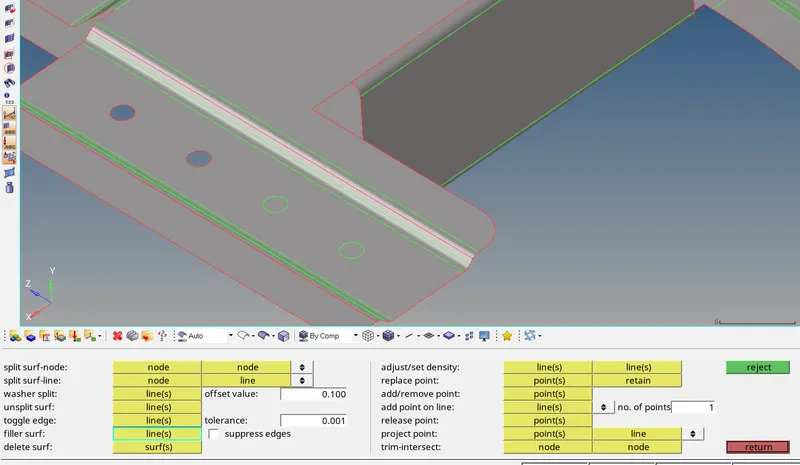
For missing surfaces, the filler surf option under the quick edit tab is used
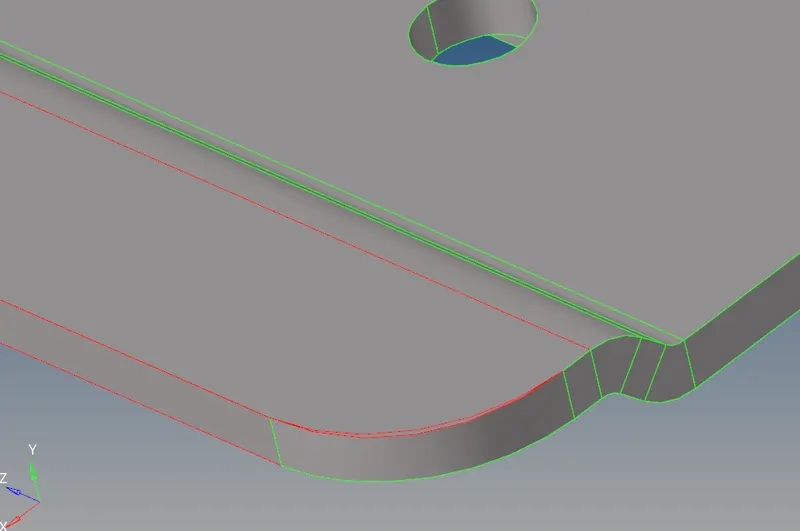
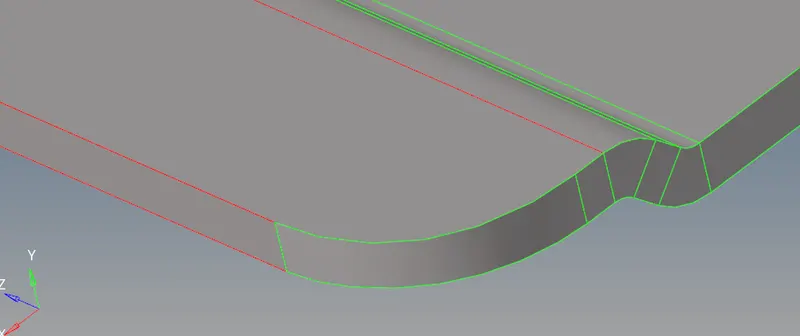

For Disconnected edges, the toggle edge option under the quick edit tab is used.
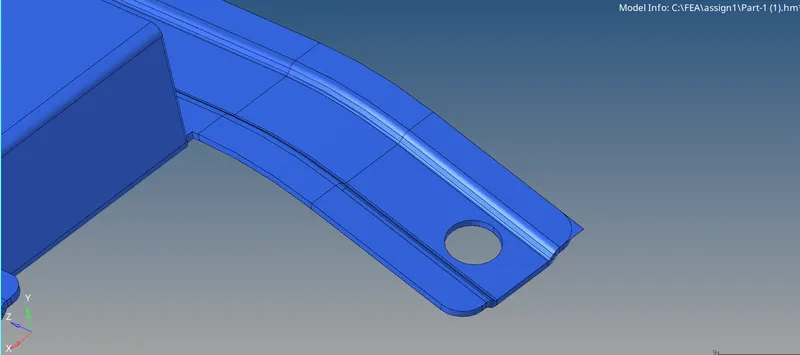
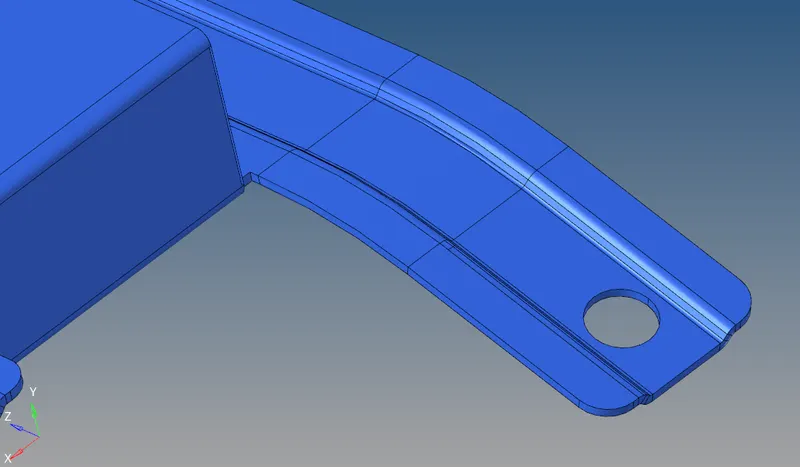
Extraction of Mid-surface:
- The next step is to extract the mid-surface. The mid-surface is available in the geometry panel
- After opening the mid-surface tool, the surfaces should be selected and the option used to extract the mid surface is offset+planes+sweeps. And the mid-surface panel
- The extracted mid-surface.
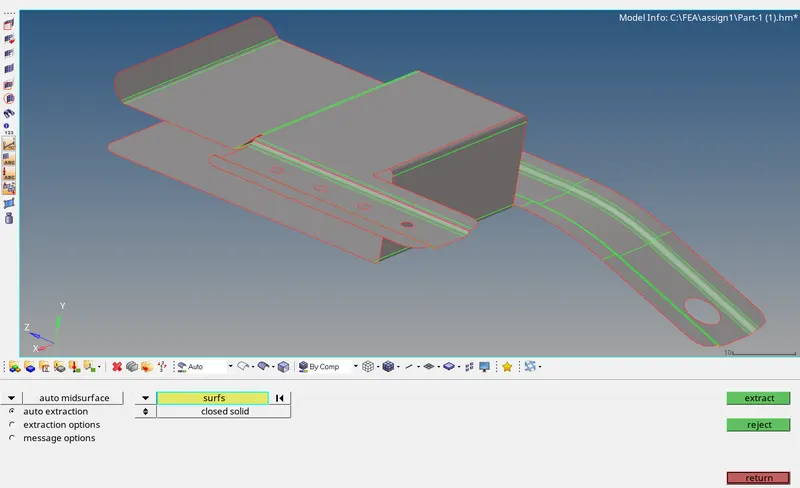
- Then, some holes are noticed with a minute diameter. The radius can be founded by the Distance option( Keyboard Short-cut is F4). In that, the distance
with three nodes should be selected. And by placing the nodes on that free edge, will show the radius of that hole. With the help of this radius, the
diameter can be known.
Note: The holes with a diameter less than 5mm can be ignored
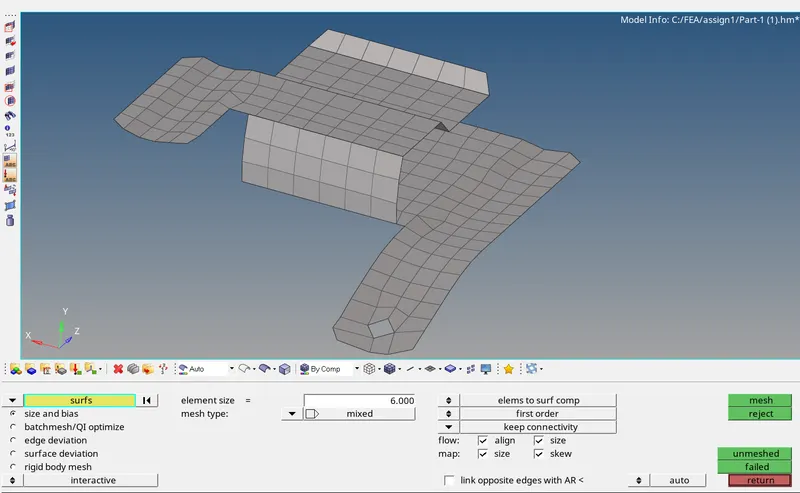
Generating Mesh:
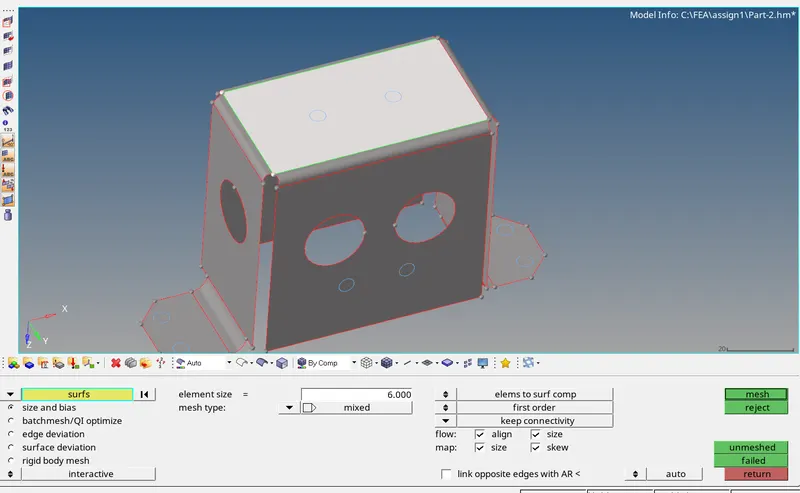
After geometry clean up, the next step is to generate the mesh. Before generating the mesh, there are some prerequisites. They are filling up the criteria
editor
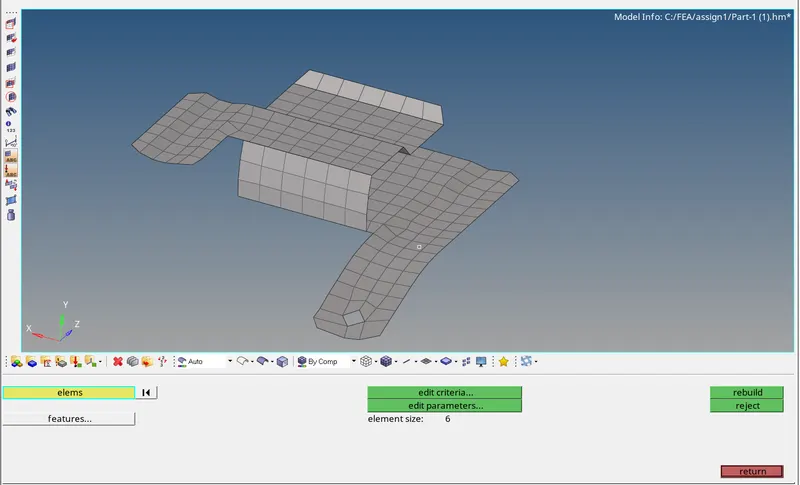
Result:
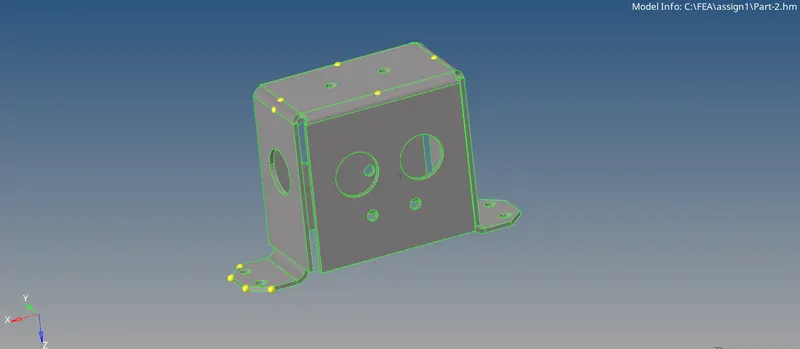
PART 2:
Import the model.
Geometry Cleanup of Part 1:
Since the topo mode view shows the surface irregularities in the imported model, it should be cleared before the mid surface of the model is obtained.
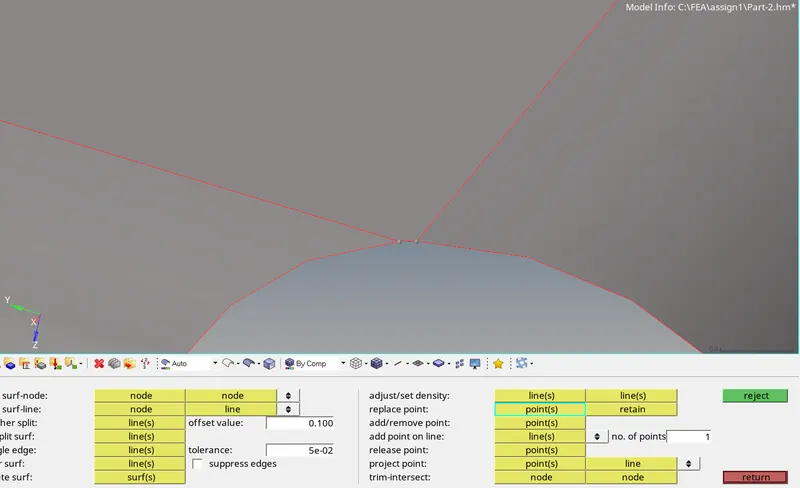
The geometric cleanup of the imported model is done using the following tools:
For missing surfaces, the filler surf option under the quick edit tab is used
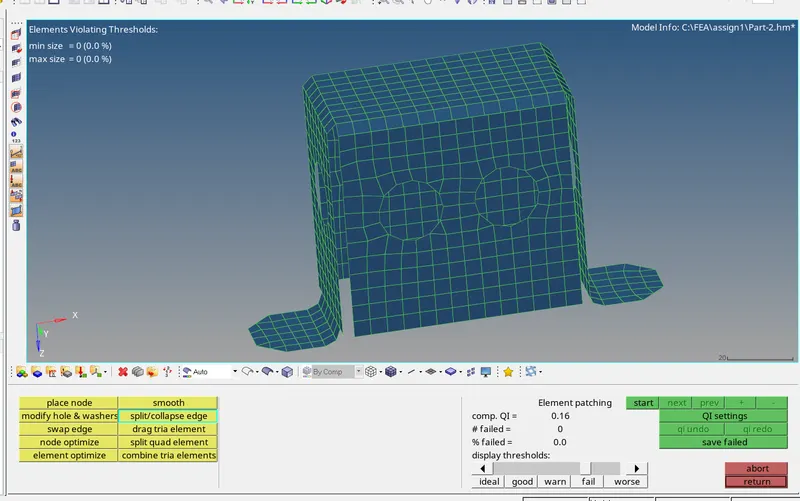
Result:
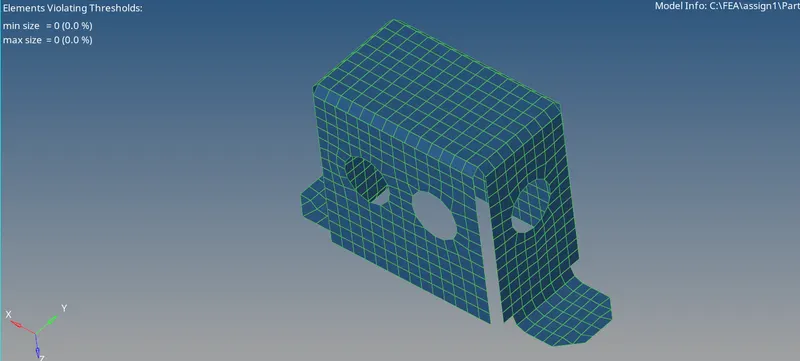
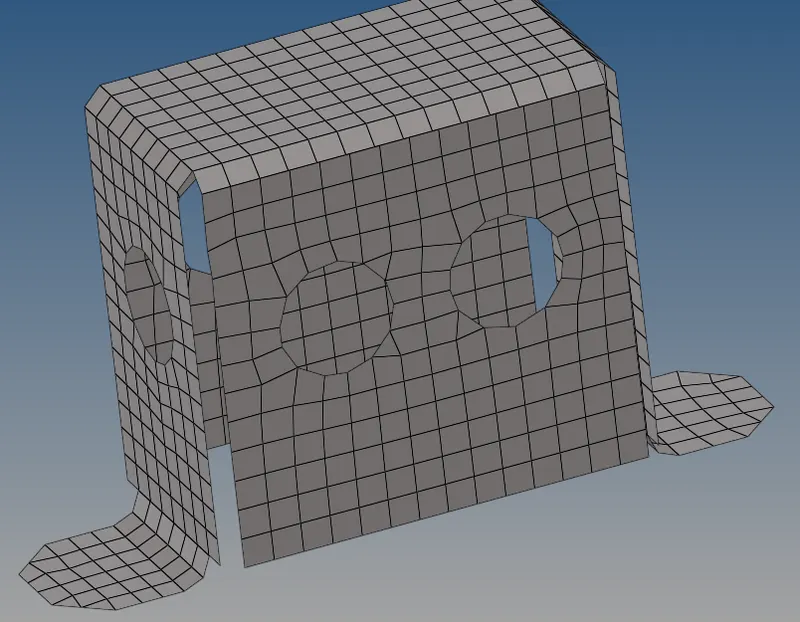
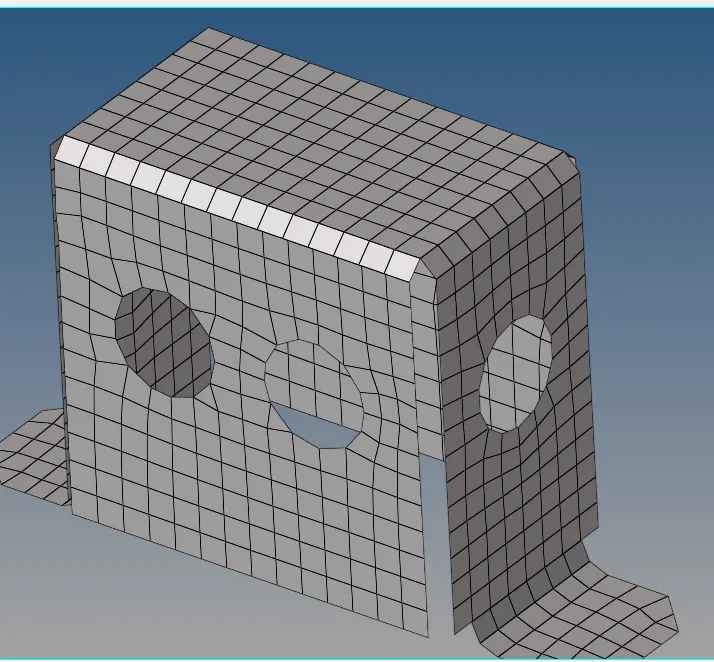
we can see all the elements are in the range of given element size. And the mesh flow is also good.
Part 3:
Import the model.
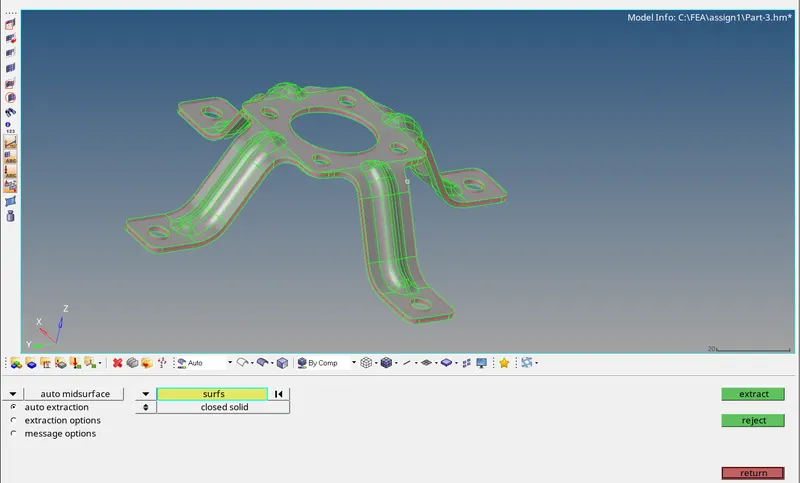
Result:
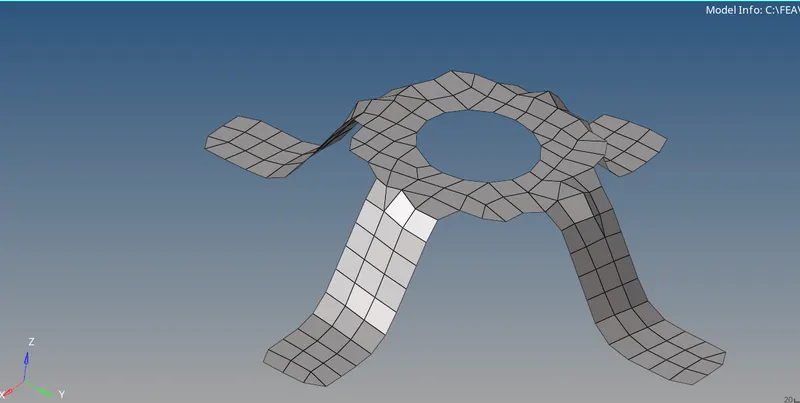
CONCLUSION:-
- I understood all the meshing rules, how to use the tools on geometry and assign the thickness.Extracted the mid surface and performed the geometry clean-up on the given components.
Generated a 2D mesh on the given components by following the element quality criteria. - Finally, assign the thickness for the given components.
Learning outcomes: - By performing this task, the following aspects can be known:
- Extracting the mid-surfaces
- Performing geometry clean up
- 2D meshing
- Maintaining element quality
- Assigning thickness