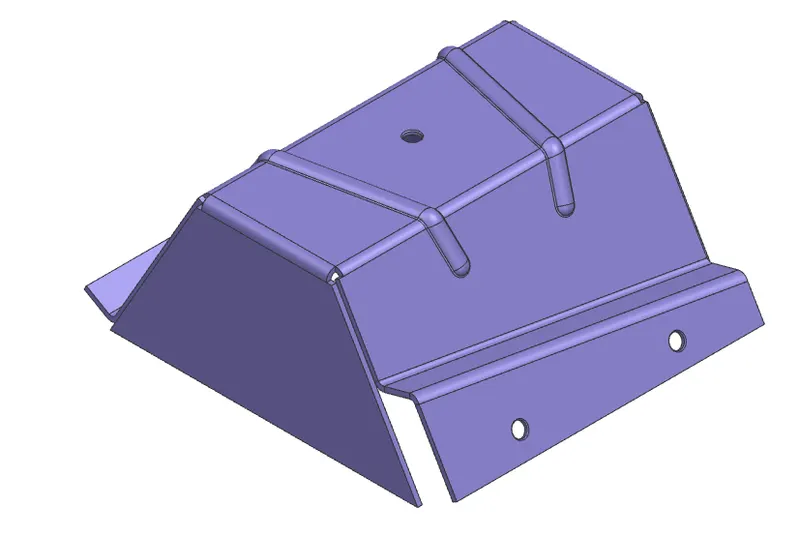
Advanced Sheet Metal Design Using NX Cad Challenge_5_Odd Shaped Enclosure
NX_Odd_Enclosure
Aim:
To create Sheet Metal Component with Sheet Metal modelling tools applied throughout the modelling using NX.
Introduction:
In this we are going to create sheet metal component with odd enclosure step by step using seimens NX sheetmetal applicatiion.
Design methodology:
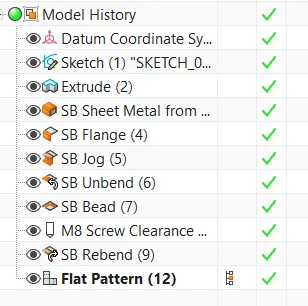
Procedure:
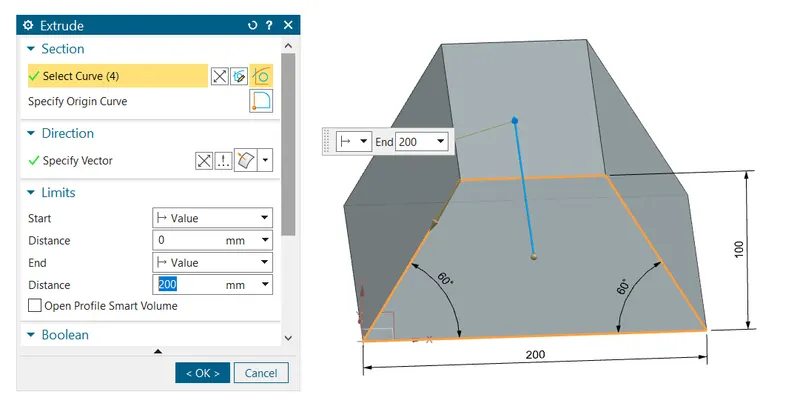
Step 1: Extrude
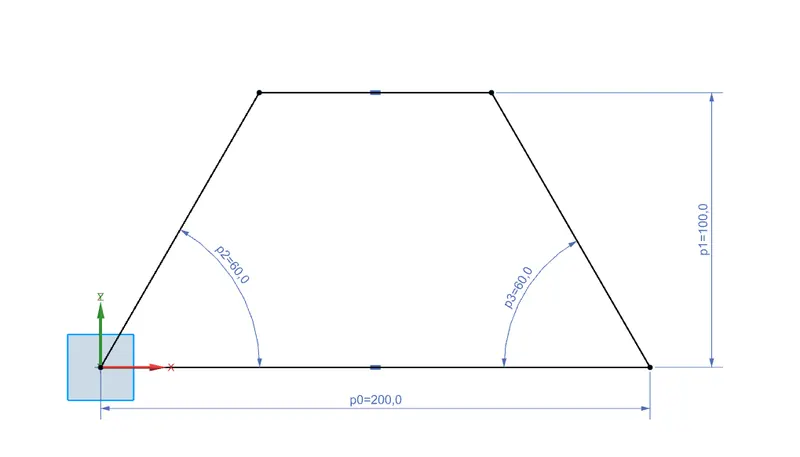
- Start Nx and create new file then the first step is to draw a sketch as shown and exit sketch.
- Then extrude the sketch to create a die for the sheetmetal for length of 200mm.
Step 2: Sheet metal from solid
- Click the sheet metal from solid button
 then select the solid which is extruded.
 - wrap the solid with the sheet as shown.
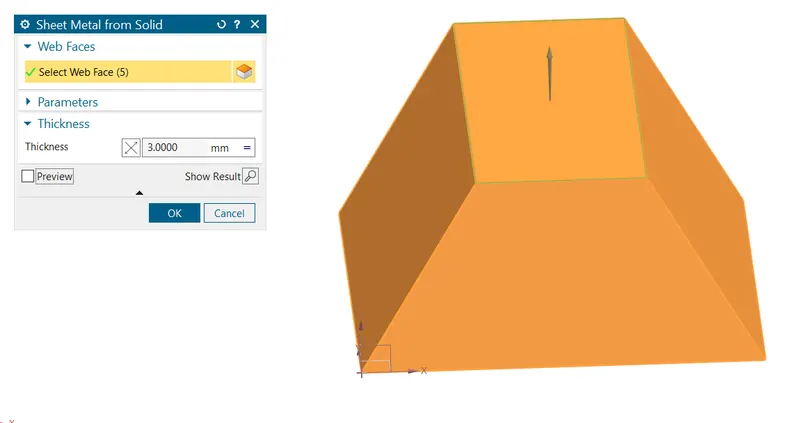
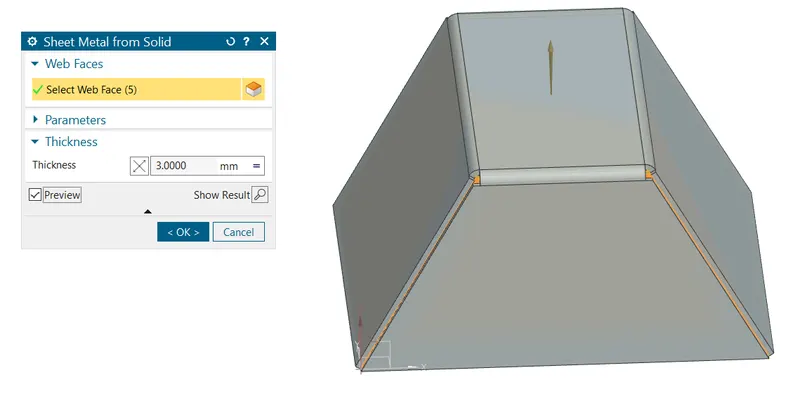
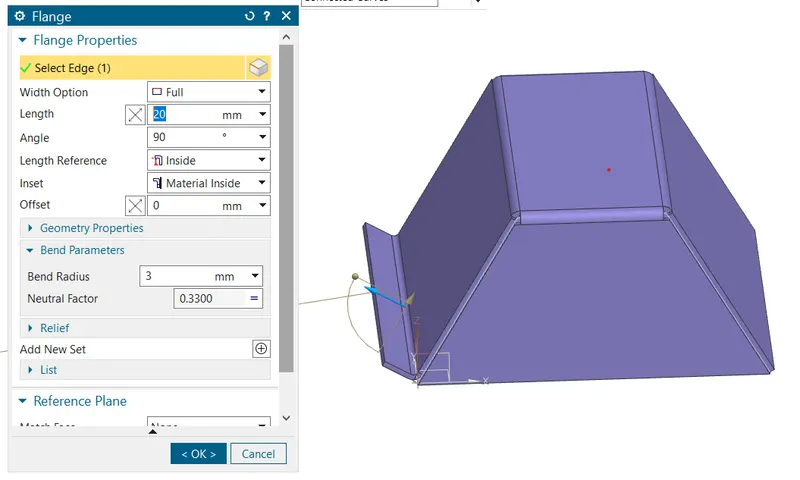
Step 3: Flange
- Click the flange button
 use the length as 20mm, angle as 90 degree and select the outside edge as shown .
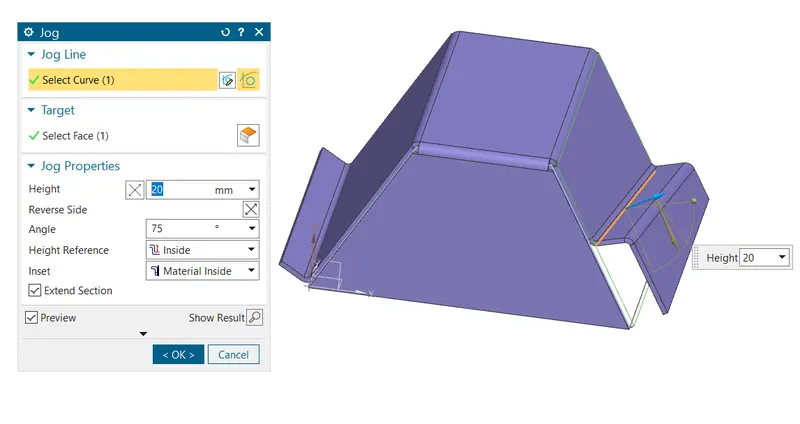
Step 4: Jogs
- Select the jog button and draw a sketch as shown and exit sketch.
- Then select the curve for giving jog to sheet as shown.
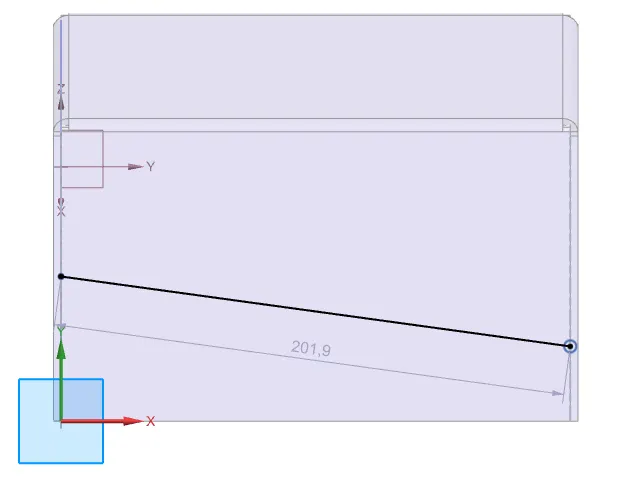
Step 5: Unbend
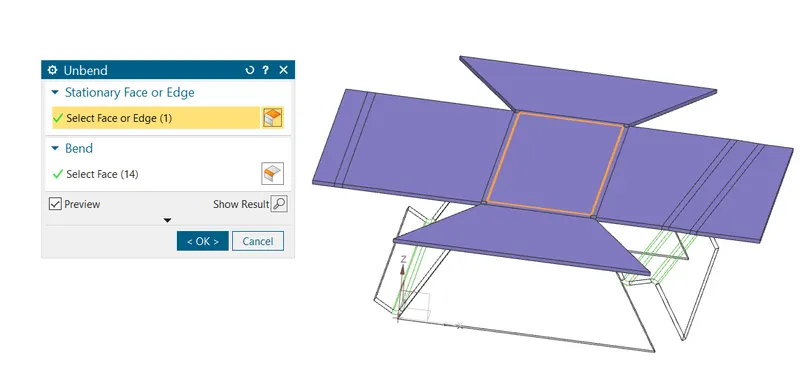
- Select the unbend button
 then give the stationary face as middle one and select the rest as bend.
Step 6: Bead
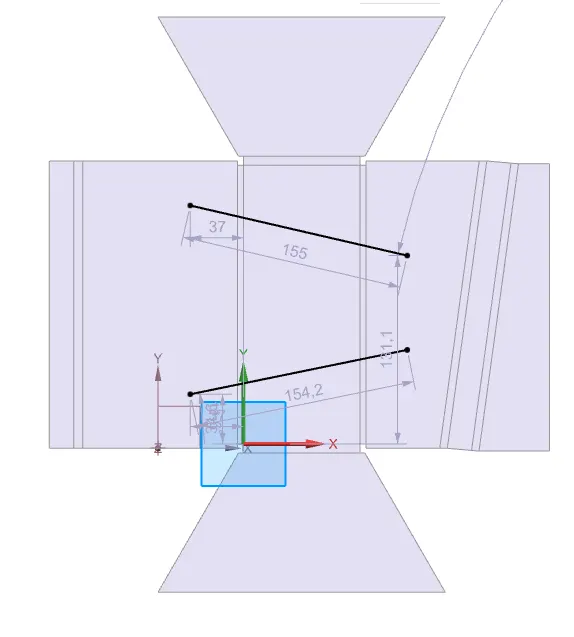
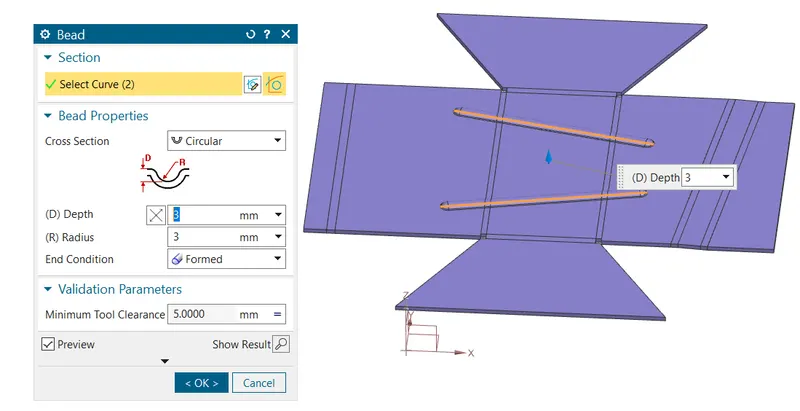
- Click on the bead button from the more option in punch then sketch line and give the value as shown.
Step 7: Hole
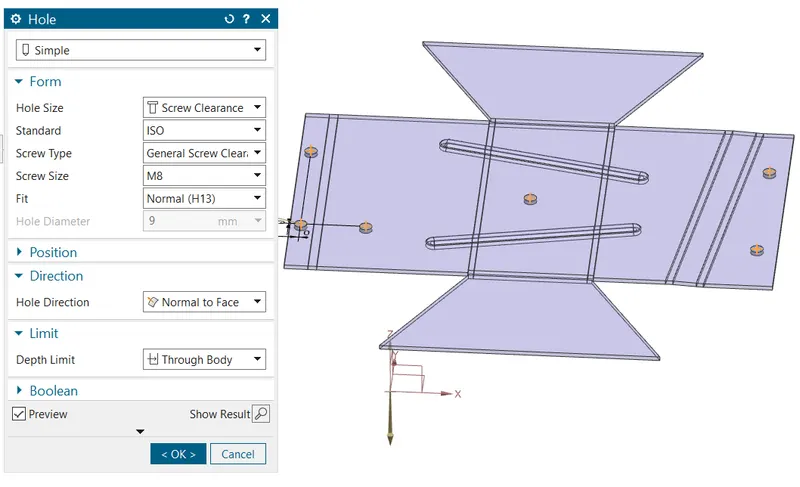
- After unbending the sheet add features such as holes as shown get the feature from command finder by typing hole.
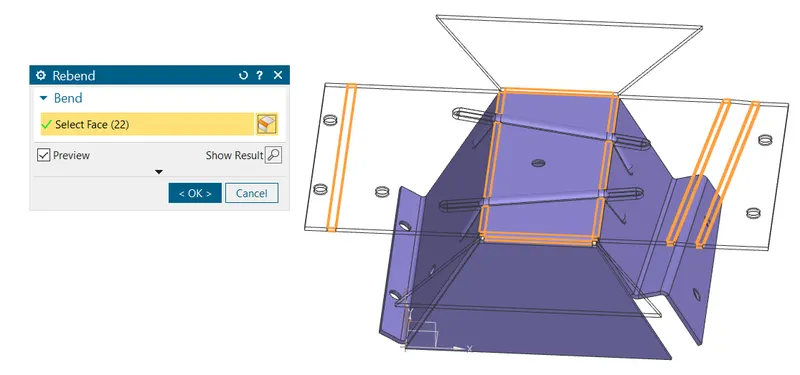
Step 8: Rebend
- Rebend the faces by selecting them in reverse order in which they were bend as shown.
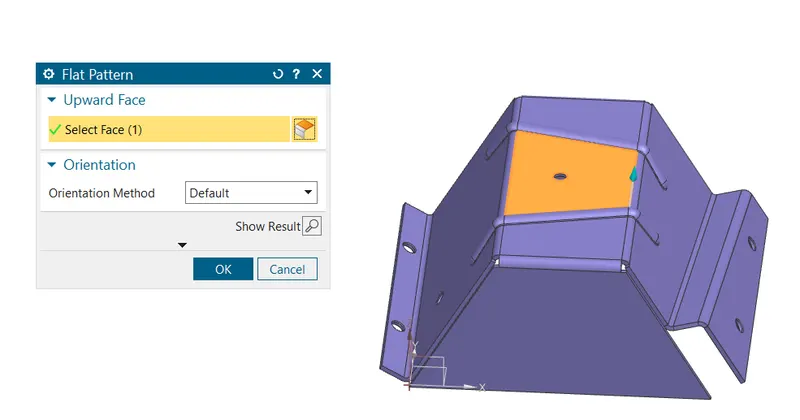
Step 9: Flat patttern
- Select the flat pattern button
 and select the central face.
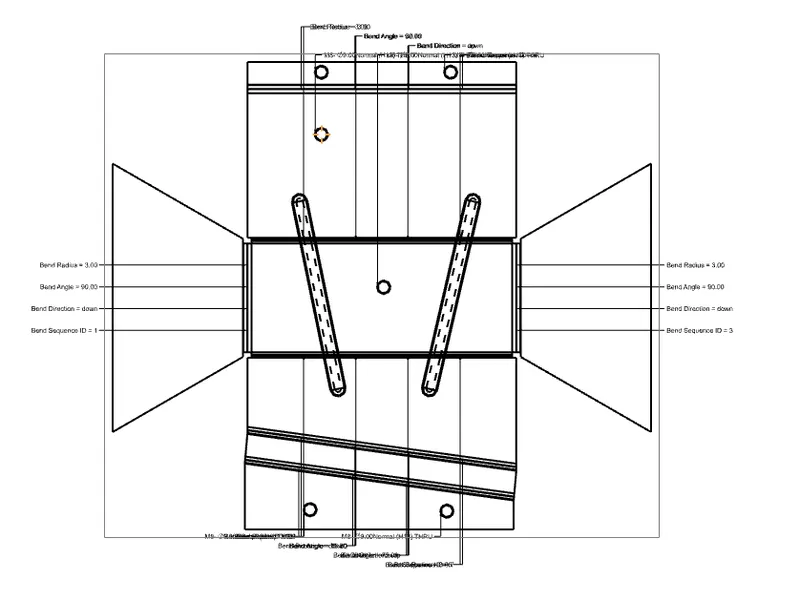
Result: Drafting
- Go for drafting ctrl + shift + D as shortcut a window will pop-up then give paper size and select the flat pattern as view in base view .
- Then delete the unwanted text generated along with it you can also give further dimensions and print them if need.
Model view:
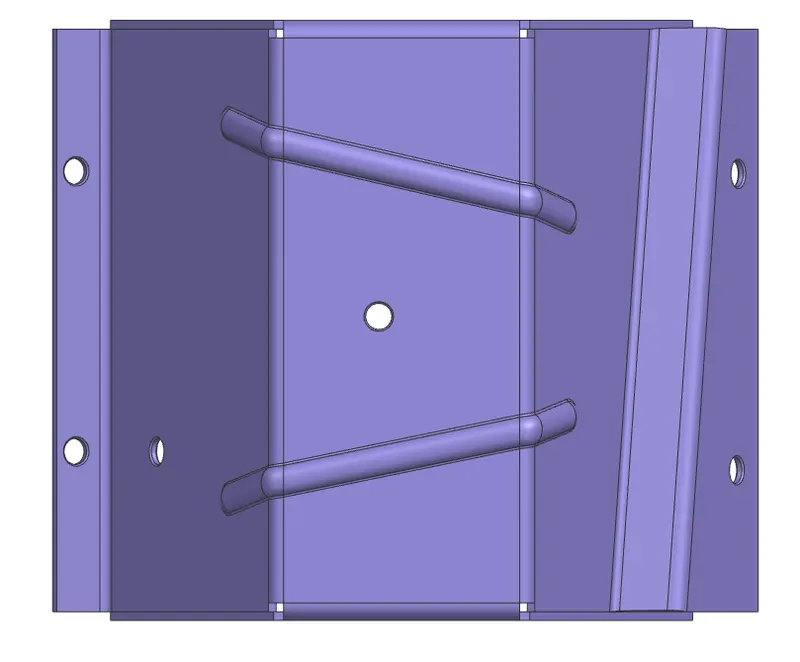
Top view
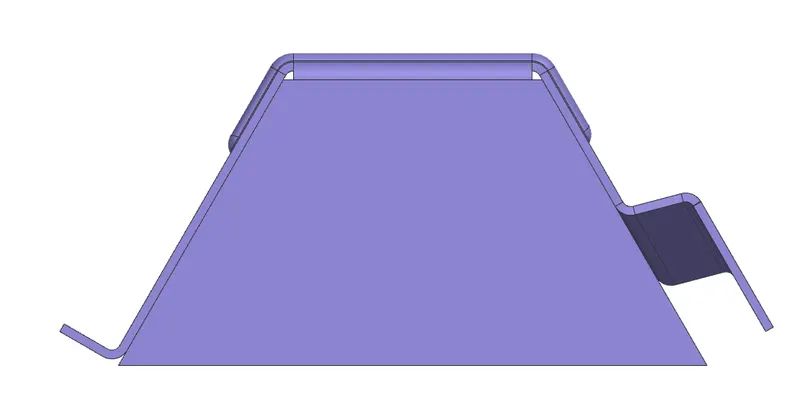
Front view:
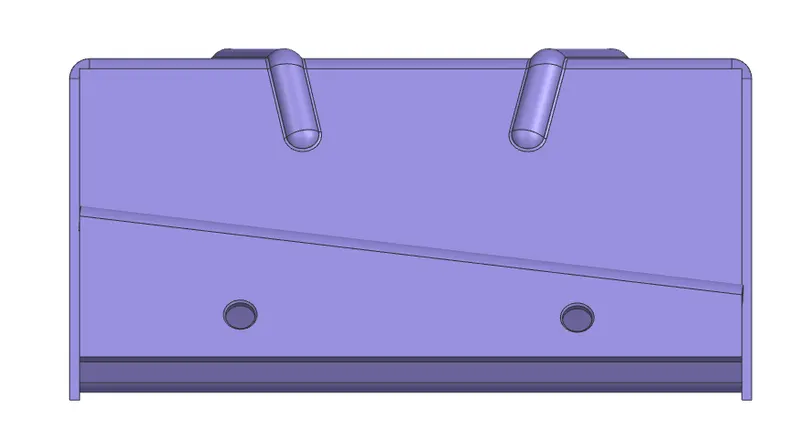
Right view
Isometric view