DESIGNING OF ODD SHAPED ENCLOSURE - NX SHEET METAAL APPLICATION
Designing of Odd Shaped Enclosure - NX Sheet Metal Application
OBJECTIVE:
In this project we are going to design Odd shaped enclosure in NX.
INTRODUCTION :
Sheet metal refers to metal that has a high surface area to volume ratio. Sheet metal work stock, used for sheet metal processes, is usually formed by rolling and comes in coils.
DESIGN METHODOLOGY/APPROACH:
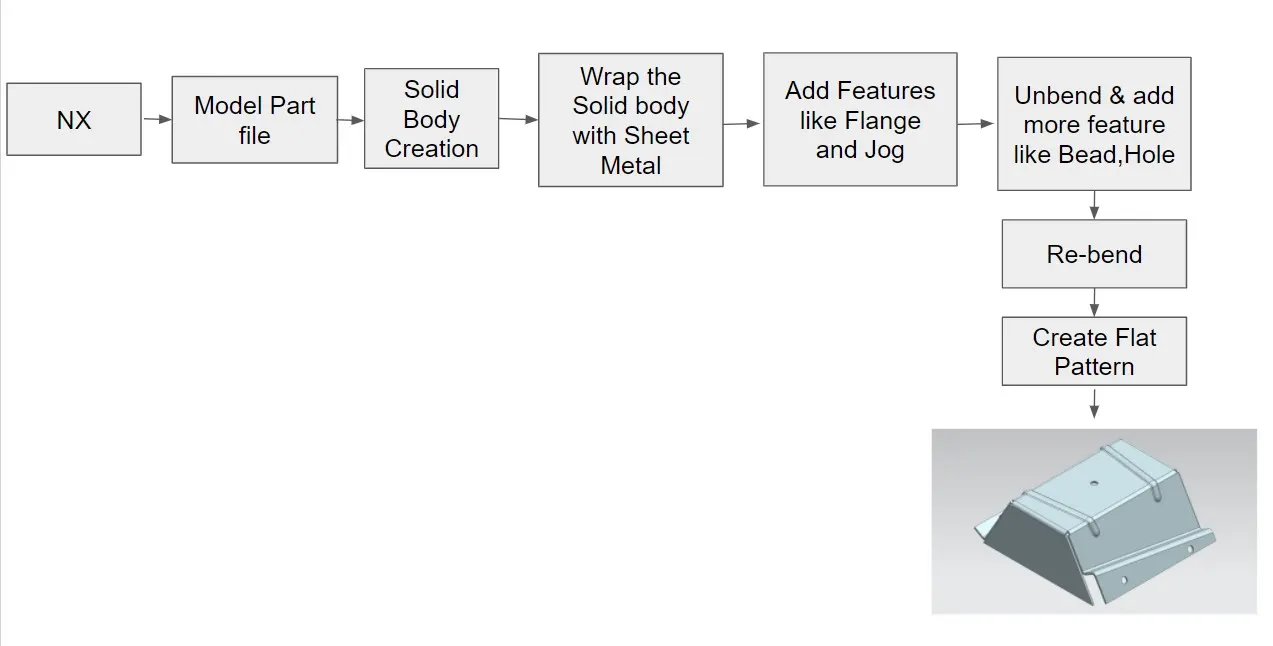
DESCRIPTION:
Application : Modeling, Sheet metal, Drafting.
A. Modeling- Starts the Modeling application, which provides tools to design product geometry.
Feature Tools : Extrude, Hole.
Extrude - Creates a feature by extruding a section along a vector.
Hole - Adds a hole to one or more solid bodies in a part or assembly with options for counterbored, countersunk and threaded.
B. Sheet Metal- Starts the Sheet Metal application, which provides tools to design straight-brake and more complex sheet metal parts.
Feature Tools : Sheet metal from Solid, Flange, Jog, Unbend, Hole, Bead, Re-bend, Flat Pattern.
Sheet Metal from Solid - Builds a sheet metal model that takes its shape from collection of planar faces.
Flange - Adds a flat flange at an angle to a planar face and adds a bend between the two.
Unbend - Flattens a bend and the material adjacent to the bend.
Hole - Adds a hole to one or more solid bodies in a part or assembly with options for counterbored, countersunk and threaded.
Jog - Modifies the model by liifting material on one side of a sketch line, adding a flange between the two bodies.
Bead - Lifts a material along the contour of a sketch that simulates a stamping tool.
Re-bend - Restores an unbend feature to its previous bent state, along with any features added after the unbend feature.
Flat pattern - Creates a flat pattern from the formed sheet metal part.
C. Drafting - Starts the Drafting application, which provides tools to create and maintain drawings of the design model
Feature Tools: New Sheet, Base View.
New Sheet - Creates a new drawing sheet.
Base View - Creates a model based view on the drawing sheet.
PROCEDURE:
1. Open a new Part file and save it as Odd shaped Enclosure.prt
2. Create a Solid body:
- XZ Plane - Draw a sketch in the shape of Trapezium using lines. Exit the sketch
- Extrude it by changing values.
3. Wrap the solid body with Sheet Metal:
- Use Convert to Sheet Metal by selecting faces of Solid body and bend edges on Top face to convert it into Sheet metal.
4. Adding Features:
- Flange - Use Flange feature by selecting left edge of converted sheet metal to create flange.
- Jog - Use Jog feature and create a sketch on the right edge of sheet metal by drawing a inclined line to lift it.
5. Unbend:
- Unbend the Sheet metal by selecting stationary face and bend faces to add more features.
6. Adding more Features:
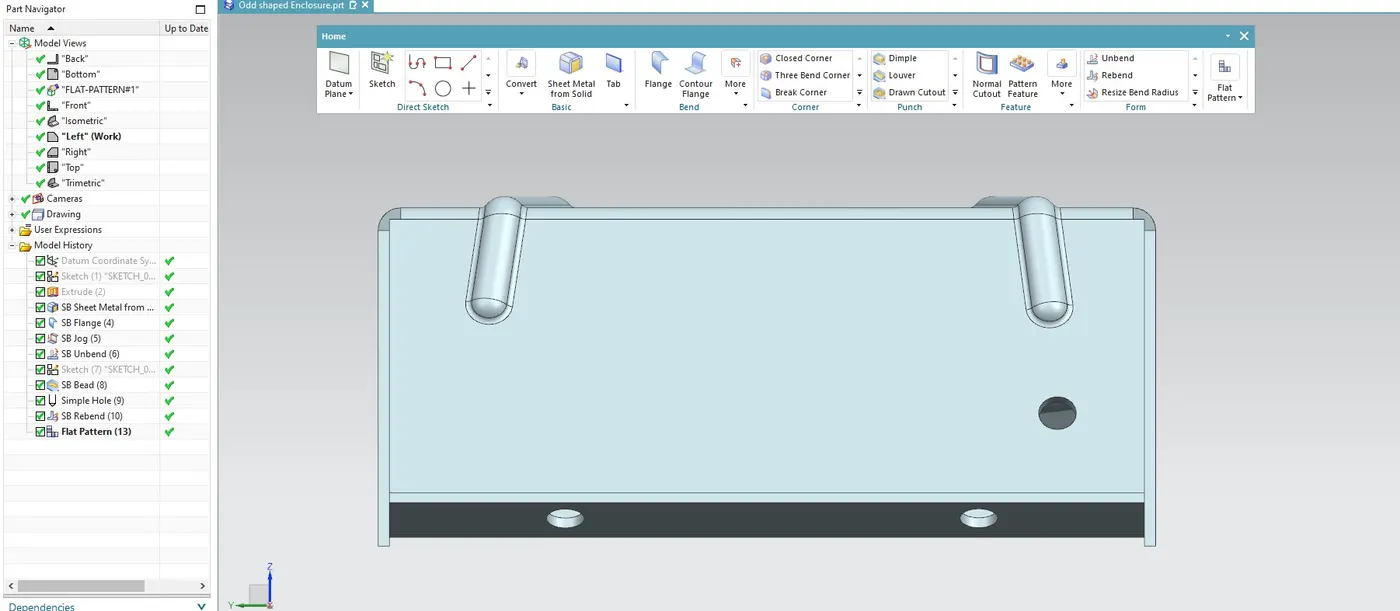
- Bead - Create a bead by drawing two symmetric inclined lines about X- axis.
- Hole - Create Holes on the sheet metal by sketching few points at required places.
7. Re-bend Sheet Metal:
- Re-bend the sheet metal by selecting Bend face which is previously used to unbend.
8. Drafting:
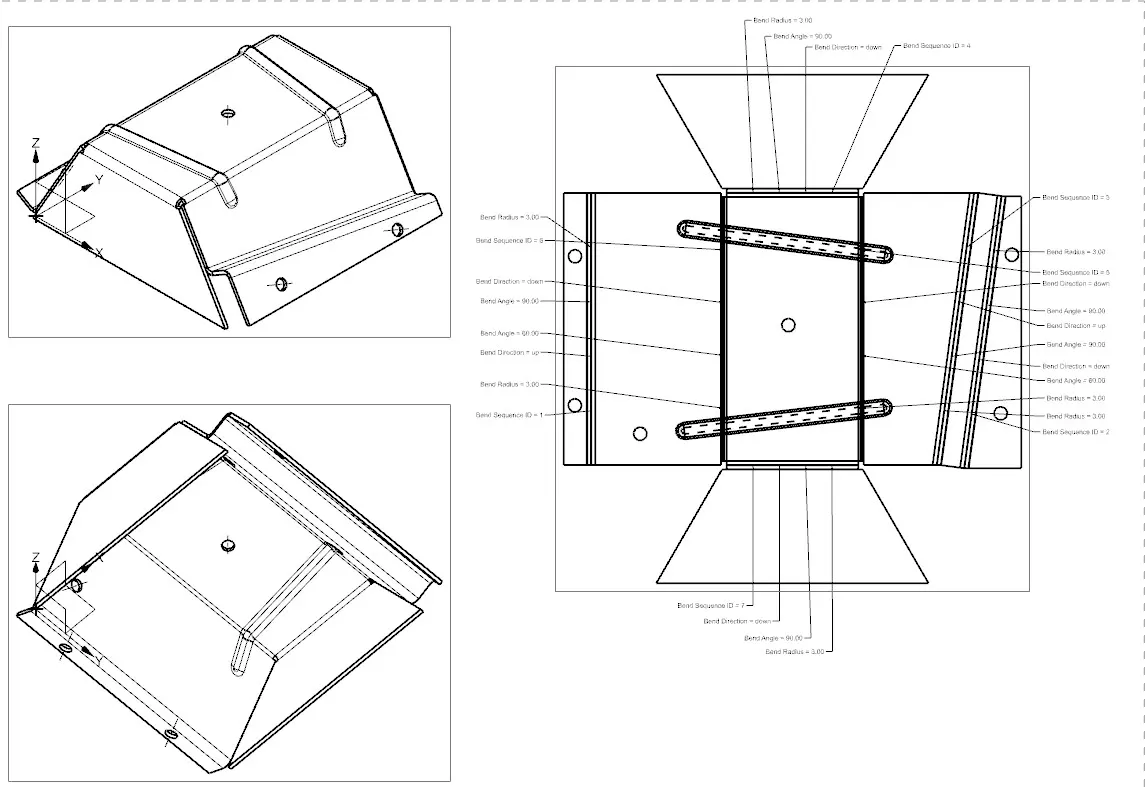
- Use Flat Pattern and select the flat face to create flat pattern.
- Create a new drafting file of A4/A3/A2 Size and add Base view by giving proper scale(Rotate the model if required).
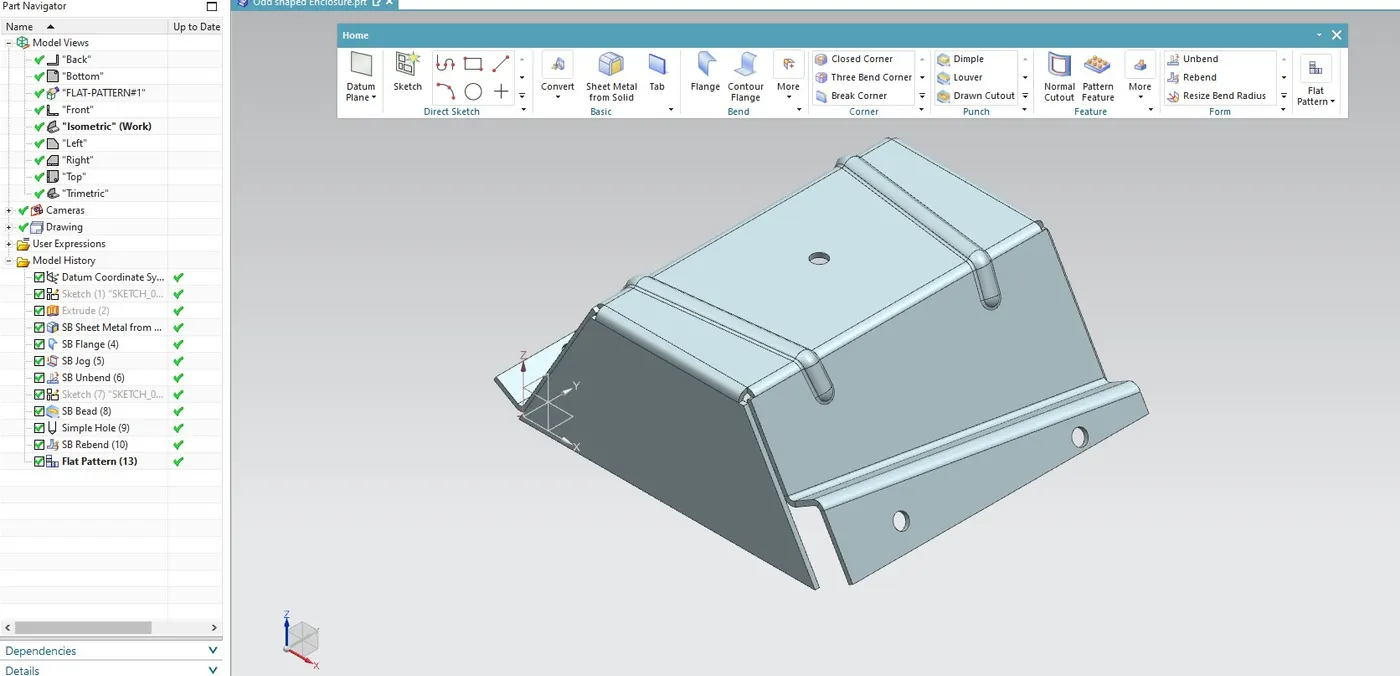
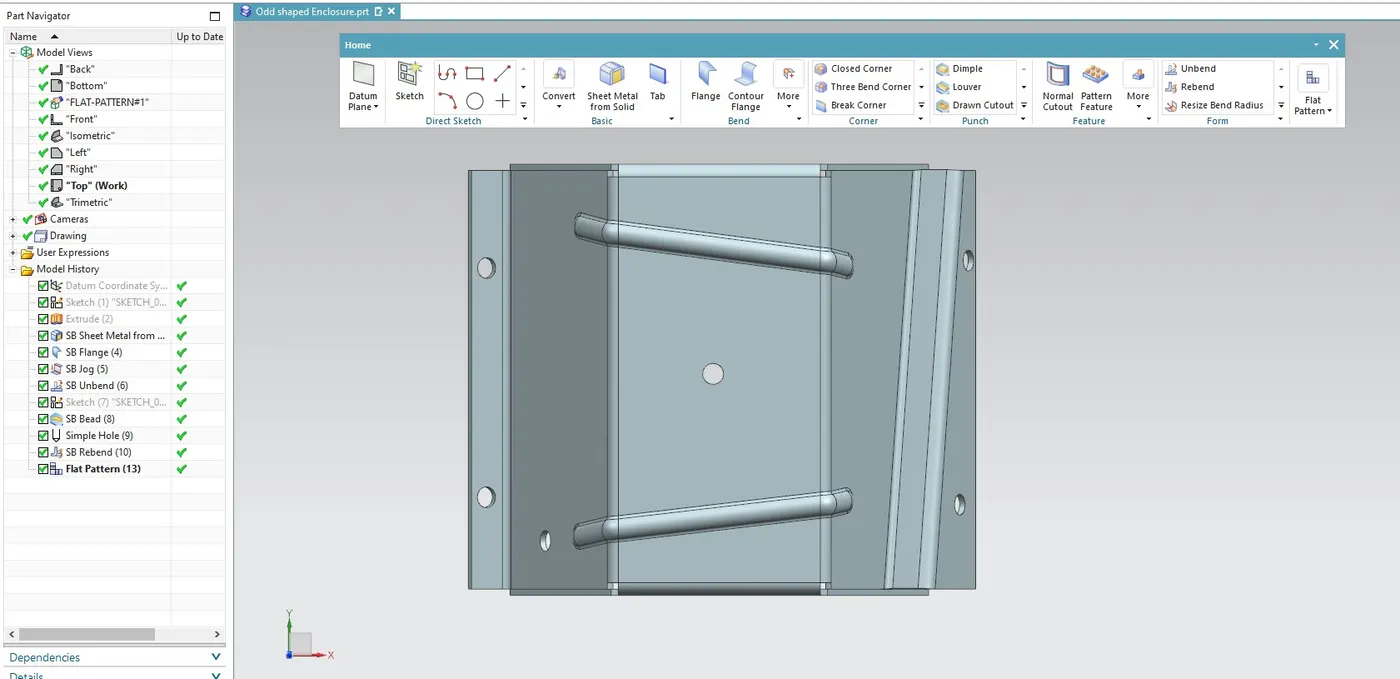
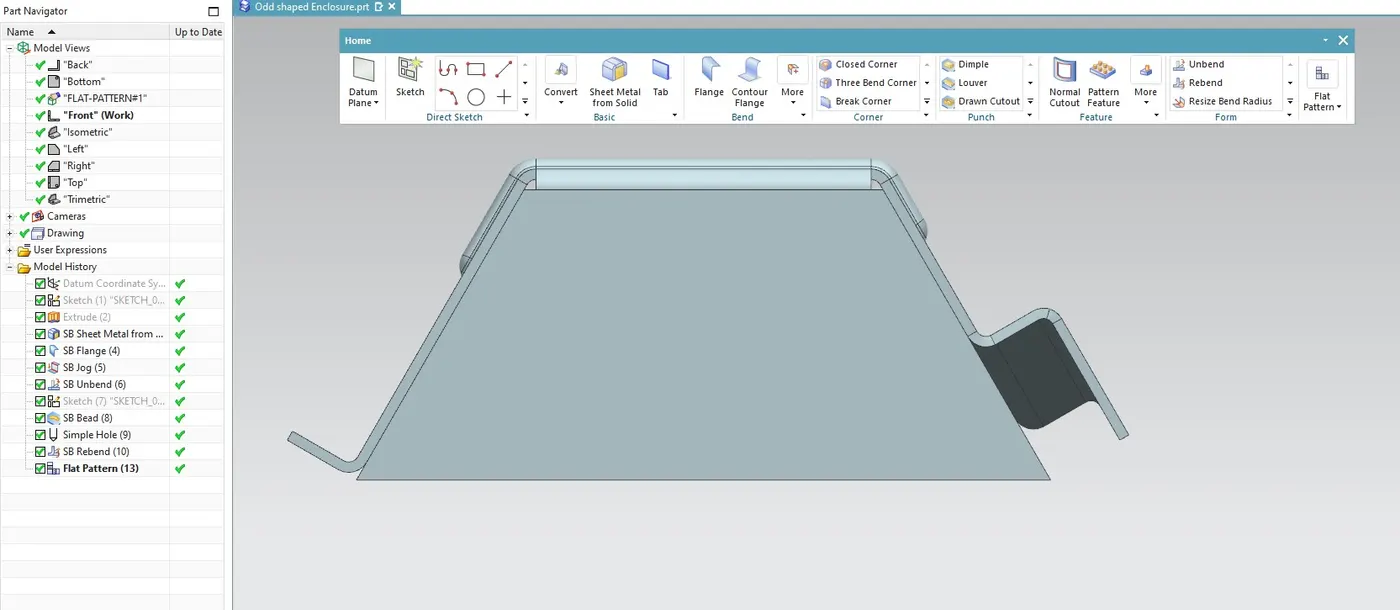
Conclusion:
In this a solid body created in modelling application and converted into sheet metal by wrapping it up. Addiional features likes jogs,flanges,bead, holes. added as per requirement.