Advanced Sheet Metal Design Using NX Cad Challenge_1_Casing Design
Title: Sheet Metal Casing
Objective:
To create a casing model using Advanced Sheet Metal tools in NX-12.
Introduction:
Sheet Metal can be used as a cut and bend for the different shape of part and creation of different sheet metal part using Tab, Flange, etc.,
In this challenges I compute the Sheet metal casing with the help of NX-12 software.
Design Methodology:
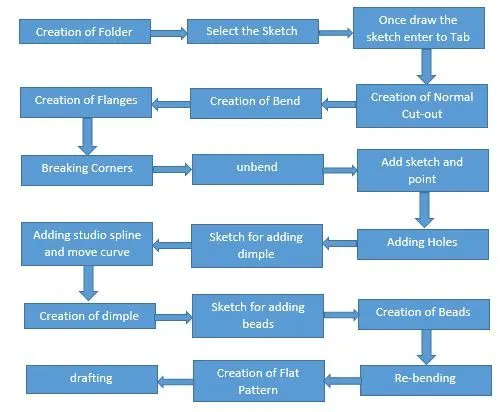
Tools Used:
Tab:
To create a sketch and adding the Tab tool for creating the base of the model. Tab tool is used to add the thickness of the sketched area(Extrude).
Normal Cut-Out:
To remove the metal from the sheet metal to use the Normal Cut-out Before create a sketch for the metal removing area.
Bend:
To create a sketch to bend the metal using bend tool. To sketch the bending section before creation of bend.
Flange:
Create a Flange at the required places. Add the flat flange at the required place of the model.
Breaking corner:
To remove the sharp edges on the model using break corner tool. To remove all the sharp edges.
Unbend:
Using unbend tool to select the stationary face and bending face to unbend the model.
Adding holes:
To create a points using the point tool and then use the adding hole tool then select the point to add the holes based on the required.
Dimple:
Dimple is used to lift an area of the metal inside for the sketched area. To add the depth of the dimple required on the dialog box.
Studio spline: To create a sketch and adding the poles on the studio spline tool to create the spline.
Move curve: To rotate or move the drawn curve form the sketch this tool to be used. To mention the value for the rotation on the dialogue box.
Beads:
To create a duct shape in the model bead tool to be used. Draw the sketch on the required shape of duct, then create the bead to enter the value on the dialogue box.
Re-bending:
Select the bending areas in the reverse order of the bend. To select the stationary face and bending surface using the re-bending tool.
Flat pattern:
Select the full model to the flat pattern. It used for the drafting purpose of the model.
Drafting:
Open the new tab to select the drafting for the drawn model. Then select the sheet size
Base view: From the base view select the view want to dimensioning on the sheet. The select the orientation for the selected view. Then apply the base view. Remove the unwanted dimension for the drawing.
Conclusion:
In this challenge creating the casing sheet metal using NX-12 is successfully completed and attached the images in the views and part model of the casing and image of casing drawing.