Wiring harness routing & packaging Rules Week 3 Challenge
Automotive Wiring Harness using CATIA V5
REPORT
Assignment-11
By Ravi Ahuja
Q1.
Objective:
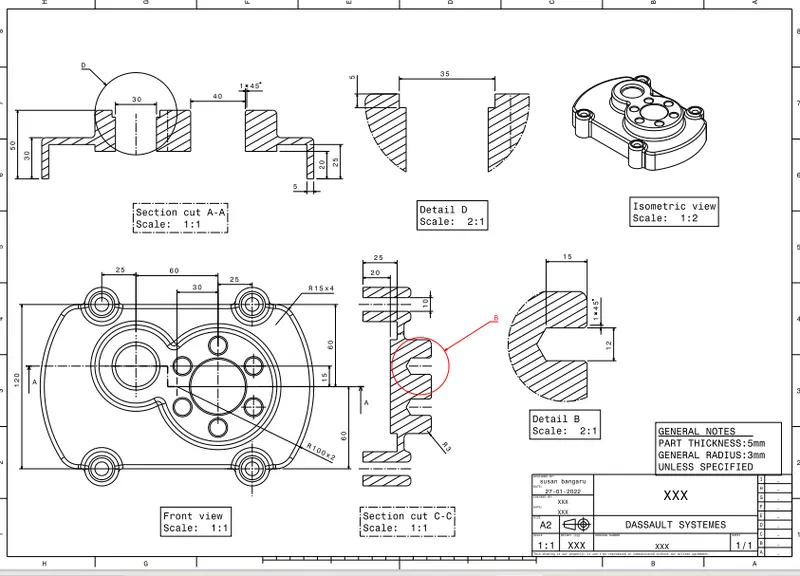
Q1. Download following cad data & define it as Electrical support using Electrical Part design Workbench. Define all the necessary properties.
Q2. Download following Back shell cad data & define it as Electrical back shell using Electrical Part design Workbench. Define all the necessary properties.
Q3. Create Following Corrugated tubes & Add them in Catalogue under “Slit COT” family.
|
Name |
ID (mm) |
OD (mm) |
Thickness (mm) |
|
15mm COT |
12 |
15 |
1.5 |
|
20mm COT |
17 |
20 |
1.5 |
|
35mm COT |
32 |
35 |
1.5 |
|
10mm COT |
7 |
10 |
1.5 |
|
5mm COT |
3 |
5 |
1 |
Solutions:
Q1.
- First of all I downloaded the file from the te.com in igs format and then I opened in catia V5 and saved as .CATPart file.
I started with adding points on the bundle connection point and Connector connection point in part design environment.
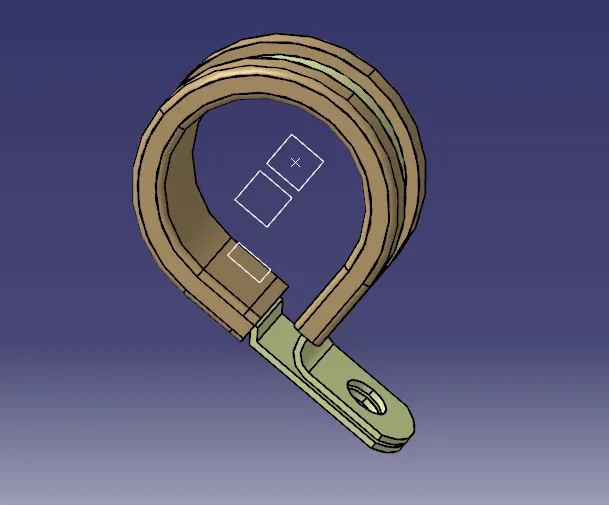
Fig. File saved as CATPart
I started with adding points on the bundle connection point and Connector connection point in part design environment.
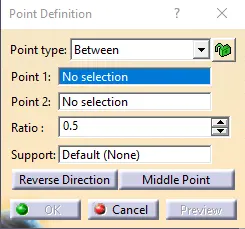
Fig. Point definition
Then I created 3 planes for entry, exit and base of the bundle passing through
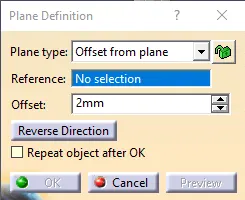
Fig. Making planes
Then selected the define Support and selected the entry, exit and then base plane with sme sequence. This defines the component as support and defines the bundle's position.
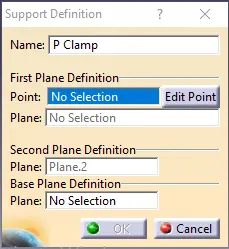
Fig. Defining support
Q2.
Process followed in this question is same till the point definition at the point of entry in backshell.
After that I created an axis system and defining theaxis for coincidence and orientation.
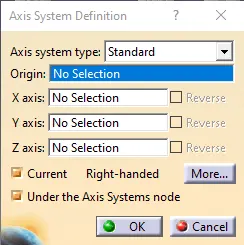
Then I selelcted backshell connection point feature in the toolbar and selected the representation as the point and Y axis as coincidence and X axis as orientation.
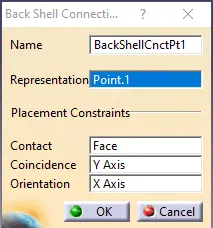
Q3.
I created a new part in electric part design environment.
Then selected a Define protection part feature from toolbar. Then selected the part body in feature tree.
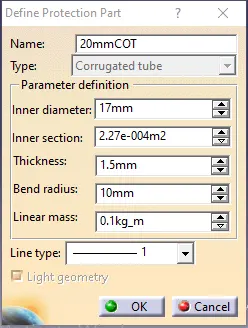
After adding the ID and thickness mentioned in the question clicked on OK. Then a tube is created with a rib feature in feature tree.
Then I created a new catalog document and selected add new family in toolbar and created a family with the name "Slit COT".
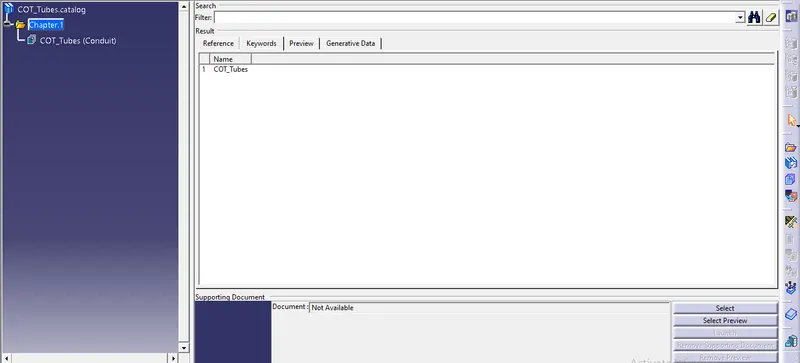
Then I added the COT tubes created are added to the catalog by selecting store device and then selected the catalog file saved and then selected the family created.
This creates a catalog specially for COT tubes named as Slit COT