Wiring harness design in CATIA V5 - 3D modeling Week 7 Challenge
AIM:
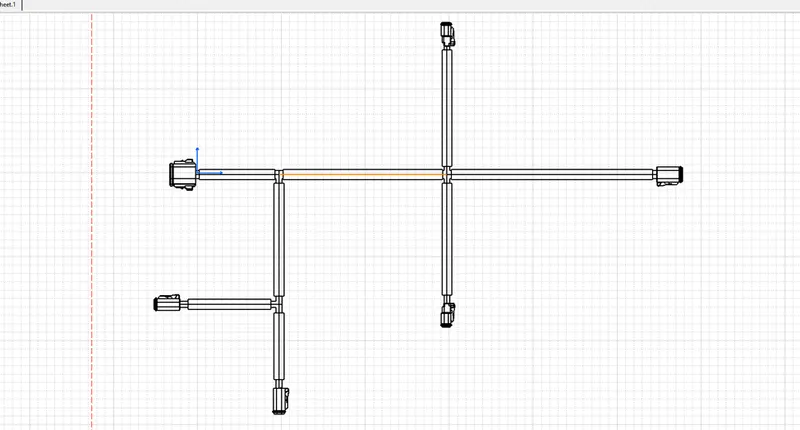
To create the flattened view of the previously created harness assembly (week 4) and then generate its 2D representation in Catia drawing. For the mechanical wiring harness, assembly of geometrical bundle is the main component.
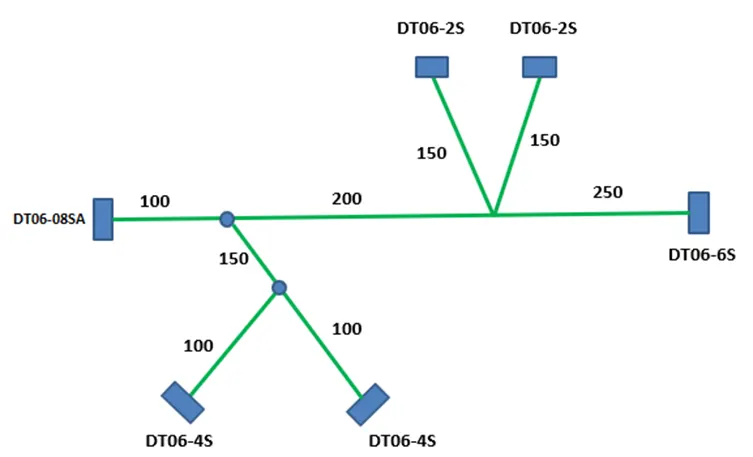
In the present project, the wiring harness for the following mentioned figure
- Create a product file and navigate to the Electrical Harness Flattening for wire harness flattening option and save it in the same location where the wire harness or routing assembly is stored.
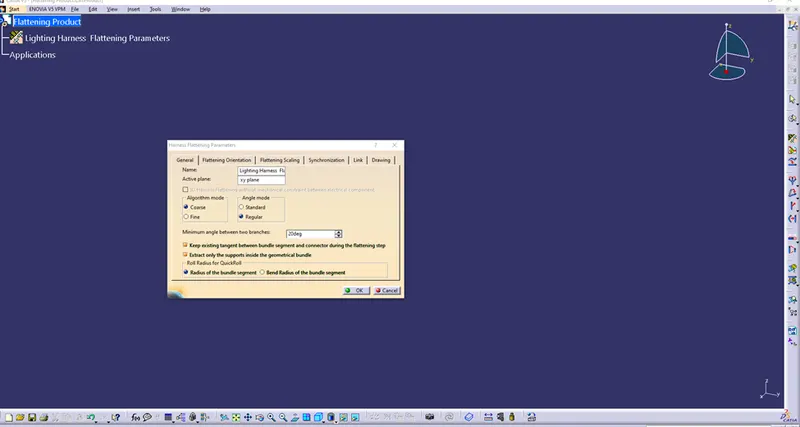
- Define the 'Harness flattening parameters' to flatten the required wire harness assembly.
- The harness flattening parameters in the drawing menu single line is selected for bundle segment and double line is selected for protective coverings to differentiate between the wire bundle and cot tubes in drafting.
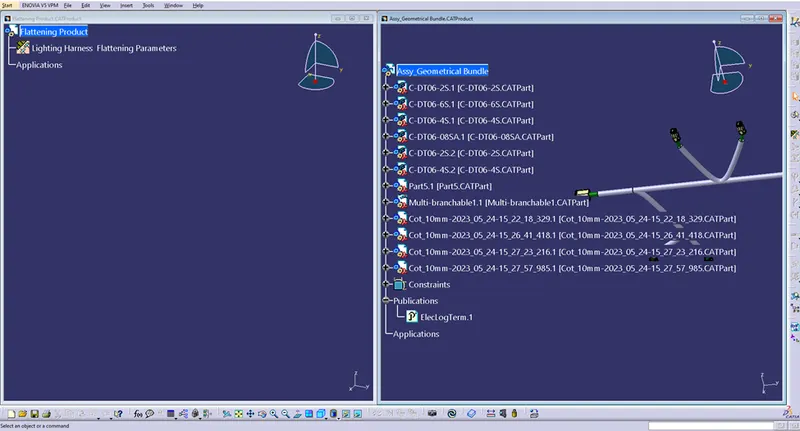
- Select the 'Extract' option from the Electrical Harness flattening workbench and select the Geometric bundle product in the wire harness assembly product file.
- Then wire harness assembly is imported to the Wire flattening product file with 'EHF' extension added to the geometric bundle assembly name.
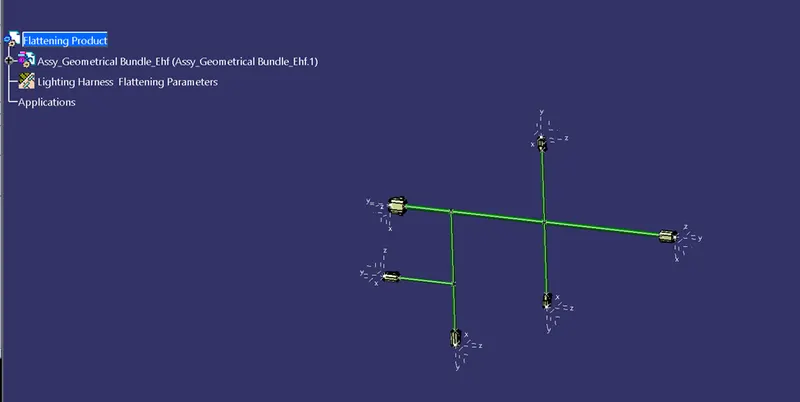
- Select the 'Flatten' option to flatten the wire harness assembly.
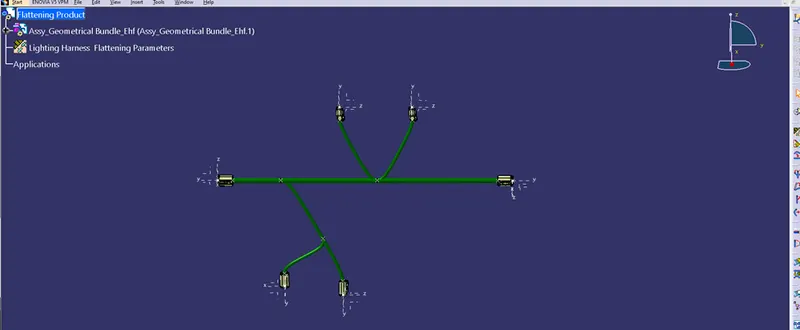
- Then select the active plane, then select any one branch and then select the 'select all branches'.
- If there is no discontinuity in the bundle segment, then all the branches will be selected and by pressing 'ok' the wire harness assembly will be flattened.
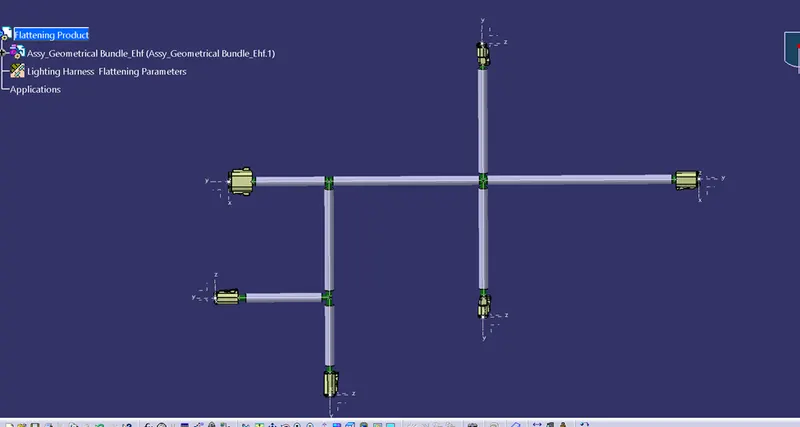
Drafting
- Create a new drawing file and save the file in the same location.
- Insert the title block template and fill up the required details.