Wiring harness design in CATIA V5 - 3D modeling Week 7 Challenge

Automotive Wiring Harness using CATIA V5
REPORT
Assignment
By Ravi Ahuja
Objective: Flatten the harness assembly completed in “ week 4 challenge”. Place the flattened view on drawing sheet. Ensure bundles with protective coverings has different visuals on drawing view.
Methodology:
Starting with the product file of week four assignment consisting of a wire harness assembly.
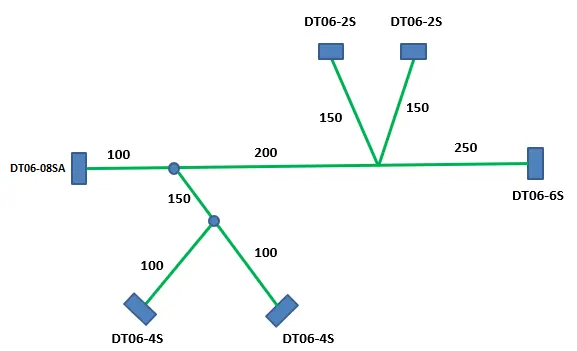
Then I created a new product file and named it as Flattening product.
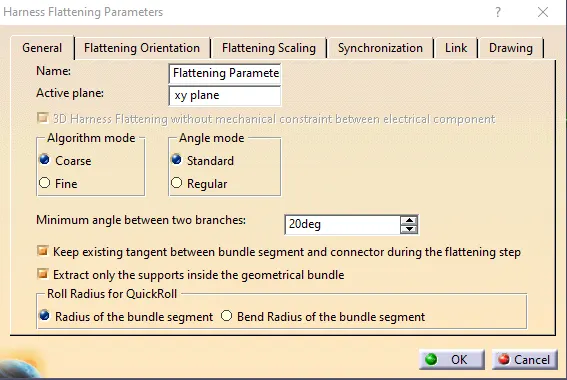
Then I clicked the flattening parameters feature from the toolbar and set the parameters as shown in the images.
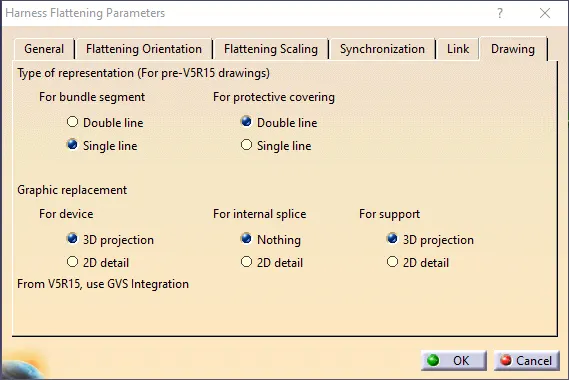
Then clicked on extract on the toolbar from the flattening workench.  This feature helps in importing the harness assembly in the flattening product by clicking on the product file of harness assembly after selelcting the extract feature.
Then select Flatten feature  from the toolbar and this appears
 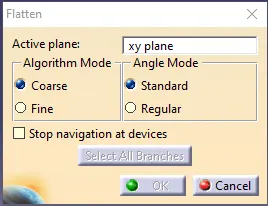 .
.
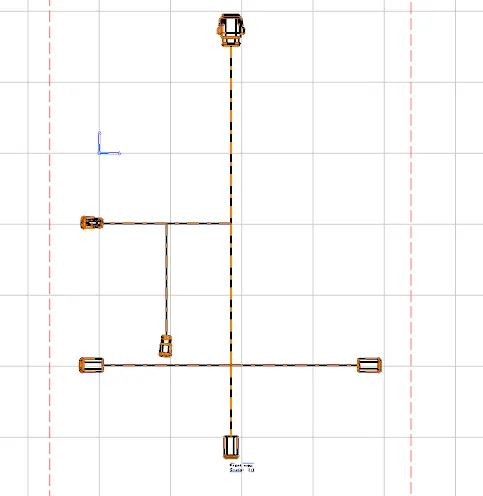
After selecting the plane along which we want it to be flattened and clicking on OK. It results in:
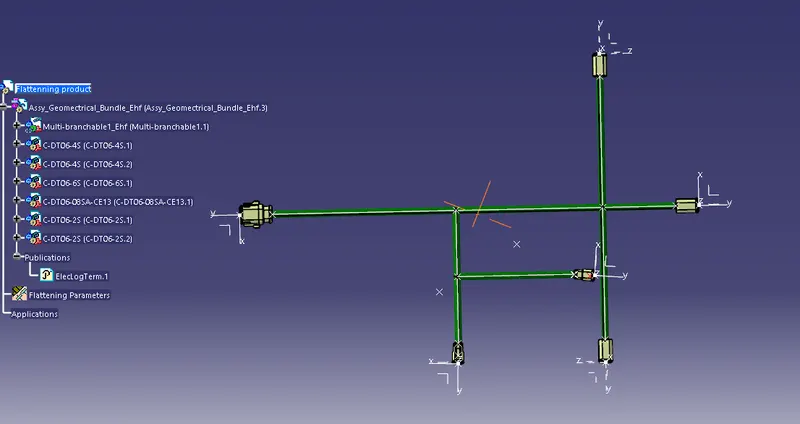
After this I created a new drawing file and named it as flattening drawing. Then Selected front view feature from the toolbar and then selected the same surface which we used for flattening and then click on drawing screen. It gives us an in complete imported drawing.
Then we right click on the imported drawing and select prperties. Then select 3d wireframe> is always visible. And we get: