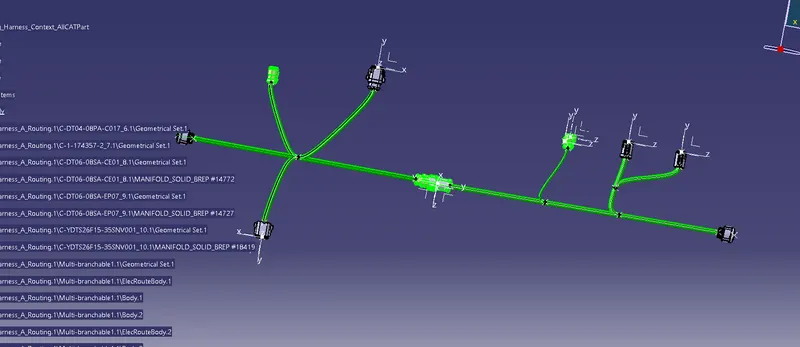
Wiring harness design in CATIA V5 - 3D modeling Week 5 & 6 Challenge
WIRING HARNESS DESIGN IN CATIA V5 - 3D MODELING WEEK 5 & 6 CHALLENGE
AIM- Route two electrical harnesses as per the given layout and interconnect them as a single harness assembly and then check for bundle continuity, bundle warnings, and then give annotations to the final harness assembly.
OBJECTIVE-
- The objective of this project is to first route the two Harness A and Harness B as per the given harness layout.
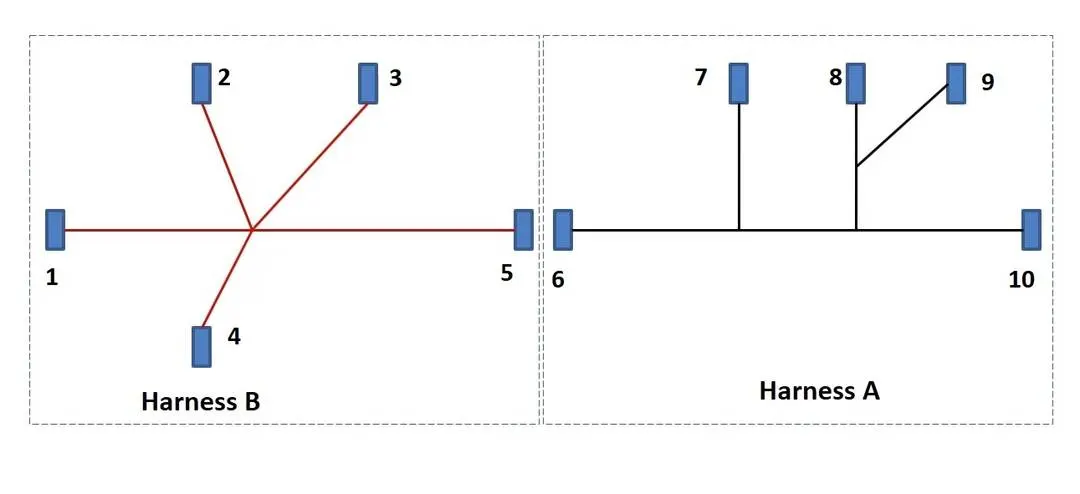
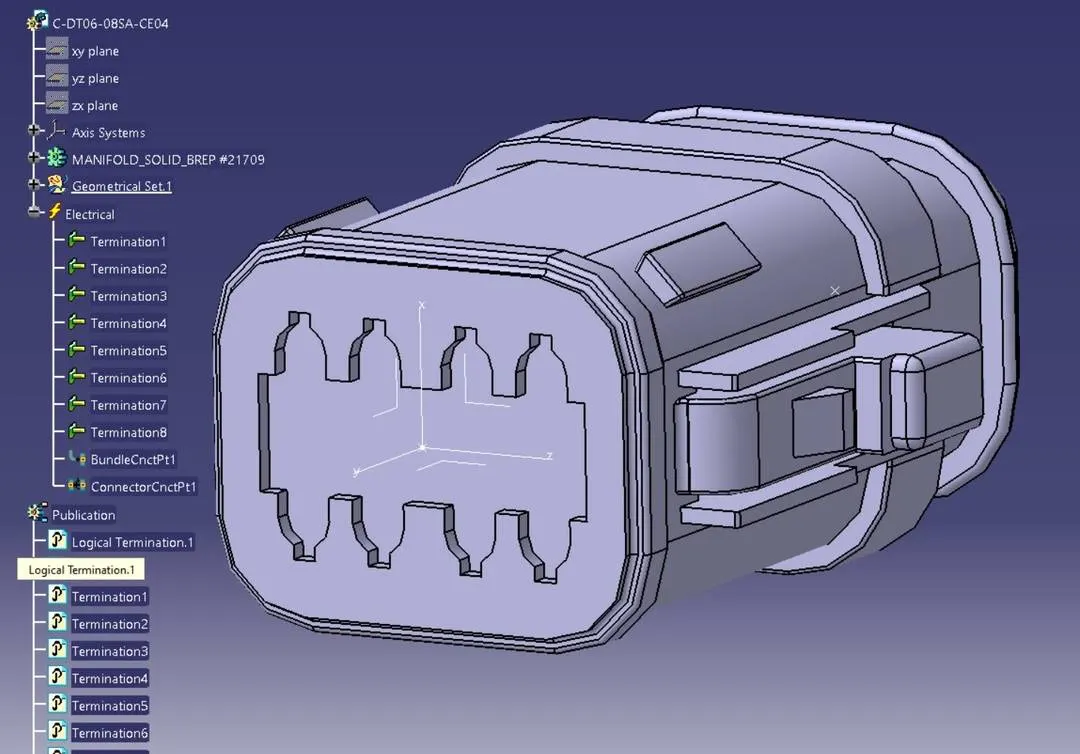
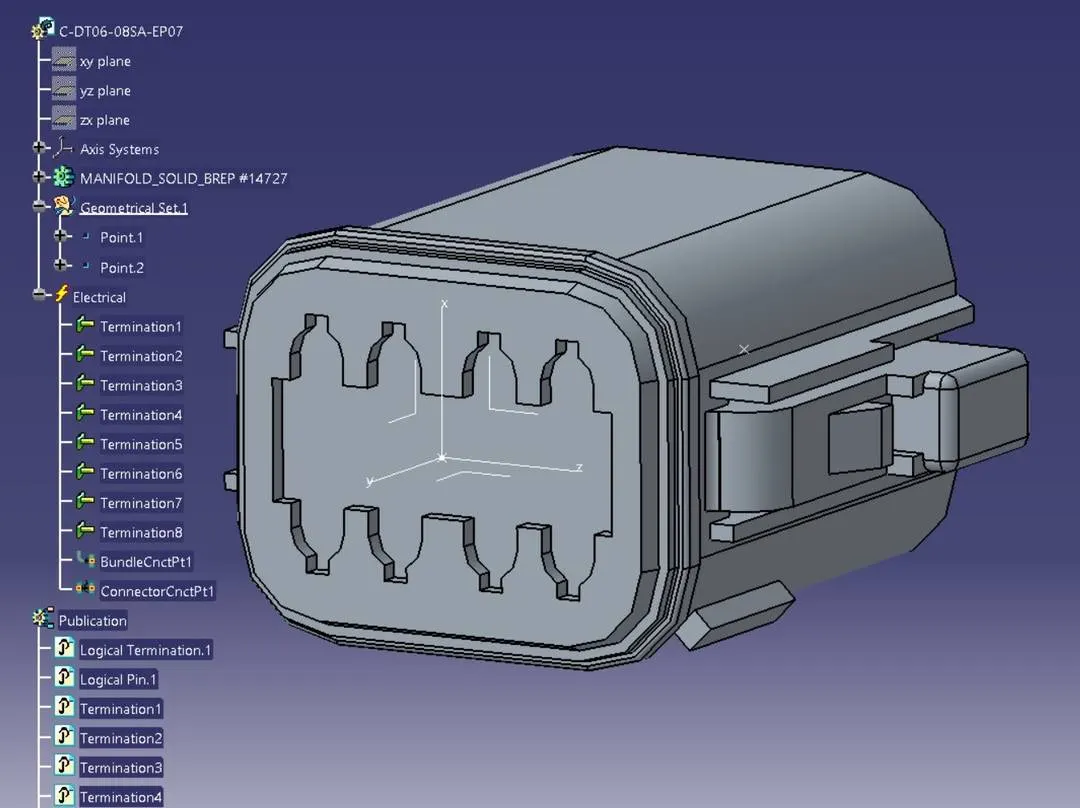
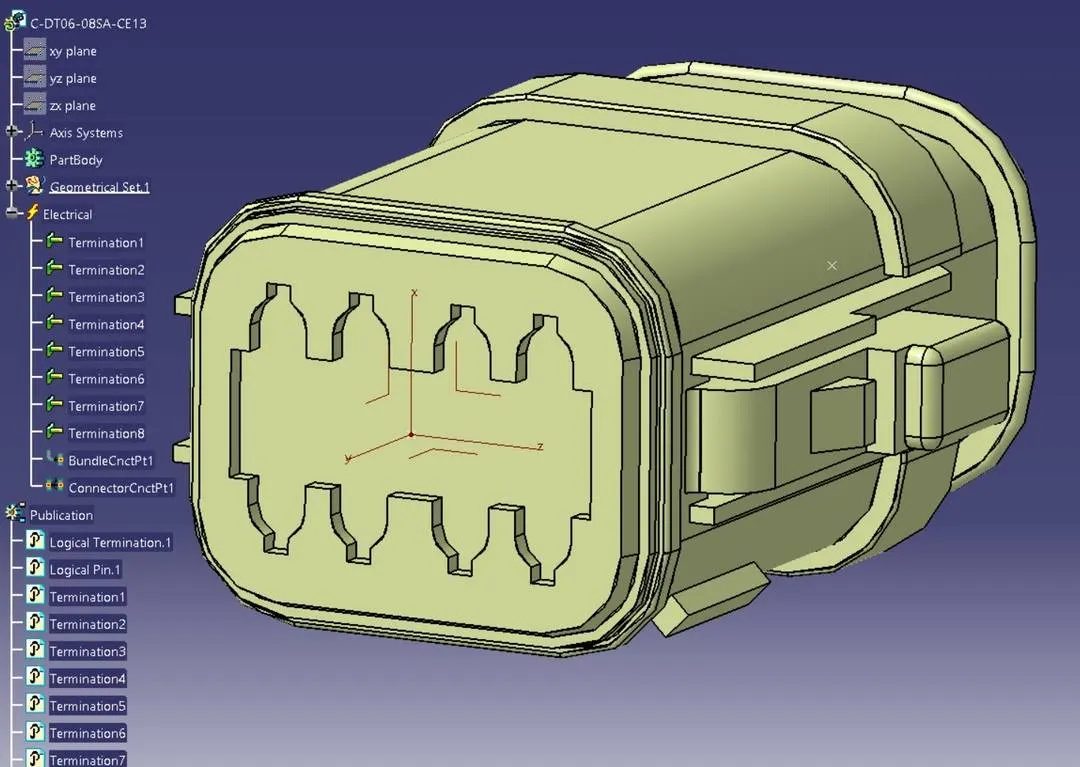
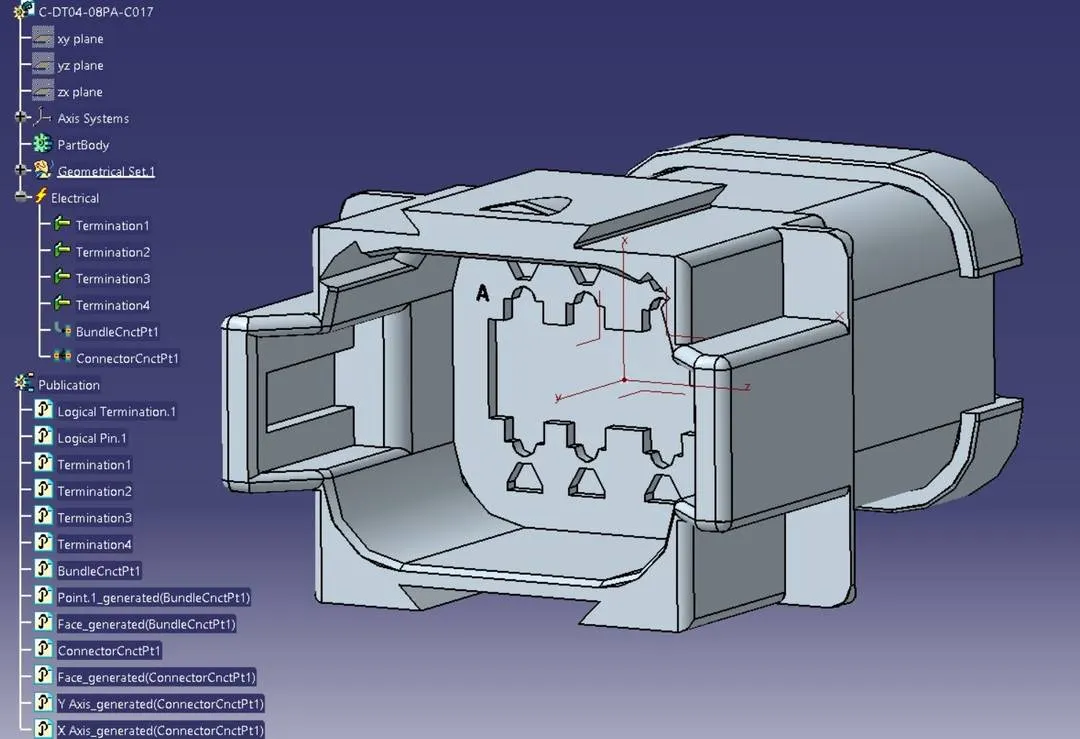
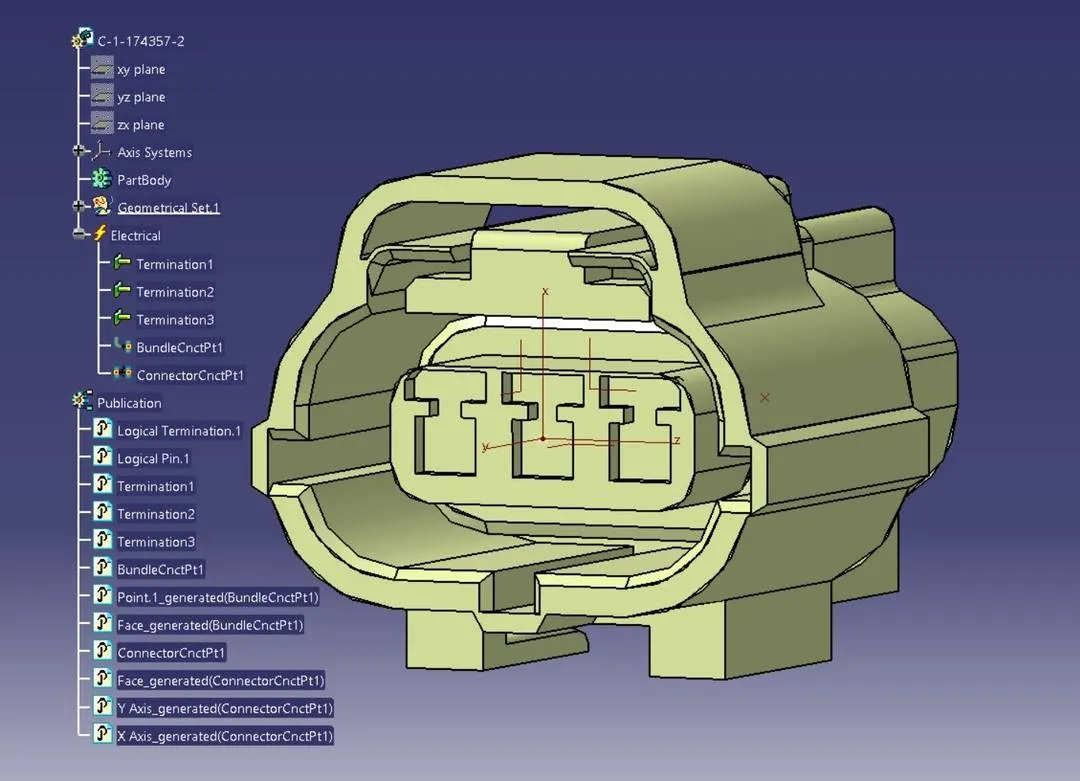
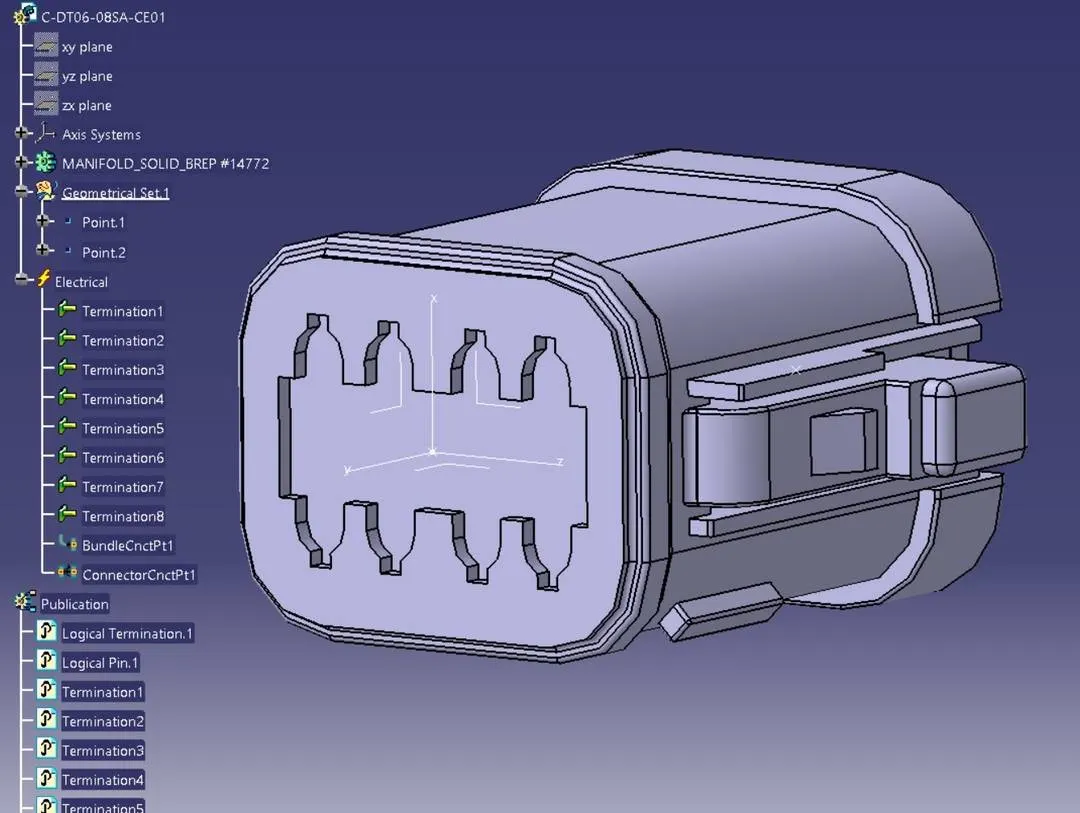
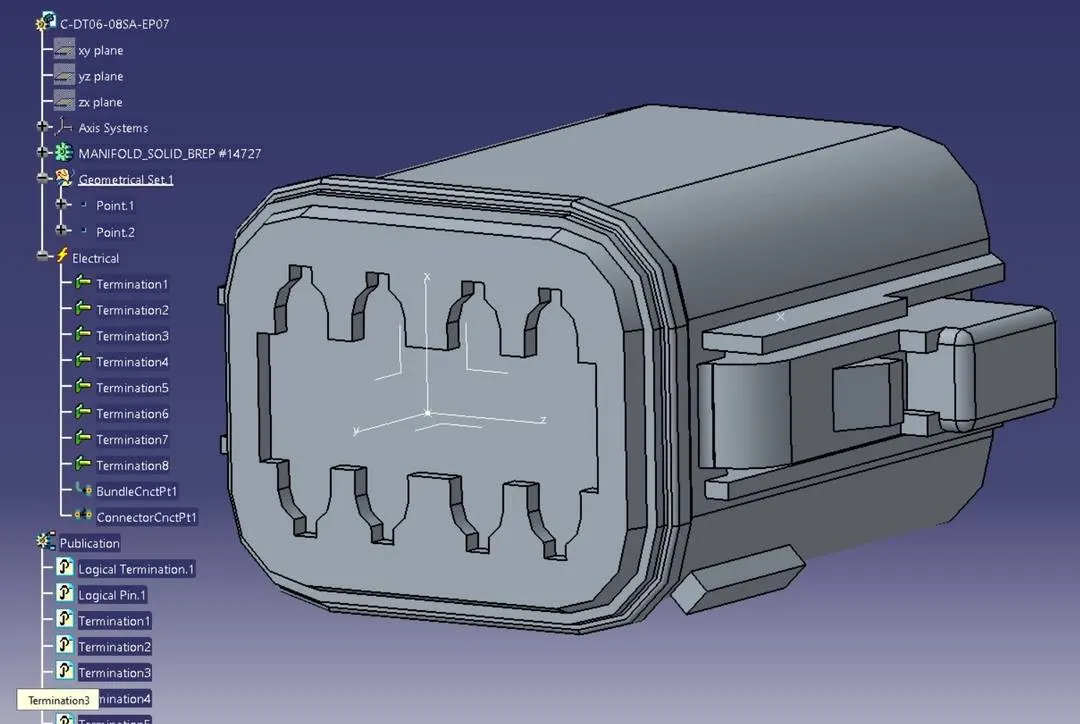
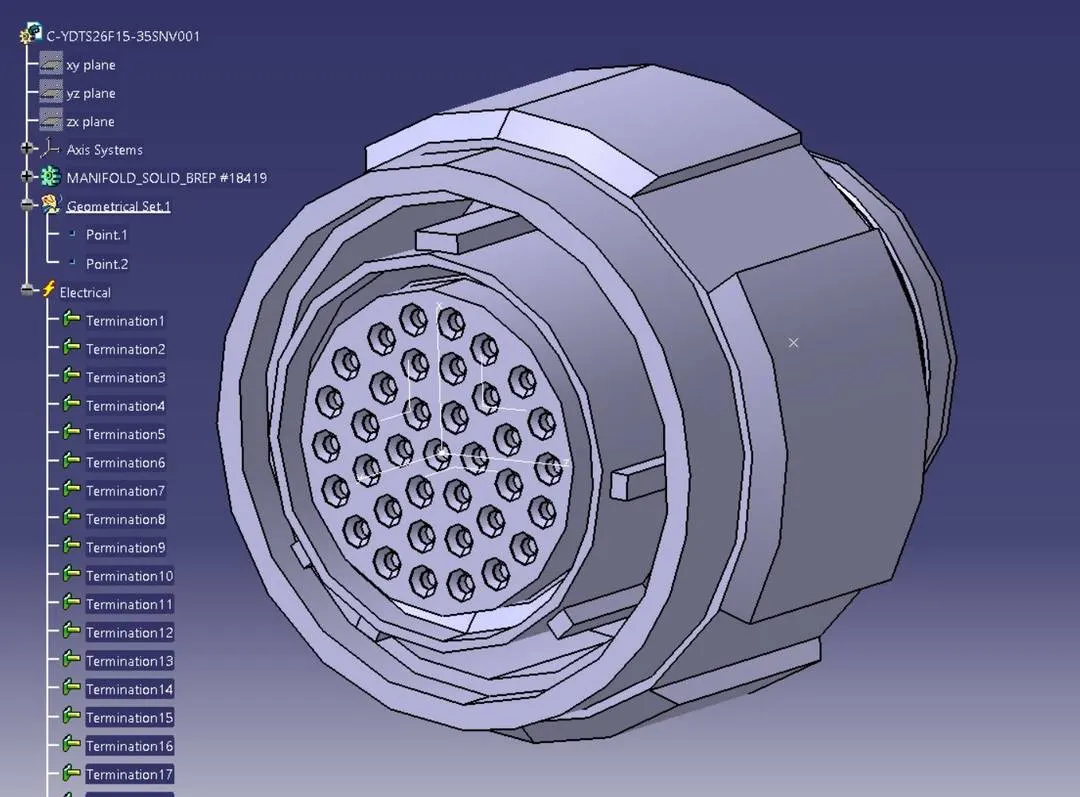
Step 1: We have to first define all the connectors geometrically and electrically as shown in below images.
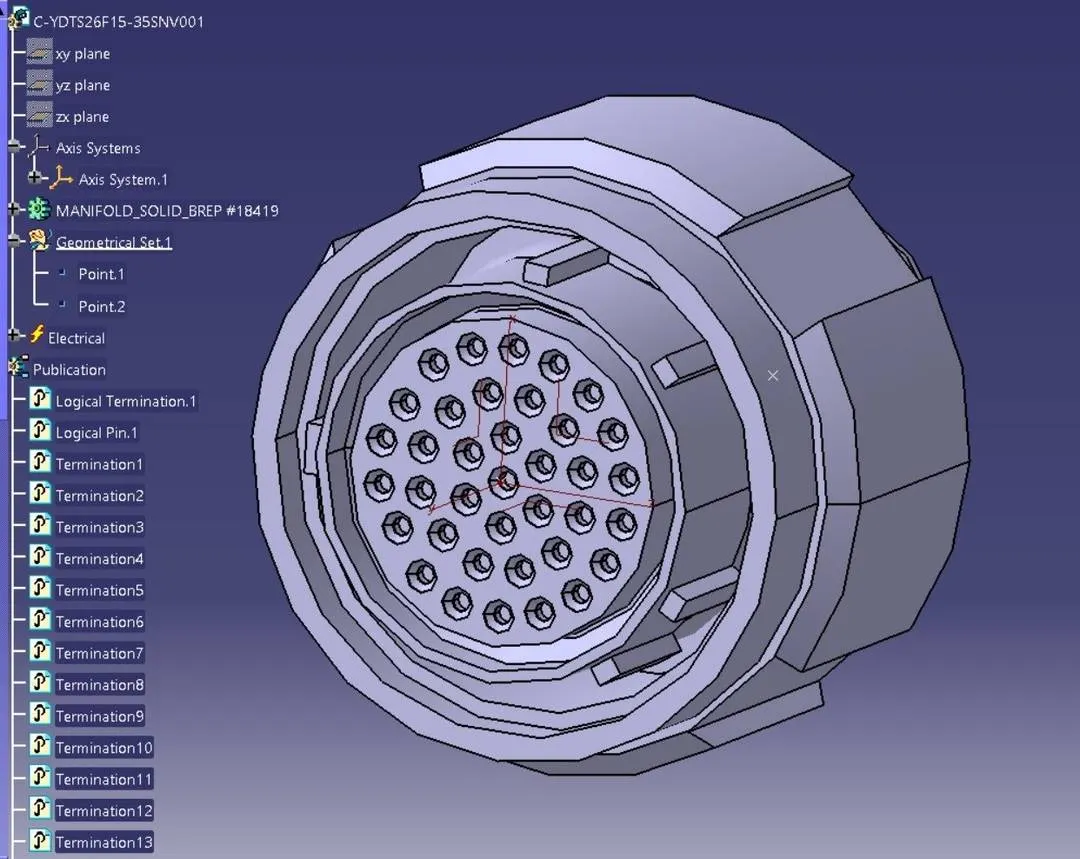
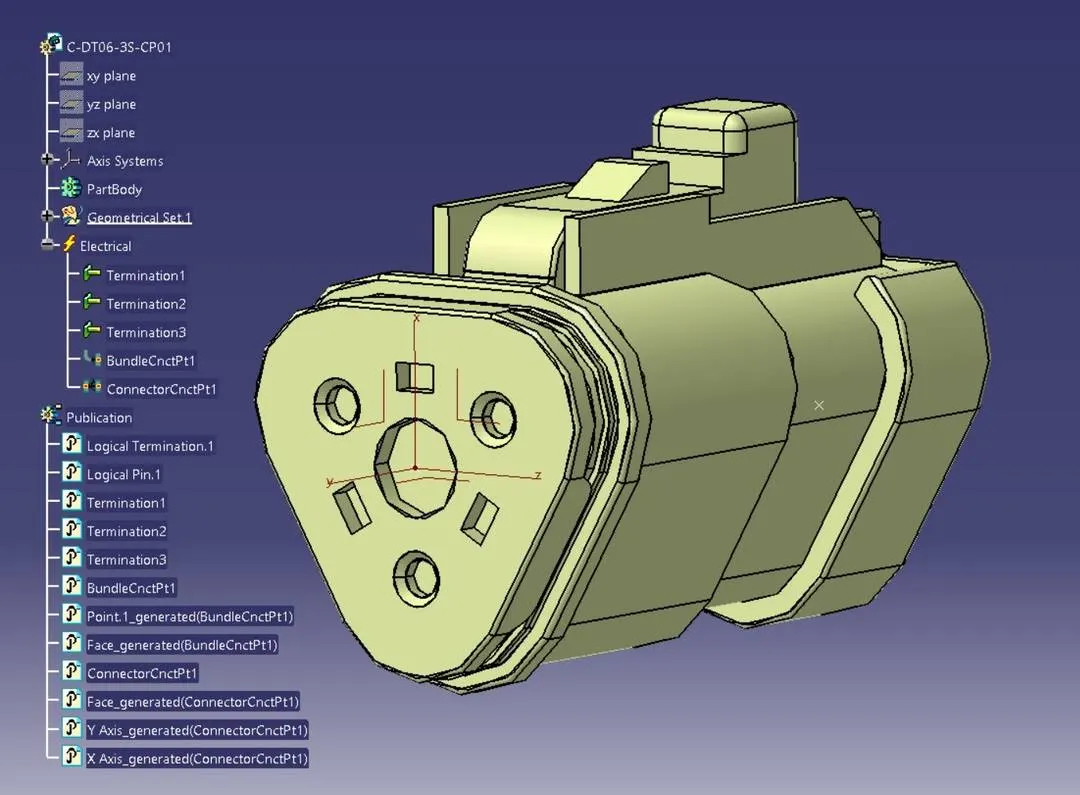
Step 2:
Now, we have to create Harness A and Harness B by using electrical harness assembly as shown in below image.
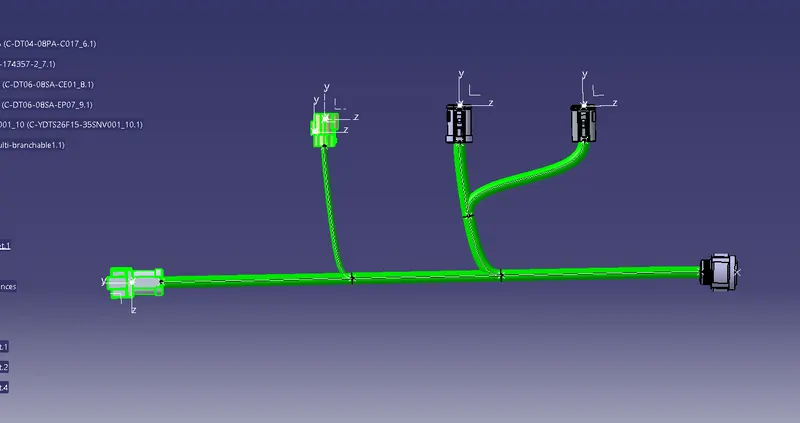
First, we will locate all the connectors at their desired position, add branch points required and create bundle segment according to the diameters assumed as 10mm and 5mm.
Harness-A Routing :-
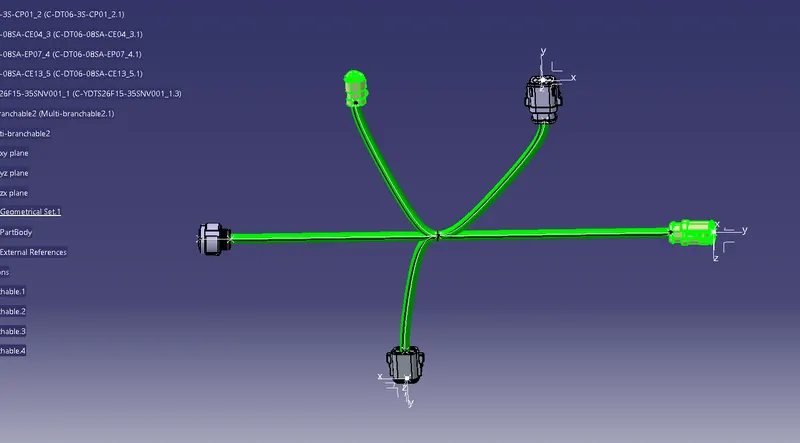
Secondly I did the same for the Harness_B_Routiing. And defined the Assembly.
Harness_B_Routing :-
Step 3:
- Now in this step, we have to check bundle continuity in both Harness A and Harness B.
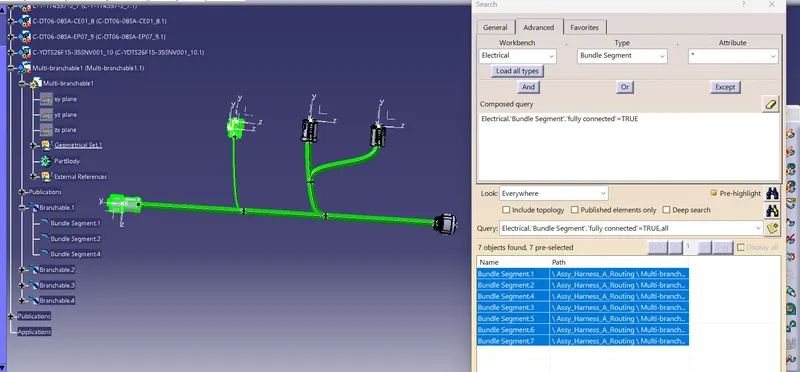
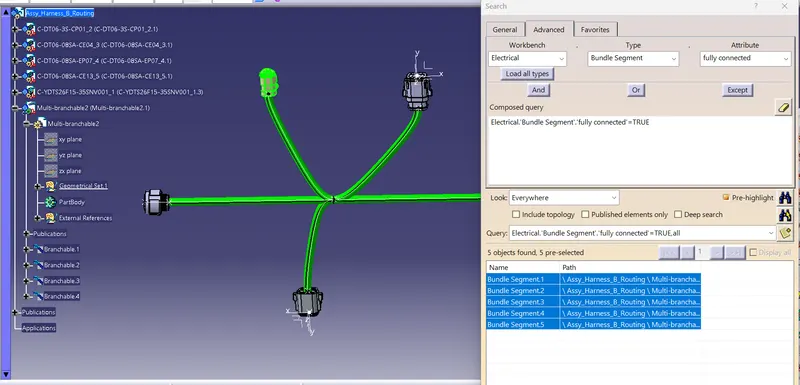
- So for that, go in Edit>Search>Workbench-Electrical>Type-Bundle segment>Attribute-fully connected.
- We will get one window, in that selecting True option will show all the connected bundle segments while selecting False option will show all the non-connected bundle segments.
- Now, we will check for True condition and search for result.
- All the bundle segments are showing connected. So there is bundle continuity in both Harness A & Harness B as shown in below images.
- So after giving annotations to all connectors, the whole assembly will look as below.
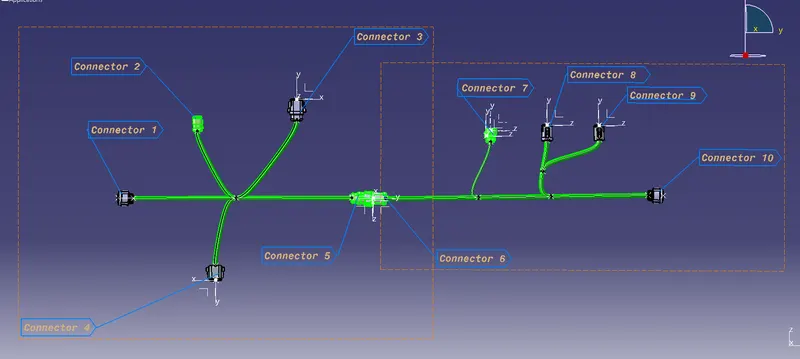
Step 6:
- Now, in this step we have to convert final harness assembly file into IGS format. So for that we need to follow below steps.
- Mechanical Assembly Design workbench>Tools>Generate CAT Part from product.
- Once the CAT part is created, the whole product file is converted into a single part.
- Now, whole file is converted into the IGS format and we can see all the harness assembly is looking in grey color.
- If we need to change color as before in green, we can go back and give green color to each bundle segment.
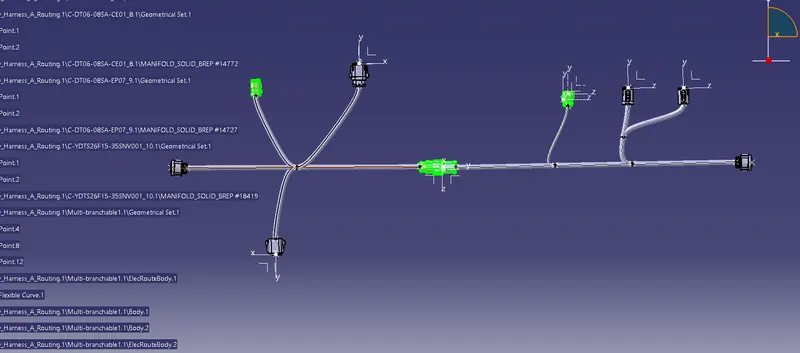
- To save CAT part file as IGS file, we have to use 'Save as' option as shown in below image.
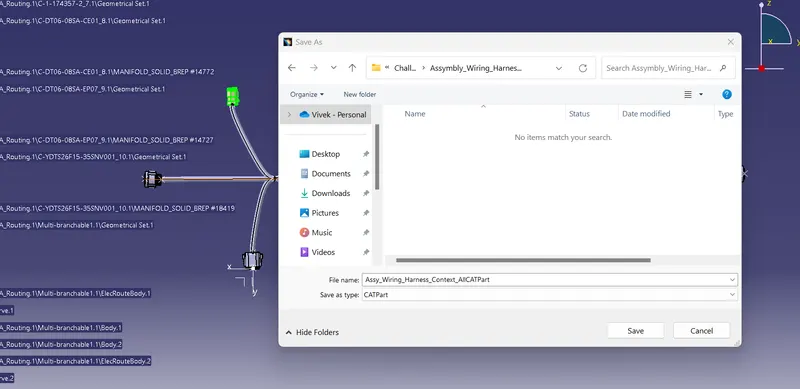
So in this way, we have done with the harness routing and interconnection of both the harness A&B according to given layout. Both the harnesses are checked and corrected for bundle continuity, bundle warnings, annotations are added for all the connectors and at the end whole CAT part file is converted into the IGS format.
As we convert into IGS file all the parts along with bundle with turn to grey colour. so, for the better identification of the Bundles. We will make it in green coloue with the help of Graph properties. in Mechanical Assembly workbench.