Wiring harness design in CATIA V5 - 3D modeling Week 5 & 6 Challenge
ans :-
The objective of this project is to first route the two Harness A and Harness B as per the given harness layout.
The electrical connectors are represented by numbers in the above figure. There are 8 different types of connectors at 10 different locations.
2. Bundle continuity has to be checked for the two created harness.
3. After the two Harnesses are created, the next objective is to have them interconnected electrically.
4. Check for bundle warnings in Harness A and Harness B.
5. Add annotations to all the connectors in Harness A and Harness B.
6. The final objective of this project is to convert the final harness file into IGS file format.
CONTENT-
The following steps are to be done to complete this project.
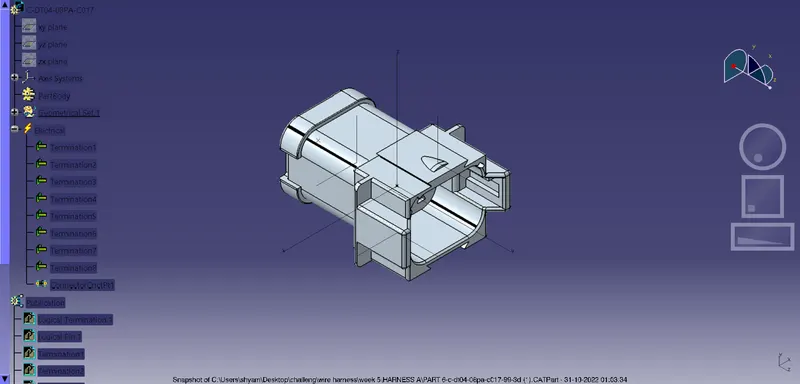
STEP1-
Define all the electrical connectors geometrically and electrically so that they can be used in the wiring harness.
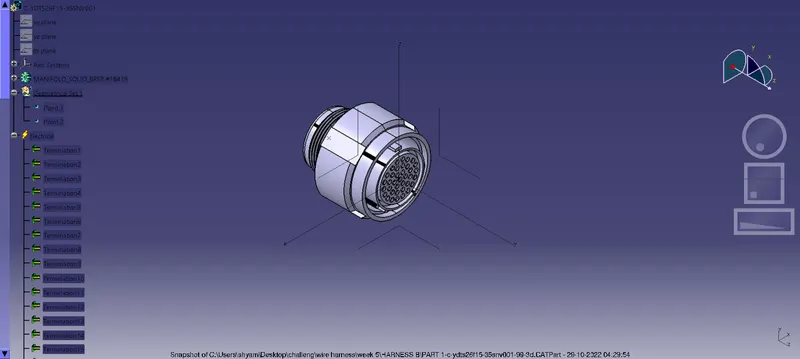
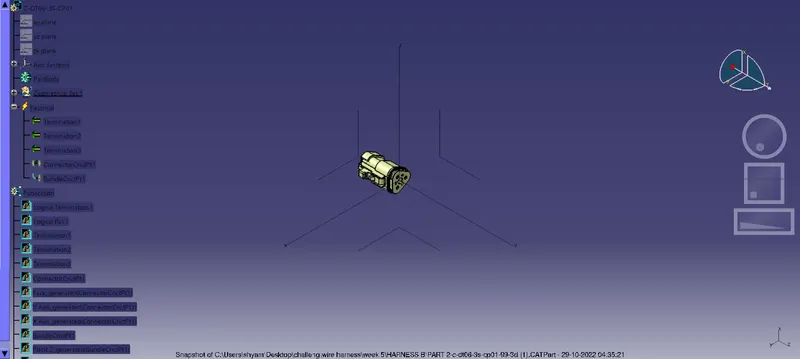
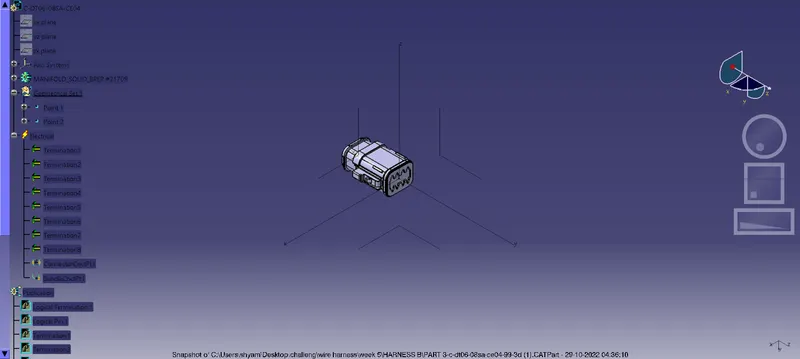
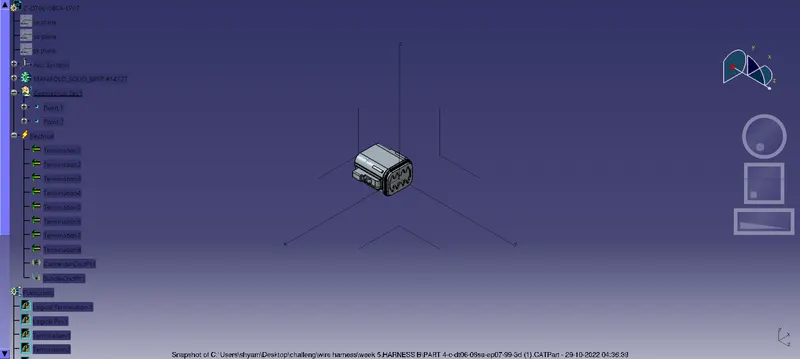
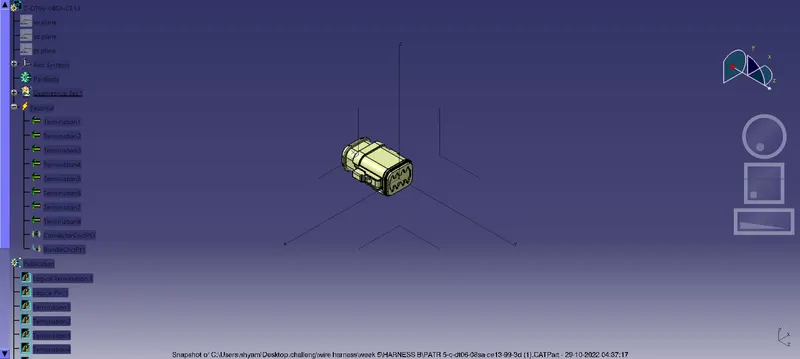
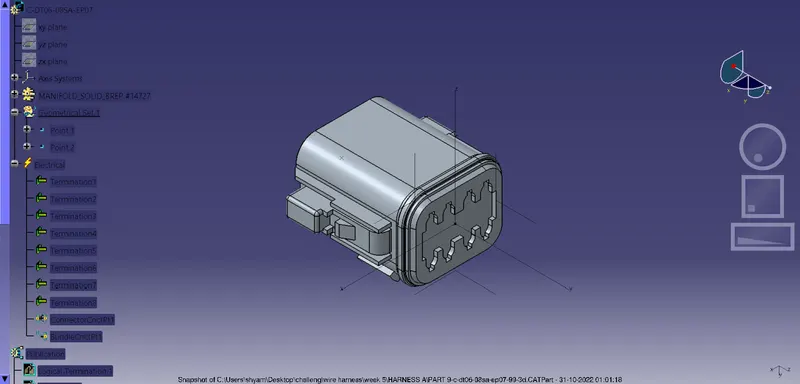
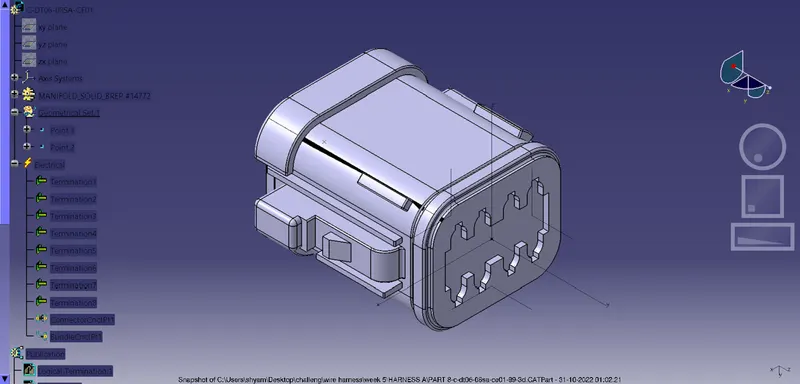
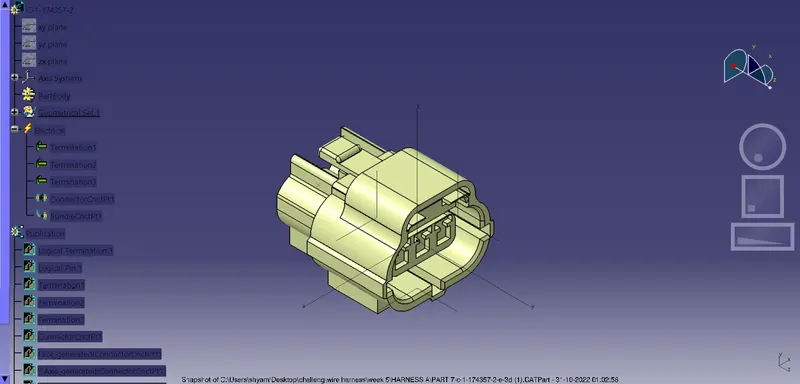
STEP2-
Create harness A and harness B as shown below by using the electrical harness workbench in CATIA V5.
First, all the connectors are placed at their desired locations. Second, bundle segments are created between the connectors with branch points and branches as shown below.
Bundle diameter is assumed to be 20mm, 15mm, 10mm, and 5mm for different bundle segments. Bend ratio is given as 1.4 and slack is given as 0% for all the bundle segments.
STEP3-
After Harness A and Harness B are created the next step is to check the bundle continuity.
First, we have to make sure multi-branchable is selected and then we have to go in Edit>Search>Advanced>Electrical Workbench>Type-Bundle Segment>Attribute-Fully Connected.
Selecting the "TRUE" option will show all the connected bundle segments while selecting the "FALSE" option will show all the non-connected bundle-segments.
For now, we will select the "TRUE" option and search for results. All the bundle segments in Harness A and Harness B will be displayed showing that there is bundle continuity in Harness A and Harness B.
STEP4-
In this step, we have to interconnect the Wiring Harness A and Harness B electrically. There are a few steps that have to be followed to connect the two harnesses electrically.
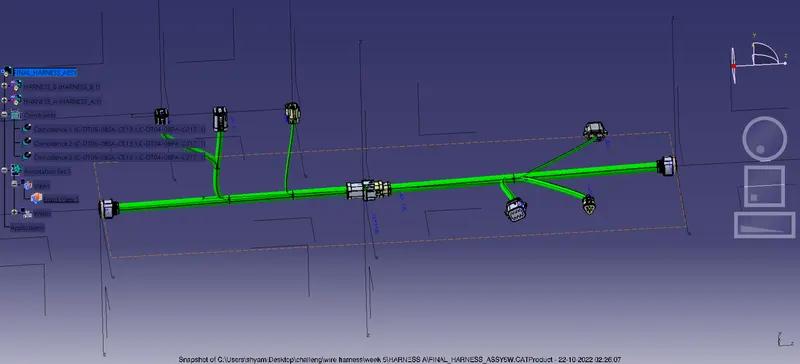
First, make a new product file in CATIA and rename it as "FINAL HARNESS ASSEMBLY". Make sure to open the three windows vertically as shown below.
Second, copy both harness A and harness B and paste it into the newly created product file to make the final harness assembly as shown below.
Third, at this stage, we can use manipulation tools found in the assembly design workbench in CATIA V5 to connect the two wiring harness. But, one should remember that by following this process the two harnesses will not be connected electrically. To properly connect them we have to go to Electrical Assembly Design workbench and use "connect electrical devices" feature as shown below.
Fourth, once we are inside the electrical assembly design workbench we should electrically connect the male and female connectors as shown below.
STEP5-
In this step, we will be checking bundle warnings in Harness A and B.
Geometrical bundle warnings are shown for Bend radius, Bundle diameter, Vector position. If these values or inputs are incorrect then the yellow flash will appear in the tree structure next to the branchable with problems. Depending on the route of the bundle segment we can correct the issue by adding some extra slack or by changing vector position of the segment point. In our case, we have one error as shown below in Harness B in "branchable 3"
This error can be corrected by changing the direction of routing. We should "reverse tangent" or change the direction of the routing at the branch point 4 as shown below.
STEP6-
In this step, we will be adding annotations for all the electrical connectors.
Annotations are used to show connector functions and additional information. They are defined in Assembly Design Workbench of CATIA V5.
First, we have to choose a plane on which the annotation will be placed. Here we will be choosing the front plane as shown below for Harness A. We should make sure that the geometrical bundle is active before choosing the annotation plane
Second, select "flag note with ladder" function and then click on connectors individually. Give the necessary information to all the connectors as shown below.
After annotations are added to all the connectors we should change the annotation font size and color so they are easily visible.
STEP7-
In this last step we have to convert out Final Harness Assembly file into IGS format. In order to do this we should follow the steps as shown below.
Mechanical Assembly Workbench>Tools>Generate CAT Part from product
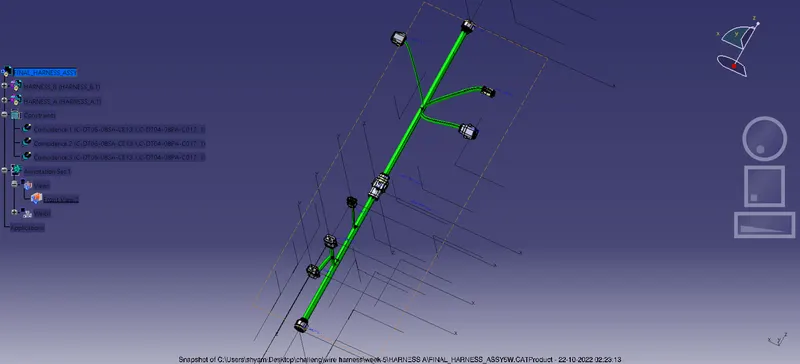
Once the CAT part is created the whole product file is converted into a single part. At this stage, it can be noticed that all the bundle segments are grey in color. So, we will go back and add green color to each bundle segment so that they look same as the Final Harness Assembly.
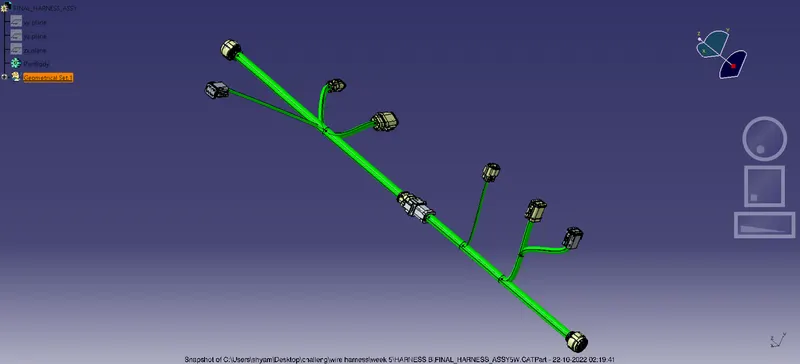
In the end, we can use the "SAVE AS" feature to save the CAT part file as IGS file as shown below.