Week 9 - Attachment Feature Creation - Challenge 2
AIM
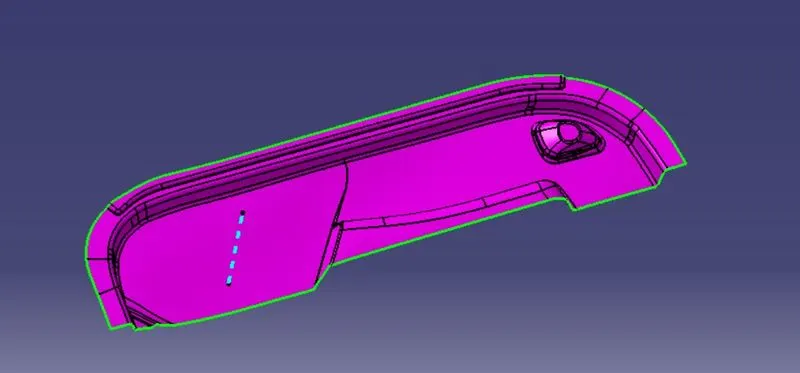
To make a fully solid model from the provided lower door trim A surface and make DOG HOUSE.
INTRODUCTION:
CATIA:
It means Computer-Aided Three-Dimensional Interactive Application. It is computer-aided designing software. This is software which is used to design 3D models with different workbenches.
CLASS A SURFACE:
It is a surface which is made by the designer. It is an aesthetic surface and usable outside futures are on this surface.
CLASS B SURFACE:
It is the bottom side surface of the class A surface. It is made by class A surface. It is formed with thickness distance from class A surface.
CLASS C SURFACE:
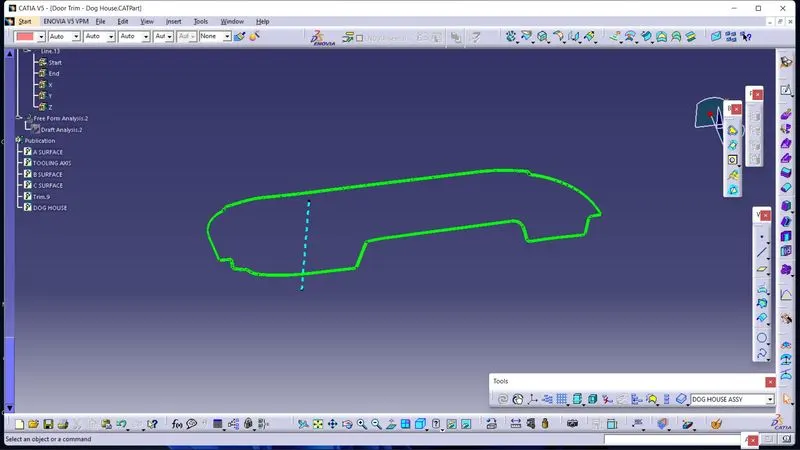
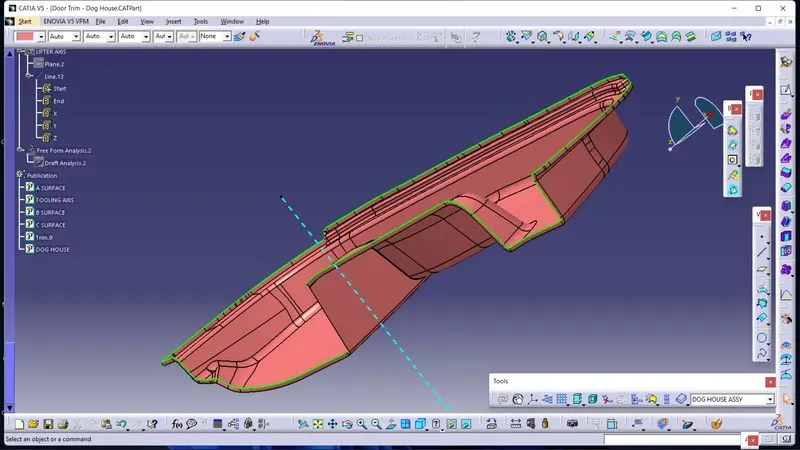
It joins both class A and class B surfaces. This surface is equal to the thickness of the component.
TOOLING AXIS:
- Class A surface or part is used to manually analyse which is best for tooling and create the axis perpendicular to the product. It is called the tooling axis. Mould is opened and closed by this axis.
METHODOLOGY:
MAIN PART:
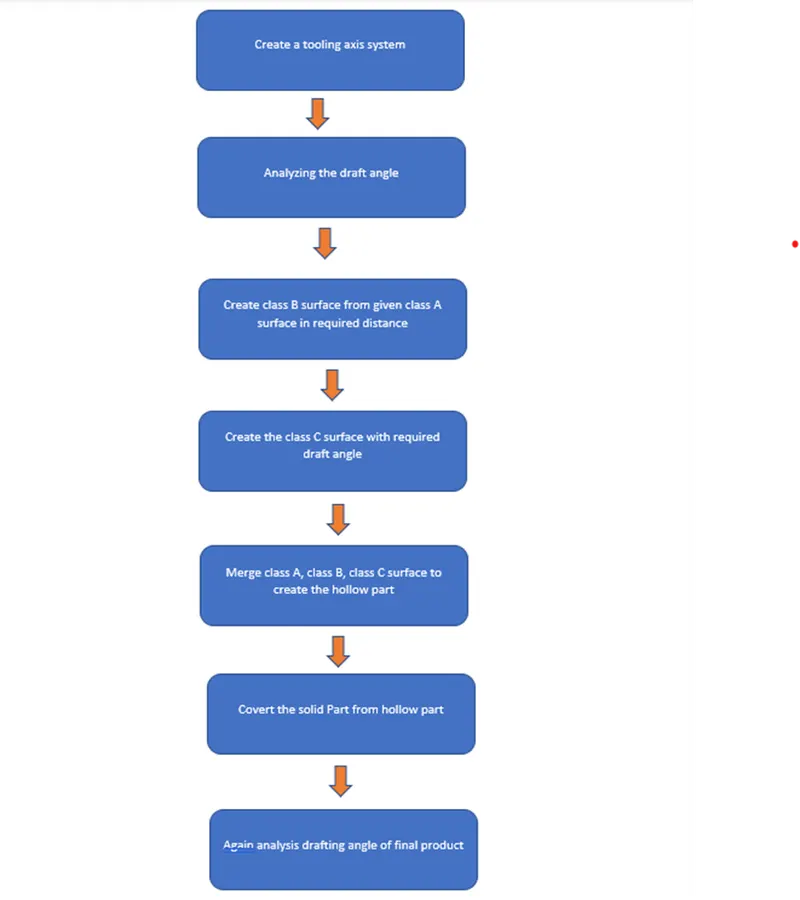
TOOLS:
- Extract:
This comment is used to create the required surface again. Which means copying the surface again for the next operation.
- Un trim:
This tool is used to un-trim the surface which means creating the full surface of the previous surface from the current surface.
- Trim:
This tool is used to cut and eliminate unwanted surfaces.
- Extrapolated:
This tool is used to increase the length of the surface or area with the help of different options.
- Offset:
It is used to create the same surface again at the required distance.
- Edge Fillet:
It is used to create sharp edges to round edges.
- Boundary:
It is used to form the boundary lines on the opened surface.
- Sweep:
It is used to create the surface in the required length from the profile.
- Join:
It is used to join separate surfaces and create a single surface.
- Close (Part command)
It is used to create a solid part from a closed hollow part.
SURFACE A CLASS:
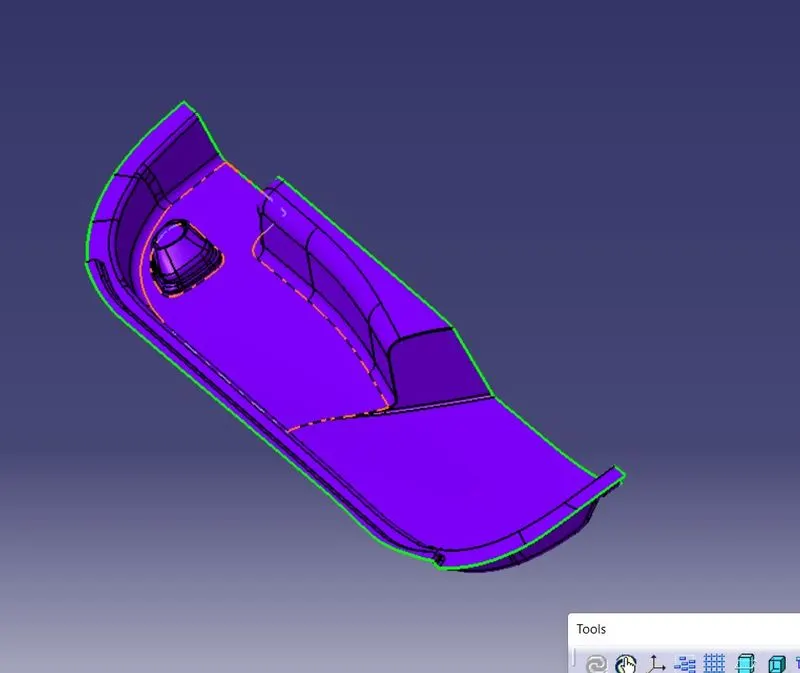
TOOLING AXIS CREATION:
- First, create the class A surface and manually analysis and fix the direction of the tooling.
- In this part two holes on the surface. So, we can directly take its perpendicular as the tooling axis because its most suitable for the tooling axis. Carefully watch and take this axis with the help of all types of views.
- First created the point on the surface and create a new axis system.
- we directly draw lines through Point & Direction on the extracted surface.
- Change some appearance to this line like thickness, colour, and dot lines. Finally, it is called the tooling axis. It is published for frequent use.
DRAFTING ANALYSIS OF CLASS A SURFACE:
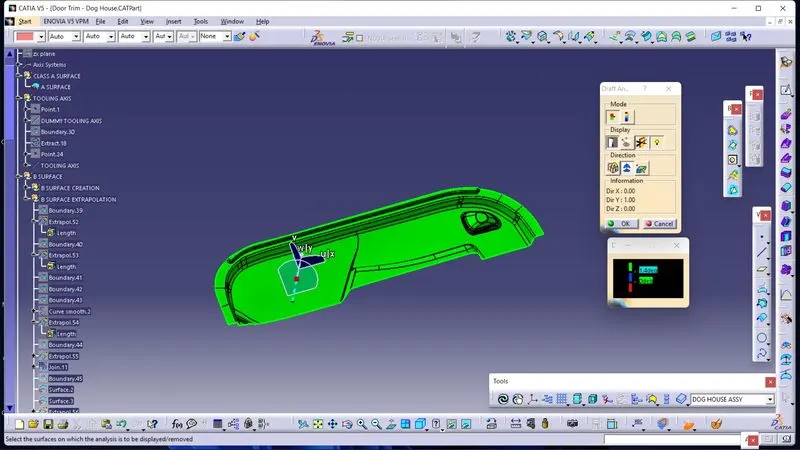
- Go to insert < analysis< feature draft analysis.
- Compass is fixed on the tooling axis.
- Then we click on the surface it showing different colour. This colour is used to analysis the drafting value of surface with the help of analysis table.
- It will show draft angle of class A surface.
SURFACE B CLASS CREATION:
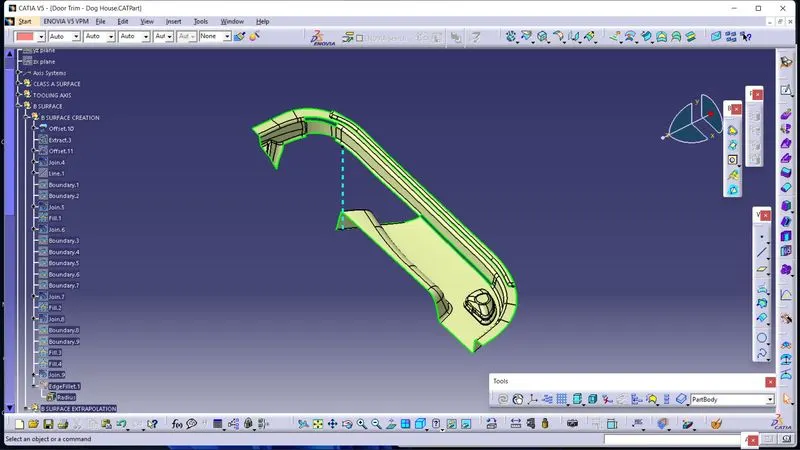
The following procedures are used to create the surface B class.
- We directly offset the given bumper surface at a 2.5mm distance inside with the help of offset comment for the b surface
- Some discontinuous surfaces are filled with some comments like blend, fill, Mss etc.
- If we need any bounty expand with the help of extrapolated comments.
- Trim unwanted surface
- Finally, we got surface B class.
SURFACE C CLASS CREATION:
- The extract tool is used to create the boundary lines separately on the side edges of the class A surface
- Reference surface option sweep comment is used to extrude the created separate extract boundary lines at 90 degrees.
- Finally, merge all sweep surfaces to get a class C surface.
FINAL HOLLOW PART:
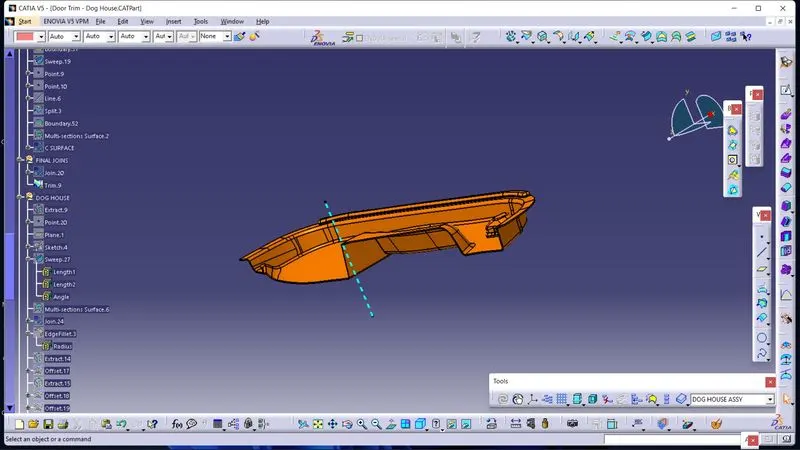
- Join command is used to join the surface A class and the surface A, C class
- The Trim command is used to trim class AC and B. They join themselves.
- Finally, we got a hollow product.
- In part bench, close command is used to get the solid model
- We give different colours to appearance and quickly analysis different parts.
DRAFTING ANALYSIS OF HOLLOW PART:
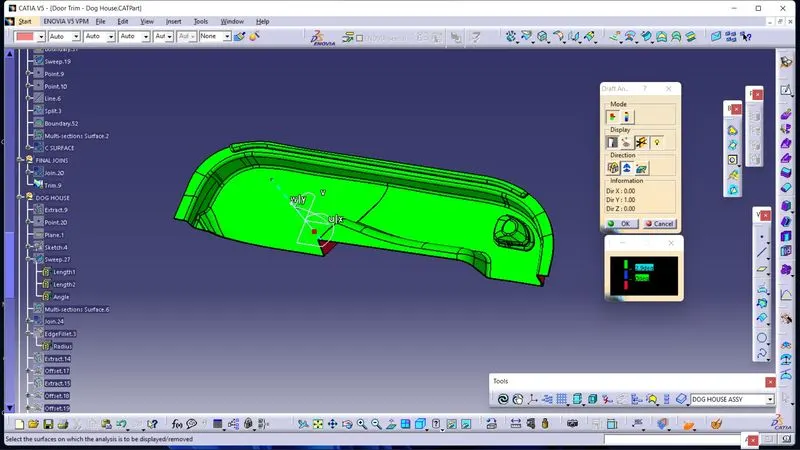
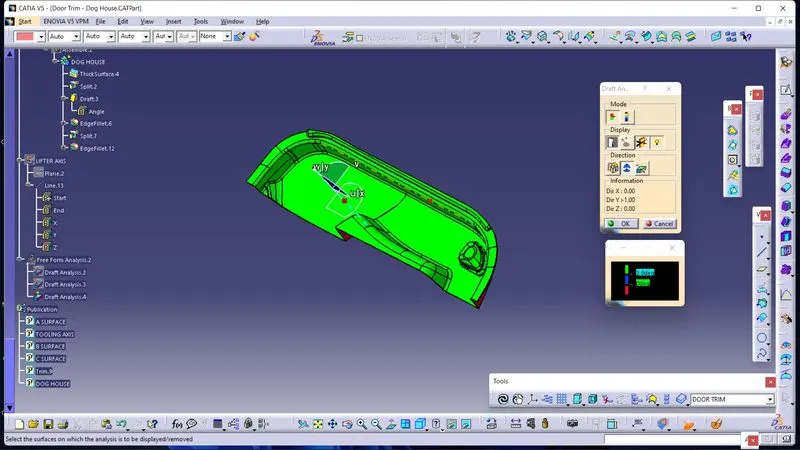
- Go to insert < analysis< feature draft analysis.
- The compass is fixed on the tooling axis.
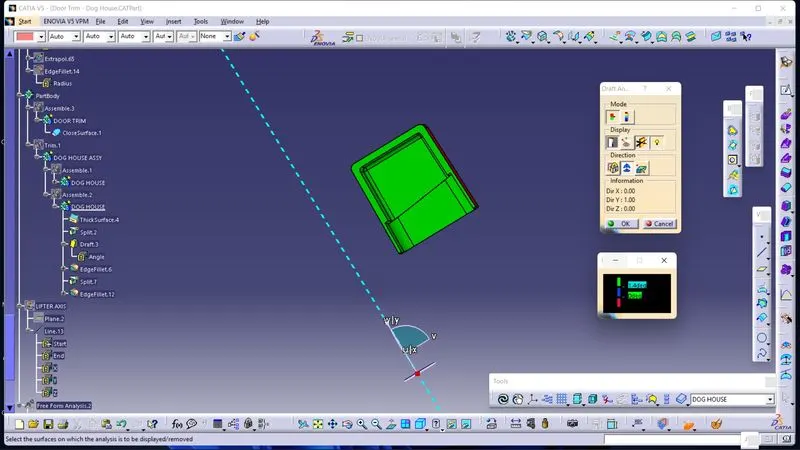
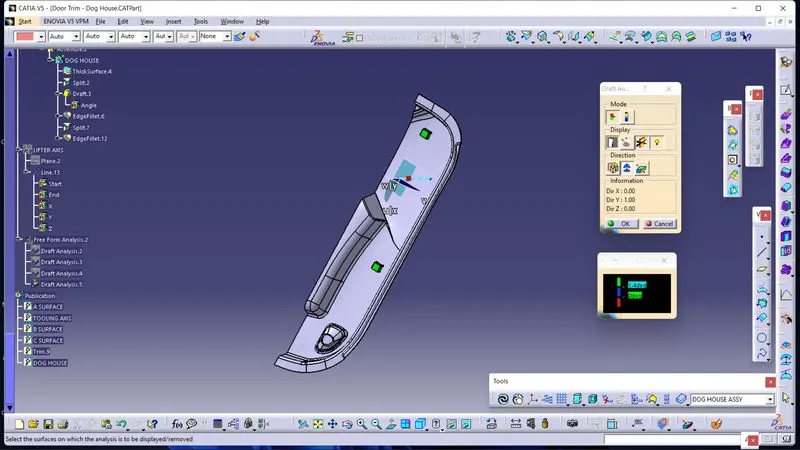
- Then we click on the surface it shows a different colour. This colour is used to analyse the drafting value of the surface with the help of an analysis table.
- It will show the draft angle of the Solid Body & Plastic Body.
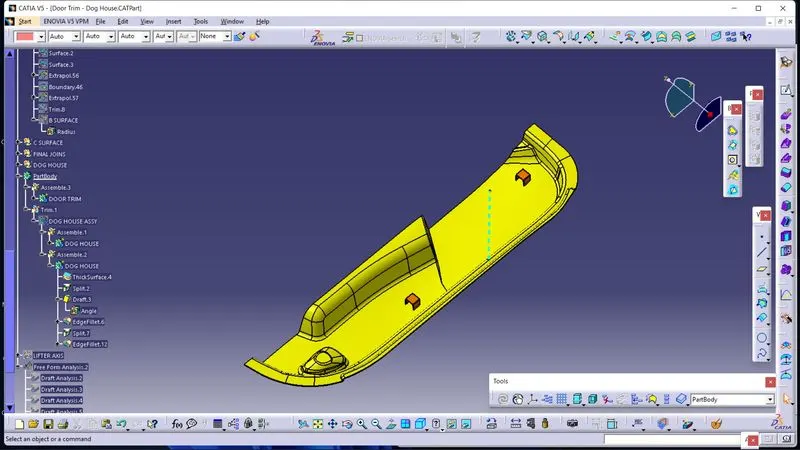
CLOSURE BODY WITH DOG HOUSE:
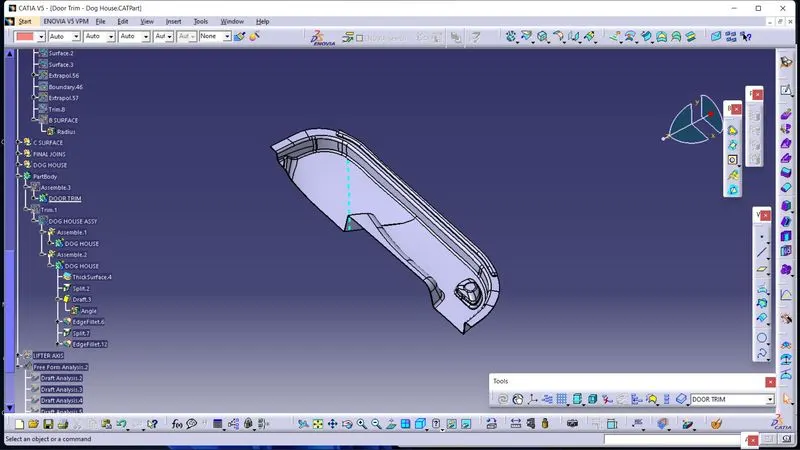
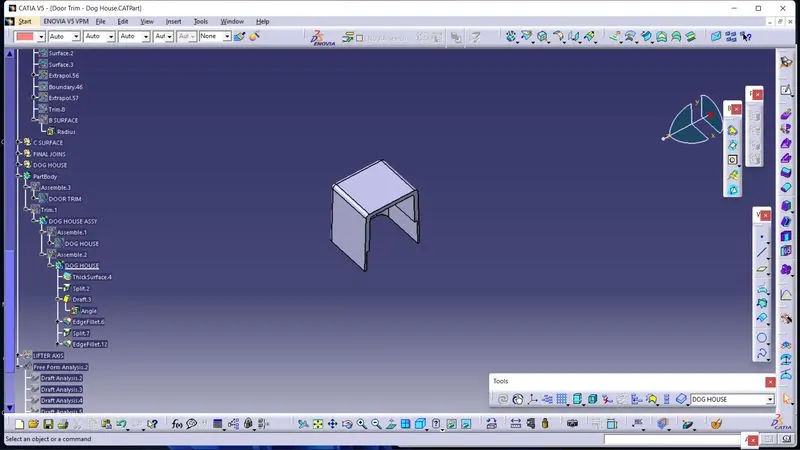
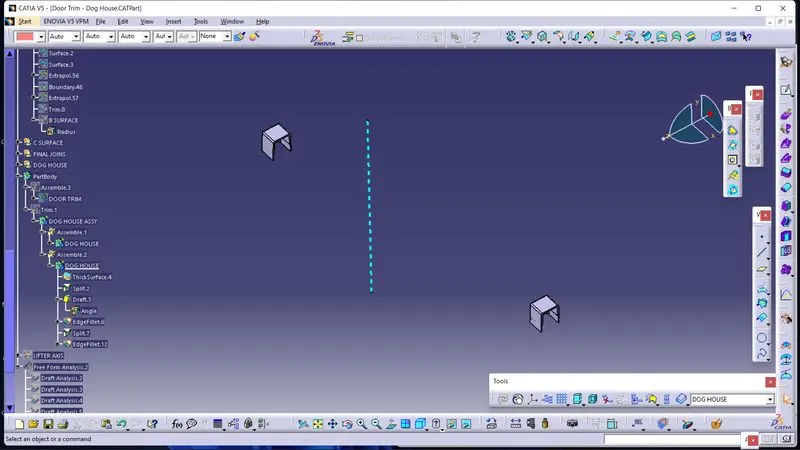
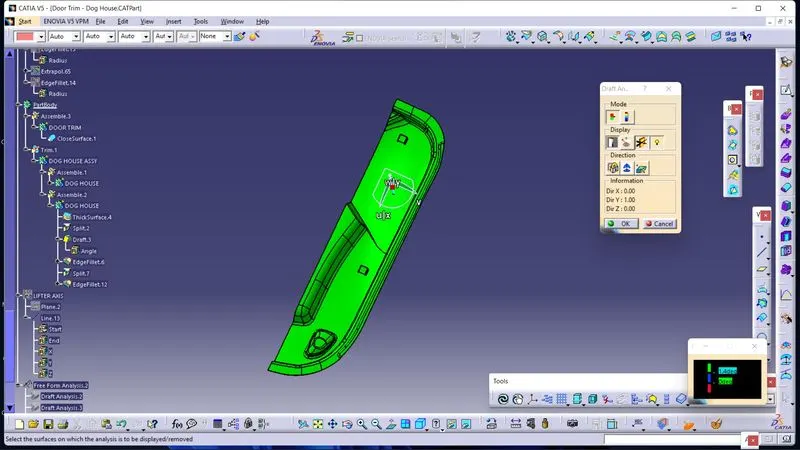
DRAFT ANALYSIS OF CLOSURE BODY WITH DOG HOUSE:
CONCLUSION:
Different commands are used to create surfaces A, B, and C. Then join and convert them into solid parts using Part Design. Dog Houses are created and added to the part body by CATIA software.