Week - 8 - Morphing
AIM:
To do the basic morphing for the given models.
PROCEDURE:
CASE-1(SHEET METAL COMPONENT):
1.Import the given model.
2.Check for the orientation.
3.Use Faces > Topo.
4.The resolution of the CONS is improved using Auxiliaries > fine from topo modules.
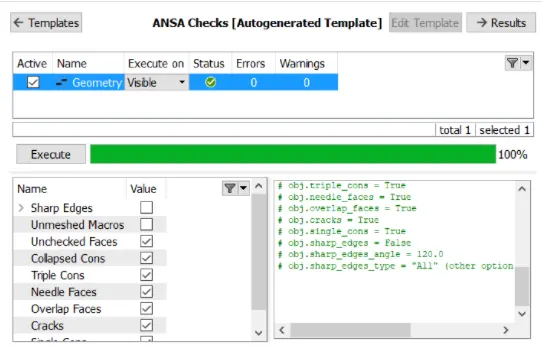
5.The model is then caried to a geometry checkup to check any free edges between the models, duplicate surface and unwanted CONS.
6.Goto Tools > Checks > Geometry.
7.The error showed is fixed by right click > fix.
8.Morphing is performed using the morph module.
9.When the morph module has selected the activation for morphing is done.
10.A box has to be created at the geometric loaction where morphing has to be performed.
11.Goto Boxes > New > Ortho.
12.Allow the box type is set to ortho and the selections are confirmed using the middle mouse button.
13.A morph box is created at the selected geometry area.
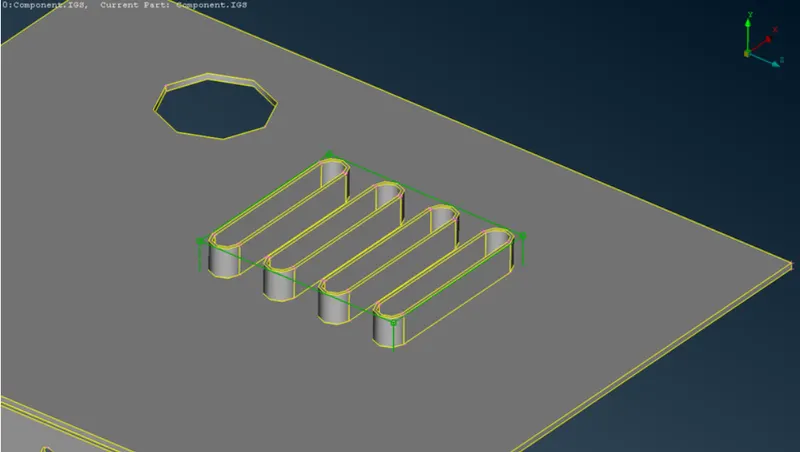
14.The geometry can be morphed by moving the control points of the Morph box by using Move option.
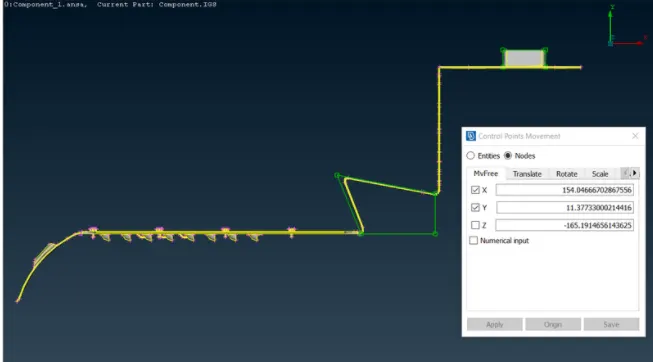
15.For that Goto BoxMorphing > Move.
16.Under Move free the control points of the morph box can be selected and can be moved freely in the x,y and z co-ordinates.
17.The movement occurs in the global co-ordinate systems but it can be changed to a local co-ordinate system.
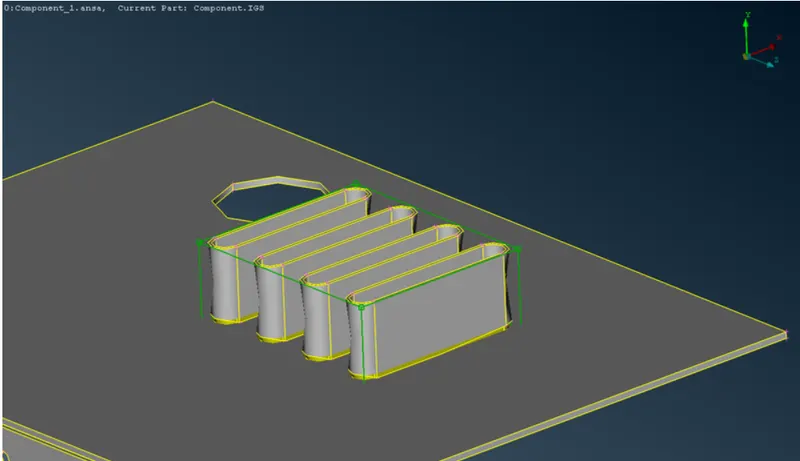
18.The same procedure is carried out for other required regions.
19.The morph box can also be split into smaller sections which will allow the user to make good adjustments in the geometry while morphing.
20.For that Goto Boxes Split.
21.After making all the required changes in the geometry morph boxes can be deleted. Goto Boxes > Delete.
OUTPUT:
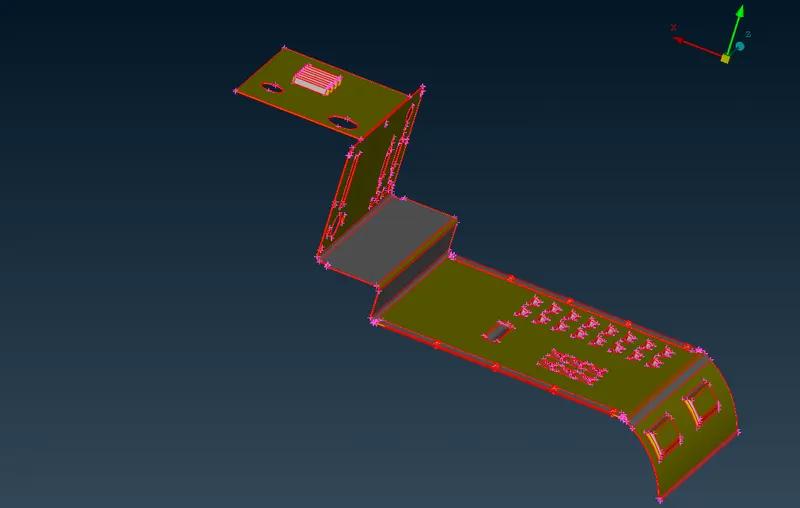
1.COMPONENT BEFORE MORPHING:
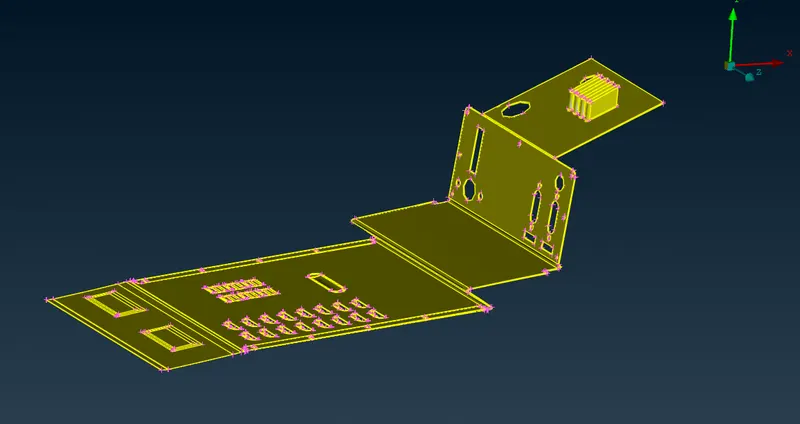
2.COMPONENT AFTER MORPHING:
CASE-2(HAND REST):
1.Import the given model.
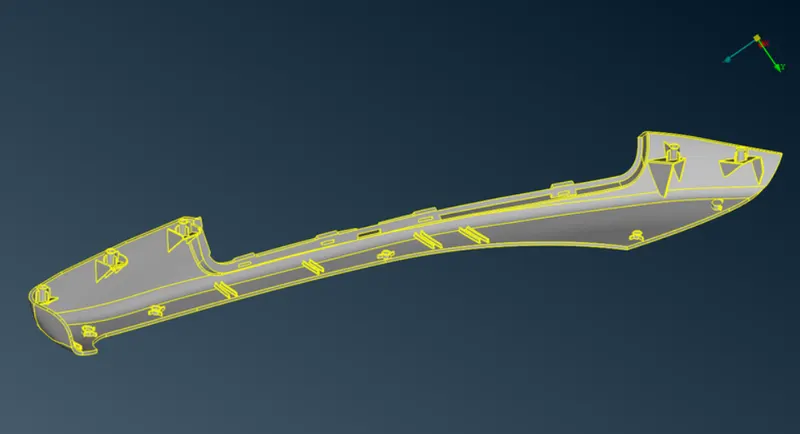
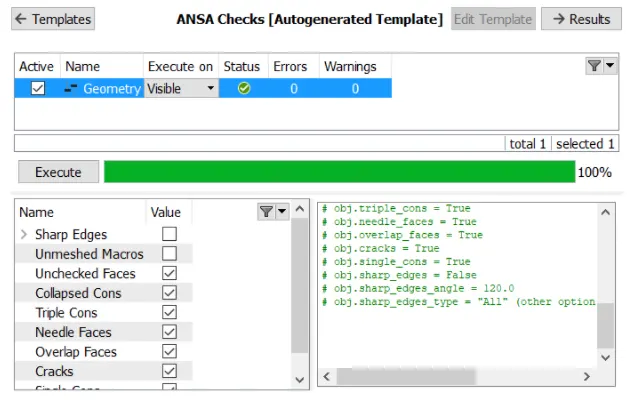
2.Geometry check up is carried out for the model to ensure that the model surface is perfect and free from errors.
3.Morphing is carried out to increase the heights of the ribs.
4.Morph boxes is created around all the dog houses and ribs. This is done by going to Boxes > New > Ortho.
5.The required geometry areas are selected and the selection area is confirmed by clicking the middle mouse button.
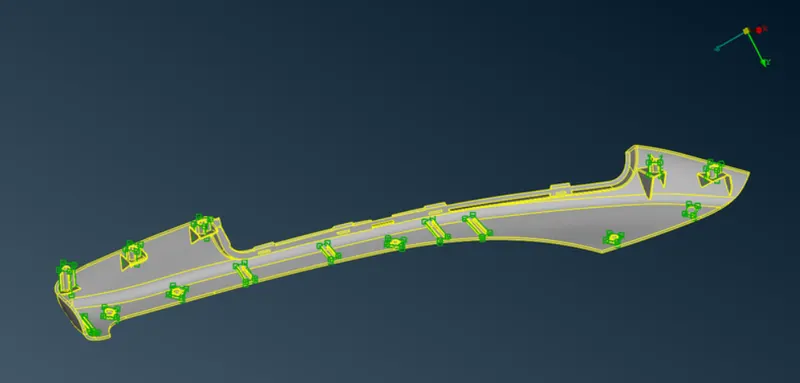
6.To increase the height of the dog houses and ribs, the morphing is carried out by moving the control points of the morph box by using move option.
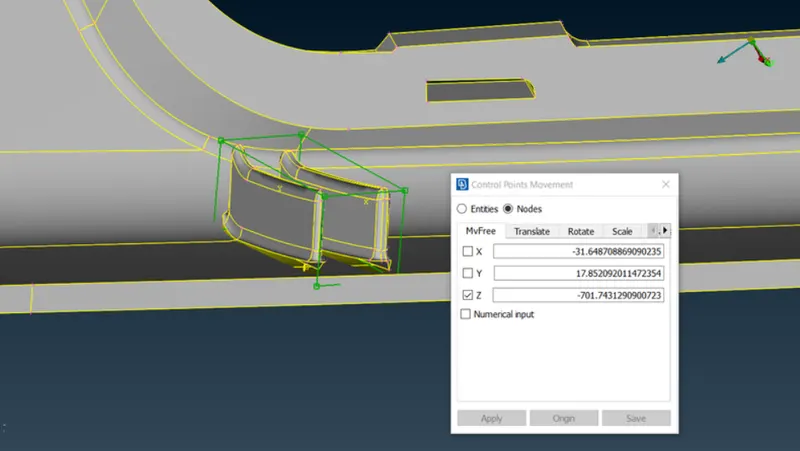
7.After making all the required changes in the geomety morph boxes can be deleted.
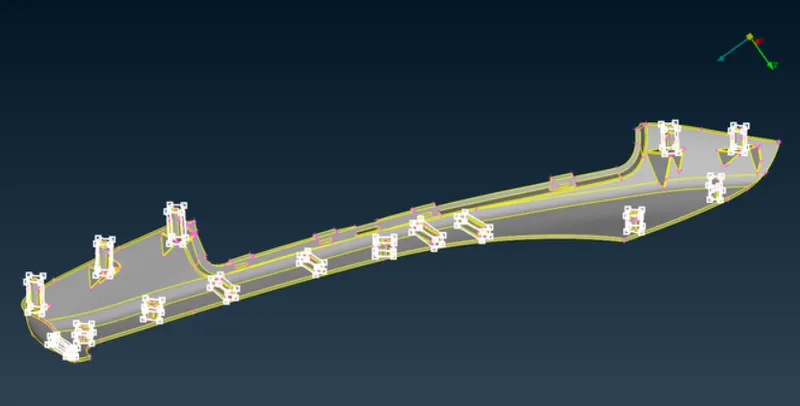
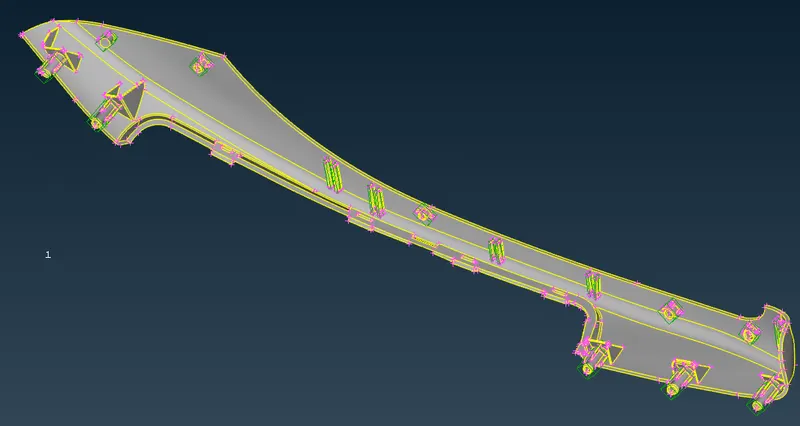
OUTPUT:
1.COMPONENT BEFORE MORPHING:
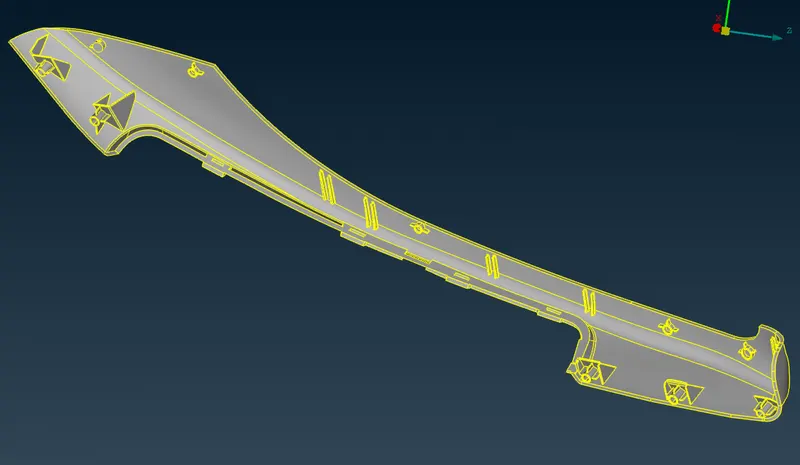
2.COMPONENT AFTER MORPHING:
RESULT:
Thus the morphing operation was carried out on the given models to achieve the necessary alterations in shape as per the requirements.