Week 8-Challenge
Challenge 8
Volume meshing for solid components
Aim:
To volume mesh the given components with different meshing methods as per the quality criteria mentioned for the challenge.
Abstract:
The following challenge is to volume mesh the three given components using different meshing processes such as 2D to tetra meshing process, quick tetra mesh and volume tetra mesh. Each component should be meshed with minimum or no quality errors. The components should be cleaned if needed.
Methodology:
- A 2D to tetra mesh must be created for the housing model by creating a shell mesh above the surface and tetra mesh for the inner region of the component.
- The volume tetra mesh should be created for the chassis frame model which has 4 components. Each component must be meshed individually.
- The third component should be meshed with quick tetra mesh process with no tet collapse errors forming inside the component.
Introduction:
Volume or 3D meshing is a meshing feature used for meshing the inner volume for the solid components which have nonuniform thickness throughout. Volume mesh is also done for the components which have more thicknesses than the specified measurement of thickness. The components shown below should be volume meshed in different ways as per the target lengths and quality criteria.
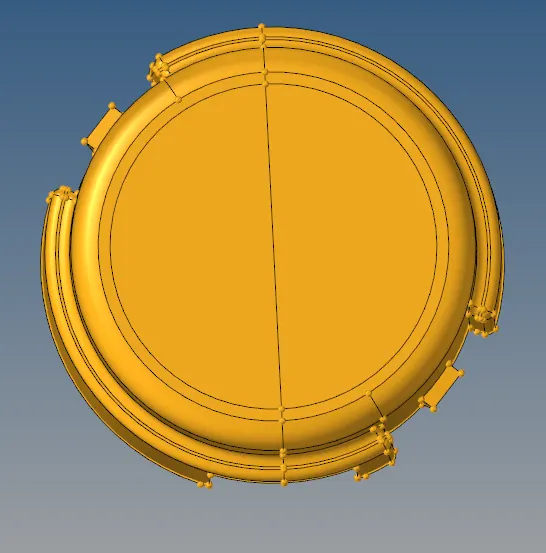
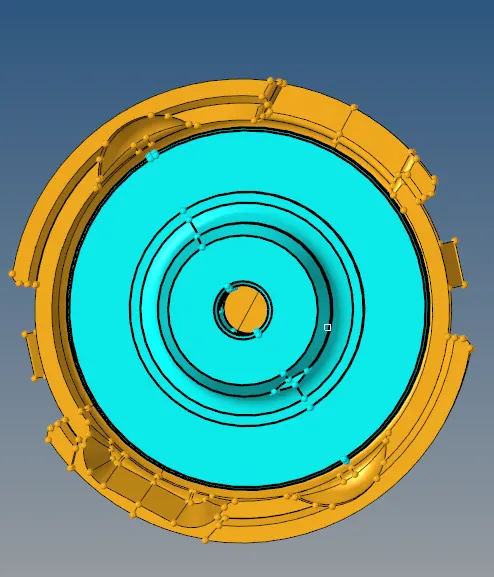
Fig 1: housing top view Fig 2: housing bottom view.
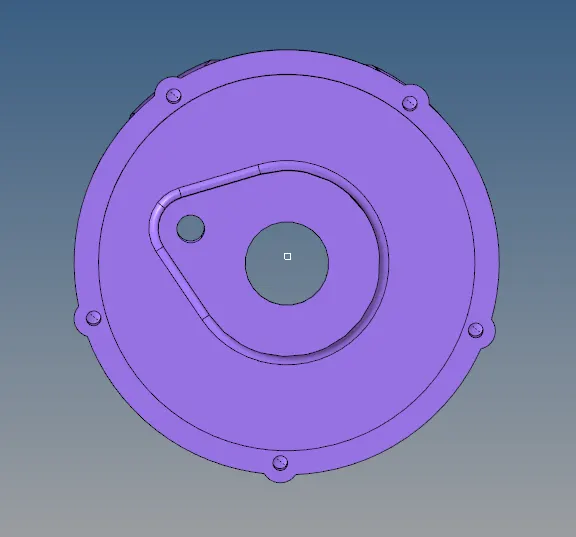
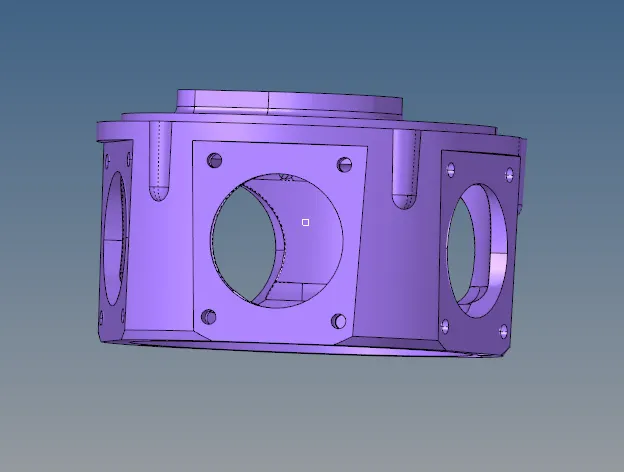
Fig 3: Crank housing top view Fig 4: Crank housing side view.
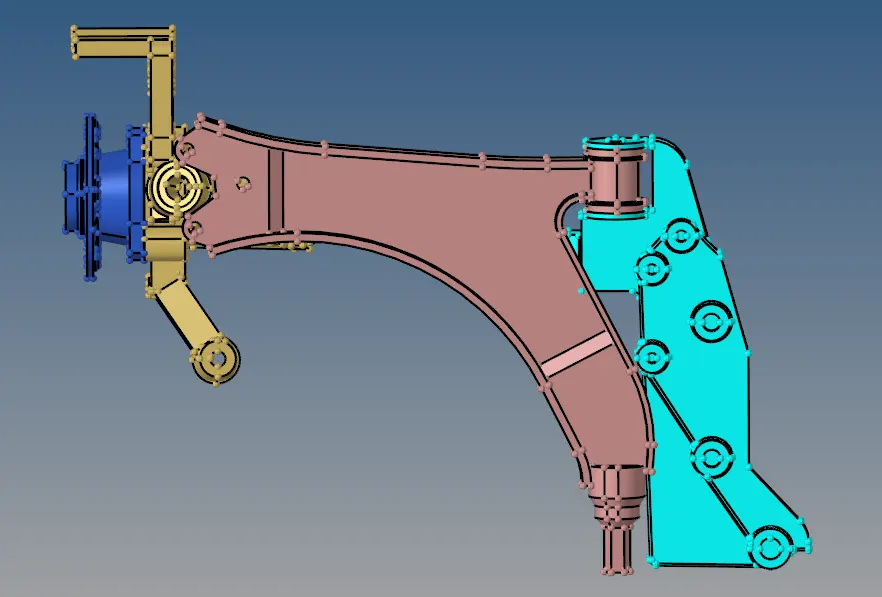
Fig 5: Chassis frame
Procedure:
1. 2D to tetra meshing process:
- The component in figs 1 and 2 is used for the 2D to tetra mesh process.
- Create a 2D mesh with tria elements of target length of 5mm for the component shown below.
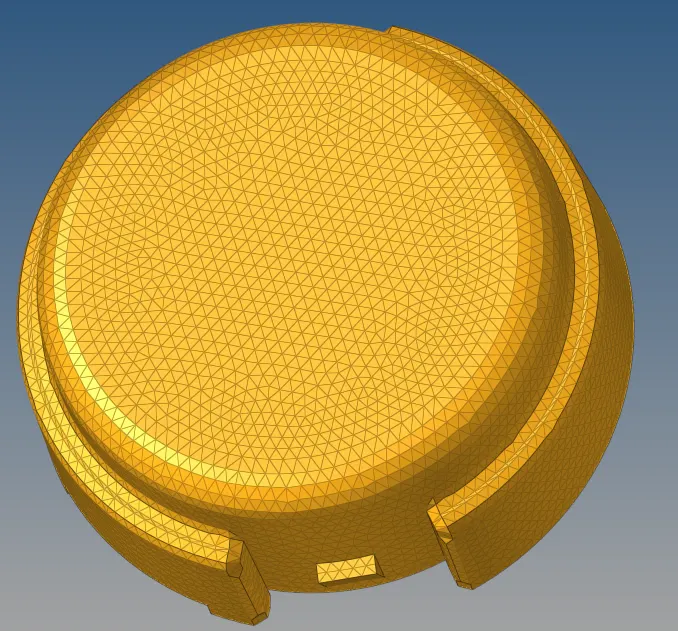
Fig 6: 2D meshed component
- Clear the minimum and maximum length errors that are 2 and 7mm respectively.
- A tetra mesh must be created inside the component. To create a 3D volume mesh the tetra mesh menu must be selected in the 3D menu. The control panel of the tetra mesh menu is as shown below.

Fig 7: tetra mesh control panel
- Set the tetramesh parmamters for the tet collapse, minimum and maximum element sizes.

Fig 8: tetra mesh parameters
- After setting the parameters, mesh the component by selecting the component. To check the volume mesh created in the component, mask the 2D elements on the surface to view the 3D mesh elements.
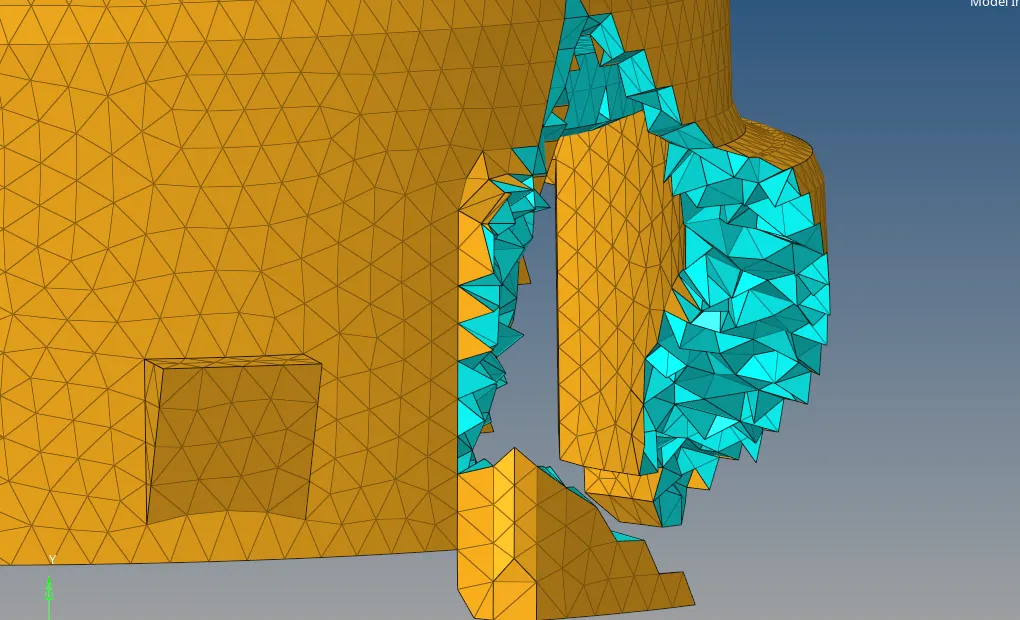
Fig 9: masking the component to check the volume elements inside the component
- After the creation of the volume mesh check for the tet collapsed elements in the check elements menu. If there are any collapsed elements then remesh the component in the tetra mesh remesh menu.

Fig 10: Tetra remesh menu
- Repeat the same process for another component in the model.
2. Quick Tetra meshing process:
- The component in figures 3 and 4 are taken for this process.
- For this process, the utility option is selected in the view menu in the hyper mesh.
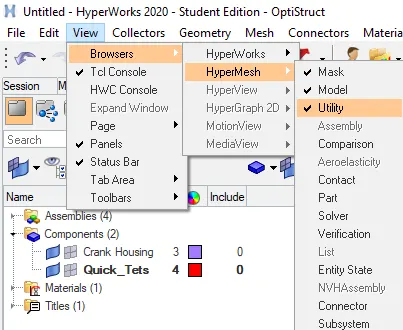
Fig 11: the selection of utilities in the software.
- The selection will open the following options on the left side of the software.
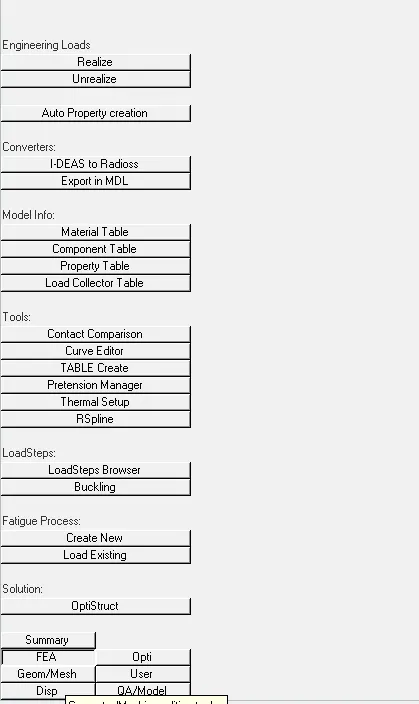
Fig 12: utility menu
- Select the geom/mesh option and select the quick tetra mesh option. Enter the mesh type and element size for the component in the menu and mesh the component.
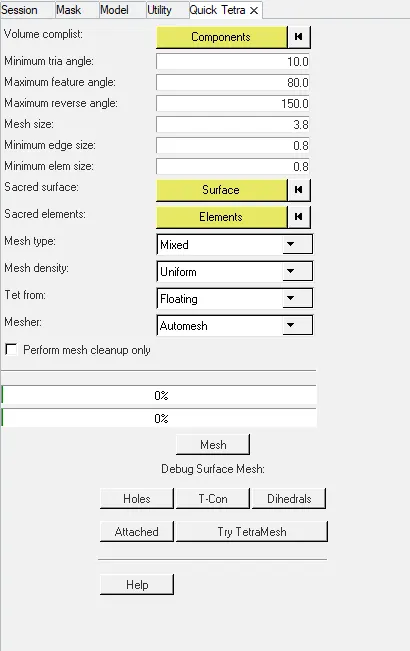
Fig 13: quick tetra mesh menu
- The process will take a few seconds to complete the meshing process. After the meshing process is completed check for the volume of the component by masking a few elements.
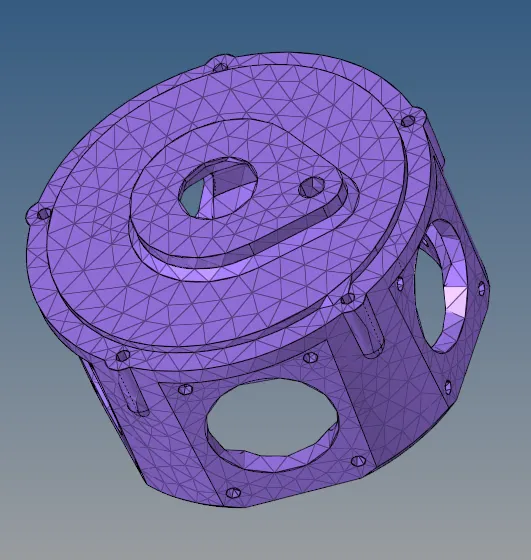
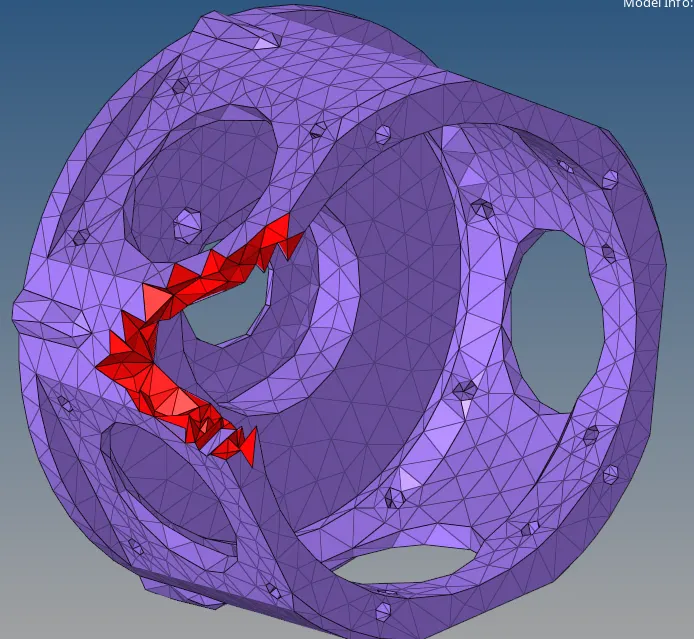
Fig 14 : meshed component Fig 15: Masked component to check volume mesh
- Thus the meshing process is completed as per the mentioned target length.
3. Volume tetra meshing process:
- The component in fig 5 is used for this meshing process.
- The component has 4 parts. Each part is meshed individually. Select any random component for the meshing process.
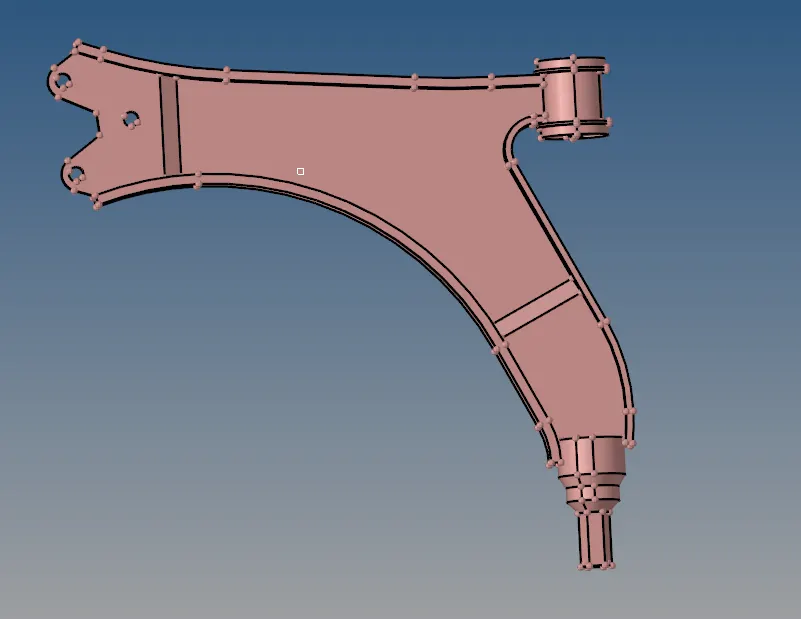
Fig 16: selected component for the meshing process
- Select the volume mesh process in the tetra mesh menu. Select the component and mention the target length of the tria elements.

Fig 17: Volume tetra mesh menu
- Select the curvature and proximity options if the component is complex. Mesh the selected component. The volume mesh will be as shown below.
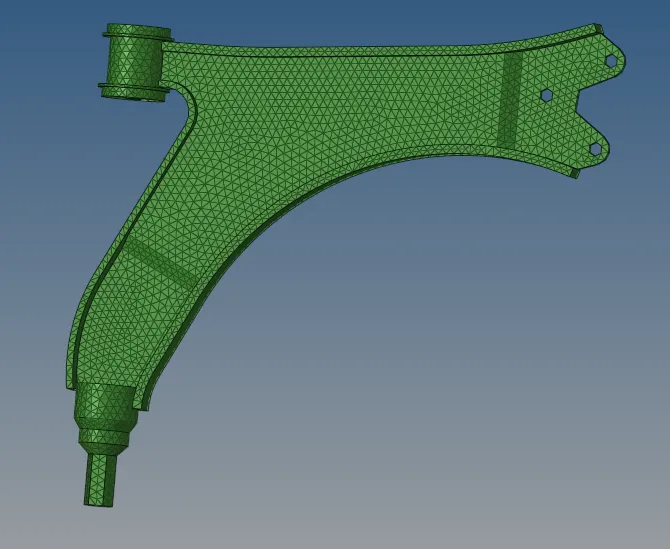
Fig 18:3D meshed component.
- Check for the tet collapse errors on the check element menu. If any errors exist clear the errors using the tetra remesh option. and the tetra element parameters before remeshing the component.
- Repeat the same process for the remaining components. Thus the meshing of the model will be completed.
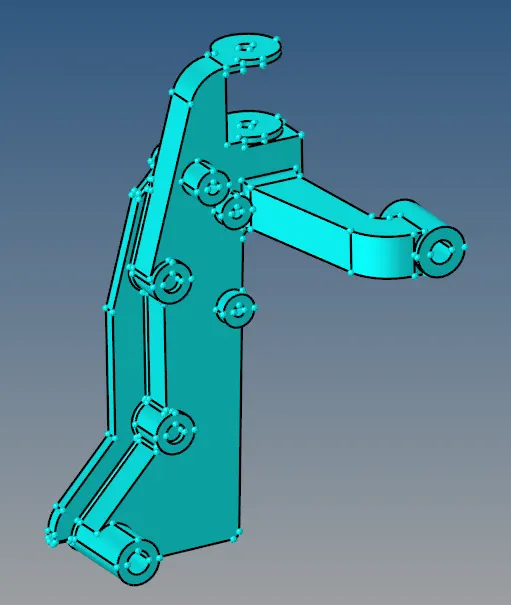
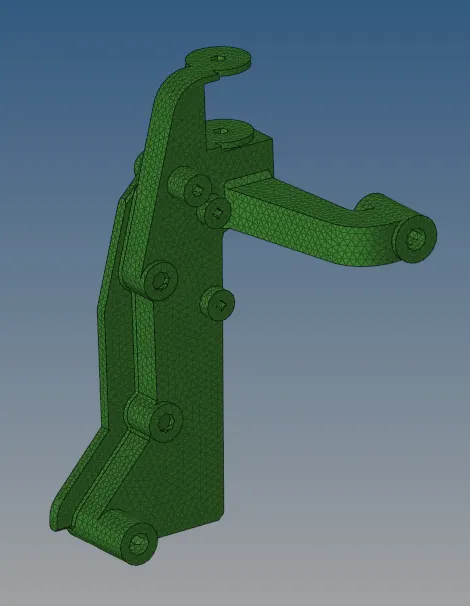
Fig 19: Solid component Fig 20: Meshed component
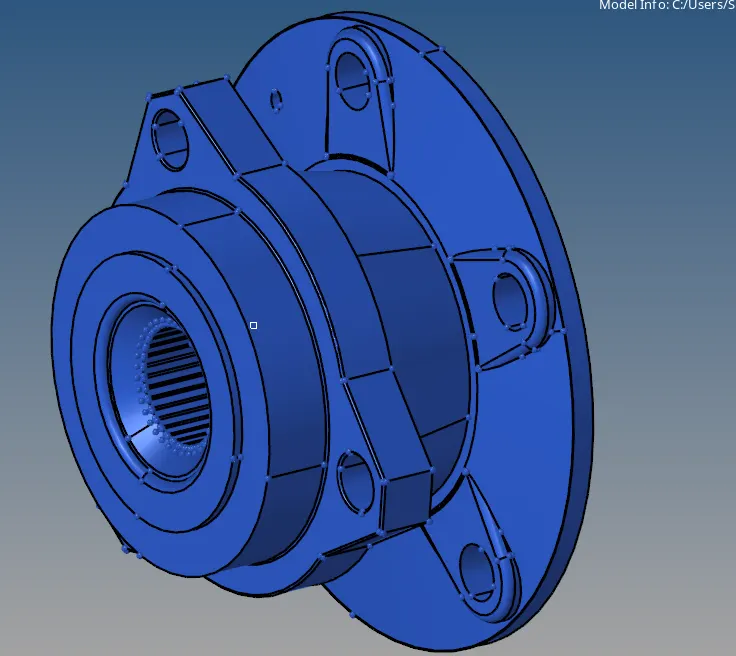
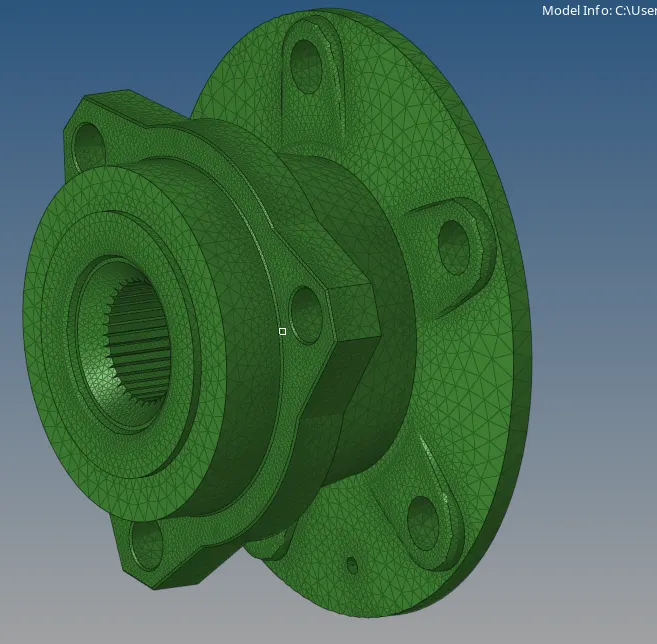
Fig 21: Solid component Fig 22: meshed component
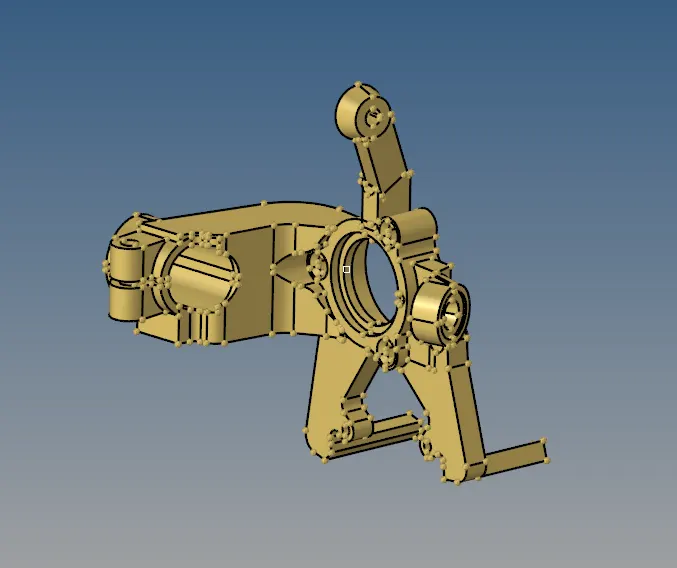
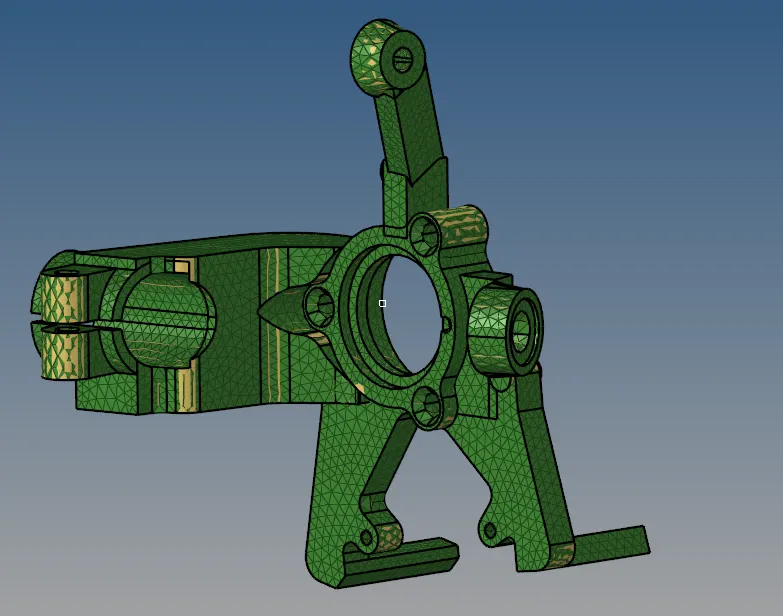
Fig 22: Solid component Fig 23: meshed component
Result:
Thus the volume mesh process for the given three components using different methods is completed.
Learning Outcomes:
- Learned 2D to tetra mesh process
- Learned quick tetra mesh process.
- Learned volume tetra mesh process.
https://drive.google.com/file/d/1Xu6T4zh5o78EckWa30bZ5Fre9hUWqnoO/view?usp=sharing