Week 8 - Challenge 1 - Base Bracket Design
BASE BRACKET DESIGN
AIM:
To create the Base Bracket Plastic component through the given Class-A surface.
OBJECTIVES:
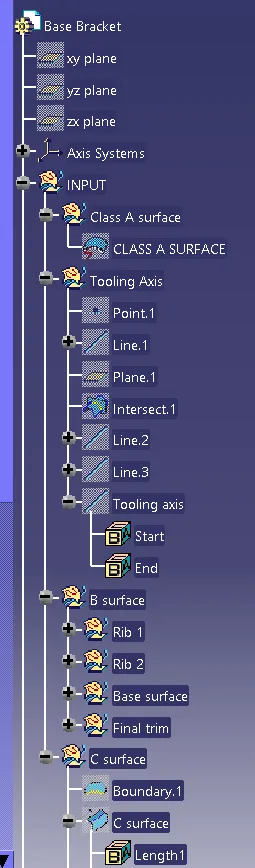
- Ensure Proper Tree Structure
- Geometrical sets should have a proper name based on the sketches present inside of it
- All the sketches should be created under the Geometrical set
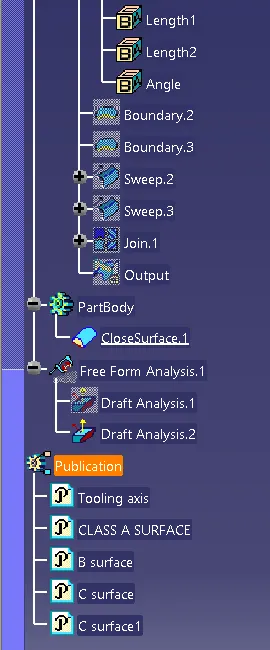
- Use the Close Surface feature to make a solid body from the surface.
- Publications: Use the publication option and publish the below
- Tooling Axis
- Class A, B, and C surface
REPORT:
DRAFT ANALYSIS:
- At first the compass is aligned with the created tooling axis with the W axis parallel to it.
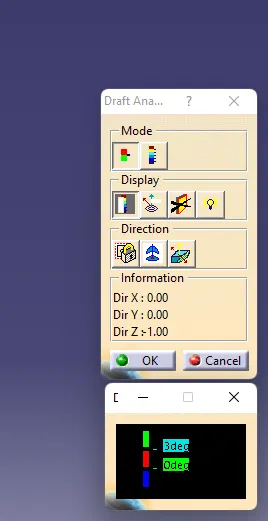
- Then the minimum draft angle is set to 3 degree in the sub toolbar with tri colours.
- By locking the draft direction using the lock icon in the main toolbar the part is analysed.
Draft analysis:
1) It is a tool that allows the user to ‘see’ whether the part they are designing can be removed from the tool being used to make it.
2)In the case of plastic injection molded parts it also allows the designer to see if there is enough draft on the part to ensure that it can be correctly grained.
3) we always use the tool with the axis direction method. Put the main axis on the draft direction line with Z being parallel to it. Select the tool then select the part body. You may need to reposition the axis again.
4) The results window has 2 options 1 with just 3 colour variants and the other with many variants. They can be edited by double clicking on them to give you the result you desire. The colours show the different draft angles.
5) We have to use following path for drafting anaylsis
Tools- Anaylsis- Feature draft anaylsis
6) At starting of drafting anaylsis we have to set compus which is show in direction row (2nd number option). During this w of compus is set towards the drafting angle.
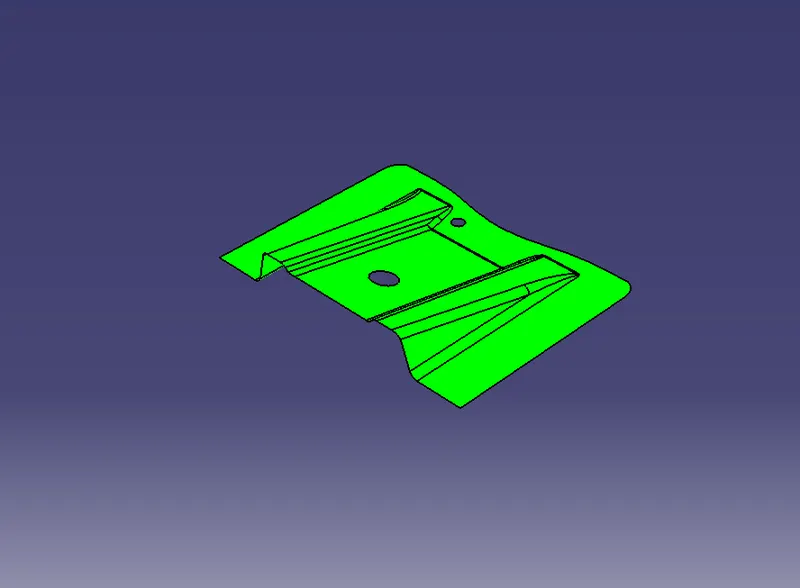
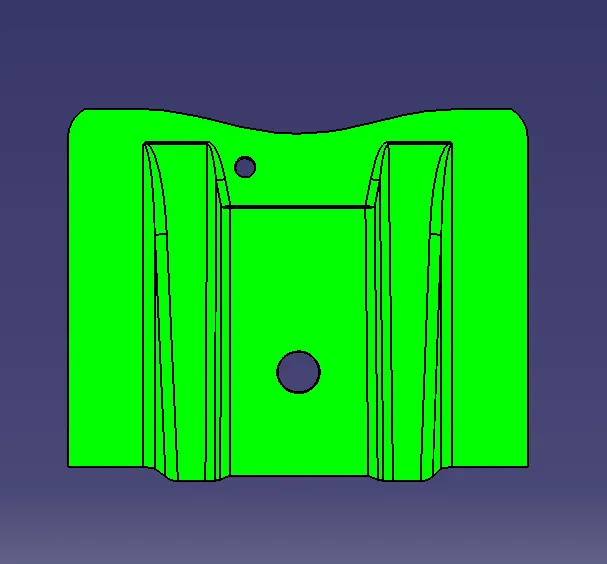
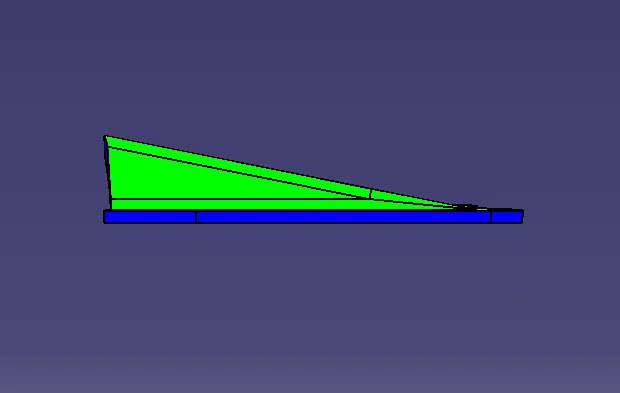
7)After this we have to click on component. Now component become green as shown in below image and also if it become blue then flip direction of compus using flip option in direction row.
8) Finally set drafting angle at 3 degree and measure drafting angle at different faces of component by using display row.
9) If your component is green then drafting anaylsis process is completed.
TOOL AXIS CREATION:
- At first, a point is created at the center of the hole present in base bracket using point definition toolbar.
- Then a line is created using the point using line definition
- A plane is created with respect to the point and the line along with respect to yz plane
- With the use of intersection toolbar an intersection line with respect to the created plane is created on the class A surface.
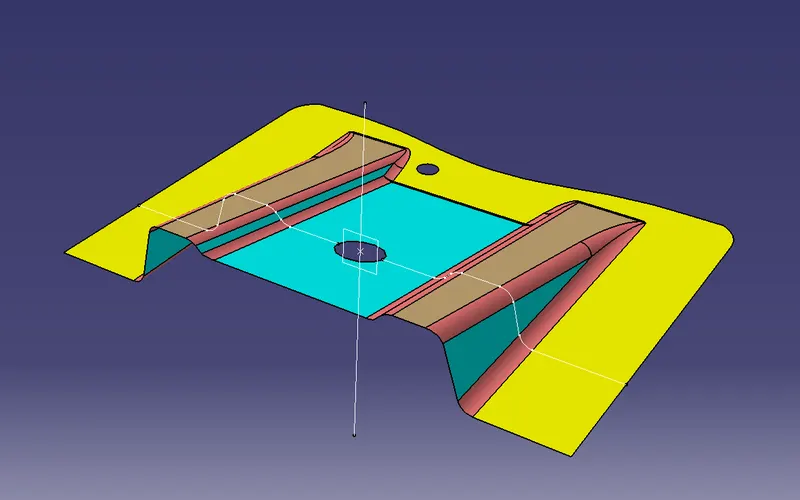
- Two lines from two ribs were chosen and extended lines were created using line definition
- From the line definition toolbar a bisecting line is created with respect to the two extended lines
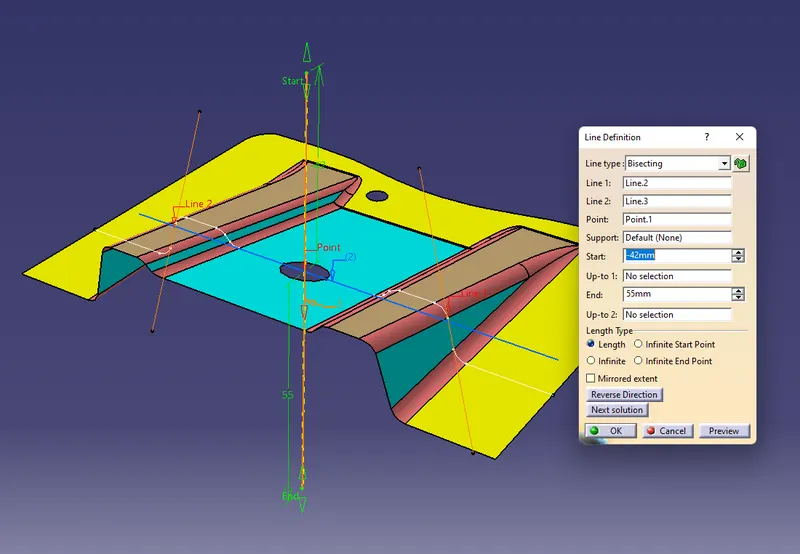
An explanation on the way of creating the tooling axis, particularly the Bisecting method:
1. By observing part or component we have to choose direction of drafting. while doing this we have to consider geomety of component. All holes, fillets, chamfer etc have to take in our consideration and we have to choose direction of drafting. In this case we have selected z axis for drafting direction.
2. we have selected middle whole for create dummy axis. In this whole we have add one point at center of hole and from this point we have create one line. We have consider this line as a dummy axis.
3. Now by observing component geometry, we have to choose direction or plane to create axis for bisecting the component. Here we have choose zy plane or y direction and generate plane parellel to zy plane with respect to center point of hole.
4. After this we have to intersect plane or axis system with component. It will provide you one shape of geometry.
5. Now we have to draw two lines from extreme outer two points of bisecting line or from extreme outer line.
6. By using line option, we have to create bisecting lines from those two final lines.Here in bisecting line option we have to choose correct line from horizantal or vertical line according to our drafting direction line.
7. This line will provide you final tooling axis line.
SUBMISSIONS:
DRAFT ANALYSIS OF CLASS A SURFACE:
ANALYSIS OF PLASTIC COMPONENT:
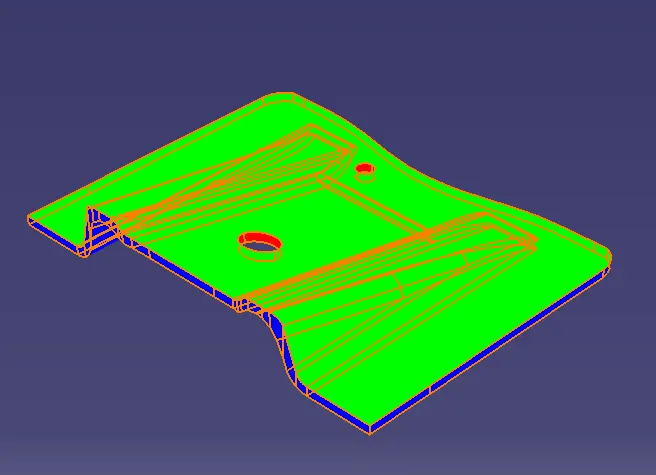
ISOMETRIC VIEW:
FRONT VIEW:
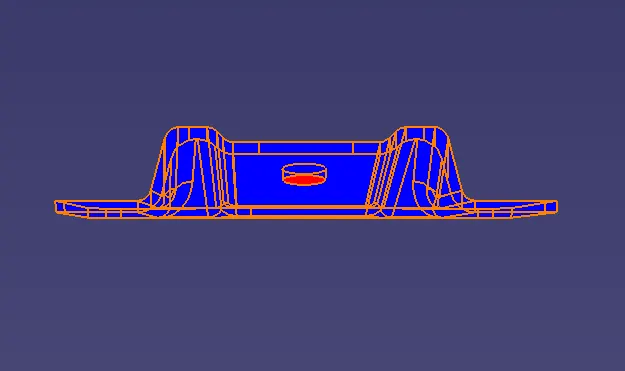
TOP VIEW:
SIDE VIEW:
FEATURE TREE: