Week 8-3D Tetra Meshing Challenge
2D TO 3D CONVERSION OF HOUSING MODEL (MODEL-1)
AIM:
For the given model mesh has to be converted from 2D to 3D and checked for the given quality criteria.
PROCEDURE:
STEP 1:
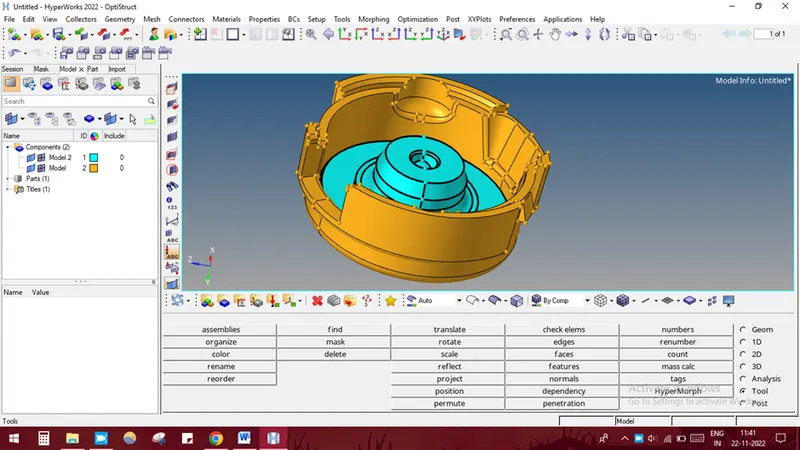
Importing the model into the hypermesh by selecting IMPORT SOLVER DECK-IMPORT GEOMETRY-SELECT THE FILE-IMPORT.
STEP 2:
Delete the solid by selecting F2-SOLIDS-DISPLAYED-DELETE ENTITY.
STEP 3:
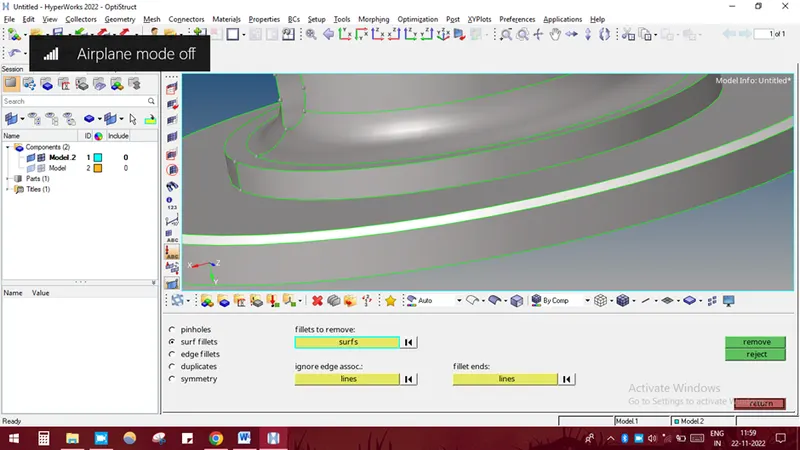
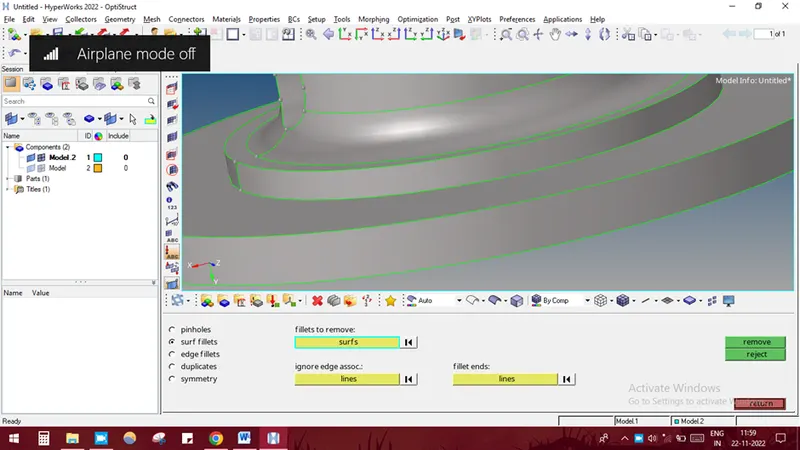
Defeaturing. In this model, some fillets are present so it should be removed before meshing. It could be removed by selecting GEOMETRY- DEFEATURE-SURF FILLET-SELECT THE SURFACE-FIND-SELECT THE FILLET-REMOVE.
STEP 4:
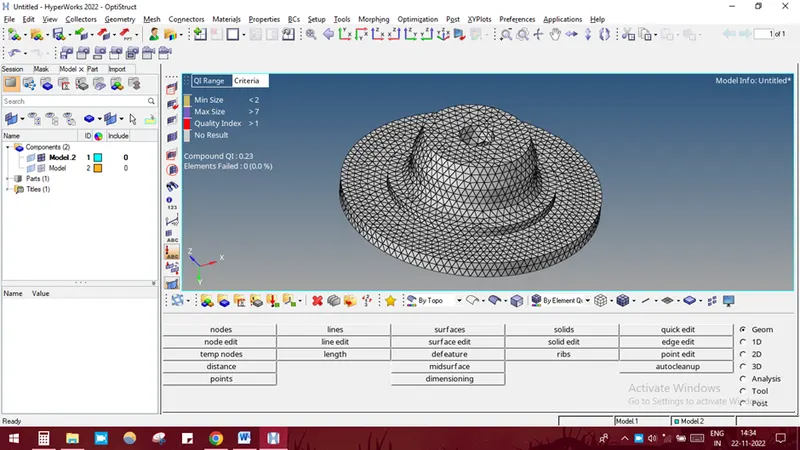
Mesh the component by selecting 2D-AUTOMESH-SURFACE-DISPLAYED-MESH TYPE AS TRIA-GIVE ELEMENT SIZE-MESH.
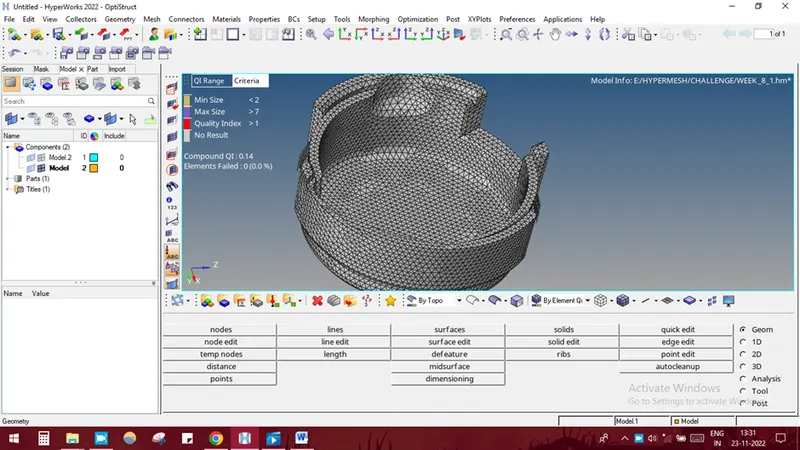
STEP 5:
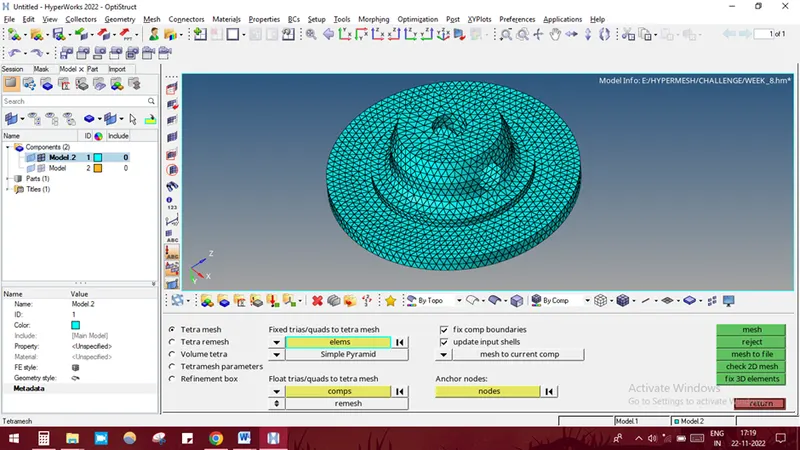
Convert 2D elements to 3d elements by selecting 3D-TETRAMESH-SELECTING THE ELEMENTS-MESH. The final model image is shown below.
STEP 6:
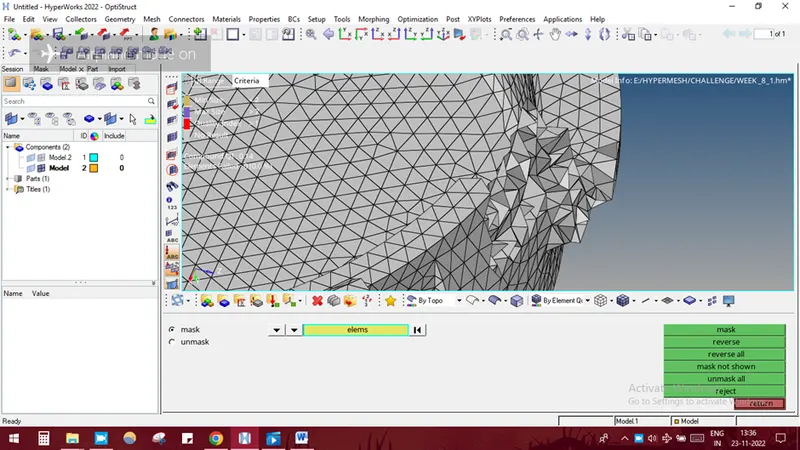
Delete the 2D shell elements by selecting F2- BY CONFIG-CONFIG-QUAD4-SELECT ENTITY-DELETE ENTITY.
STEP 7:
Check the mesh for any tet collapse by selecting F10-3D-TET COLLAPSE.
CONCLUSION:
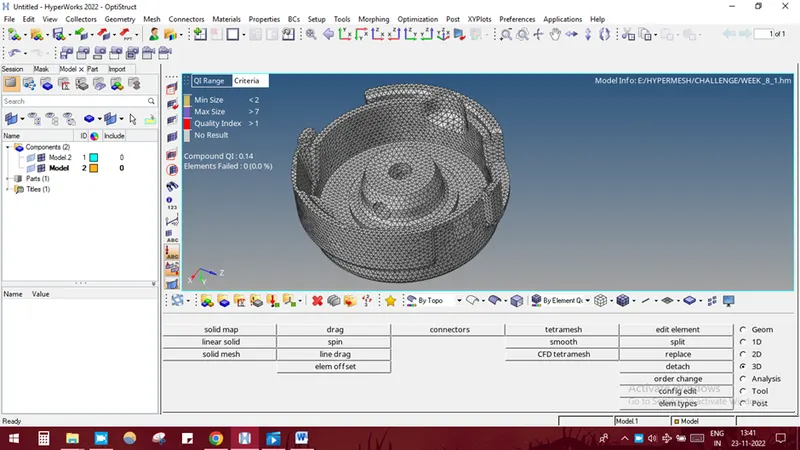
Thus the given model has meshed with 3D elements and with the given quality parameters. The final image of the mesh has given below.
-----------------------------------------------------------------------------------------------------------------------------------
MODEL-2
AIM:
For the given model, create 3D tetra mesh using quick tetra mesh or volume mesh option with the given quality criteria.
PROCEDURE:
STEP 1:
Import the model into hypermesh by selecting IMPORT SOLVER DECK-IMPORT GEOMETRY-SELECT THE FILE-IMPORT.
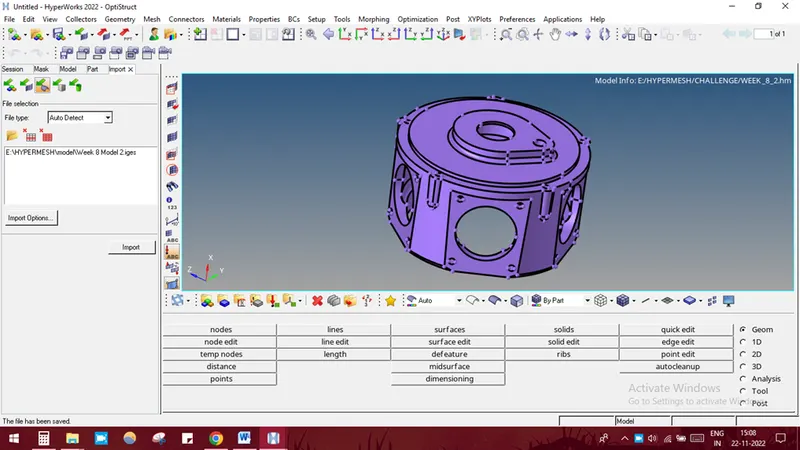
STEP 2:
Surface cleanup by removing the fillets.
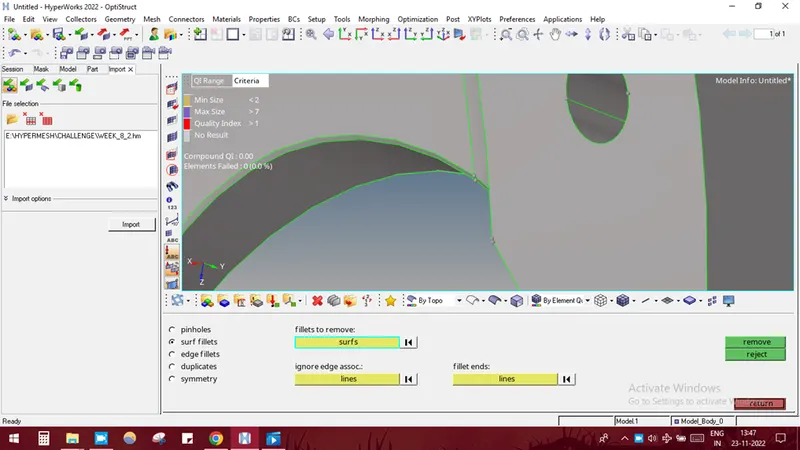
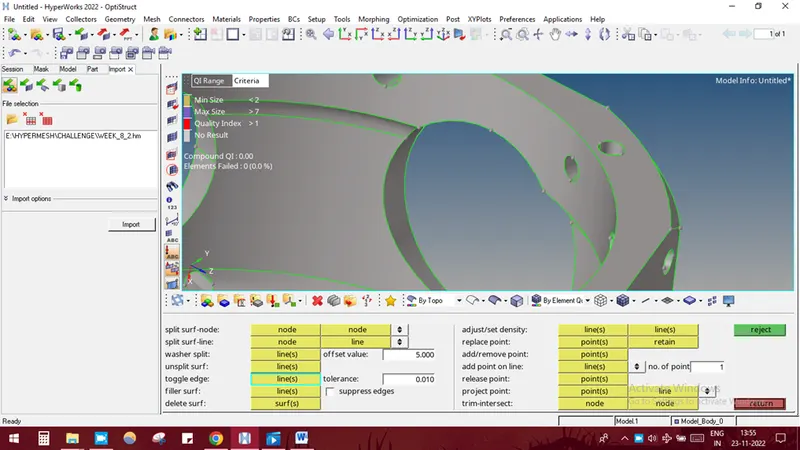
STEP 3:
Generating quick tetra mesh by selecting VIEW-BR0WSER-HYPERMESH-UTILITY-GEOMETRY MESH-QUICK TETRA MESH-COMPONENT-SELECT-PROCEED.
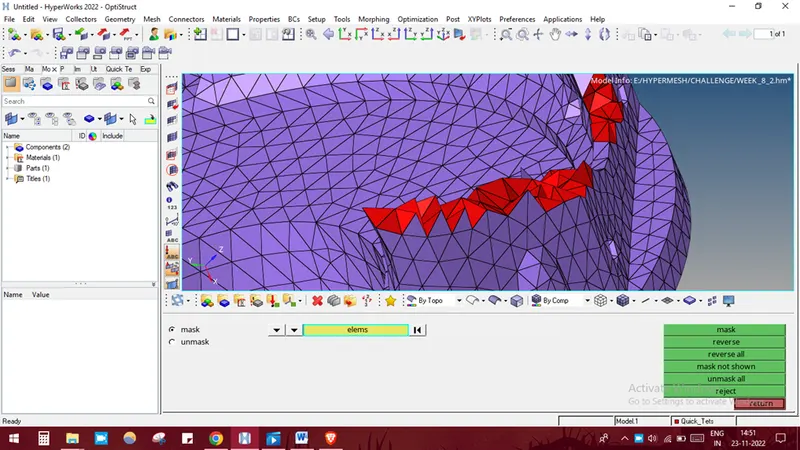
STEP 4:
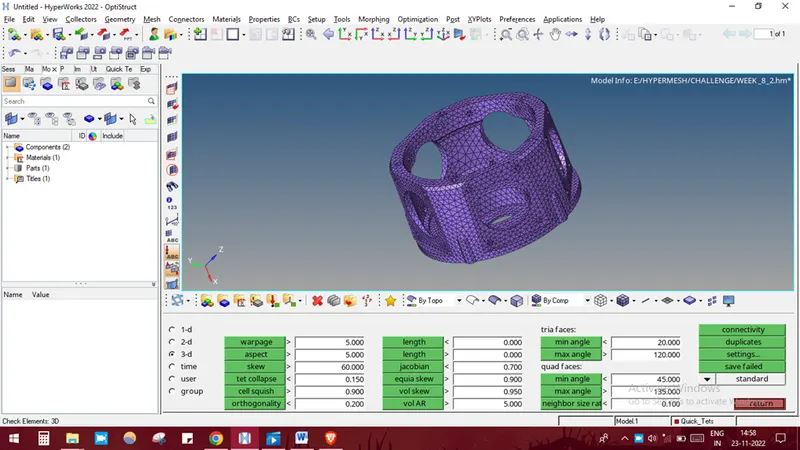
Check the mesh for the tet collapse by selecting TOOL-CHECK ELEMENTS-TET COLLAPSE. The final model image has shown below.
CONCLUSION:
Thus the given model has meshed with the quick tetra mesh option.
------------------------------------------------------------------------------------------------------------------------
MODEL-3
AIM:
For the given model, create 3D tetra mesh using quick tetra mesh or volume mesh option with the given quality criteria.
PROCEDURE:
STEP 1:
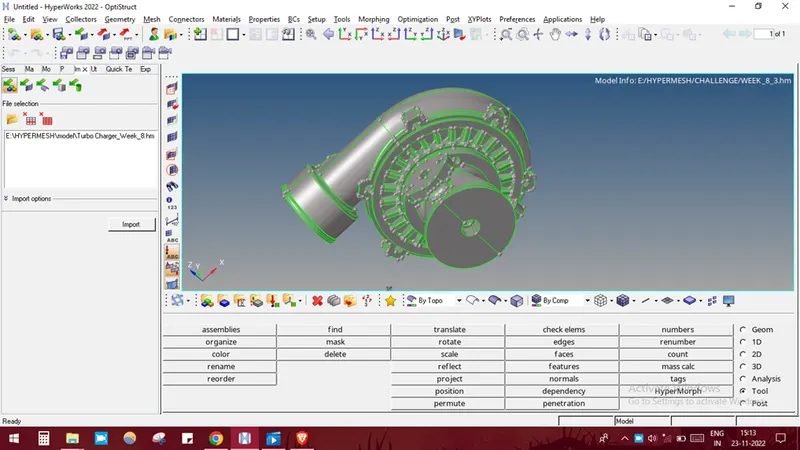
Import the model into hypermesh by selecting IMPORT SOLVER DECK-IMPORT GEOMETRY-SELECT THE FILE-IMPORT.
STEP 2:
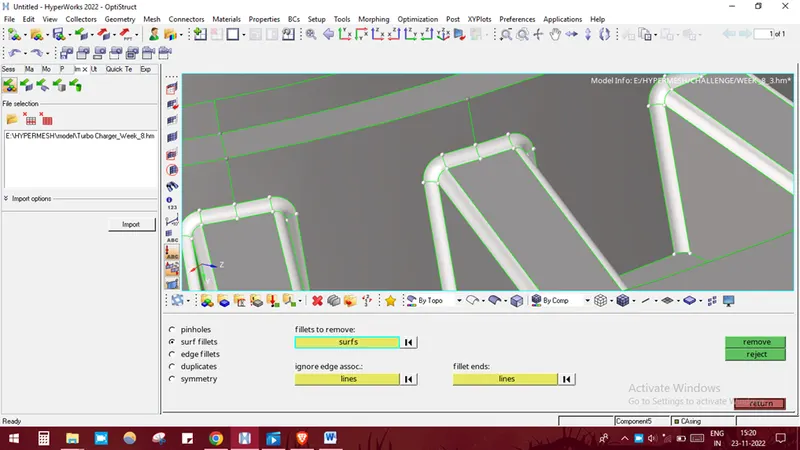
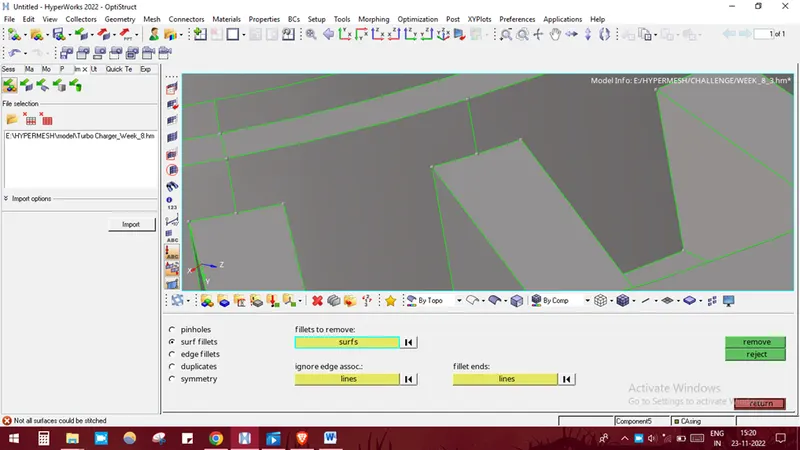
Surface cleanup by removing the fillets.
STEP 3:
Generating quick tetra mesh by selecting VIEW-BR0WSER-HYPERMESH-UTILITY-GEOMETRY MESH-QUICK TETRA MESH-COMPONENT-SELECT-PROCEED.
STEP 4:
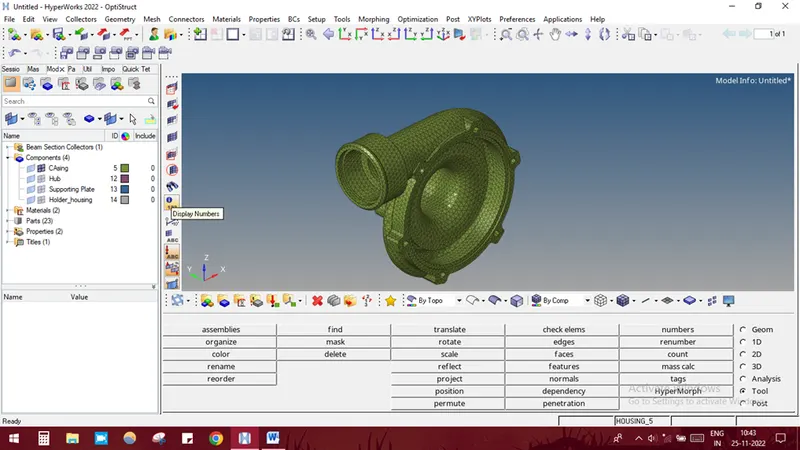
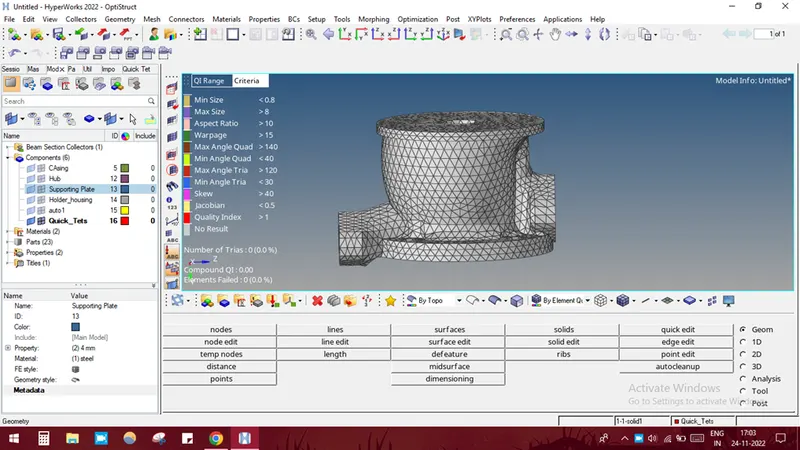
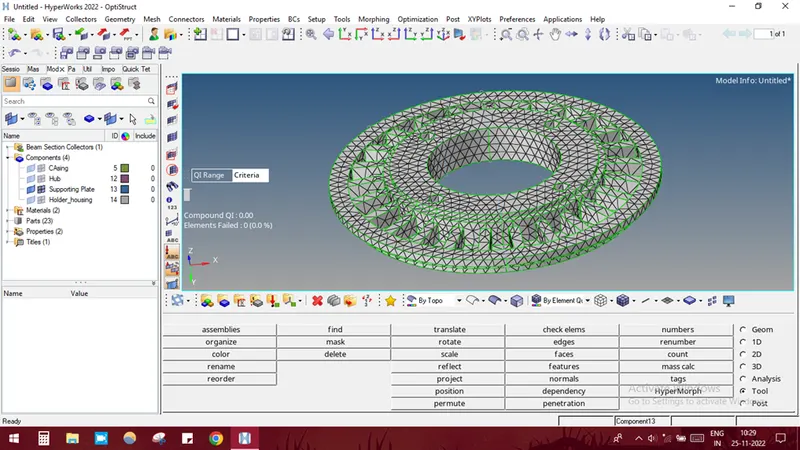
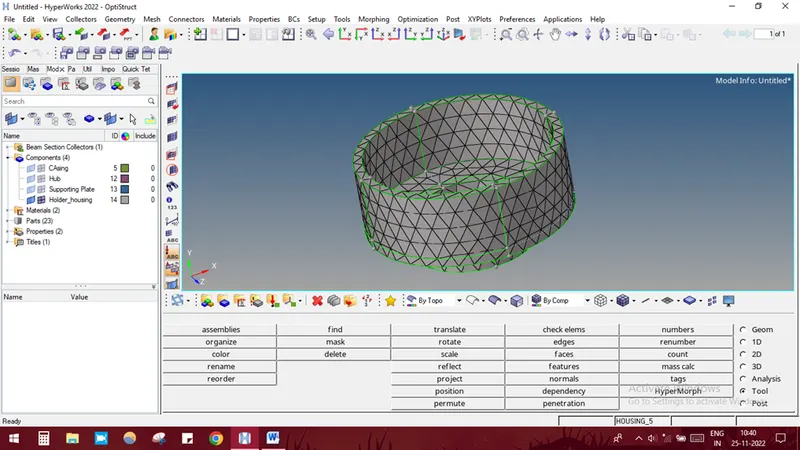
Check the mesh for the tet collapse by selecting TOOL-CHECK ELEMENTS-TET COLLAPSE. The final model image has shown below.
STEP 5:
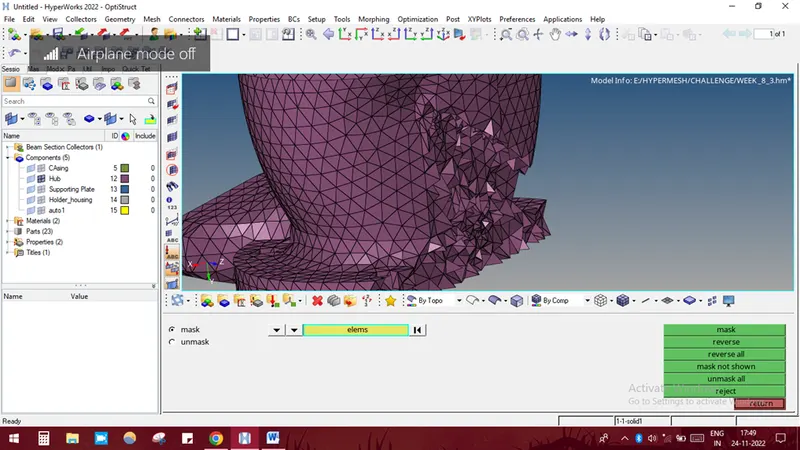
elements could be checked by pressing F10-TET COLLAPSE-SAVE FAILED and then pressing F5-ELEMENTS-RETRIEVE-MASK-REVERSE.
The elements are then remeshed by selecting 3D-TETRAMESH-TETRAREMESH option or it could be manually cleared by using the TRANSLATE option.
CONCLUSION:
Thus the given model has meshed with quick tetra mesh option. The final image of the whole model is shown. 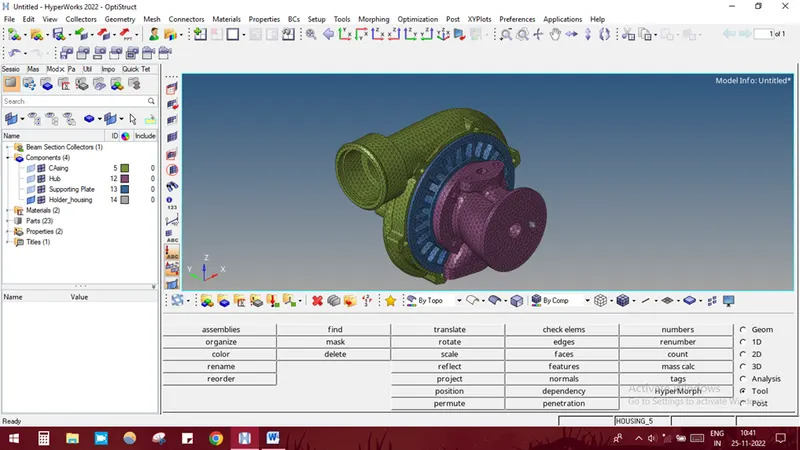
-------------------------------------------------------------------------------------------------------------------------