Week 8-3D Tetra Meshing Challenge
AIM: To create a 3D Tetra mesh by using a given Model with 3 different types of Tetra Meshing
i) 2D to 3D Conversion
ii) Quick Tetramesh
iii) Volume Tetra Mesh
Model 1:
Housing
2D to 3D Conversion
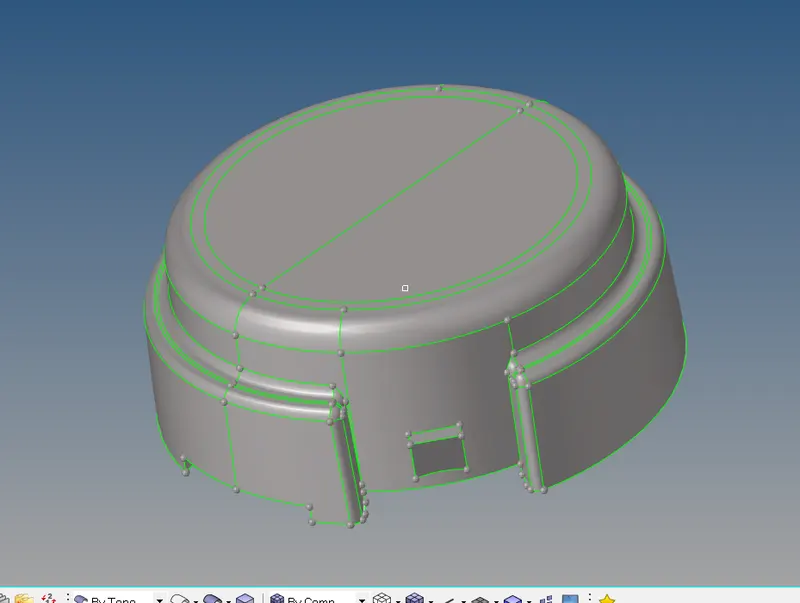
In the below model we have to check that any free edges are present.
If there are any free edges use Toggle to eliminate them.
 \
\
The next step is to create a 2D mesh in the model and check all the surfaces are been covered in the mesh.
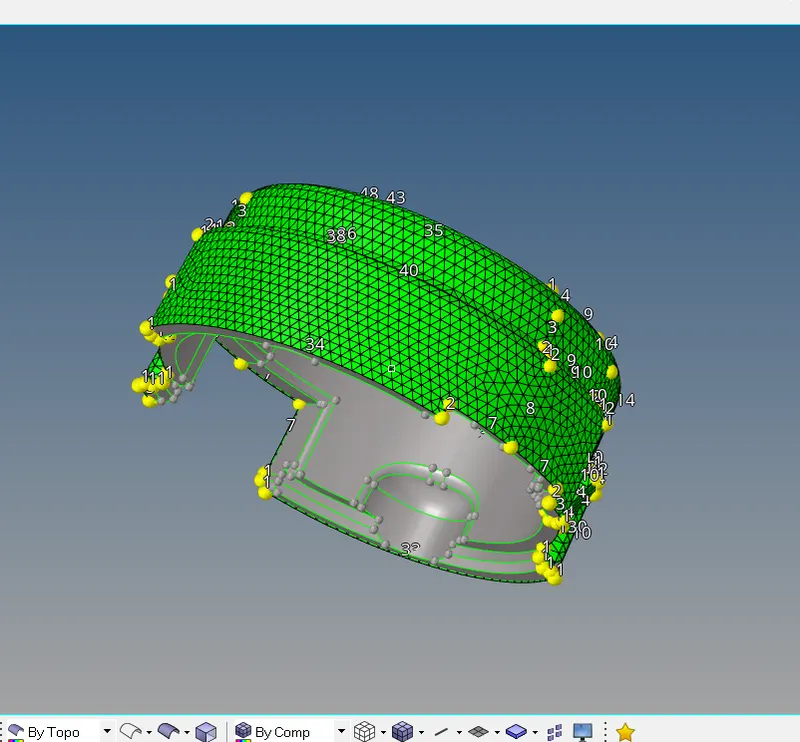
Then check the quality criteria as mentioned below in the 2D model.
Elements sizes:
Min- 2 Units
Target- 5 Units
Max- 7 Units
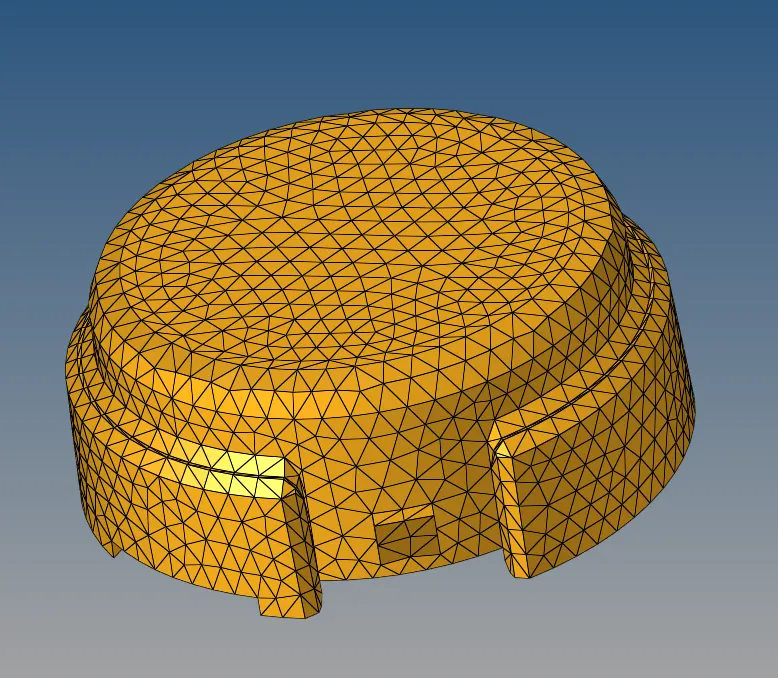
Once clearing with all quality criteria limits now we need to create Tetra Mesh to the model which is available in "3D -> tetrameh -> Elems -> Parameters -> Tetra Collapse. Of 0.15
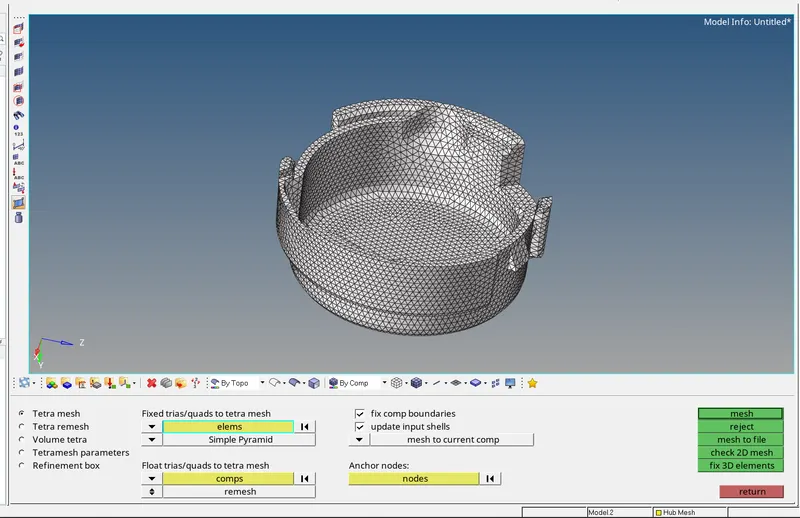 to
to
The below image shows all the elements are been created as Tetra mesh with a tet Collapse of 0.15.
To check up on the Tet collapse "Tools -> Checks Elems -> 3D -> Tet Collapse"
Tet collapse: 0.15
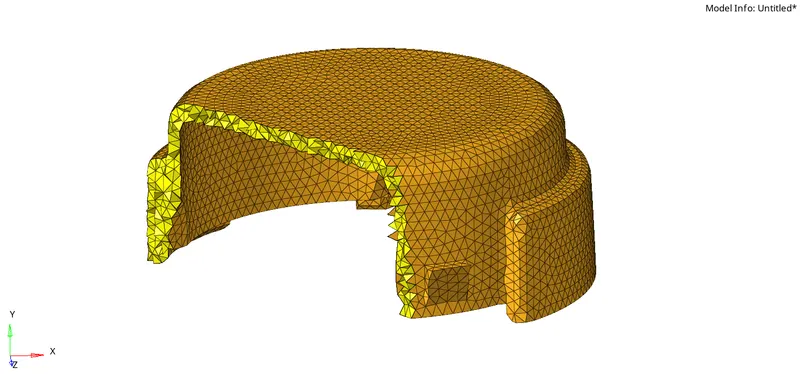
Since there are two components are been available in the housing same similar steps are been followed and done the Tetra Mesh.
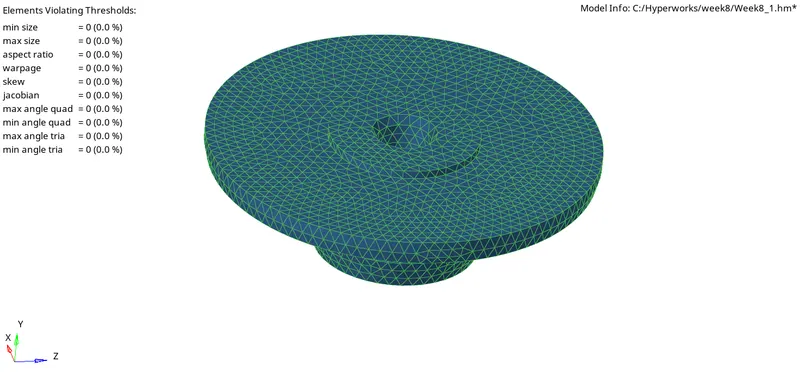
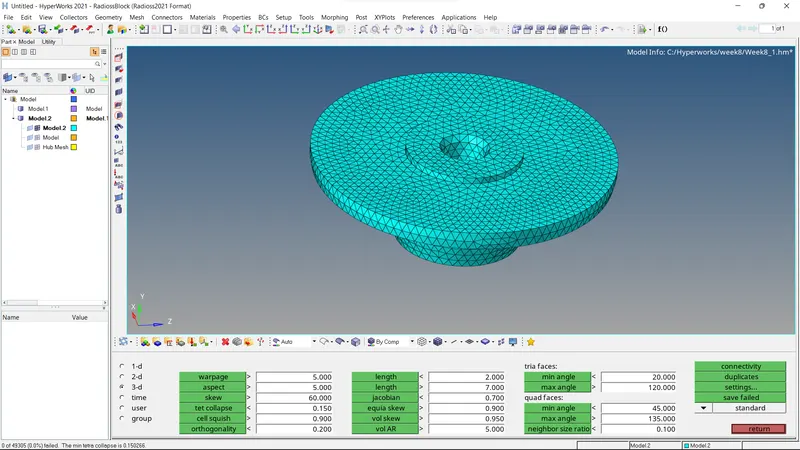
Model 2:
Importing the Model to Hypermesh
Look if there is any error found if not go further to cases or else clean up the free edges if any are found.
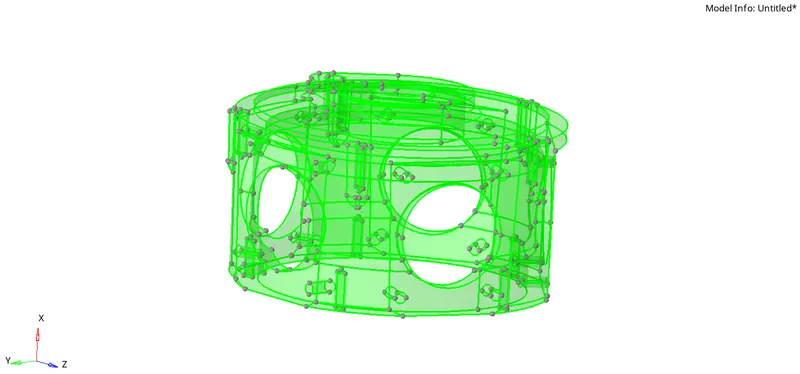
In this model, there are no minimum and maximum criteria limits given due to quick volume tetra meshing.
The model is surface, "Ulility -> Hypermesh -> Geom/Mesh -> Quick tetra" is been used to create a Tetramesh in it.
The given model is meshed and fixed all the test collapse errors in it.
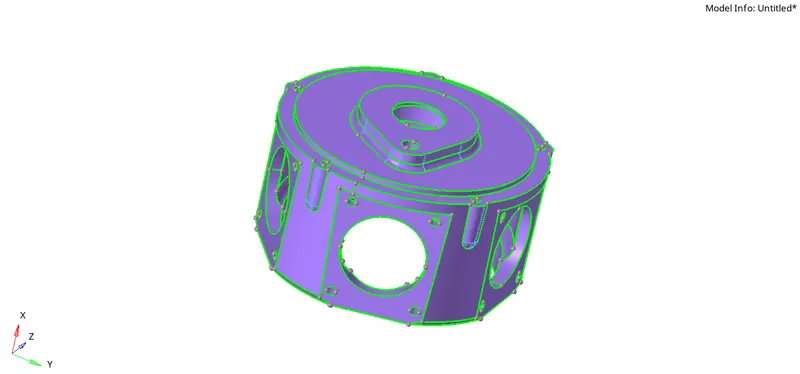
The below image shows the model is done and created a 3D tetra mesh in it
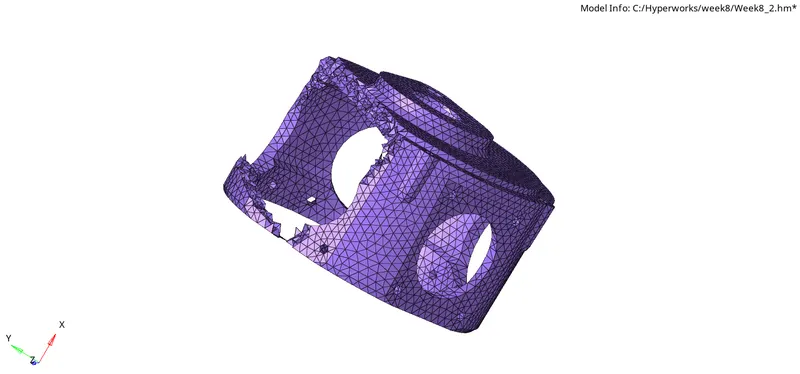
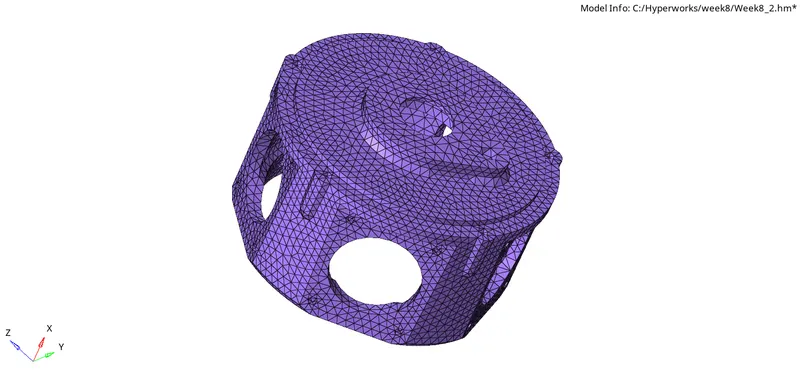
Solid Image of the model after completing the 3D tetra mesh in it.
Target Element size: 4 Units.
Tet Collapse: 0.15
Model 3:
Turbo Charger:
Import the model to the Hypermesh
There are 4 different parts are been given to mesh all need to be meshed separating by using Volume Tetramesh.
To mesh each component I have found a common error in it, I can't select the full component due to surface is been splited in it so we have to delete the surface on both sides of the component and Toggle them to get a proper mesh flow in it.
As shown below pictures the error occurred.
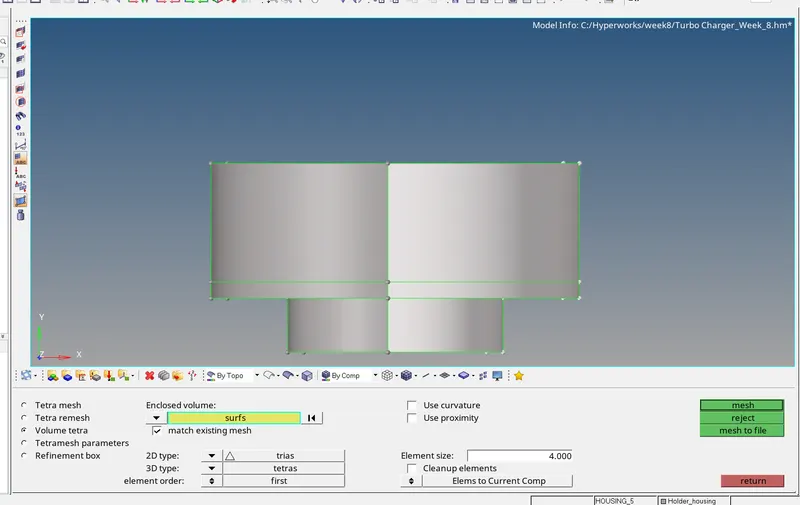
The highlighted component needs to delete in both halves and toggle the lines which are free edges and repeat the above steps for all 4 parts to mesh all the components in Volume Tetra Mesh with proper flow.
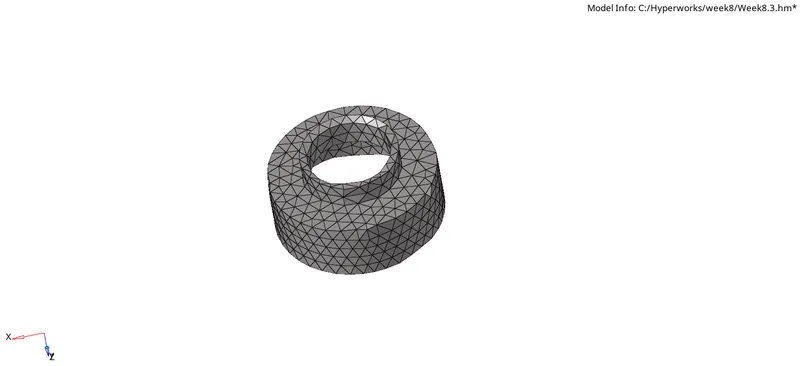
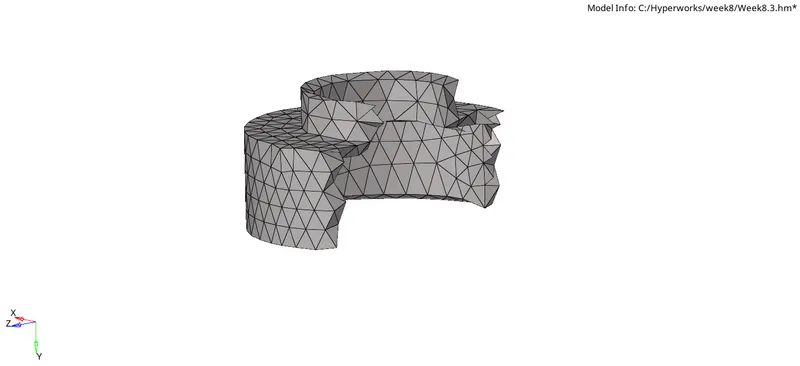
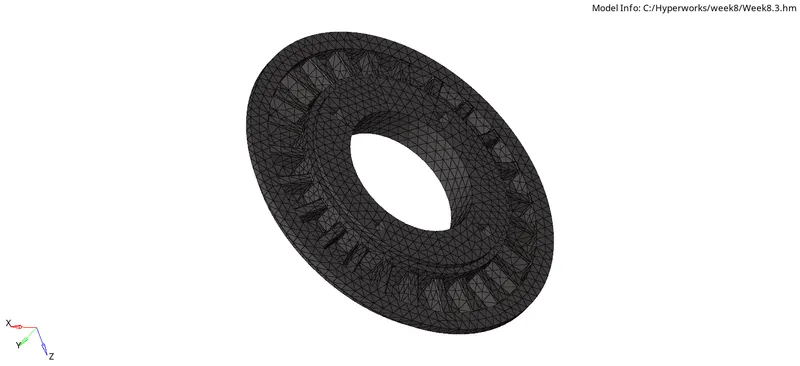
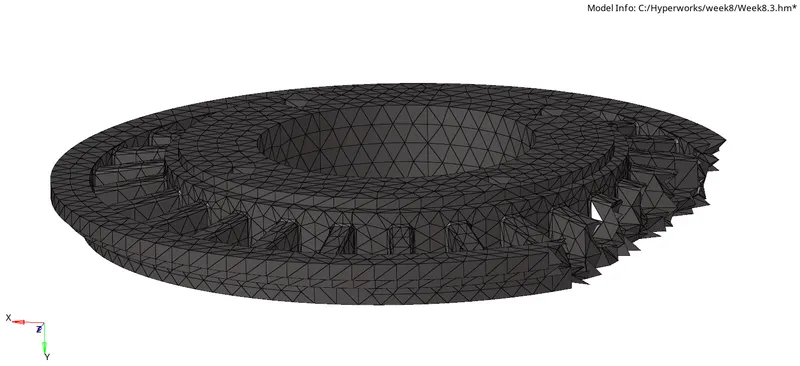
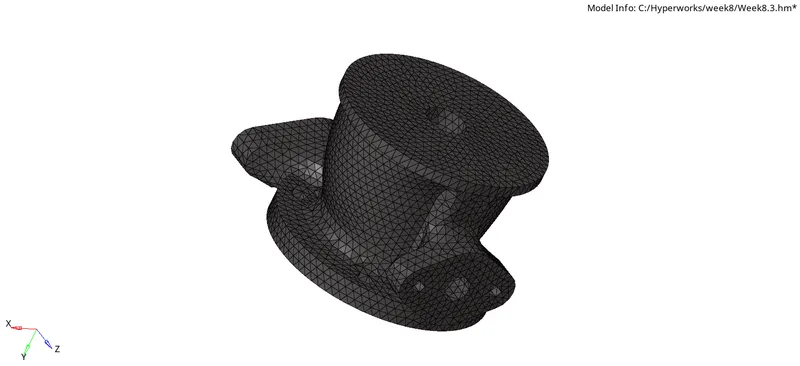
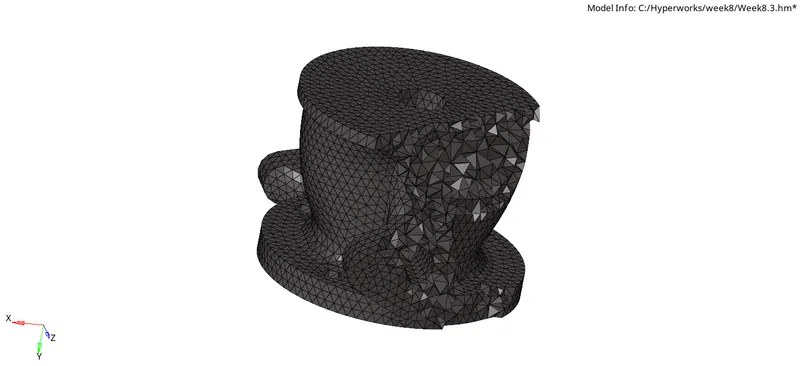
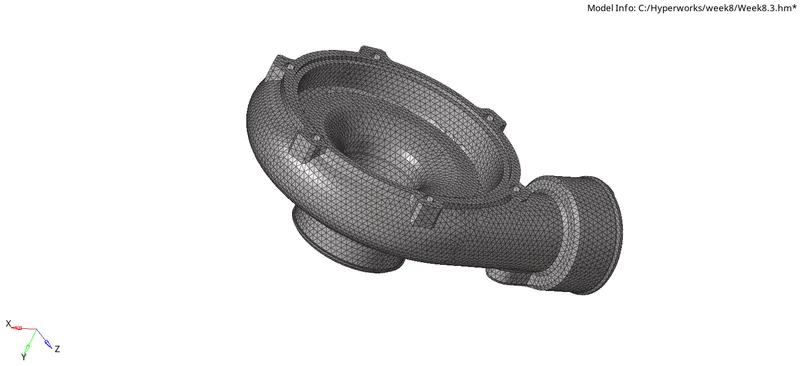
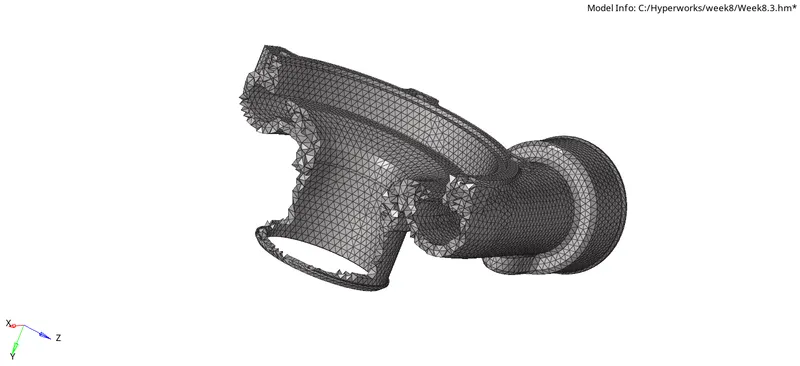
As shown below all the components are been Volume meshed.
Target Limit for Turbo Charger:
Target Element size: 4 Units.
Tet Collapse: 0.15
Holder Housing:
Supporting Plate:
Hub:
Casing:
Conclusion:
Understood all the types of 3D mesh used in different scenarios as mentioned