Week 8-3D Tetra Meshing Challenge
Aim :- To create tetra mesh, 3D terta mesh on surface of given models with proper mesh flow and given quality criteria.
Procedure :-
- In this challege we have given three different models, We have to work on each of them as per given criteria. So we will work on one by one seperately as follows:
Model No. 1 : Housing model (Create a tetra mesh)
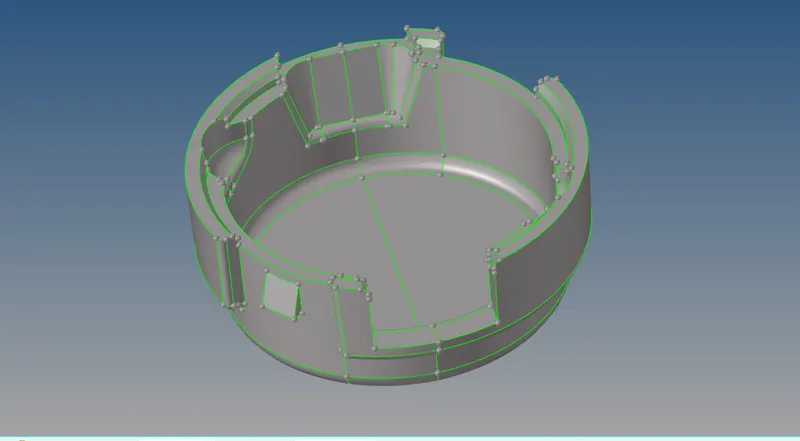
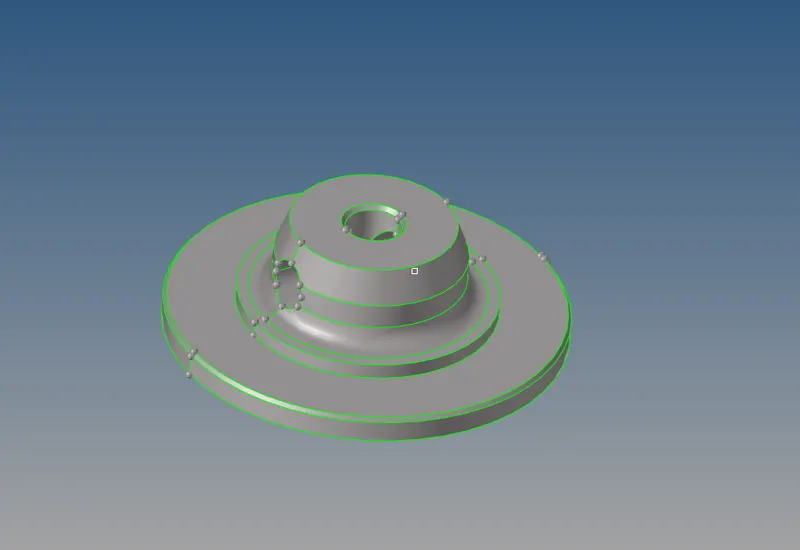
- As thickness of given component is greater than 5mm so we will go for terta mesh without extracting midsurface forr given model.
- First we will check geometry of given model is clean or not, To check that we have to observe given model in wire frame mode.
- Now we directly go for meshing of given model, First we will go for 2D mesh by using (2D - Auto mesh - select the surface - mesh type - Mesh size - Create).
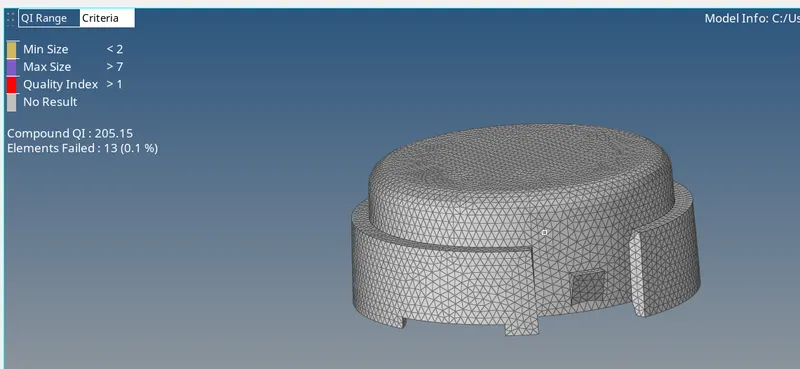
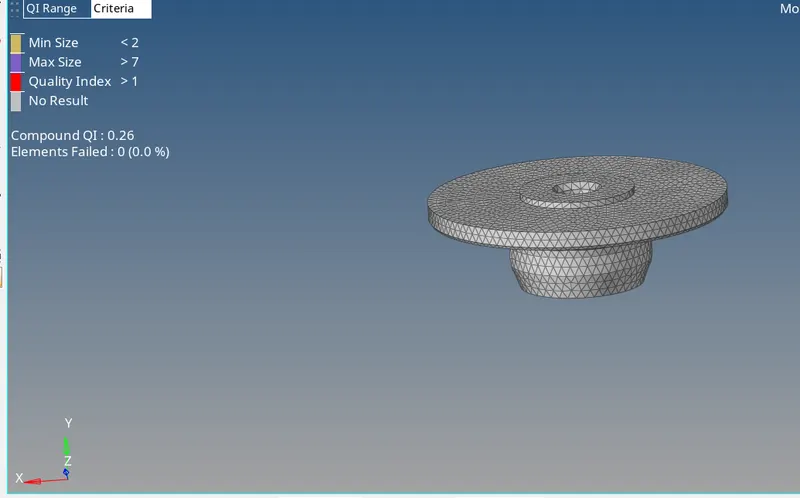
- Now we have assign quality criteria for given model by using ( Preferences - Quality file settings - fill the required qualities). To check whether our mesh is fail for given quality criteria we have go for (By element quality mode).
- Now we have to remove all the quality errors found in given model by using some element clean up tools like element optimization, drag the trias, Split the edge etc. Also we have to go for remesh again and again so that it will give us proper mesh flow.
- After removing all the quality errors as well as some oppposite trias and trias at the edge we will go for tetra mesh.
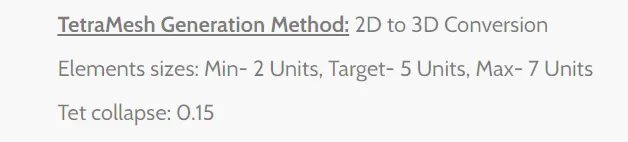
- now we have convert this 2D mesh into 3D tetra mesh as per given requirement by using (3D - Tetra mesh - Tetra mesh - Select the component - Mesh).
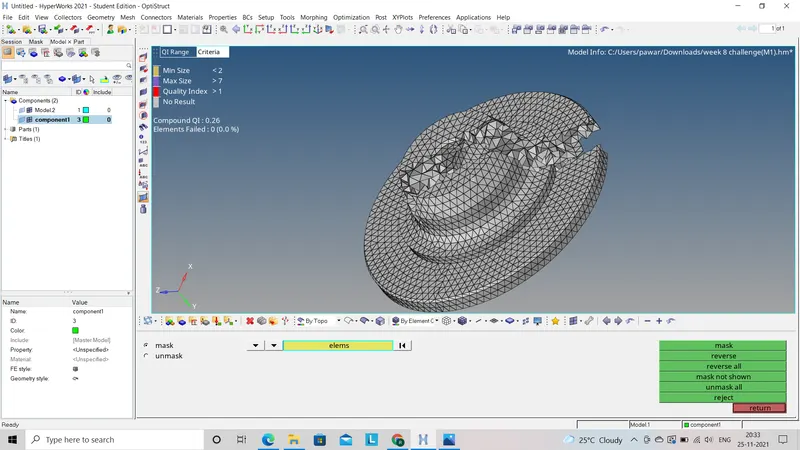
- Now we have creeated 3D tetra mesh, we will now check for quality in tetra mesh call Tet collapse by using (Tool - Check elements - 3d - Tet collapse(0.15)).
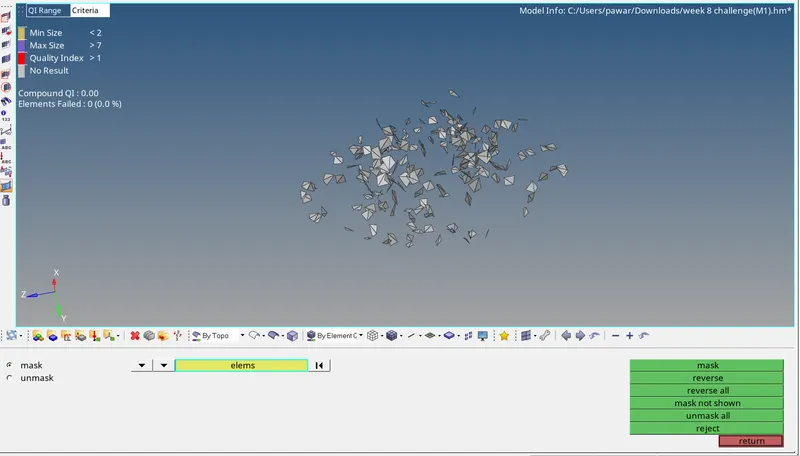
- As some elements will fail for tet collapse quality so now we have to remove all this error by remeshing that part by using (3D - Tetra mesh - Tetra Remesh - select the 3d and 2d elements - Remesh).
- In this way we have created 3D terta mesh by converting 2D mesh.
Model No. 2: Create 3D tetra mesh (Volume mesh)
- As thickness of given component is greater than 5mm so we will go for terta mesh without extracting midsurface forr given model.
- First we will check geometry of given model is clean or not, To check that we have to observe given model in wire frame mode.
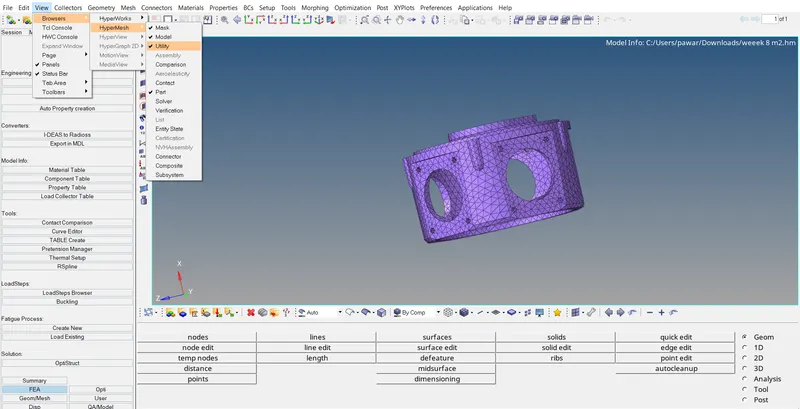
- Now after geometry check we will go for quick tetra mesh method.In this method we will mesh by using quick tetra mesh method as (View - Browsers - Hypermesh - Utility - Geometry/Mesh - Quick tetra mesh - Select the component - Select the surface - fill all the values as per given - Mesh).
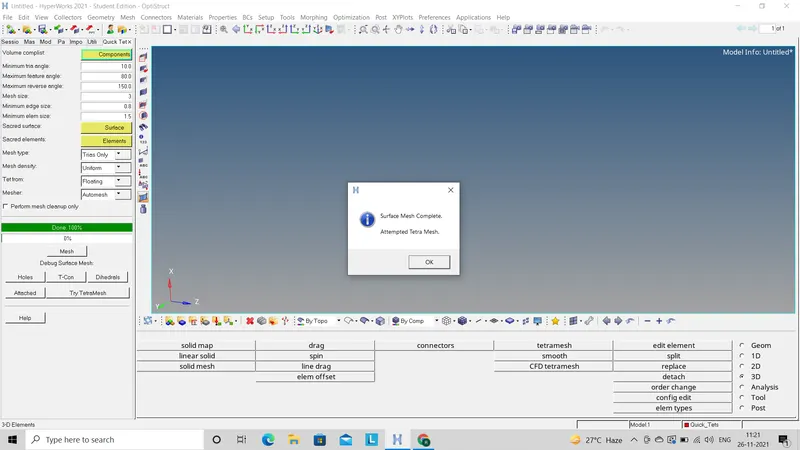
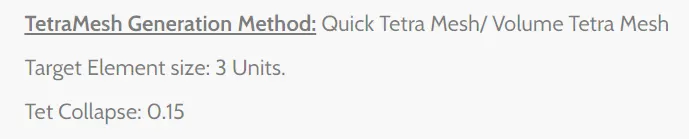
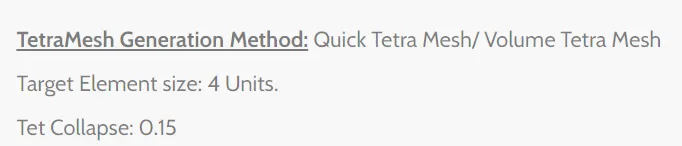
- Now we have to check for tet collapse quality for given model by using (Tool - check elements - 3d - Tet collapse(0.15)).
- As some elements will fail for tet collapse quality so now we have to remove all this error by remeshing that part by using (3D - Tetra mesh - Tetra Remesh - select the 3d and 2d elements - Remesh).
In this way we can do volume mesh directly for given component.
Model No. 3: Create 3D tetra mesh (Volume mesh)
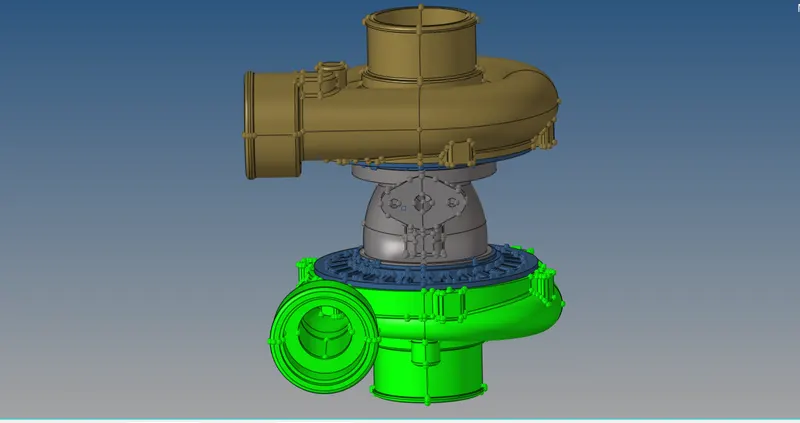
- As thickness of given component is greater than 5mm so we will go for terta mesh without extracting midsurface forr given model.
- First we will check geometry of given model is clean or not, To check that we have to observe given model in wire frame mode.
- Now after geometry check we will go for volume mesh which will create direct 3D mesh without going for 2D mesh by using (3D - Tetra mesh - Volume tetra - select the surface - Create).
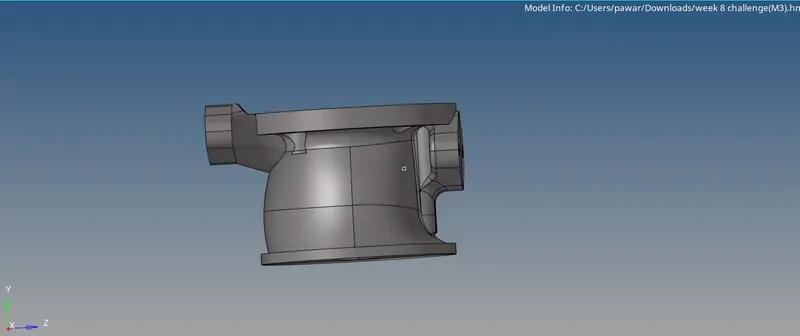
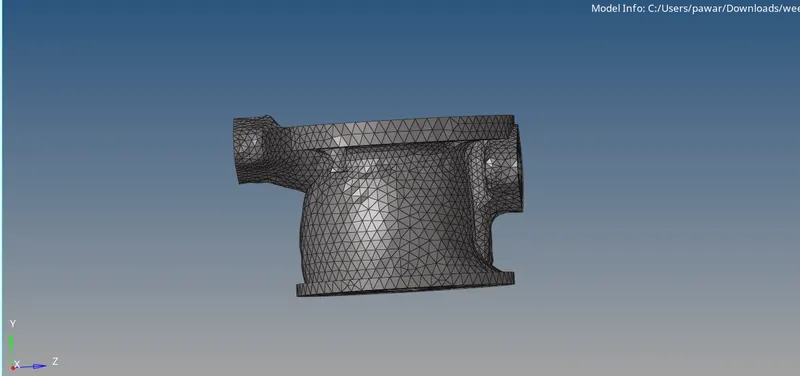
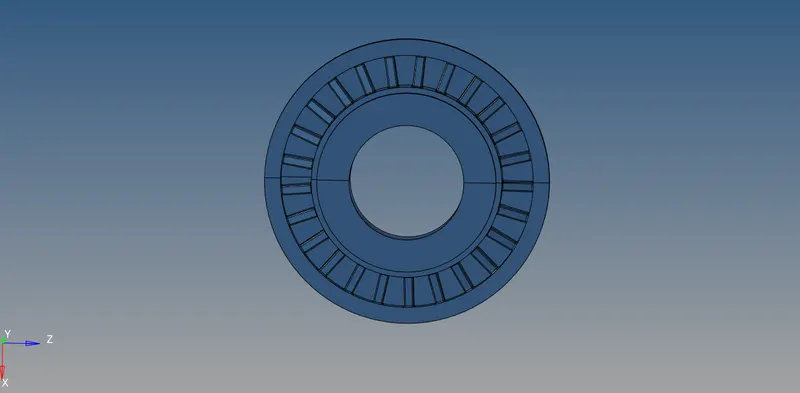
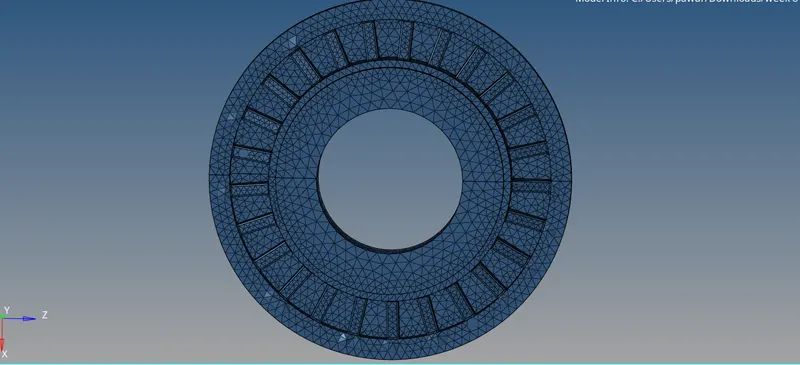
- Now we have to check for tet collapse quality for given model by using (Tool - check elements - 3d - Tet collapse(0.15)).
- One of the component of given model we will mesh by using quick tetra mesh method as (View - Browsers - Hypermesh - Utility - Geometry/Mesh - Quick tetra mesh - Select the component - Select the surface - fill all the values as per given - Mesh).
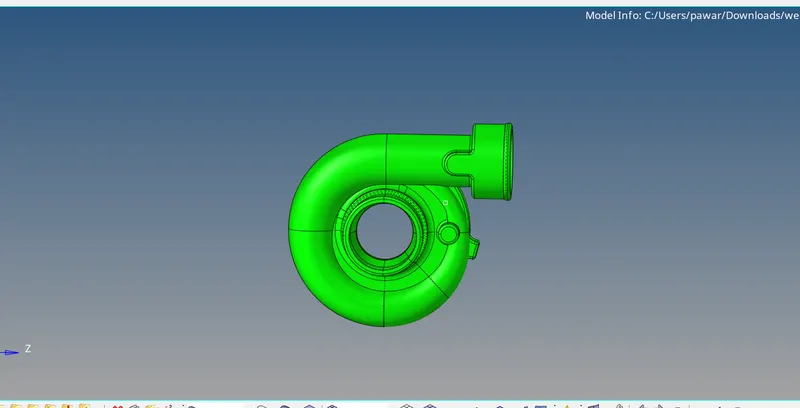
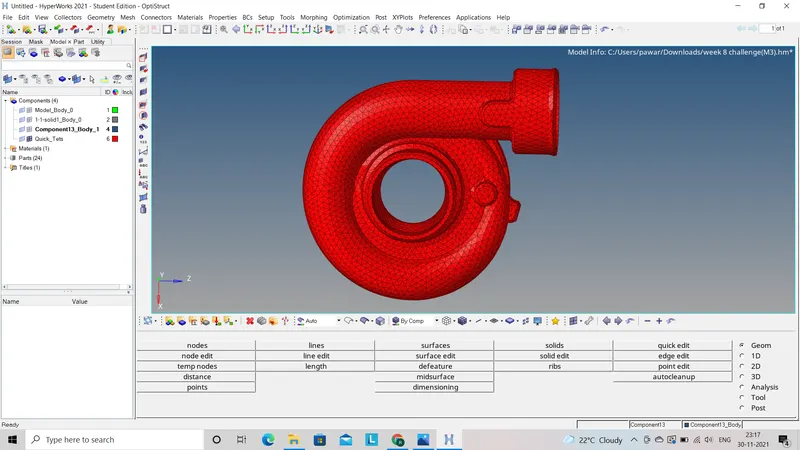
- As some elements will fail for tet collapse quality so now we have to remove all this error by remeshing that part by using (3D - Tetra mesh - Tetra Remesh - select the 3d and 2d elements - Remesh).
In this way we can do volume mesh directly for given component.
Conclusion :-
In this challenge I have learn about to how to convert 2D mesh to 3D tetra mesh also how to do volume tetra mesh. Also how to remove tet collapse quality error.