Week 8-3D Tetra Meshing Challenge
Week 8-3D Tetra Meshing Challenge
Aim : To obtain 3D tetramesh to components with different methods.
Model 1 :
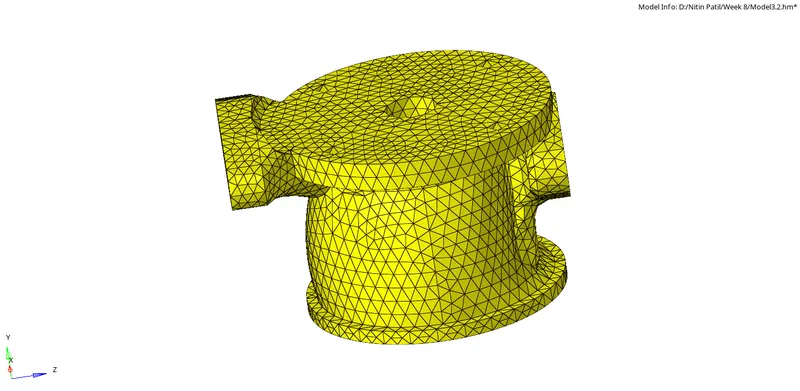
Create a Teramesh for Housing component with the following quality criteria.
TetraMesh Generation Method : 2D to 3D Conversion.
Elements sizes : Min- 2 Units, Target- 5 Units, Max- 7 Units.
Tet collapse : 0.15
Procedure :
We have to obtain 3D tetramesh of given housing components by converting 2D tria elements into tetrahedral elements and have to check quality parameters.
STEP 1 : We have to import housing stp file to hyperworks and initially we have to do geometry cleanup so there should not be any free edges and unwanted lines in the hub.
STEP 2 : After geometry is cleaned up now we have to do 2D tria mesh of hub and check its minimum and maximum elemental errors.
2D>>automesh>>select surface(displayed)>>element size(5mm)>>mesh type(trias)>>mesh
2D>>quality index
STEP 3 : Now we have to proceed for 3D tetramesh by tetra mesh panel
3D>>tetramesh>>tetramesh>>select elements(displayed)>>simply pyramid>>mesh
We can check 3D tetra mesh by masking an amount of elements
Tools>>Mask>>select elements>>mask or F5
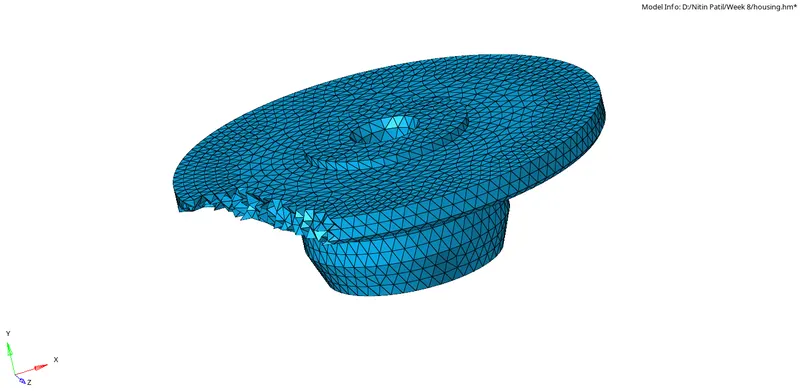
STEP 4 : Now we have to also check for tet collapse if any, if yes then we have to fix that particular element
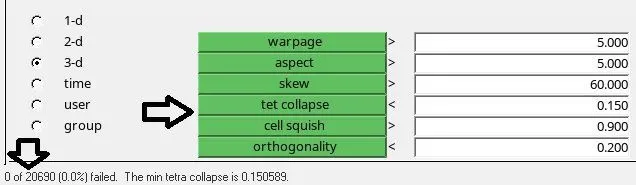
Tool>>check elements>>3-d>>tet collapse(0.15)
STEP 5 : If there any element(s) get failed follow this steps to resolve it
save failed>>F5(mask)>>elements>>
STEP 6 : Follow Important command (B)
STEP 7 : Now we have do geometry clean up for the cover component as well and have to 3D mesh it.
Follow STEP 1 to STEP 6.
Results :
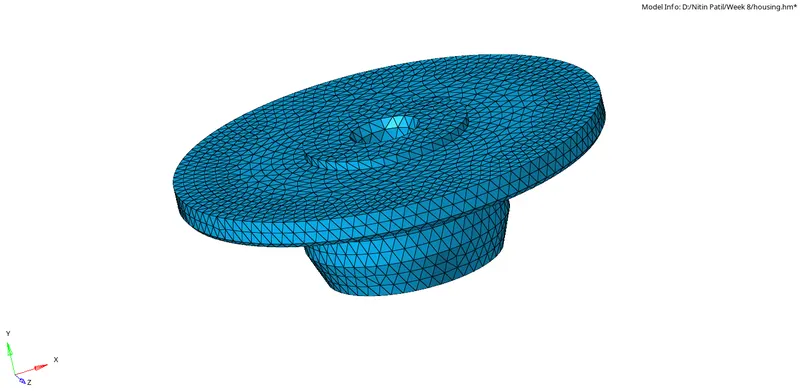
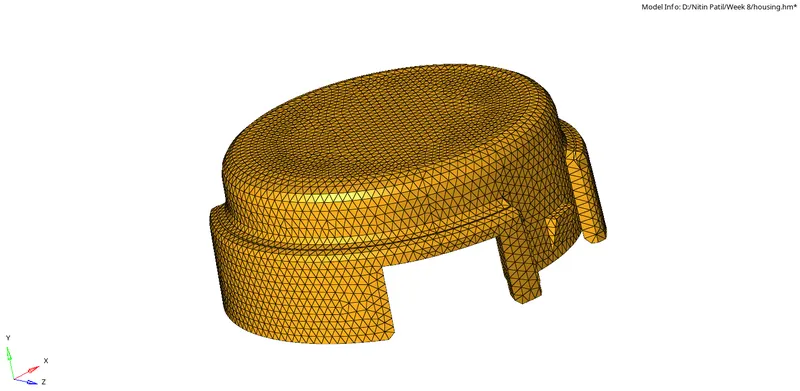
Model 2 :
For the given model, Create a 3D Tetramesh with the following quality criteria.
TetraMesh Generation Method: Quick Tetra Mesh/ Volume Tetra Mesh
Target Element size: 3 Units.
Tet Collapse: 0.15
Procedure :
We have to obtain 3D tetramesh of given crank component by using Quick Tetra Mesh from Utility Panel.
STEP 1 : We have to import file to hyperworks and initially we have to do geometry cleanup so there should not be any free edges and unwanted lines in the model.
STEP 2 : Now we have to proceed for 3D tetramesh by utility panel, following way we have to proceed.
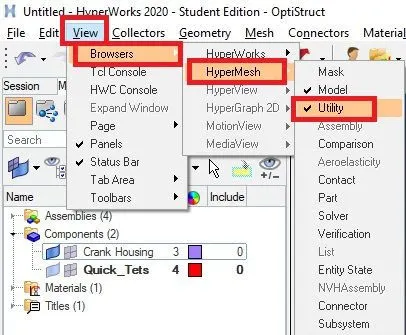
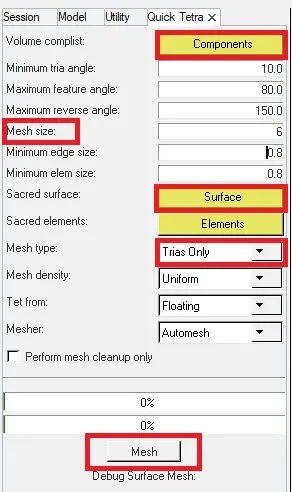
We’ll see that after completion of the mesh till 100% a new collector Quick Test occurs in the component model tree and the mesh is also generated on component.
STEP 3 : Follow Important command (A)
STEP 4 : If there any element(s) get failed follow this steps to resolve it
save failed>>F5(mask)>>elements>>
STEP 5 : Follow Important command (B).
Results :
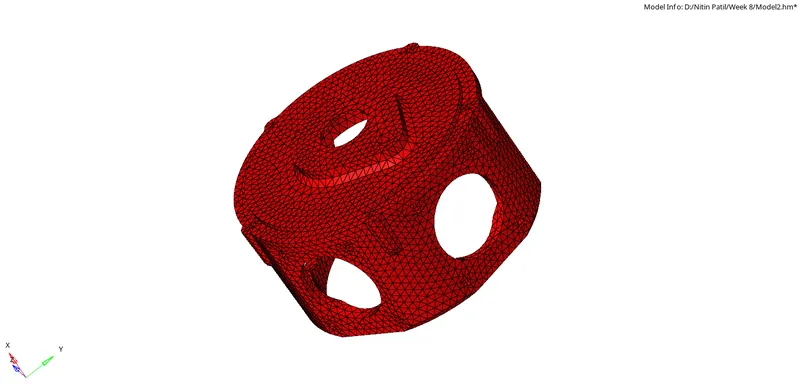
Model 3 :
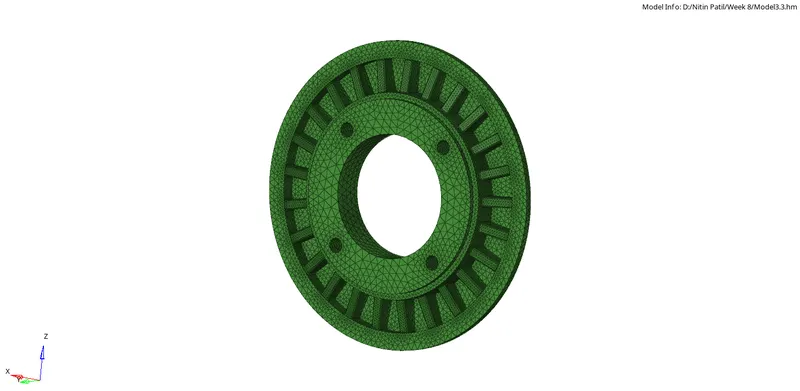
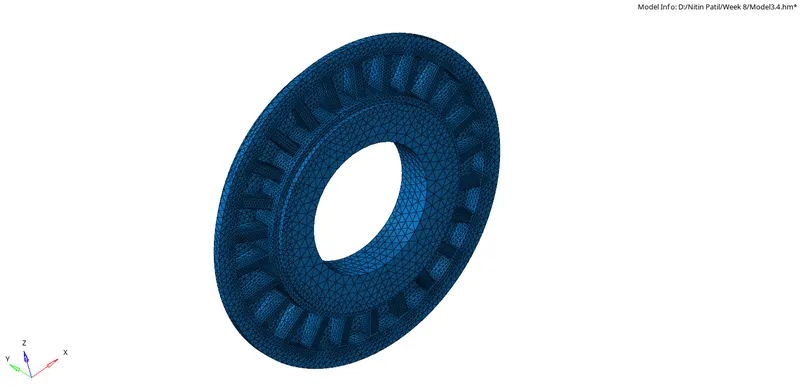
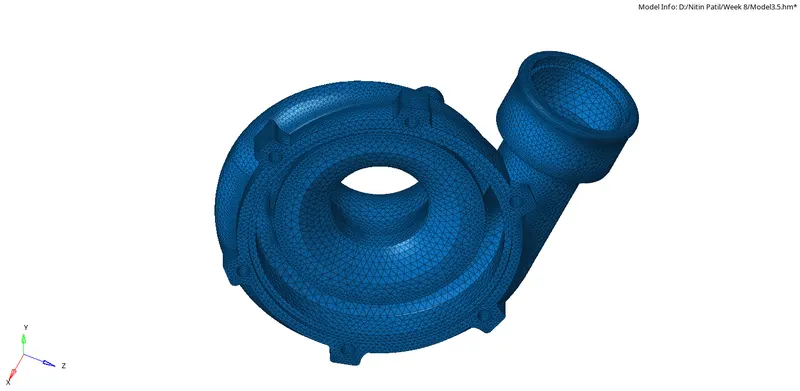
For the given assembly model, Create a 3D Tetramesh with the following quality criteria.
TetraMesh Generation Method : Quick Tetra Mesh/ Volume Tetra Mesh
Target Element size: 4 Units.
Tet Collapse: 0.15
Procedure :
We have to obtain 3D tetramesh of Chassis components by using the Volume Tetramesh Panel.
STEP 1 : We have to import .igs file to hyperworks and initially we have to do geometry cleanup to all four components one by one so there'll be no free edges and unwanted lines.
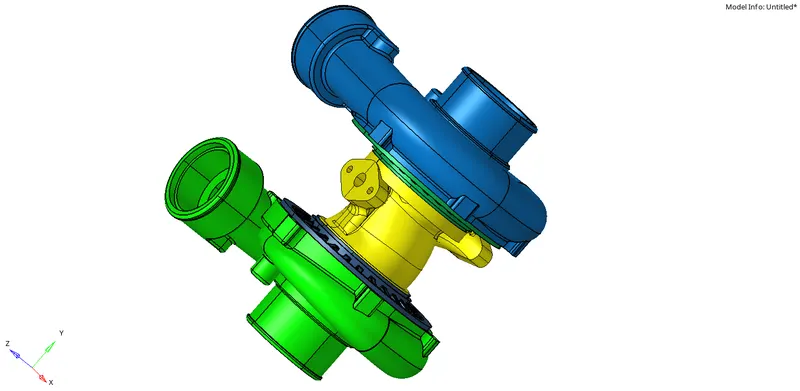
STEP 2 : Now we have to proceed for 3D tetramesh by using the Volume Tetramesh Panel.
3D>>tetramesh>>volume tetra mesh>>enclosed volume(solid/surface)>>check box use curvature,use proximity,clean up elements>>element size>>mesh

STEP 3 : Follow Important command (A).
STEP 4 : If there any element(s) get failed follow this steps to resolve it
save failed>>F5(mask)>>elements>>
STEP 5 : Follow Important command (B)
Results :
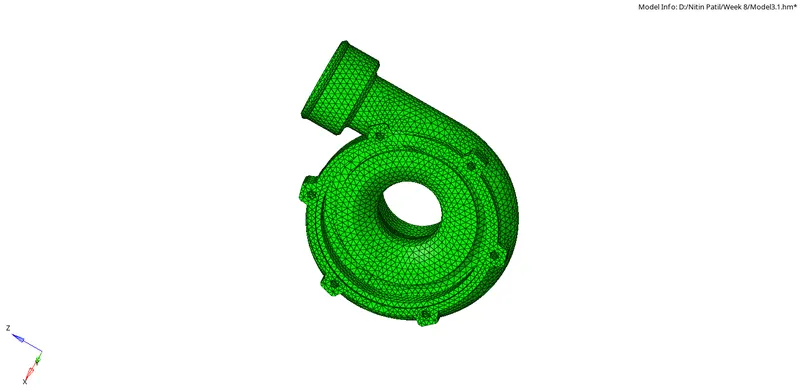
Important Commands :
Command (A) : Checking for tet collapse.
Tool>>check elements>>3-d>>tet collapse
Command (B) : Removing of element failure by following methods
1. Using “Translate” command to increase the height of the tetra element.
tool>>translate>>select element>>select nodes>>select vector node N1,N2,N3>>translate or translate

2. Using tetra mesh parameters panel.
3D>>tetra mesh parameters

3. Using distance panel
Geom>>two nodes N1,N2>>check failed height>>give distance manually

LEARNINGS :
- 3D Tetramesh by using a tetramesh panel.
- 3D Tetramesh by Quick Tetra Mesh from Utility Panel.
- 3D Tetramesh by using Volume Tetramesh Panel.
- Method of checking tet collapsed elements.
- Resolving tet collapsed failed element by translate panel
- Resolving tet collapsed failed element by tetramesh parameters panel.
- Resolving tet collapsed failed element by distance panel.
- Before working on the tetramesh panel it will be helpful to set tetramesh parameters.