Week 8-3D Tetra Meshing Challenge
Assignment:8
Objectives: To create Tetra mesh for different models
Task _1: Create a Tetra mesh for Housing component with the following quality criteria
- Tetra Mesh Generation Method: 2D to 3D Conversion
- Elements sizes: Min- 2 Units, Target- 5 Units, Max- 7 Units
- Tet collapse: 0.15
For this particular task we are going to obtain a 2-D mesh first and then using that 2-D mesh we will obtain 3-D tetra mesh for the housing components.
CAD
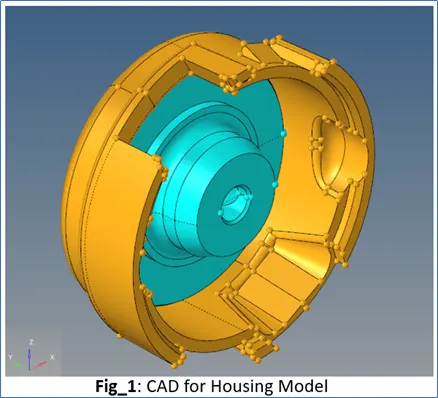
2-D Mesh
- Delete the solids as we need the surfaces to create 2D mesh.
- In the 2-D Mesh panel, using 2-dimensional elements size and bias option, a mesh is generated using triangular elements with size of 5 units
- Map option: Size (to keep the elements roughly the same size) & Skew (to Prevent the mesh from producing highly-skewed elements)
Quality Check
- Once the 2-D mesh is obtained, we check the elements for Minimum size (2 units) and Maximum size (7 units)
- After obtaining the required criteria we then move on to the 3-D meshing
3-D Mesh
- From the 3-D mesh panel, choose tetra mesh.
- In Tetra mesh pannel, on the fixed trias/quads to tetramesh, select elements as the option.

Similarly we generate tetra mesh for both the components.
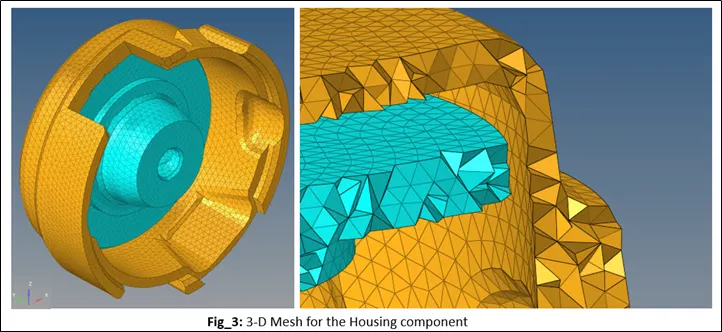
3-D Mesh Quality Check
- For this objective, we are target a 3-D mesh which no element lie below the tet collapse limit of 150
Tetra collapse calculation: At each of the four nodes of the tetra, the distance from the node to the opposite side of the element is divided by the square root of the area of the opposite side. The minimum value found is normalized by dividing it by 1.24, and then reported. As the tetra collapses, this value approaches 0.0. For a perfect tetra, this value is 1.0.

RESULT: Tetra mesh for housing model is obtained with specified quality parameters.
Task _2: For the given model, Create a 3D Tetra mesh with the following quality criteria.
- Tetra Mesh Generation Method: Quick Tetra Mesh/ Volume Tetra Mesh
- Target Element size: 3 Units.
- Tet Collapse: 0.15
CAD
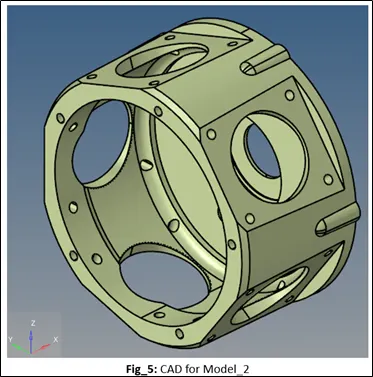
3-D Mesh
- From the 3-D mesh panel, choose tetra mesh.
- In tetra mesh subpanel choose volume tetra mesh.
- Set the element size as 4 units

Volume-tetra meshing: Given a solid entity or a set of surfaces representing a closed volume, this meshing option generates a shell mesh and fills the enclosed volume with solid elements. You can choose to create a shell mesh (2D) using quads, trias, or mixed elements and a solid mesh (3D) using tetrahedral elements only or mixed (tetras and penta) elements. In addition, you can use proximity meshing, which refines the mesh in areas where the features are small and closer together.
If you want to apply an extra stage of calculation to improve the overall mesh quality by removing some nodes and combining elements, select the Cleanup elements checkbox.

Tetra mesh Parameters Subpanel
Use the Tetra mesh Parameters subpanel to set general qualities of the tetra meshing engine, such as a maximum element size, growth rate, the balance between speed and element quality, or whether to perform smoothing operations after initial meshing.
Fill void: Mesh all volumes, if your geometry includes volumes inside of another volume. For example, if you had a sphere inside of a larger sphere, checking this option would cause the volume of the inner sphere as well as the volume between the two spheres to be meshed.
Smoothing: Apply an extra stage of calculation to improve overall mesh quality. Additional smoothing and swapping steps will be performed and tetra elements will be split to achieve a smoother mesh transition. If tetra elements are used in the boundary layer those elements will be excluded from smoothing to maintain the original distribution.
Set the element quality target for Tet collapse as 0.150.
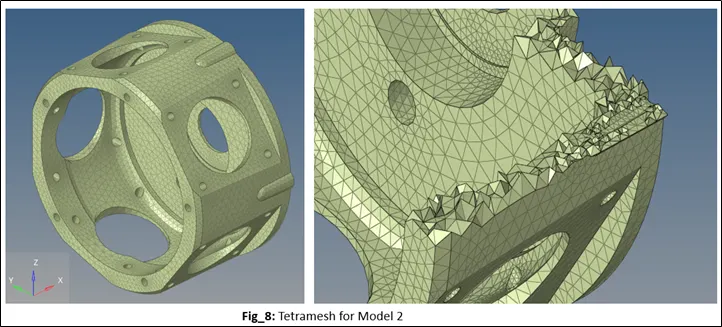
3-D Mesh Quality Check
- For this objective, we are target a 3-D mesh which no element lie below the tet collapse limit of 150
RESULT: Tetra mesh for model 2 is obtained using volume tetra mesh option with specified quality parameters.
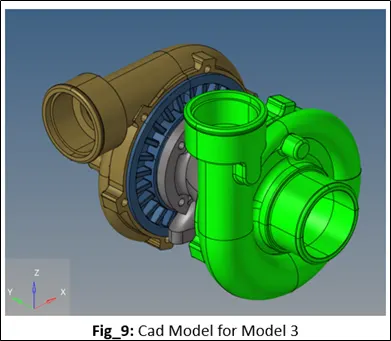
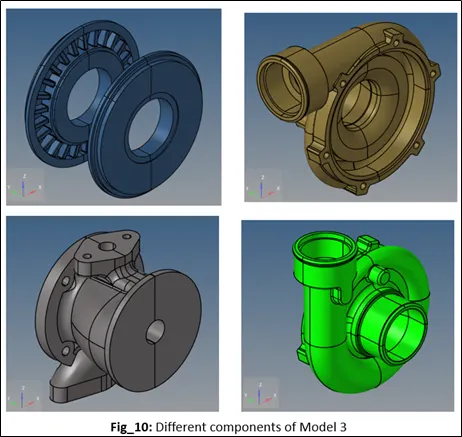
Task _3: For the given assembly model, Create a 3D Tetra mesh with the following quality criteria.
- Tetra Mesh Generation Method: Quick Tetra Mesh/ Volume Tetra Mesh
- Target Element size: 4 Units.
- Tet Collapse: 0.15
CAD
3-D Mesh
- From the 3-D mesh panel, choose tetra mesh.
- In tetra mesh subpanel choose volume tetra mesh.
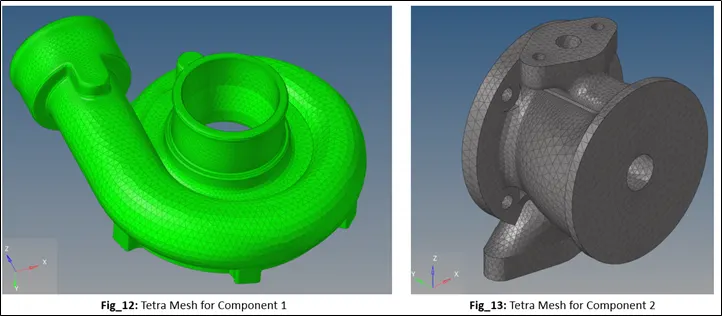
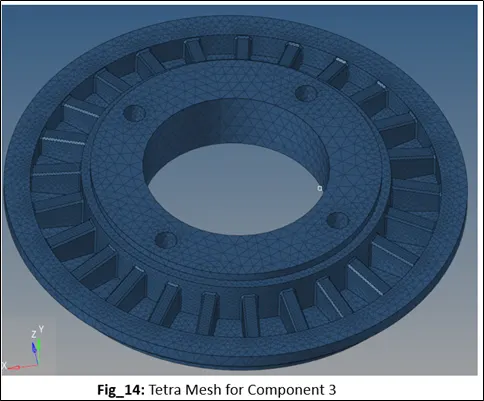
- Set the element size as 4 units

3-D Mesh Quality Check
- For this objective, we are target a 3-D mesh which no element lie below the tet collapse limit of 150
RESULT: Tetra mesh for model 3 is obtained using volume tetra mesh option with specified quality parameters.