Week- 5 - Solid meshing
Solution
First open the file by going to File-Open
Now,After opening the file select the whole component and do Topo option (it connect the cons if they are not connected)
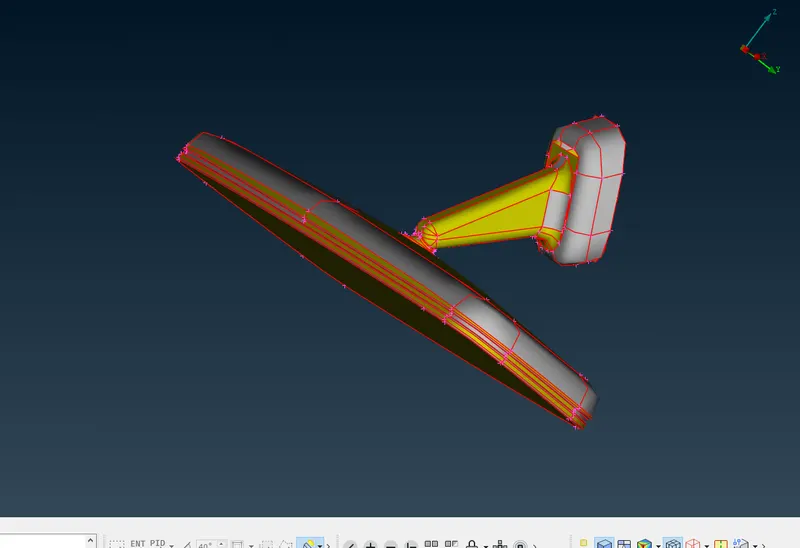
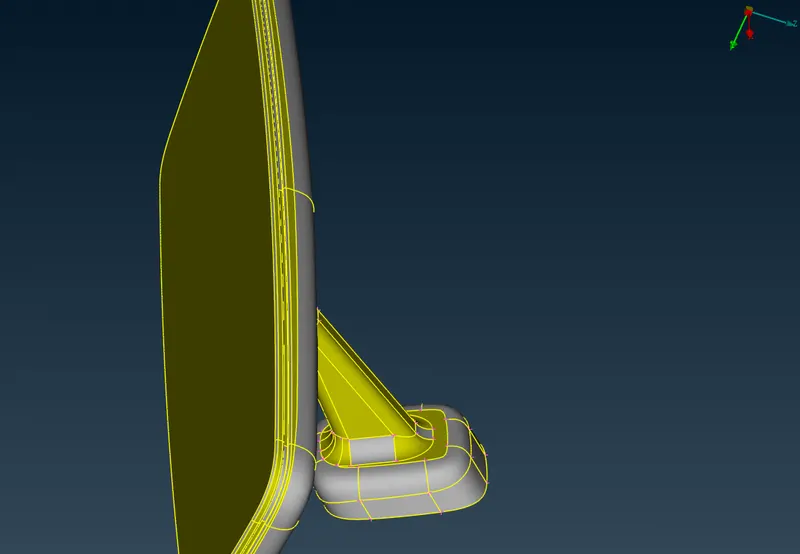
original model After using Topo option
Now,check for any geometrical errors by going to Tools-checks-geometry Or search check on search box for all the parts
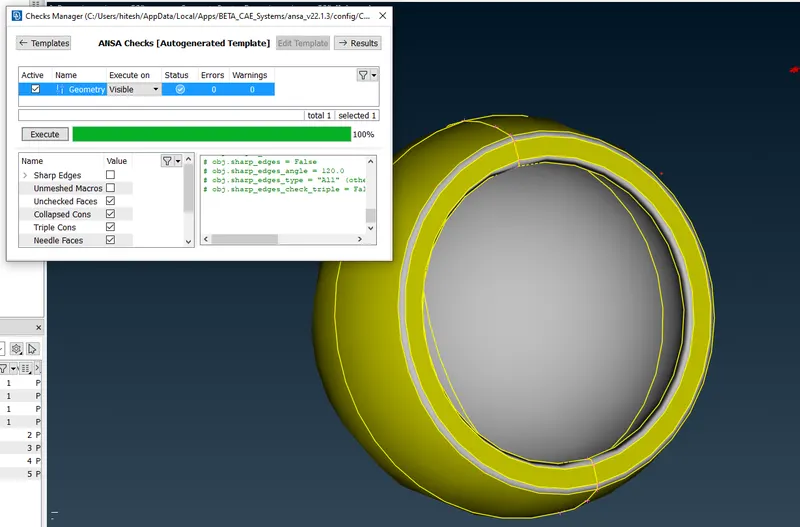
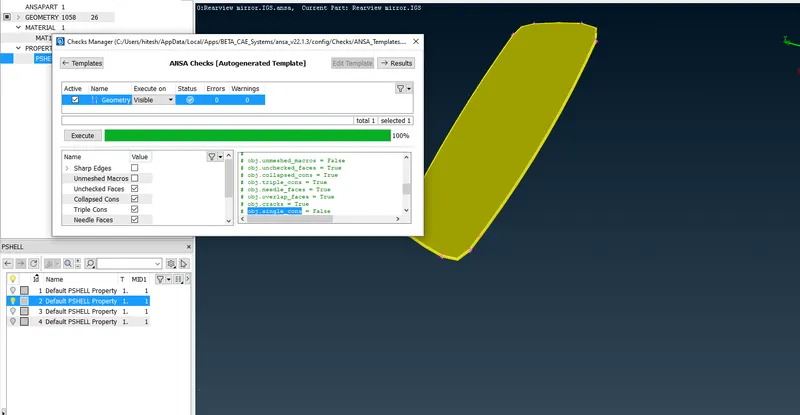
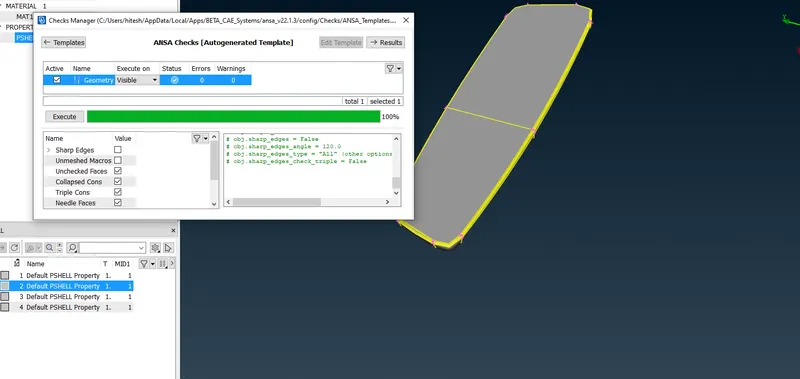
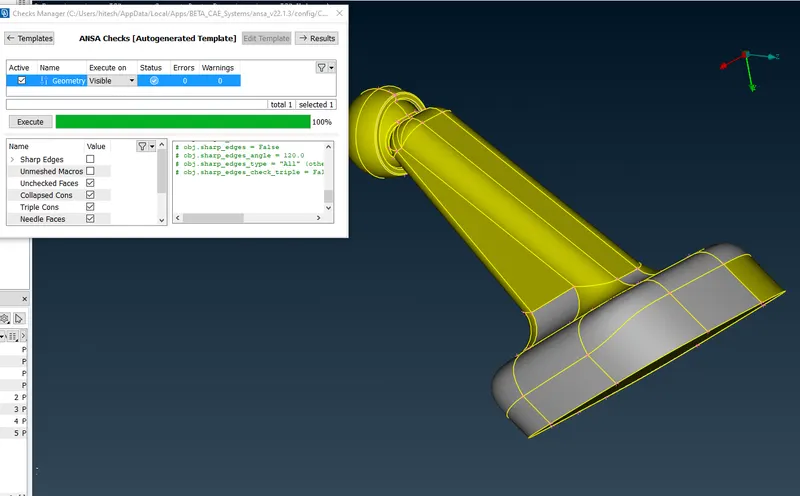
There was no errors found ,so lets move on to meshing
MESHING OF ALL THE PARTS USING GIVEN QUALITY CRITERIA
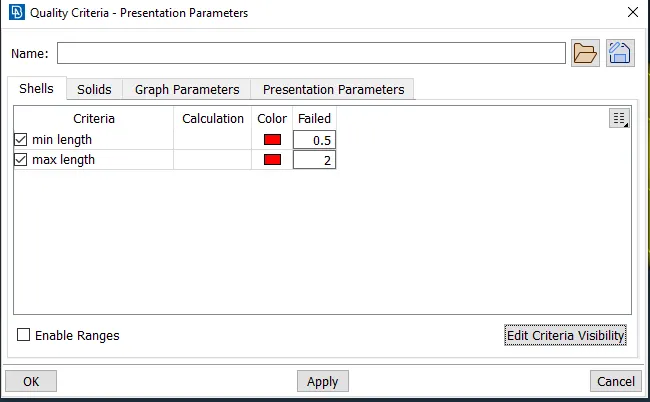
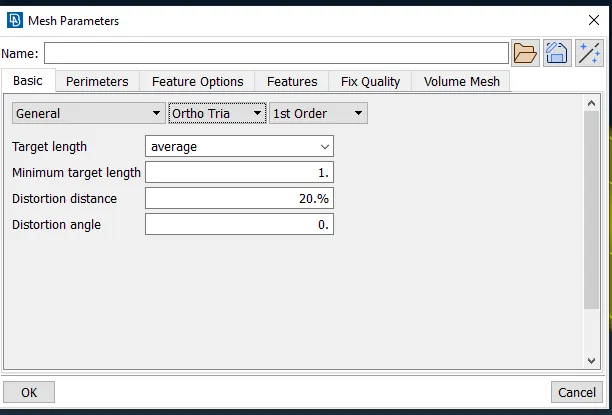
After giving quality criteria and mesh parameter
Now,open the classic mesh and Give Perimeter size for the component by selecting Length in perimeter and select the component and give perimeter 1(according to element size)
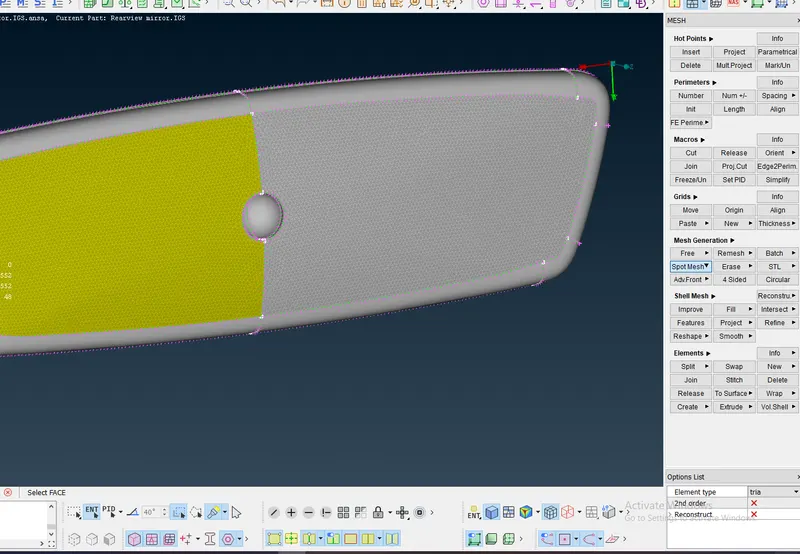
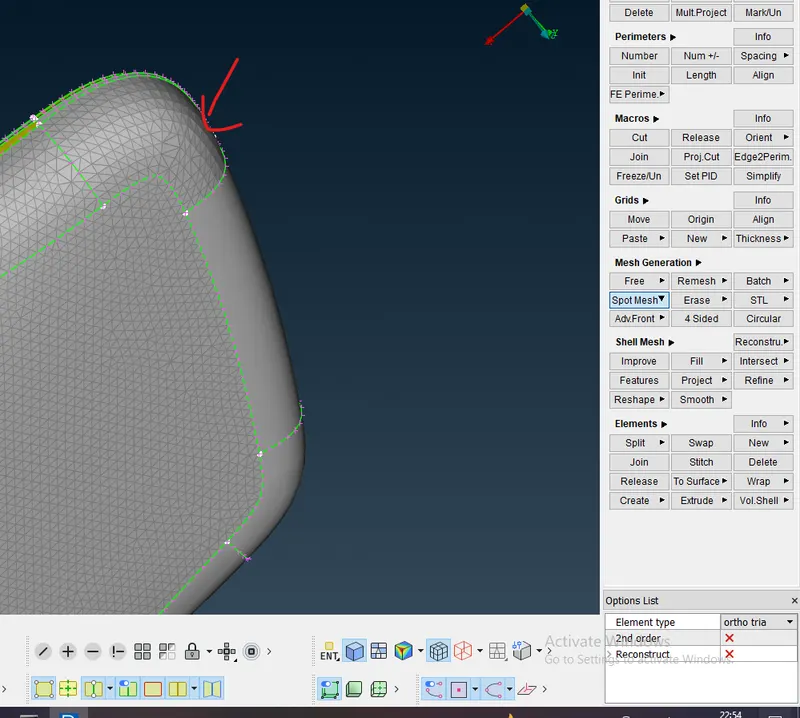
I have used ortho tria and tria meshing here
like for flat surface i have used tria and for curves ortho tria,it is not a defined rule you can use ortho tria for flat surface also but use both of them to get the good mesh.
for example
used tria mesh for flat surface
and ortho tria for curves
Now mesh of the parts
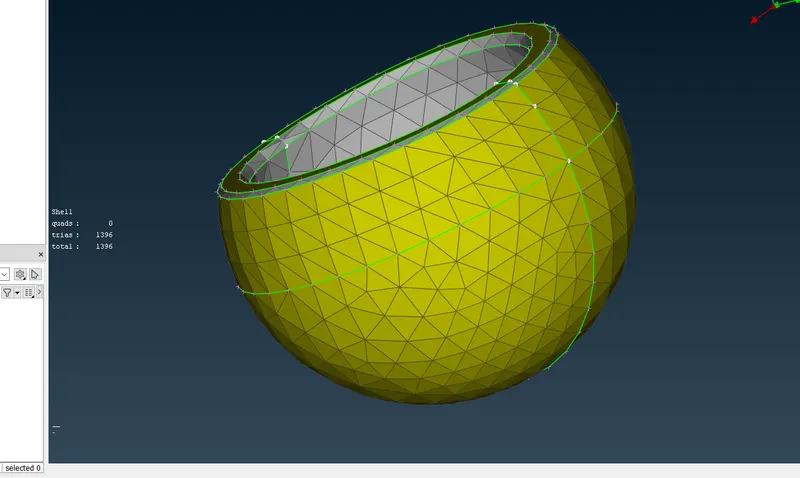
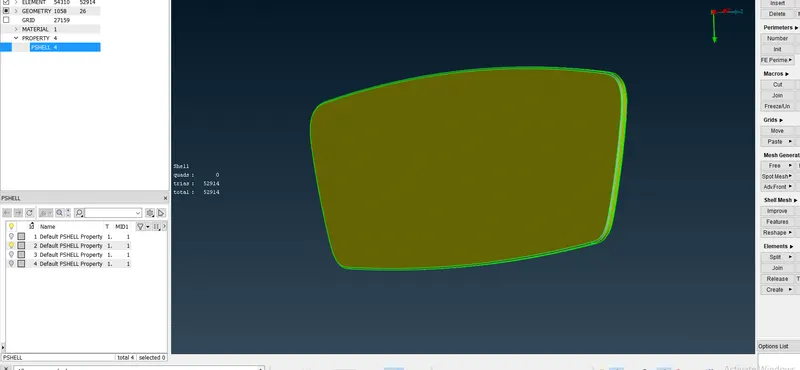
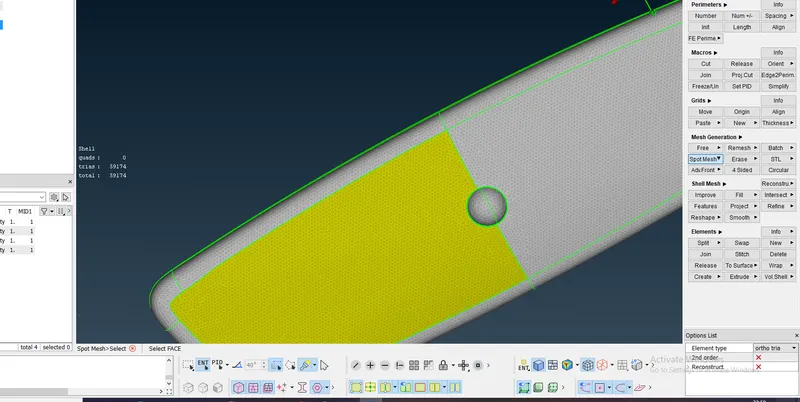
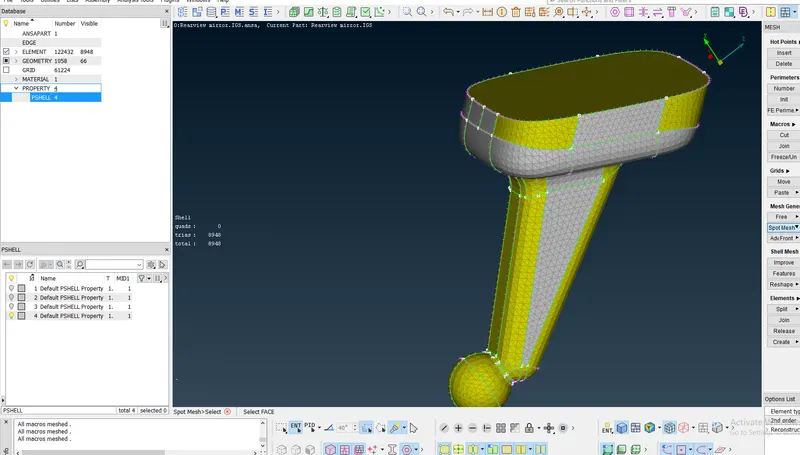
FULL MESHED MODEL
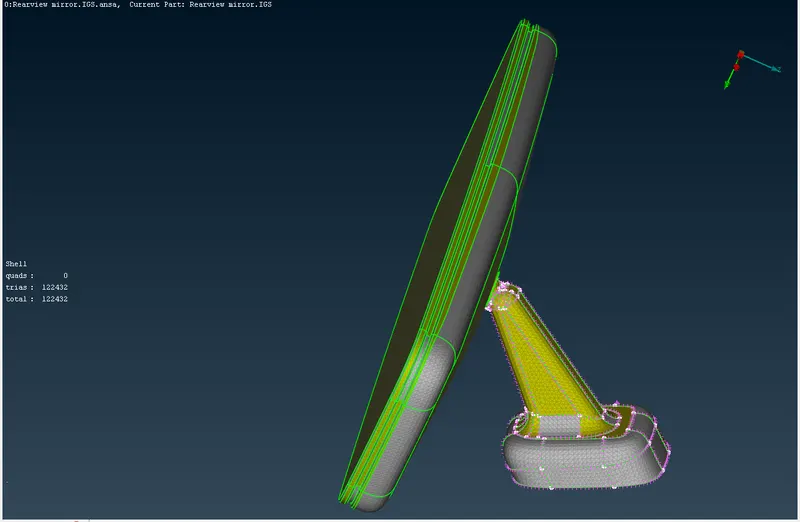
there are no off elements in any of the mesh so, lets move on to tetra mesh.
TETRA MESH
Give the collapse value in the solid quality criteria
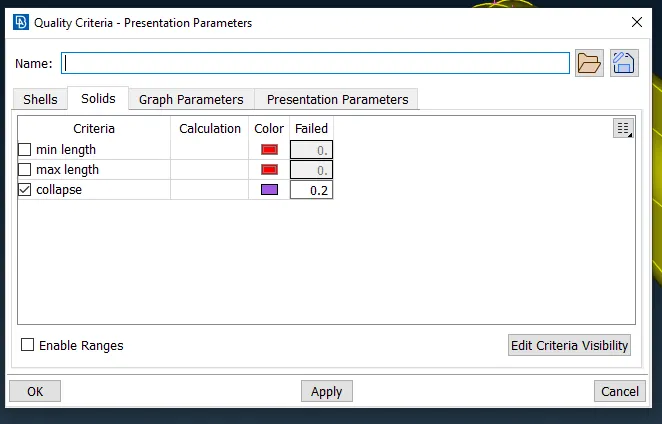
Now,to do tetra meshing
first,open the volume mesh and define the volume
now click on the LIST to check if the volume is defined or meshed.
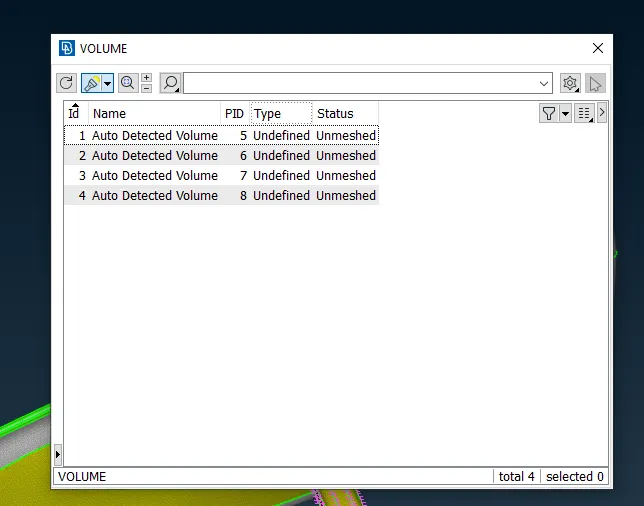
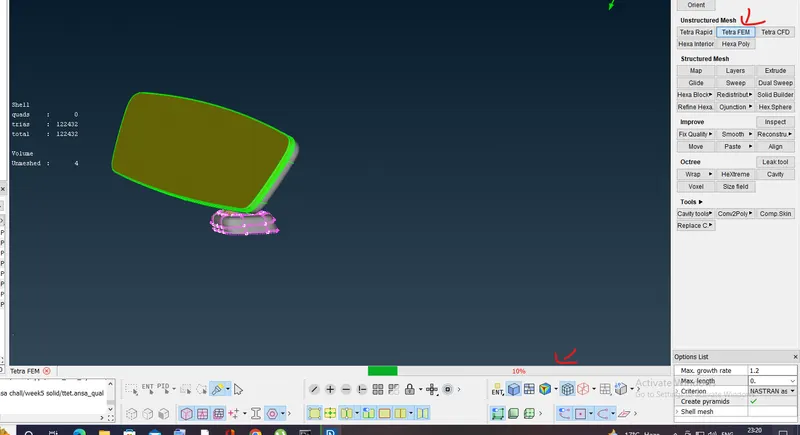
now,go to unstrucure mesh-tetra Rapid/tetra Fem and then select and then the tetra mshing will be done.
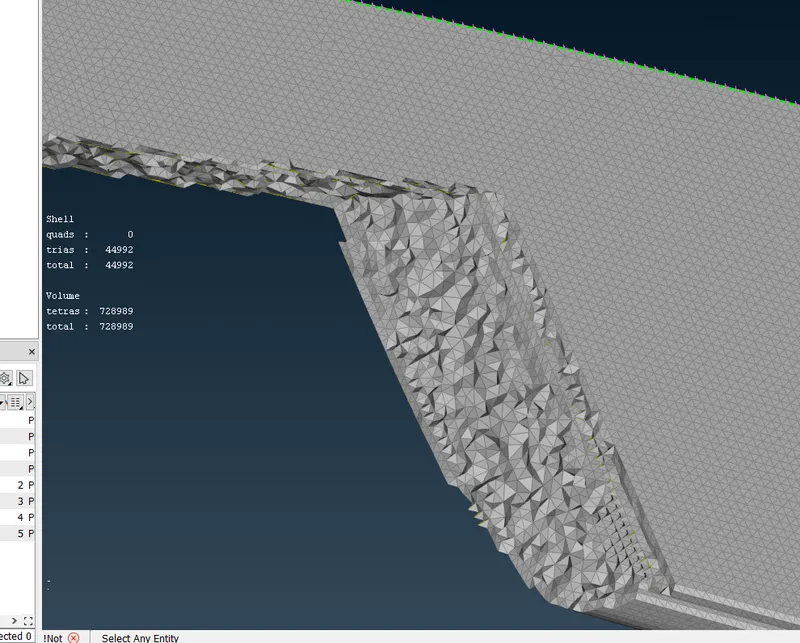
How it looks from inside after tetra mesh
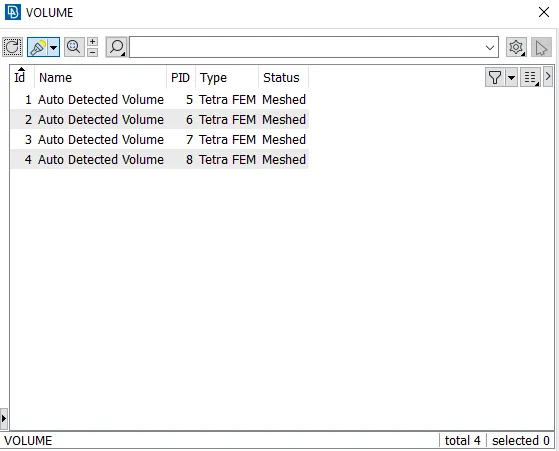
you can check again by going to LIST
CONCLUSION
1. 2D meshing is done using tria and ortho tria.
2. tetra mesh is done.
Learning outcomes
1.learned about where to use tria and ortho tria elements.
2.how to do tetra meshing.