Week 4- Meshing of Backdoor Challenge
Report-Meshing of Backdoor Challenge
Objective- take the mid surface of the component and apply a good flow mesh.
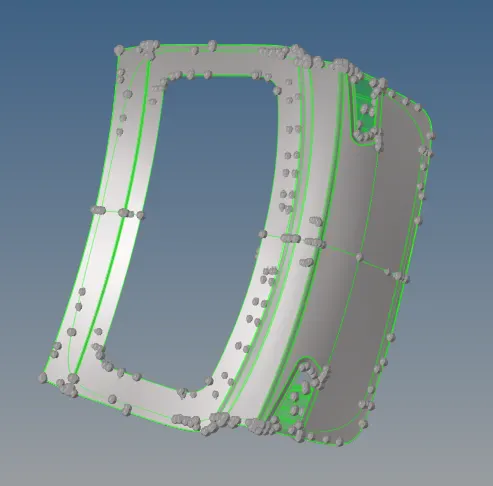
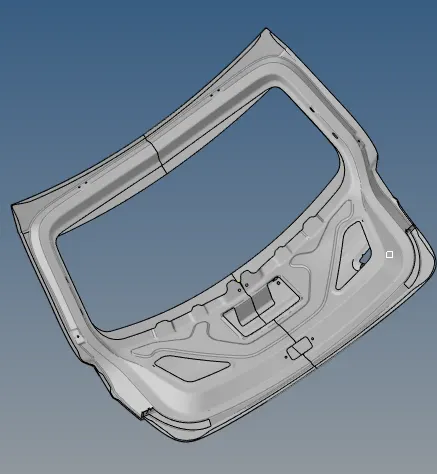
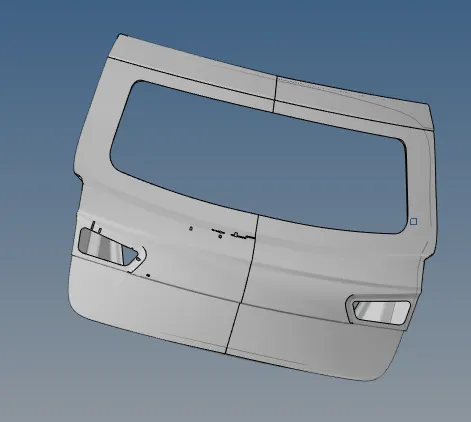
CAD Model image-
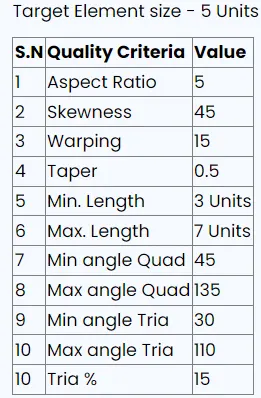
Quality criteria-
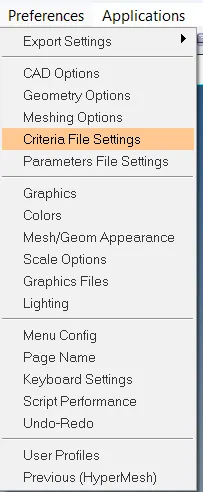
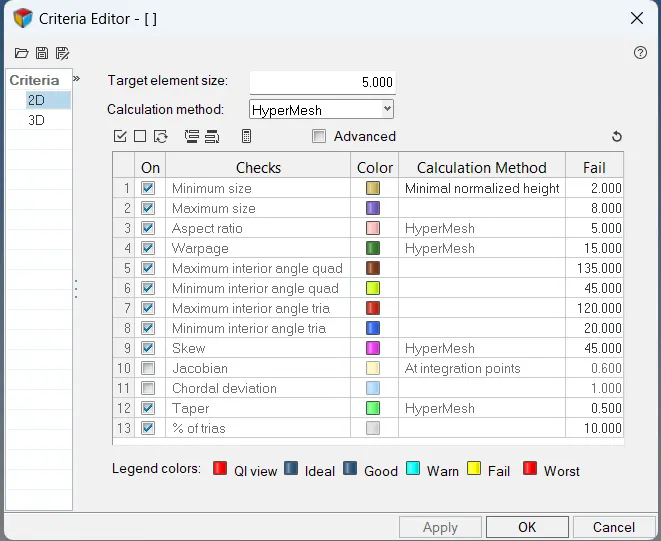
to set the quality parameter go to Preferences/criteria file settings and set the quality parameter.
Procedure-
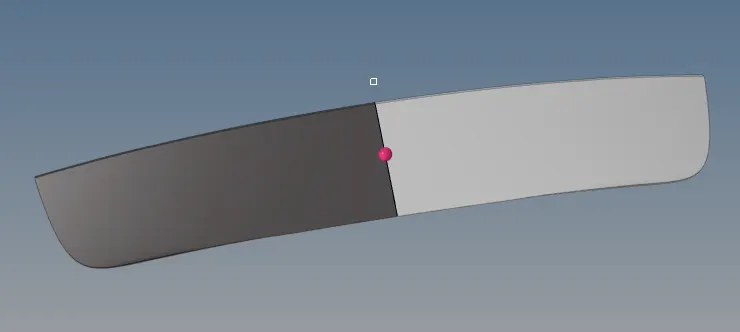
•the component that we have the symmetric property so let's trim half of the segment of all three
components one by one.
• To do that go trim (F2) and select the half of the surface from the mid and delete it.
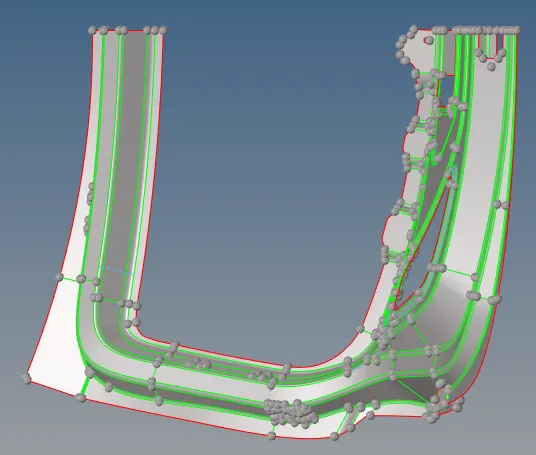
Component -1
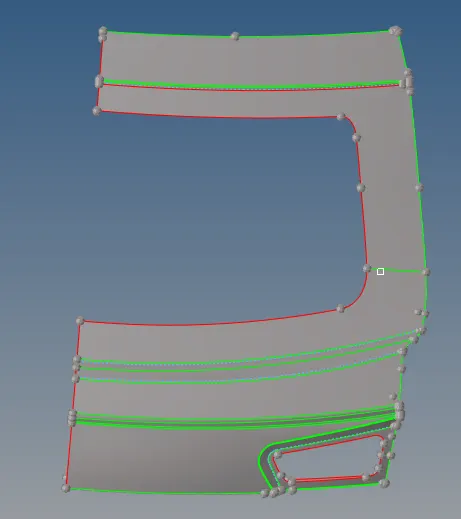
Component -2
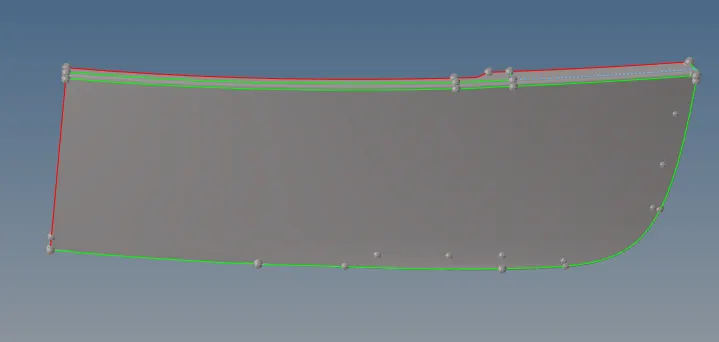
Component -3
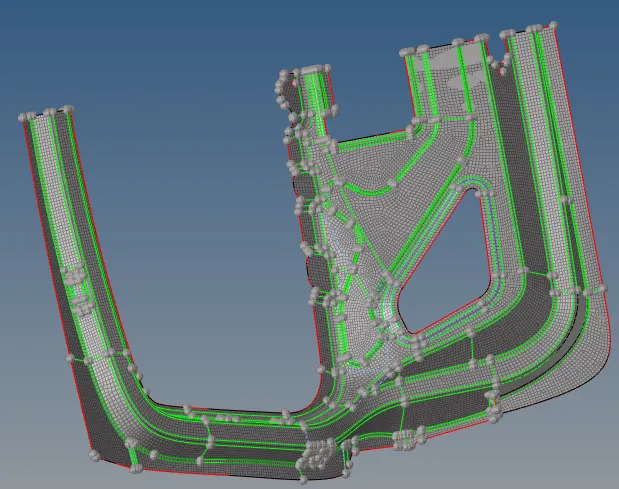
•meshing of component -1
• 1st see the geometry and clean up the geometry if required(like toggle/split-surf line/replace point/add-remove point in quick edit region).
• for mesh go to 2D-Automesh-surface set target length 5mm click on any surface and mesh it.
(try to start the meshing from the inner segment of the surface)
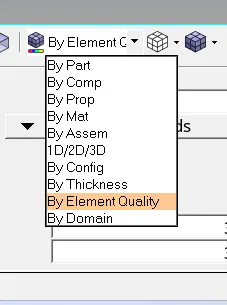
•check the quality parameter by clicking By element Quality
Meshing of Component -2
• 1st clean the geometry if required
• go to 2D-Automesh select the surface one by one and apply mesh.
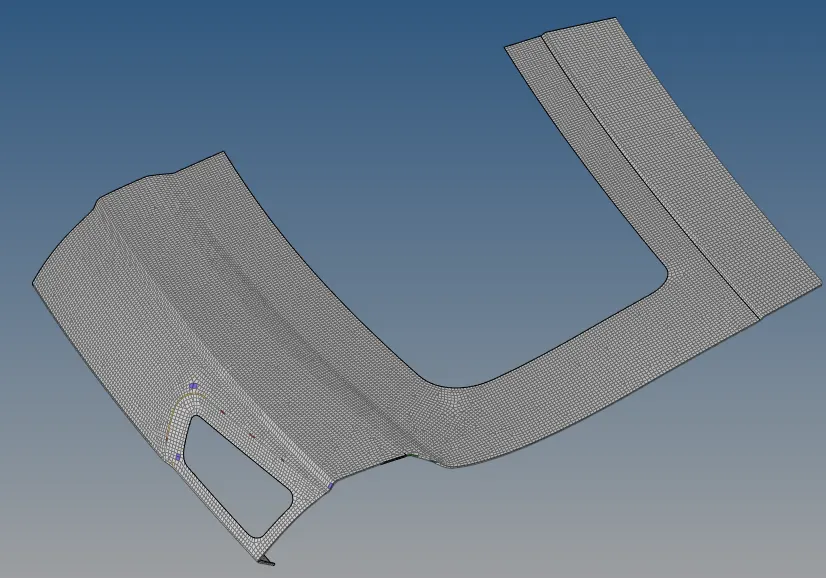
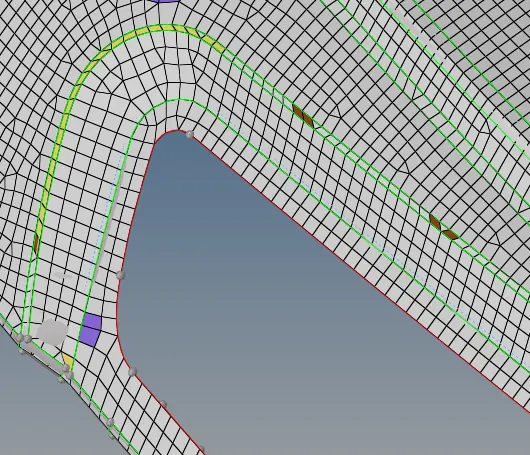
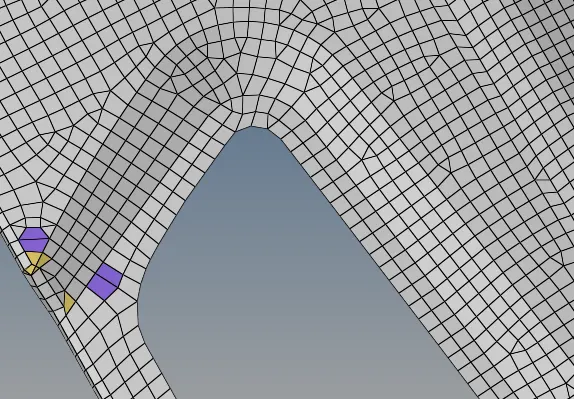
• if we see the upper segment the fillet of this segment is not properly meshed.
•so to maintain the fillet go to line/mid line and select both of the curve
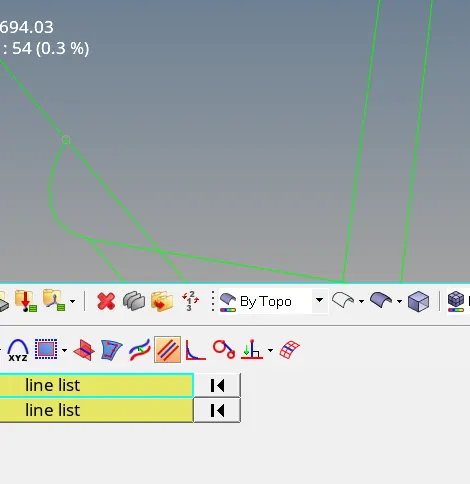
•a new curve appears exactly in between them.
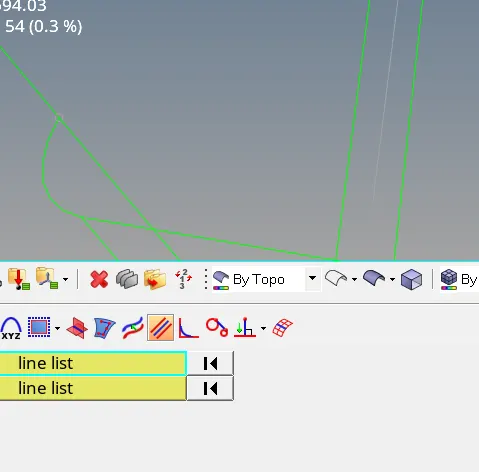
• then go to surface edit/trim with lines /surface-free lines
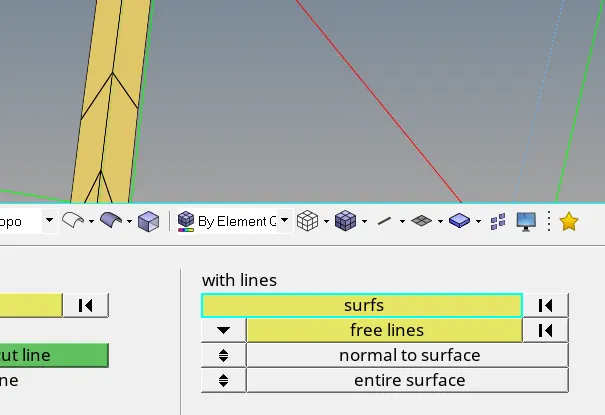
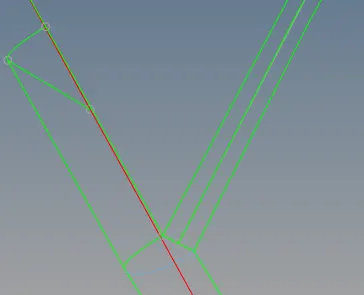
•now toggle the two curves only the mid curve is shown.
Meshing of Component -3
•again check the geometry clean up then
•apply the mesh surface by surface.
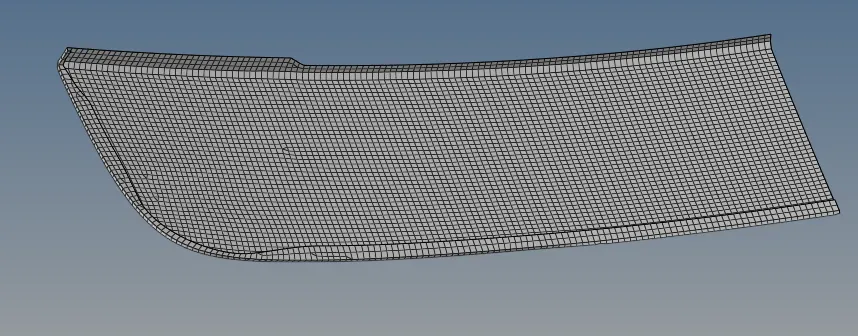
Component-1
•after doing all the mesh let's reflect the components one by one.
•to do that go to tool/reflect put three nodes as a reference and one node for base point then reflect it.
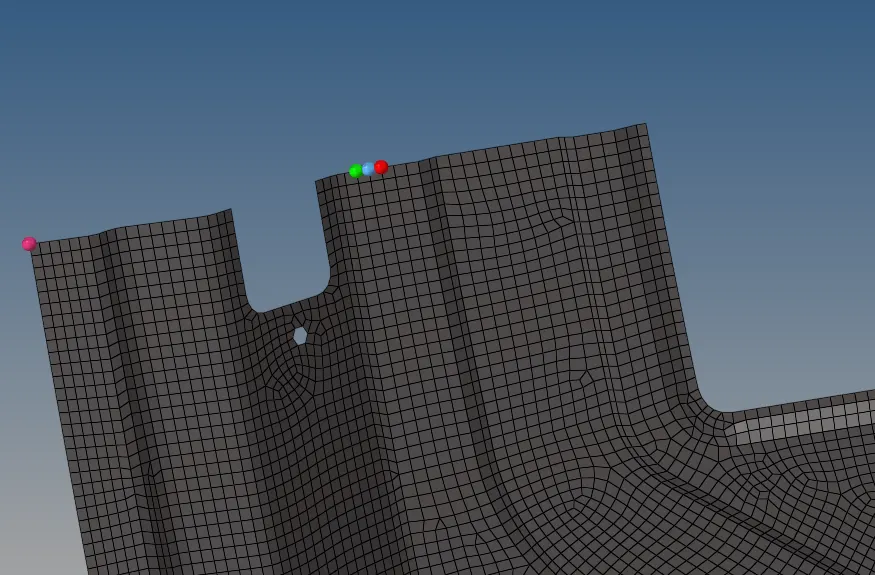
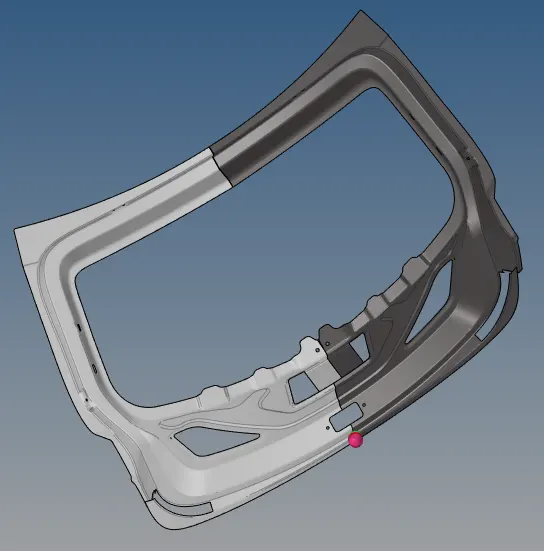
Component-2
•use the reflect command with the same procedure.
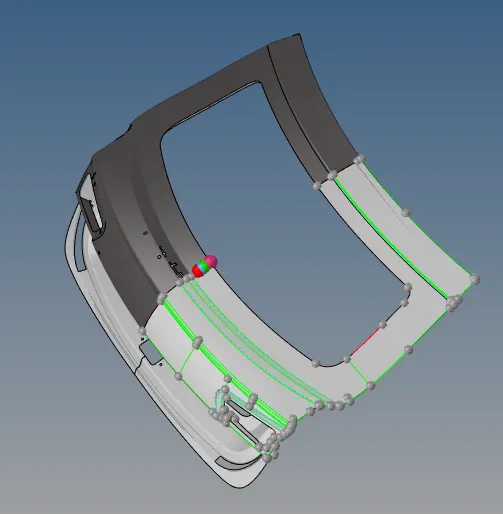
Component-3
• reflect is used as the reference of the z-axis.
Final CAD Picture
1st see the geometry and clean up the geometry if required.