Week 4- Challenge
Week 4 Challenge
Creating 1D elements
Aim:
To create 1D elements in the given model with mentioned dimensions and cross-sections.
Abstract:
The following challenge is to create the 1D element connections such as rod, beam, bar, spring and loads using the 1D hyper beam connections in HyperWorks. A rigid RBE2 and RBE3 connections are to be made to create the mentioned connections.
Methodology:
- Take a mid surface for the given parallel brackets and mention the property of the model as any metal such as steel.
- Create washer elements in the provided holes and mesh the given model with an appropriate mesh size.
- Create the RBE 2 and RBE 3 connections as mentioned for the challenge and create the 1D element connections such as rods, beams, bars
- maintaining the required dimensions connect the components and convert them to 1D detailed element representations.
Introductions:
The feature 1D connections in any CAE software is used for connecting or representing any loads to any model so that while processes of the simulation the software can identify the functioning of the model and runs the process according to the properties and limits of the elements. The connection is to be done for the given model below.
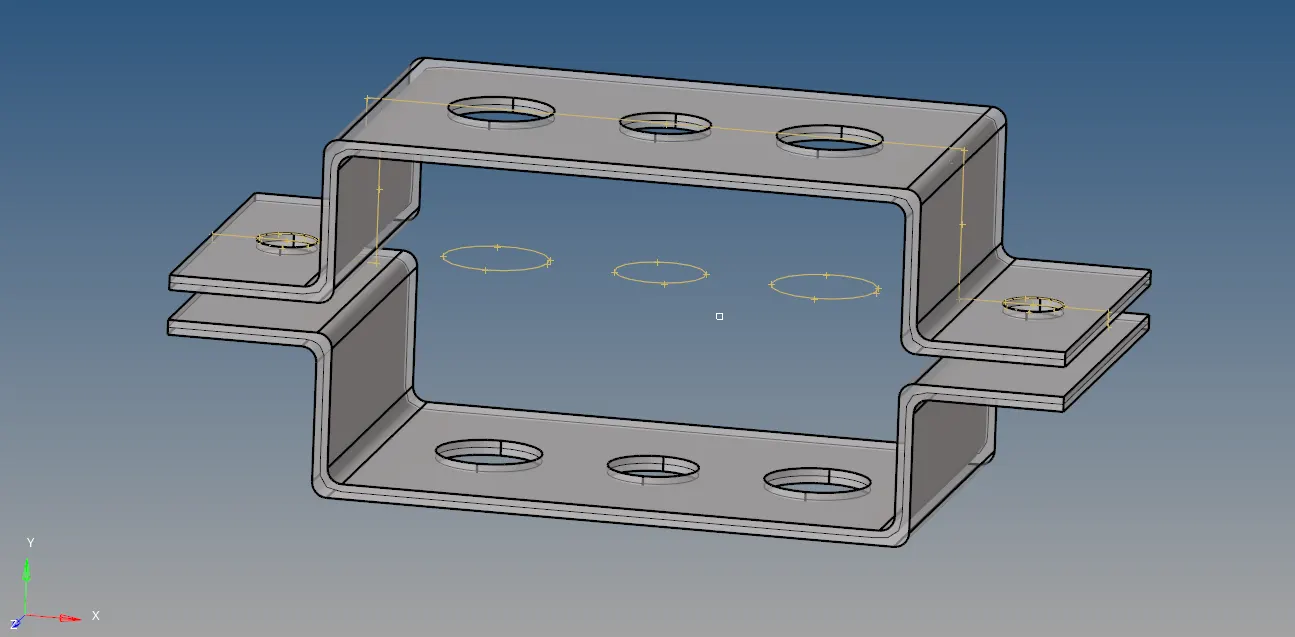
Fig 1: given parallel brackets
Procedure:
- The given model has a constant thickness throughout, so an auto mid surfacing process can be done for the model.
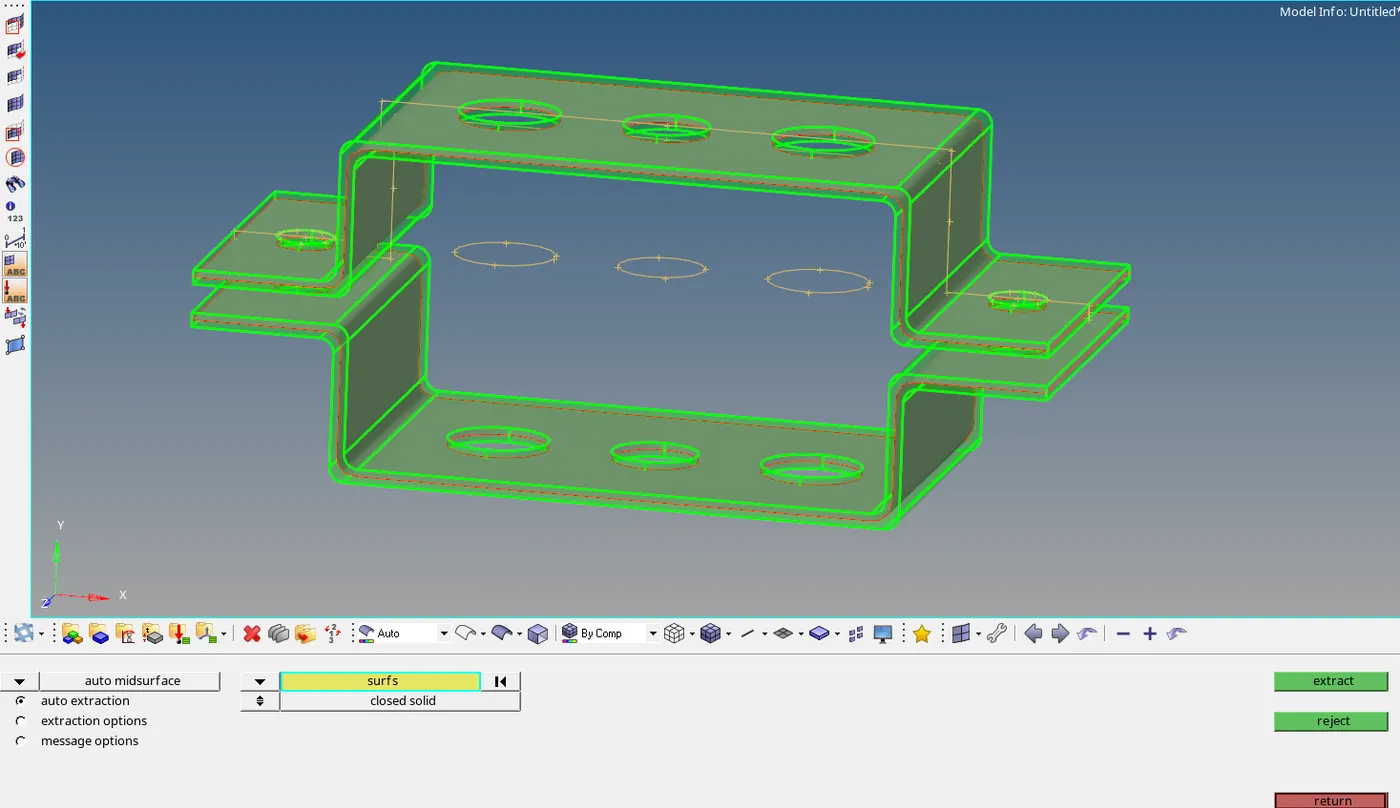
Fig 2: mid surfacing process
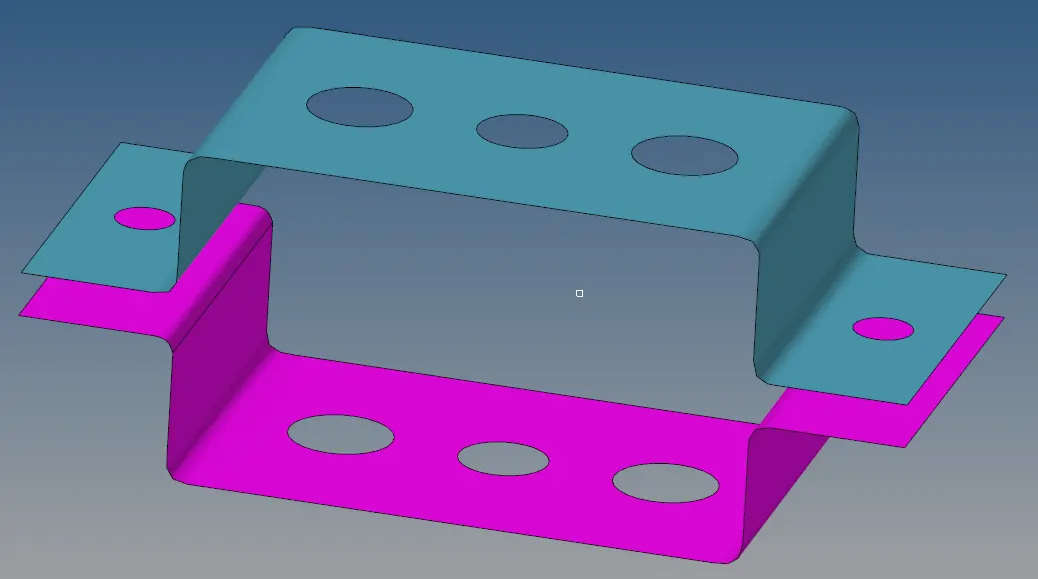
Fig 3: created mid surface.
2. Create 2 component cards for each mid surface bracket. Create a material property card and assign to the components through the component card. Delete the parent geometry if not needed.
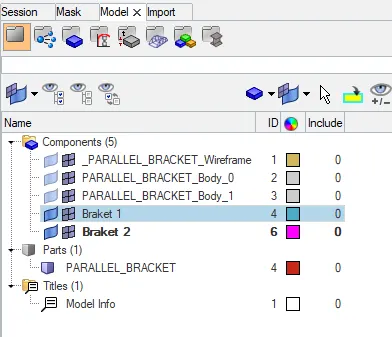
Fig 4: Property cards
3. The mid surfaced component is to be meshed. Before meshing the holes are to be featured with washers so that while meshing the component the holes should not be deformed due to meshing. Create washer in the quick edit menu in geometry and set the washer distance to 5mm from the hole.
The component will be as shown in the fig below.
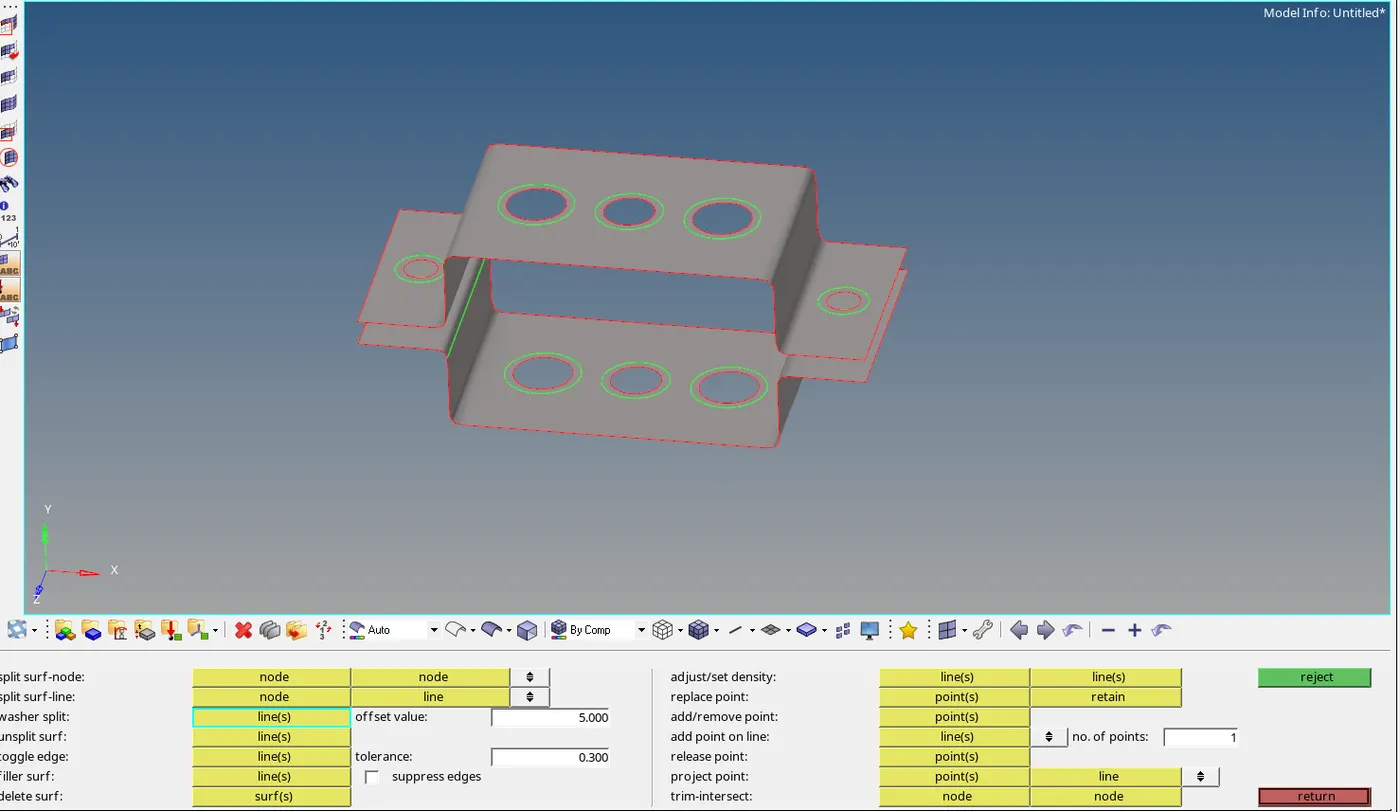
Fig 5: Creating washers to the holes
4. Create auto mesh to the component in 2D menu and set element as required
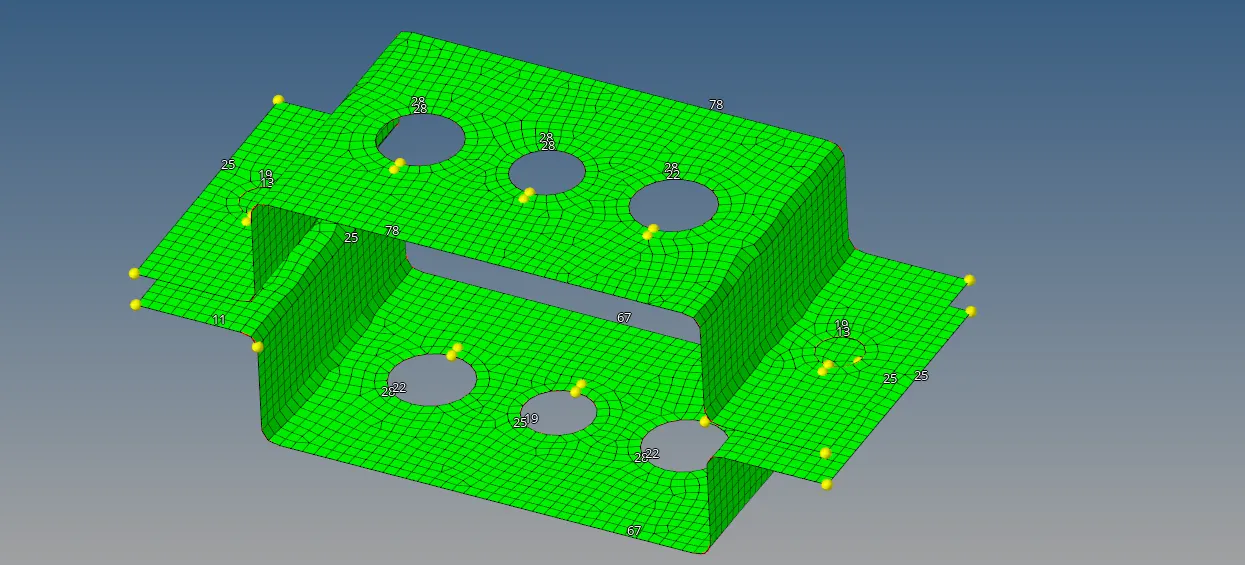
Fig 6: auto meshed component.
5. Maintain the hole element number and washer element number the same for a uniform mesh flow.
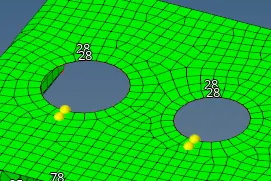
Fig 7: equal number of elements on the holes and washers
This can be done by left-clicking the mouse to reduce the number of elements and wise versa for the right mouse click.
6. Start creating the 1D rigid RBE 2 elements and RBE 3 elements on the holes as mentioned for the challenge. Create RBE 2 element for the 1st hole and RBE 3 elements for the remaining 2 holes.
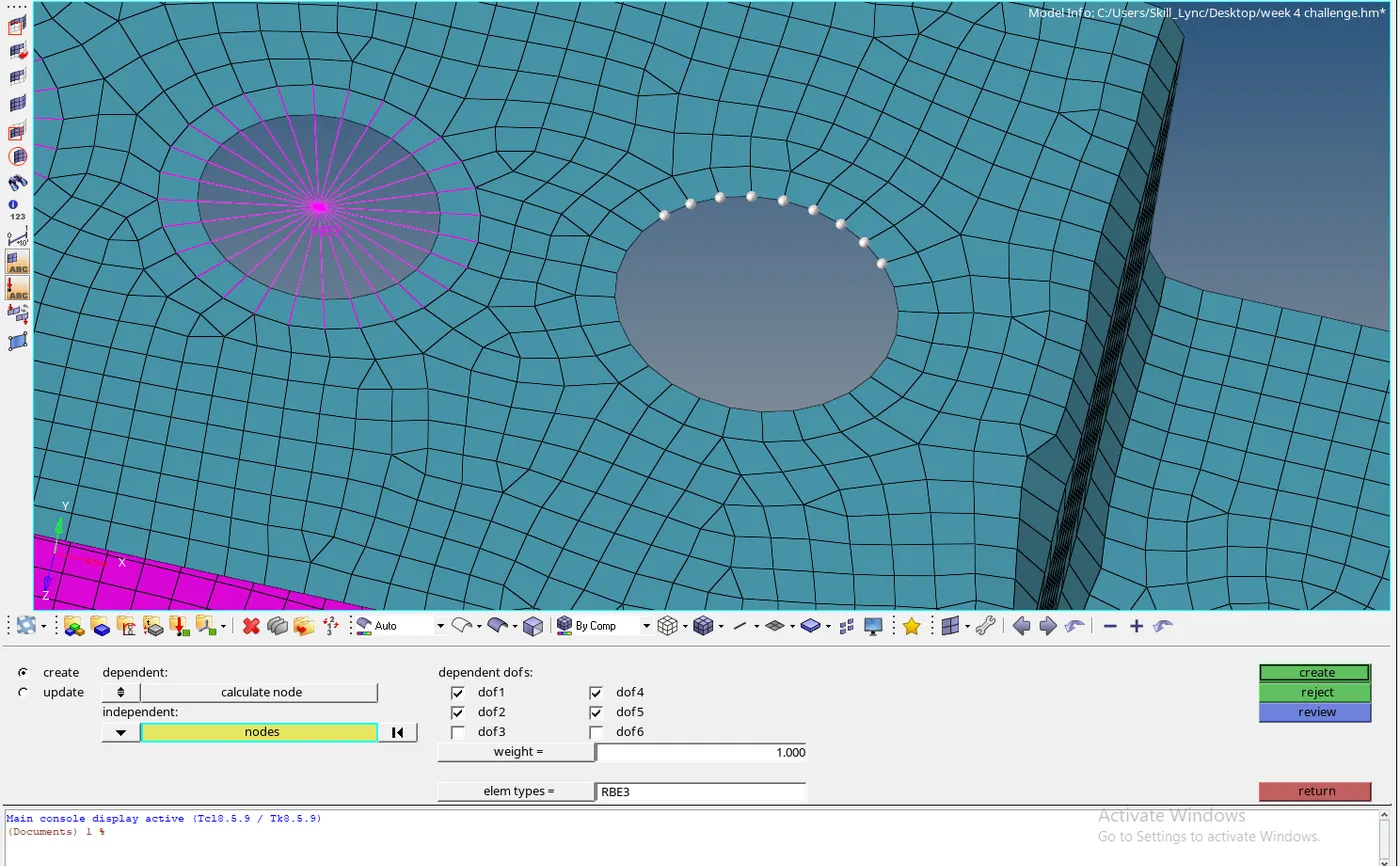
Fig 8: Setting the Degrees of freedom 'dof' and selecting the nodes to create 1D connections.
7. The connection is done by selecting the nodes on the holes and washers. Set the degrees of freedom as mentioned for the challenge.
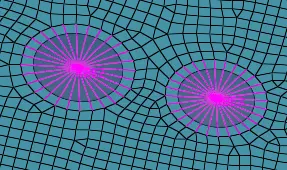
Fig 9: Created RBE2 and RBE3 connections.
8. Start creating the rod, beam, bar connections in Hyperbeam menu in the 1D feature. Set the connection type as required in the following options.
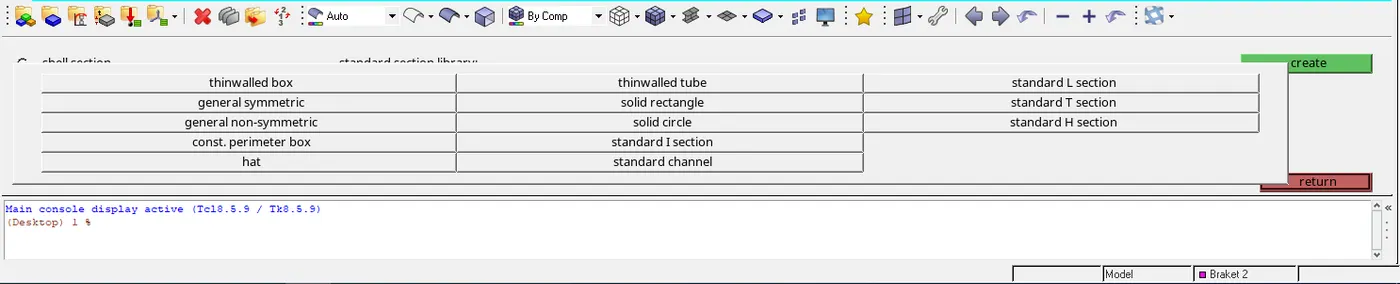
Fig 10: Options to select the type and cross-section of the connection.
9. Set the option and proceed to create the cross-section of the connection.
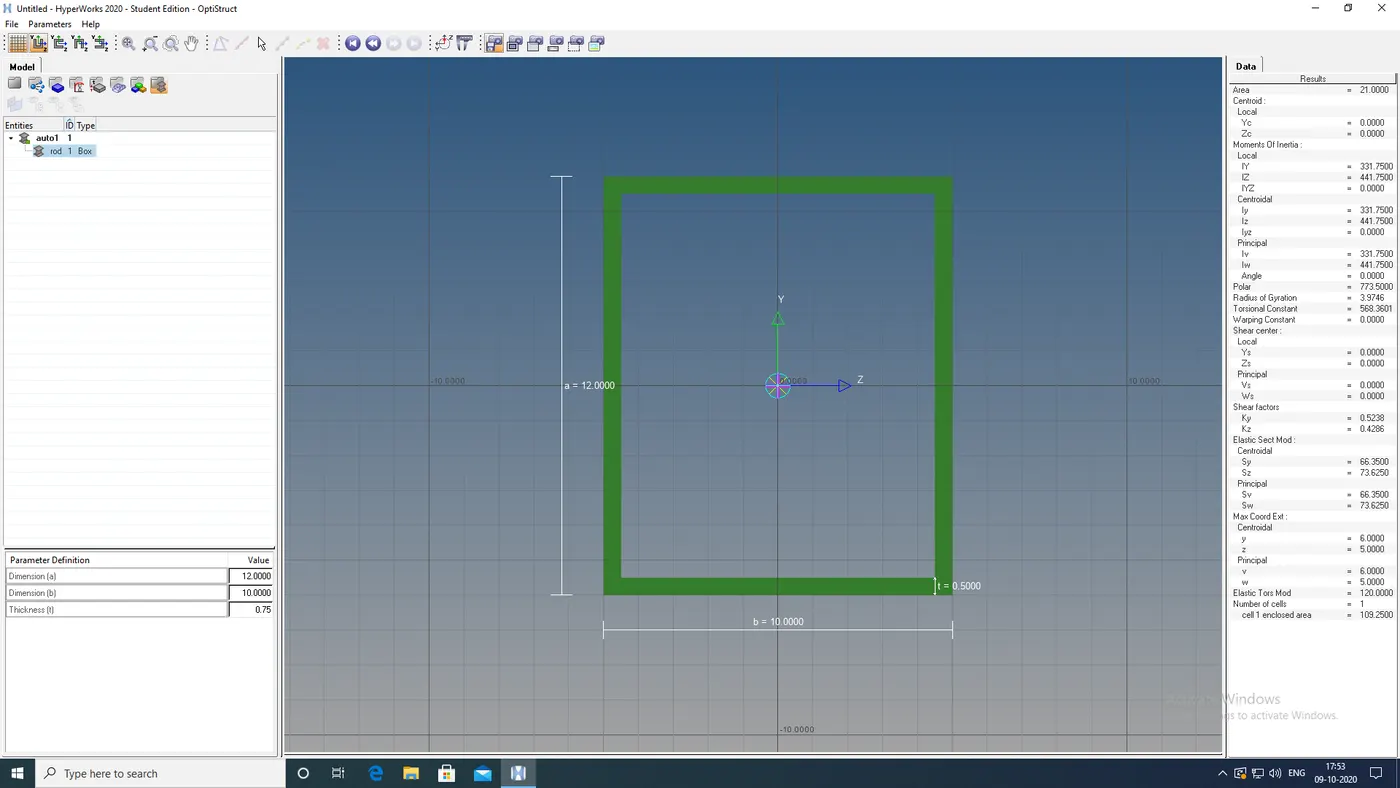
Fig 11: Creating the required rod or beam connection.
In fig 11 the cross-section can be created in the left tab bar where the length, width, height, diameter, thickness, etc can be set and above the setting the name of the cross section can also be changed as per the convenience.
10. Create the remaining 2 connections as per the dimensions mentioned in the challenge.
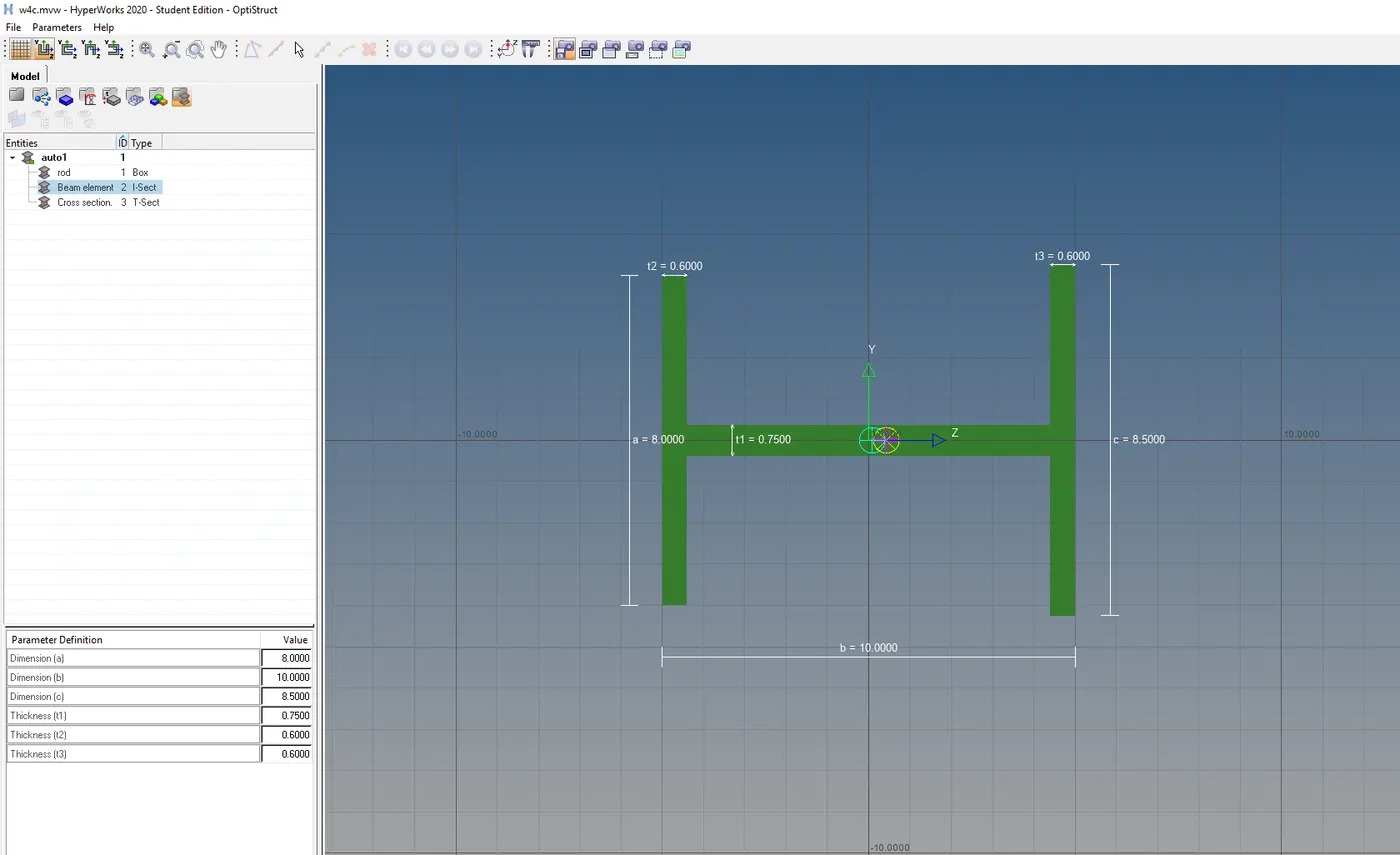
fig 12. Cross-section of the beam
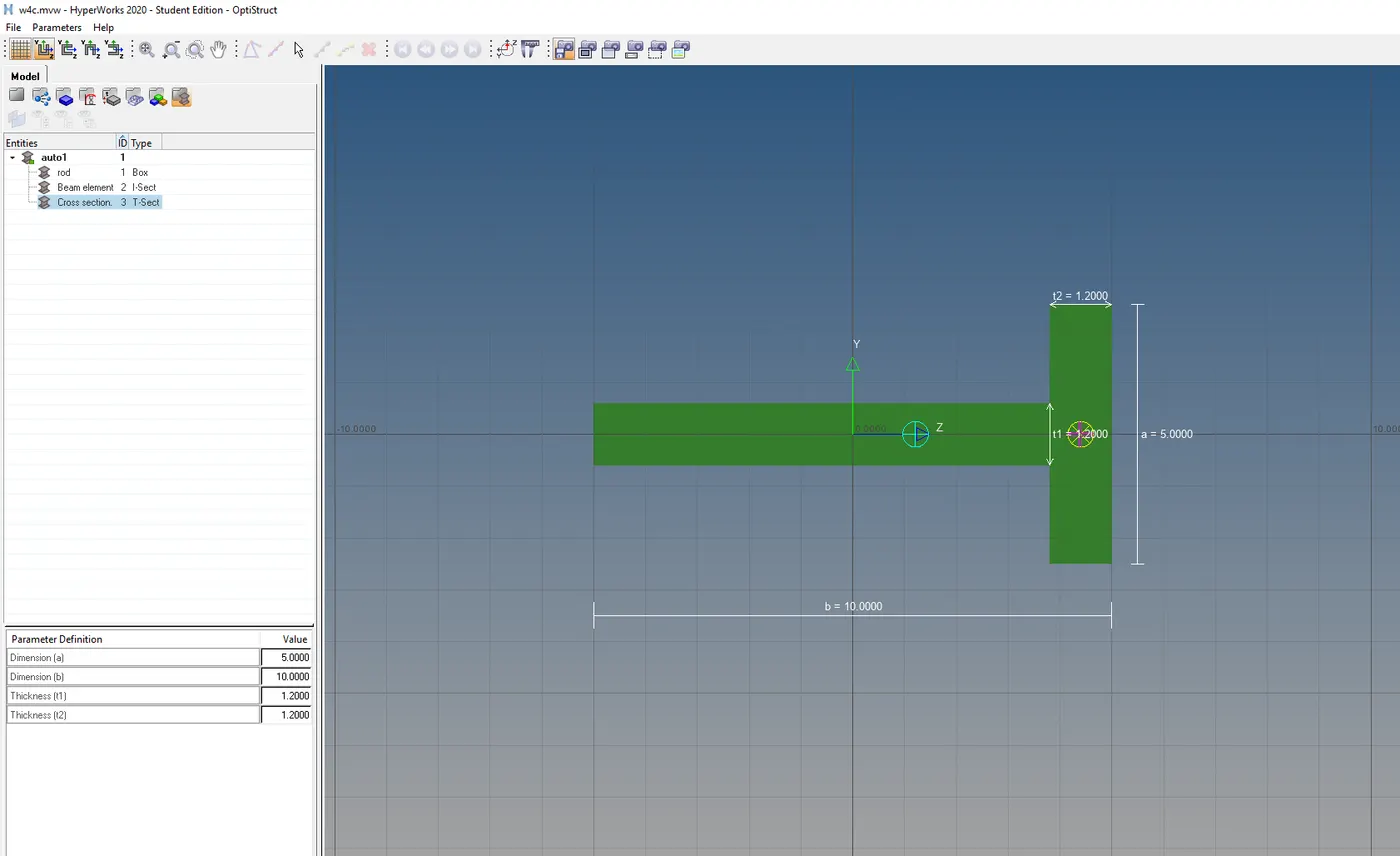
Fig 13: Connection of the bar.
11. After the creation of the rod, beam, bar they must be connected to the created RBE2 and RBE3 connections. Connect them by creating the 1D connection for each respectively. Open the rod menu in the 1D feature and select the RBE 2 nodes to be connected. Set the property and element type and create a 1D connection.

Fig 14: setting the required properties for creating 1D connection.
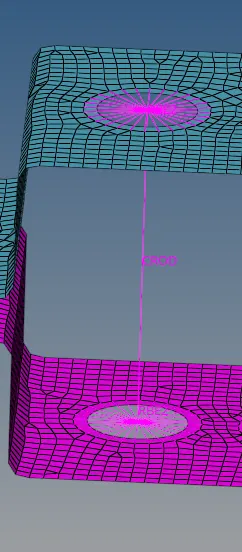
Fig 15: Created 1D CROD connection.
12. For creating the CBAEM and CBAR connection, set the bars menu and select the nodes to be connected. Select the N1, N2 ,N3 for the facing of the connection, set the required properties and create the connection.

Fig 16: bar connection property panel
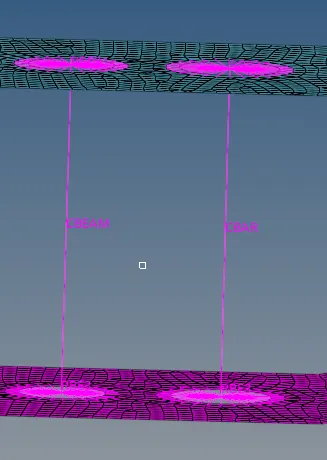
Fig 17: created 1D CBEAM and CBAR connection
13. Create new properties for the 1D connections and name them as required. Convert the property form PSHELL to PROD or PBEAM or PBAR as required. Set the material and beam selection form the created cross-sections for all 3 connections.
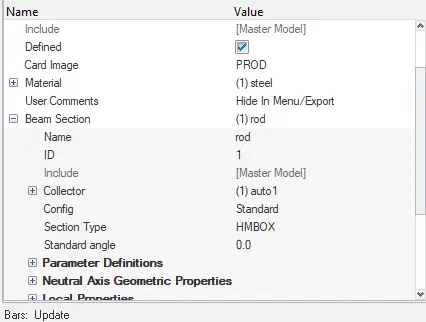
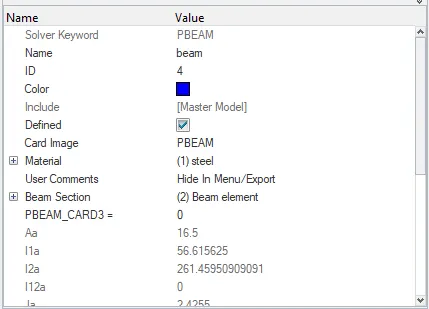
Fig 18: property card for rod Fig 19: property card for beam
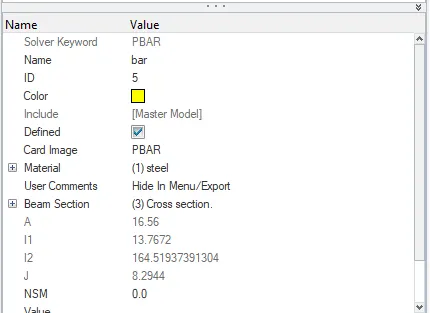
Fig 20: property card for bar.
14. Create RBE2 connections for the remaining two holes on either side of the first bracket and masses for the RBE2 nodes as mentioned. Open the masses menu and select the nodes to be loaded. Set the masses value in the property panal and create the load.

Fig 21: property panel for creating masses.
15. Connect the spring connection to the brackets by selecting the spring menu and connect 1 node from the 1st bracket and 2nd node from the second bracket.

Fig 22: property panel for the spring
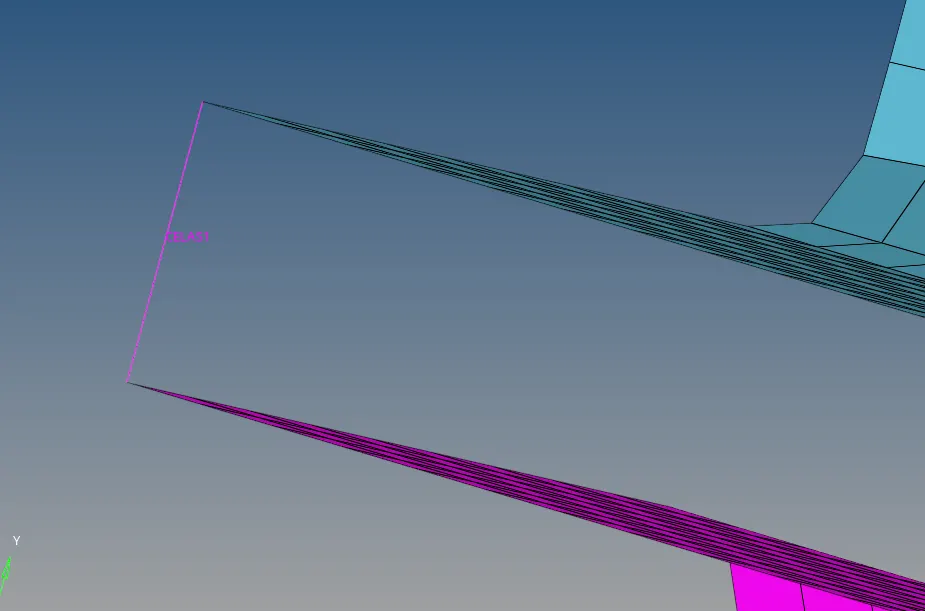
Fig 23: spring connection
16. Set the view mode to 1D detailed element representation to view the total connection of the components.
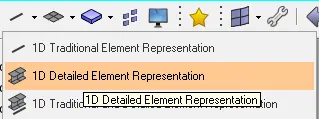
Fig 24: setting to 1D detailed element representation.
17. Thus the connection is completed.
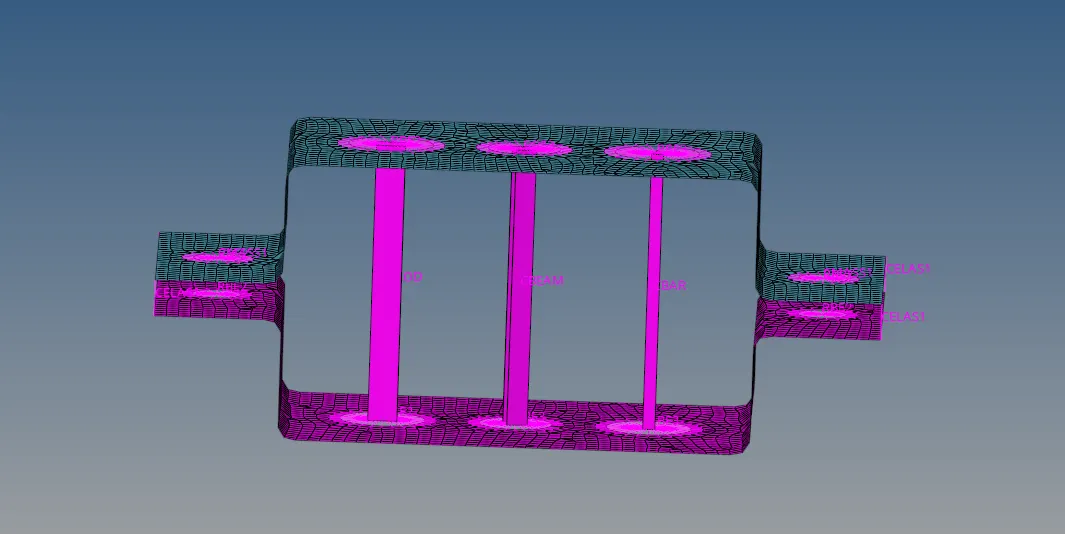
Fig 25: Geometry with connections
Result:
Thus connecting the component as per the required dimensions and crosssections are completed.
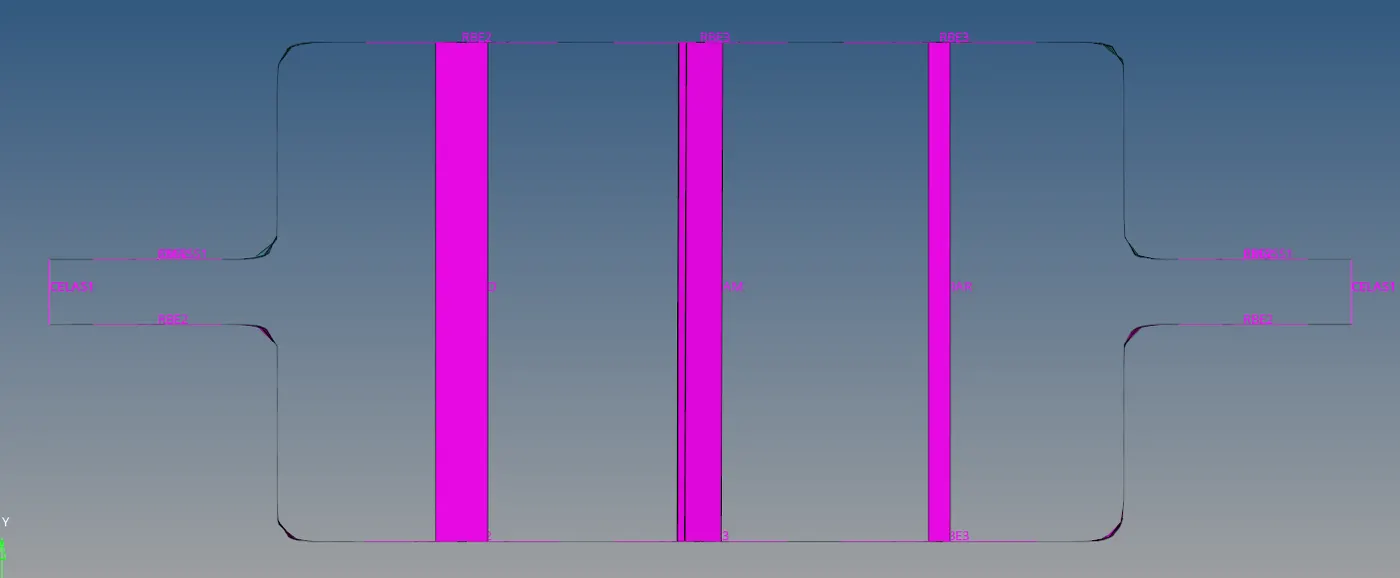
Fig 26: Front view.
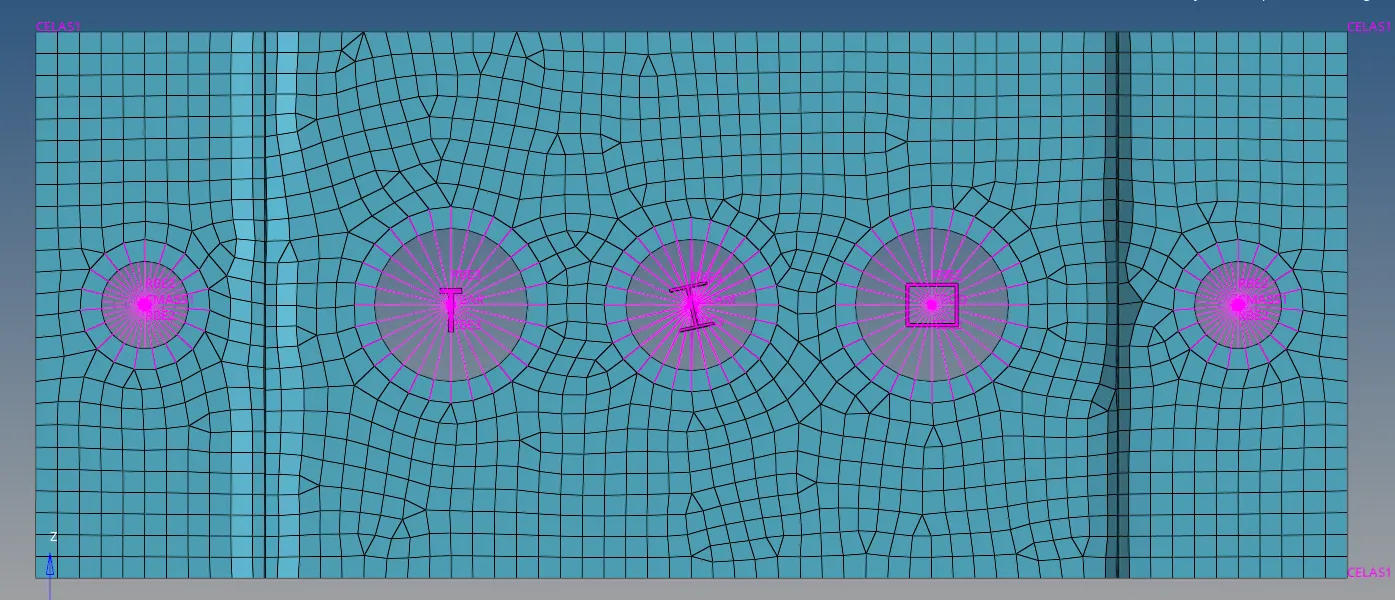
Fig 27: Top view
Learning Outcomes:
- Learned to create the RBE2 nad RBE3 connections.
- Learned to connect and create rod, beam, bar connections.
- Learned to create the cross-sections for the beam elements.
- Learned to create and arrange the properties as required.
- Learned to create loads for the nodes.
Challenge link:
https://drive.google.com/file/d/1c-Xnmku0hDRVnP3sqWyDOWCUHQhhf61P/view?usp=sharing