Week 4- Challenge
Objective - To create a 1D element on the following component with given cross-section and DOF.
Specification -
a. Rod element:- with only translational DOF and RBE2 link
Cross-Section: BOX- Dimension a= 12 mm
dimension b=10 mm
Thickness t= 0.75 mm
b. Beam element:- with all DOF and RBE3 link
Cross-Section: I Section- Dimension a= 8 mm
Dimension b= 10 mm
Dimension c= 8.5 mm
Thickness t1= 0.75 mm
Thickness t2= .6 mm
Thickness t3= .6 mm
c. Bar element:- with only x and y DOFs With RBE3 link
Cross-section: CROSS section- Dimension DIM1= 5 mm
Thickness DIM2= 1.2 mm
Dimension DIM3= 10 mm
Thickness DIM4= 1.2mm
d. & e. apply the mass of magnitude 10 with RBE2 link
f. Join the two components with Spring elements
Procedure -
a. Import geometry - First Import a Cad file (Bracket).
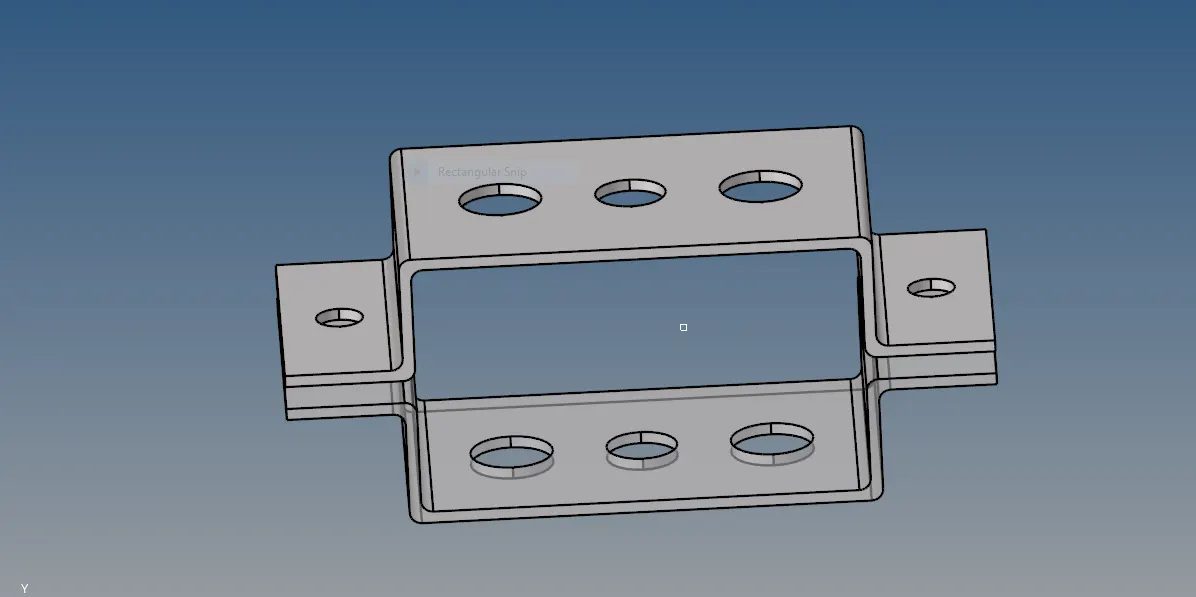
b. Extracting midsurface -
- Then Extract a midsurface by using (Geometry - midsurface -extract) and rename the component as bracket 1 .
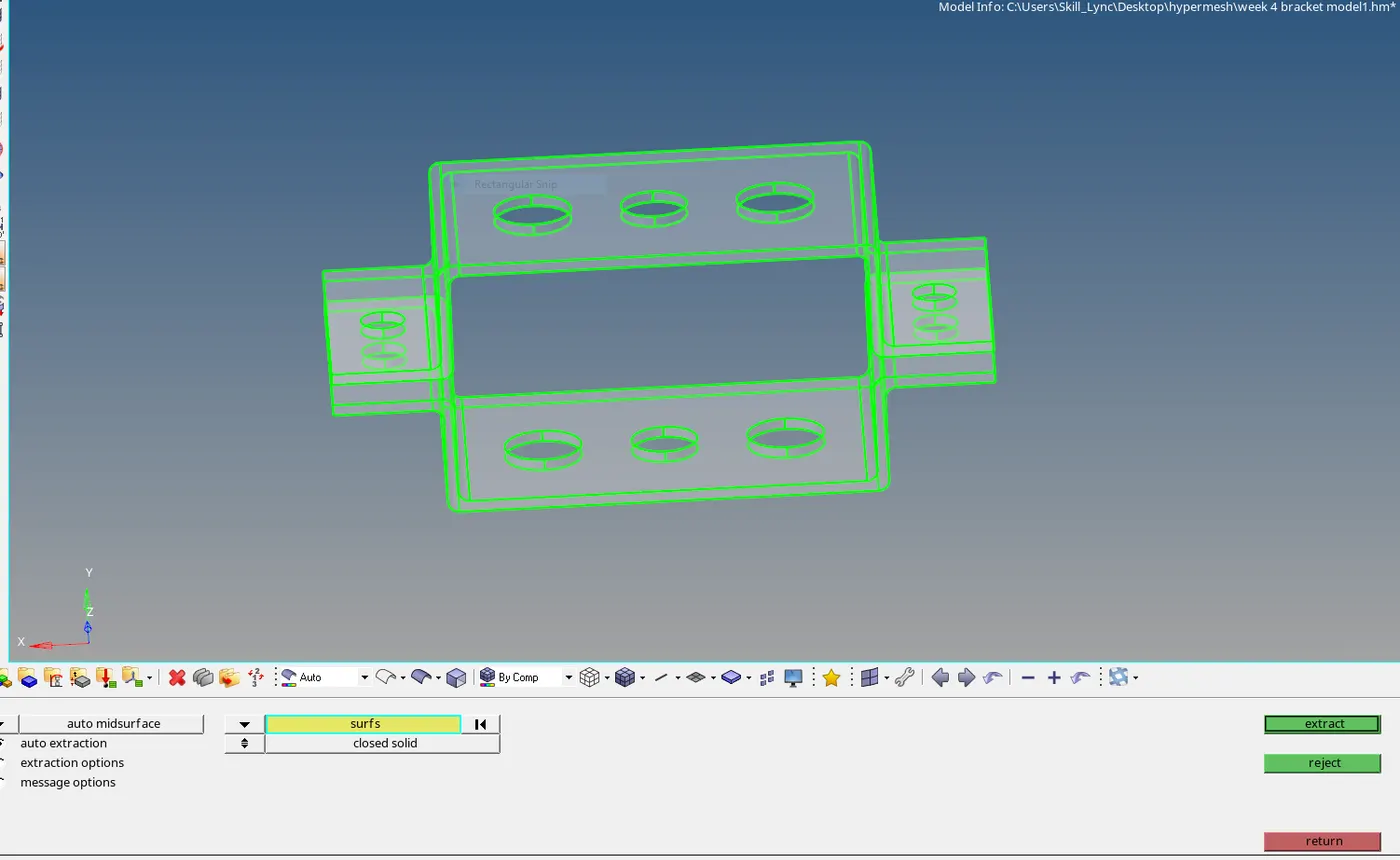
- Create a New component by right clicking and rename as bracket 2.
- then extract a midsurface of other side which shows as a middle surface.
- Moving that midsurface to bracket 2 by using (tool - organize- component(bracket 2)).
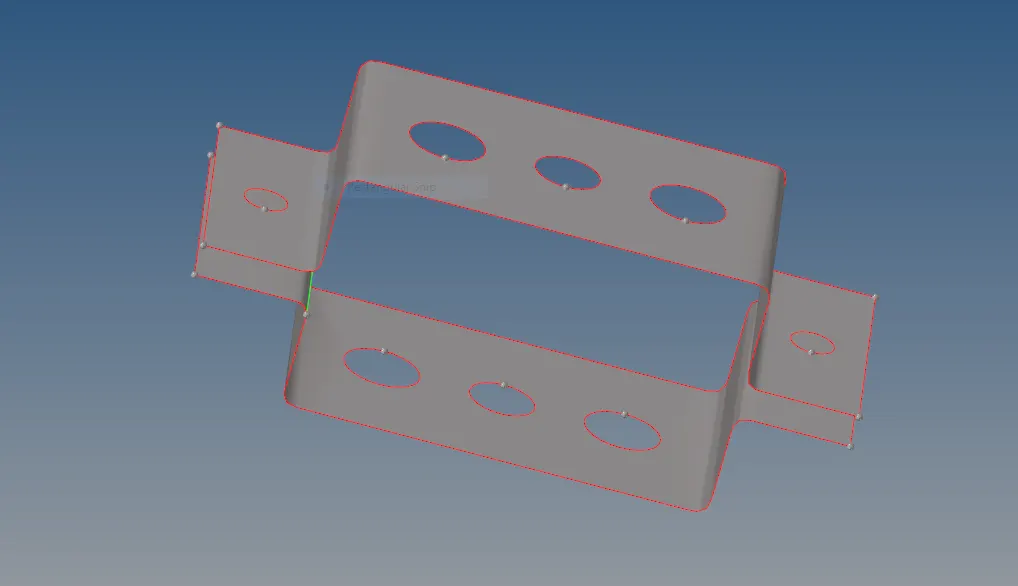
- Delete the solidpart and wireframe and you can also hide the solidpart.
c. Meshing -
- First create a washer split by using (geometry - Quickedit - washer split- offset value =5).
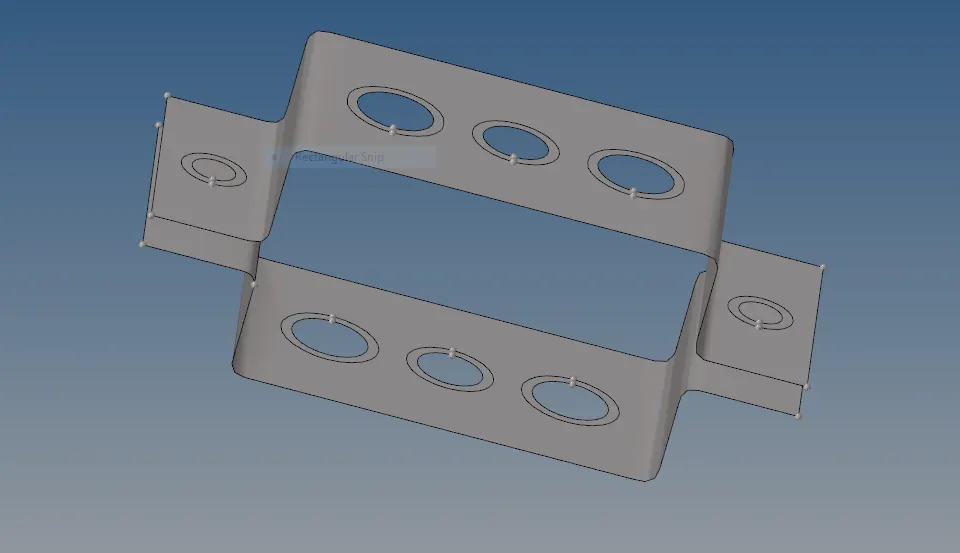
- Then meshing each bracket by automesh option (2D - Automesh - Element size=5 - mesh).
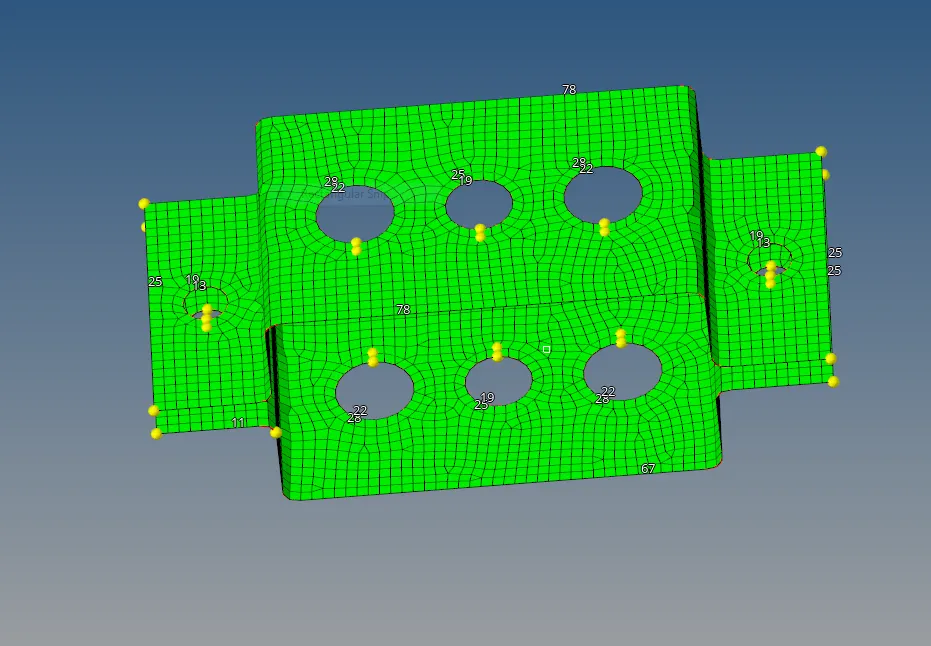
d. Creating Material - Create material (Steel) by right click on model tree .
e. Creating Property - we have to create a property for bracket 1, bracket 2, Rod, Beam and Bar by right click on the model tree and give a thickness of 5mm to bracket 1 or 2.
f. Creating RBE2, RBE3 ,Rod, Bar, Beam and spring element -
- Creating Rod - First Create RBE2 link in hole by using ( 1D - Rigid - checked translation Dof - Create) on both side. now create rod element by using (1D - rod -property=rod) .
- Creating beam - First create RBE3 link by using (1D - Rbe3 - select Dof - create ) on both side . now create beam element by using (1D - rod -property=Beam) .
- creating bar - First create RBE3 link by using (1D - Rbe3 - select Dof - create ) on both side . now create beam element by using (1D - bar-property=bar ).
- Creating masses - Create RBE2 link in (1D - rigid-selected node - create) and then apply a mass of magnitude of 10 by using (1D- masses - magnitude=10 - Element type=CMASS1 - Property=Bracket 1 or 2).
- Creating spring element - create a spring element by using (1D - springs - property=spring - Element type=CELAS1).
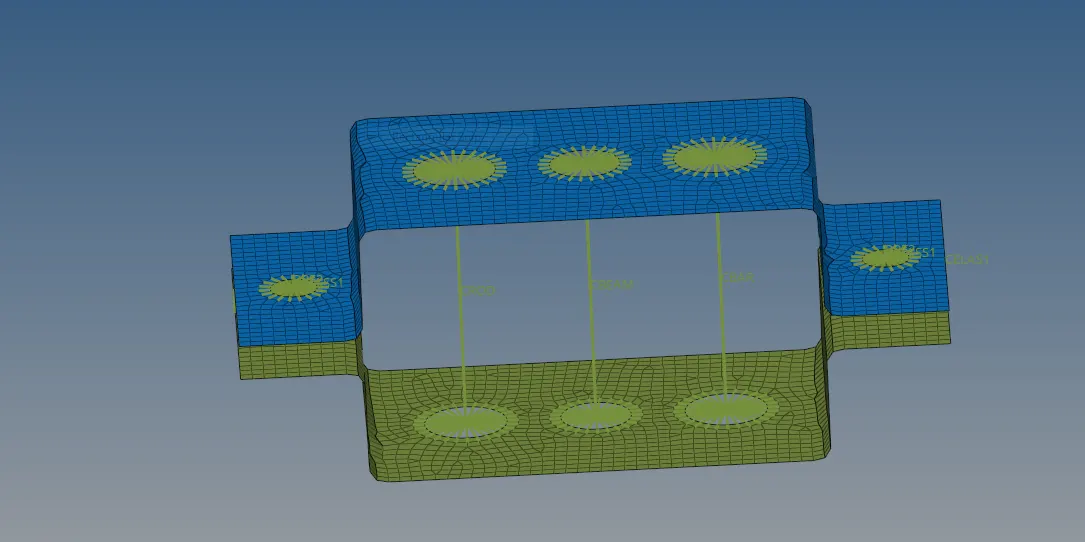
fig. connections with RBE2 and RBE3 link with rod ,beam, bar.
g. Creating Cross section - now creating a cross section by using ( 1D - Hyperbeam - select standard section- select hyperbeam - (from standard section libraray - create )).by given dimension
- Creating box cross section - for rod element
- Creating I section - for beam element
- Creating cross section - for bar element.
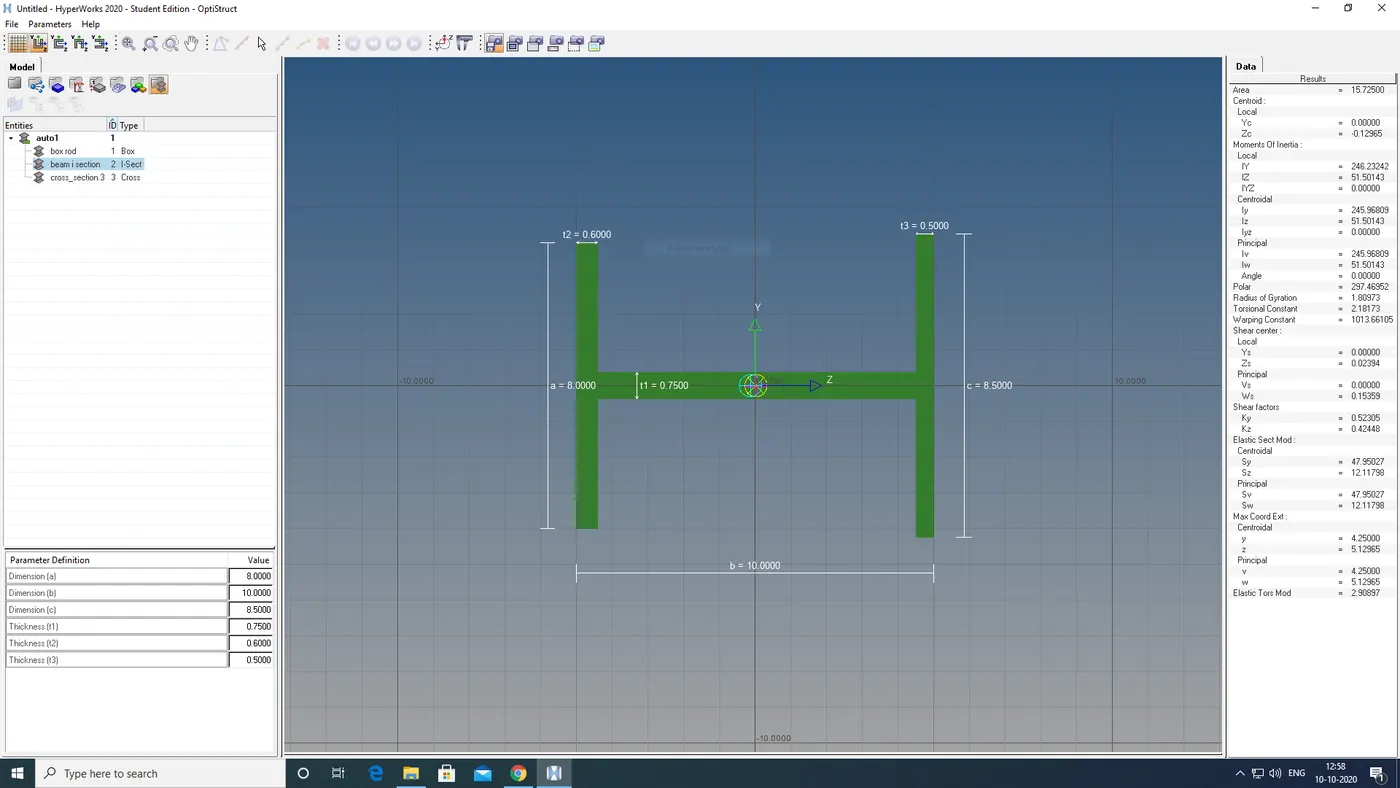
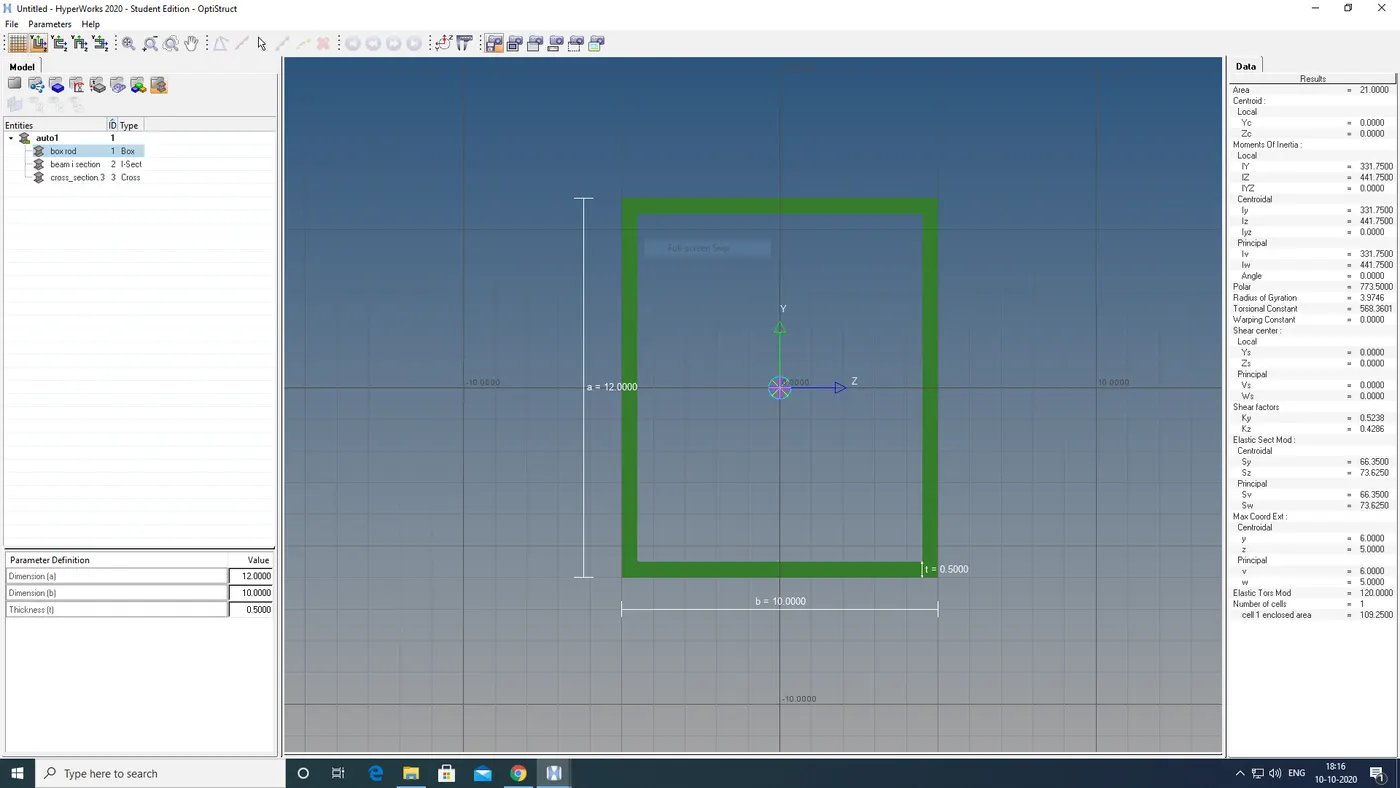
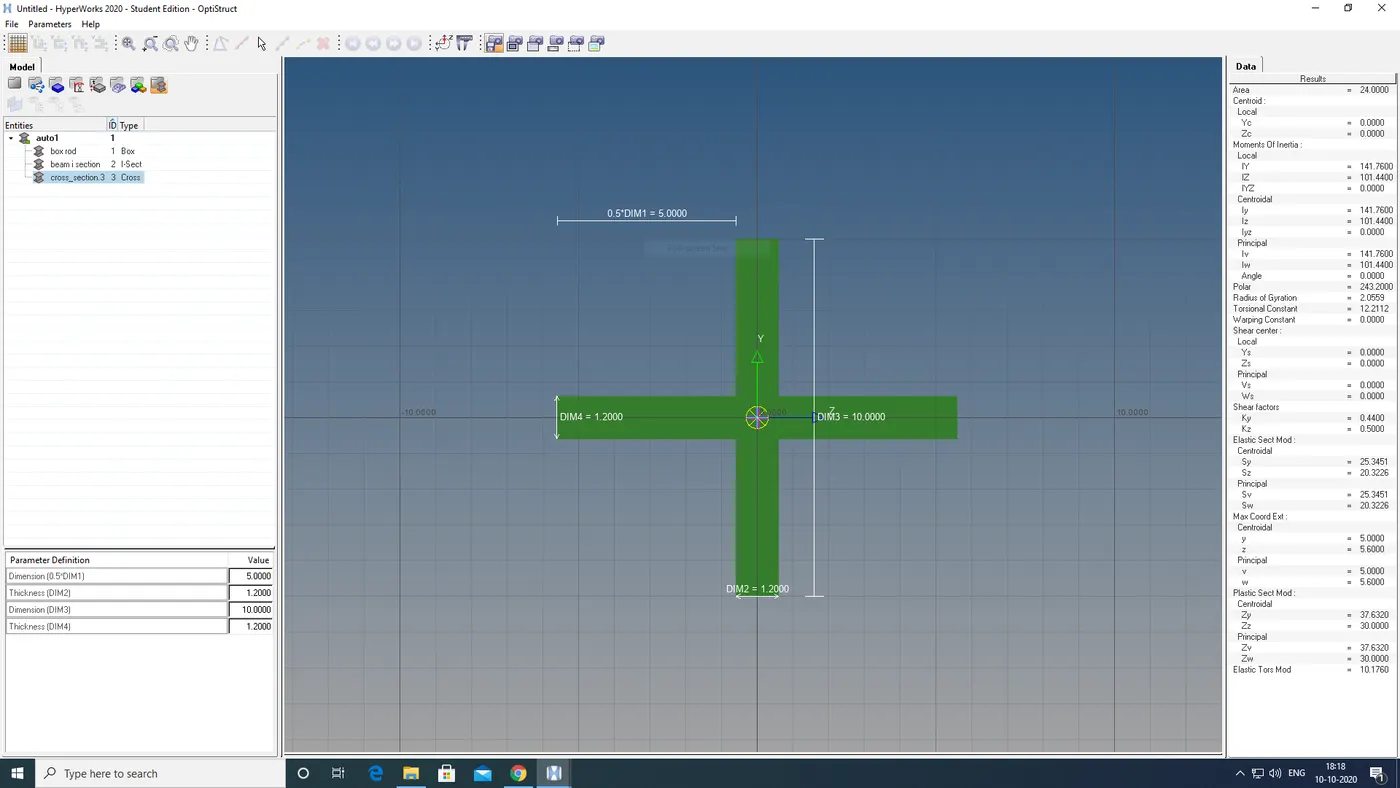
h . Assigning cross section to components - select component one by one and update or specify the correct beam, bar ,rod ,section for each. and view the cross section by using 1D detail element representation.
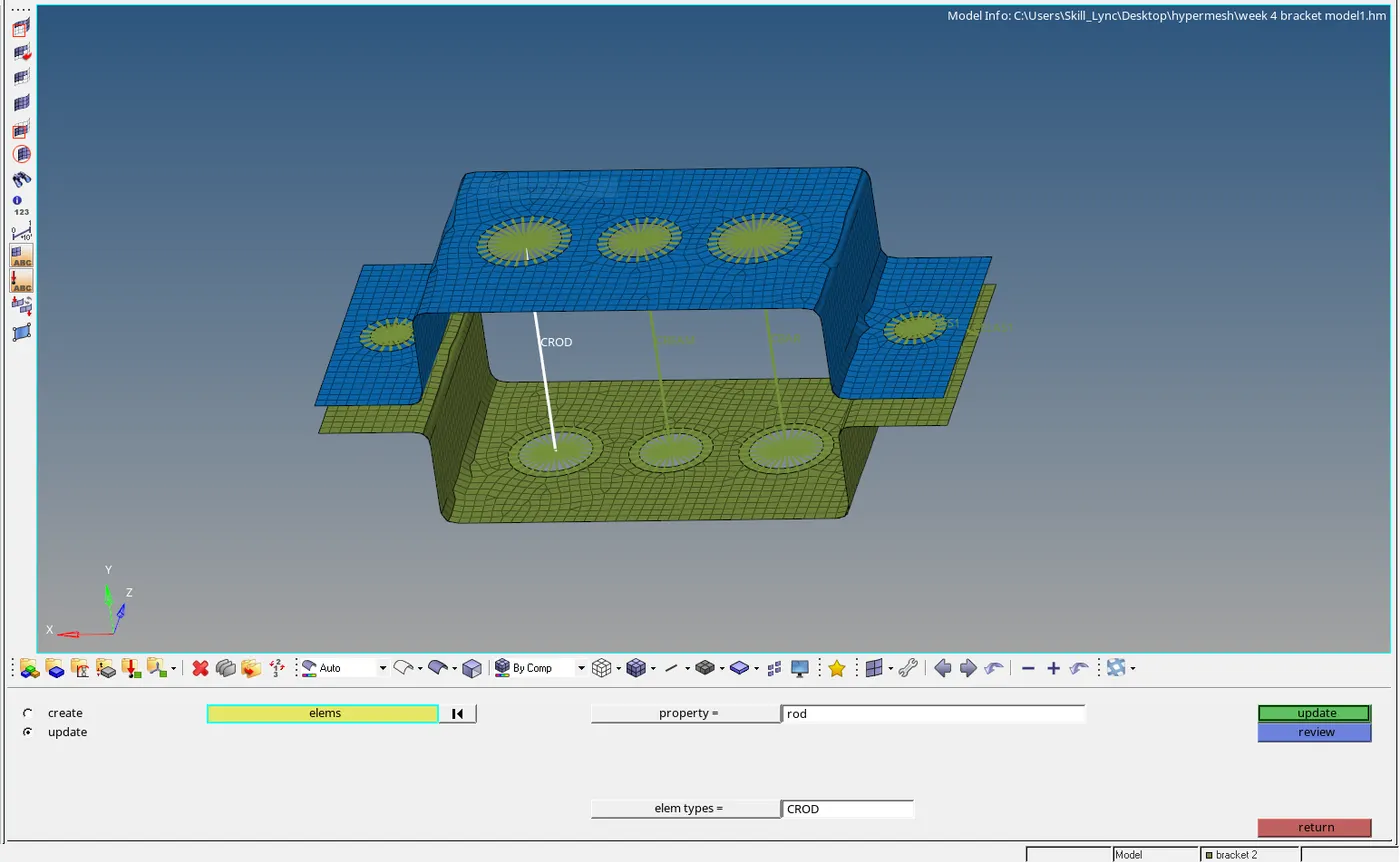
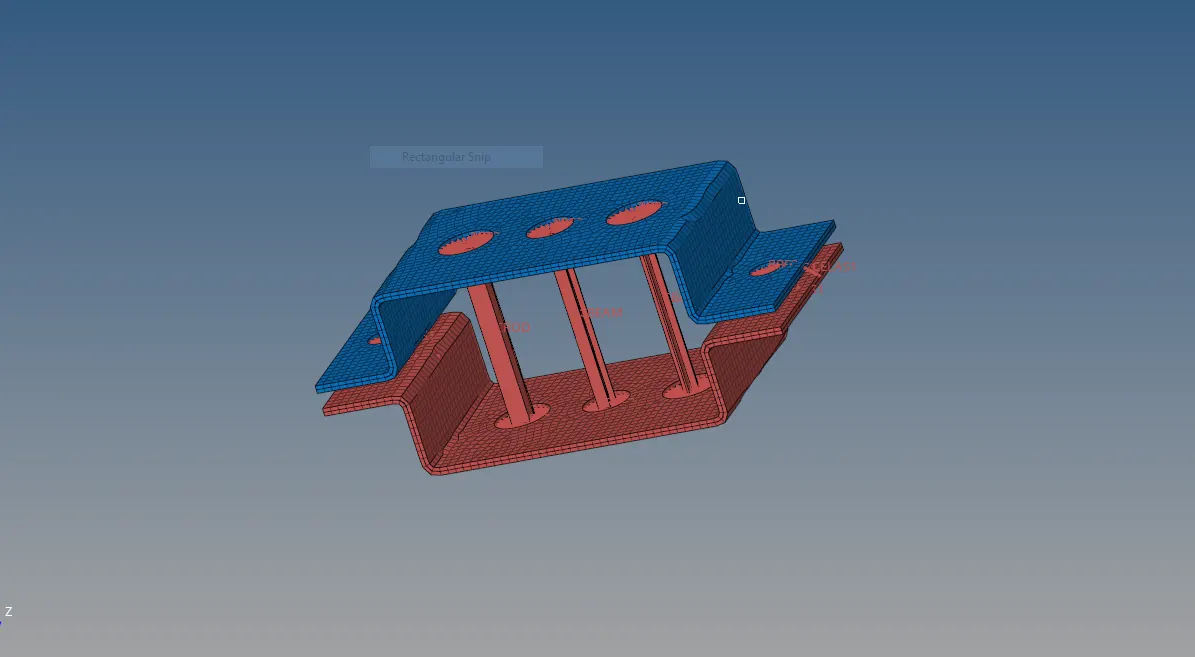
fig. final view
Learning outcomes -
- how to create a 1D elements for given component.
- How to make a cross section in hyperbeam.
- how to assign a property to the model.