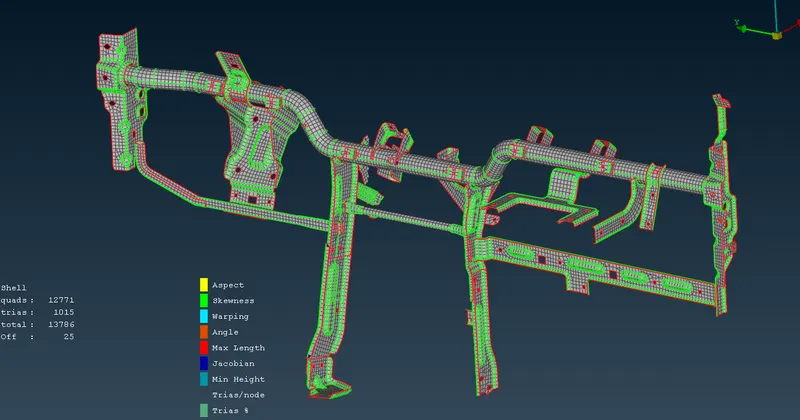
Week 4 - 2D Meshing for Sheet Metal
PROCEDURE :
IMPORTING CAD MODEL AND GEOMETRY CLEANUP :
1. Import the given CAD Model in ANSA by using File-->Open
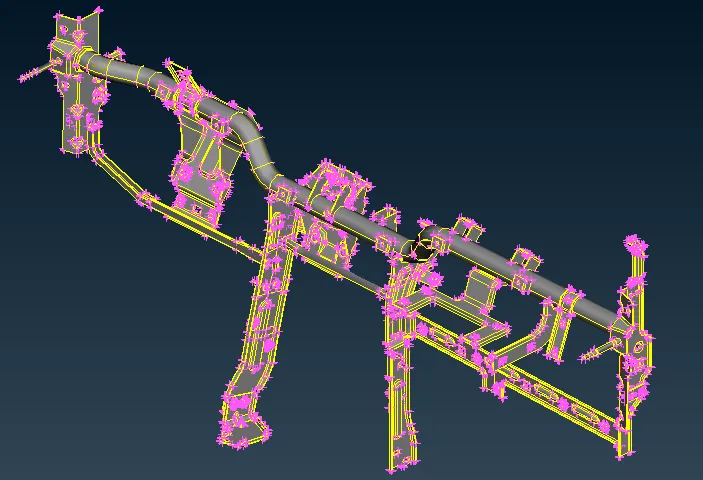
Fig: Cross Car Beam Assembly Model
2. After Importing the CAD Model in ANSA, Go to Tool-->Checks-->Geometry for Geometry Clean up.
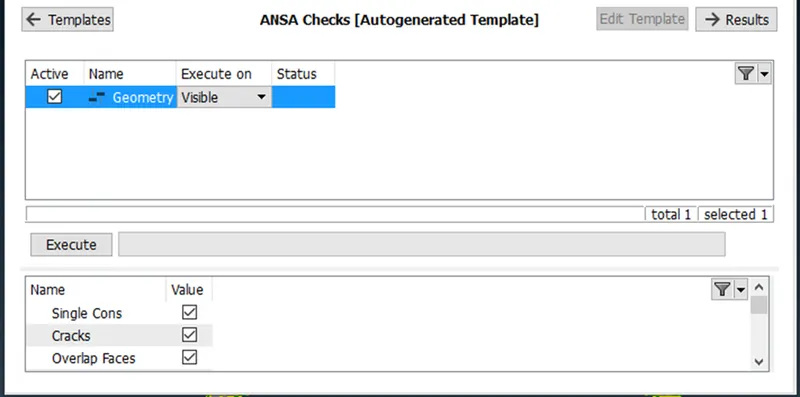
Fig: Checks Manager Window
3. In the above Checks Manager window click Execute to check any error occurred in Hood Model and fix the Error and Cleanup the Geometry.
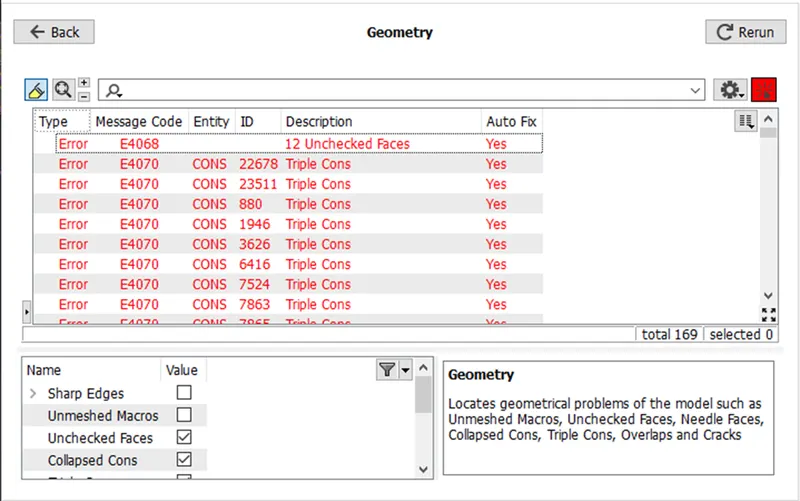
Fig: Error in CCB Model
4. In The above window, an error has occurred in the given Geometry model. Check the error showing in the Model and fix the issue and clean up the Geometry.
5. While resolving the error, Right Click on the error which is going to resolve and click Show only option.
6.It will show only that Unchecked Faces. Using Face-->Delete Option to delete the Unchecked Faces.
Fig: Deleting Unchecked Faces
7. After deleting the Needle Face, that error has been resolved. Similarly, all errors have to be fixed, and again Click Execute in the Checks Manager, and 100% Geometry Cleanup is to be verified.
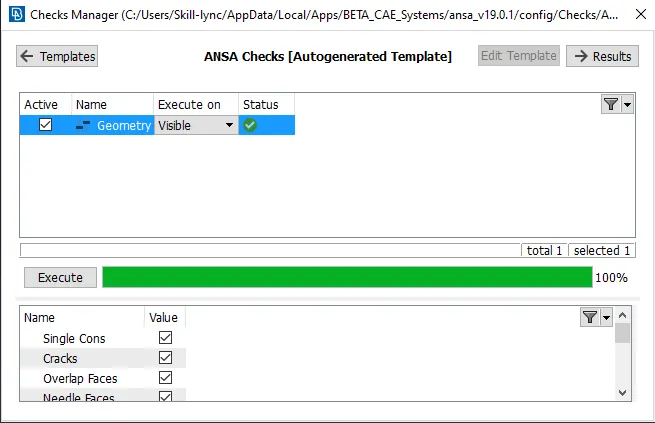
Fig: Geometry Cleanup
CREATING MID-SURFACE :
8. After geometry Cleanup and Mid-surface has to be created separately for each component.
9. Go to Topo-->Midsurface option and select the face and Create Midsurface.
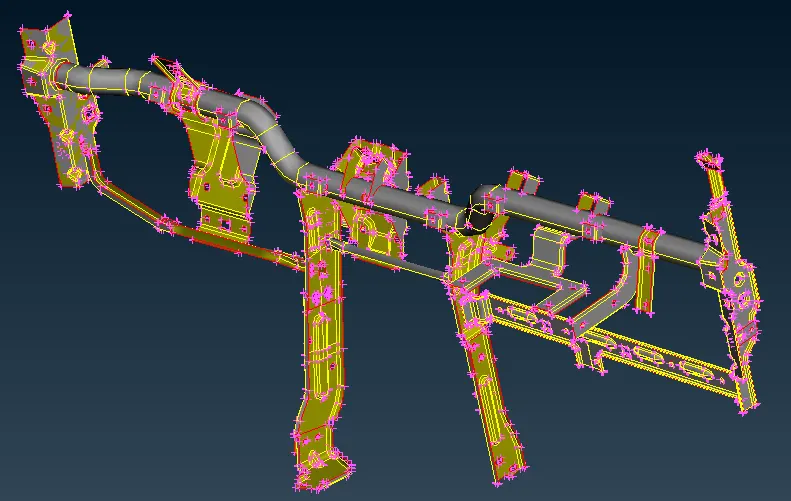
Fig: CCB Assembly Midsurface
MESHING :
10. After Creating a Mid-Surface, set the given Quality Criteria for the Component.
11. Go Utilities-->Quality Criteria Option and assign the given Quality Criteria Values.
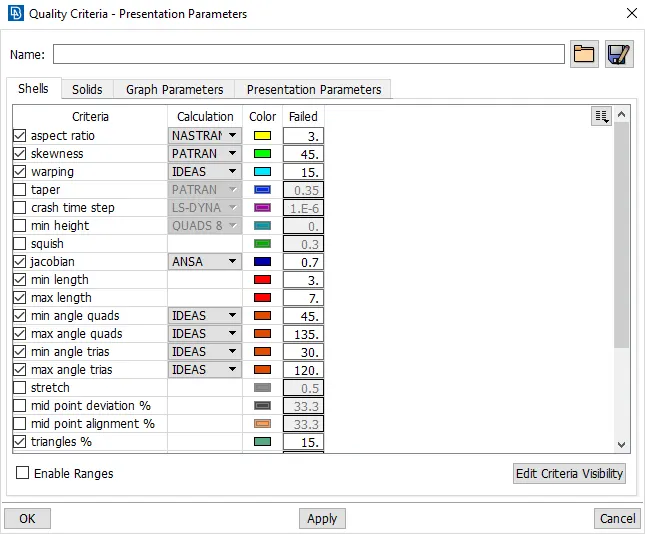
Fig: Quality Criteria
12. After assigning the Quality Criteria for the Component, Go to Utilities-->Mesh Parameters and assign the Average Value, Minimum and Maximum Value for Meshing.
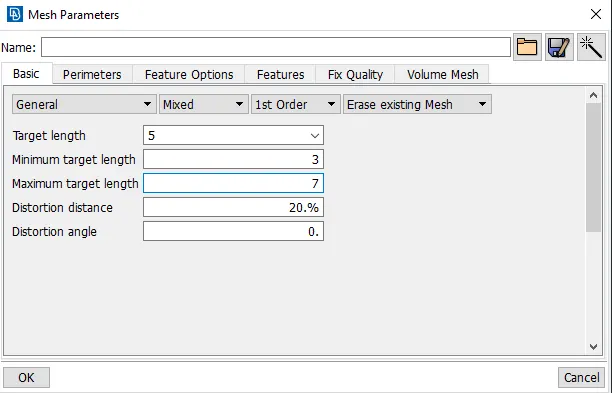
Fig: Mesh Parameters
13. Go to Mesh-->Perimeters--> Length Option and Select the Component to Mesh and enter the Value of Perimeter Length and Macro Length for Meshing.
14. Go to Mesh-->Mesh Generation Option and Select the Mesh type to mesh the component.
15. Select the Mesh type in the Mesh generation and Select the Faces to mesh and Mesh will be generated.
16. Use Shell Mesh-->Reconstruct option to rearrange the Mesh and Use Shell Mesh-->Smooth Option to arrange Mesh lines equally within the Selected Surface and solving the Quality criteria issues.
17. Use Grids-->Paste or Elements-->Split / Swap / Joint Option to eliminate or reduce the trias and get better mesh flow.
18. Check if there are any off elements is present and reduce the off elements and some areas of off elements will be acceptable.
RESULT :
Checked for the geometrical errors & taken mid-surface for CCB Assembly and meshed with the given element Quality Criteria for the given Component and performed Bolt connection, Seam Weld Connection, and RBE2 connection.