Week - 4 - 2D meshing for Plastic components
Download file and open in ANSA
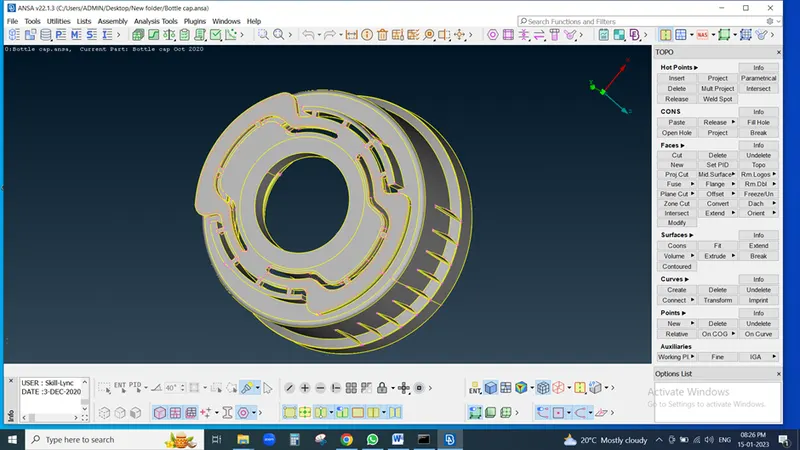 .
.
Check Model in geometry for every parameter
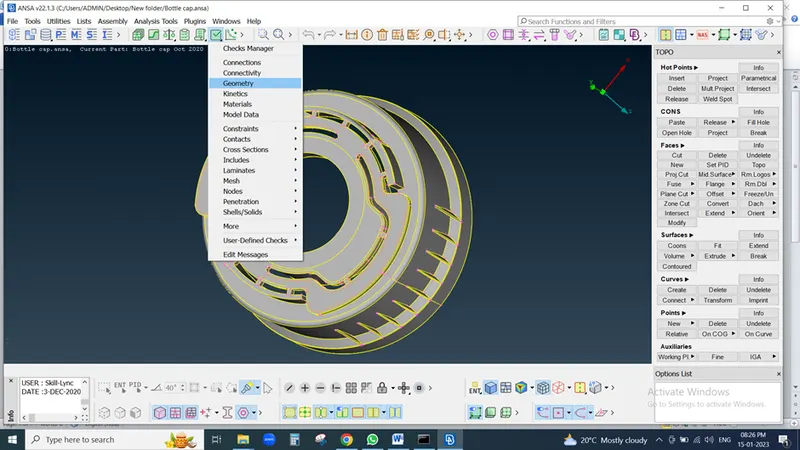
Execute geometry check and if Error occure then fix that error
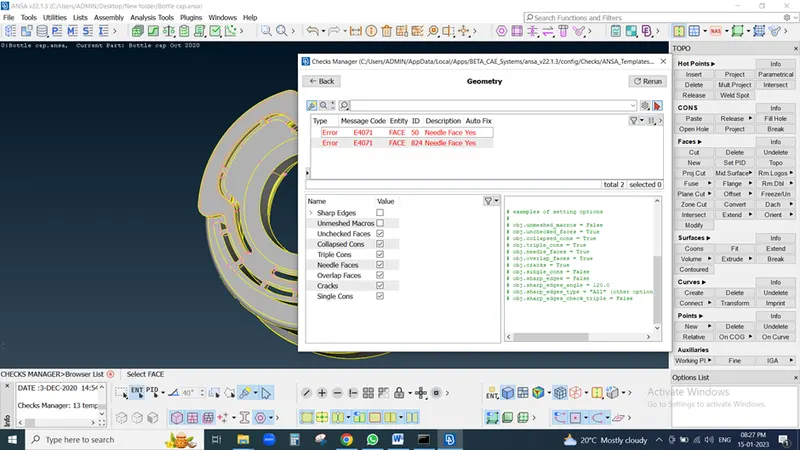
for fixing error select error and right click on that after hit on fix
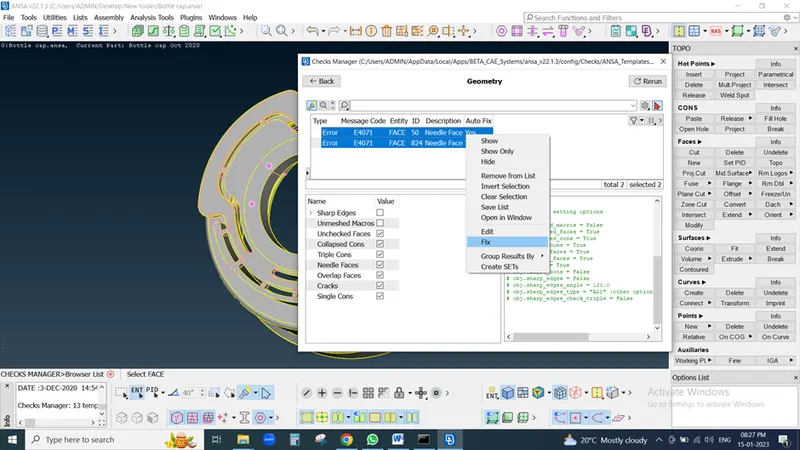
Again execute so check whether error fix or not
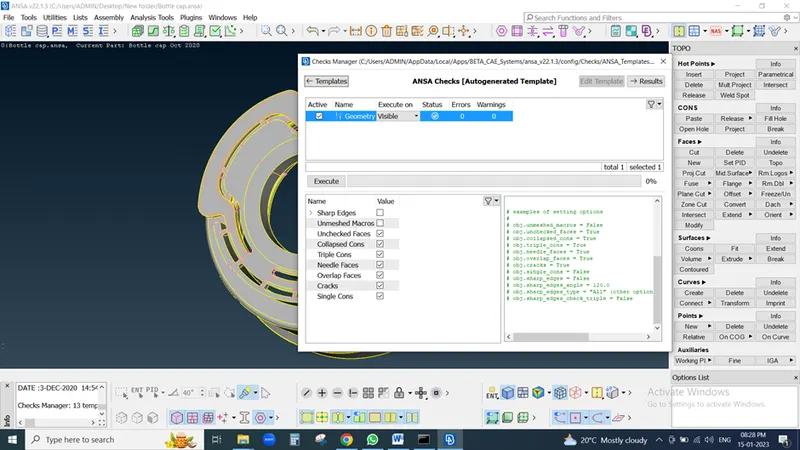
then check property ID for model
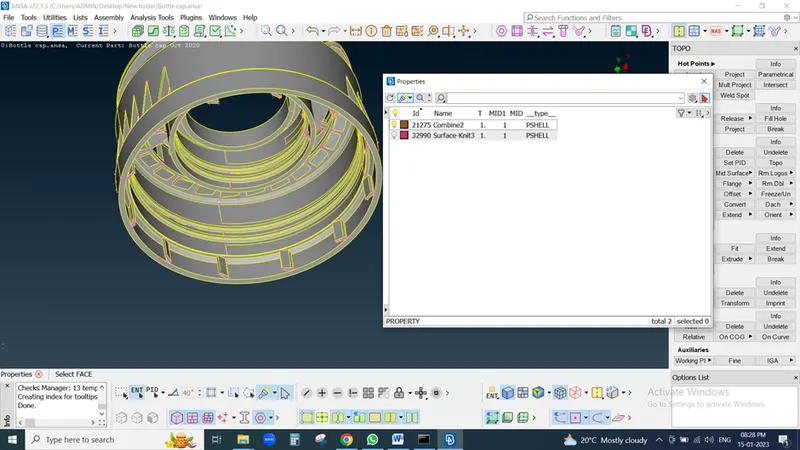
then After confirm checks geometry we need to exctract mid surface of model but thickness is not uniform so we need to exctract midsurface one by one
so first we exctract first outer diameter so first we check thickness
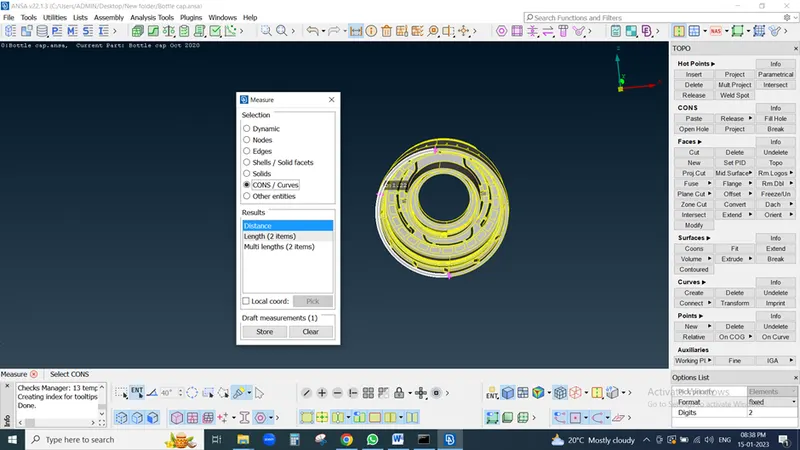
now we exctract mid surface manually so we use offset command and put thickness value divided by 2 because we need mid surface
also we use negative sign for midsurace generate at opposite to selection surface and select property as Ask Always
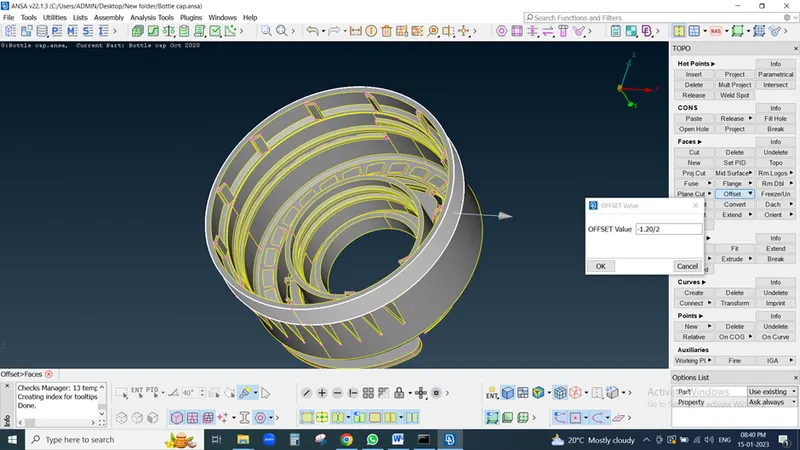
Create new property ID for outer dia midsurface
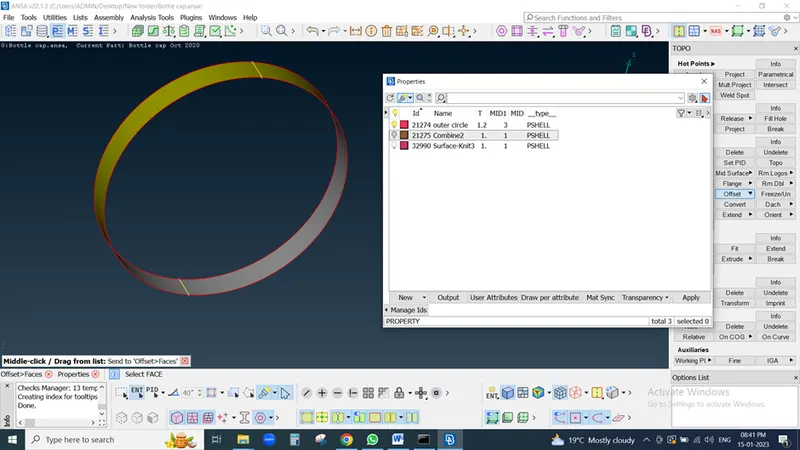
By same way we exctract midsurface for every part by using Middler or offset command use
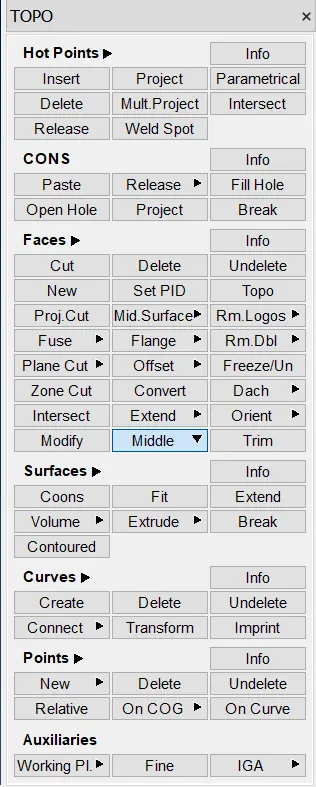
then after exctracting this surface by using exctend command connect each surface to each other if required and exctra surface cut by trim command
if surface not decteded or shows error then use New command and try to fill surface hole or distrortion
Now we see Midsurface
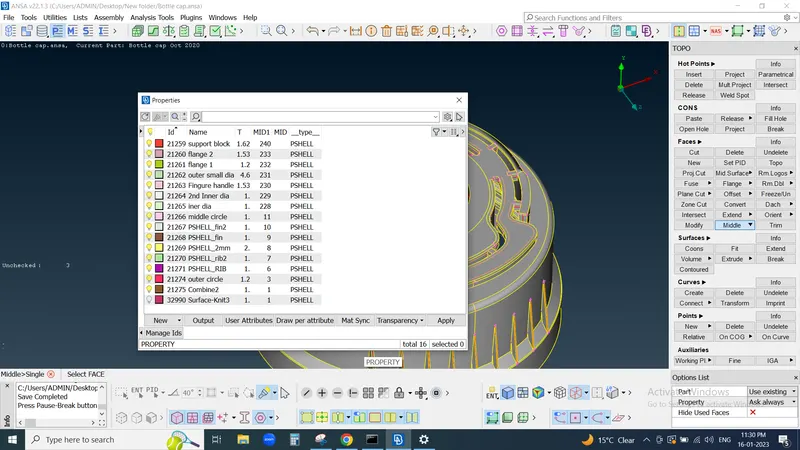
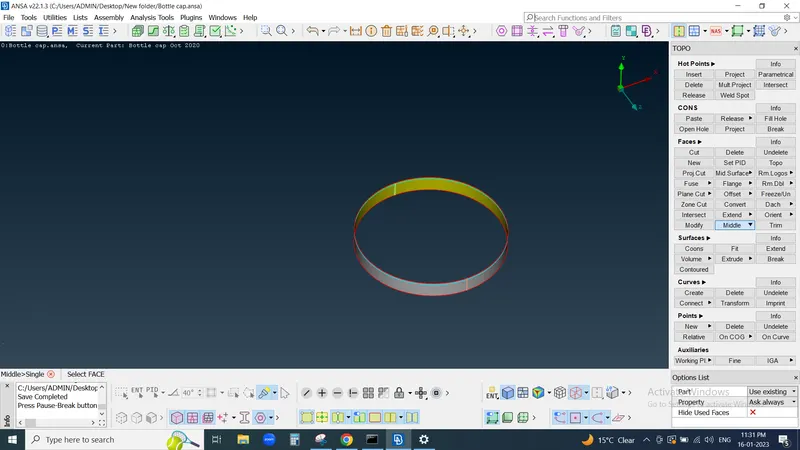
Ribs
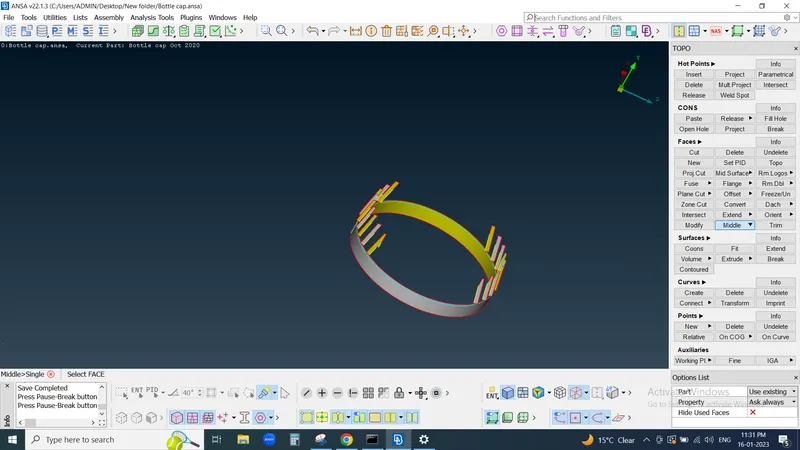
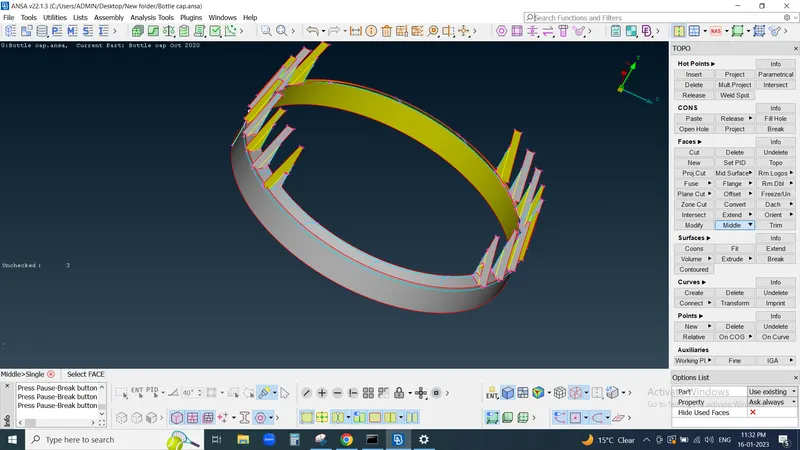
Fins
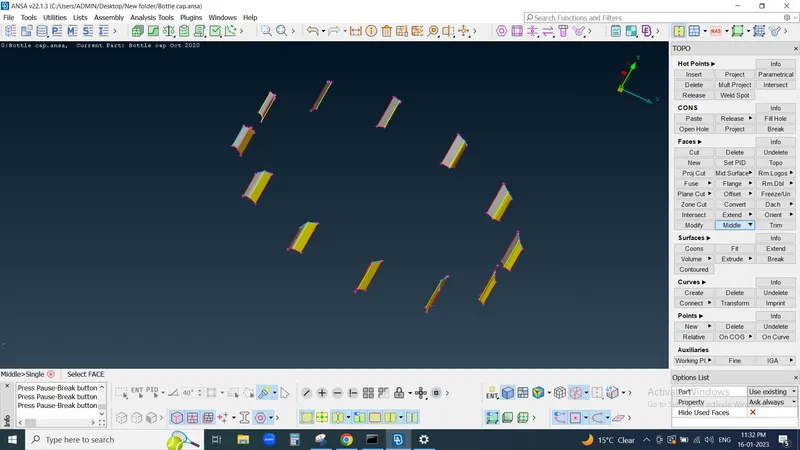
Here we use Extend command then use trim commansd
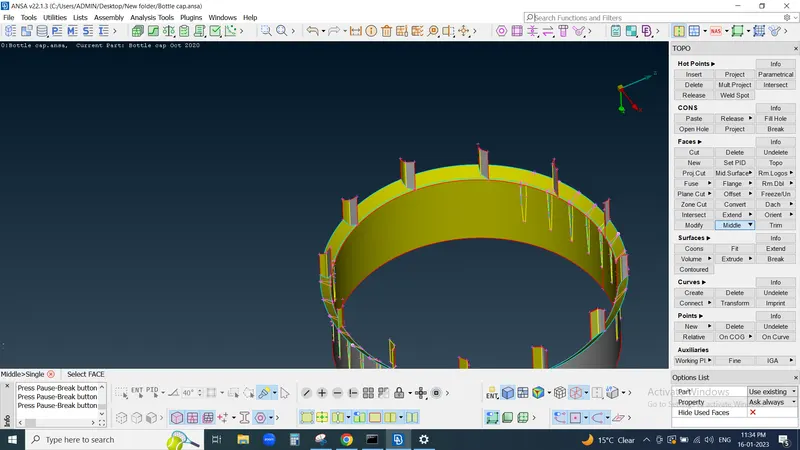
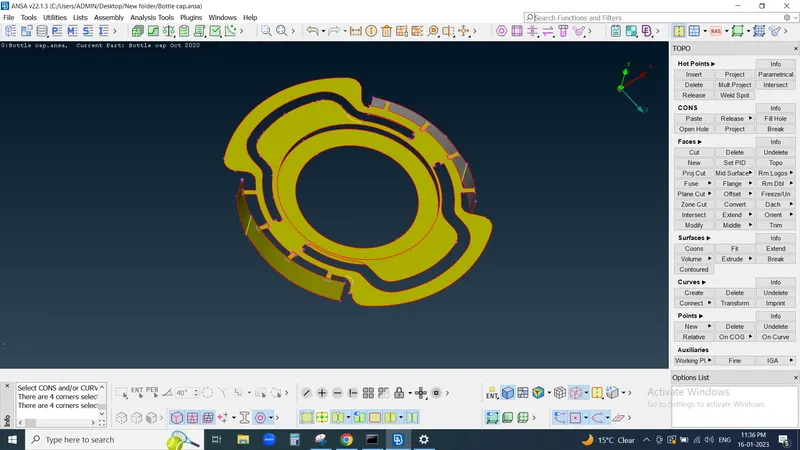
Midsurface exctract from Threading Portion by using Middler command
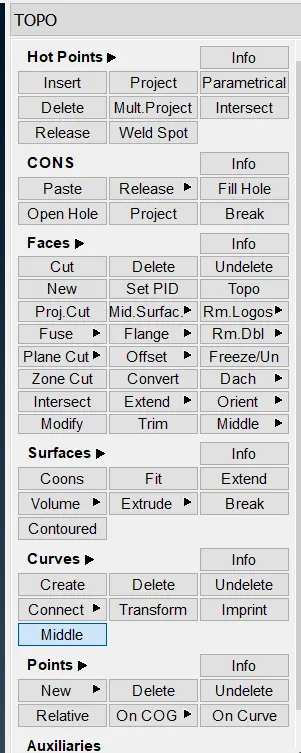
Select 1st con then press middle mouse button again select another another con then press middle mouse button and we get middle line generate by selected to Con and then use project command by selecting middle generated line and press middle mouse button and select surface again press middle mouse button then we see project mark observed on surface
Now for generation of thread midsurface slect New command and select this two line a) midle line generate and b) Progection line generate on surface then press middle mouse button select property as ASK Always and name midsurface as thread
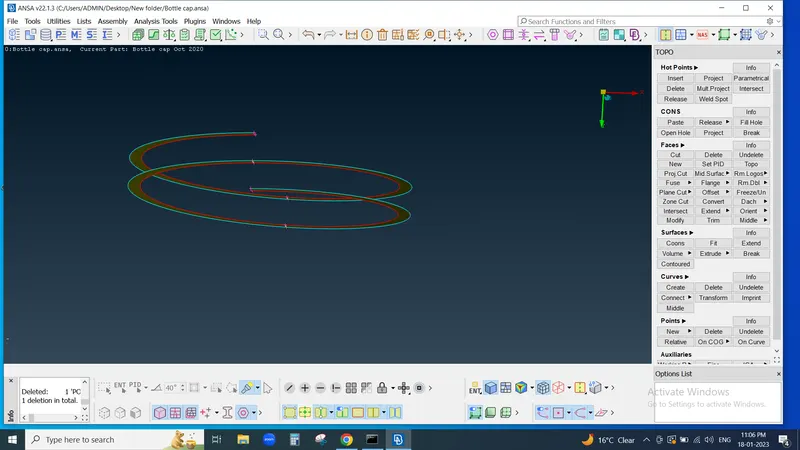
Generation of flat incline fin surface by using Transform command need to make two referance point by using COG command
for that use middler command in FACES then generate midsurface then goto transform command select copy enter then window popup select Entity and again press enter
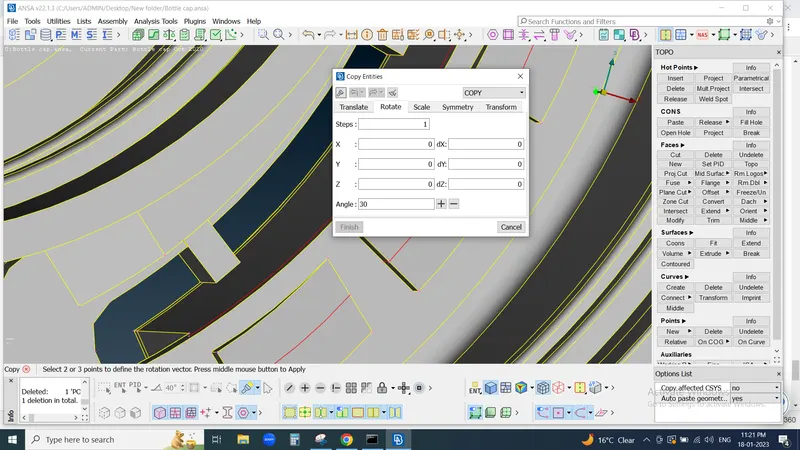
then select rotation put no of step required and select two point as referance which are we generate and put angle equal to 360/ no of steps and press on + sign then new window popup again press enter
we see Midsurface generate of this incline fins
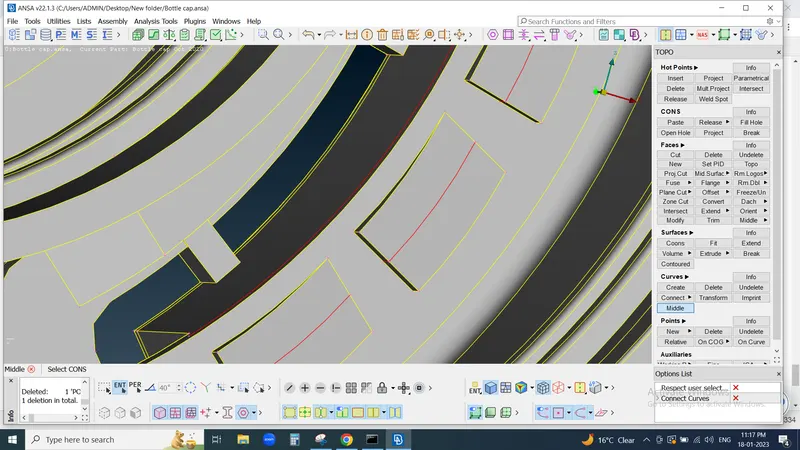
Midsurface of Incline midsurface generated here we provide thickness after meshing for better meshing flow
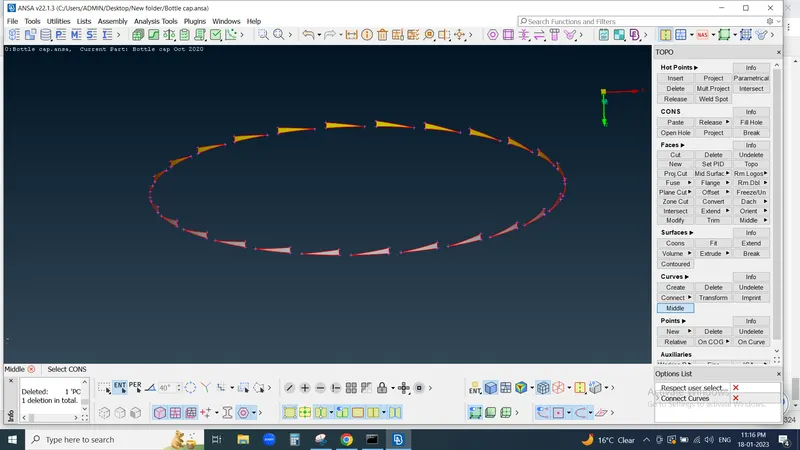
Now we need to check every parts are exctracted or not then go to property Id select parent surface Id right click on that
slelect tranperancy mode on
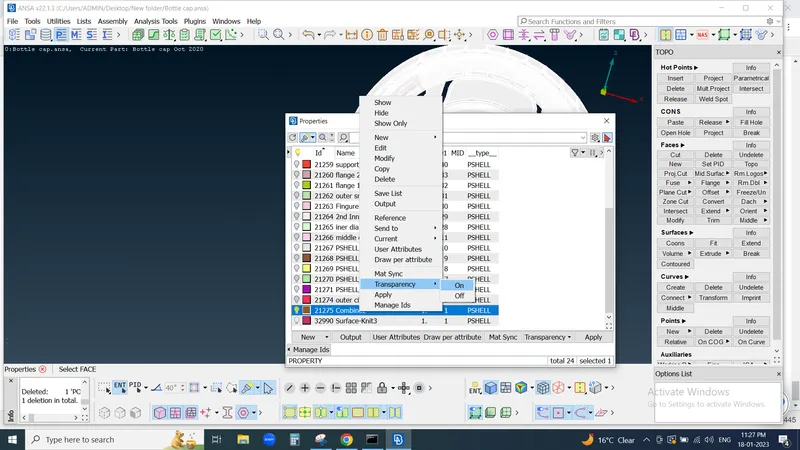
select PID mode
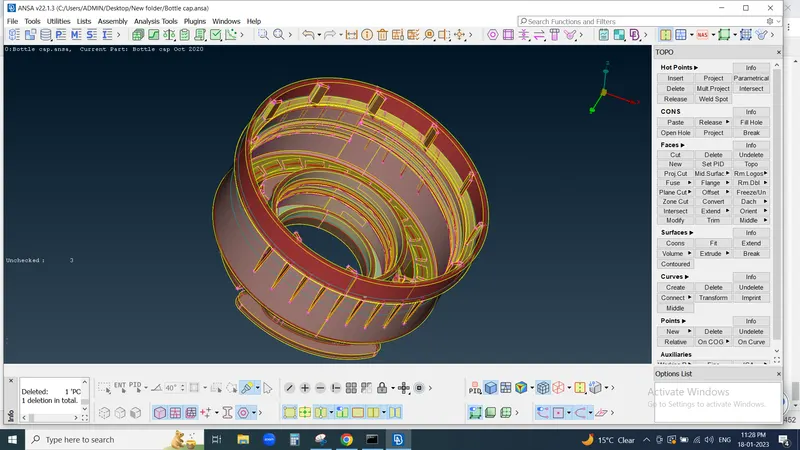
here we see all Parts are clearly transperance and we see midsurface of every surface
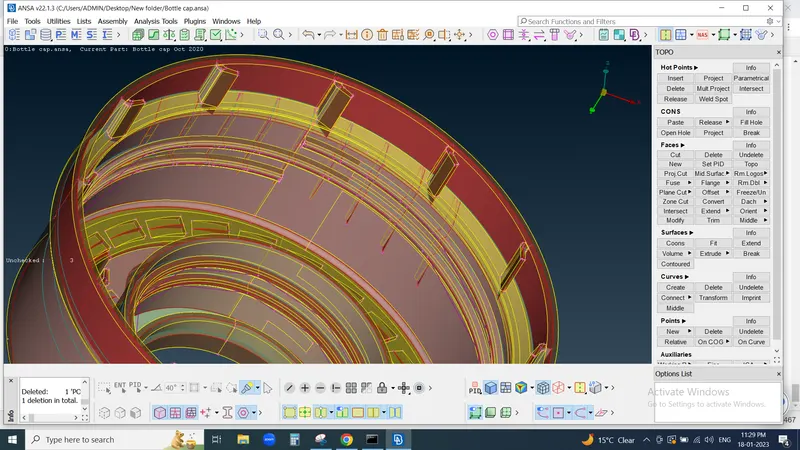
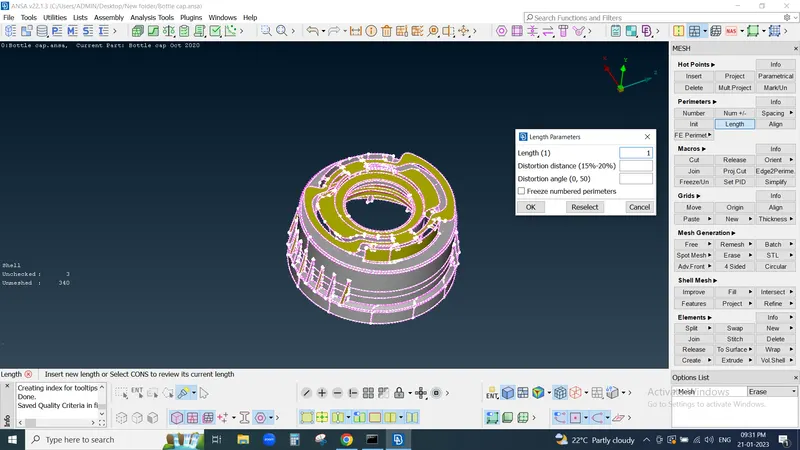
Now we work for Meshing for that select length equal to 1
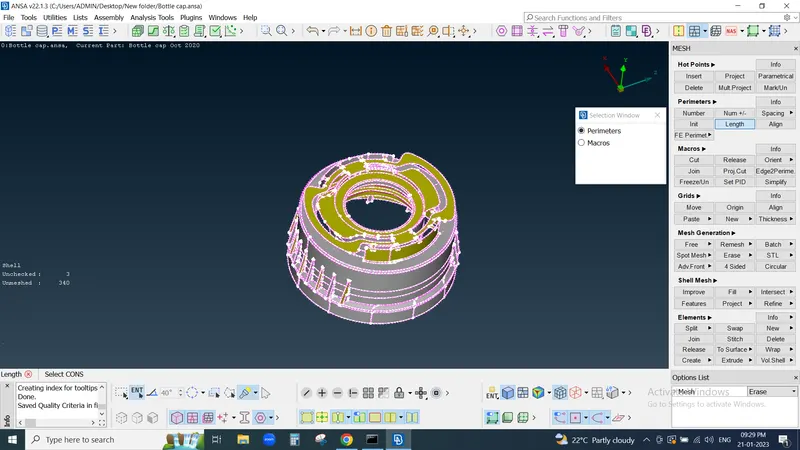
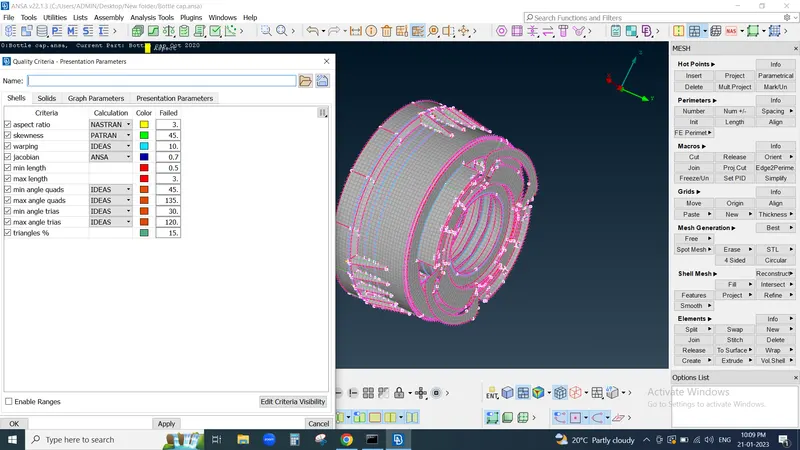
for Meshng we use Best Mesh tool in Mesh generation then check Qualoity Critera if fail then we use Split , Swap, paste
commands for elimination of trias and make model with proper meshflow
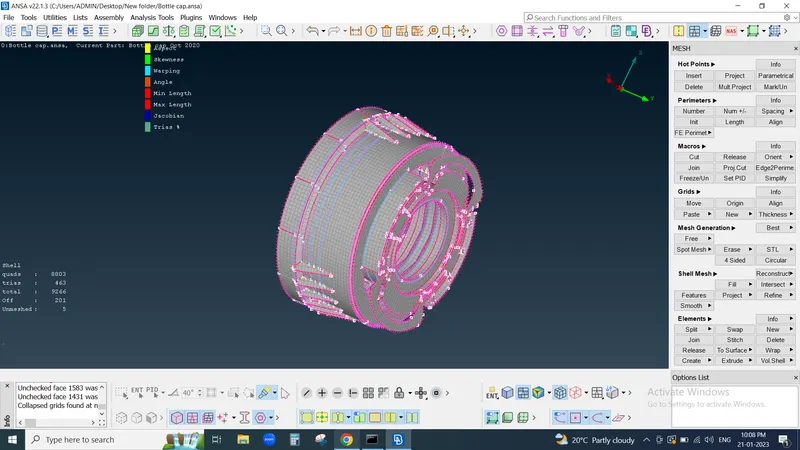
as well as Quality Criteria
CONCLUSION:
Successfully extracted the mid surface and meshed the Plastic Bottle Cap model with thickness assignment under given quality criteria.