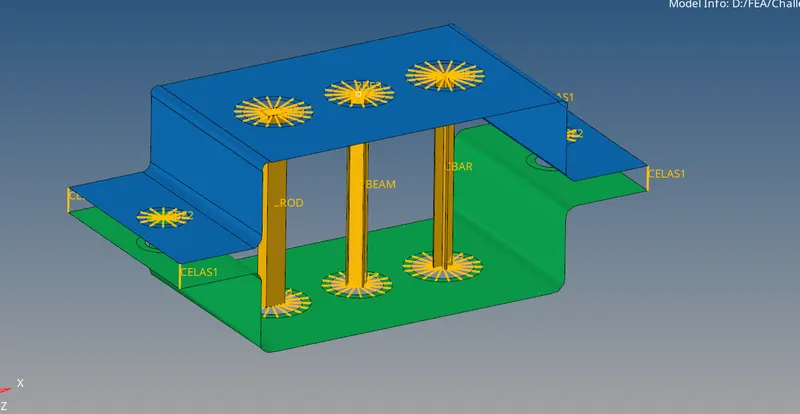
Week 4-1D Element Creation Challenge
1.)Mesh the Given component with the Size of 5 Units. Create 1D elements on the following component with given cross-section and DOF
-Creating midsurfaces
- Import the CAD file into hypermesh.
- Go to GEOM-> midsurface->select the surface->extract. Follow this procedure for the top as well as bottom of the component.
- Assign material to the midsurface.Go to the status tree, right click and create material.
- Create two independent midsurfaces. If they are to be in the same component, then transfer the midsurface. Go to tools->organize->select surface-> give destination->Move
- Assign property to the misurface.
- Give washer's split to the holes and 2D mesh the midsurface. Equate the nodes with the washer's split
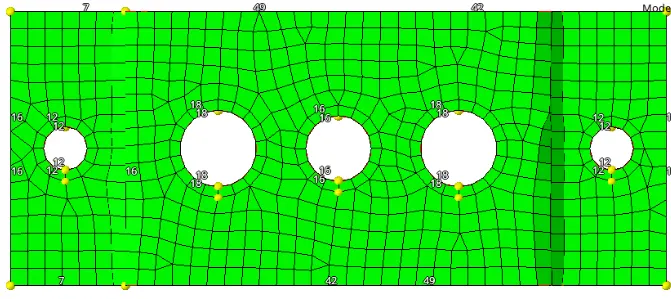
Creating 1D elements
ROD ELEMENT:-
- Create RBE2 links. Go to 1D->rigids->Select the nodes->Create
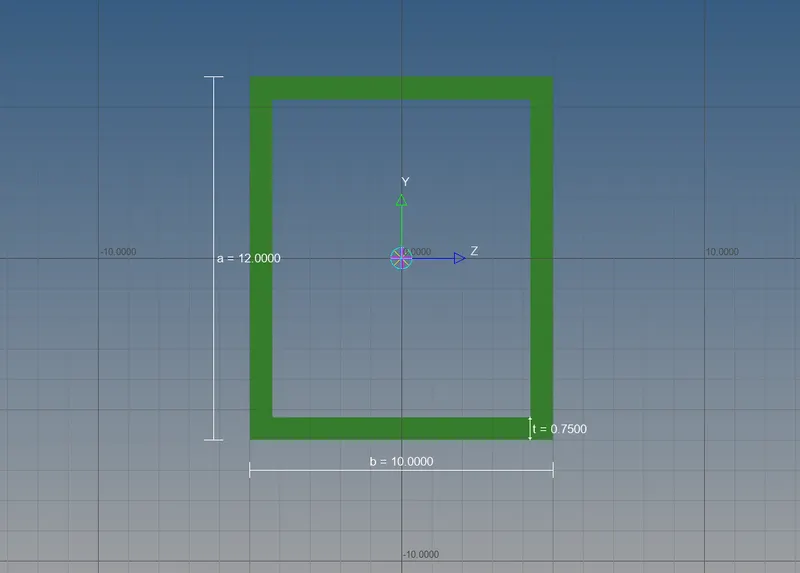
- To create box, go to hyperbeam->standard section->select hyperbeam from drop menu->thinwalled box from bottom drop menu->create.
- Hyperbeam will open. Give the dimensions of your section and click model view to open hypermesh.
-
Create a new property of rod. select card image as PROD. Assign the beam specification as created in hyperbeam.
-
Go to 1D->rods, select property that you created. Change element types to CROD, select the nodes.
BEAM ELEMENT:-
-
Create RBE3 elements.Select the nodes and create.
-
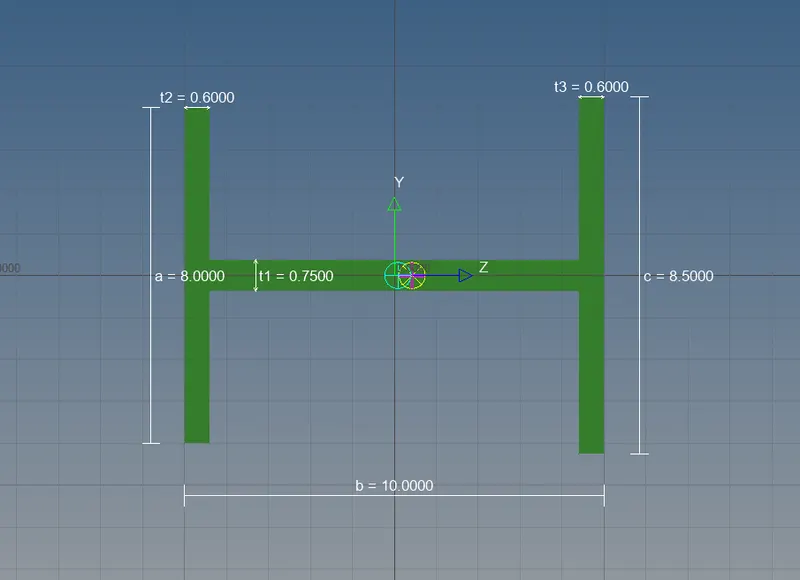
Go to hyperbeam->create->standard selection->Hypermesh->I section. Give the dimensions and go back to hypermesh.
-
Specify the dimensions in the new created property. Card image PBEAM. Go to bars, select the nodes and give property beam, change element types to CBEAM. create the element
BAR ELEMENT:-
-
Create RBE3 links as mentioned above and deselect x and y dofs.
-
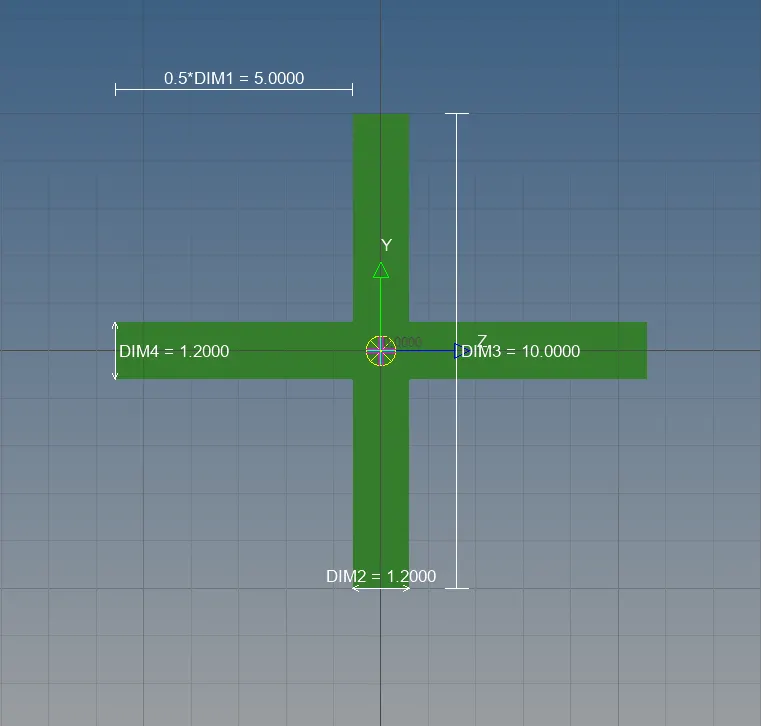
Create the cross figure in hyperbeam and give the dimensions as above mentioned.
-
Import the porperty of new created element. Change the card image to PBAR.
-
Go to 1D->bars->select the property as bar->elemen types as CBAR->node A->node B->N1,N2,N3.
MASS ELEMENT:-
- Go to 1D-> Rigids->select nodes->Create
- 1D->Masses ->mass=10->elem type-CMASS1->Property->Bracket_1->create
SPRING:-
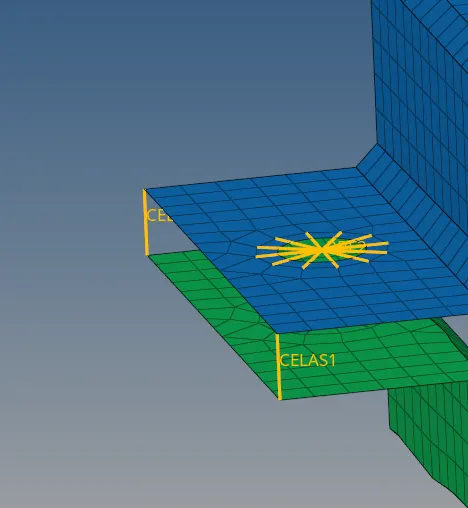
- Create a new property spring, give card image as PBUSH. Assign the values.
- 1D->springs->elem type-CELAS1->property-spring->select nodes
RESULT:-