Week 4-1D Element Creation Challenge
Mesh the Given component with the Size of 5 Units. Create 1D elements on the following component with given cross-section and DOF
a. Rod element:- Translational DOF should be Constrained with RBE2 link
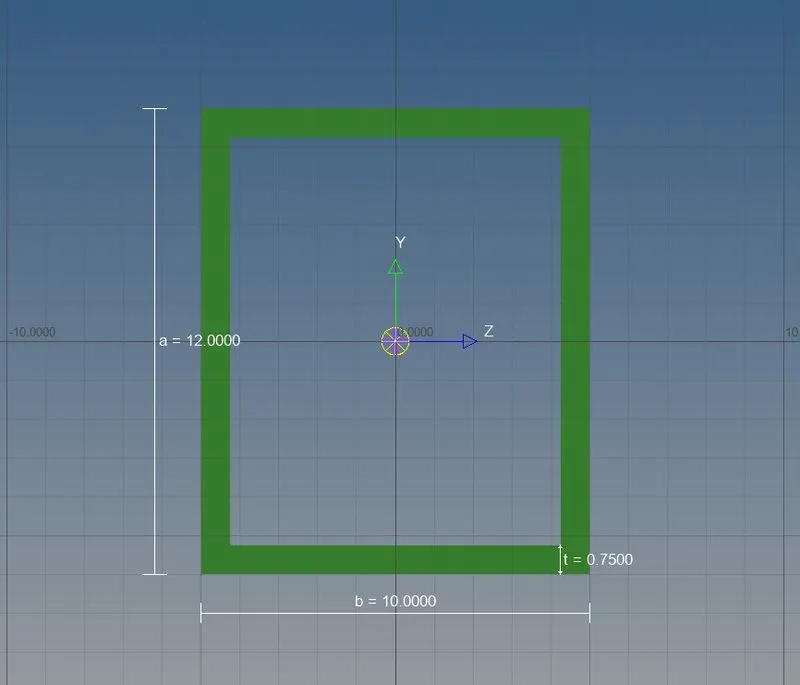
Cross-Section: BOX- Dimension a= 12 mm
dimension b=10 mm
Thickness t= 0.75 mm
b. Beam element:- All DOF should be constrained with RBE3 link
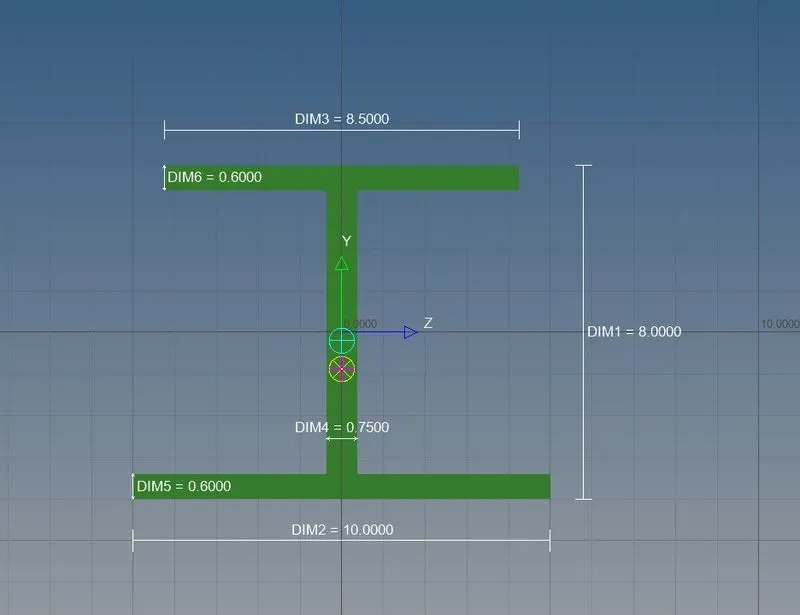
Cross-Section: I Section- Dimension a= 8 mm
Dimension b= 10 mm
Dimension c= 8.5 mm
Thickness t1= 0.75 mm
Thickness t2= .6 mm
Thickness t3= .6 mm
c. Bar element:- Constrain only x and y DOFs With RBE3 link
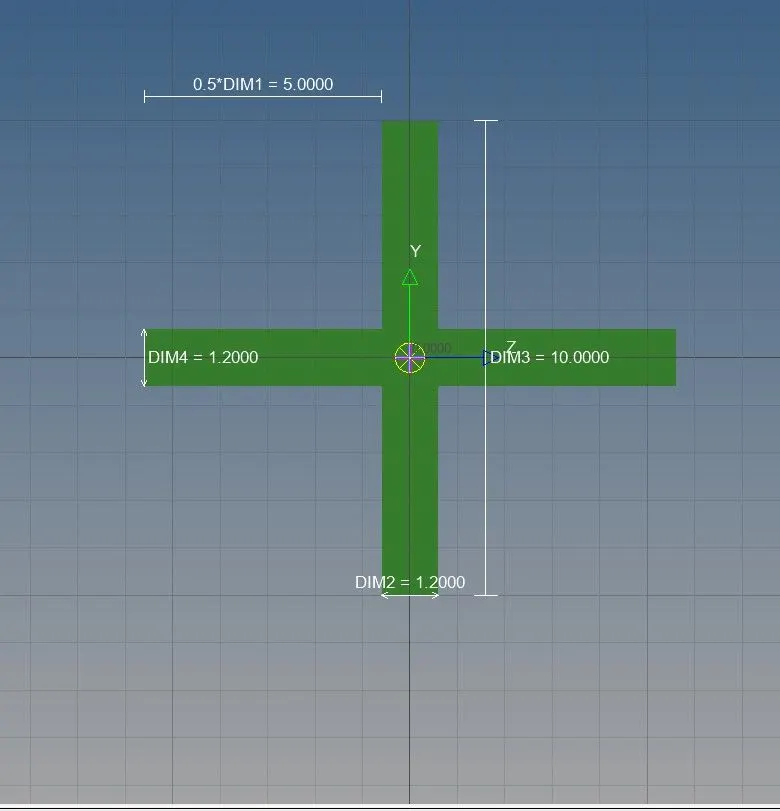
Cross-section: X section- Dimension DIM1= 5 mm
Thickness DIM2= 1.2 mm
Dimension DIM3= 10 mm
Thickness DIM4= 1.2mm
d. & e. Apply the mass of magnitude 10 with the RBE2 link
f. Join the two components with Spring elements
solution
1. Imported the file by going to file-import-geometry-selectfile-import.
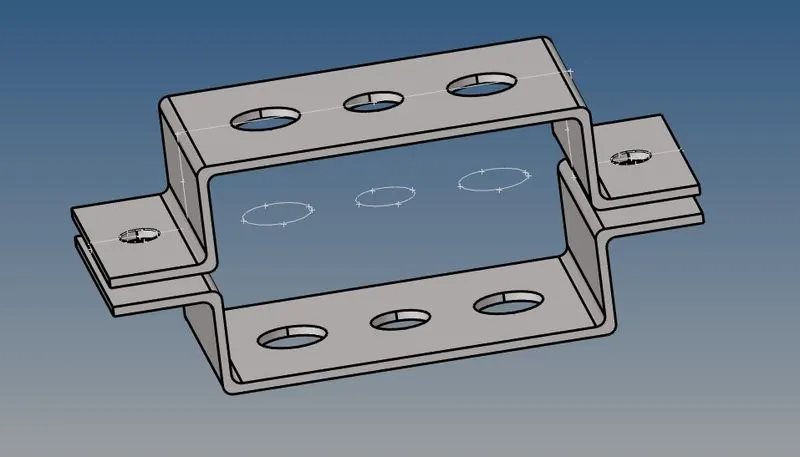
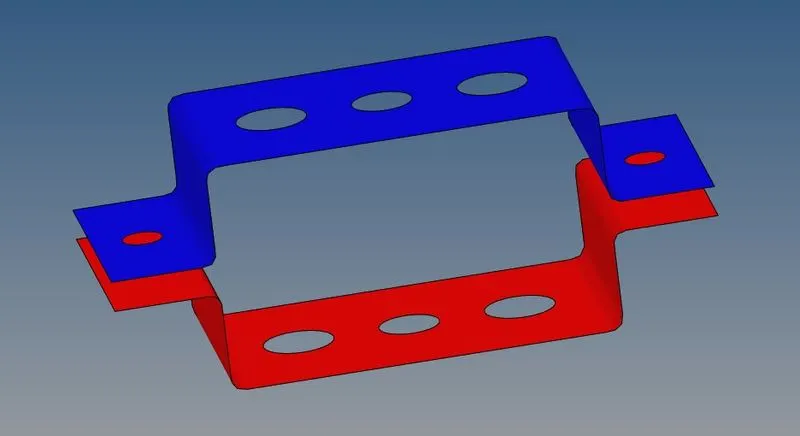
2. Extracted the mid-surface (geometry-midsurface) of one bracket and then other took the mid surface of both bracket separately
and named them as bracket1 and bracket2.
3. Now to mesh properly first go to geometry-quickedit and use washer split on all the holes(circles) it will help in meshing.
4. To mesh go to 2D-Automesh and give element size of 5 and then mesh the brackets match the number on circles so that the meshing looks
properly.
5.now to make RBE2 link on 'a' first go to 1D-rigids then calculate node and then below nodes by path then select the nodes on 'a' part of
bracket and after selecting the nodes and untick the dof1 (given in question) and then select create and then do similar on bracket2 'a' and make RBE2 link and untick the dof1 (given in question)
6.now to RBE3 link on 'b' first go to 1D-RBE3 then calculatenode and below nodes by path and select the nodes on 'b' click on create then do
similar on 'b' on bracket2.
7.now to RBE3 link on 'c' first go to 1D-RBE3 then calculatenode and below nodes by path and select the nodes on 'c' and untick dof1 and dof2(given in question)
and then click on create then do similar on 'c' on bracket2.
8.now to make RBE2 link on 'd' first go to 1D-rigids then calculate node and then below nodes by path then select the nodes on 'd' part of
bracket and after selecting the nodes select create and then do similar on bracket2 'd'.
9.now to make RBE2 link on 'e' first go to 1D-rigids then calculate node and then below nodes by path then select the nodes on 'e' part of
bracket and after selecting the nodes select create and then do similar on bracket2 'e'.
10.now to give mass at 'd' first go to 1-D then masses then click on nodes and give mass '10' then click nodes of 'd' and then create.
11.now to give mass at 'e' first go to 1-D then masses then click on nodes and give mass '10' then click nodes of 'e' and then create.
12. to make spring on 'f' just go to 1D-springs select nodes and then create.
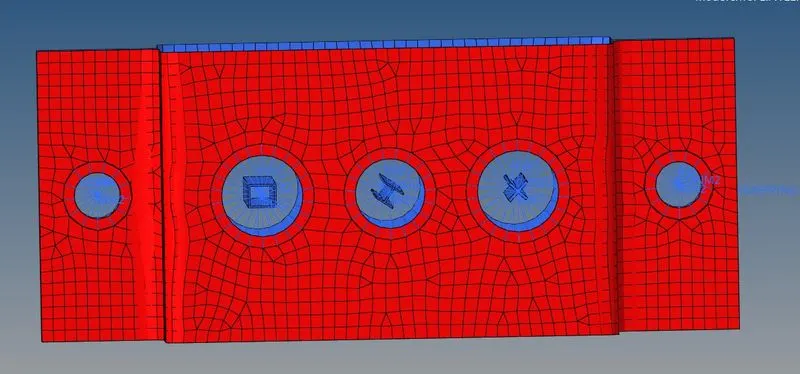
13.now to make rod,bar and beam.
14.to make bar ,go to 1D-bar then select node and give orientation(N1,N2,N3) and then create CBAR.
15.to make rod ,go to 1D-rod then select node and give orientation(N1,N2,N3) and then create CROD.
16.to make beam ,go to 1D-beam then select node and give orientation(N1,N2,N3) and then create CBEAM.
17.now go to 1D-HYPERBEAM-standand selection-hyperbeam then it will take you to hyperbeam view
then create-standardselection-optistruct-box (for box) and same for cross-section and I-section.
18.after creating hyperbeams,give the dimensions as given in question.
19.now make properties for bracket1,bracket2,rod,beam,bar.
20.then in pshell option in rod,bar,beam select the prod,pbar,pbeam respectively.
21.then update the rod,bar,beam properties.
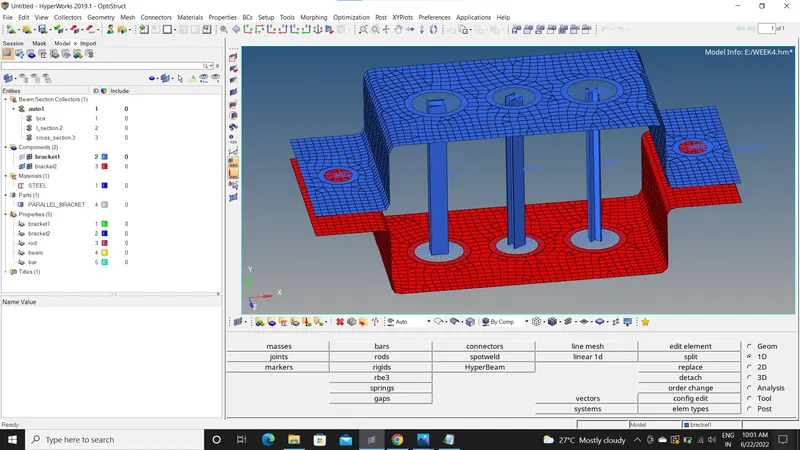
22.now to view rod,beam and bar click on 1D translation.
conclusion
we have meshed the brackets and made box,cross-section x and I-section.