Week 4-1D Element Creation Challenge
AIM:
To mesh the given component and create 1D elements on the component with given cross section and DOF.
a. Rod element:- Translational DOF should be Constrained with RBE2 link
Cross-Section: BOX- Dimension a= 12 mm
dimension b=10 mm
Thickness t= 0.75 mm
b. Beam element:- All DOF should be constrained with RBE3 link
Cross-Section: I Section- Dimension a= 8 mm
Dimension b= 10 mm
Dimension c= 8.5 mm
Thickness t1= 0.75 mm
Thickness t2= .6 mm
Thickness t3= .6 mm
c. Bar element:- Constrain only x and y DOFs With RBE3 link
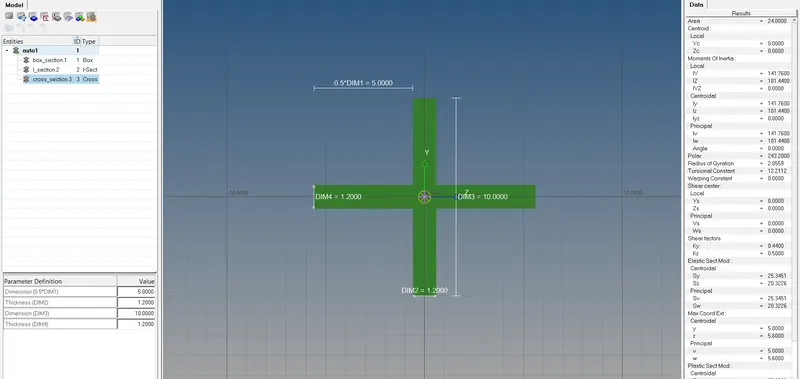
Cross-section: X section- Dimension DIM1= 5 mm
Thickness DIM2= 1.2 mm
Dimension DIM3= 10 mm
Thickness DIM4= 1.2mm
d. & e. Apply the mass of magnitude 10 with the RBE2 link
f. Join the two components with Spring elements
PROCEDURE:
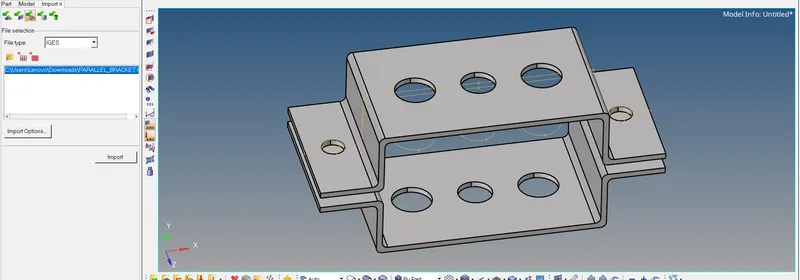
1.First import the given geometry using Import>geometry>IGES and select the file.Now the geometry will be imported .
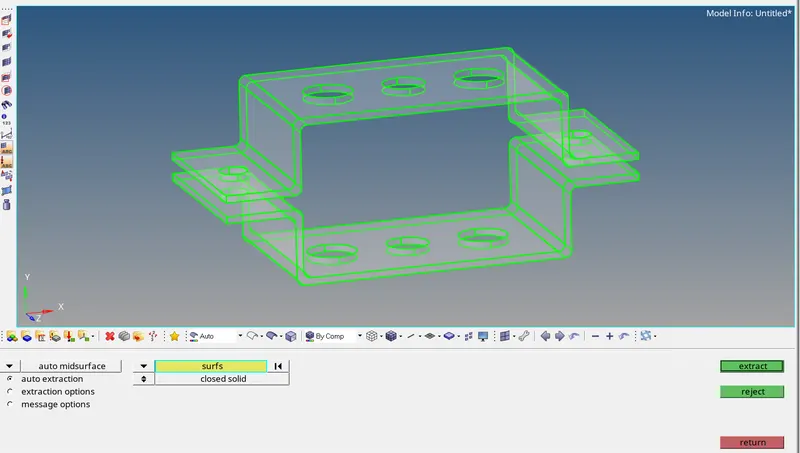
2.Extract a midsurface for both the brackets using Geom>midsurface>auto extraction>select the surfaces.
3.Delete the solids using delete>solids>all.Then rename the middle surface as brackets.
4.Now to assign material for the brackets , create a new material using right click>create>material>return.Now rename the material as steel and select card image as MAT1.
5.Now create a property for brackets using right click>create>property>return.Name the property as Brackets ,select the card image as PSHELL and assign the material as steel.
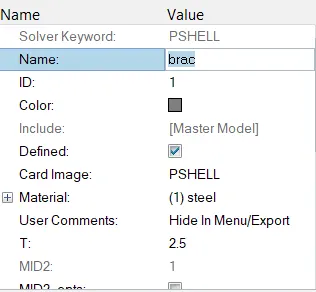
6.Now assign the created property for the middle surfaces created.
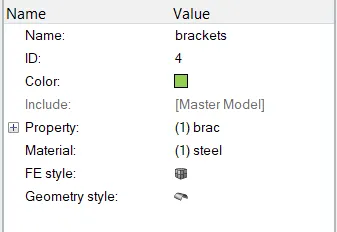
7.Now to create washer split go to geom>quick edit>give offset value=5>select the lines.
8.Now go to 2D>automesh>surface>element size=5>mesh. The given geometry is meshed .
9.Create seperate properties for rod ,bar, beam and spring .Set the material as steel and assign the card image for rod ,bar,beam as PROD,PBAR and PBEAM respectively.
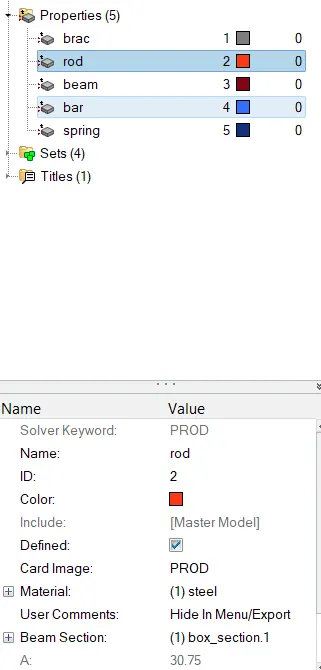
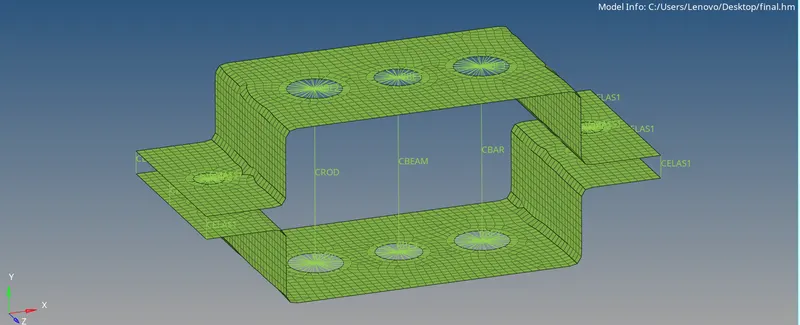
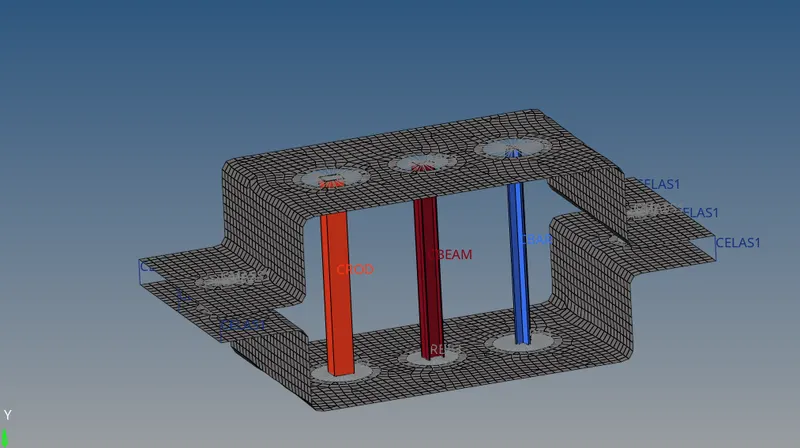
10.Now to create rod ,first create a RBE2 element using 1D>nodes>select the required dofs>create.Then go to 1D>rods>select the nodes>Give property-rod>return.
11.To create beam, go to 1D>rbe3>select the nodes>select the required dofs>create.Then go to 1D>bar>select the nodes>give property-beam>element type-CBEAM>return.
12.To create bar,go to 1D>rbe3>select the nodes>select the dofs>create.Then go to 1D>bar>select nodes>give property-bar>element type-CBAR>return.
13.To create masses , 1D>nodes>select the nodes>create.Then go to 1D >masses>give magnitude -10>element type-CMASS1>create.
14.To create springs, go to 1D>springs>select nodes>property-spring>element type-CELAS1.
15.Now to create cross section for the elements go to 1D>hyperbeam>standard section>create.Now it will go to hyperbeam window.
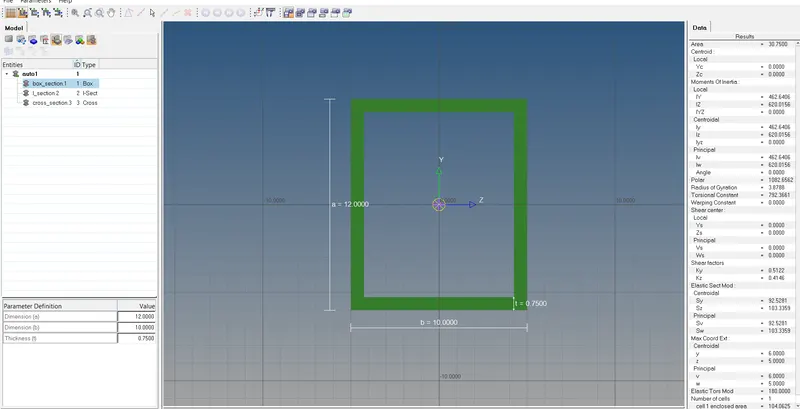
a.Box section
Cross-Section: BOX- Dimension a= 12 mm
dimension b=10 mm
Thickness t= 0.75 mm
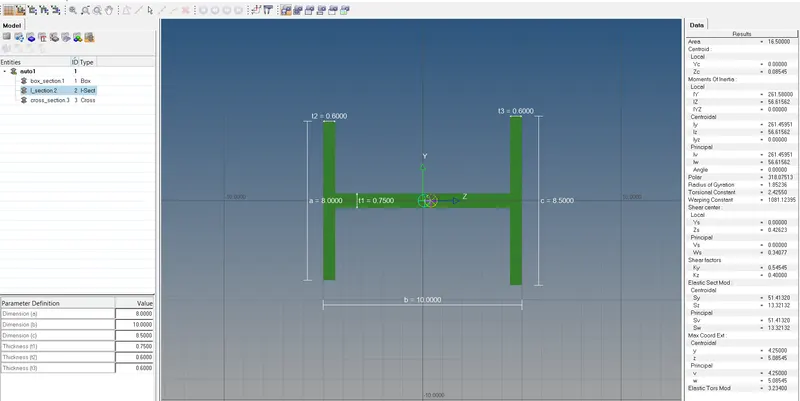
b.beam element
Cross-Section: I Section- Dimension a= 8 mm
Dimension b= 10 mm
Dimension c= 8.5 mm
Thickness t1= 0.75 mm
Thickness t2= .6 mm
Thickness t3= .6 mm
c. Bar element:- Constrain only x and y DOFs With RBE3 link
Cross-section: X section- Dimension DIM1= 5 mm
Thickness DIM2= 1.2 mm
Dimension DIM3= 10 mm
Thickness DIM4= 1.2mm
RESULT:
Thus the given geometry was meshed and 1D elements was created on the given geometry with given cross sections and DOF.
LEARNING OUTCOMES:
1.To extract mid surfaces and basic 2Dmeshing.
2.Create 1D elements and mass.
3.Creating and updating materials,properties to components.