Week 4-1D Element Creation Challenge
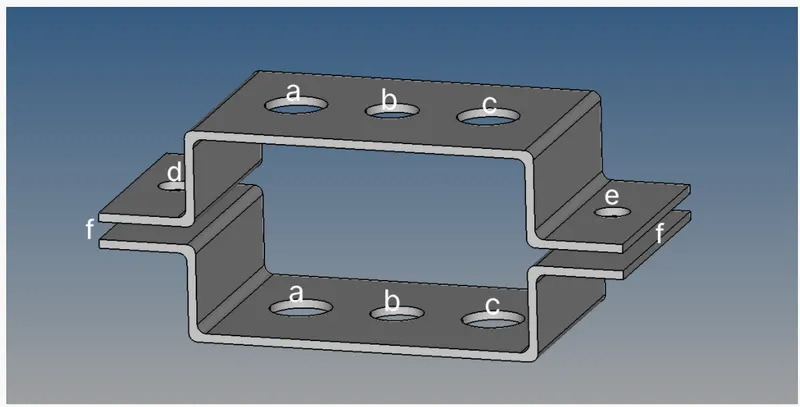
Objective :- To midsurface and mesh the given component and also create the 1D elements like Bar, Rod, Beam etc. also apply mass to the elements.
Procedure :-
- First step to do is download and import the given model in IGS file. After downloading the given model we have to go for midsurface to whole model by using (Geometry - Midsurface - Auto extraction - Select surface - Extract). Now delete the solid part and unneccesory frame work on given model.
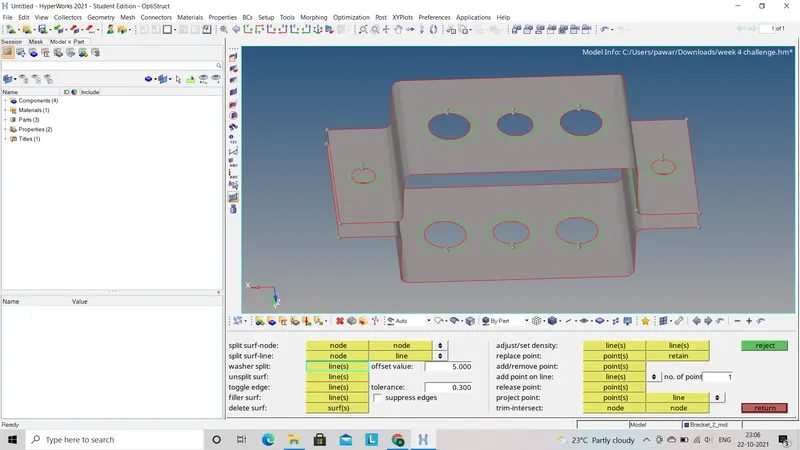
- After midsurface the whole model we will go for mesh the given model by using (2D - Auto mesh - Mesh). Before mesh we have to assign element size as well as mesh type.
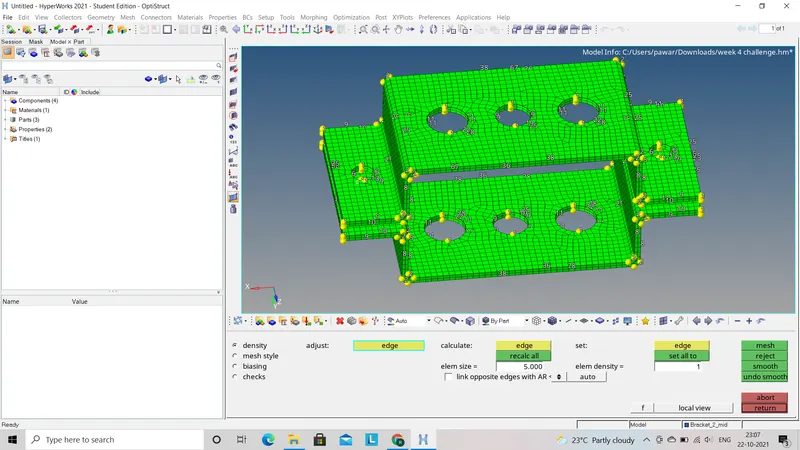
- Now we have to assign property to each of the bracket between given two bracket model by right click on Element and Geometry deck and click on create.
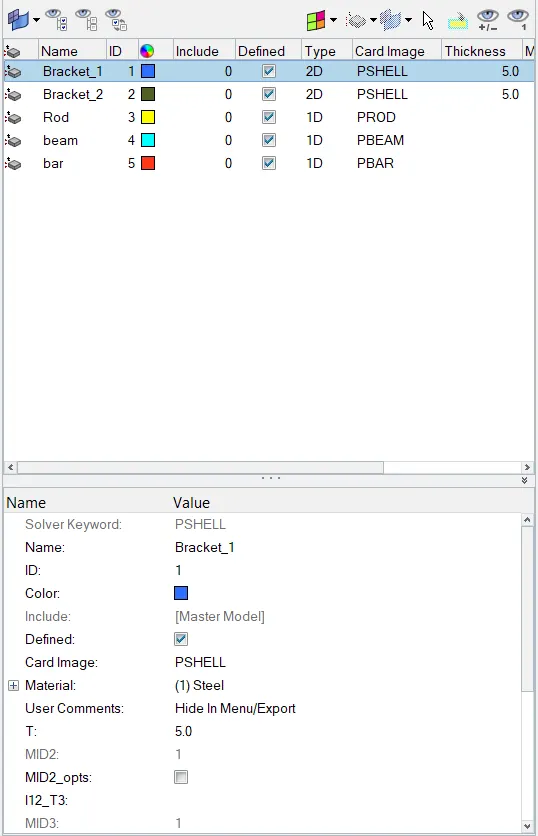
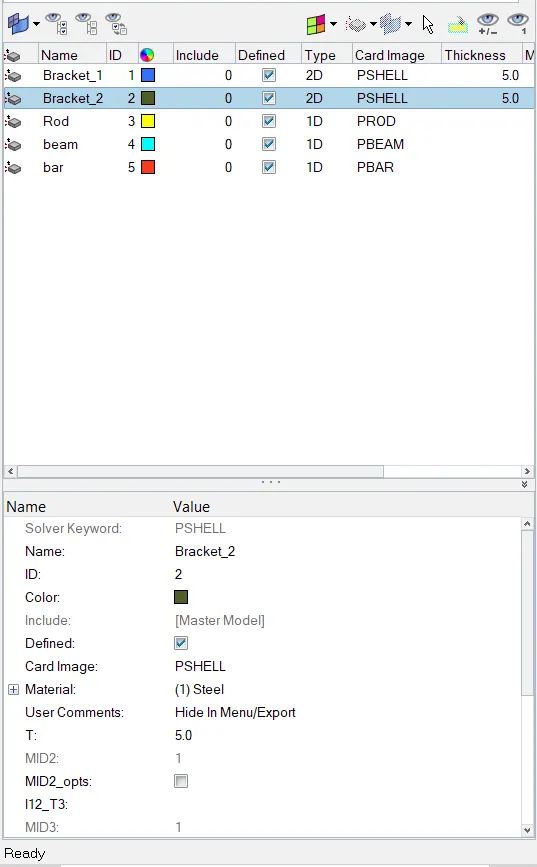
- Now fill all the information like material, card image and thickness etc. in given property deck to both the bracket.
- After midsurface and mesh whole the model we will go to assign 1D element to given model as per given information. 1D elements used in this model are as follows :
1) Rod element :-
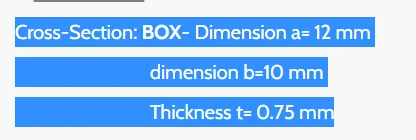
- Translational DOF is Constrained with the help of RBE2 link by using (1D - Rigid - Multiple nodes - select the nodes - select path - create). on both the brackets.
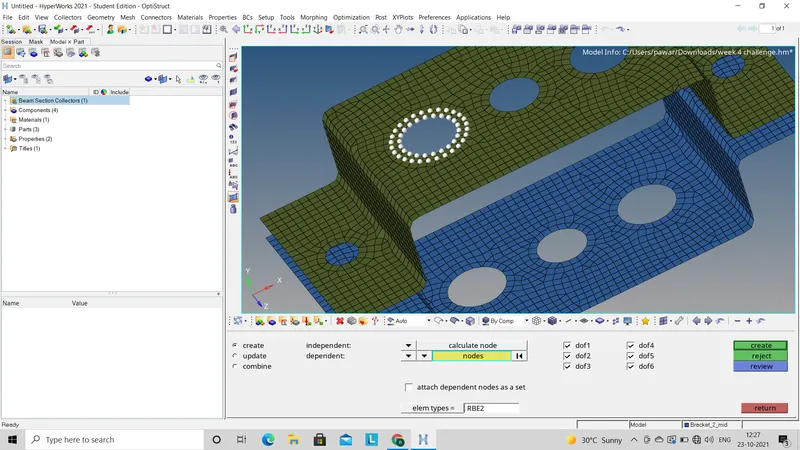
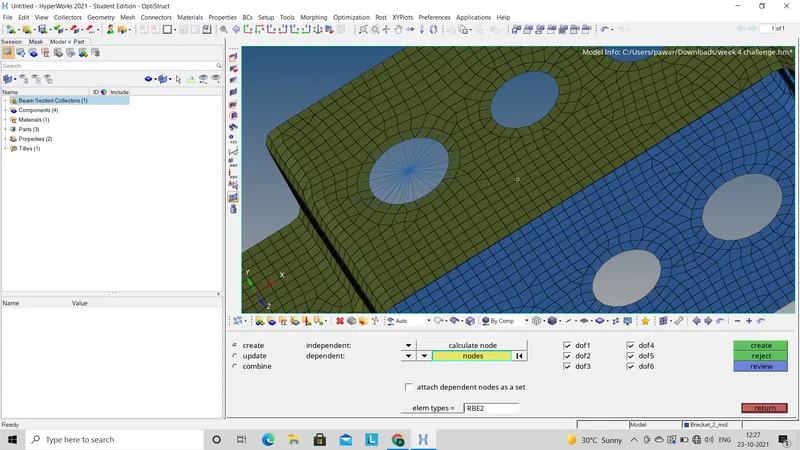
- Now to create the rod with BOx cross section we have to go for Hyper beam pannel by using (1D - Hperbeam - Standard section - Create). Now we have assign all the diementions as per given information.
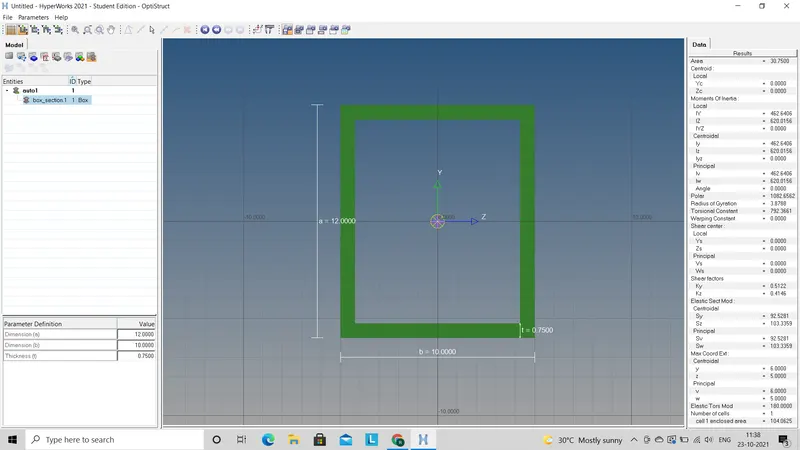
- To return to the hypermesh window click on Model view icon.Created beam section will be available in the beam section collector under the model browser.
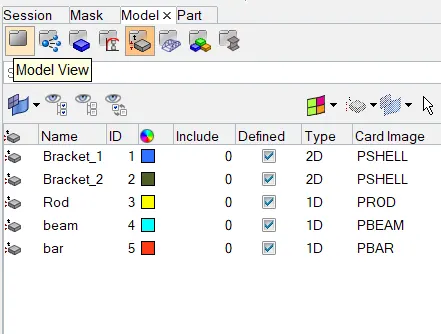
- Now we have to create seperate property to the rod element by right clicking on property deck and assign aal the values like card image- PROD , Beam section- Box section.
- Now to create rod element we have go for 1D element by using (1D - Rod - Select node - Select property create).
2) Beam element :-
- For beam element all the degree of freedom should be constrained by using RBE3 elements by using (1D - RBE3 - select nodes - Create) on both the brackets.
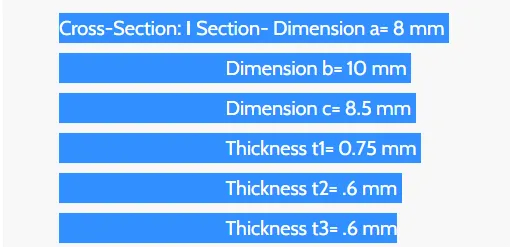
- Now to create beam with I-Section go to the hyperbeam view and create new section by right click and go for (Create - Standard section - Hypermesh - Standard I section). Now we have assign all the diementions as per given information.
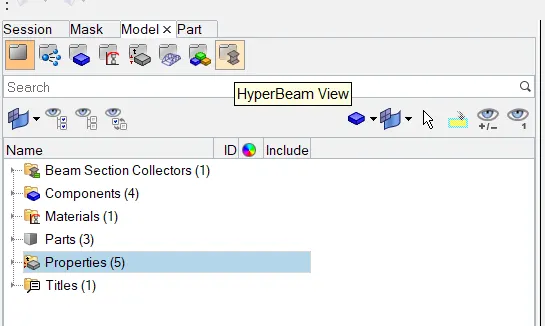
- To return to the hypermesh window click on Model view icon.Created beam section will be available in the beam section collector under the model browser.
- Now we have to create seperate property to the beam element by right clicking on property deck and assign all the values like card image- PBEAM , Beam section- I section.
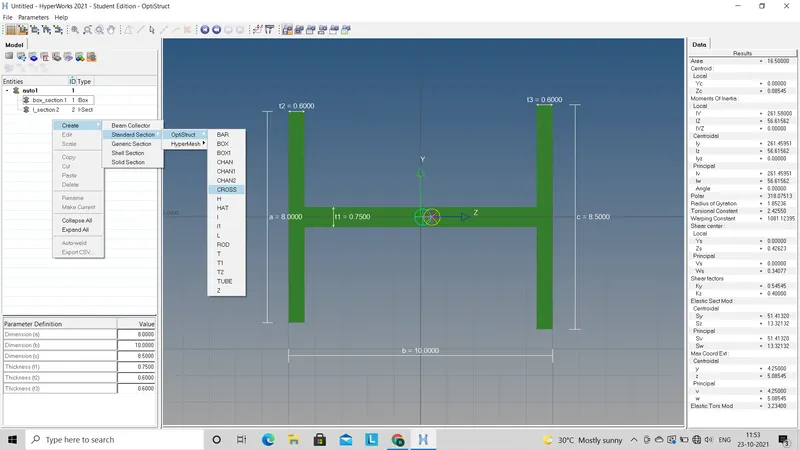
- Now to create rod element we have go for 1D element by using (1D - Beam - Select node - Select property create).
3) Bar element :-
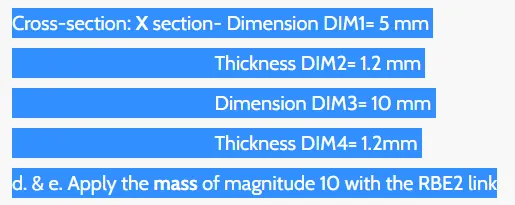
- For bar constrain only X and Y DOF's with RBE3 element by using (1D - RBE3 - select nodes - Create) on both the brackets.
- Now to create bar with X-Section go to the hyperbeam view and create new section by right click and go for (Create - Standard section - Hypermesh - X section). Now we have assign all the diementions as per given information.
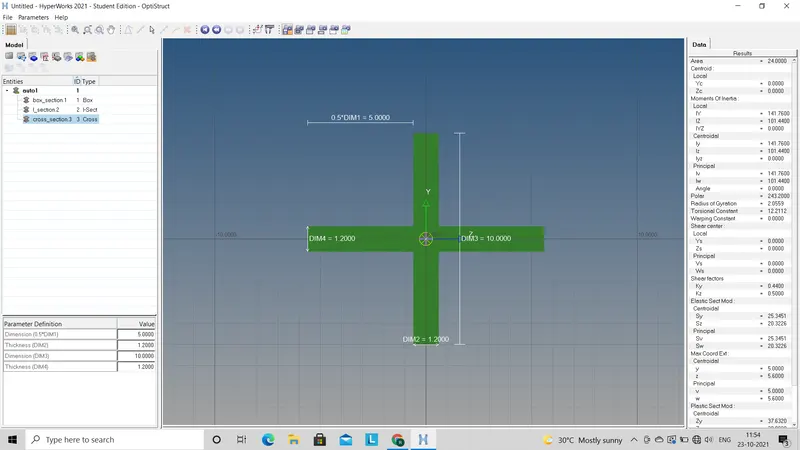
- To return to the hypermesh window click on Model view icon.Created beam section will be available in the beam section collector under the model browser.
- Now we have to create seperate property to the beam element by right clicking on property deck and assign all the values like card image- PBAR , Beam section- X section.
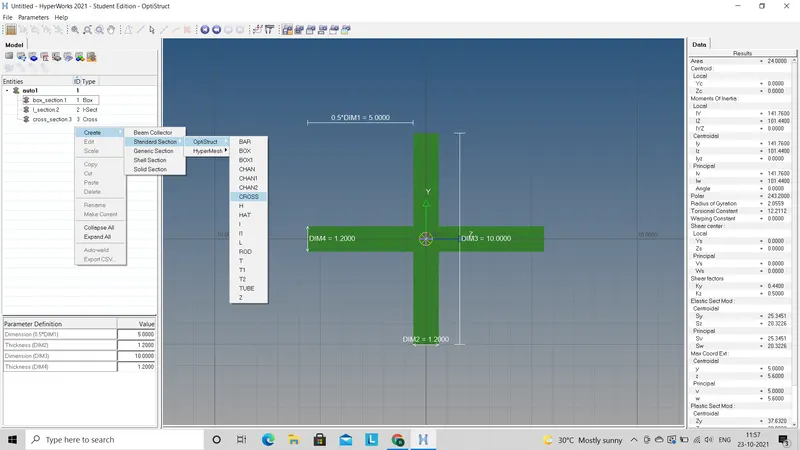
- Now to create rod element we have go for 1D element by using (1D - Bar - Select node - Select property create).
Now to see all this three 1D element in 3D form we have to go for 1D detailed element representation.
Conclusion :- To midsurface and mesh the given model and assign different 1D elements along with thier diemensions and requierment.