Week - 3 Drop test Challenge
Aim
To conduct drop test simulation on a cell phone using the Ls-Dyna software, create the input deck file and post processing the results.
Objective
Cell phone model is taken into consideration to check the impact test when the phone drops from a distance to the ground. The drop test is conducted to identify the weak point in the design of the cell phone.
Procedure:
- Open the file in Is dyna File>Open>k.file>ok.
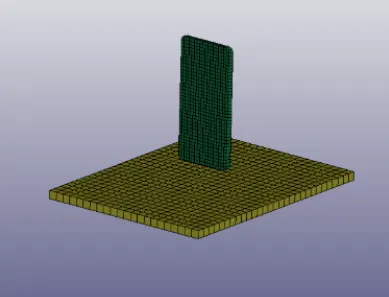
Model of cellphone and ground
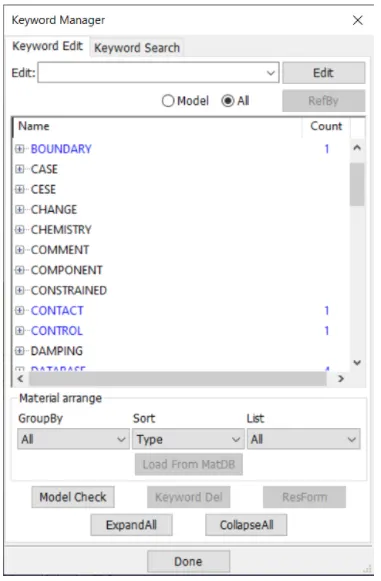
Keyword Manager
- As we know in LS-DYNA every entities are created by the KEYWORDS, So now we have to create a deck by using KEYWORD to make it ready for it to solve the problem.
- First thing, create MAT and SECTION for both the cellphone and the ground.
- Go to the Keyword manager and click on 'all'.
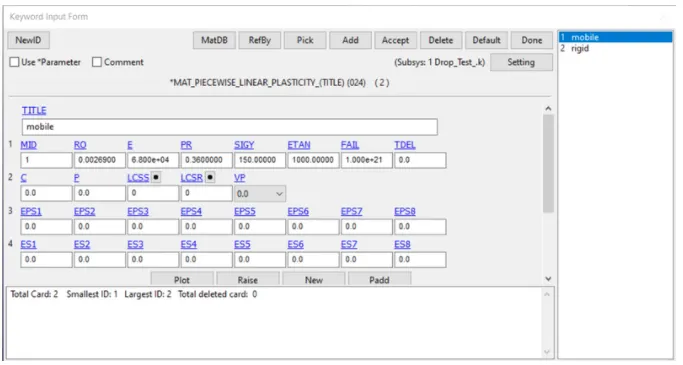
024-MAT_PIECEWISE_LINEAR_PLASTICITY CARD
- Go to the MAT and choose 024-MAT_PIECEWISE_LINEAR_PLASTICITY as the material model, and enter the properties.
- Create two MAT_24 for the mobile and the ground and give different material property for the mobile and the ground.
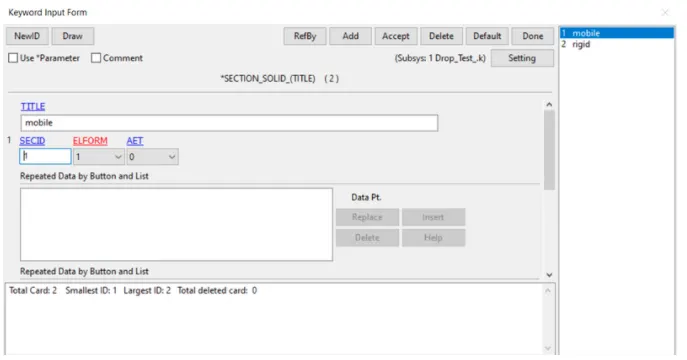
SECTION SOLID
- And go to SECTION for to create a section for the both mobile and the ground, since it both are solid we create a SOLID card.
- ELFORM let be 1 for both the part. create a specific SECID for both the SECTION.
PART CARD
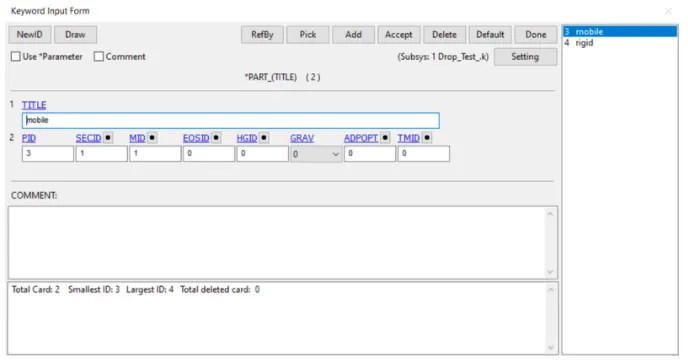
Now it time to associated with the part go to the part keyword and assign the both SECTION and SOLID to the PART.
SET NODE CARD
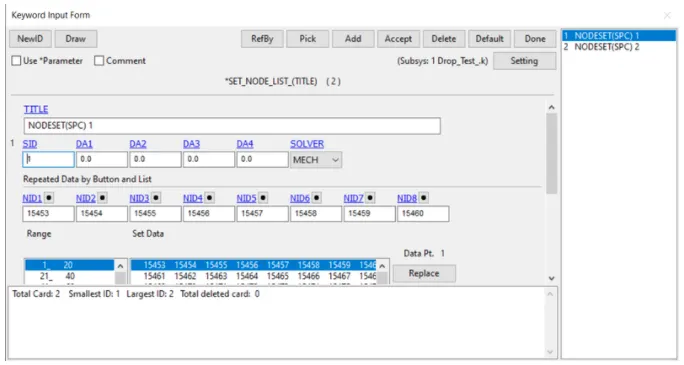
- Before giving velocity to the mobile phone we have to create a set because the mobile phone has many nodes to considered to give the velocity for the entire mobile phone.
- So go to the create entity>set>set_node>cre>select the mobile as part, so nodes of the part will be selected and give the name for the set.
INTIAL VELOCITY
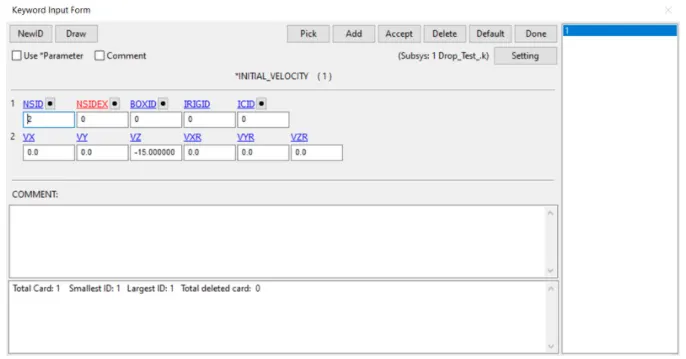
Now go to the INTIAL card for give the velocity for the mobile phone keyword manager>INTIAL>VELOCITY and enter the nodeset_ID which we created for the mobile phone. Enter the velocity as -15mm/ms at z axis.
BOUNDARY SPC SET
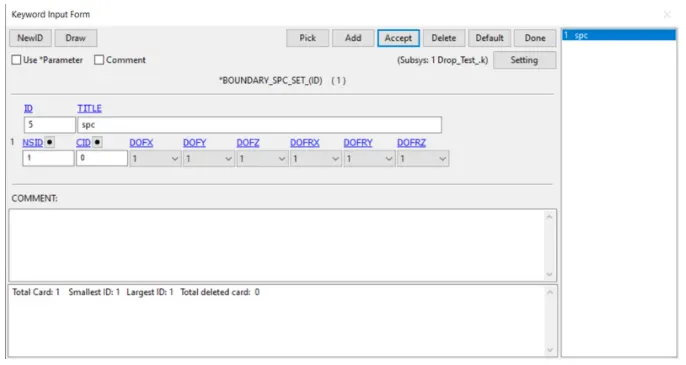
Now go to the create entity>spo enter the Nodeset_ID and click ok.
CONTACT SURFACE TO SURFACE CARD
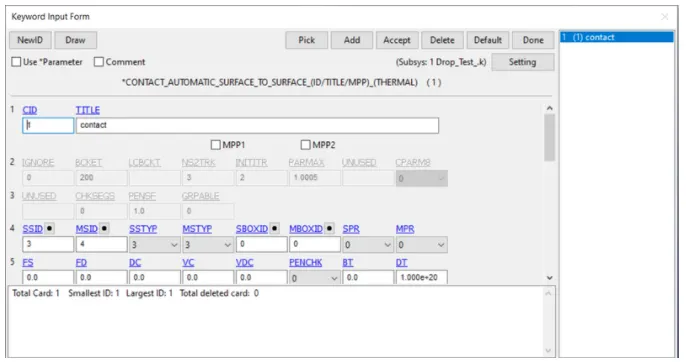
- Now it time to create a contact between the two parts we don’t want the mobile to penetrate into the ground, so go to the keyword manager>all>CONTACT>AUTOMATIC_SURFACE_TO_SURFACE.
- As we already create a node set enter the ID in SSID and MSID, in this case mobile phone is a slave so give SSID and the ground is the master so give MSID
CONTROL TERMINATION CARD
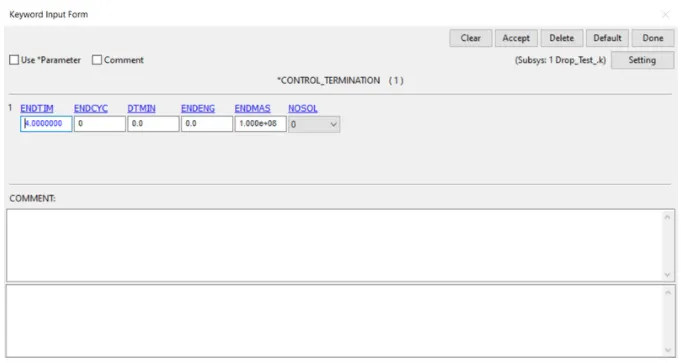
- Give the TERMINATION time for the model so go to the keyword manager>all>*CONTROL>TERMINATION.
Simulation
- Go to the keyword manager>all>DATABASE>ascii and req for GLSTAT,RCFORC same like go to the binary and request for D3PLOT req everything for DT as 0.05ms.
- Save the file as k file and run the stimulation using either ls run or ls manager.
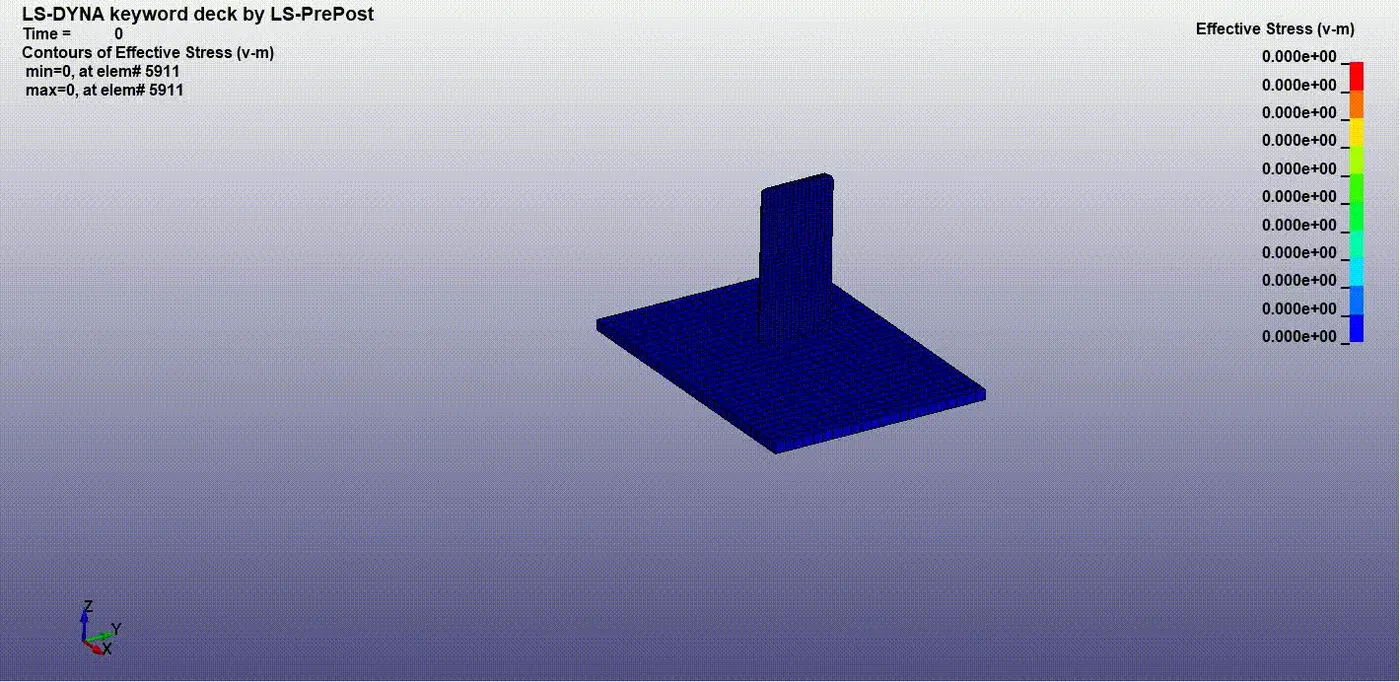
- Once the output files are derived open the binary D3PLOT in ls prepost and run the animation.
Result:
- Created different keywords for to represent all the entities in the GUI.
- Model check as been done to check for any error in the keywords.
- Stimulation has been done.
VIDEO LINK: https://youtu.be/a7WNKMpMJF4
Learning Objectives:
- Learned how to create keywords to represent the entities.
- Learned how to stimulate the model.
- Learned how to request for the different output files.