Week - 3 Drop test Challenge
Objective:
Drop test Challenge – Create the input key file for the given mesh file to perform the drop test simulation and analyze the results.
Procedure:
- Open the given meshed input key file (Drop_Test_onlymesh.k) in LS – Dyna Pre Post.
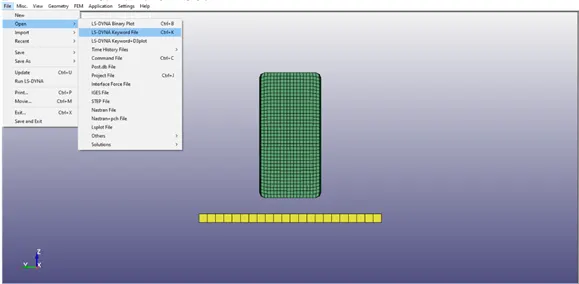
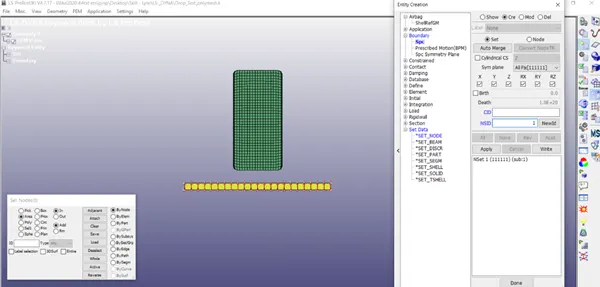
- In Create Entity, select node by area to create the NSID (Node set) – Selecting the nodes of the floor and constraint it in all DOF. Before this, delete all Shell elements from the model using the Delete in Model part.
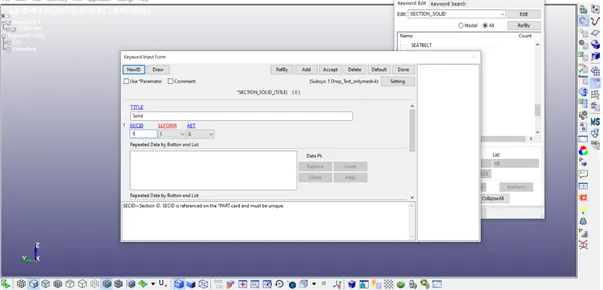
- Create a Solid card in the Section keyword.
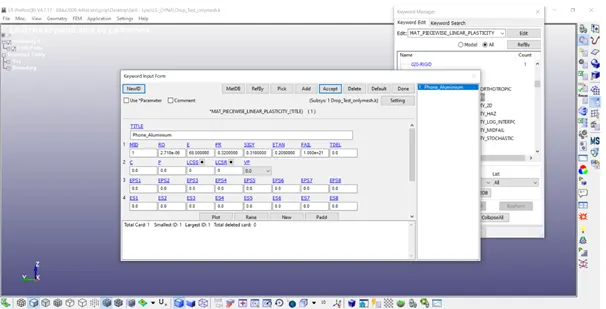
- Assign Material properties using MAT keyword: a) 20_Rigid – Floor (MID, Title, E, PR)
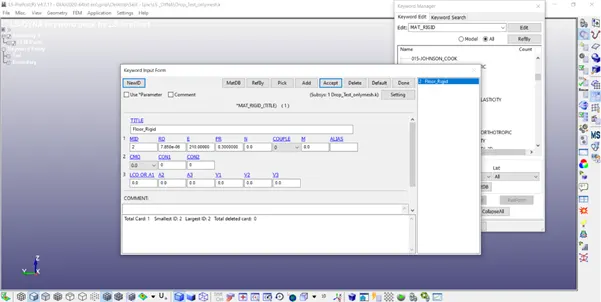
b) 24_MAT_PIECEWISE_LINEAR_PLASATICITY (Phone - Aluminium)
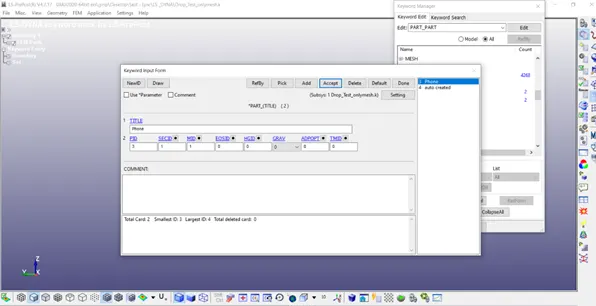
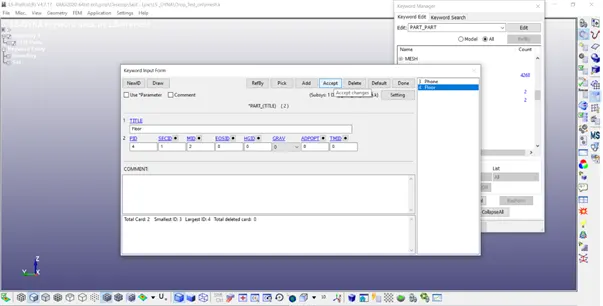
- Create Part & assign Solid ID and MAT ID we created for the components.
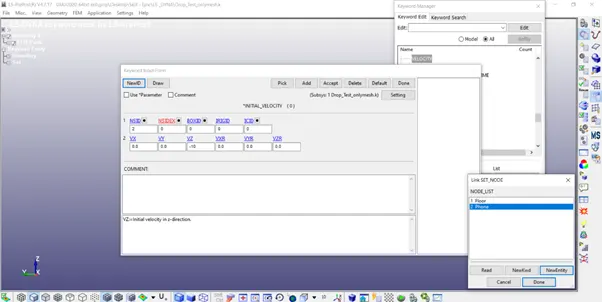
- Create New SET ID (Node) to assign Initial Velocity (Initial Keyword) for the phone.
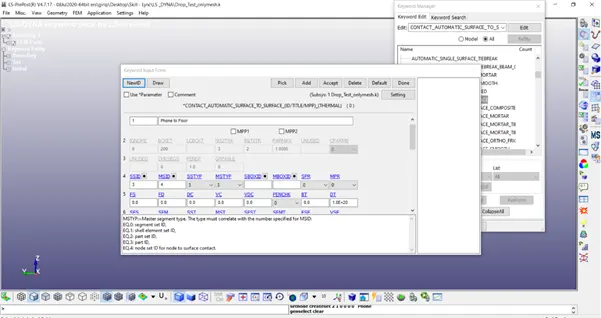
- Create Contact keyword for the Surface to Surface for Phone as Slave and Floor as Master
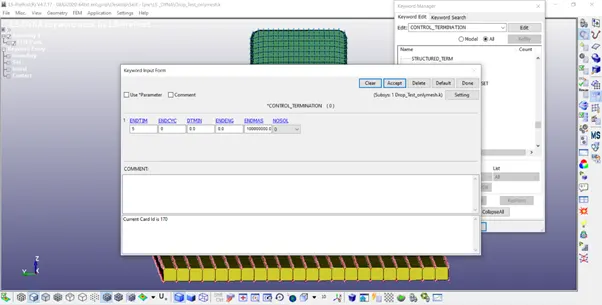
- Create Control Termination keyword for the total simulation time.
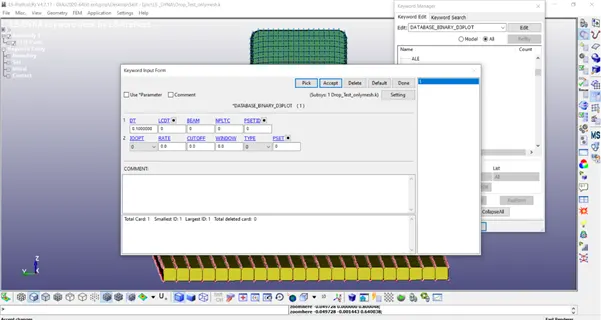
- Create Binary D3 plot in Database keyword for the timestep.
- Add the required ASCII files in the Database Keyword.
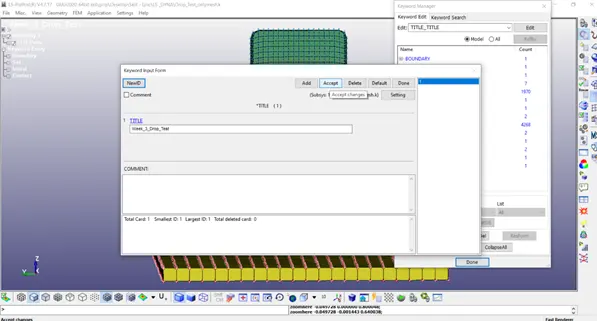
11. Change the Title in the TITLE keyword.
12. Final Model Image:
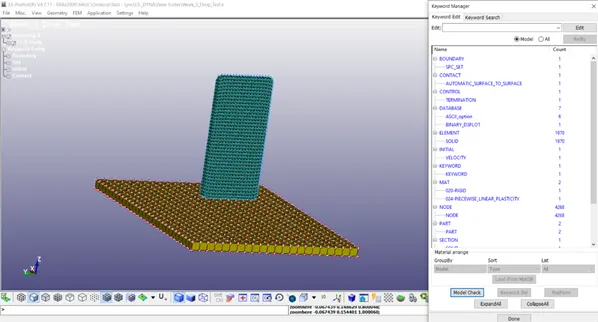
Now Save the keyword file in a separate folder.
- Open LS- Run – Run the keyword file in the INPUT
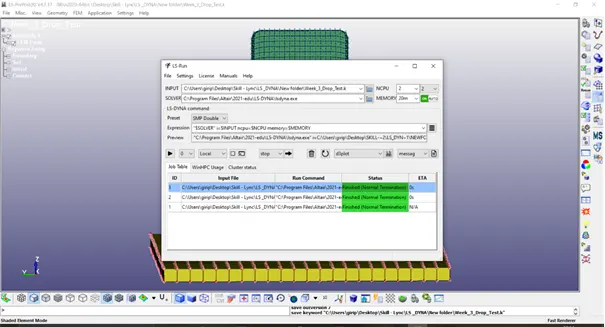
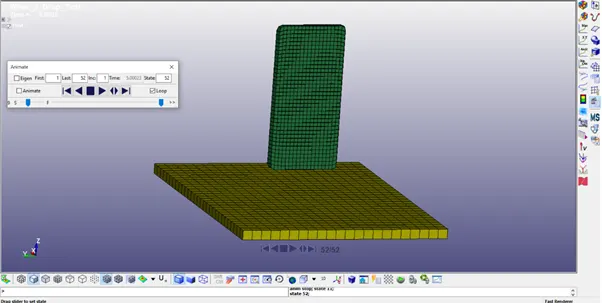
- Open LS – PrePost, Import the D3 plot file created during the simulation
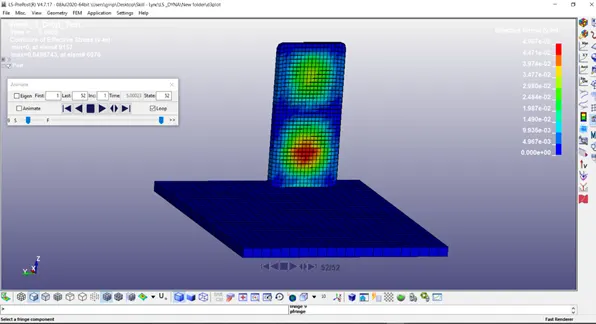
- In the Fringe Component option, Select Von-mises stress for the contour plot.
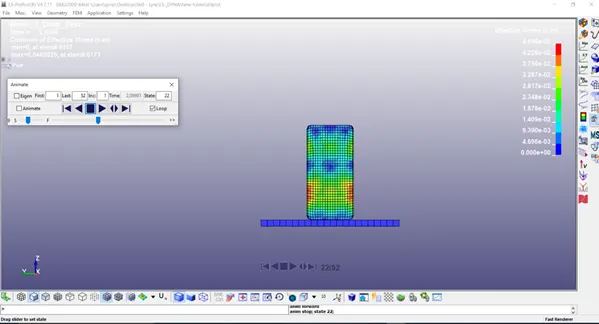
- In XY Plot, Plot the Kinetic Energy, Internal Energy & Total Energy.
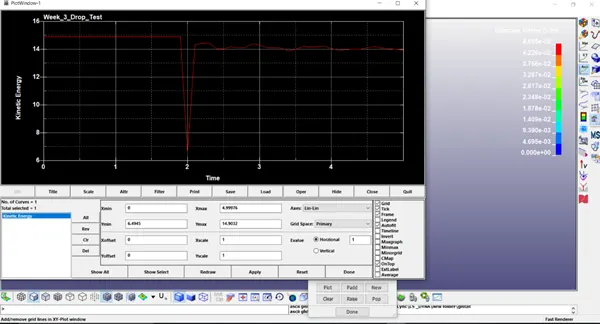
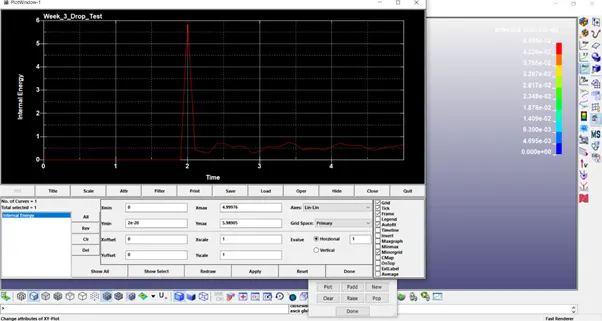
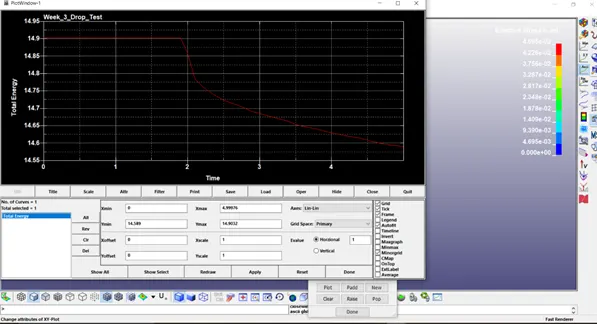
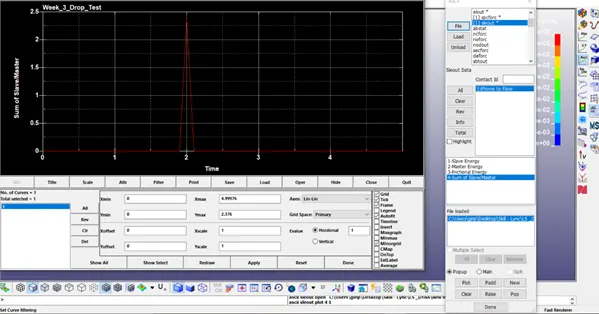
- In ASCII, after loading the sleout file we can plot the Contact force between the floor and phone.
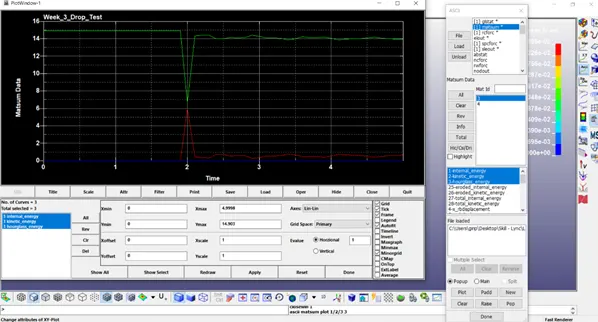
- In the Matsum file, we can set the Internal, Kinetic, and hourglass energy for the phone.
Conclusion:
In this assignment, I learned to build a basic keyword file from scratch to perform the simulation.