Week 12:Project 2-Meshing of Rear Wheel Holder challenge
Objective:
Follow the below-mentioned quality criteria, mesh the component given below and assign thickness:
Target Element Length = 5mm
|
S.N |
Quality Criteria |
Value |
|
1 |
Aspect Ratio |
5 |
|
2 |
Skewness |
45 |
|
3 |
Warping |
15 |
|
4 |
Taper |
0.5 |
|
5 |
Min. Length |
2mm |
|
6 |
Max. Length |
8mm |
|
7 |
Min angle Quad |
45 |
|
8 |
Max angle Quad |
135 |
|
9 |
Min angle Tria |
20 |
|
10 |
Max angle Tria |
120 |
|
10 |
Tria % |
10 |
Procedure:
- Open the File (Floor_Panel.hm) in Hyperwoks.
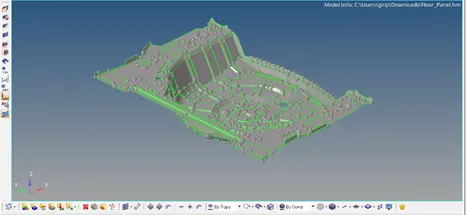
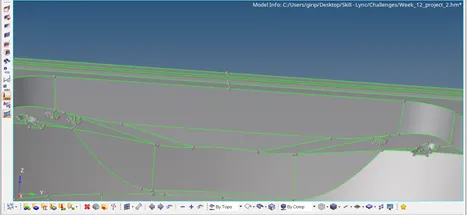
- Geometry Clean-up
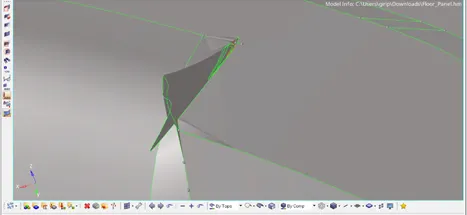
Organize or Delete the components, one by one according to the Parent Component.
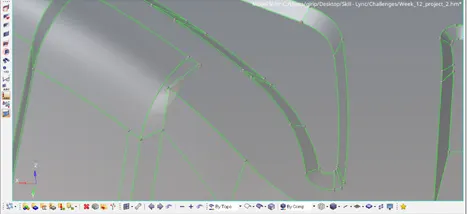
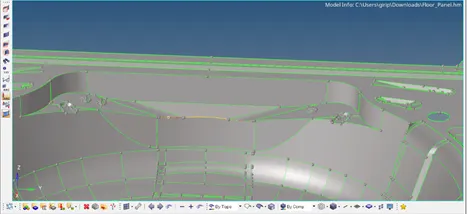
The topology of the given component is cleaned up using the following tools:
Toggle Edge, Replace point, Filler Surface, etc in the Quick edit option of the Geometry Panel.
- Mid – Surface Extraction
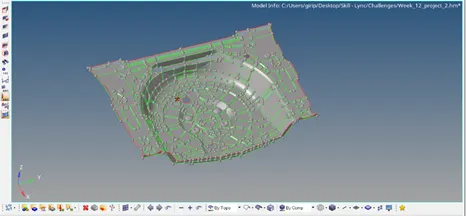
Extract the mid surface of the component, by auto midsurface in the midsurface option of the Geom panel by setting the extraction option as offset+planes+sweeps.
Clean-up the midsurface using the quick edit option, to make it proper for meshing.
- Meshing
Auto mesh each surface, by selecting element size 5 mm and try to reduce the concentration of trias at the edges and fillets by remeshing the rotating quads.
Check the meshed elements using Check elems in the tool panel.
Clean up the failed elements using the tools like element optimization, drag tria elements, and remeshing the elements such that all elements satisfying the given Quality Criteria i.e., no elements failed.
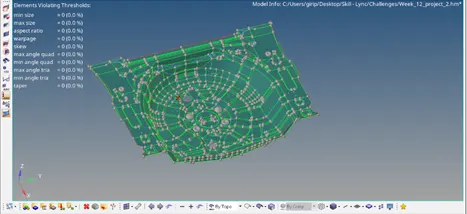
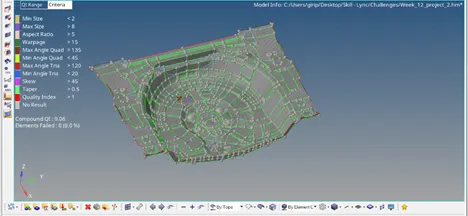
Check the free edges using the option edges in the Tool Panel, to make sure that there are no free edges between the surfaces.
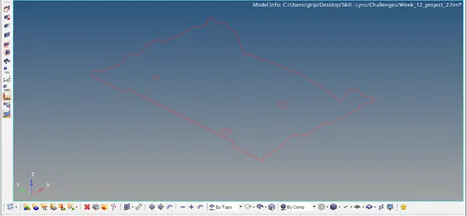
Check Normals for the elements, whether they are all in the same direction, using the normal option in the Tool panel.
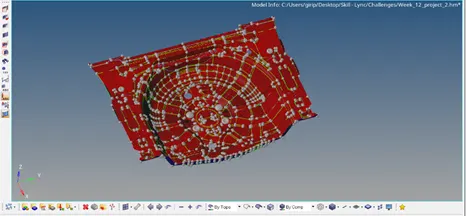
Check for the duplicates using the split elements option in the toolbar.
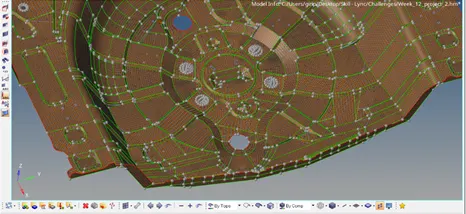
- Assigning Thickness
Click Mesh -> Assign -> Midmesh Thickness option from the menu bar.
Set Input as Select entities
In Solid geom/mesh, select Surfaces and select all the surfaces of the parent Component.
In Midmesh, Select Elements and select all the 2d elements created during meshing.
Set Output as Properties on elements and check the Minimum and Maximum thickness as 0.1 and 4.0 respectively.
Select property card image as PSHELL and click calculate Thickness
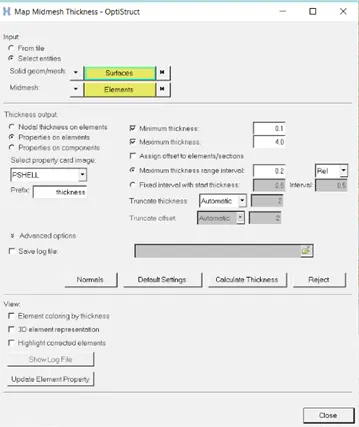
Thickness with properties is automatically assigned to the elements.
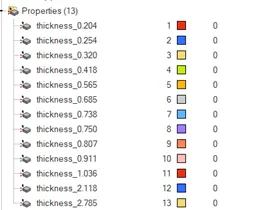
Switch on the 2D detailed elements representation for the final image
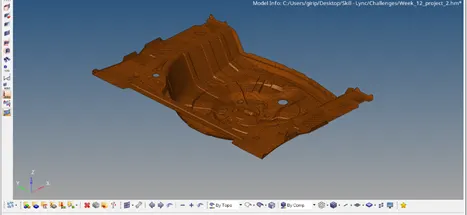
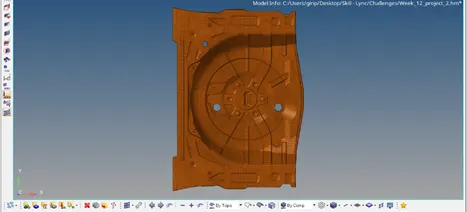
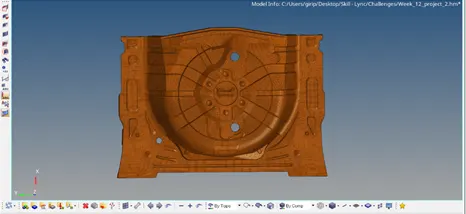
Final Image:
Result:
Given component, Floor panel is successfully meshed satisfying all the Quality Criteria and the thickness for the elements are assigned.