Week 3 Challenge : CFD meshing on Turbocharger
AIM- To create Surface mesh & Volumetric mesh on Turbocharger
- Create PID's & Clean geometry
- Give assigned length fo 1mm , 2mm & 5mm respectively as asked for surface mesh
- Finaly crate Volumetric Mesh
Module Or Commands Used
1. TOPO- Used to clean up geometry & create surfaces.
- Fill Holes- This command fill any closed geometry single cone according to surface .
- New- This command is used to create surface on any geometry .
- Intersect- This command is used for joining 2 surfaces which are not in contact.
- Project- Used to project cones to surface .
- Topo- Used to clear red cones Which has been cleaned up to double cons but still shows red cone.
- Project cut- Used to project on surface into other.
- Delete- Used to delete any surface or cones etc.
2. Mesh- Used to meshing in 2d
- Mesh Parameter- Used to give details of minimum and maximum length and also element type details.
- Mesh Quality- Used to determining meshing quality factor by including various factors like Skewness, ratio ,min length etc.
- Parameter- Used to assign specific lengths for elements .
- Freeze & Unfreeze- Used to fix or lock the meshing details for selected geometry and vice versa.
- CFD Mesh- Used for generating 2-d cfd mesh.
3. Volume Mesh- Used to create the volumetric mesh or 3-D mesh.
- Define- This command defines the entities which is needed to be assigned to volumetric mesh or be deleted.
- List- After defininig we check on list the assigned volumetric entities and give required meshing data and mesh the assigned geometry.
- Cut- Used to cut the geometry according to any plane so we can see volumetric mesh.
STEPS & MODEL
1. Geometry cleanup
INITIAL BODY
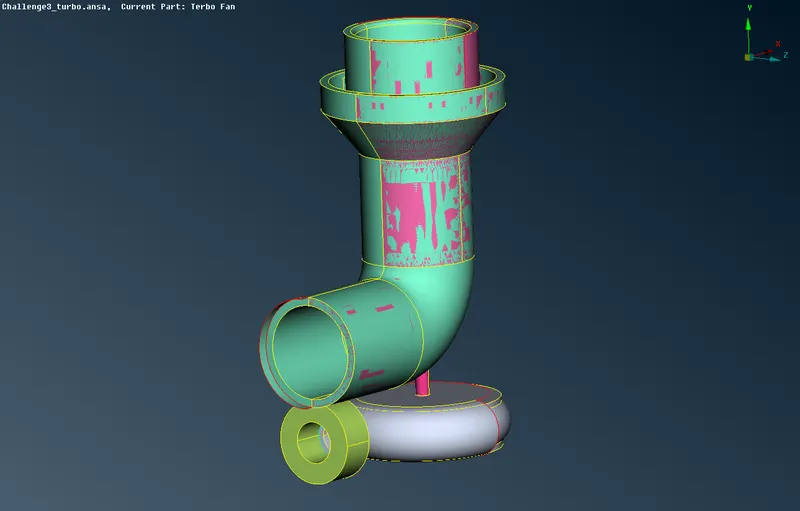
# First we need to do geometry check to find errors as we are solving for volumetric mesh we go to Check and the check manager where we select Geometry & surface and execute to find errors as shown below:-
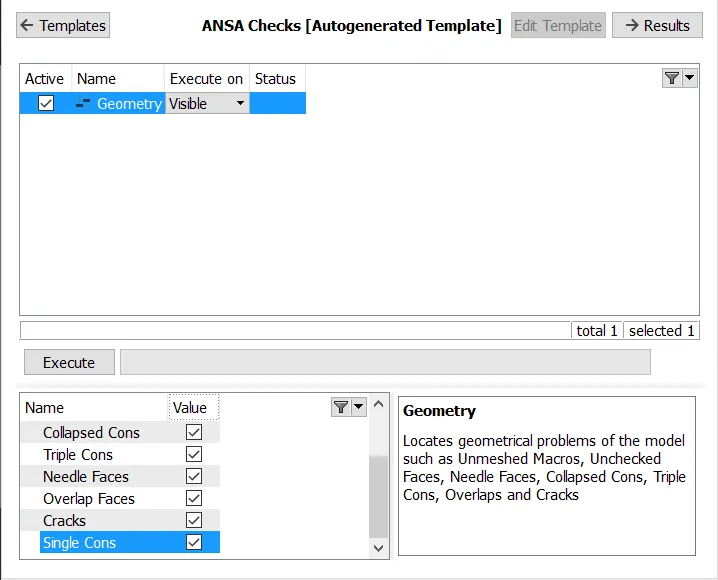
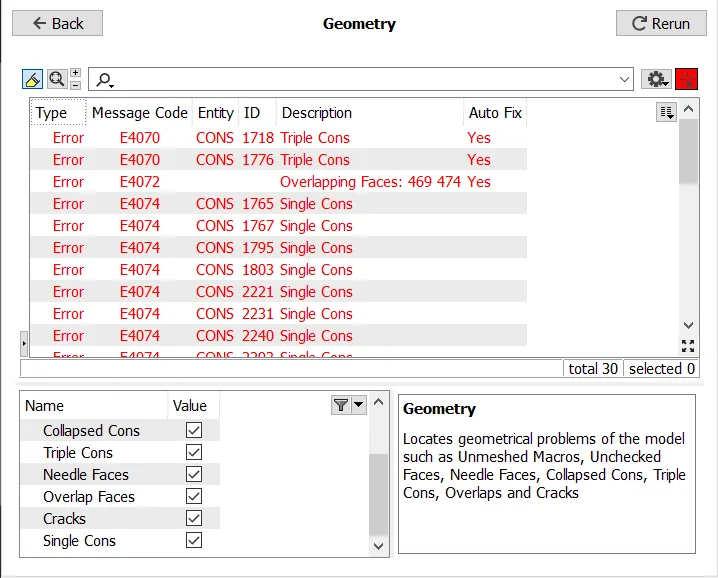
# After finding errors first we solve for red cones which are single cones. Then we fill Red cones using commands like project,delete, fill holes, new etc.
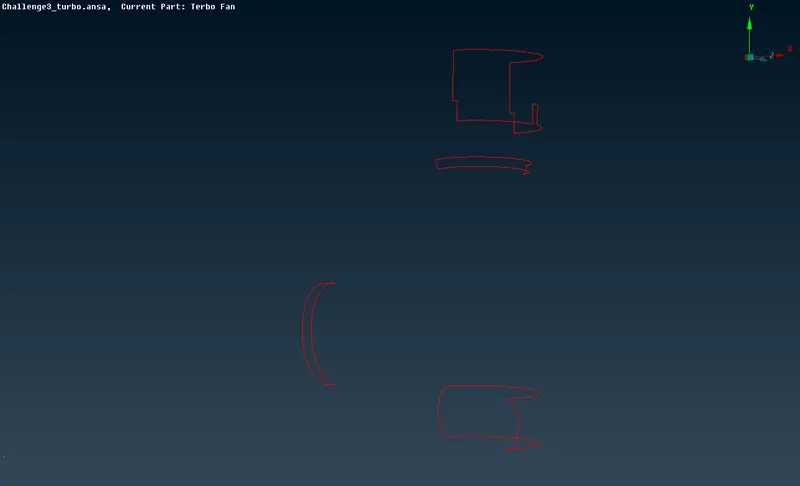
This is example of surface cleanup using New --> Coons command Below:-
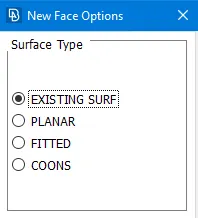
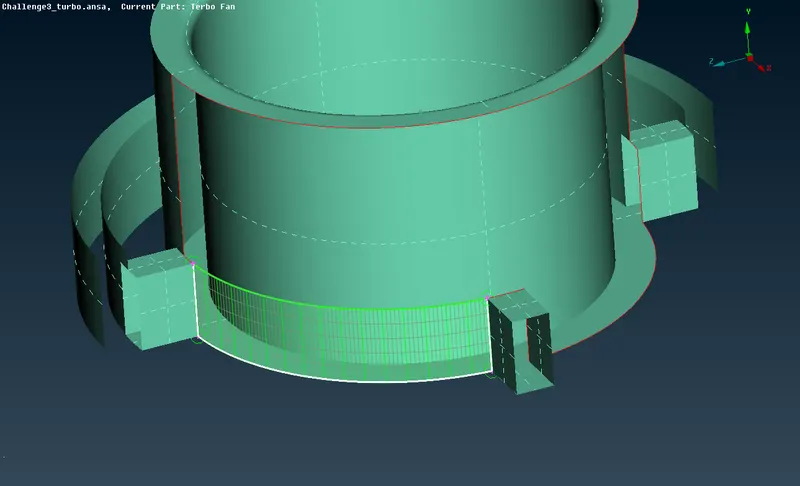
We solve below surface using Transform --> copy--> Select surface-->Select 3 hot points on cone which is needed to be created middle click or ok to create surface
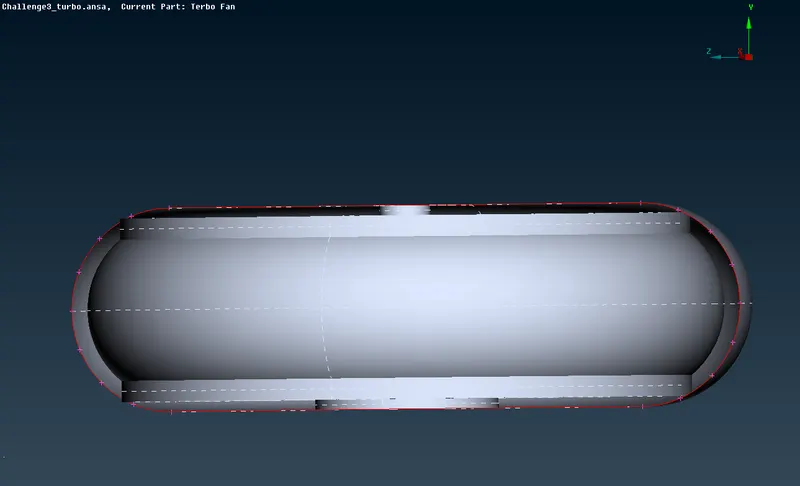
After transform command it looks like this
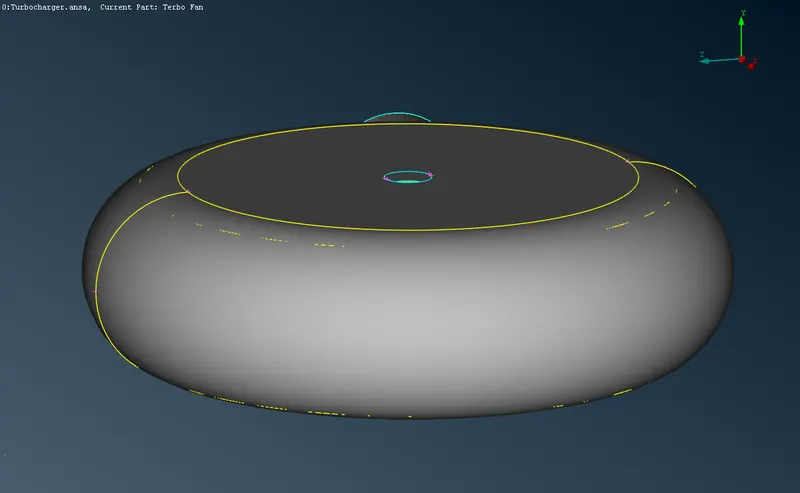
# Rest of Red cones can be Cleaned using New-->coons, fillhole command
# After red cons We clear the intersecting parts
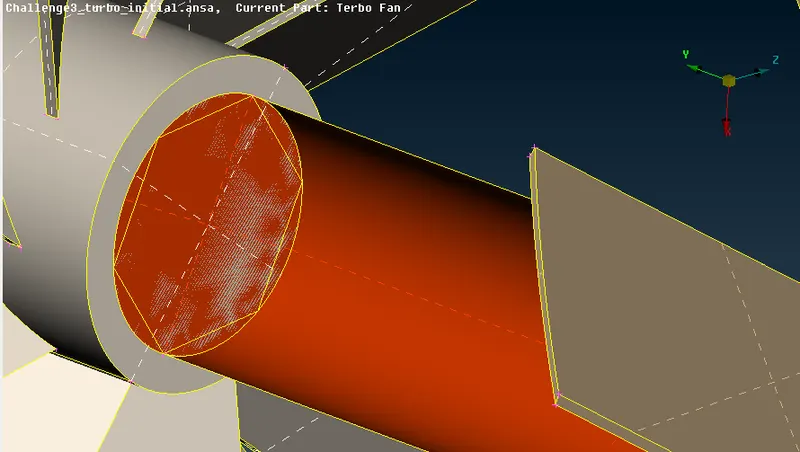
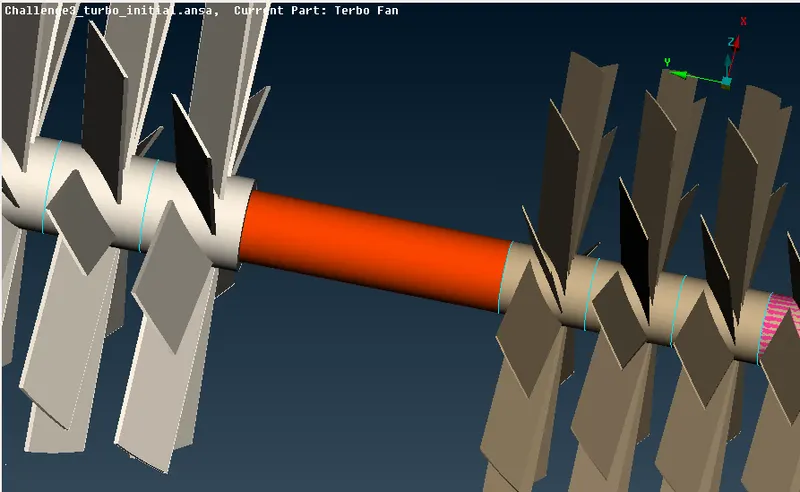
After deleting all Inter intersection surface we use Topo. If topo doesn't work We use Project or project cut Using this we create non intersecting surface and it creates triple cones as shown in above picture
After we close all surface using fill hole for meshing in CFD.
After Proper clean up Geometry look as below
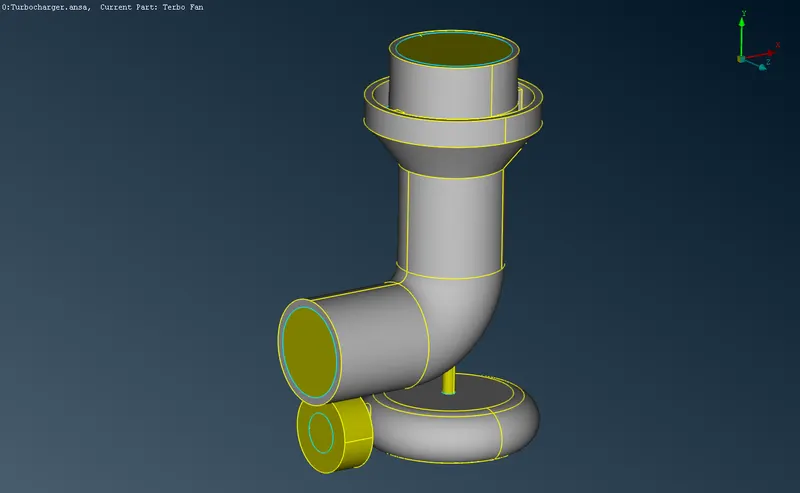
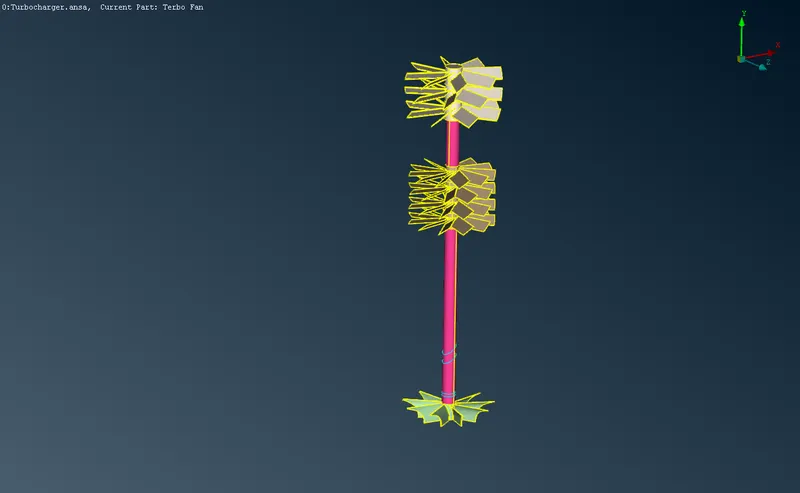
2. Assign PID's & Creating Surface Mesh
# We assign the pid's to all parts for meshing
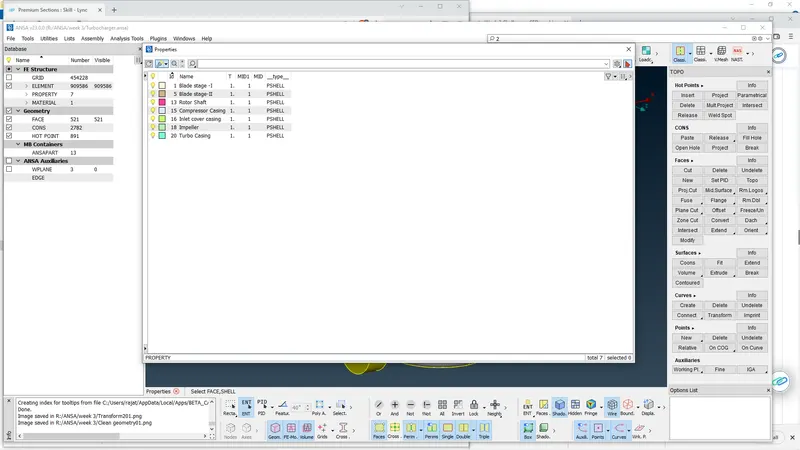
# After PID's assigning we create mesh for different PID's
For 1mm as mesh length we have Blade and Rotor shaft
We assign limits in quality and mesh parameters
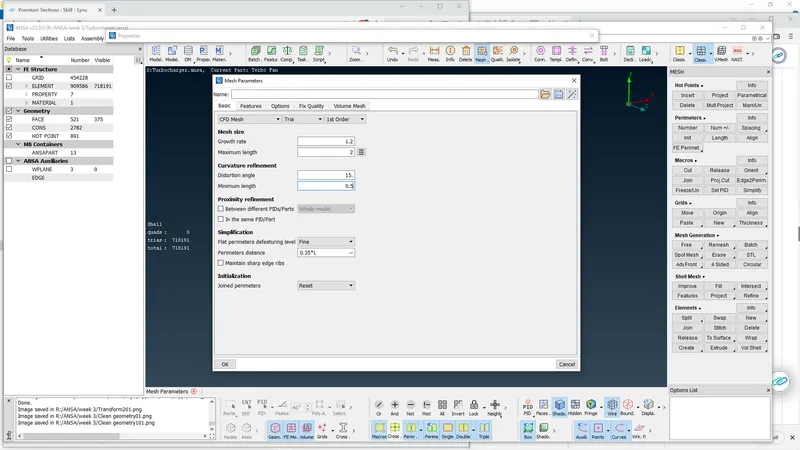
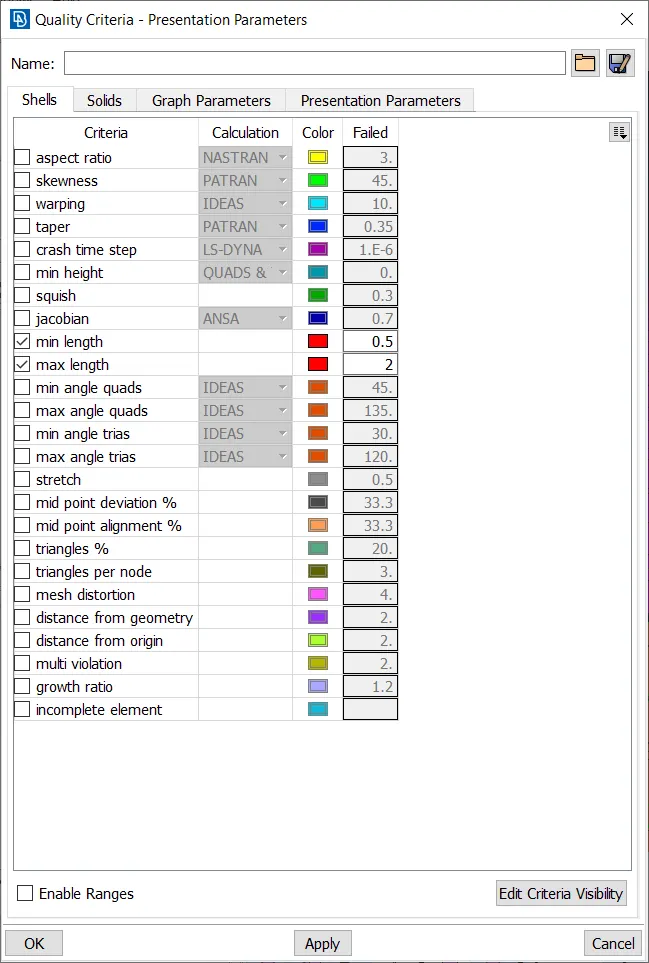
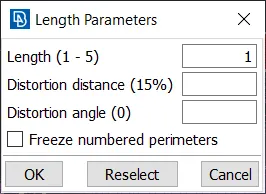
We just use Spotmesh command and mesh is generated
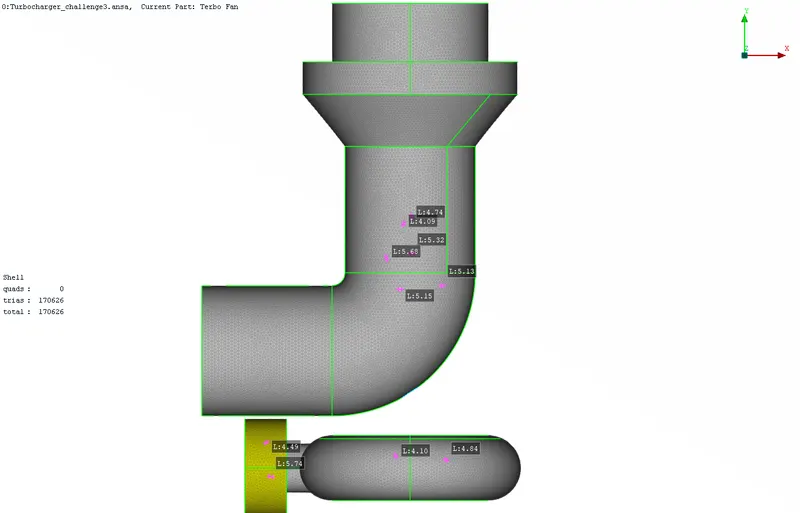
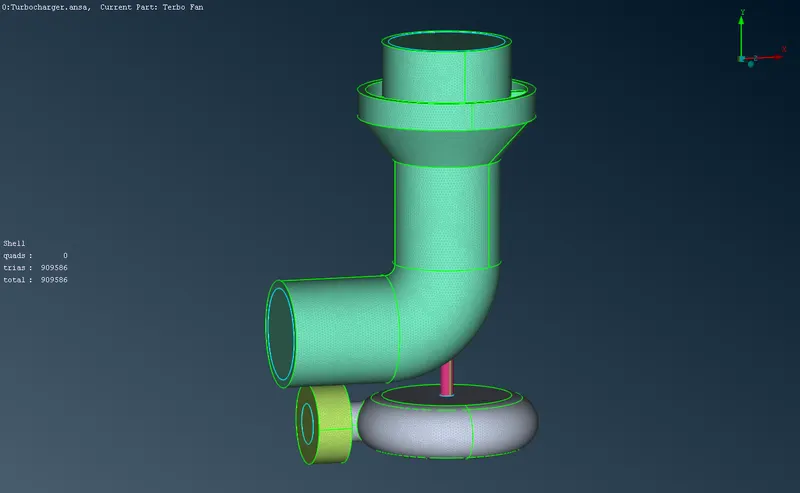
Similarly we give parameter length of 2mm for impeller and 5mm for remaining bodies via adjusting mesh parameters
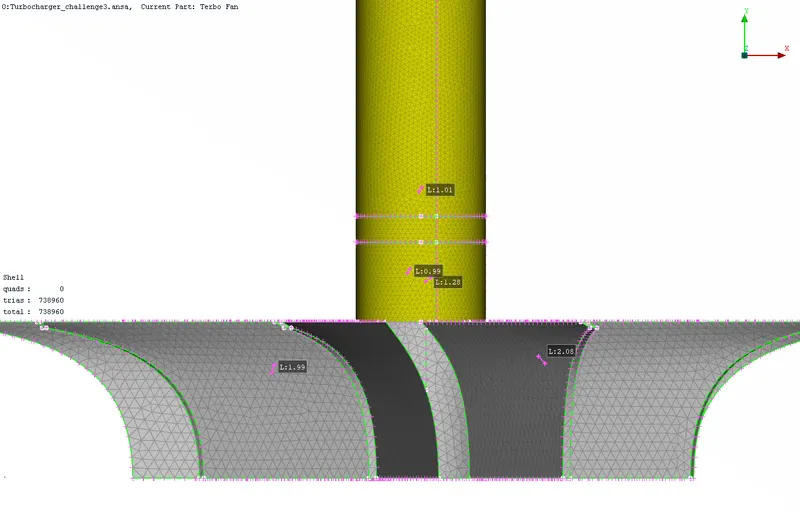
Outer bodies with element length 5mm
3. Volume Mesh
We just switch to volume mesh by clicking at volume Mesh
We select Define and click ok and Go to List
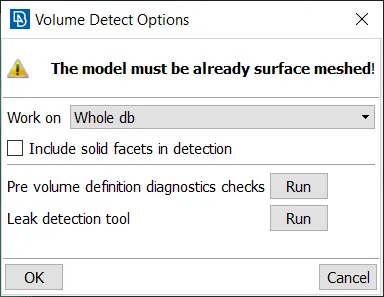
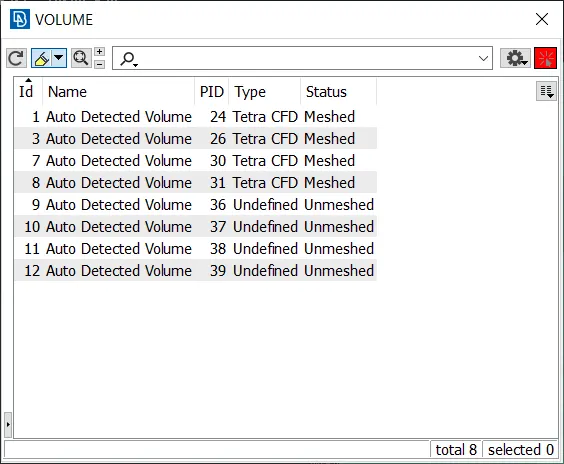
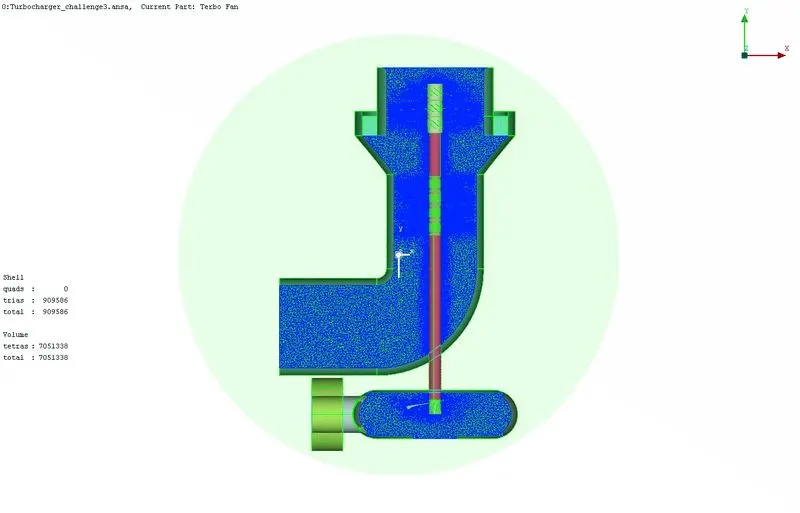
We use required entity for fluid flow and solid body can be deleted Then we assign Tetra CFD and crate mesh.
Conclusion
- The geometry needs to be cleanup because if any irrelevant surface will cause problem in creating volume mesh.
- All openings need to be closed for CFD meshing and Volume Meshing.
- Volumetric meshing Takes more time and is affected by the mesh length and quality of surface meshing near boundary.
- We use Tria & Tetra CFD meshing in this case.
LINK FOR MODEL
https://drive.google.com/file/d/1oP9fYpNR3_Cs_4KeMRpXAa7MDOB_6iG2/view?usp=sharing