Week-3 Challenge: ADVISOR Tool
ADVISOR -Advanced Vehicle Simuator is a tool used to construct models with macro statistics from duty cycles
This tool created by National Laboratory for Renewable Energy (NREL) & department of energy.
How to use
To open the ADVISOR tool we have to enter “advisor” in the command window of MATLAB and run.
This will open the window shown below.In this window choose metric as units and then press START button

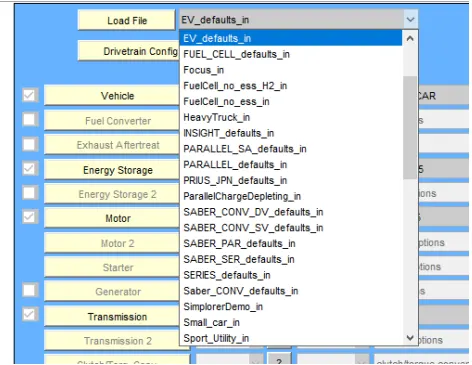
In this, we have to choose the EV_defaults_in file from the load file drop down list.
Then we have to change the cargo mass to 500 , keeping all other default conditions as it is.
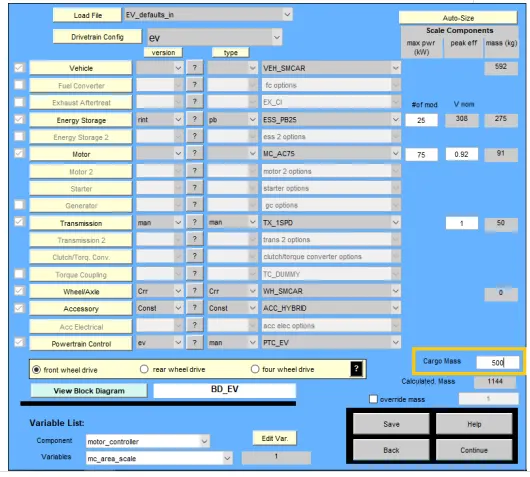
Next we have to click on the continue button on the bottom right corner of this current window.
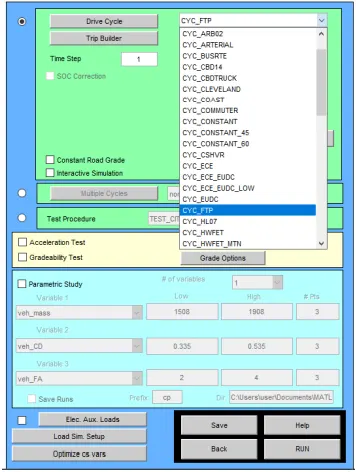
Then,click on RUN button the simulation will run in the background.The reselts will be appeard after sometime.
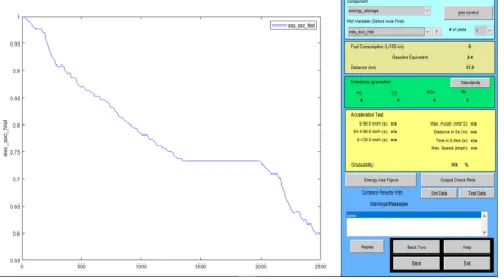
In this, the distance covered is 17.8Km for one drive cycle.
And the SOC is at 60% approx.
Since we have to check whether the vehicle travels for 45Km until the SOC is 0.
We need to repeat the simulation , but this time number of drive cycles is changed to 2.
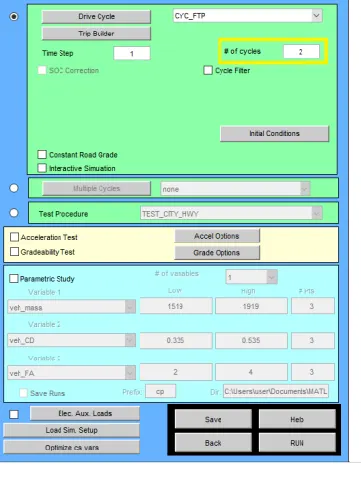
This is result we get when drive cycle is changed to 2.
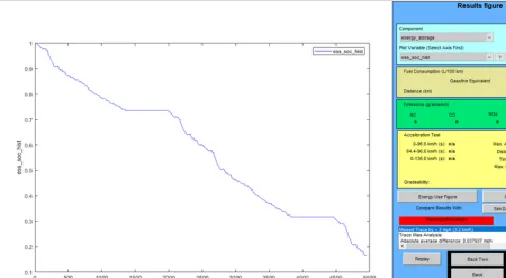
Here we can see that the distance covered has been increased to 35.5Km. But the SOC is still at 20%.
Repeating the simulation one more time. This time the number of cycles is changed to 3.
Results for 3 drive cycles is shown below,
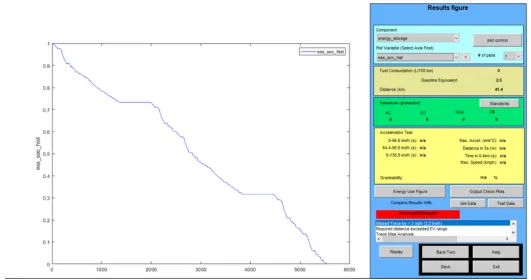
Here we can see that distance covered has been increased to 41.4Km and SOC is now at 0
2.For the second case we have to change the battery for above simulation.
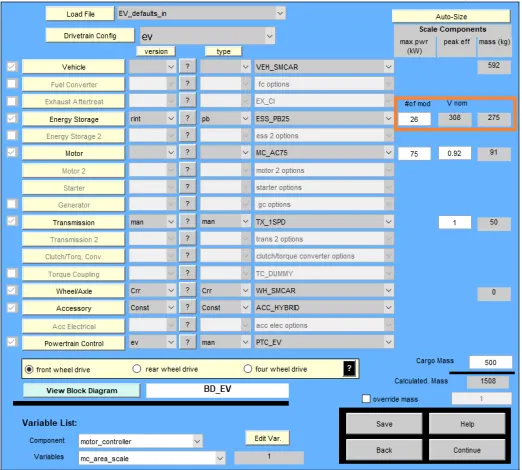
The distance covered is 42.7Km at SOC 0. But we require 45km.
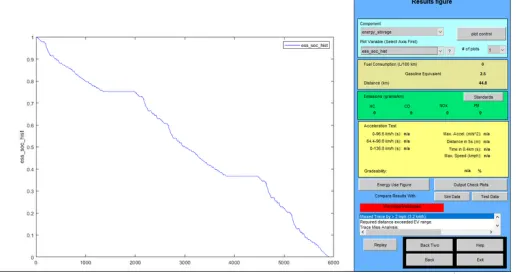
So now we will repeat the simulation by changing the number of modules to 27.
Results of this simulation is given below.
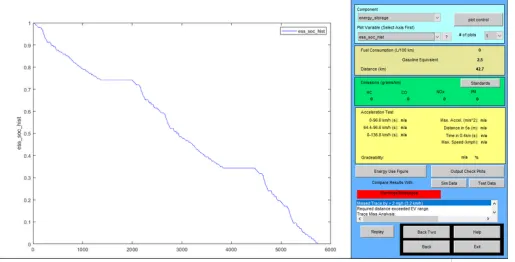
In this , we can see that the distance covered is 44.8Km at SOC 0. This value is very close to the required value of 45Km.
We will do this simulation one more time , increasing the number of modules to 28 and check whether we can achieve the required distance.
Results of this simulation is shown below .
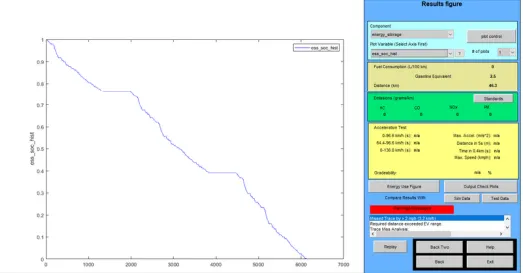
In this we got 46.3km.Number of modules is 3.
3.Perform gradeability test with PRIUS_Jpn_defaults_in file . Compare your results in table and conclude.
In this case we have to select the file ‘PRIUS_Jpn_defaults_in’ and perform gradeability test.
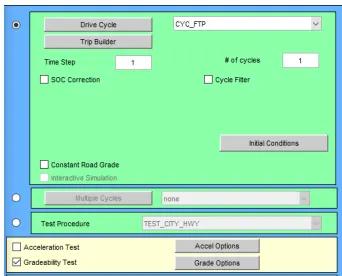
After loading the file , press continue. Keeping all other default.
In the next window select the drive cycle and then tick the box corresponding to gradeability test as shown below,
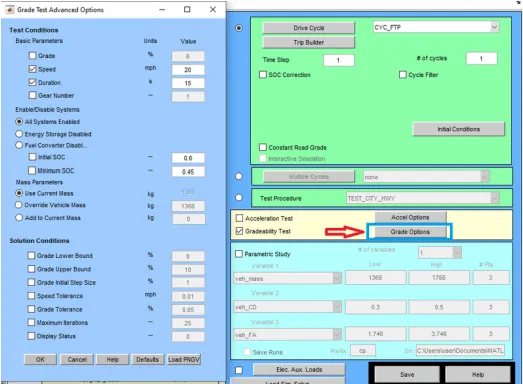
Now click on the grade option box for more settings. This will open a window as shown below, change the necessary settings
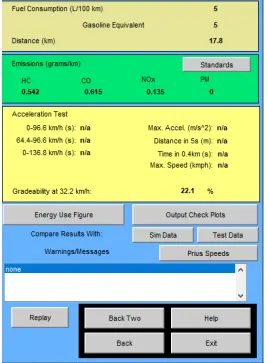
Here the speed is set to 20Mph and time is 15 seconds. Also select ‘All systems enabled’ option.
Now run the simulation.
The result for this simulation is shown below,
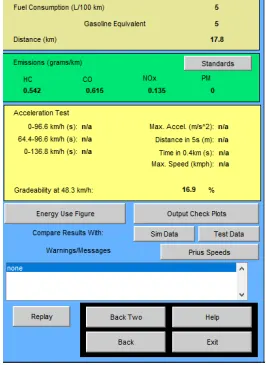
Here we can see that the Gradeability is 22.1%.
Now let us repeat the above simulations for 4 more speed values.
The results for these 4 different speeds are shown below.
When the speed is set to 10mph
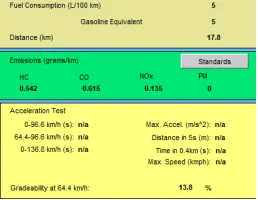
When the speed is set to 30Mph
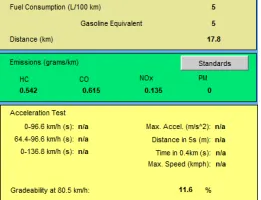
When the speed is set to 40Mph.