Week-3 Challenge: ADVISOR Tool
1. Using ADVISOR Tool
Solution:
To proceed with ADVISOR tool, let us first discuss in brief about the tool, understand what is does and how it works.
Following information is taken from help menu of the ADVISOR tool.
file:///E:/Skill%20Lync/Challenges/Course%202/Week%203/advisor-2003-00-r0116/advisor/documentation/advisor_ch1.html
ADVISOR, NREL’s ADvanced VehIcle SimulatOR, is a set of model, data, and script text files for use with Matlab and Simulink. It is designed for rapid analysis of the performance and fuel economy of conventional, electric, and hybrid vehicles. ADVISOR also provides a backbone for the detailed simulation and analysis of user defined drivetrain components, a starting point of verified vehicle data and algorithms from which to take full advantage of the modeling flexibility of Simulink and analytic power of MATLAB.
You may benefit from using ADVISOR if you want to:
- estimate the fuel economy of vehicles that have not yet been built
- learn about how conventional, hybrid, or electric vehicles use (and lose) energy throughout their drivetrains
- compare relative tailpipe emissions produced on a number of cycles
- evaluate an energy management strategy for your hybrid vehicle’s fuel converter
- optimize the gear ratios in your transmission to minimize fuel use or maximize performance, etc.
The models in ADVISOR are:
- mostly empirical, relying on drivetrain component input/output relationships measured in the laboratory, and
- quasi-static, using data collected in steady state (for example, constant torque and speed) tests and correcting them for transient effects such as the rotational inertia of drivetrain components.
ADVISOR was preliminarily written and used in November 1994. Since then, it has been modified as necessary to help manage the US DOE Hybrid Vehicle Propulsion System subcontracts. Only in January 1998 was a concerted development effort undertaken to clean up and document ADVISOR.
Since then, over 4500 individuals have downloaded one or more versions of ADVISOR, including all of the OEMs and major suppliers. About 2/3 of the users are from industry and 1/3 from universities. A short list of major ADVISOR users includes:
- DaimlerChrysler
- Ford Motor Company
- General Motors Corp.
- Delphi Automotive Systems
- Visteon
- and hundreds of others
How to install and open ADVISOR tool in MATLAB.
A link to download ADVISOR tool is available at ‘Information’ section
https://sourceforge.net/projects/adv-vehicle-sim/
Just download the file, extract it add this path as the root directory in MATLAB and simply type ‘advisor’ in command window.
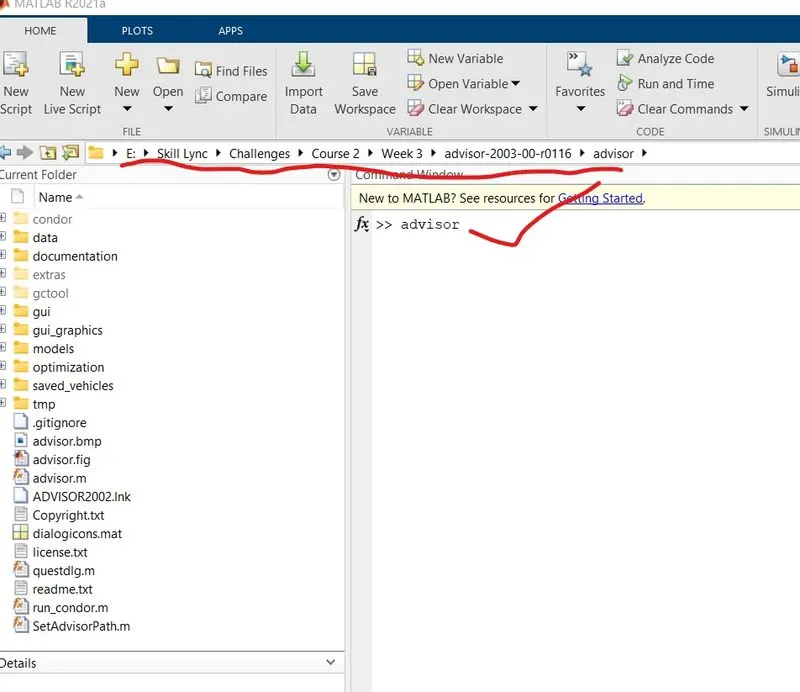
ADVISOR tool will get started, make sure to select unit system as ‘metric’ as it is asked in question to see if the vehicle reaches to 45km. Press start button to get into the tool. You can see following window once into the tool.
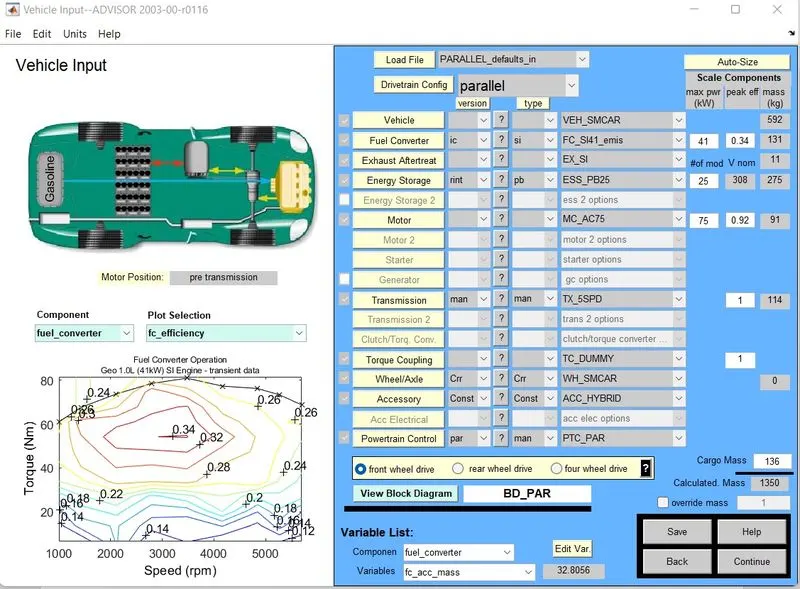
We have many vehicle prototype files already available by default in this tool. We can choose them from the drop down menu provided at the top.
Let us choose vehicle model as EV_defaults_in to proceed further with challenge.
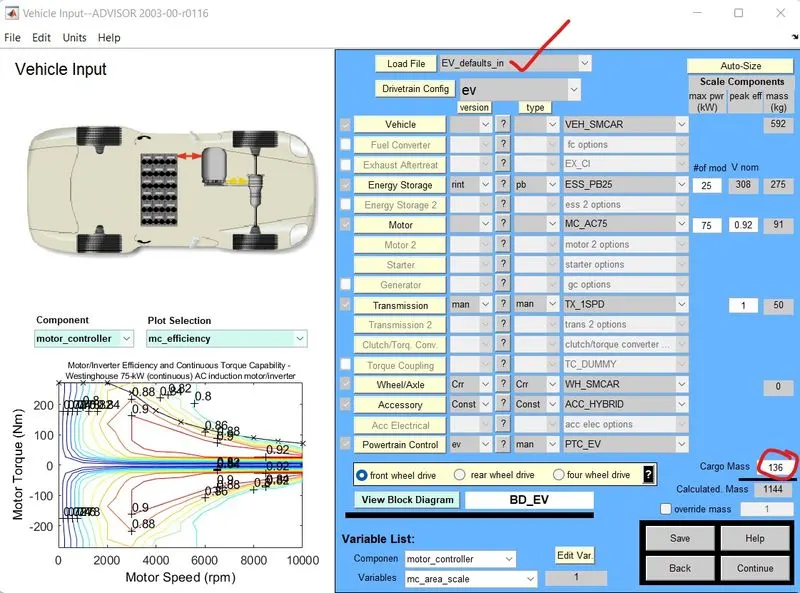
It can be seen that, by default the cargo mass is 136kg, it is asked to change it to 500kg, keeping rest of the inputs as it is. Let us try changing the cargo mass to 500kg.
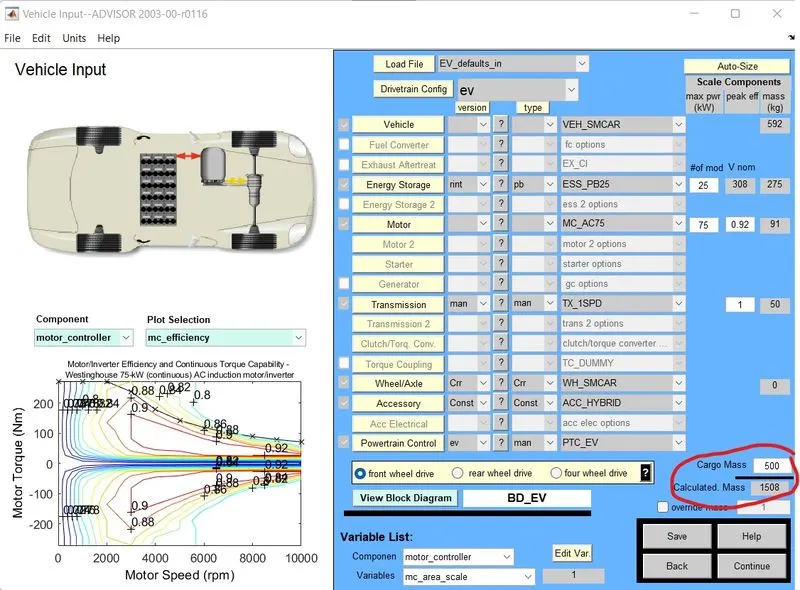
As we change the cargo mass, calculated mass also gets changed. Let us press continue button to proceed further with simulation.
It is asked to set FTP drive cycle. Let us make drive cycle as FTP
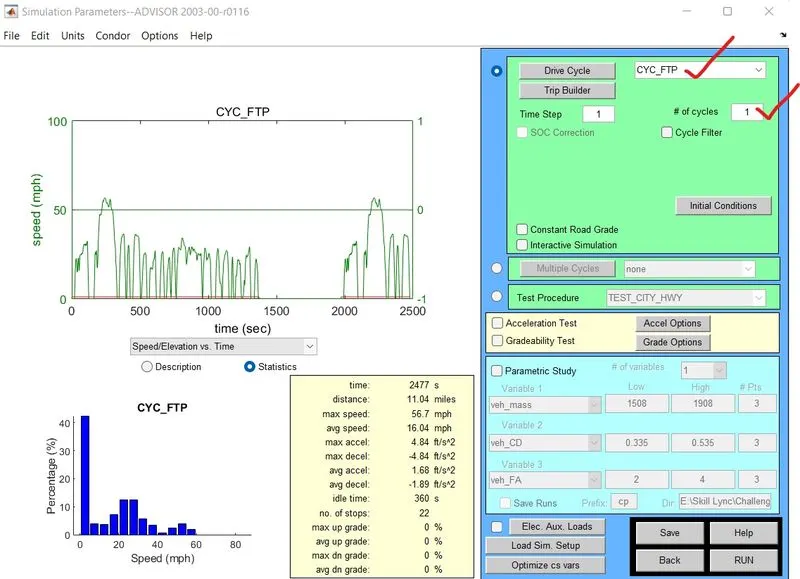
And run the simulation for 1 cycle, by pressing the RUN button below. If you are using it for the very first time, it will take some time, so please wait till the simulation results window appears.
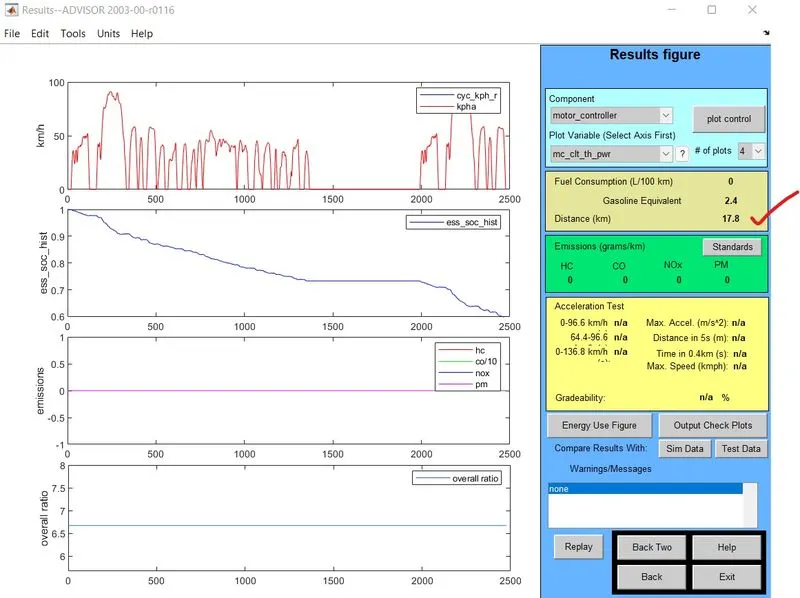
It can be seen that the distance travelled by the vehicle is 17.8 km
Let us run the simulation for 2 cycles now.
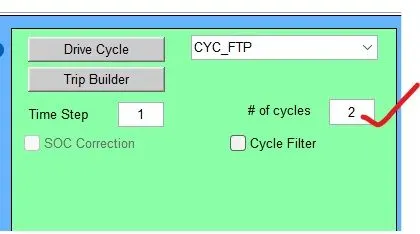
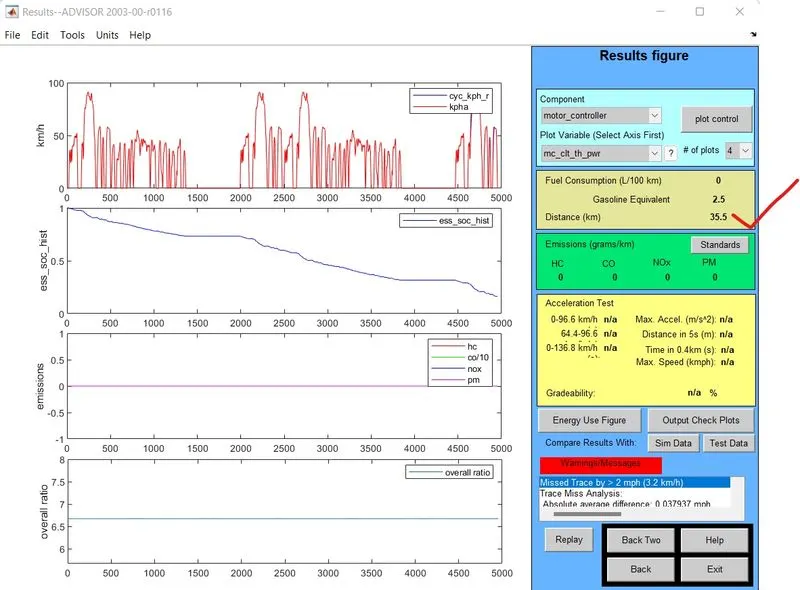
It can be seen that when the simulation is run for 2 cycles, the distance travelled by the vehicle is 35.5 km.
Let us run the simulation for 3 cycles now.
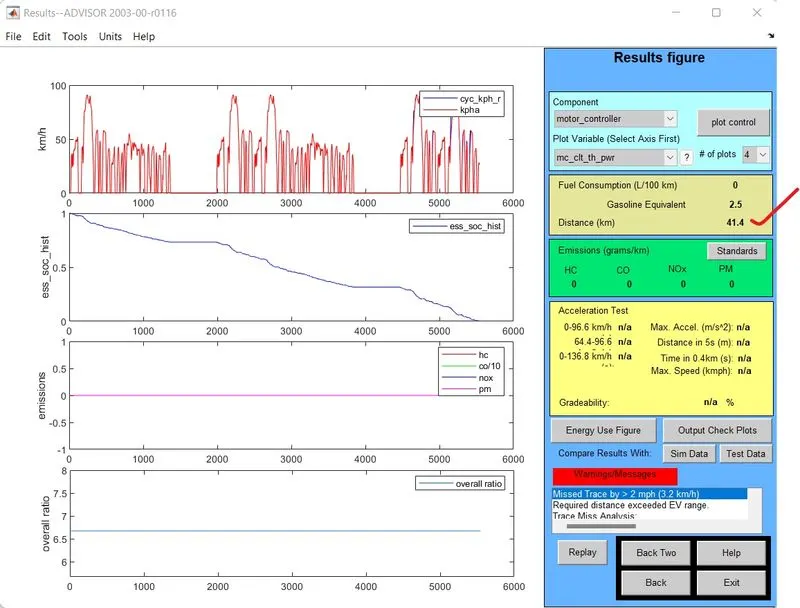
It is seen that for 3 cycles, vehicle is covering distance of 41.4 km and battery is fully consumed. So it is not possible for the vehicle to run more distance without charging its battery.
It can be concluded that this vehicle cant run distance of 45 kms.
- Now it is asked to change the battery capacity and see the effect of that on our simulations.
By default there are 25 modules of battery, let us try increasing modules of battery. It can be seen that increase in battery module will increase the voltage and power output.
By default values

Increasing no. of modules

Likewise let us run the simulation for various no. of modules, for various drive cycles.
- No. of modules 26, drive cycles 2
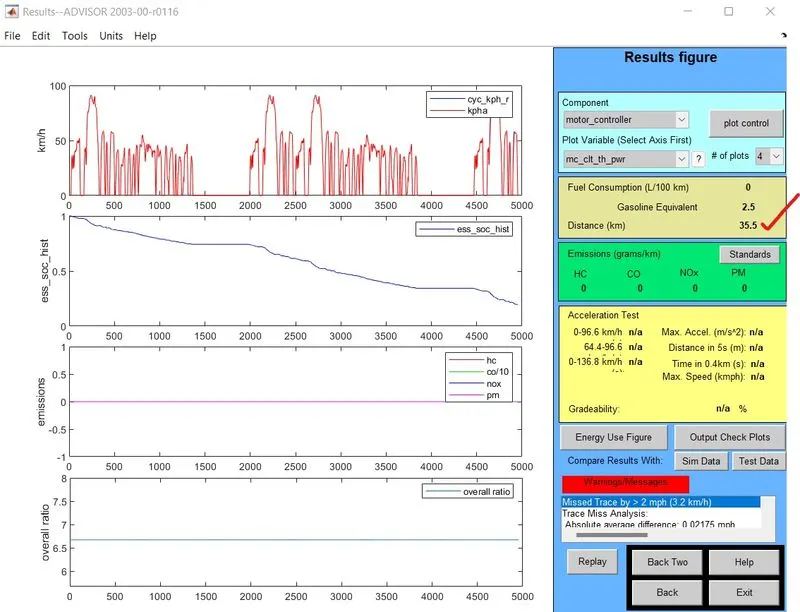
- 26 modules, 3 drive cycles
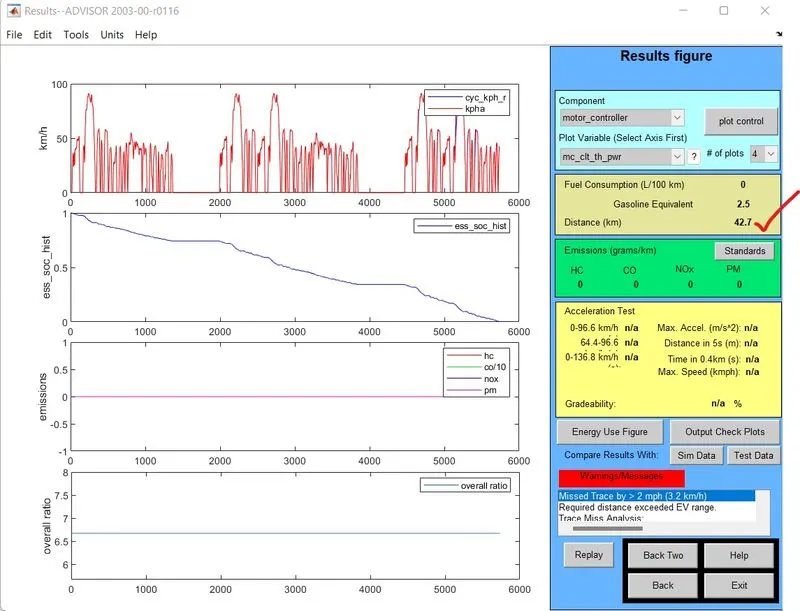
- 27 modules, 2 drive cycles
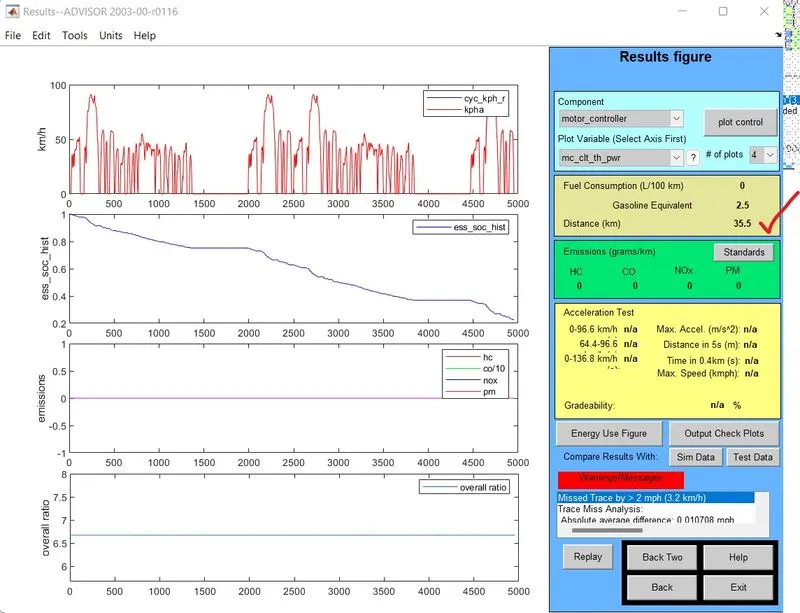
- 27 modules, 3 drive cycles
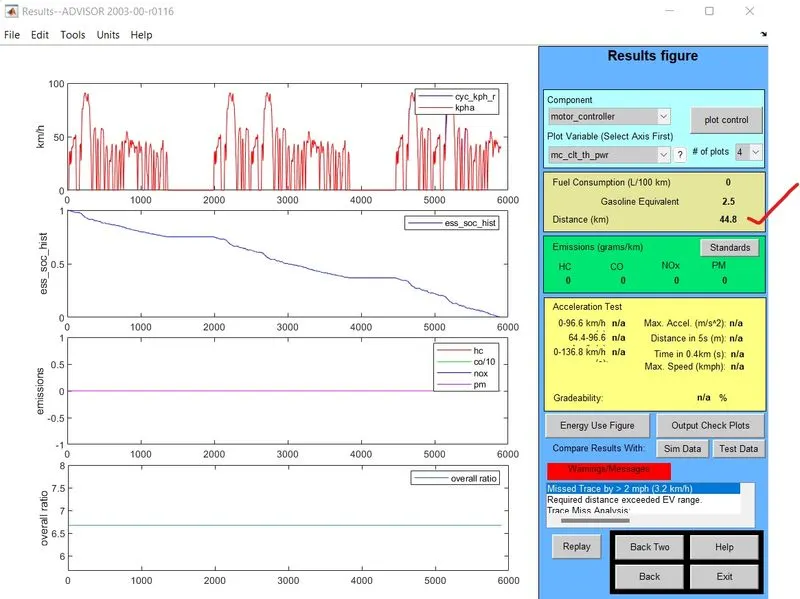
- 28 modules, 2 drive cycles
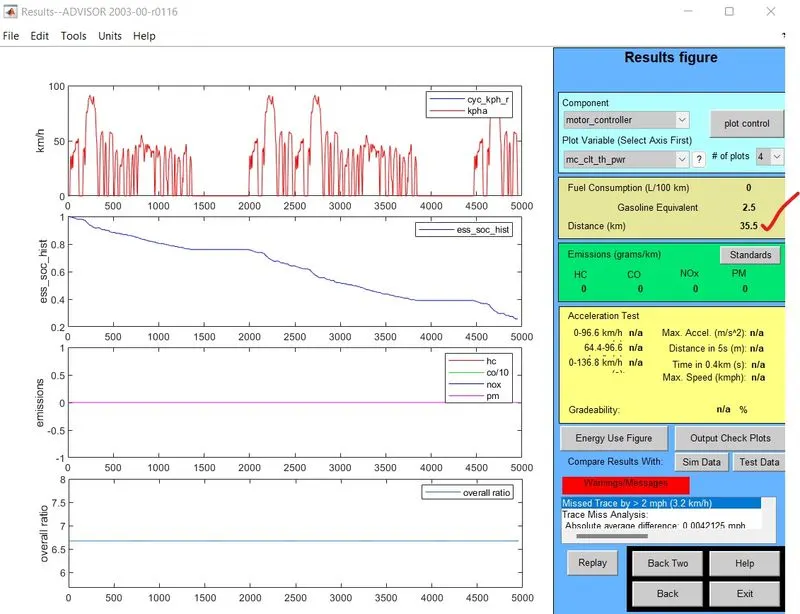
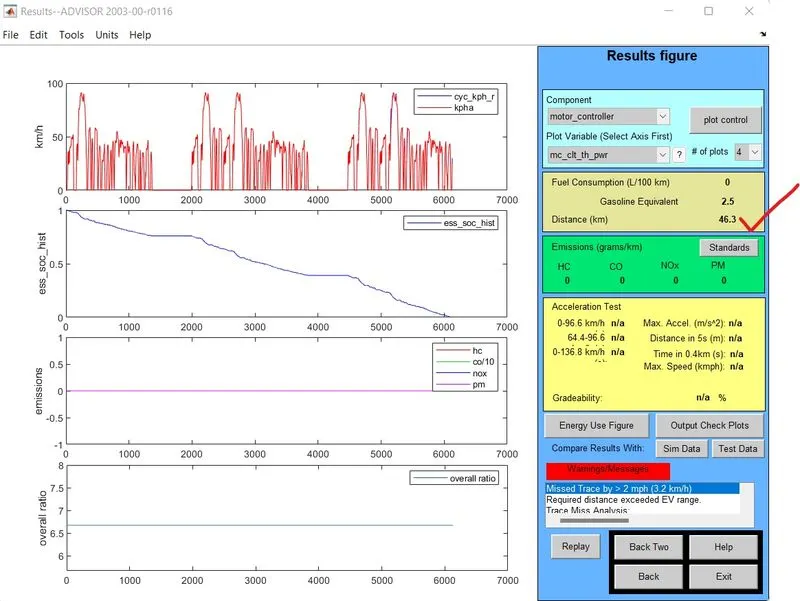
- 28 modules, 3 drive cycles
Observation:
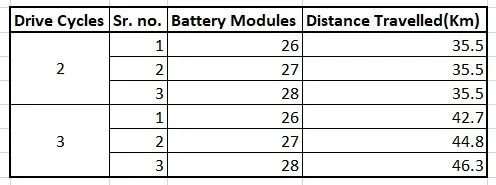
Conclusion:
It is seen that with 28 modules in battery and 3 drive cycles, vehicle is able to run a distance of 46.3 kms. The distance travelled with various battery modules for 2 drive cycles remains constant.
- Gradeability test on Toyota prius.
Let us first select vehicle model as PRIUS_JPN_defaults_in in main window.
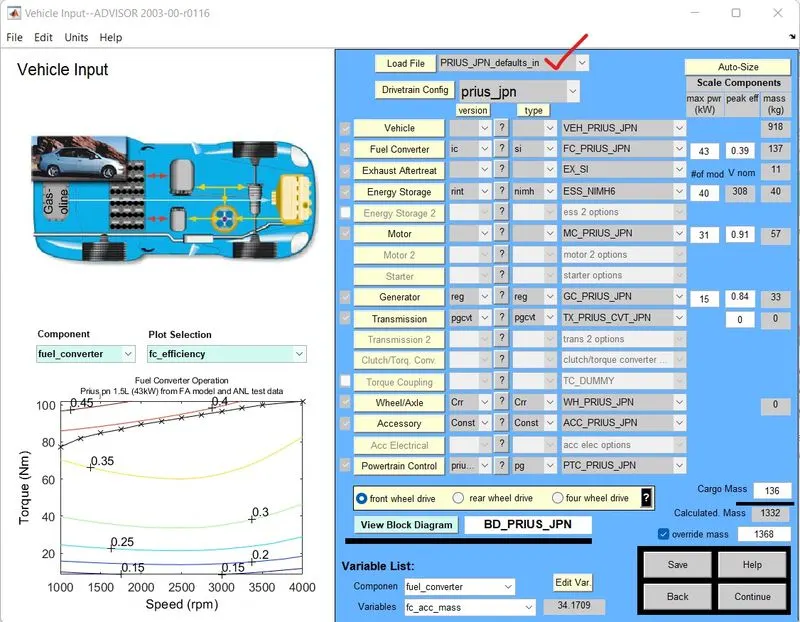
Next, press Continue button to get into simulation parameter window.
Here, select the drive cycle as FTP.
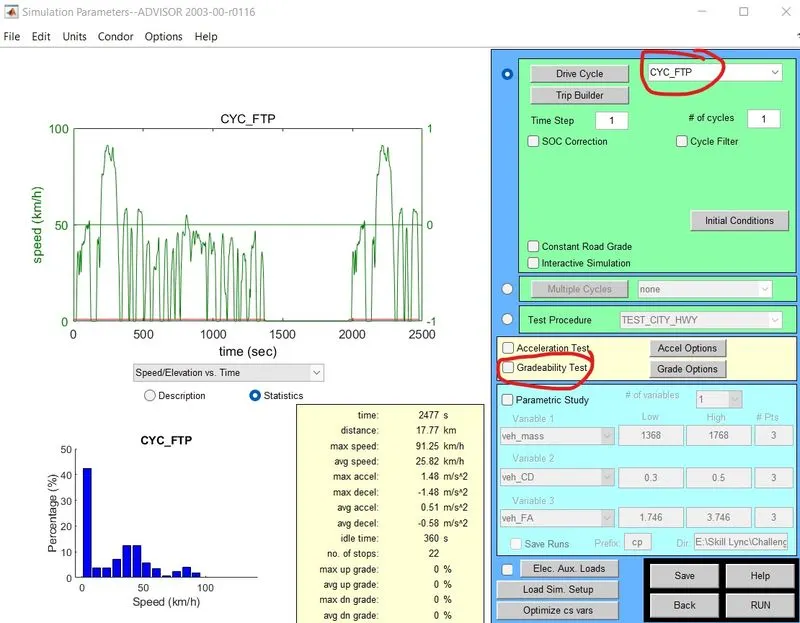
Check the box ‘Gradeability Test’ a new window will open, set the parameters as shown.
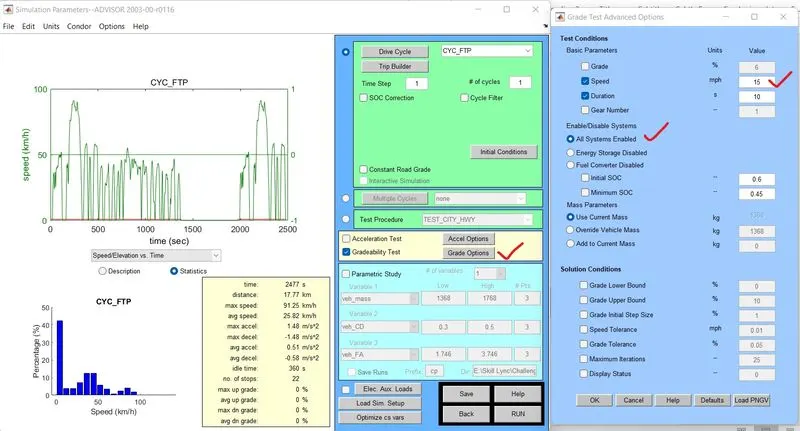
Let us see results for various speed and various durations
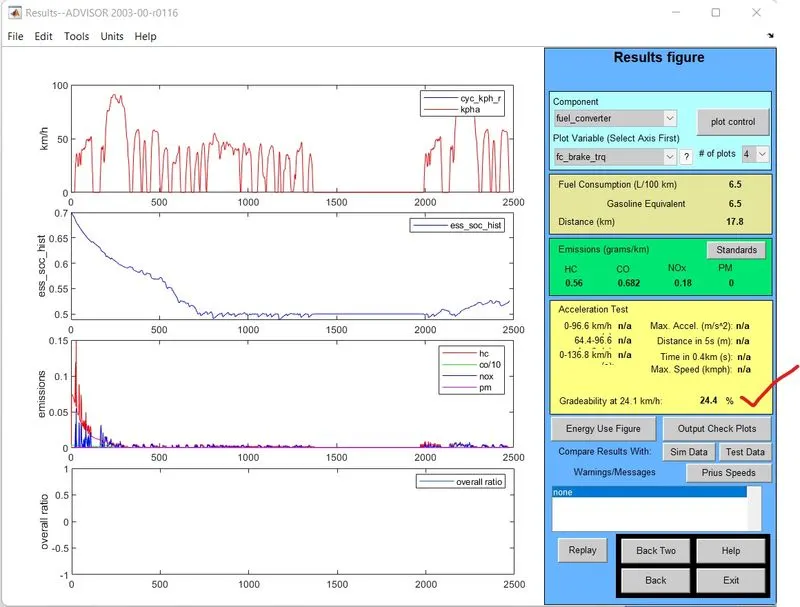
- 15 mph speed for 10 seconds
Gradeability is 24.4%
- 30 mph speed for 10 seconds
Gradeability is 14.7%
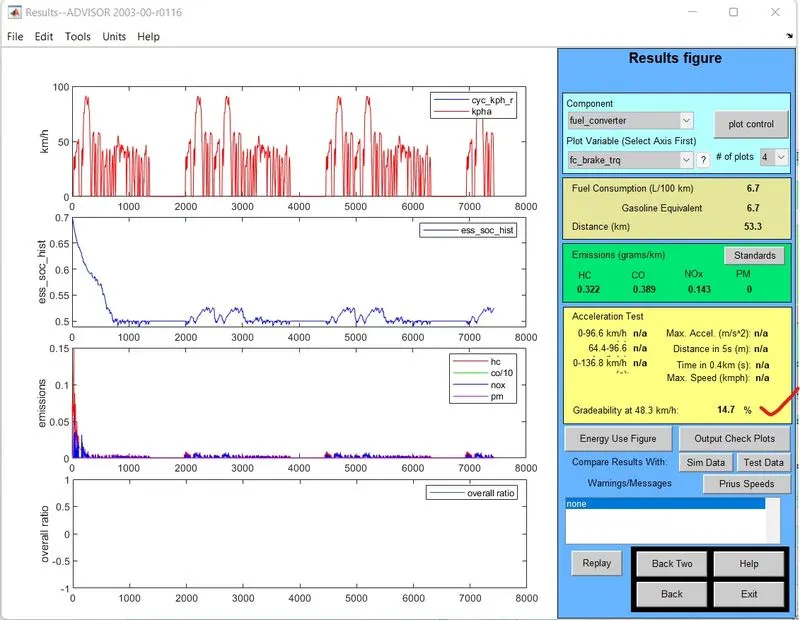
- 45 mph speed for 10 seconds
Gradeability is 10.7%
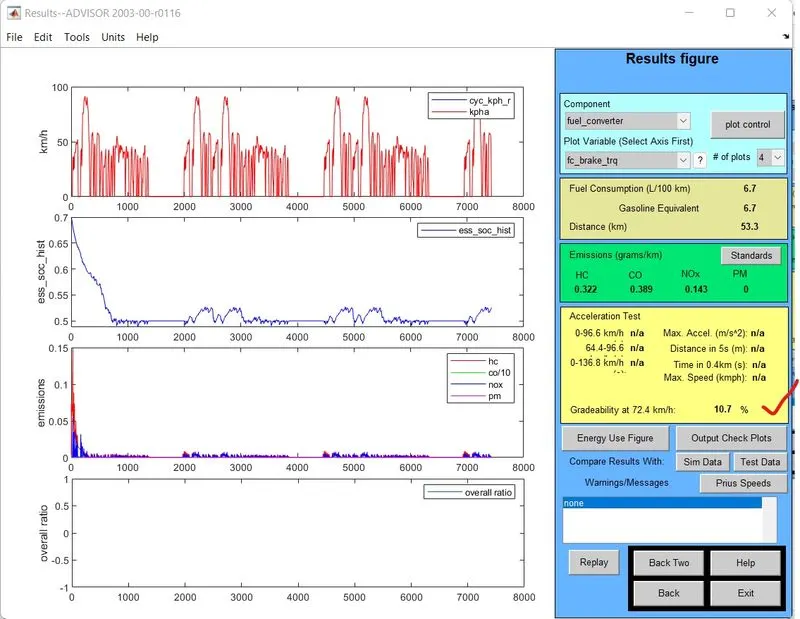
- 60 mph speed for 10 seconds
Gradeability is 8.1%
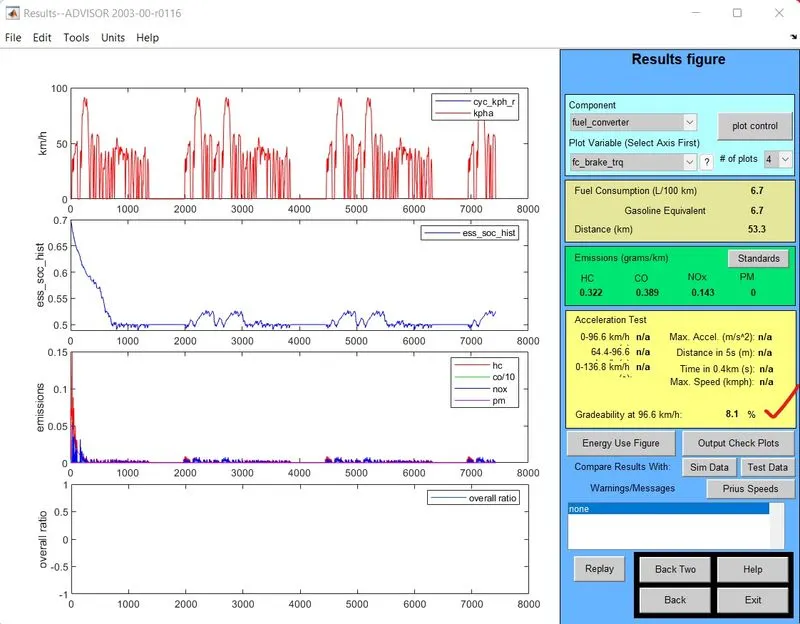
- 15 mph speed for 20 seconds
Gradeability is 27.7%
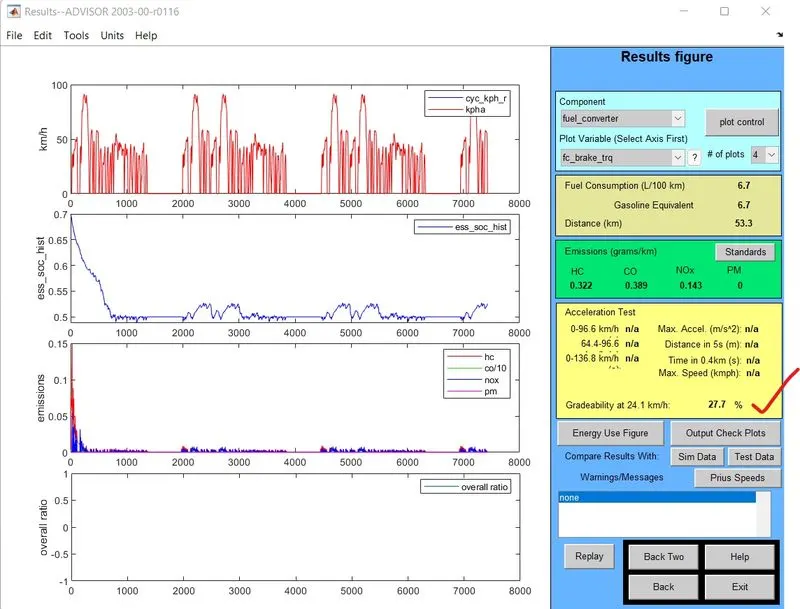
- 30 mph speed for 20 seconds
Gradeability is 17.7%
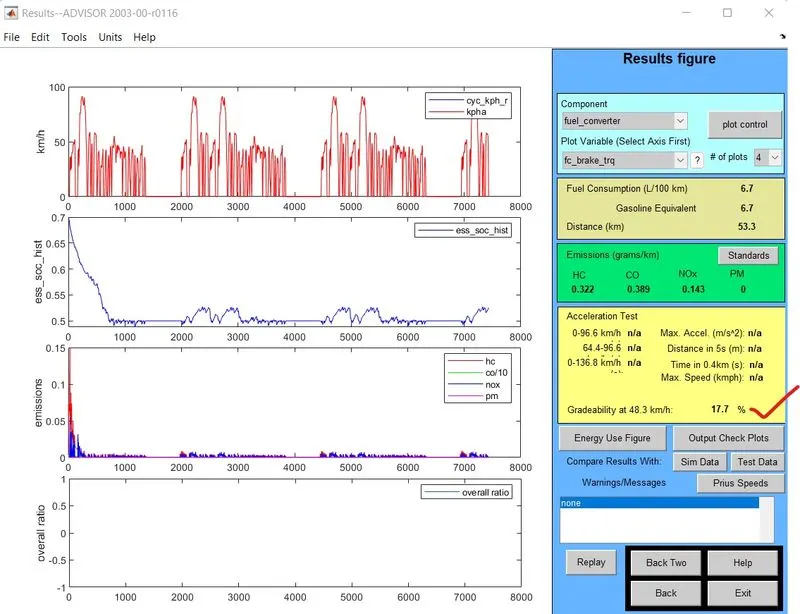
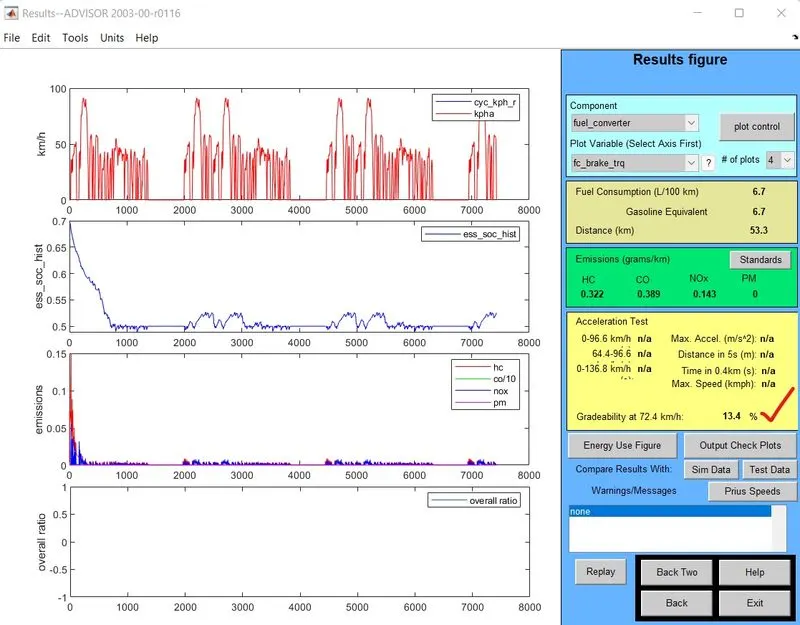
- 45 mph speed for 20 seconds
Gradeability is 13.4%
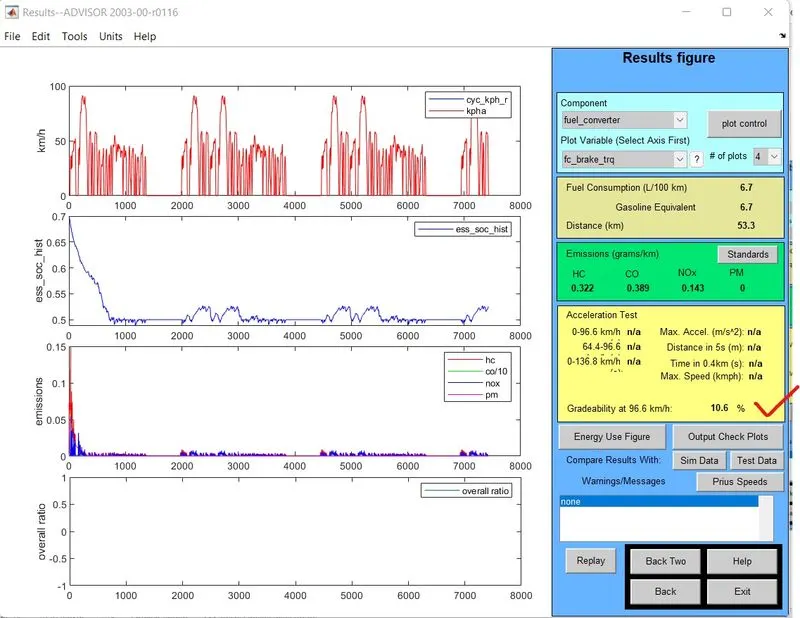
- 60 mph speed for 20 seconds
Gradeability is 10.6%
Observation:
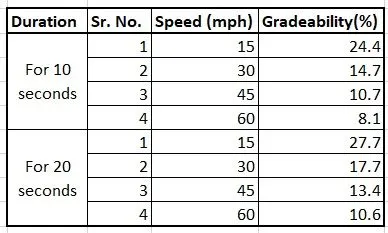
Conclusion:
It is seen clearly from above table is that as the speed of vehicle increases, its gradeability reduces, which is same for various time durations.