Week 3 - 2D meshing for sheet metal
Objective-2D meshing for sheet metal
For the given Hood model, Take the mid surface for all the components after checking the geometrical errors and mesh the mid surface with the given element Quality criteria. (Refer the table Below for the Quality criteria)
|
S.No |
Quality Criteria |
Value |
|
1 |
Target/Average length |
5 |
|
2 |
Minimum Length |
2 |
|
3 |
Maximum Length |
7 |
|
4 |
Aspect |
3 |
|
5 |
Warpage |
15 |
|
6 |
Skewness |
45 |
|
7 |
Jacobian |
0.7 |
|
8 |
Minimum Quad Angle |
45 |
|
9 |
Maximum Quad Angle |
135 |
|
10 |
Minimum Tria Angle |
30 |
|
11 |
Maximum Tria Angle |
120 |
|
10 |
Tria Percentage |
15 |
Solution
First open the file by going to File-Open
Now,After opening the file select the whole component and do Topo option (it connect the cons if they are not connected)
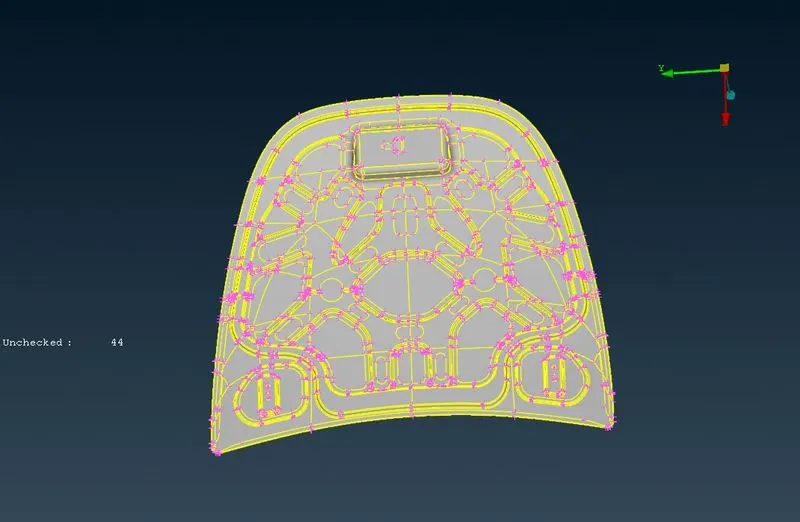
Now,these are the components we have to work on
1.Hinge
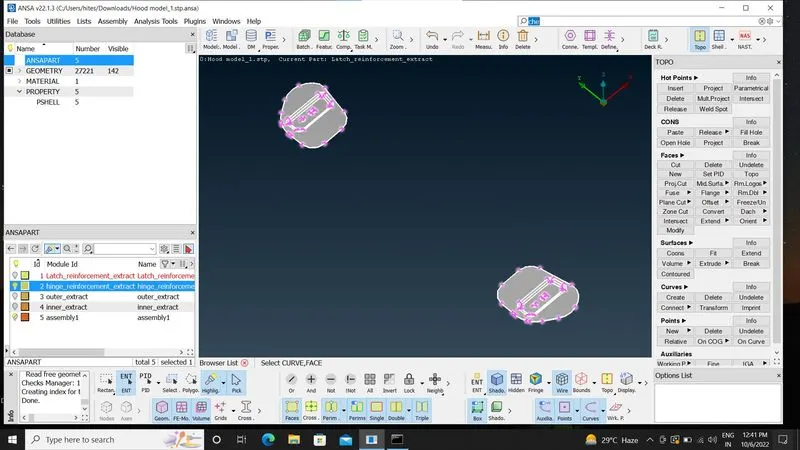
Now,check for any geometrical errors by going to Tools-checks-geometry Or search check on search box
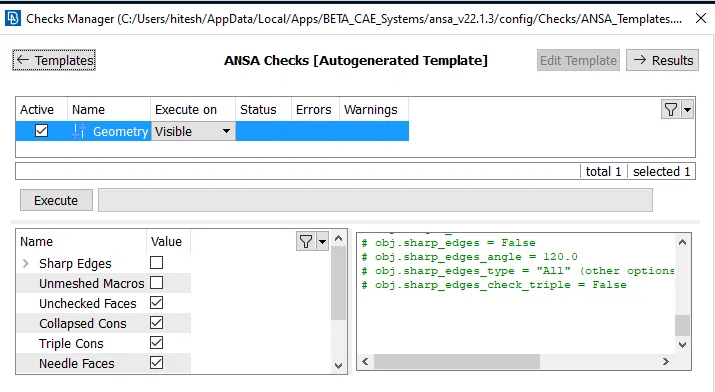
now,click on execute and if there are any errors just right click on them and click on fix.
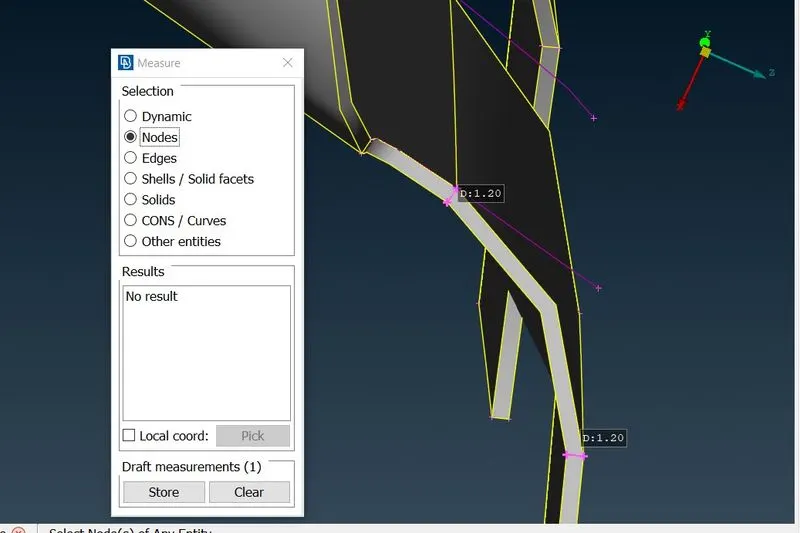
Now,check the thickness by going to Utilities-measure-Nodes
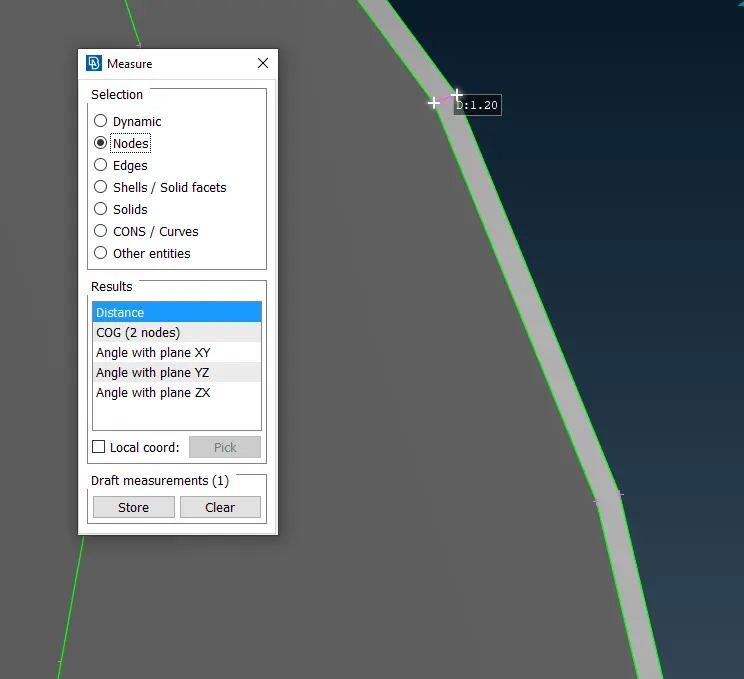
Now,Extract the Midsurface by using Offset (in Faces column)
I gave the value -0.6 because its thickness is 1.20 and used minus sign for direction.
Also on right bottom corner option there is a option property set it to auto create (by using this option it will create the mid-surface in different property ).
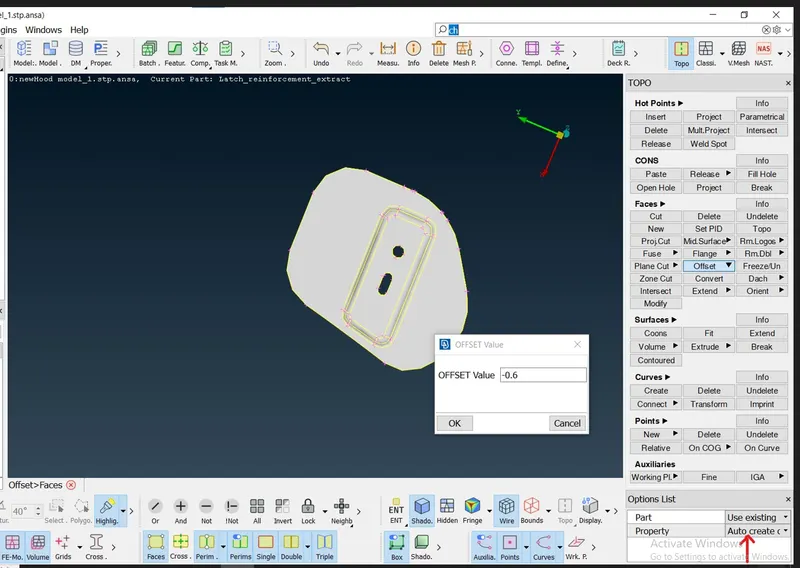
After Extracting the Mid-surface
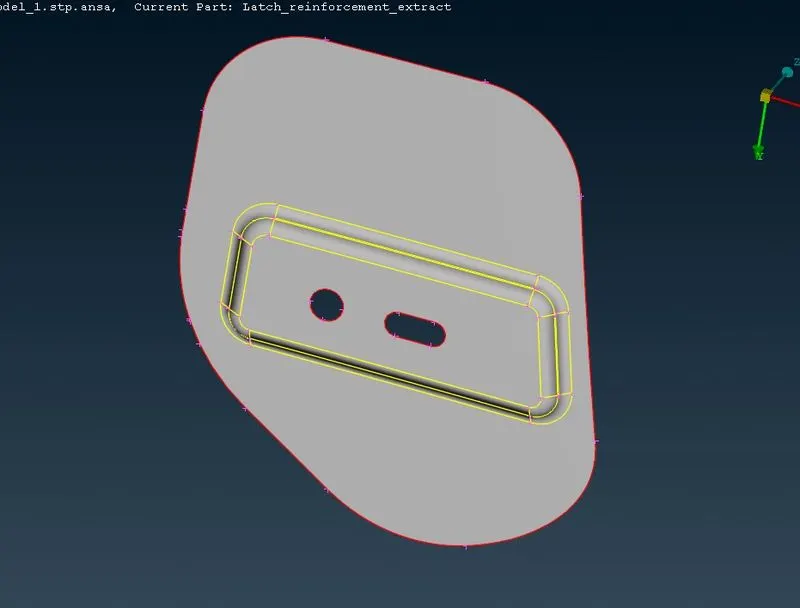
Now,Move on to MESH
Before moving to Mesh we have to Follow some steps.
Step1. Give the Quality Criteria and Mesh parameter.
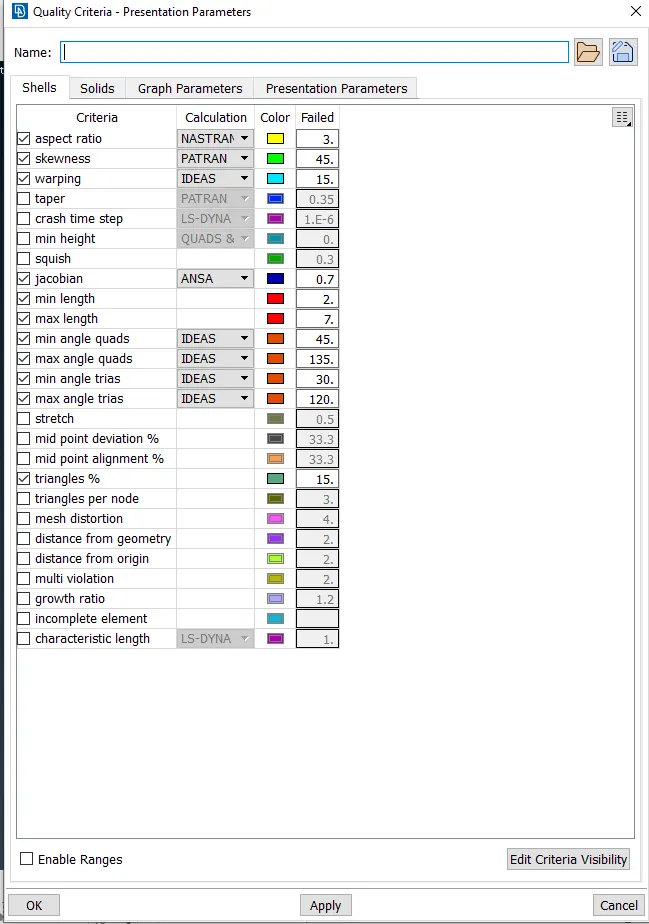
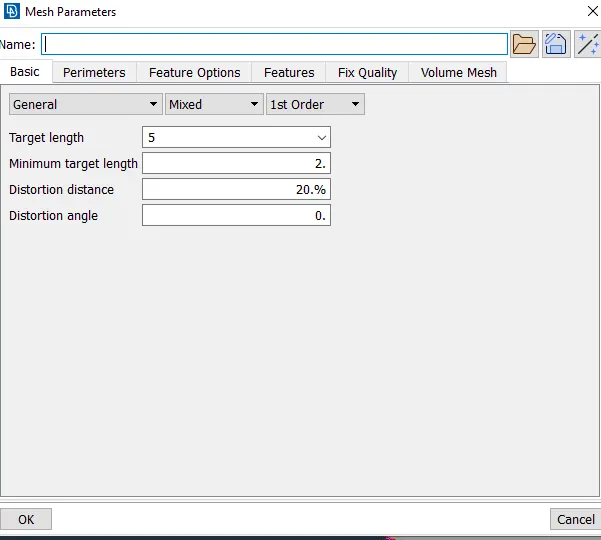
Step2. Give Perimeter size for the component by selecting Length in perimeter and select the component and give perimeter 5(according to element size)
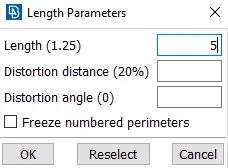
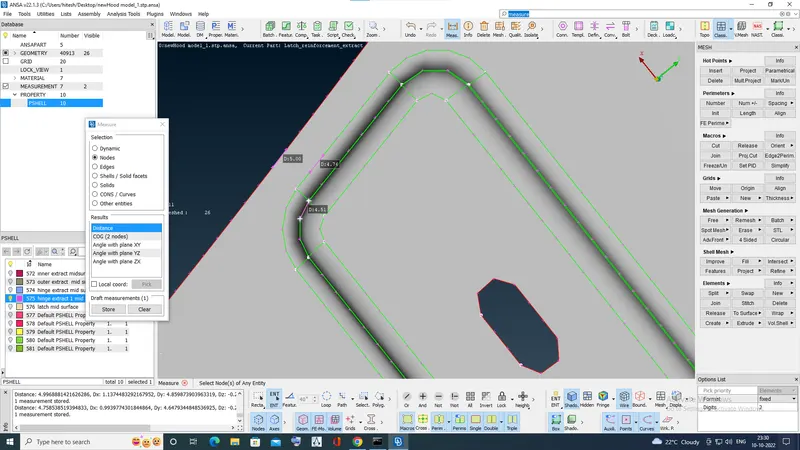
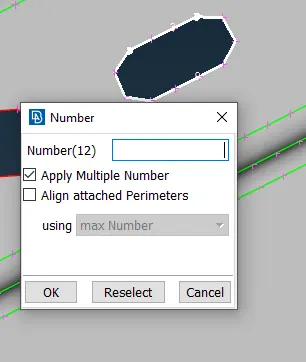
step3.the holes should have even no of edges by number-select- click on middle-mouse button
Step4. Now to Generate mesh go to Mesh Generation-Best-click on middle-mouse button
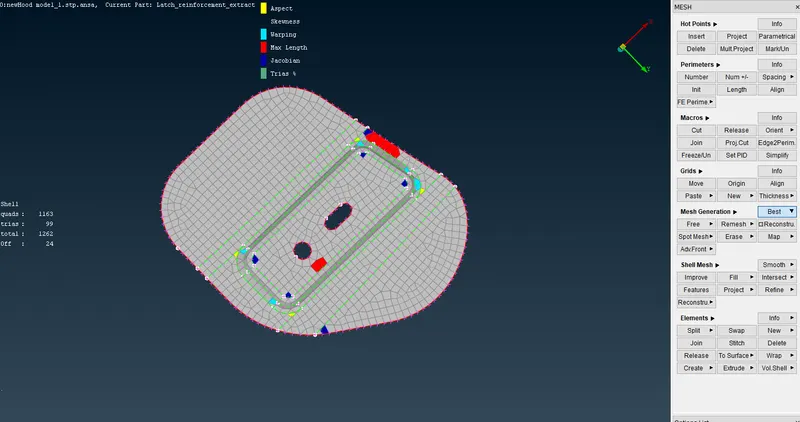
done the mesh using best option and now to clear these errors by following option
Reconstruct in Shell Mesh
Smooth in Shell Mesh
Used Split,swap option in Elements to remove trias.
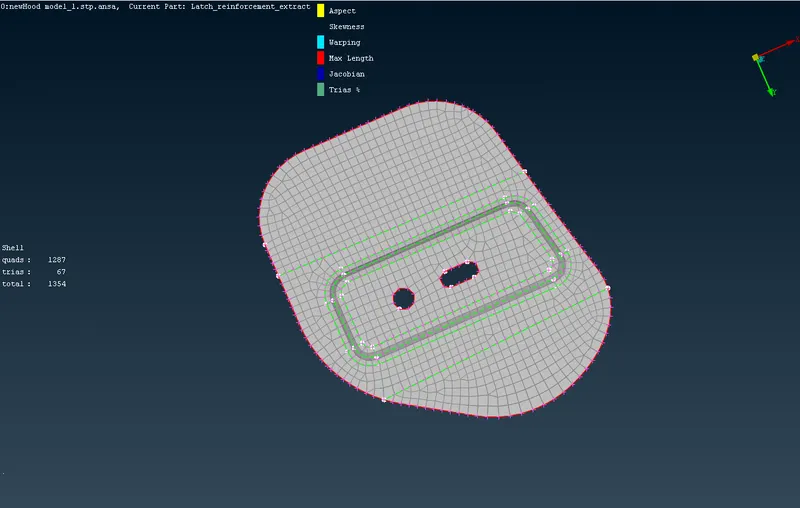
Now, I used Transform Option to mesh other hinge by searching Transform-Copy
then select entity
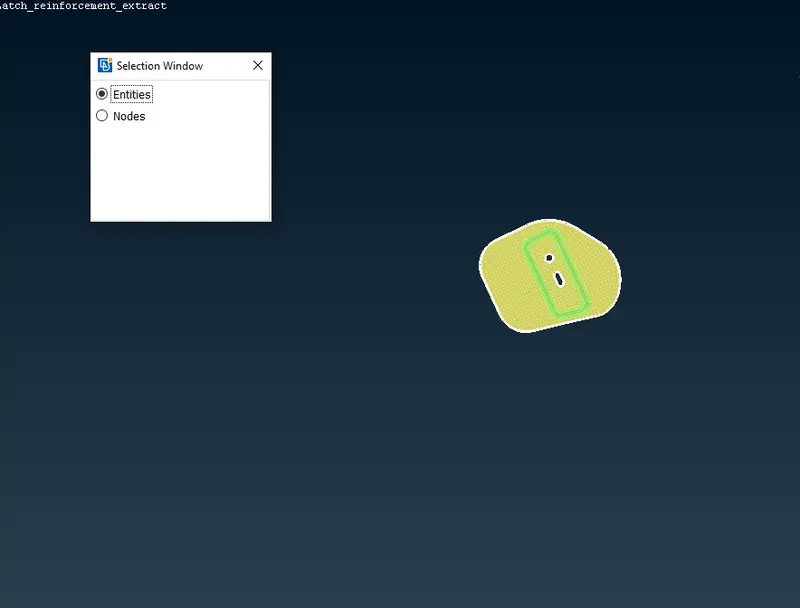
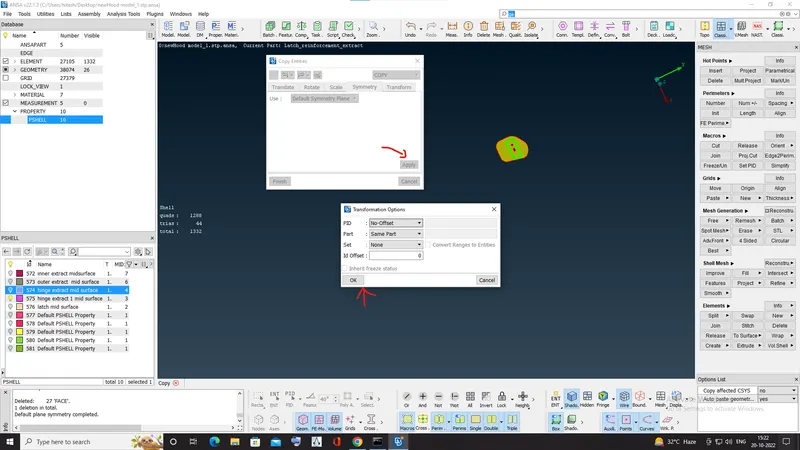
Now select the Symmetry -default symmetry -Apply-then ok
Transform Done
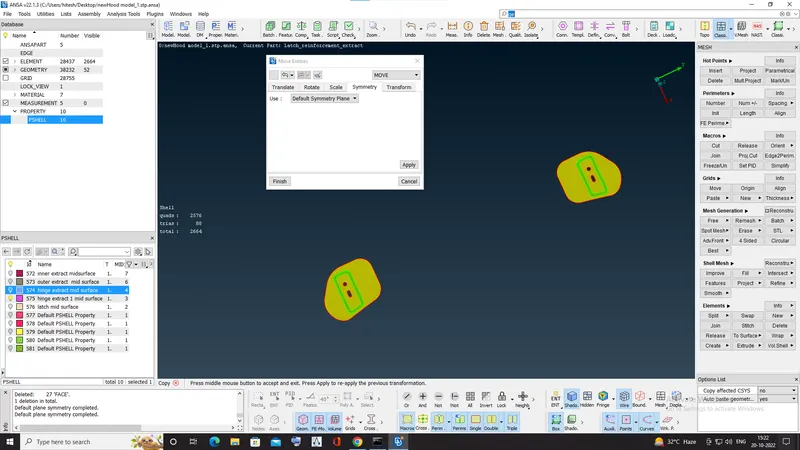
Mesh is Completed for Hinge.
2.Inner extract
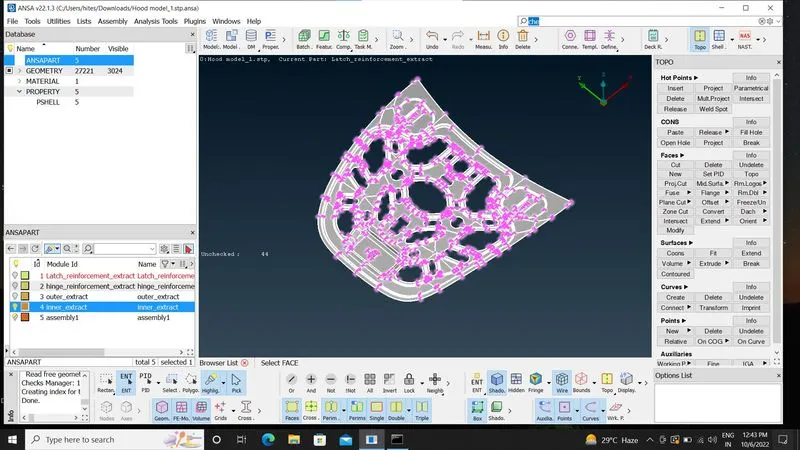
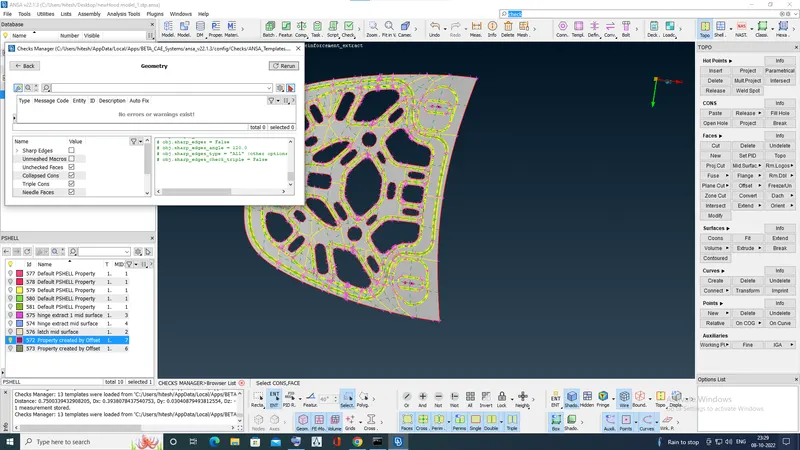
Now,check for any geometrical errors by going to Tools-checks-geometry Or search check on search box
now,click on execute and if there are any errors just right click on them and click on fix.
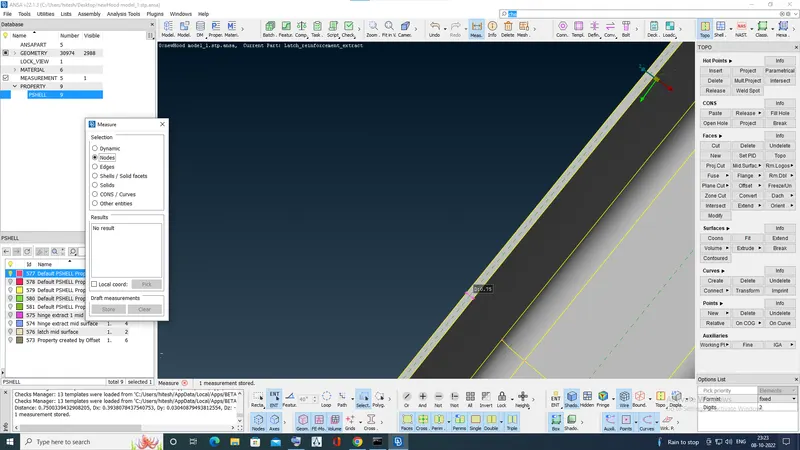
Now,check the thickness by going to Utilities-measure-Nodes
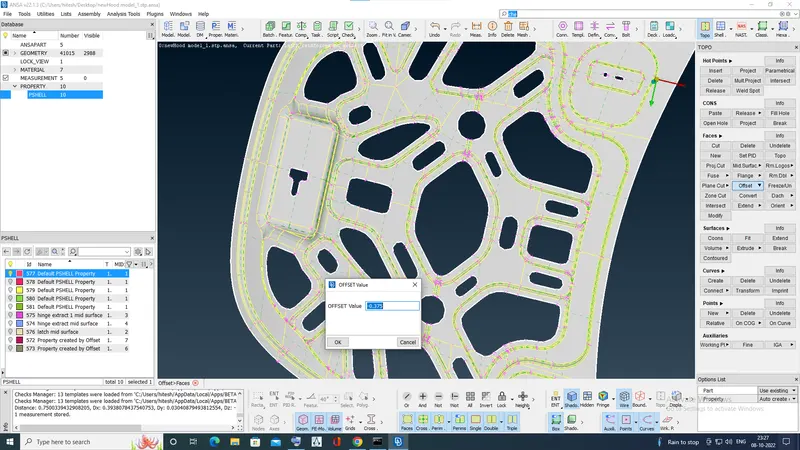
Now,Extract the Midsurface by using Offset (in Faces column)
I gave the value -0.375 because its thickness is 0.75 and used minus sign for direction.
Also on right bottom corner option there is a option property set it to auto create (by using this option it will create the mid-surface in different property ).
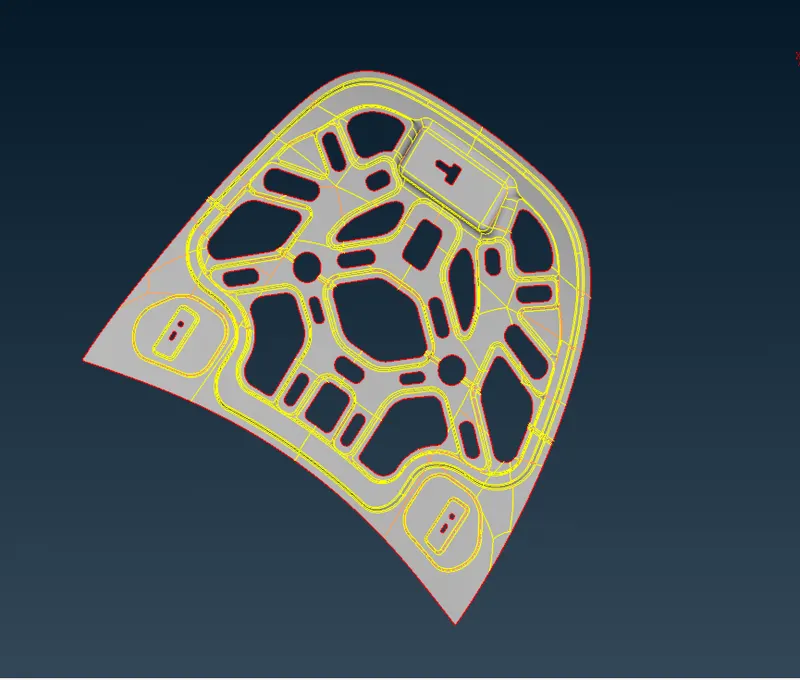
Midsurface is Extracted.
Now,Move on to MESH
Before moving to Mesh we have to Follow some steps.
Step1. Give the Quality Criteria and Mesh parameter.
Step2. Give Perimeter size for the component by selecting Length in perimeter and select the component and give perimeter 5(according to element size)
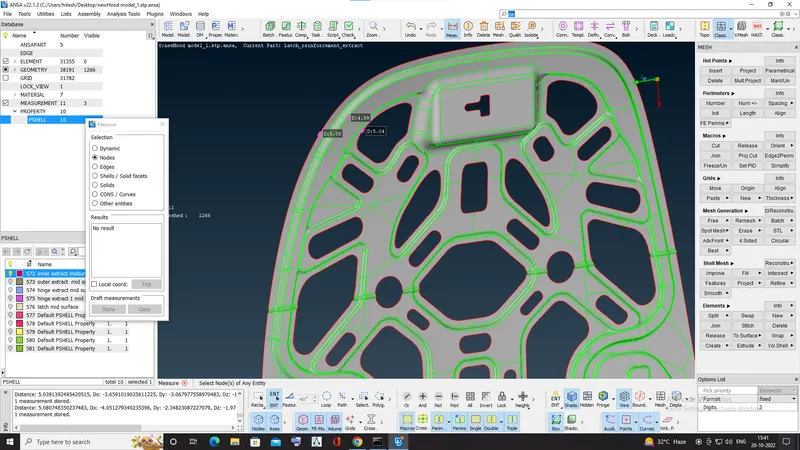
step3.the holes should have even no of edges by number-select- click on middle-mouse button
Step4. Now to Generate mesh go to Mesh Generation-Best-click on middle-mouse button
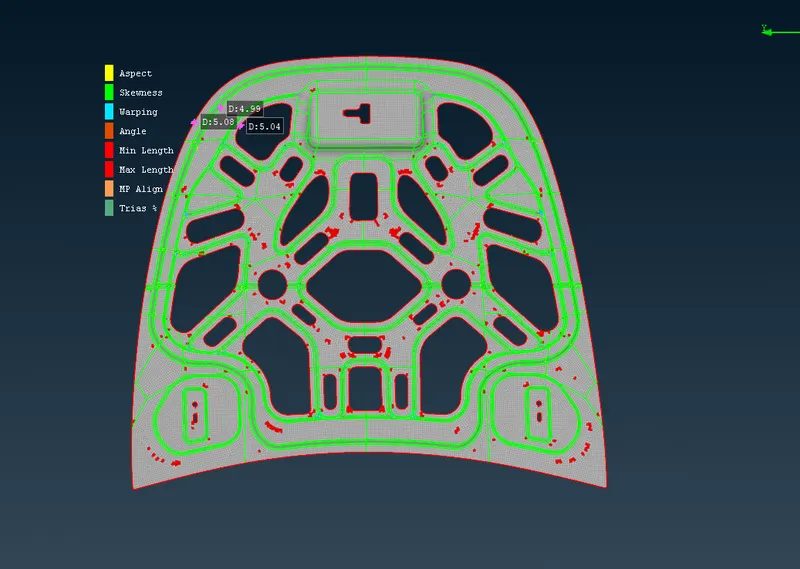
done the mesh using best option and now to clear these errors by following option
Reconstruct in Shell Mesh
Smooth in Shell Mesh
Used Split,swap option in Elements to remove trias.
delete irrelevent lines
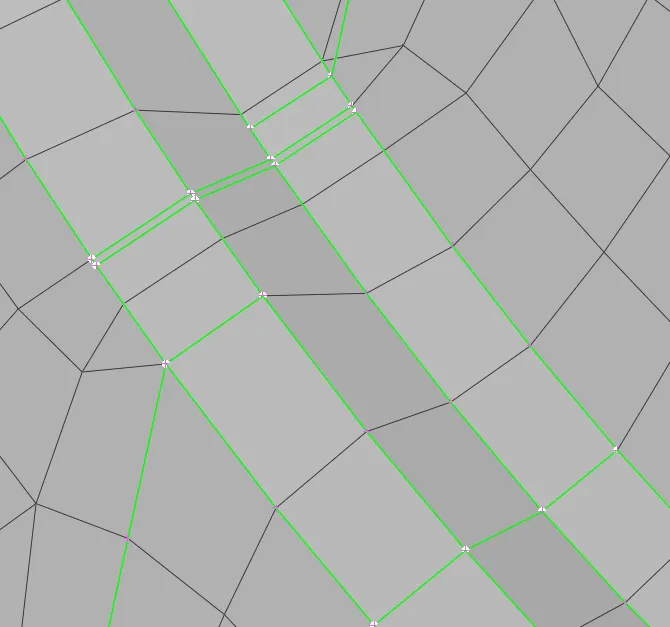
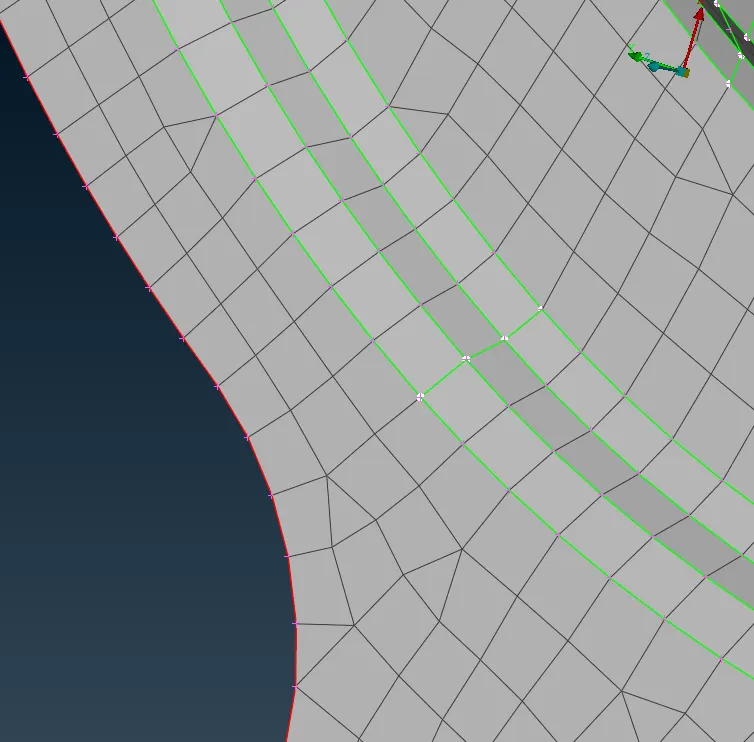
Before After
Used Paste Option and Smooth
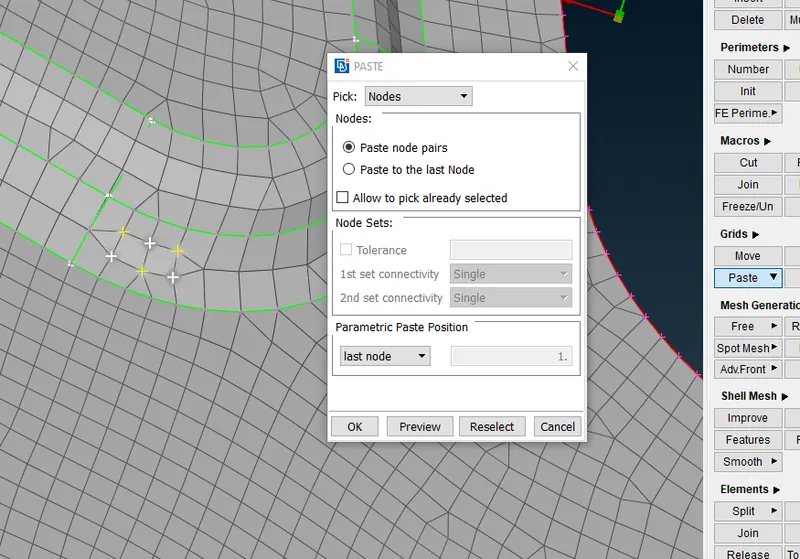
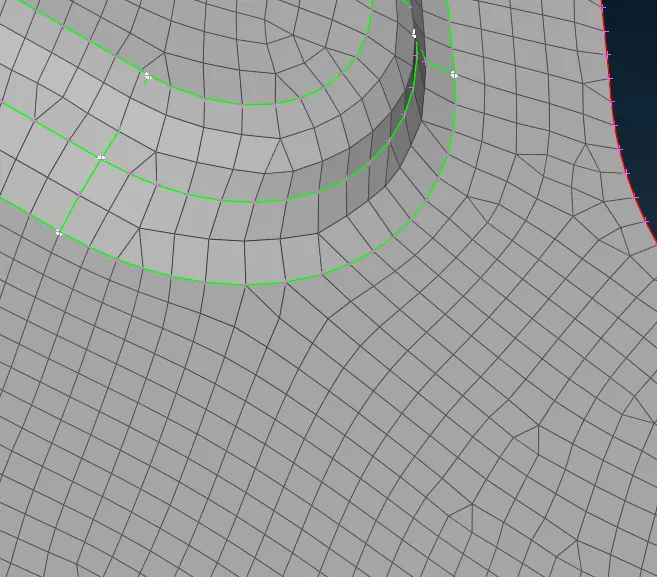
before After
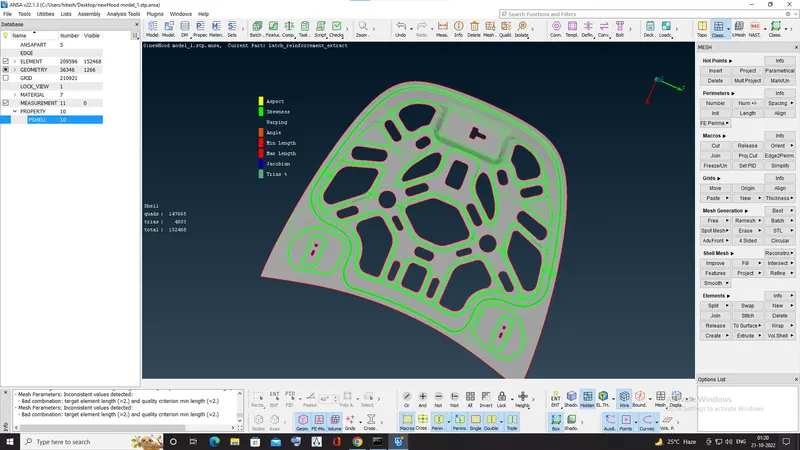
Mesh is Done.
3.latch extract
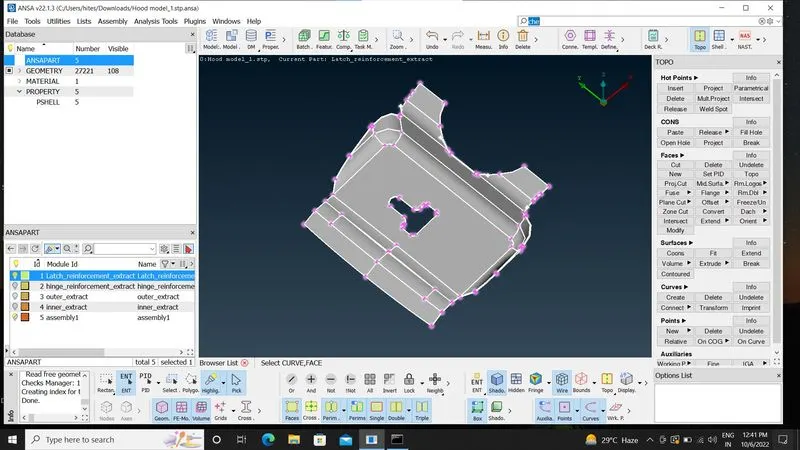
Now,check for any geometrical errors by going to Tools-checks-geometry Or search check on search box
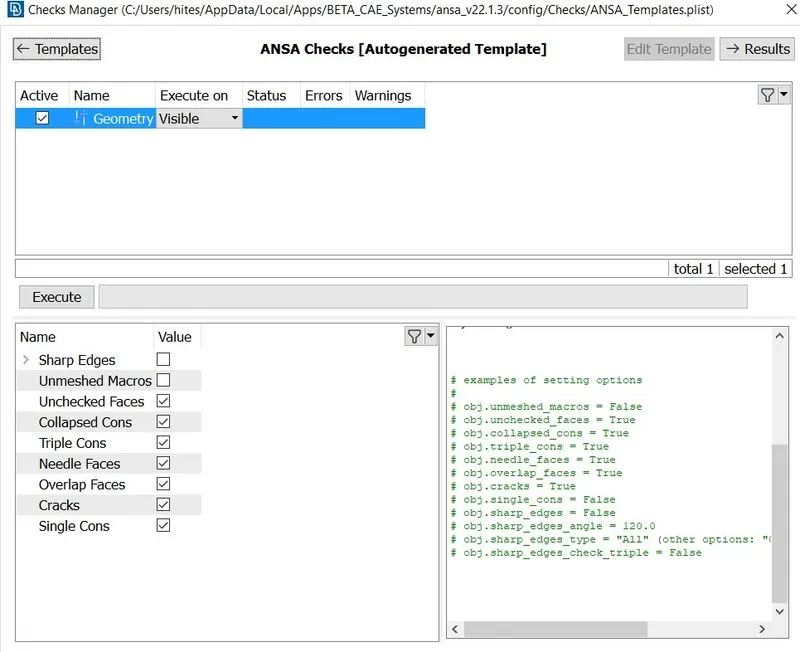
now,click on execute and if there are any errors just right click on them and click on fix.
Now,check the thickness by going to Utilities-measure-Nodes
Now,Extract the Midsurface by using Offset (in Faces column)
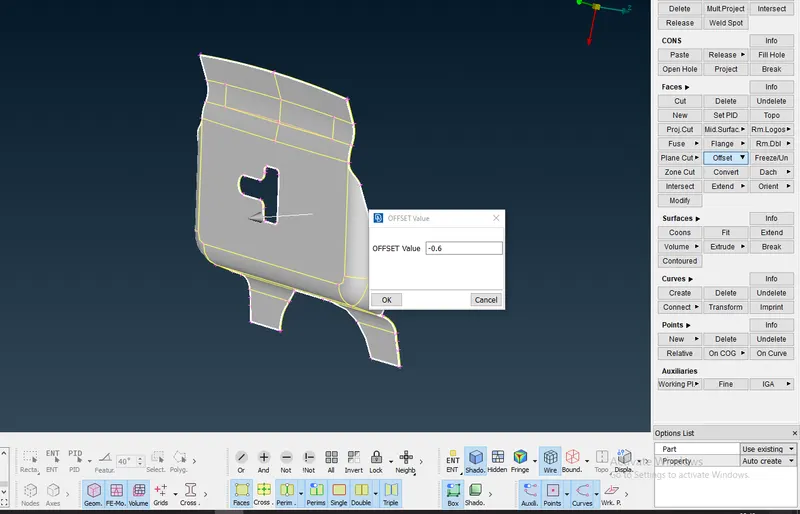
I gave the value -0.6 because its thickness is 1.20 and used minus sign for direction.
Also on right bottom corner option there is a option property set it to auto create (by using this option it will create the mid-surface in different property ).
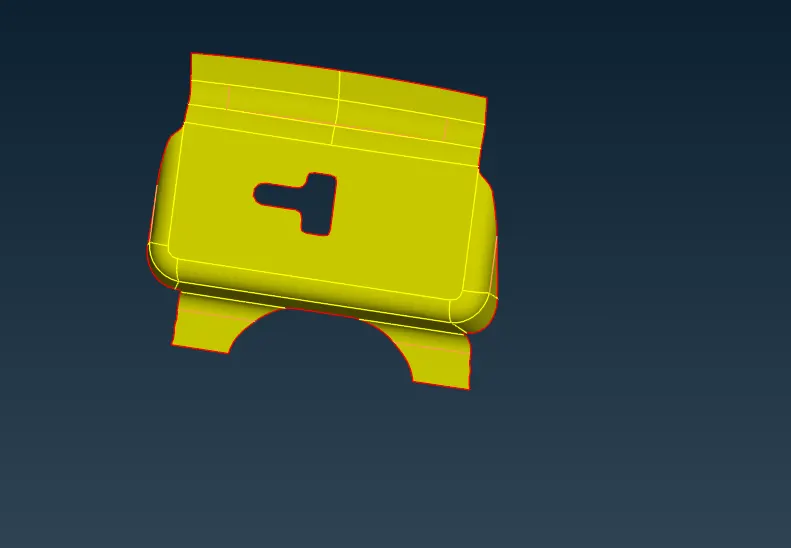
Mid-surface is done
Now,Move on to MESH
Before moving to Mesh we have to Follow some steps.
Step1. Give the Quality Criteria and Mesh parameter.
Step2. Give Perimeter size for the component by selecting Length in perimeter and select the component and give perimeter 5(according to element size)
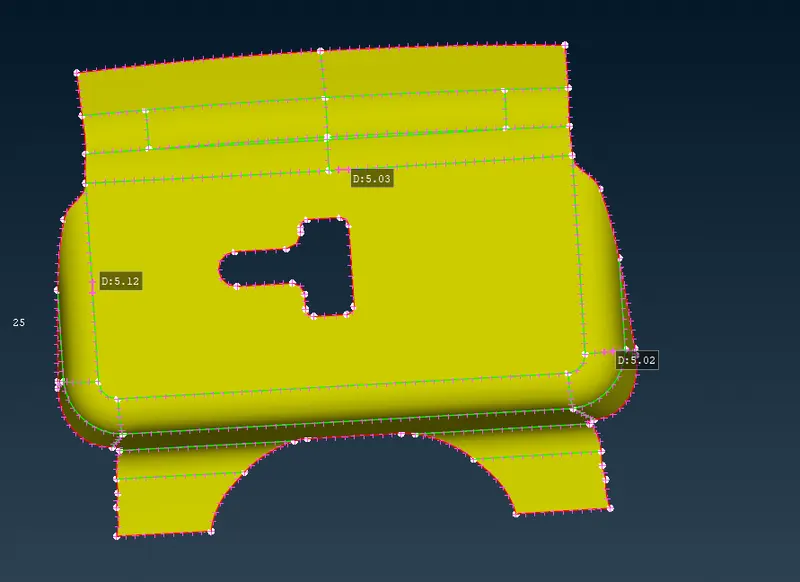
step3.the holes should have even no of edges by number-select- click on middle-mouse button
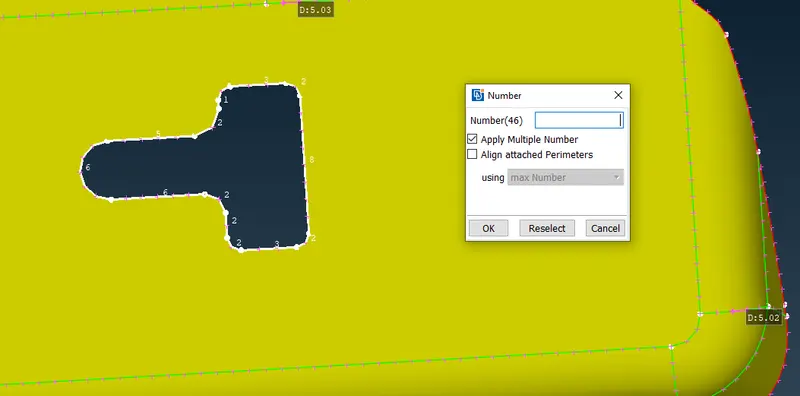
Step4. Now to Generate mesh go to Mesh Generation-Best-click on middle-mouse button
Use below option to improve the Mesh.
Reconstruct in Shell Mesh
Smooth in Shell Mesh
Used Split,swap option in Elements to remove trias.
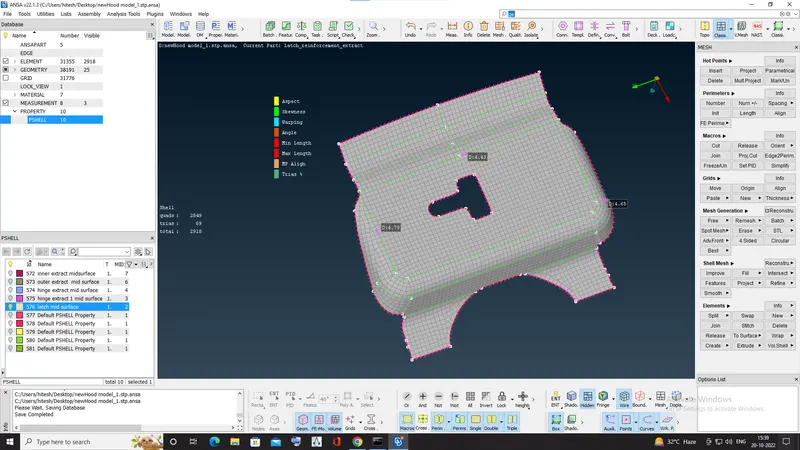
Mesh is Done
4.outer extract
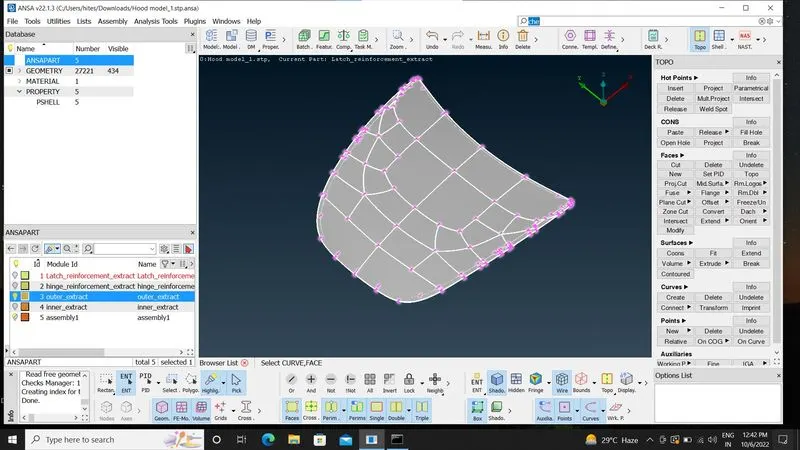
Now,check for any geometrical errors by going to Tools-checks-geometry Or search check on search box
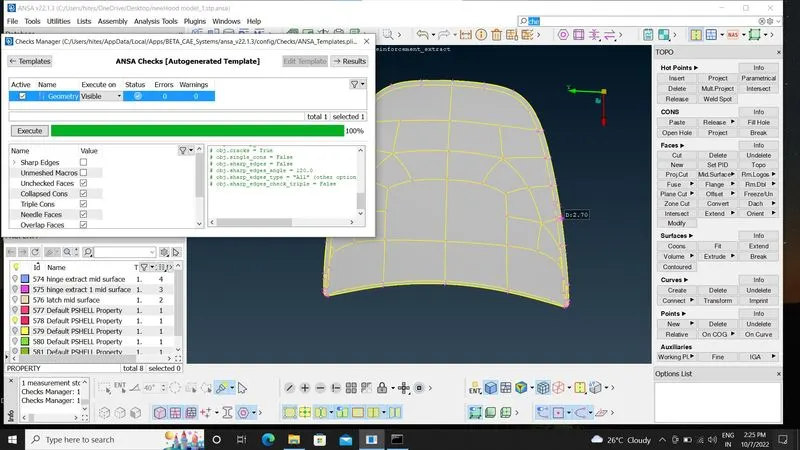
now,click on execute and if there are any errors just right click on them and click on fix.
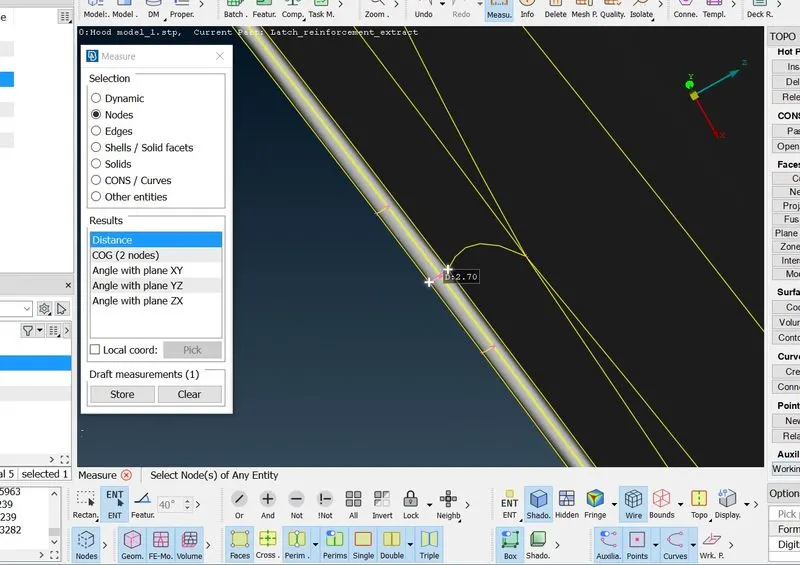
Now,check the thickness by going to Utilities-measure-Nodes
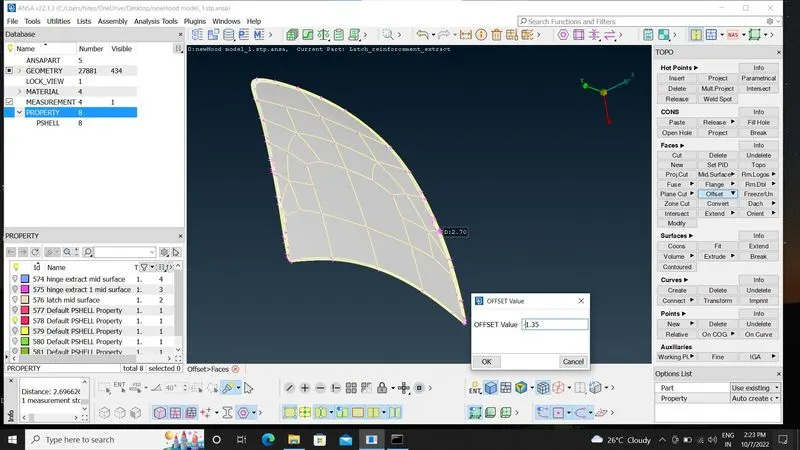
Now,Extract the Midsurface by using Offset (in Faces column)
I gave the value -1.35 because its thickness is 2.7 and used minus sign for direction.
Also on right bottom corner option there is a option property set it to auto create (by using this option it will create the mid-surface in different property ).
Now,Move on to MESH
Before moving to Mesh we have to Follow some steps.
Step1. Give the Quality Criteria and Mesh parameter.
Step2. Give Perimeter size for the component by selecting Length in perimeter and select the component and give perimeter 5(according to element size)
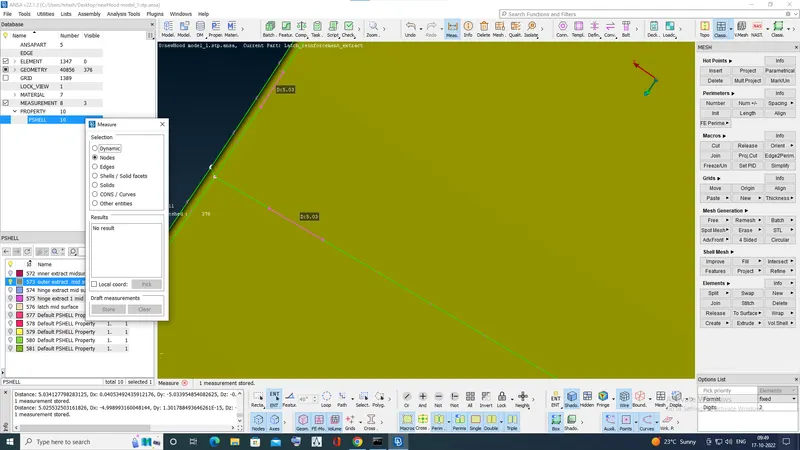
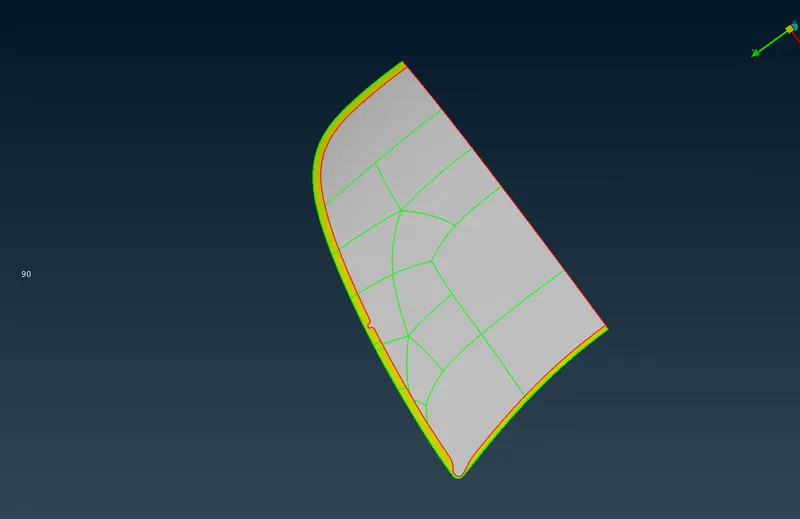
Now,Since It is Symmetrical delete the half
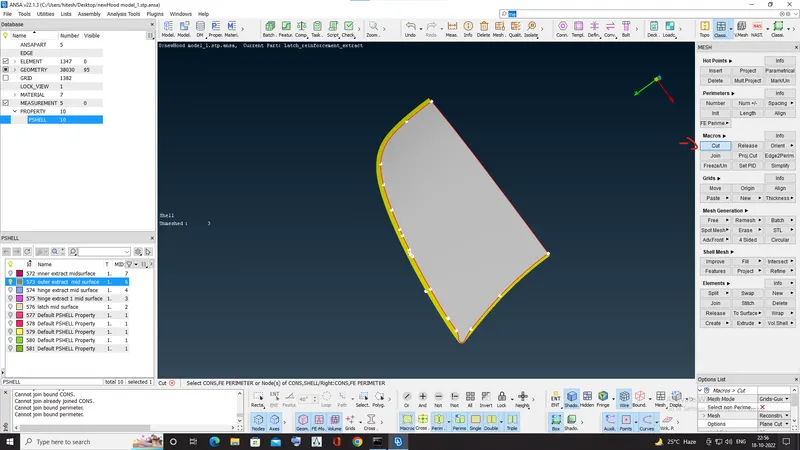
Use cut option to remove all cons
Step3. Now to Generate mesh go to Mesh Generation-Best-click on middle-mouse button
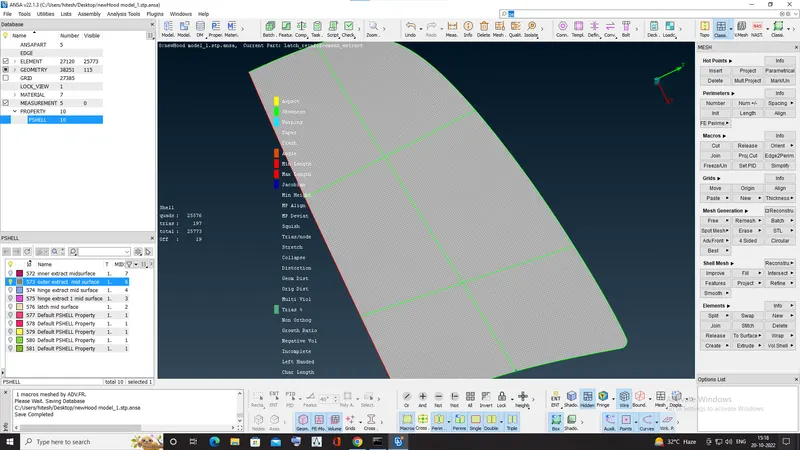
done the mesh using best option and now to clear these errors by following option
Reconstruct in Shell Mesh
Smooth in Shell Mesh
Used Split,swap option in Elements to remove trias.
then Use Transform option to reflect the other half part by searching transform -copy
select entity and then select the Symmetry -default symmetry -Apply-then ok
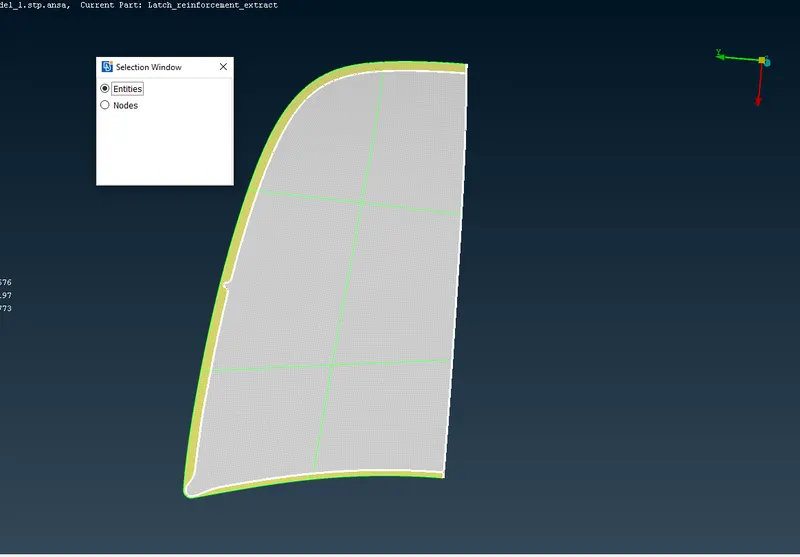
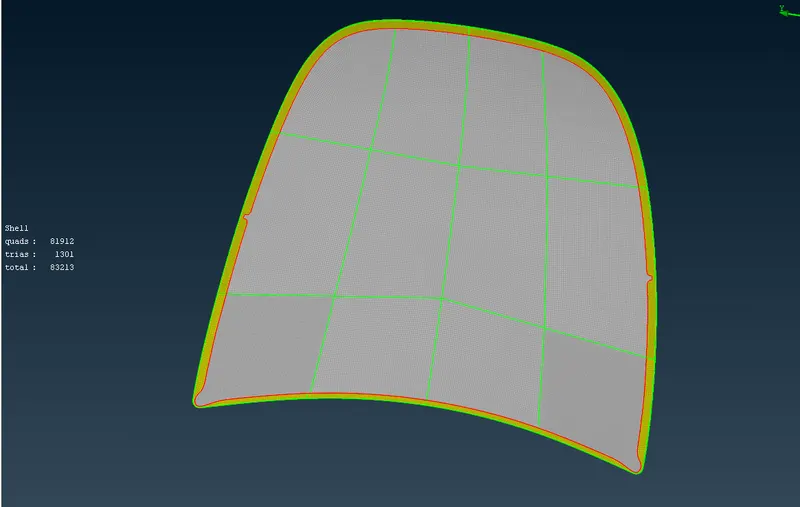
Mesh And transform is Done.
CONCLUSION
1.Mid-surface is Done.
2.Meshing is Done.