Week 2- 2R Robotic Arm Challenge
Week 2- 2R Robotic Arm Challenge
AIM:
To write a program in MATLAB to simulate the forward kinematics of a 2R Robotic Arm and Create an animation file of the plot.
BODY:
The program is written in MATLAB R2022a.
The code is as follows:
% Program to show forward kinmatics of a robotic arm and make a video
clear
close
clc

% Intialisations
l1=1;
l2=0.5;

thetha1=0:10:180;
thetha2=0:10:180;

%counter variable for video file
f=1;

%Nested For loop for computing the forward kinematics and ploting it
for i=1:length(thetha1)
   x1=l1*cosd(thetha1(i));
   y1=l1*sind(thetha1(i));
    for j=1:length(thetha2)
        x2= x1+l2*cosd(thetha2(j));
        y2= y1+l2*sind(thetha2(j));

        %Ploting the motion of robotic arm
        plot([0 x1],[0 y1],'LineWidth',2, 'Color','r');
        hold on
        plot([x1 x2],[y1 y2],'LineWidth',2, 'Color','g');
        axis([-1.5 1.5 0 3]);

        %capturing every frame and storing it in an array
        M_array(f)= getframe(gcf);
        f=f+1;

        hold off
    end
end
%creating an empty video file
videofile=VideoWriter('Robotic arm.avi','Uncompressed AVI');

%writing the the captures frames on this video file
open(videofile);
writeVideo(videofile,M_array);
close(videofile);
%end of code
After giving the command of clear, close, clc we begin to implement our logical programming.
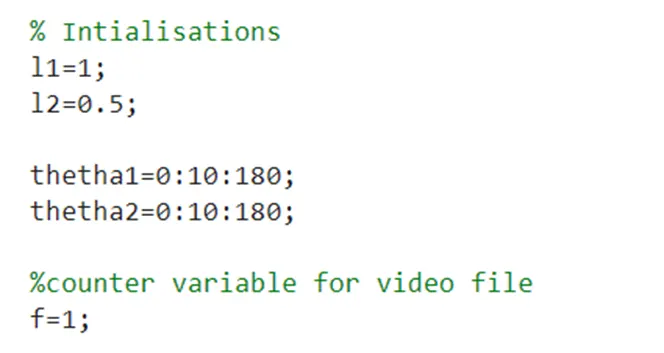
We first start by initialising the required variables i.e. the length of both the arms l1 and l2. Then we make 2 1-d arrays thetha1 and thetha2 to store values of angles from 0-180 degrees with a step of 10 degrees. We also initialise a counter variable f that will be used later in the program.
After initialisations we start a for loop which runs while value of i runs from 1 to length of array thetha1 i.e 18. We then calculate the values of end effectors x1 and y1 using l1 and the joint parameter from thetha1.

Now keeping the position of link 1 fixed we will rotate link 2 from 0 to 180 degrees. Hence, we start a nested for loop for link 2 end effectors.
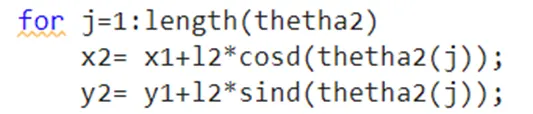
After getting both the end effector we plot both the links by using the coordinates of their end points.
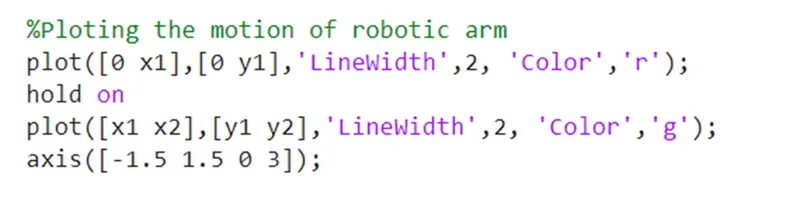
Here first command of plot() is used for link 1. First, we give the end x coordinates as parameters that are 0 and x1 then similarly for y, 0 and y1. Then we define the width and colour(red) of the link 1. Now as we are going to use a separate plot() command for link 2 we first need to use command hold on to keep the link 1 also in the same plot as link2. Now like we did for link1 we will give parameter to plot command ( [x1 x2], [y1 y2]) along with the line width and colour (green) for link 2.
Now as the plot is formed by random axis limits we define it ourselves so that we get a understandable video. We do this by using axis() in which we put the end start and end values of the x and y axis as we want them to be in our plot. Following is a image of plot without using axis().
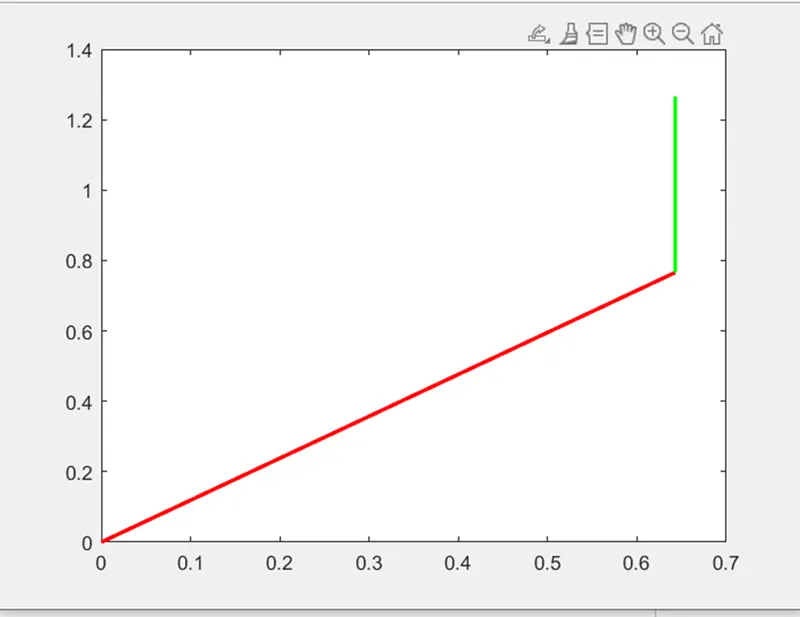
While using axis function we also need to take care that we give equal range of value to both axis other wise it creates an illusion of length of the plot. This happened with me when I gave the parameters as axis([-1.5 1.5 0 1.5].
Our plot is ready with both the links plotted. But now we need to code further to make a video file out of it. For which we capture the frame (using getframe() and gcf) and store it in a array M_array. The counter variable (f) that we initialised in the beginning will be useful here to control the index of M_array, it is incremented every time a frame is stored in M_array.
‘gcf’- it refers the current figure to the MATLAB.
getframe()- it takes in the input from gcf and captures that frame. This frame is stored in M_array.

Now as a video is a collection of frames played continuously we will make a video out of the M_array. But before exiting the for loop we need to use ‘hold off’ so that the captured plot is prevented from being retained in the next loop where a new position will be plotted. Hence we use hold off and end both the for loops

Creating a video file:
Now with a set of commands we will convert our array of captured frames in to a video file.
First, we define a video file by giving it a name (‘robotic arm.avi’). Note that this file is empty.

After creation of file we open this file, write the file with the array of captured frames and close the file. The file then gets saved in the same folder as the program (after running the program).

Every time the program is run the same video file is over written and no new file is made.
Video animation of the 2R robotic arm:
https://drive.google.com/file/d/1bbob1Ow-12dsJL7A7JqlYa7PCXVhiRzF/view?usp=sharing
Conclusion:
This program helped us to understand the concept of forward kinematics and also integrate the use of MATLAB in implementing the concept. The concept can be extended further to increase the no of links and also by allowing movement in the third axis.
The movement can be controlled by various set of if….else commands to make the arm do the desired motion.
This program really helped to understand the use of plot() alomg with other commands and generate a video file.