Week 12:Project 2-Meshing of Rear Wheel Holder challenge
Aim :- To extract thhe midsurface from given geometry and mesh the given model with better mesh flow within given quality criteria values.
Procedure :-
- Innitially we have to imoprt the given .IGS file to the hypermesh GUI from the import geometry deck.
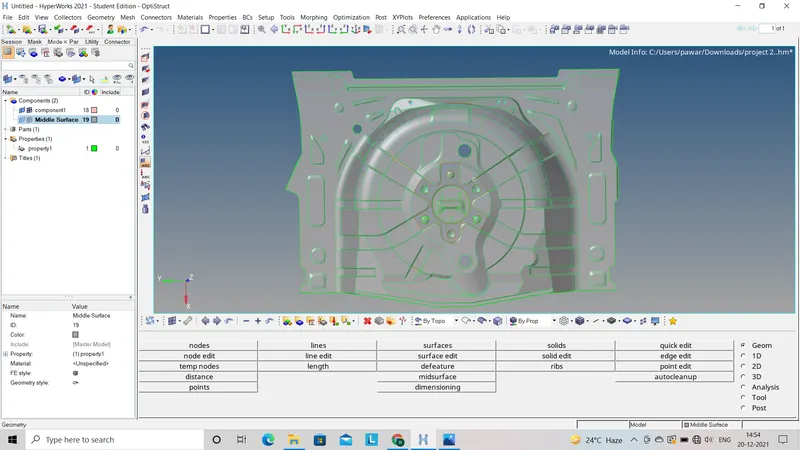
- After importing the file first step we have to do is observe the given model in wire frame mode.
- As in some regions their is breake or damage in given geometry so we have to clean the given geometry by creating surface where it is absent also use toggle edge as (Geometry - Quick edit - Toggle edge - Select the lines).
- After clean up the whole given geometry we will go for auto midsurface by using offset method by using (Geometry - Midsurface - Select extraction method (offset) - Select the surface (displayed) - Create).
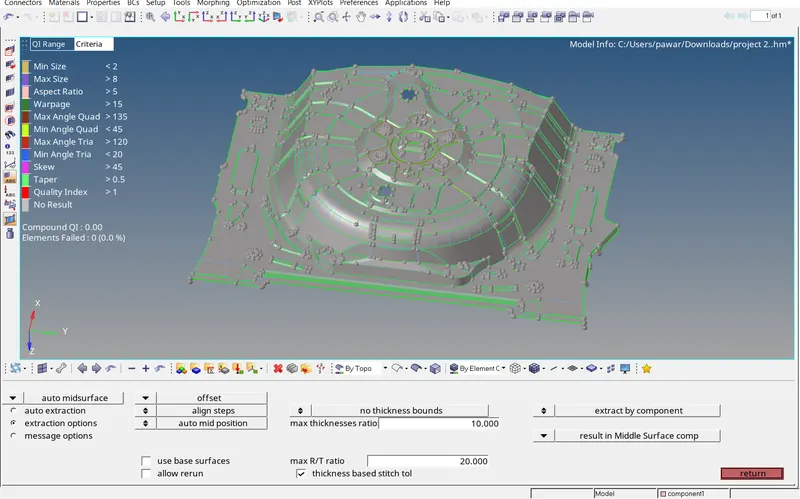
- After creating the auto midsurface we will observe given midsurface geometry throughout and will go for meshing further.
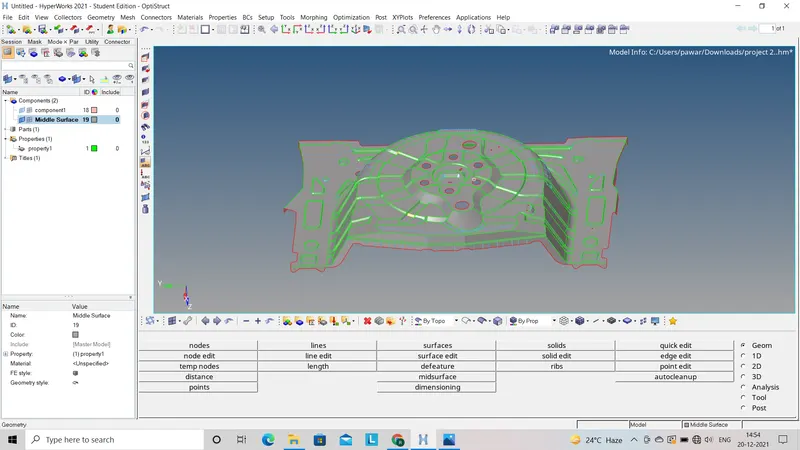
- Before going for meshing we have to assign quality criteria by using (Preference - Criteria file - Select the quality values - Assign).
- Now we will go for meshing to the whole geometry step by step by using (2D - Auto mesh - select the mesh type - Select the mesh size - Select the surface - Create).
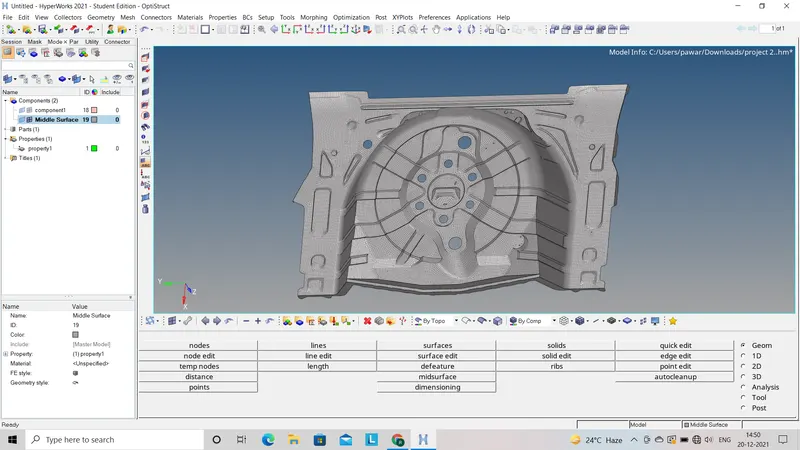
- In this way we have created mesh of whole geometry step by step, Now we will observe given model in By element quality mode so we will see failed elements.
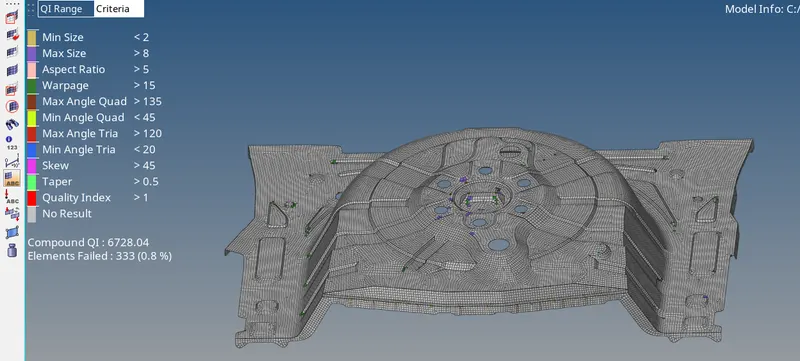
- Now we have to remove all the failed elements by using different clean up tools like element optimization, Drag tria, Split the edges by using (2D - Quality index - Clean up tools).
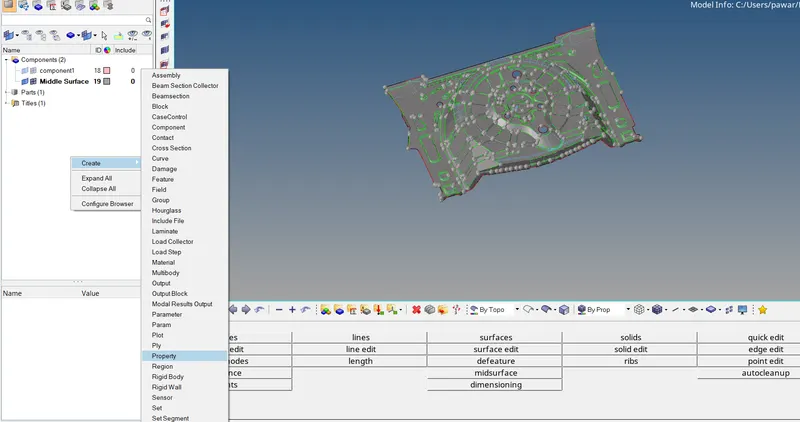
- In this way we clear all failed elements with proper mesh flow and assign the thickness to whole geometry as given model is of uniform thickness.
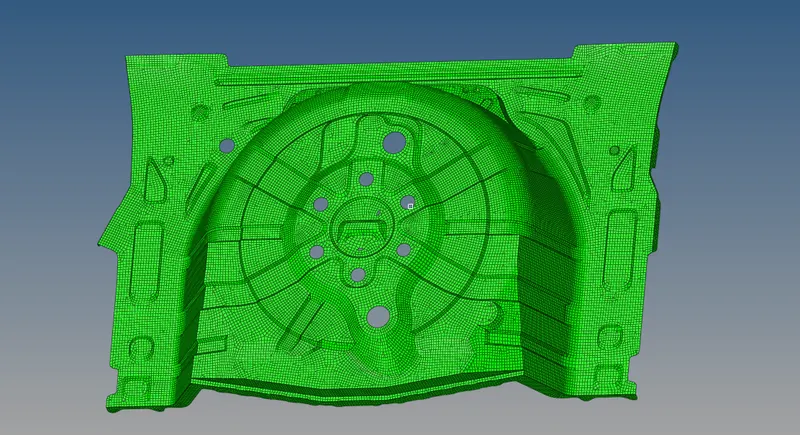
Final model
Conclusion :-
In this challenge i have learn about how to clean the geometry along with auto midsurface (offset) method and mesh the given model with proper mesh flow within given quality criteria. Also to assign thickness to the geometry.