Week 12 - Project-1
Project-1
2D Meshing for a given Plastic component
Aim:
To generate a Mesh for the given plastic component, maintaining a good mesh flow as per the given quality criteria.
Abstract:
The given plastic model is an inner side door panel of a car, which has many features to be captured while mid surfacing individually and is to be connected to the main component. The mesh should be generated from the complicated regions so that the mesh flow can be corrected easily at the beginning. Thickness is to be assigned for each component after generating the mesh for the component so that to resemble the original component after meshing.
Methodology:
The following methodology is to be followed for the Project:
- Check the component first before proceeding so that to have a plan for creating a mid surface.
- Generate mid surface for the components individually as per the thickness of the component and connect them into one component as per the original CAD model.
- Clean up the geometry before meshing so that to avoid failed elements while meshing.
- Generate mesh from the complicated regions through the remaining component so that a good mesh flow can be maintained throughout the component.
- Assign thickness for the components as per the original geometry after meshing process so that to resemble the original CAD model.
Introduction:
Door panels serve as an interface between the interior of the car and the inner workings of the door, and between vehicle occupants and the door. They are expected to meet a variety of design specifications regarding safety, aesthetics, and functionality. Also, they are expected to continue the material theme of the dashboard and pillars while concealing intricate electrical and mechanical components for operating locks, windows, and other features.
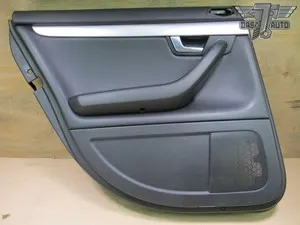
Fig 1: Side door panel in the real world
The side door panel given for the for this particular project is as shown below.
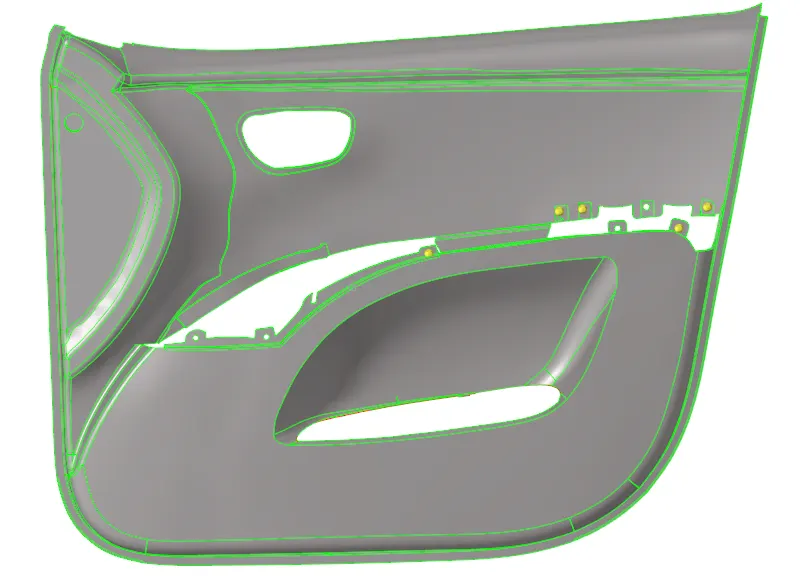
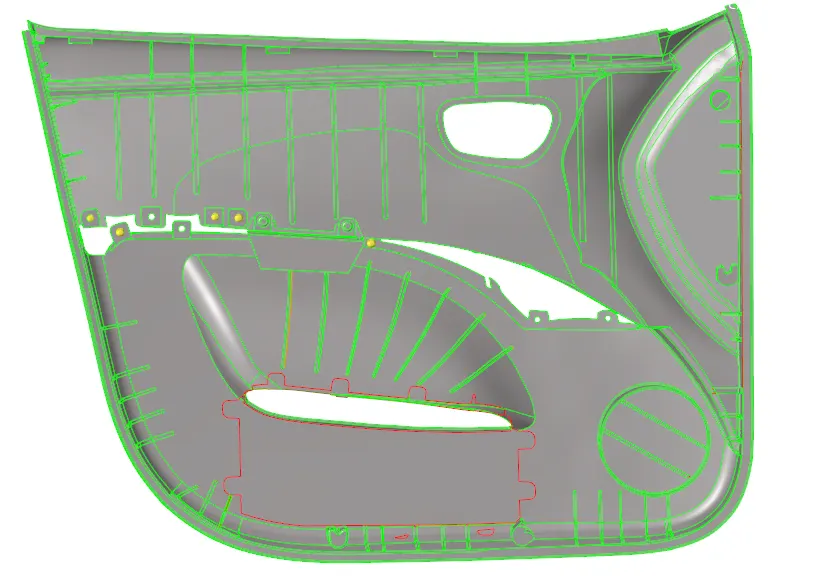
Fig 2: Outer view of the door panel Fig 3: Inner view of the door panel
Procedure:
- Check the design of the CAD model first, so that to have an idea for generating a mid surface for the component manually.
- Since the component is a plastic model, thickness will vary throughout the component. So each surface is to be mid surfaced manually using offset option in the surface edit menu. Each offset surface must be represented with a specific component card so that the thickness can be assigned individually.

Fig 4: offset control panel
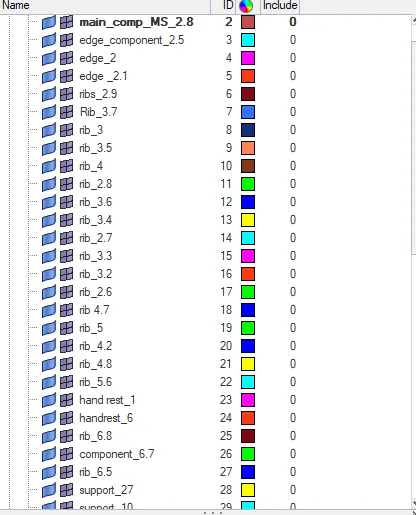
Fig 5: list of components created
The components are named as per their thickness at the end so that the properties can be assigned as per the thickness.
3. After creating the mid surfaces the components must be attached individually as per the original CAD model. In this case, the ribs are to be attached to the main door panel. This can be done by extending the rib surface to the door panel surface. Select the rib line which is to be extended and select the surface to target and extend the rib. If the surface is attached perpendicularly to another surface the connected line is represented in yellow colour i.e., a triple con.

Fig 6:surface extend control panel.

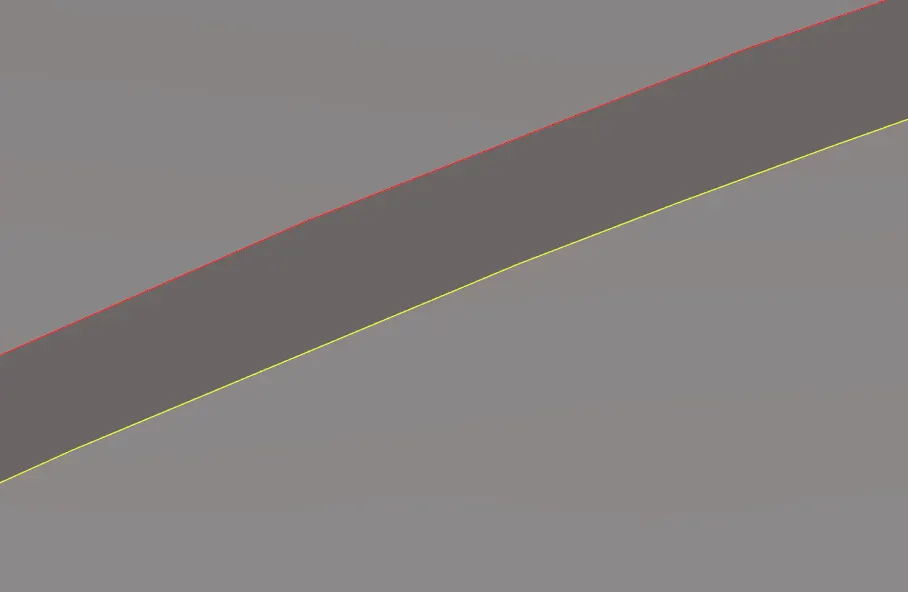
Fig 7: Surface to be extended Fig 8: attached surface by extending
Maintain the dimensions of the offset surface exactly as the parent geometry by extending the lengths and heights of the mid surfaces. The mid surfaced geometry will be as shown below.
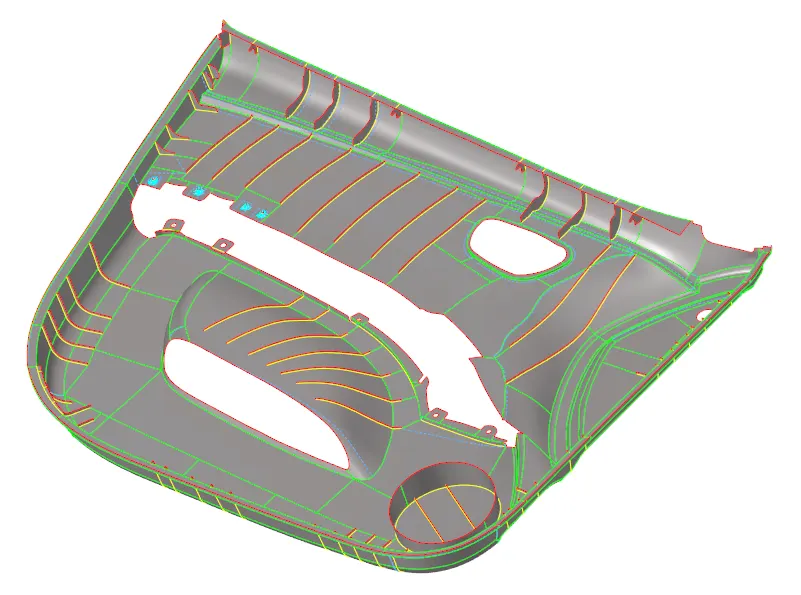
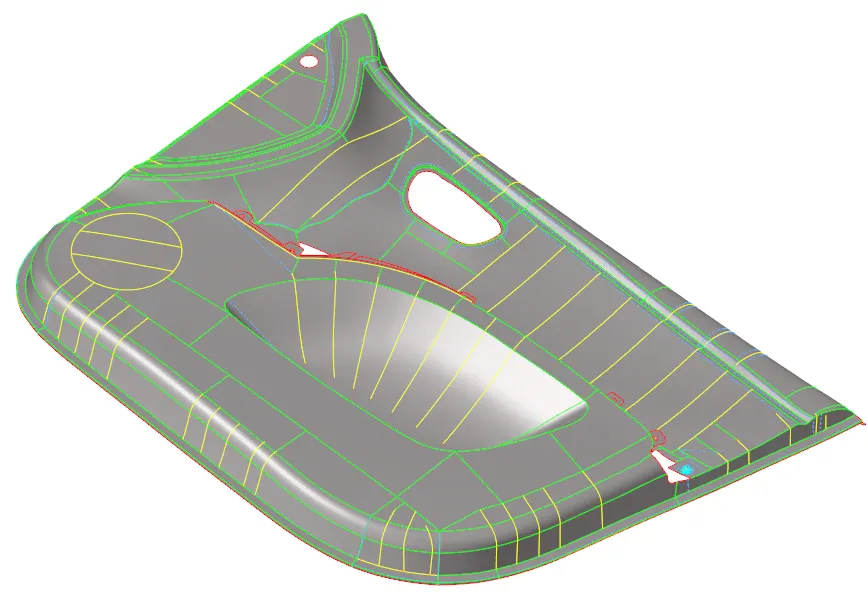
Fig 9: Mid surface inner view Fig 10: Mid surface outer view.
4. The mid surfaced component must be cleaned up for unnecessary lines, points and features which may be responsible for the failure of elements. They should be adjusted such that no failed elements may occur while meshing. Few elements wear defeatured will clean up process which is complicated to create mesh leaving unsolvable failed elements.
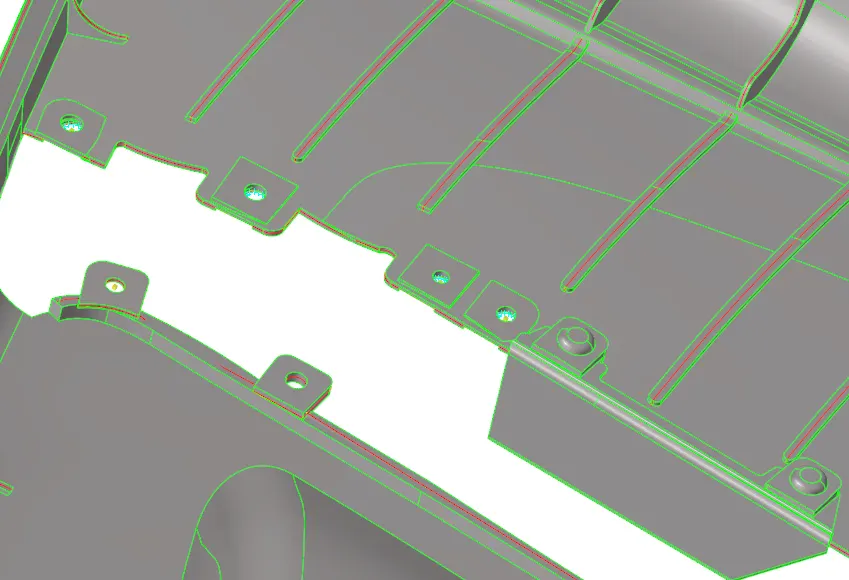
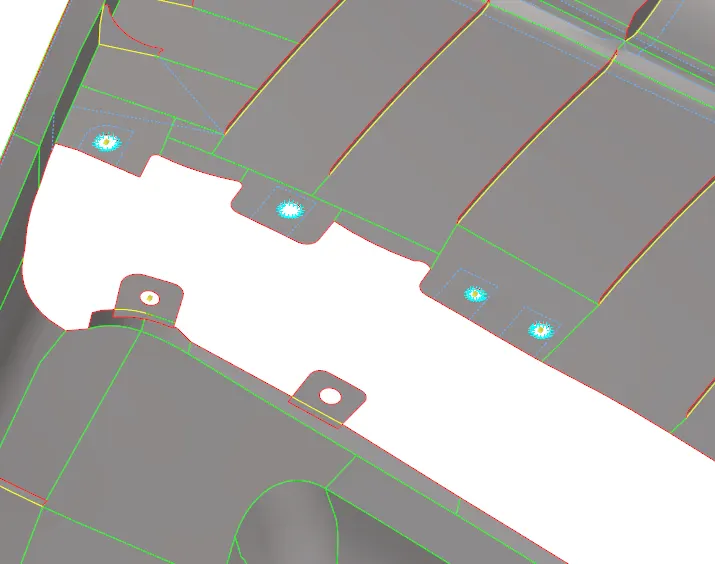
Fig 11: original geometry Fig 12: mid surfaced geometry after clean up
The mid surface has been created normally and the holes are created by projecting the lines of the circles from the original geometry to the mid surface. The surface is then trimmed and created holes per the original CAD model.
5. After the cleanup process, start meshing the geometry as per the quality criteria shown in table 1
| Aspect Ratio | 5 |
| Skewness | 45 |
| Warping | 15 |
| Taper | 0.5 |
| Minimum Length | 2 |
| Maximum Length | 6 |
| Minimum angle Quad | 45 |
| Maximum angle Quad | 135 |
| Minimum angle Tria | 20 |
| Maximum angle Tria | 120 |
| Tria % | 10 |
Table 1: Quality criteria
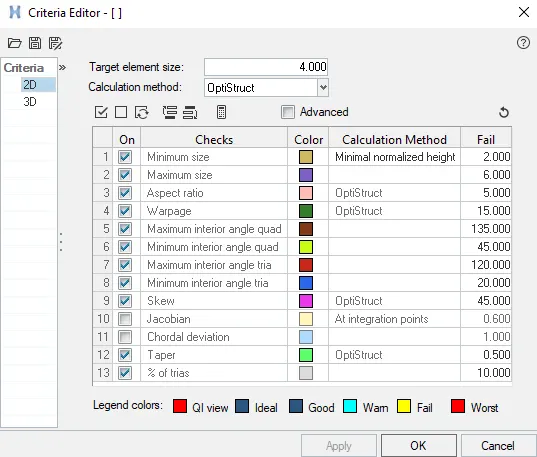
Fig 13: Quality criteria entered in criteria file.
Start meshing the component from complicated regions so that the failed elements are easily fixed. In this model, the featured surfaces are meshed first followed by the base components. Fix the failed elements using the tools present in the quality index such as element optimize, node optimize, place node, swap, drag tria, split quad element, combine quad elements etc. Each failed element will be hilited with specific colours representing the reason for the failure of the element. Depending on the reason of failure the elements are fixed using specific tools. For example, if an element is failed due to a minimum or maximum length error, it can be fixed using the distance option specifying the distance to be maintained for the element length or element optimize in few cases.
6. The mesh flow should also be fixed along with the failed elements. This can be done by maintaining less amount of tria elements, removing opposite trias and no trias should be touching each other. This can be fixed by combining tria elements, moving tria elements away from each other using the tool drag tria element. After these changes, the mesh flow must be smoothened to maintain good mesh flow.
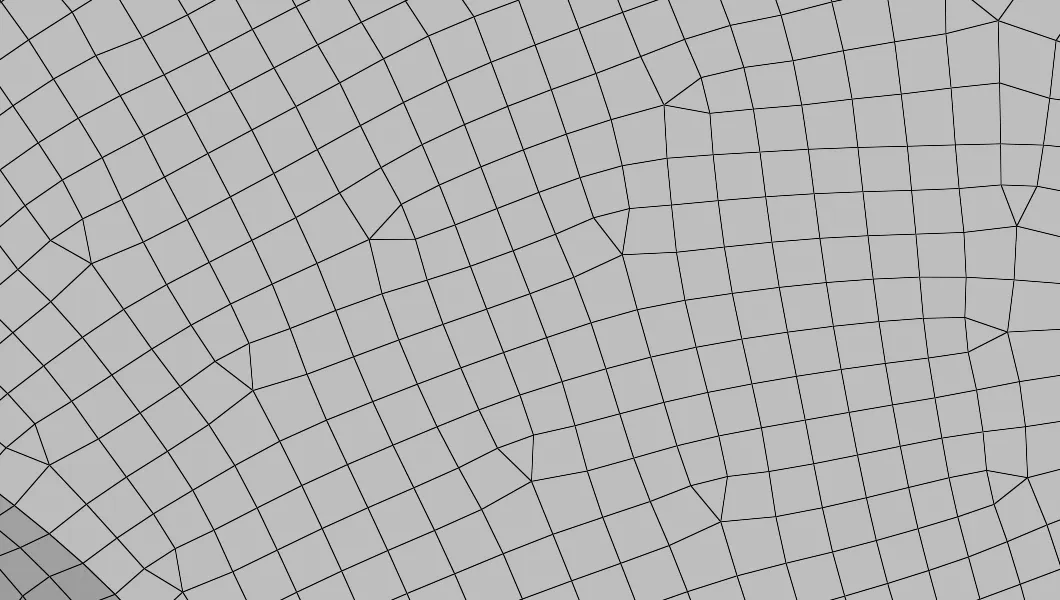
Fig14: mesh flow to be maintained.
The tris elements are also to be avoided from the free edges of the component. Rotating quad quads are also to be avoided while meshing the component.
7. While meshing the hole regions, the nodes are to be maintained in even numbers and the line edges of the hole are to be maintained parallel to the mesh flow.
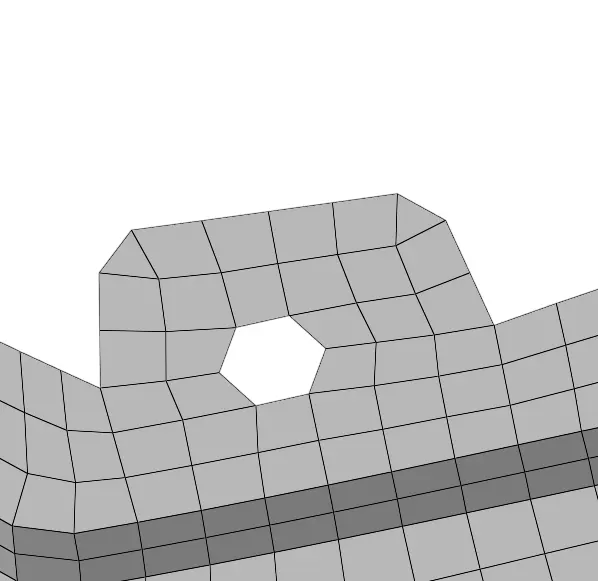
Fig 15: Capturing holes in even number for nodes
8. Washer split can be used if needed but they are to be avoided if the holes are present near the free edges.
9. Complete the mesh for the total component and the meshed component will be as shown below.
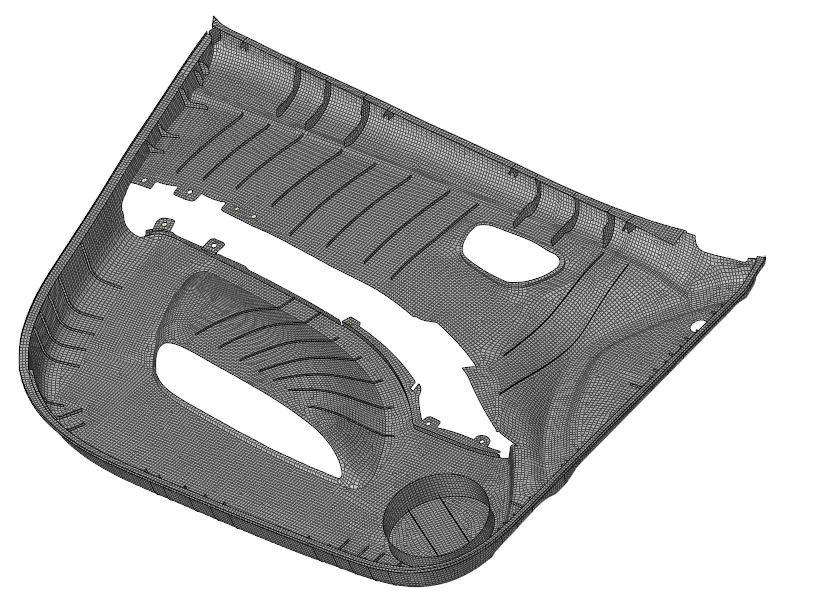
Fig 16: meshed component inner side
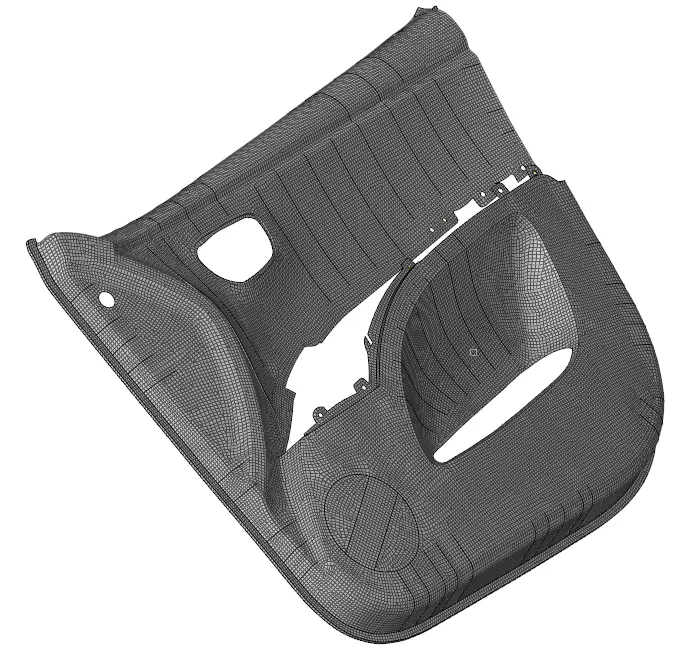
Fig 17: meshed component outer side.
10. Thickness must be assigned after meshing the components. To create thickness, properties are to be created for each component and thickness is to be mentioned in the property card as shown below.
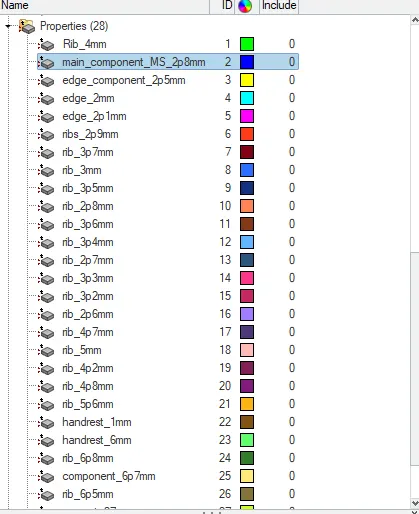
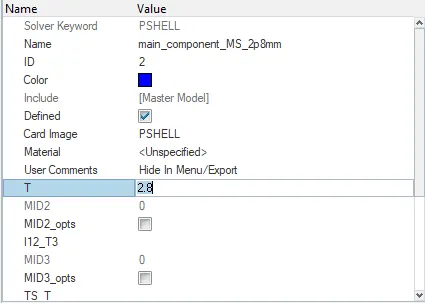
Fig18: property cards created for each component. Fig 19: assigning thickness in the property card
'T' is represented as thickness in the property card.
11. After creating the property cards the components are to be assigned to the property cards. Select a component and check for 'property'. The card shows as unspecified. Click on unspecified which shown the property selection button. Clicking on the property button shows the list of properties created. Select the property card which has been created for the suitable thickness to assign the thickness.
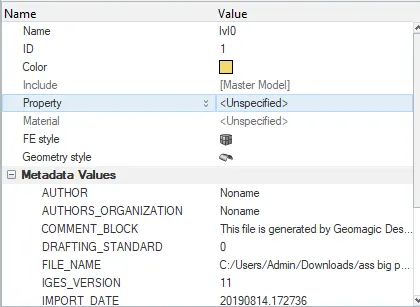
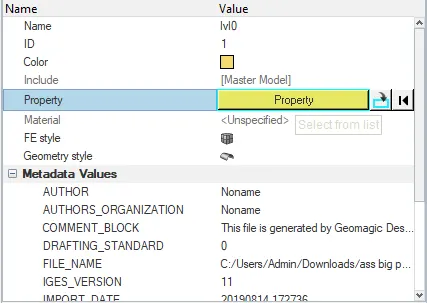
Fig 20: Property card Fig 21: selecting the property option
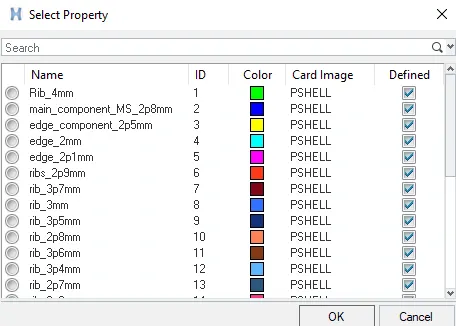
Fig 22: Selecting the suitable property for the component.
12. Set the mesh mode from 2D traditional element representation to 2D detailed element representation to view the actual thickness of the components assigned. The meshed component will be as shown below.
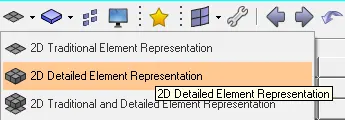
Fig 23: Setting mesh mode to 2D detailed element representation.
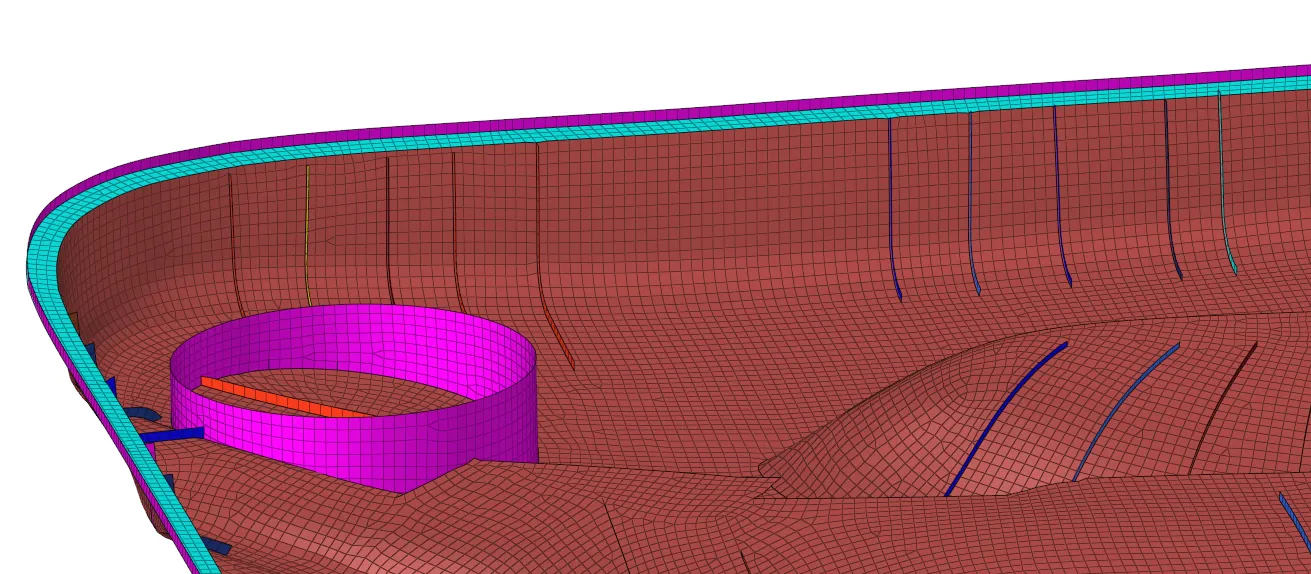
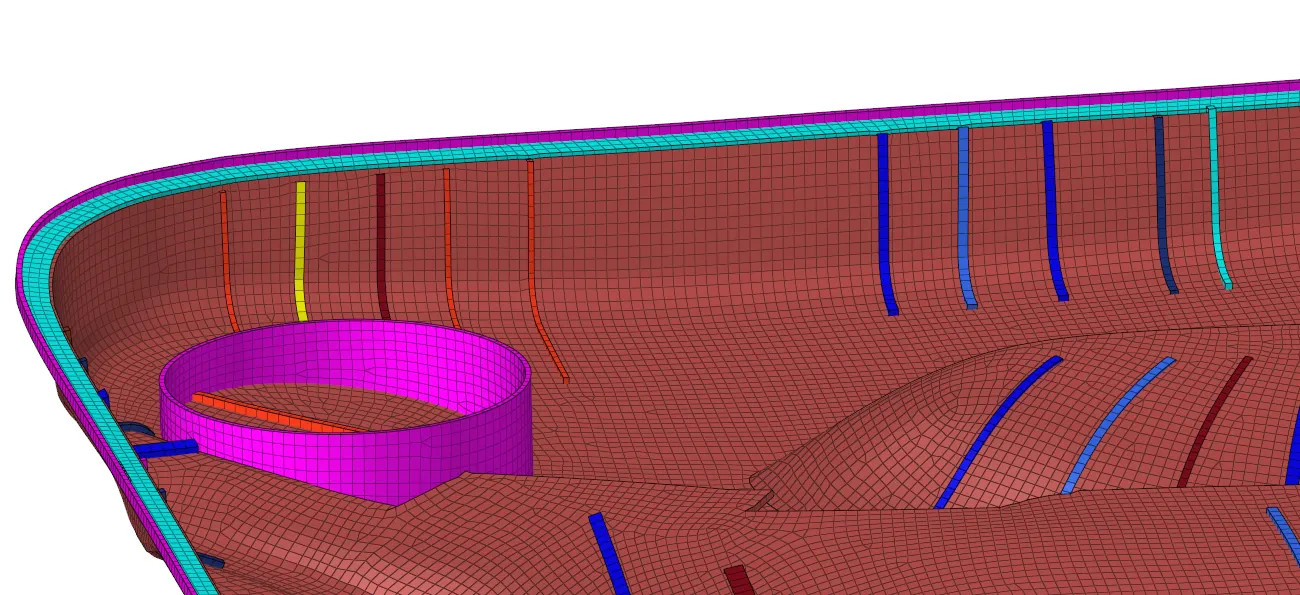
Fig 24: 2D traditional element representation Fig 25: 2D detailed element representation
Result:
Thus mid surfacing the component, meshing the geometry as per the given quality criteria and assigning thickness to the component are completed.
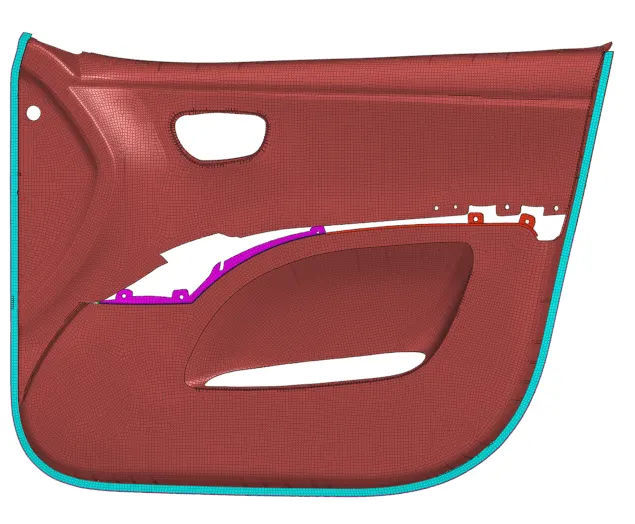
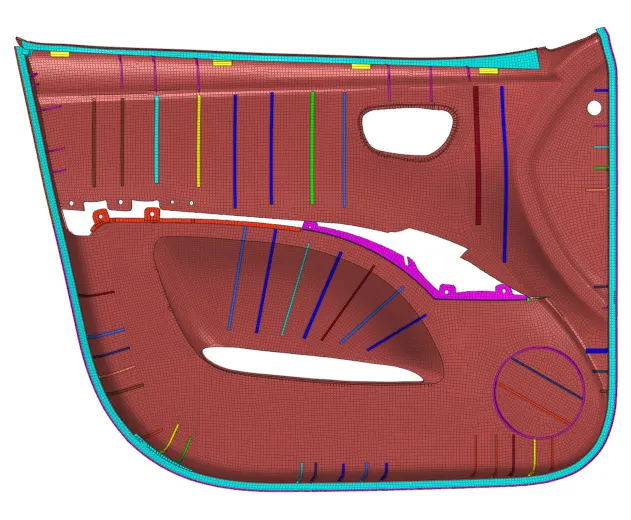
Fig 26: Meshed car door panel outer view Fig 27: Meshed car door panel inner view.
Learning Outcomes:
- Learned to create a mid surface for the plastic components.
- Learned to generate the mesh in complicated areas.
- Learned to assign properties for the components.
- Learned to provide thickness for the 2D mid surfaces