Week 11-3D Tetra Meshing Challenge
Objectives:- To create tetramesh using 2D to 3D conversion method and quick tetra mesh/volume tetra mesh method.
Procedure:-
Model 1: 2D to 3D conversion method.
- Import a geometry and do geometry cleanup.
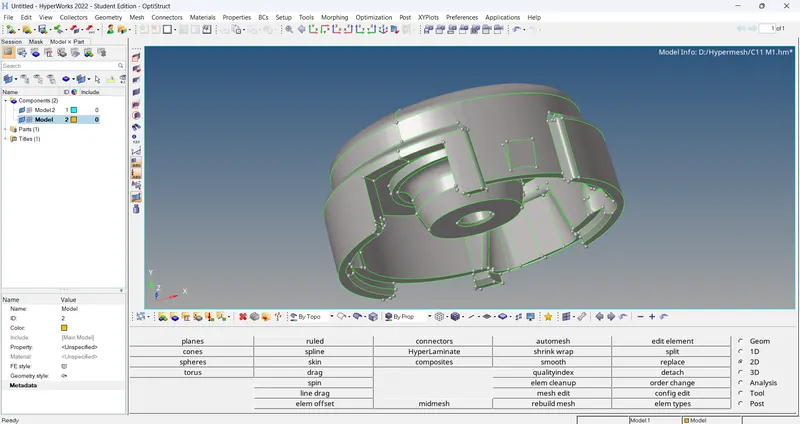
- Then select 'automesh' option in '2D' section and enter element size and mesh type 'tria' instead of mixed.
- Then click on mesh and 2D tria mesh is generated on surface.
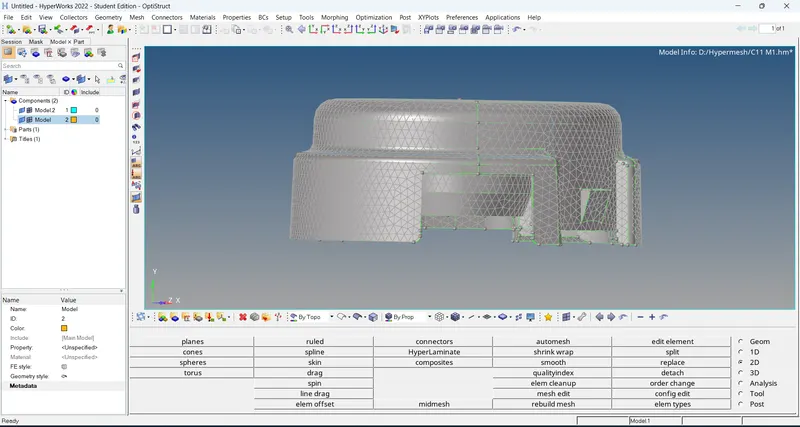
- After generating 2D mesh, enter quality criteria and parameters and clear the off elements present in mesh.
- After clearing off elements, select 'tetramesh' option in '3D' section. Then enter the tetramesh parameters and go to tetramesh. Then select the elements and click on mesh. The 2D mesh is converted to 3D tetramesh.
- Then to clear tet collapse, select 'check elem' option in 'tool' section and set tet collapse parameter as 0.15. Then click on tet collapse, the failed elements are showed in status bar. Then click on the save failed option to save the tet collapse failed elements.
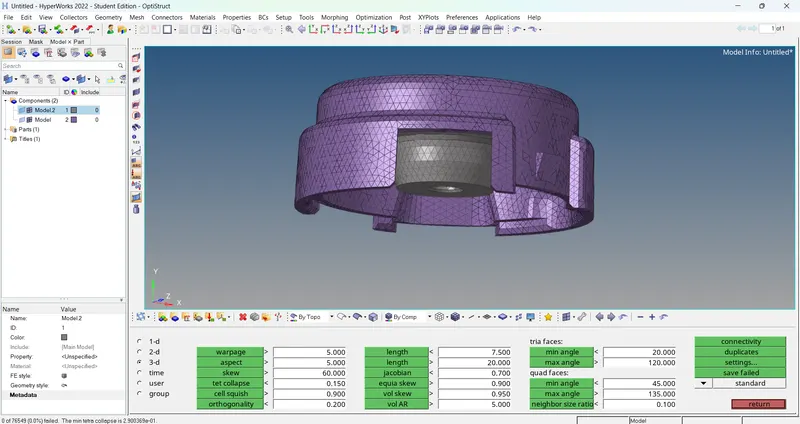
- Then isolate the failed elements by clicking on 'mask' option in 'tool' section. Then right click on elements to select the 'retrieve' option. This will automatically selct the failed elements as your masing entities.
- Click on 'mask' to hide the failed elements, then select the 'reverse' option to show only the failed elements. Then to clear failed elements, select 'translate' option in 'tool' section.
- Then pick a node in any one failed elements which has minimum height. Then select N1, N2, N3 which represent the oppositr plane of the prior selected node. Then enter the magnitude value. Click on 'translate+/translate-' to move the node.
- After correcting the failed elements, parallelly check the tet collapse value in the 'check elem' option.
Model 2: Quick tetra mesh/ Volume tetra mesh
- Import a geometry and do geometry cleanup.
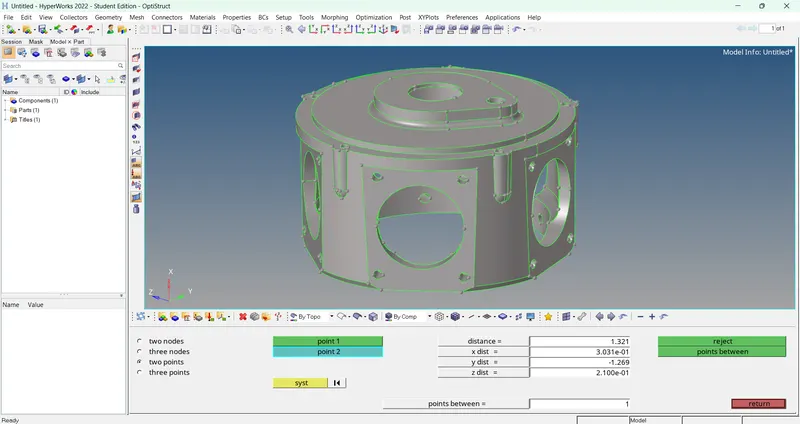
- Then select 'tetramesh' option in '3D' section. Then enter tet collapse value and tick the checkbox of 'fill viods, fix midnodes and smoothing' in tetramesh paramenters. After that go to 'volume tetra' and enter elements size. Then select 'surf' as a enclosed volume and select the suraface.
- Then click on mesh, the 3D tetra mesh is generated.
- Then to clear tet collapse, select 'check elem' option in 'tool' section and set tet collapse parameter as 0.15. Then click on tet collapse, the failed elements are showed in status bar. Then click on the save failed option to save the tet collapse failed elements.
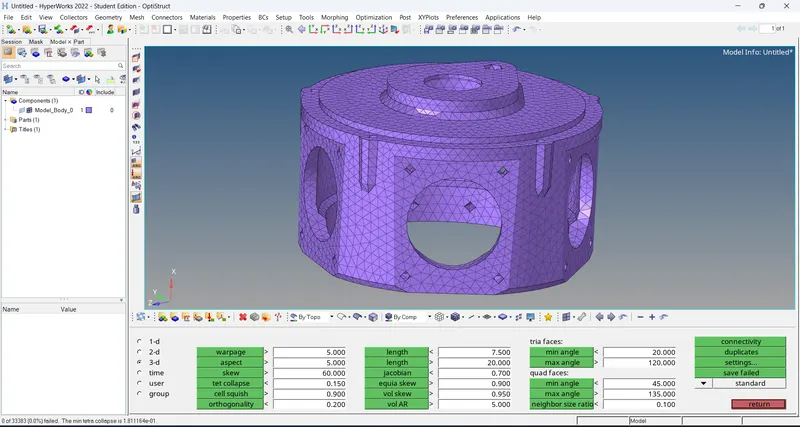
- Then isolate the failed elements by clicking on 'mask' option in 'tool' section. Then right click on elements to select the 'retrieve' option. This will automatically selct the failed elements as your masing entities.
- Click on 'mask' to hide the failed elements, then select the 'reverse' option to show only the failed elements. Then to clear failed elements, select 'translate' option in 'tool' section.
- Then pick a node in any one failed elements which has minimum height. Then select N1, N2, N3 which represent the oppositr plane of the prior selected node. Then enter the magnitude value. Click on 'translate+/translate-' to move the node.
- After correcting the failed elements, parallelly check the tet collapse value in the 'check elem' option.
Model 3: Quick tetra mesh/ Volume tetra mesh
- Import a geometry and do geometry cleanup.
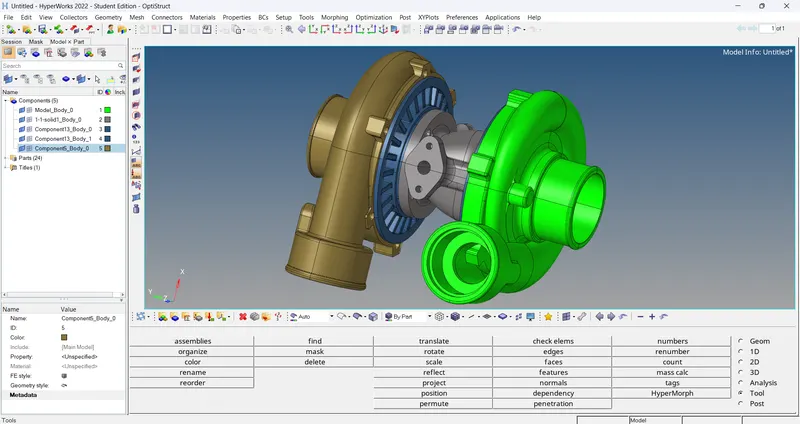
- There are 5 parts are in this component. Mesh this parts one by one seperately.
- Then select 'tetramesh' option in '3D' section. Then enter tet collapse value and tick the checkbox of 'fill viods, fix midnodes and smoothing' in tetramesh paramenters. After that go to 'volume tetra' and enter elements size. Then select 'surf' as a enclosed volume and select the suraface.
- Then click on mesh, the 3D tetra mesh is generated.
- Then to clear tet collapse, select 'check elem' option in 'tool' section and set tet collapse parameter as 0.15. Then click on tet collapse, the failed elements are showed in status bar. Then click on the save failed option to save the tet collapse failed elements.
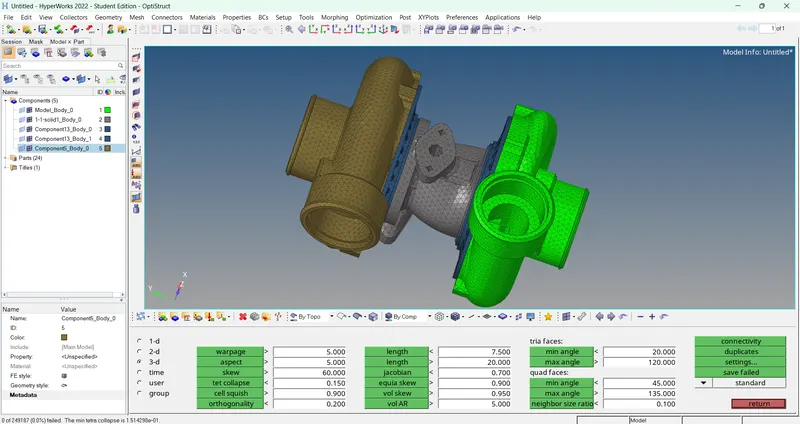
- Then isolate the failed elements by clicking on 'mask' option in 'tool' section. Then right click on elements to select the 'retrieve' option. This will automatically selct the failed elements as your masing entities.
- Click on 'mask' to hide the failed elements, then select the 'reverse' option to show only the failed elements. Then to clear failed elements, select 'translate' option in 'tool' section.
- Then pick a node in any one failed elements which has minimum height. Then select N1, N2, N3 which represent the oppositr plane of the prior selected node. Then enter the magnitude value. Click on 'translate+/translate-' to move the node.
- After correcting the failed elements, parallelly check the tet collapse value in the 'check elem' option.
- Follow the same procedure for each part.
Conclusion: We generated 3D tetra mesh on given model successfully.