Week 10 - Challenge 2- Attachment Feature Creation (Dog House)
There are two methods to inspect the State of Connectivity for the Class A Surface:
1. Using the 'Join' Command' from the 'Operations Toolbar':
First, we'll click on 'Join Command' and select our Class A Surface. Then, we have to ensure that the 'Check Connexity' option is marked as shown in the images below. It will check for any gaps that may be present between our surfaces. Then, we'll click on the 'Preview' button and if it doesn't show any 'Connexity Error' on our surface then it means our surface is well-connected and there are no discontinuities between it.
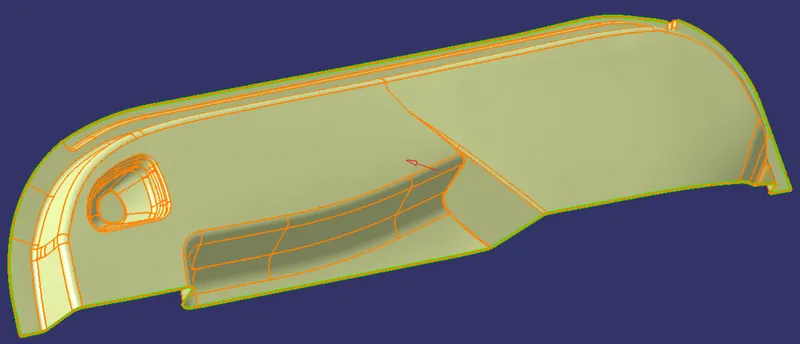
In our case, there are no 'Connexity Errors' for the given Class A Surface.
In case there is a 'Connexity Error', we can fix it by increasing the 'Merging-Distance' and then performing a join operation between those surfaces.
2. Using the 'Boundary' Command' from the Operations Toolbar:
In this case, we have to click on the 'Boundary' command and then select the Class-A Surface. After that, we'll click on the 'Preview' button to highlight all the boundaries that are on the Class-A surface and check if there are any internal boundaries other than the outer edge boundaries.
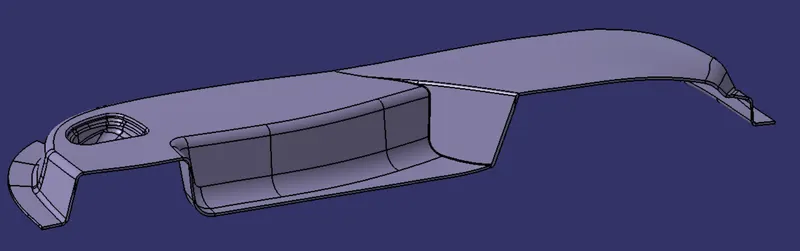
rom the above image, we can see that the final closed body doesn't have any boundaries, and hence our final closed body is obtained successfully.
Finally, we'll go to the Part Workbench and use the option 'Closed Surface' from the 'Surface-based Features' toolbar to convert the final trimmed body into a solid body