Week 10:- 2D Detailing Challenge

Automotive Fixture Design Using CATIA V5
By Ravi Ahuja
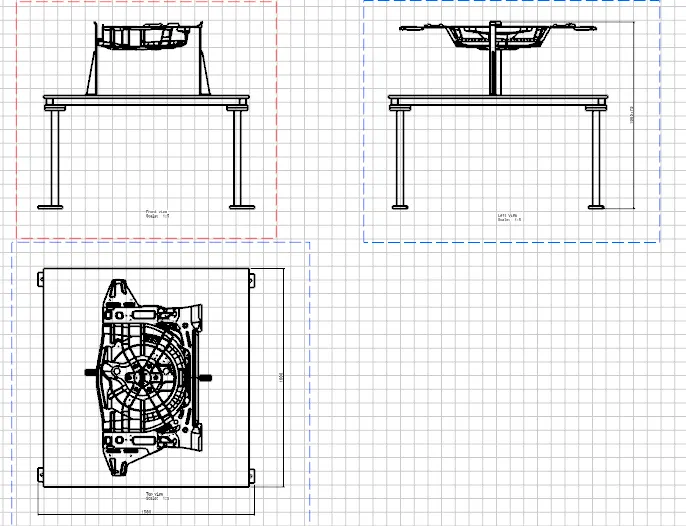
After the assignment 8 I Opened a new drawing file and named with the parent assembly file of the fixture assembly. Then I imported front view of the fixture assembly by selecting front view option from the ttolbar and then selected any surface to which i wanted the front view. Then I selected the projected view and crreated two other views of the Assembly.
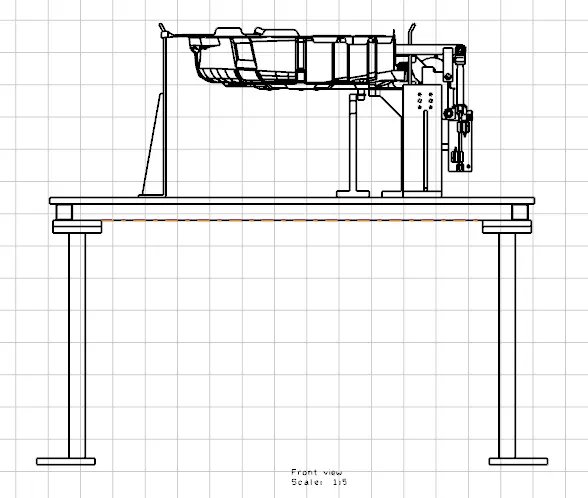
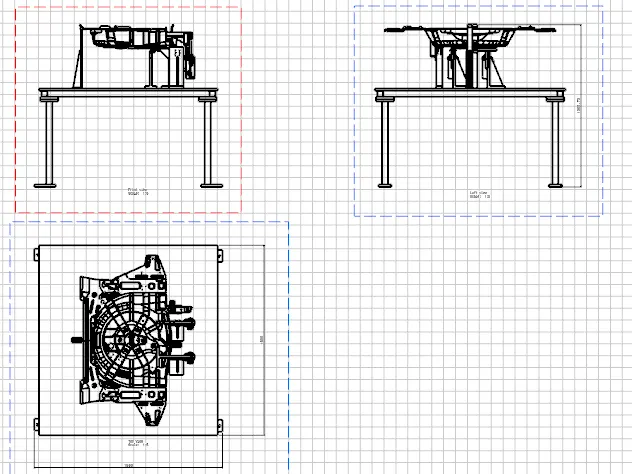
I scaled them to : so that they all can fit in one sheet. Then I gave dimension foe the height, Length and breadth.
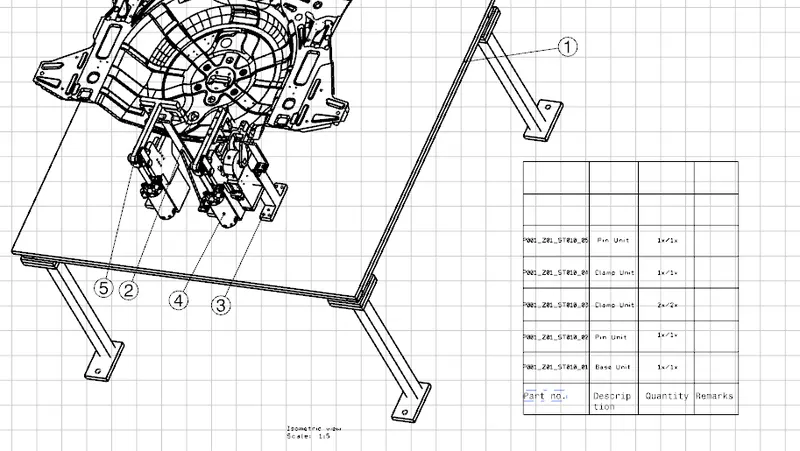
Then I created a new sheet and imported the assembly in the isometric view by setting the view of the assembly. I started with selecting the isometric view from toolbar then selected the edge beside the view. Then I arranged the view according to to the isometric view and then I created bubbles with numbers for each sub assembly and then named them accordingto the serial and quantity.
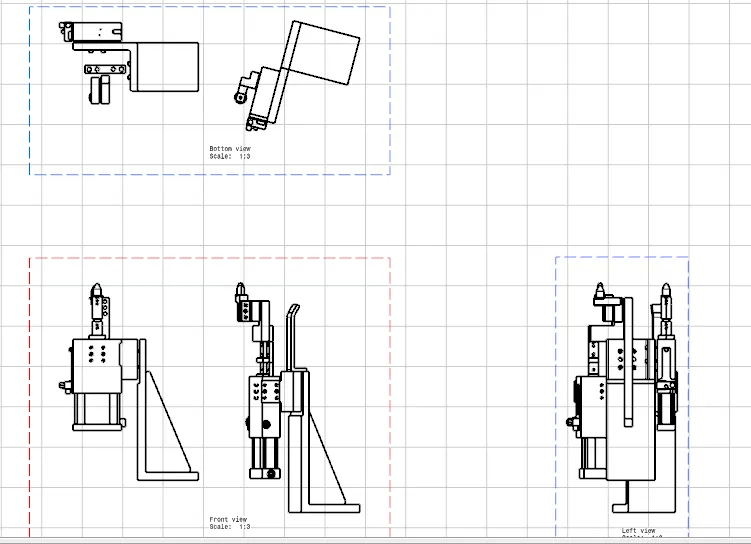
Then I isolated the base unit and Fixed Pin unit individually and made their drafts the same way.