Week 1 Challenge
1. 1. Write the steps involved to upload a .std file through web mail?
- Select STAAD Import from the backstage.
The Import from STAAD.Pro dialog opens.
- Click in General settings to browse and select a STAAD.Pro file to import.
- Select Use Mapping File in Section Mapping settings, and then click to browse and select a mapping file to import.
Note: Mapping files are delivered with AECOsim Building Designer, and are named using analysis program names. Their function is to compare two lists of section data, and to map the STAAD.Pro sections to the corresponding sections in AECOsim Building Designer.
- Set the catalog type and catalog instance assignments for the imported member types. This data is used by AECOsim Building Designer to rebuild the members' structural data as defined in the structural member catalogs.
- In Steel settings, select a section definition that is to be designated as the Default Section Name. This section definition is applied to imported members whose section data is not available in AECOsim Building Designer.
- Check Verify to scan the imported file for unknown sections.The Unknown Sections dialog appears providing an opportunity to write the unknown sections to the active XML section definition file before importing.
- In Revision Tracking, check Use Design History. Design History tracks changes to a DGN file. Viewing details about the revision by using the controls on this tool.
- Click Import.The update design dialogue appears. Review detailed information about each imported member and select which ones you want to import before accepting them into the target DGN file.
Note: Update Design Results contains Load Case and Load Combination data imported from the STAAD.Pro (*.std) file.
- Click Update to complete the import process. The structure is updated
1.2. Name the different materials that can be designed using STAAD Pro.
- To create a new isotropic material definition for use with your model.
- STAAD.Pro includes a set of predefined materials for concrete.aliuminum,steel and stainless steel.
- Select the materials page in the Analytical modeling page control bar.
- The material-whole structure dialog and the materials table open.
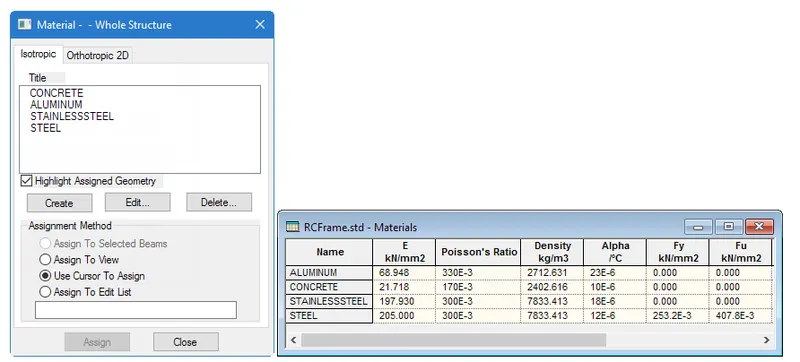
- In the material-whole structure dialog isotropic tab, click create.
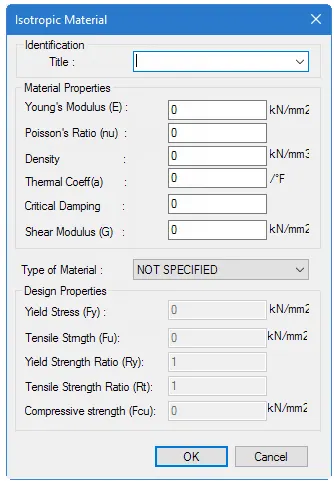
- The Isotropic material dialog opens
1.3. Is it possible to capture images in STAAD Pro? If yes how?
Yes, it is possible to capture images in STAAD Pro.
1.4. Name the three ways by which you can create a model.
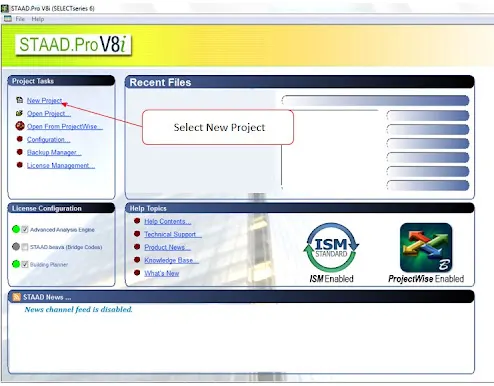
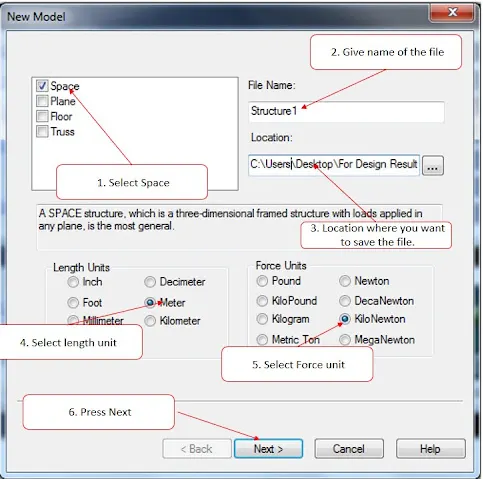
Modeling is the heart of structural design in STAAD Pro. If you have done the modelling right, half the road is travelled. Let us learn how to do modelling in STAAD Pro.
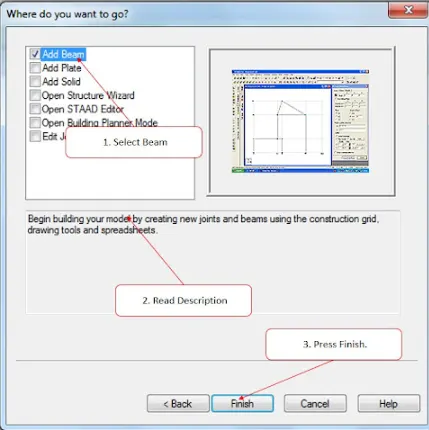
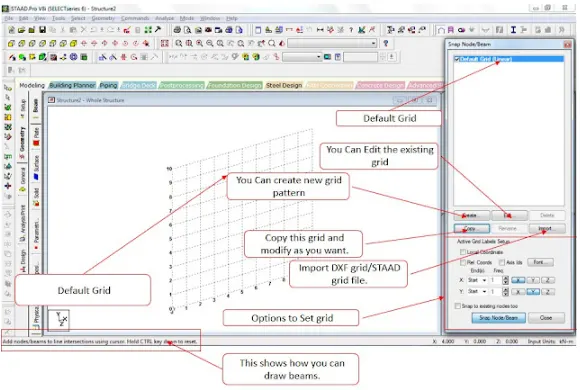
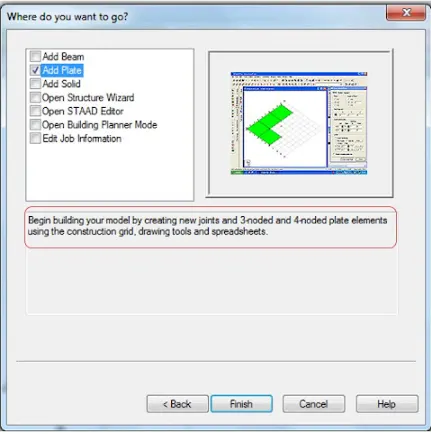
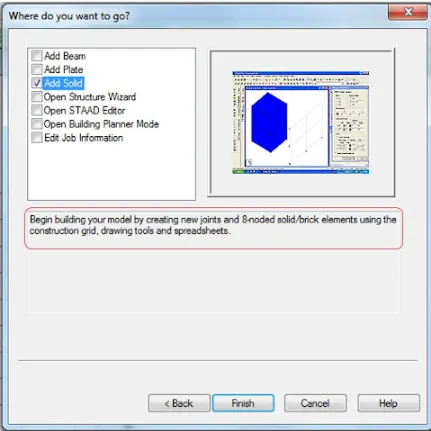
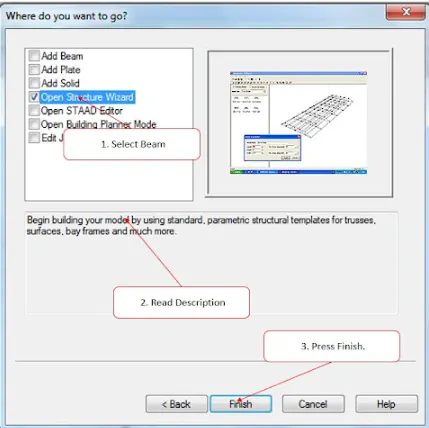
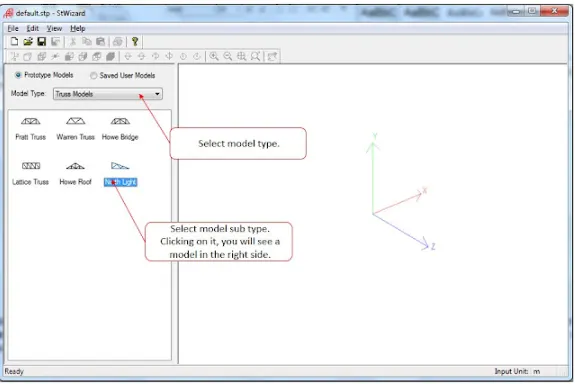
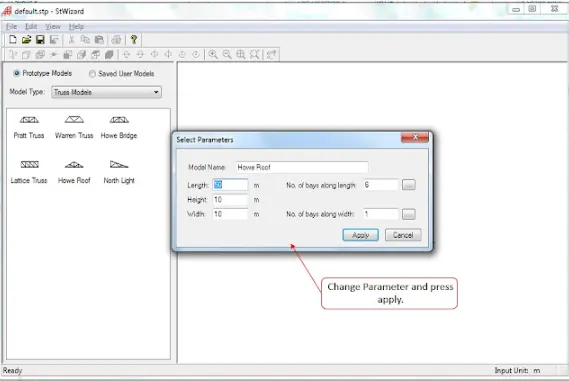
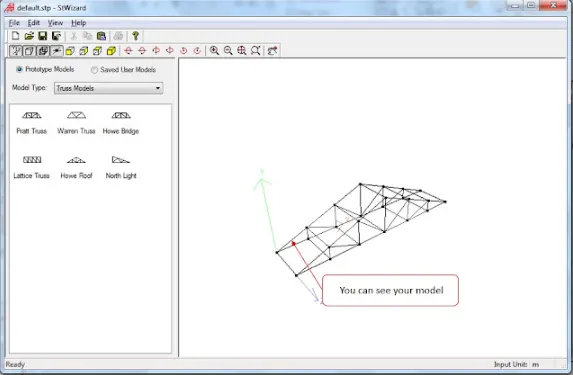
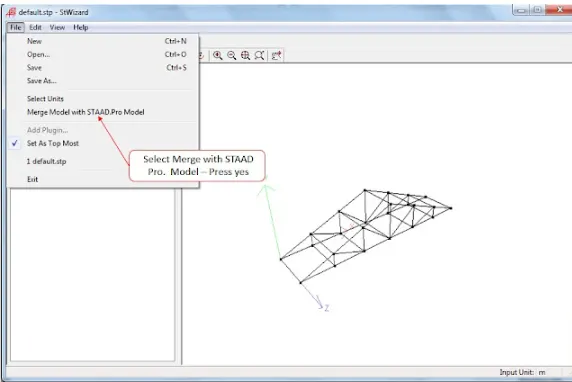
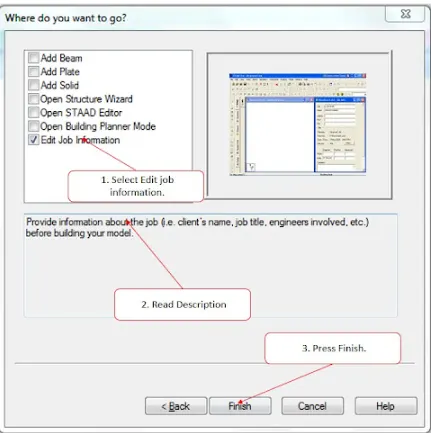
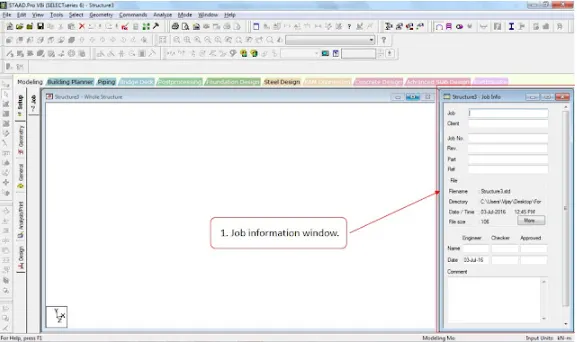
1. 5. Write the steps followed to assign properties in a model.
- In STAAD Pro physical modeler order of operations is that you first select physical objects and then assign properties of perform som eoperation on the selection.
- This differs STAAD Pro where there are many taskes in which you select operation property or specification first and assign that to some list of model objects.
Comparison of Order of Operations
| STAAD.Pro Physical Modeler | Analytical STADD.Pro Modeling User Interface |
| 1. Select ht e members which all have same section | 1. Add the profile you want to use from the section Database |
| 2. Select the section tool in the Assign properties group on the Member ribbon tab. | 2. Select the member property in the properties dialog |
| 3. Select the profile to use and click ok. | 3. Use the cursor to click on member with this property |
2.1.Name any six design parameter involved in RCC design.
- Ultimate Tensile Strength of Steel (FU)
- Yield Strength of Steel (FY)
- Effective Length Factor (Kx, Ky, Kz)
- Lenth for Torsional Buckling (Lx, Ly, Lz)
- Allowable L/R in compression (Main)
- Max Allowable local deflection(Dff)
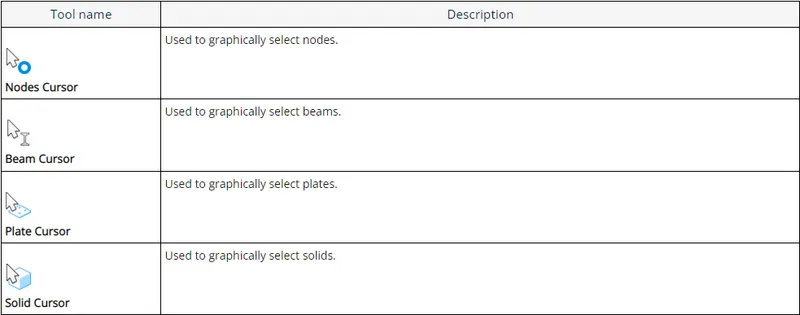
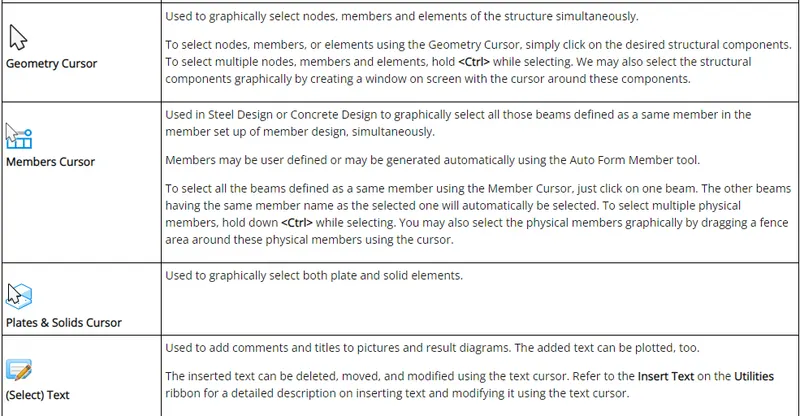
2.2. What are the different cursor types available in STAAD Pro

2.3. How will you generate different views for a model? State the steps involved.
Go to views - select different views front top side views etc
2. 4. Explain the procedure to define a “Simply Supported” condition in STAAD Pro
- Startin the program
- Genrating the model Geometry
- Specific member properties
- Specific support types
2. 5. Name any five topics that you will include while creating DBR.
- Introduction of project
- Structural Layout
- Load and load combination
- Aanalysis and Design methodology
- Quality Assurance Plan
2.6.Describe the term “Multi material design” of STAAD Pro.
- Steel
- Concrete
- Aluminium
- Timber
- Composite Structure
3.1
3.2

PRACTICAL
Aim:-
To create a STAAD PRO model following given procedure.
Procedure:-
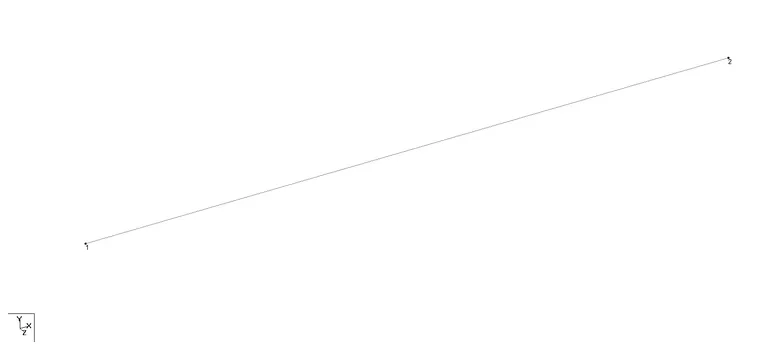
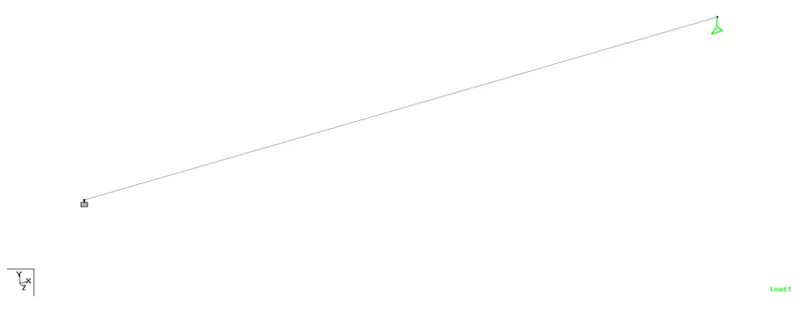
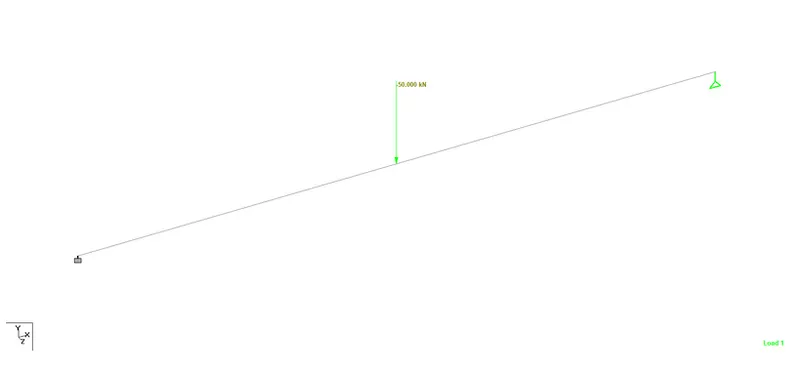
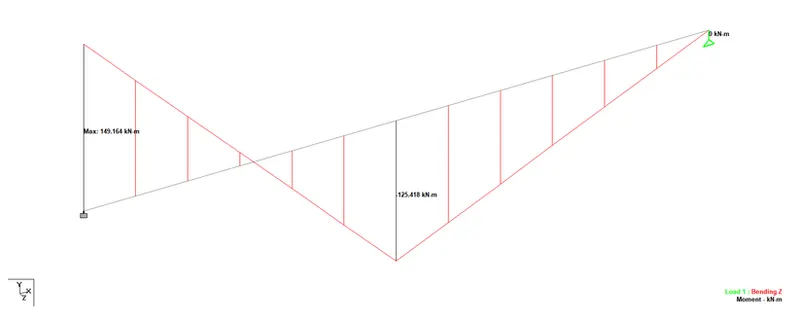
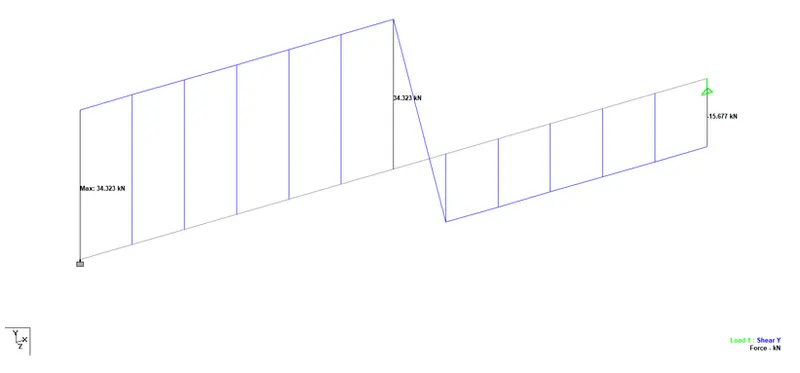
Conclusion:-
SFD and BMD of the above beam is shown.
Result:-
SFD and BMD of the above beam is shown.