Challenge 3 - Surface Modelling of Concept Car-Alias
Surface Modelling of Concept Car-Alias
Aim:
Surface modelling of concept car.
Objectives:
Our objective here is to create 3D surface of the car using 2D images and curve network.
Introduction:
Autodesk Alias is an Computer Aided Industrial Design.CAID is a subset of computer-aided design software that can assist in creating the look-and-feel or industrial design aspects of a product in development. CAID programs tend to provide designers with improved freedom of creativity compared to typical CAD tools.
A surface is the outermost or uppermost layer of a physical object or space. Autodesk Alias use tools like Skin, Rail, Square for surface modelling.
BEZIER is the subset of Non-Uniform Rational B-Spline(NURBS) maths used by Alias. Bezier maths patches are smooth and haven't any internal continuity breaks, essential for class A surface.
With Alias, we can able to mix Procedural modelling, Direct modelling and trimmed surface to develop your digital model. Alias has flexibility to support a broad way of modelling applications. Single span & Multi span are the two types of NURBS span.
Our project here is to create surface model of concept car using Autodesk Alias with surface continuity.
Approach:
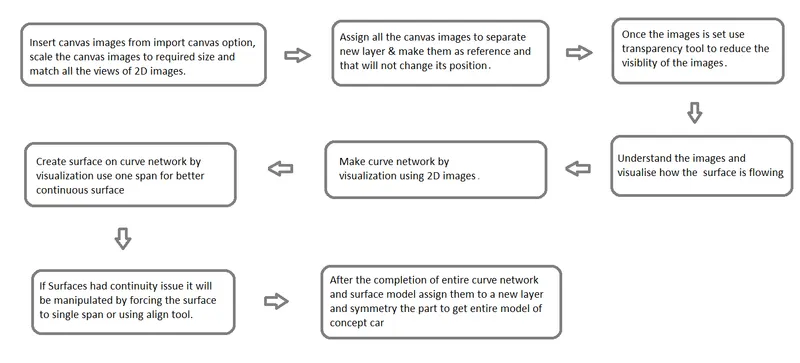
Description:
Features used
1. Import canvas images
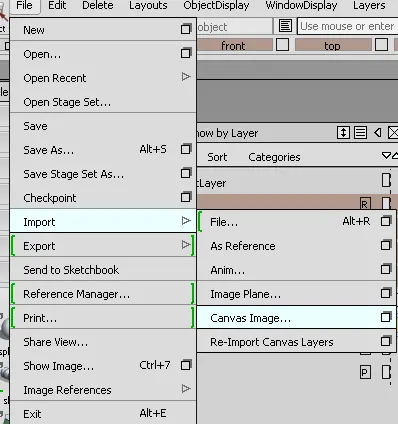
Using import option we can insert 2D images as canvas images for modelling the concept car.
2. Marking menus
Marking menus had three forms picking tools, tranforming tools & information tools. It is more effective while modelling.
Picking tools
Using shift+ctrl+left mouse button we can use below picking tools.
- Pick object
- Pick cv
- Pick curves
- Pick surface
- Pick curve on surface
- Pick blend point
- Pick edit point
- Pick nothing
Transforming tools
Using shift+ctrl+middle mouse button we can use below transforming tools.
- Move
- Move pivot
- Scale
- Rotate
- Delete Locators
- Query edit histroy
Information tools
Using shift+ctrl+right mouse button we can use below Information tools.
- Information windows
- Toggle model
- Toggle grid
- Control on/off
- Plane editor
- Shade
3.Curves tools
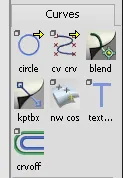
In curves, CV curves is important tool on alias. Here we used this tool for curve network of concept car. Also we used blend, circle, key point curve tools on required area to achieve entire curve network.
4.Surfaces tools
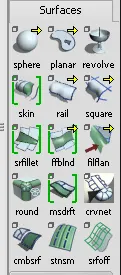
We learned how to create surfaces on curve network using Skin, Rail, Square and also Surface fillet.
Skin
If we have only two curve lines we can easily able to create surface using Skin surface tool. We can also use 3 curve line to create surface holding shift key and select curve.Also toggle to change the bend of surface by selecting the centerline curve and move the curve line.
Rail
To create surface using rail we need two curve line one as generation and other as rail curve. We can also use two lines as generation curve & 2 lines as rail curve to create surface.
Square
We can create surface, if we have 4 curve lines meeting each other. It create surface like patches. It is very useful tool while modelling concept car.
Surface fillet
Surface fillet will create surface like L shape. We can create surface fillet by selecting srfillet and selecting two surface as primary and secondary surfaces.if we want to change use option like G2 curvature to form edge less surface as tertiary suraface.
5.Surface Edit
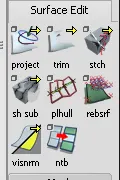
We learned how to use surface edit tools to get required shape of the surface.Using Project tool we can project a curve on surface and trim unwanted surface to get desired shape of surface.
We learned below tools on surface edit.
- Project
- Intersect
- Trim/Untrim
- NURBS to Bezier tool
6.Interactive shading
Interactive shading use your system graphics to draw surface. There are two types: Hardware shade, Diagnostic shade.
2D images:
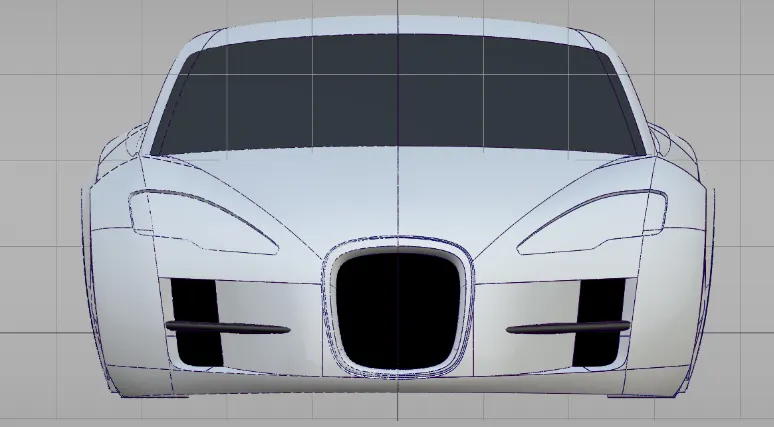
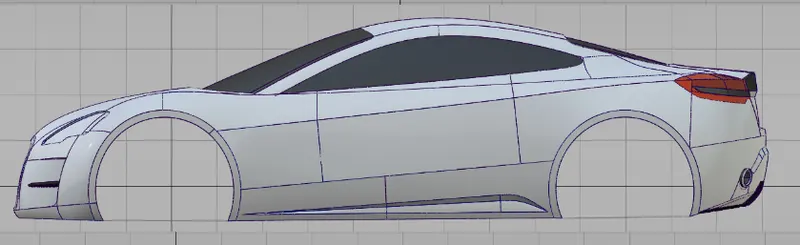
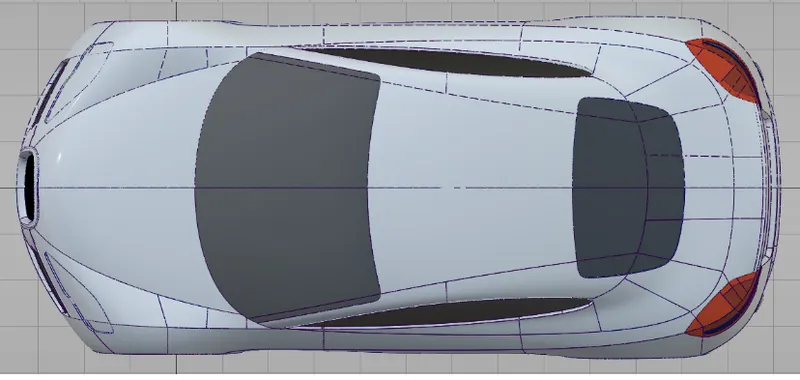
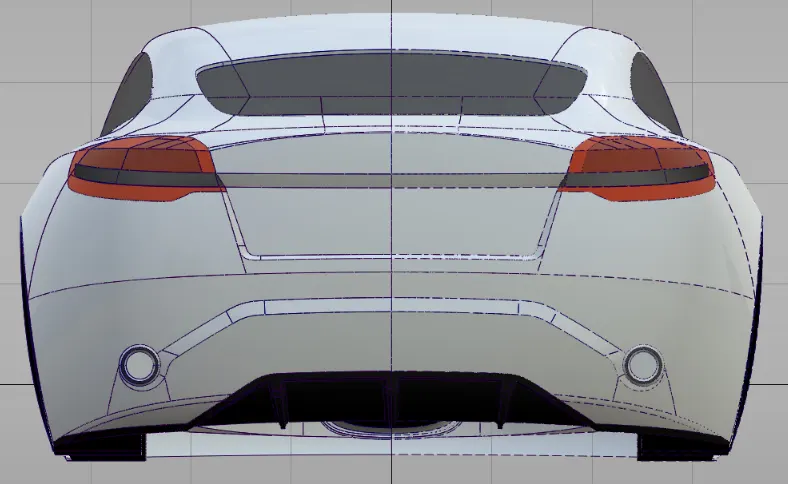
Images provided by skill-lync.
We used above images for tracing the curve network and maked surface model of concept car.
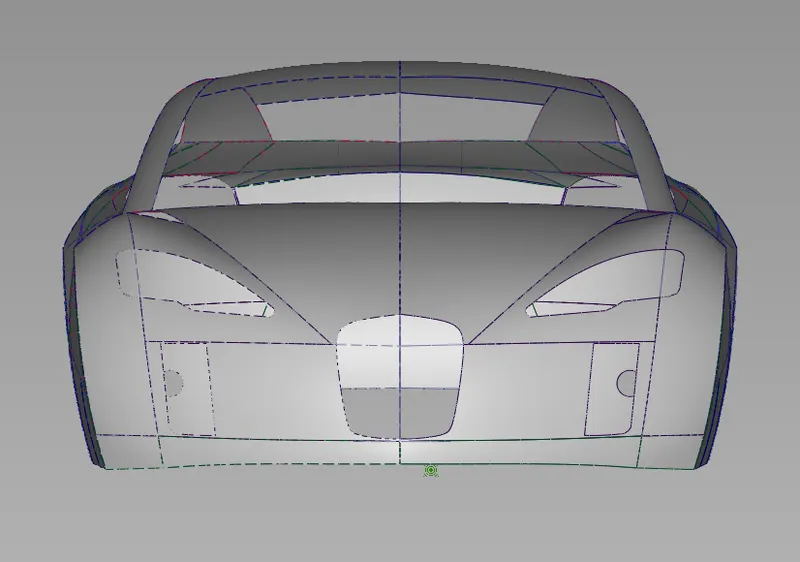
Front view:
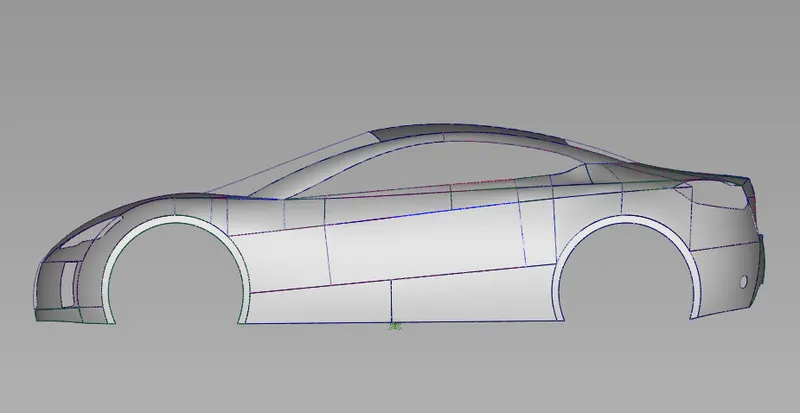
Side view:
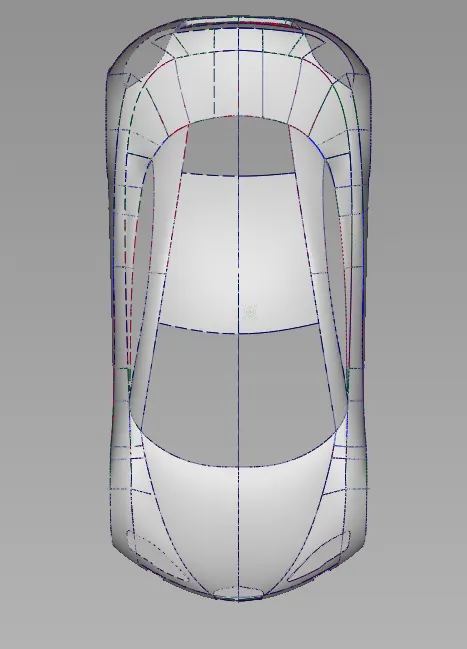
Top view:
Isometric view:
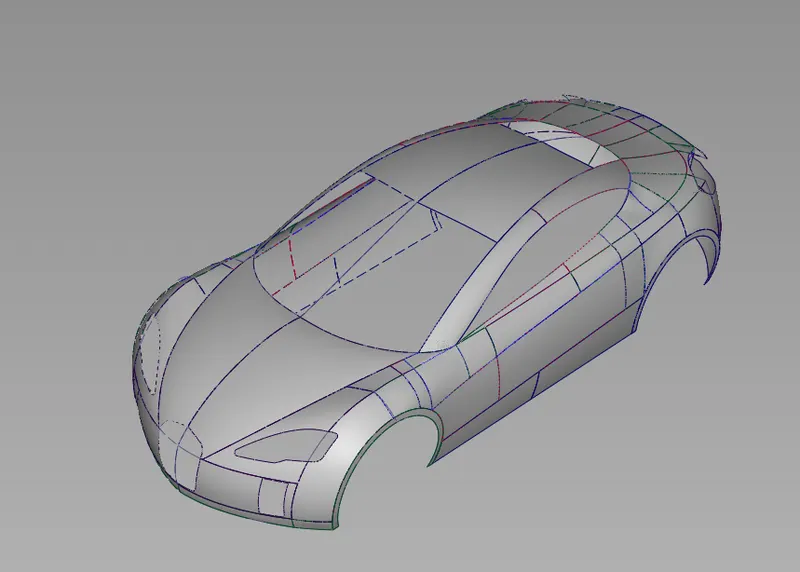
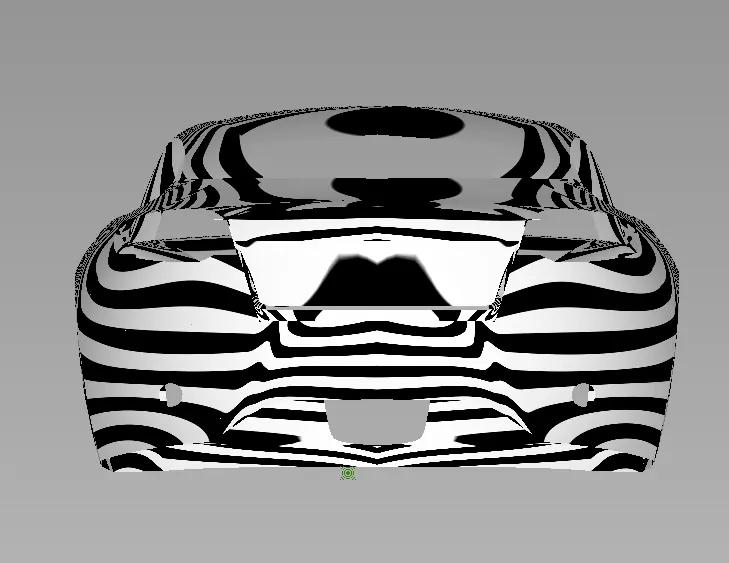
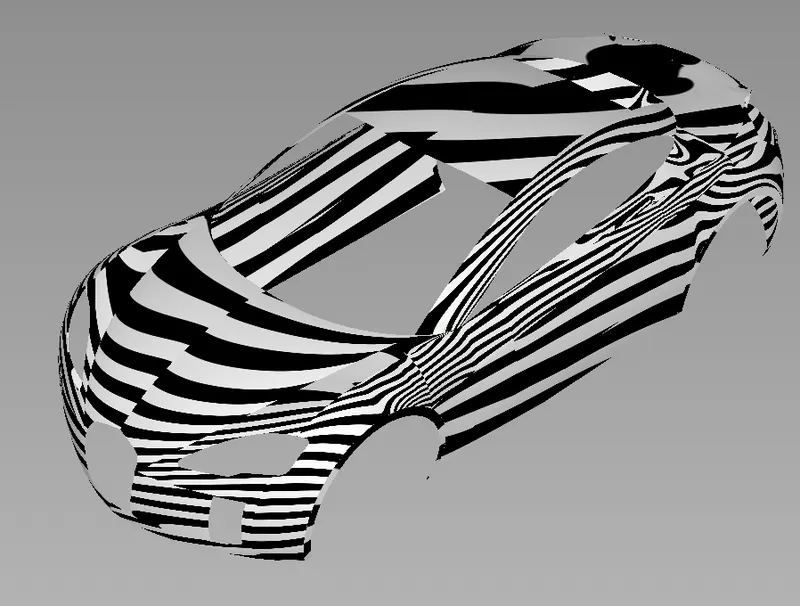
All views on Diagnostic shade - check continuity between the surface:
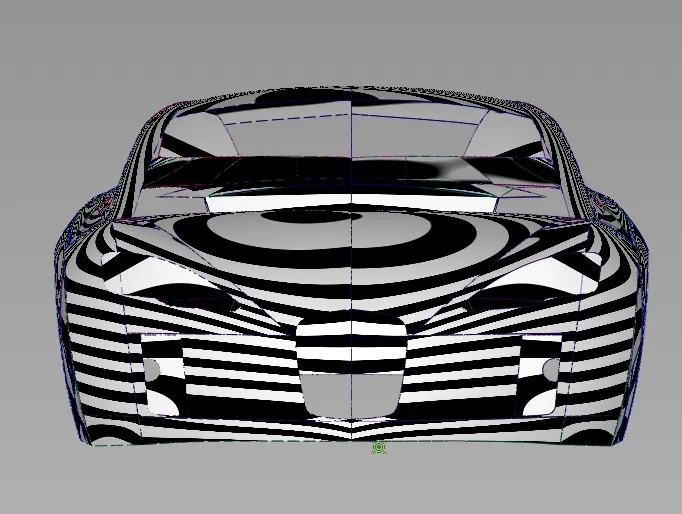
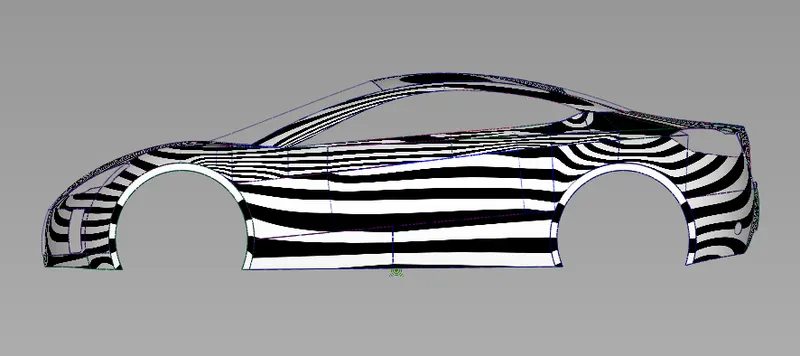
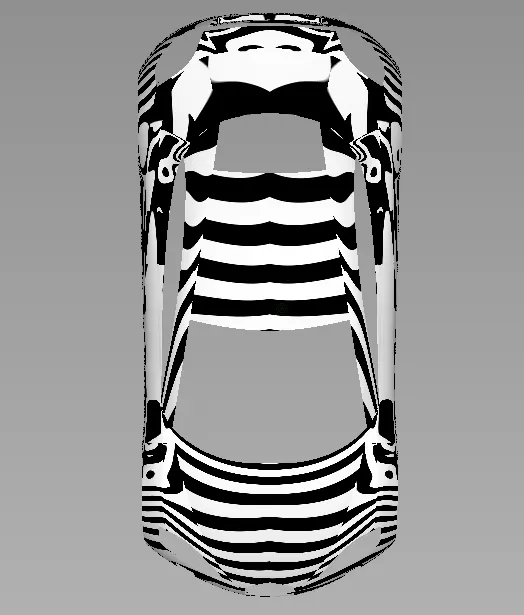
Conclusion:
- We learned how to make surface on curve network using surface tools like skin, rail, square.
- We learned how to edit the surfaces using surface edit tools like project, intersect, trim, untrim.
- We learned how to acheive good quality surface using align tools or force surface to achieve good quality by manipulating degree & span.
- We learned how to visualise the model using diagnostic shade.
- We created surface model of concept car with good quality and continuity.