Challenge 4 : Concept Modelling of Alloy Wheel
Challenge 4 : Concept Modelling of Alloy Wheel
Aim
Concept Modelling of Alloy Wheel.
Objective:
Our objective is to make concept model of Renault alloy wheel from one side image using Autodesk Alias.
Introduction:
Concept modeling(CAS) is 3d modelling where it takes shape from sketches. It depends on visualizataion, how the design has come out, also we can include the feature where it needs. In CAS modeling as the design is still in developing stage, we can able to make output if the input is sketch or image.
Autodesk Alias software provides automotive and product designers with tools for concept modelling, visualisation, Class-A surface modelling. Alias software is generally used by professional designers and engineers operating in the industrial and automotive industries.
The sketches and rendering are transformed into 3D Digital surface modeling and rendering for real-time evaluation with Math data in initial stages. During the development process succeeding phases will require the 3D model fully developed to meet the aesthetic requirements of a designer and well as all engineering and manufacturing requirements. The fully developed CAS digital model will be re-developed for manufacturing meeting the Class-A surface standards that involve both technical as well as aesthetics. This data will be further developed by a Product Engineering team. These modelers usually have a background in Industrial design or sometimes tooling engineering in the case of some Class-A modelers. Autodesk Alias and ICEM SURF are the two most widely used software tools for Class-A development.
Approach:
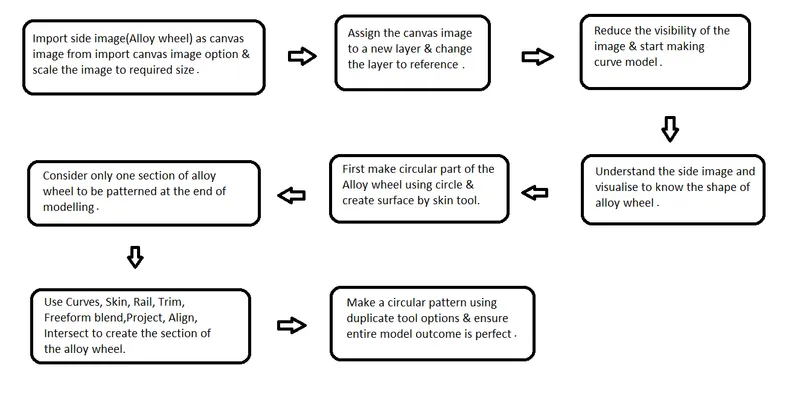
Description:
Features Used
1.Import image
2.Curves tools- Circle,CV Curve,Blend.
3.Curve Edit- Duplicate Curve
4.Surfaces- Rail, Skin, Freeform Blend Tool,Multi Surface Draft Tool.
5.Surfaces Edit- Project, Intersect, Trim, Untrim, NURBS to Bezier.
6.Surface continuity
Import side image as canvas image.
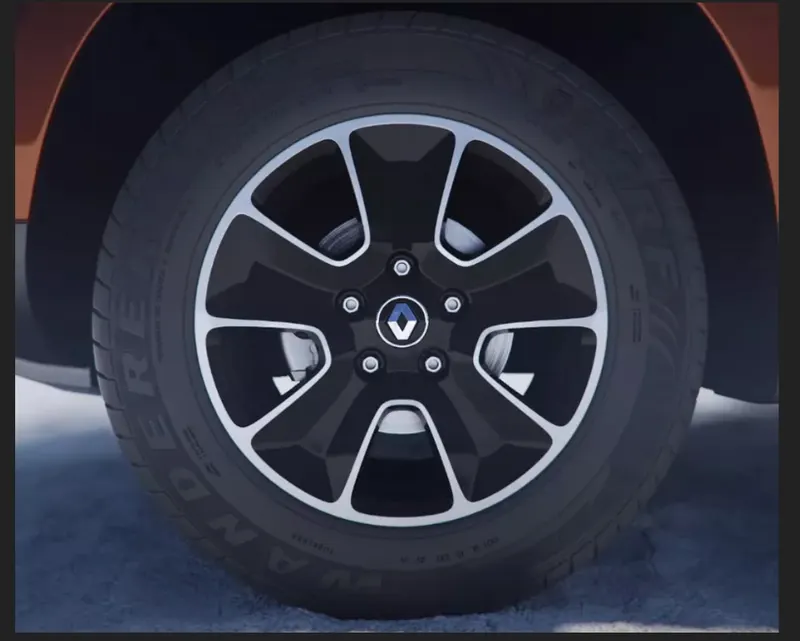
Above Image provided by Skill-Lync.
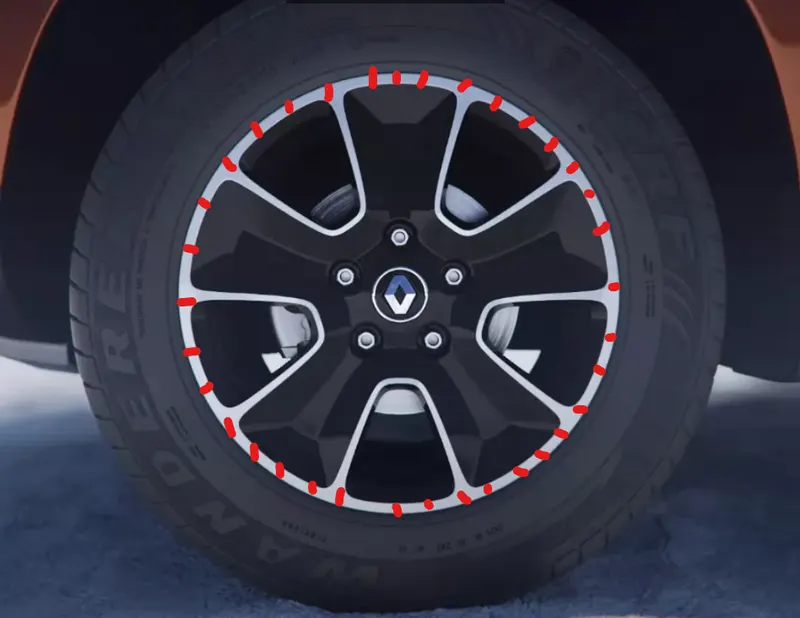
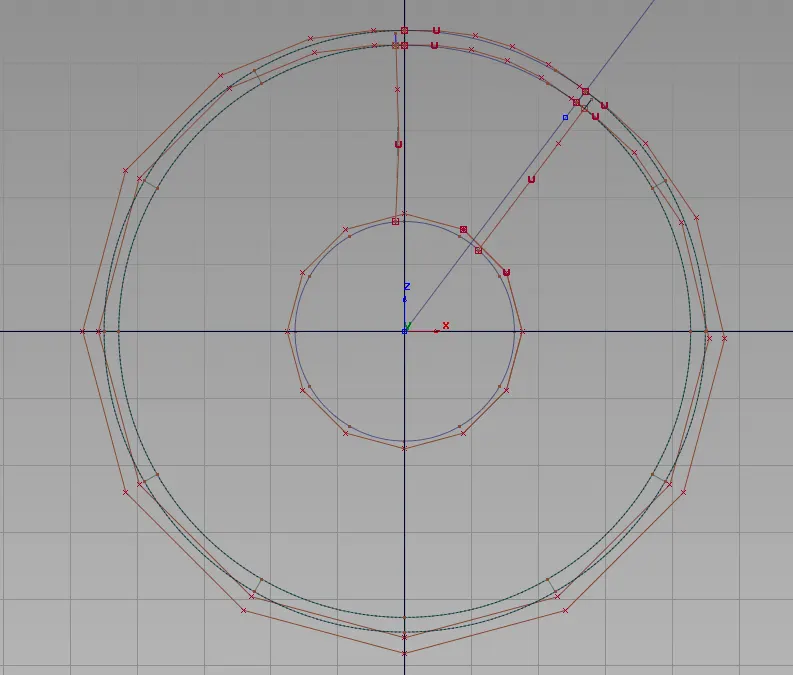
First create the circular part of Alloy wheel, consider above images as reference. Create a surface as flat using skin tool.
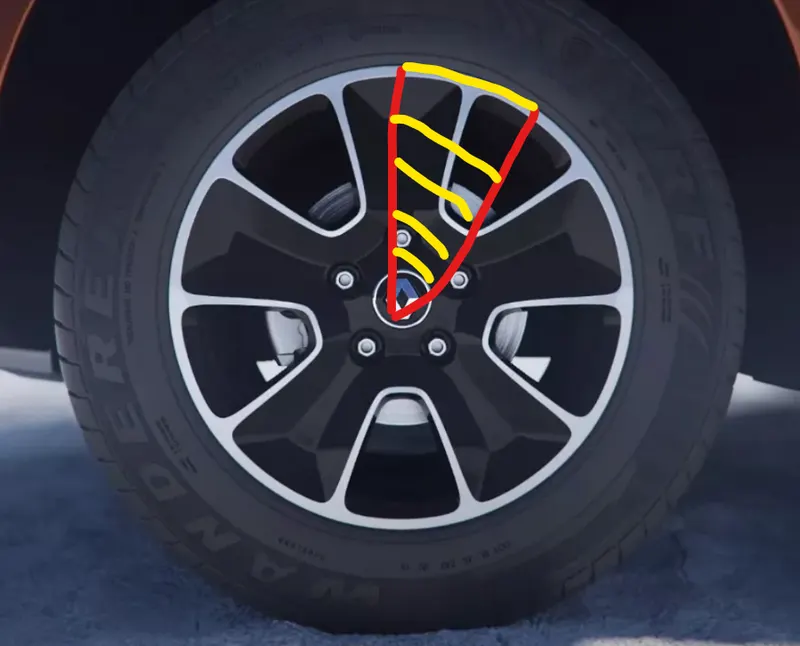
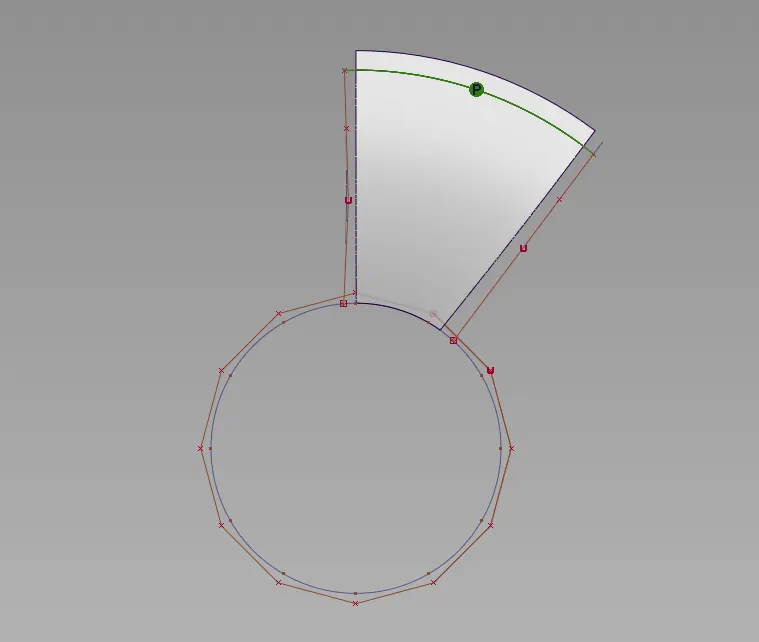
consider only one section of alloy wheel, After that we need to create a suface between flat surface and center of alloy wheel, Please consider above images.
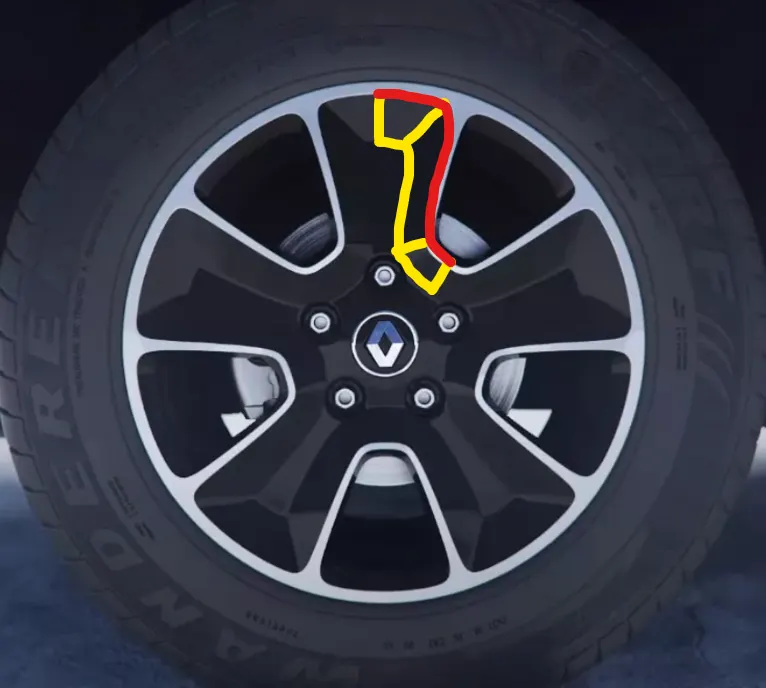
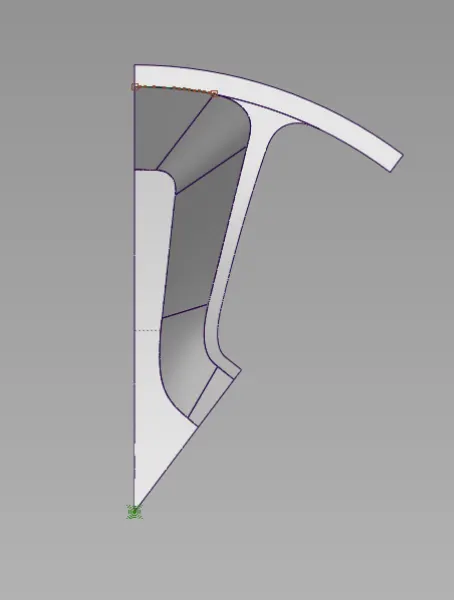
Create a curve section and projected on the surface and trim the unwanted surface. The created surface needs to have good continuity as well. Use freeform blend tool to create a transitional surface between surface curve.
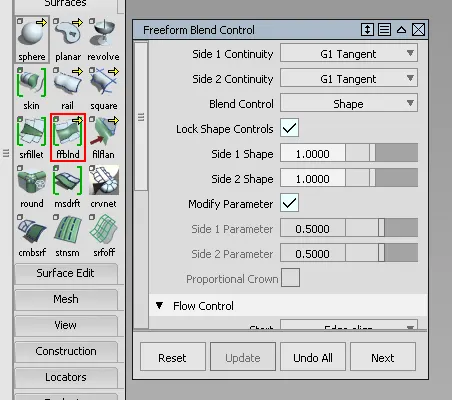
consider above image for Freeform blend tool.
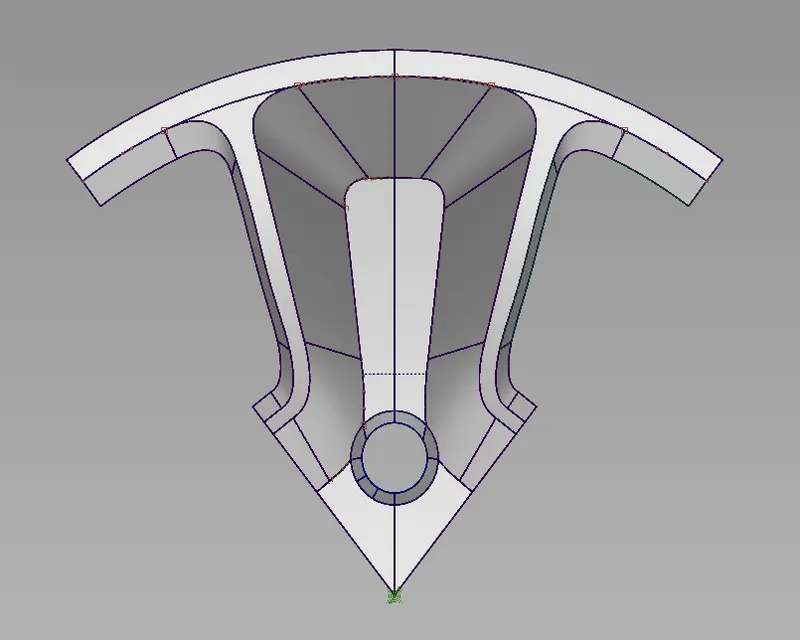
After completing one section of alloy wheel we need to be circular pattern the section using duplicate options.. While duplicating the section we want to make sure which axis rotation is needed.
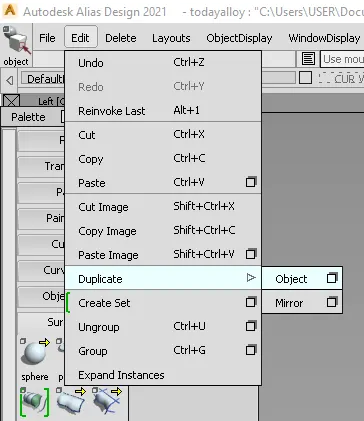
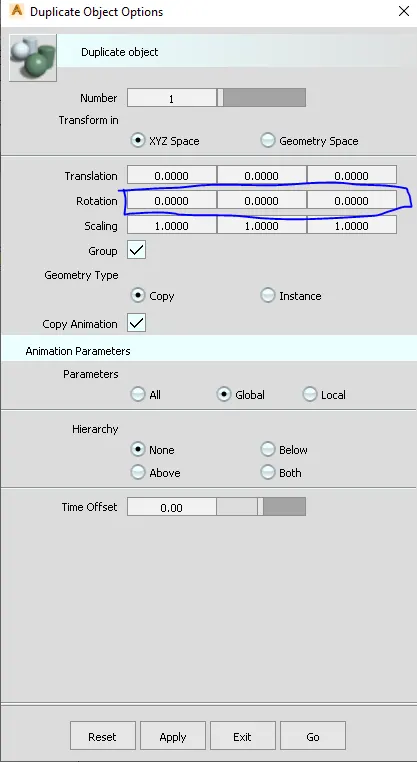
Consider above image for Duplicate Object options.
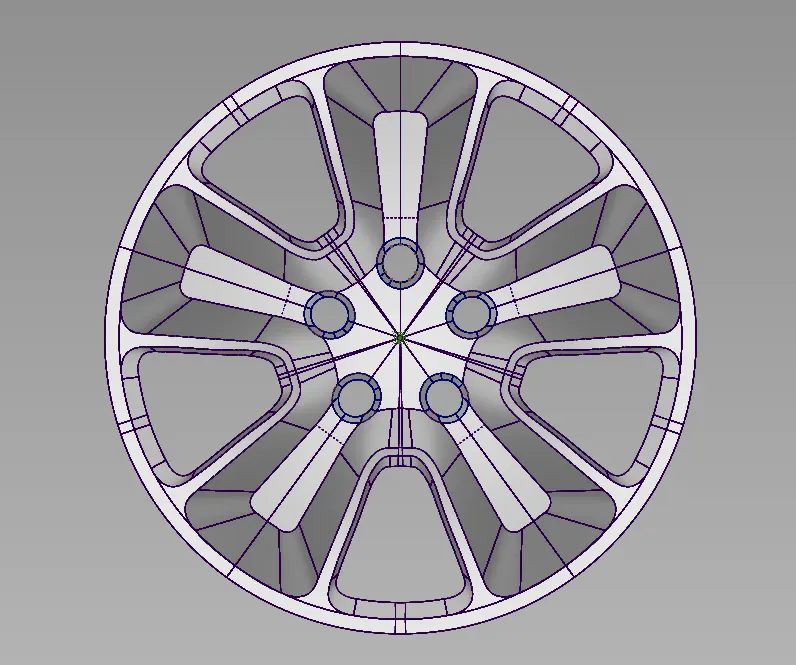
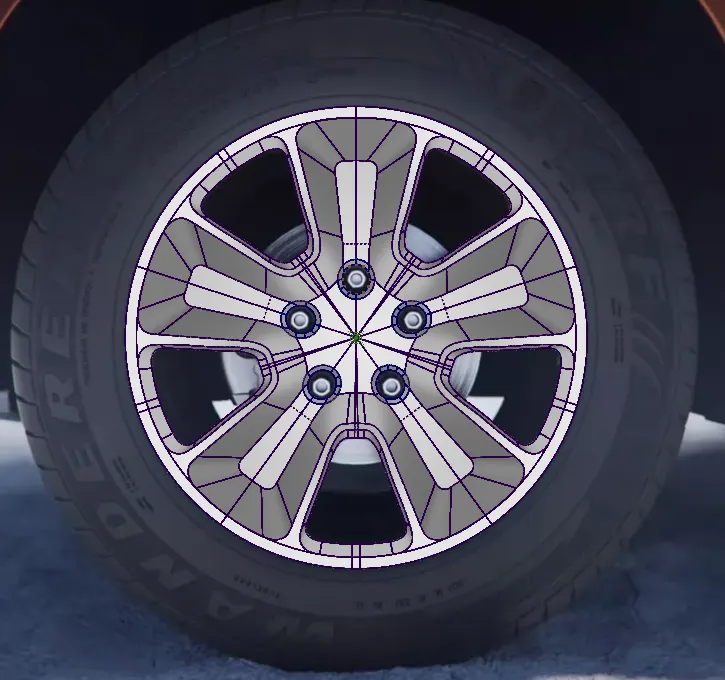
Finally we exactly caculated and duplicated the section to entire Alloy wheel model.
Front View:
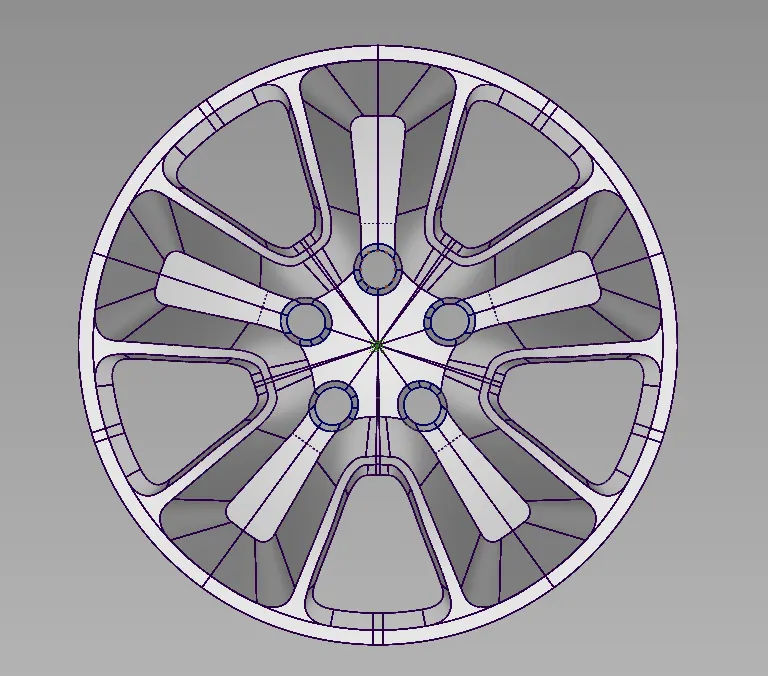
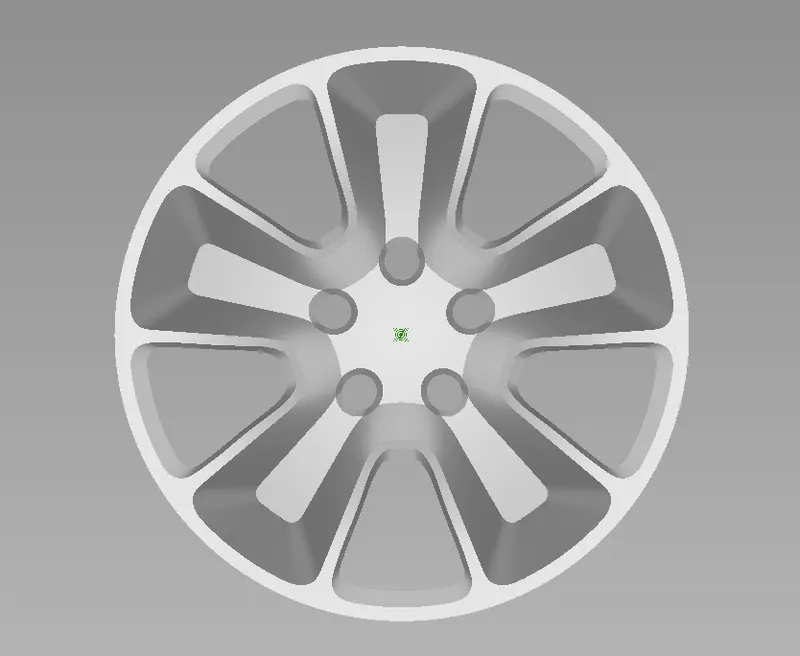
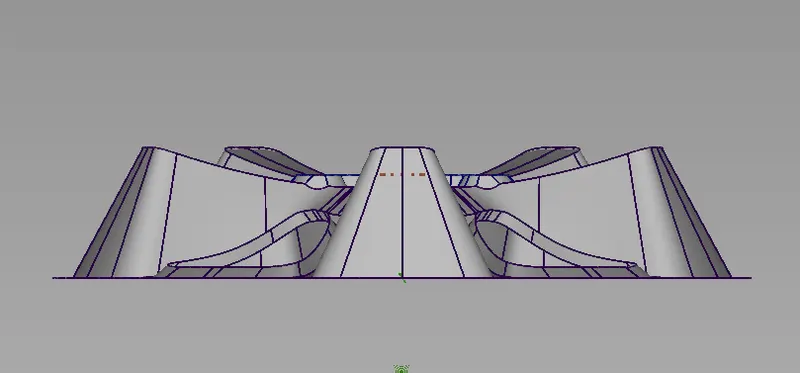
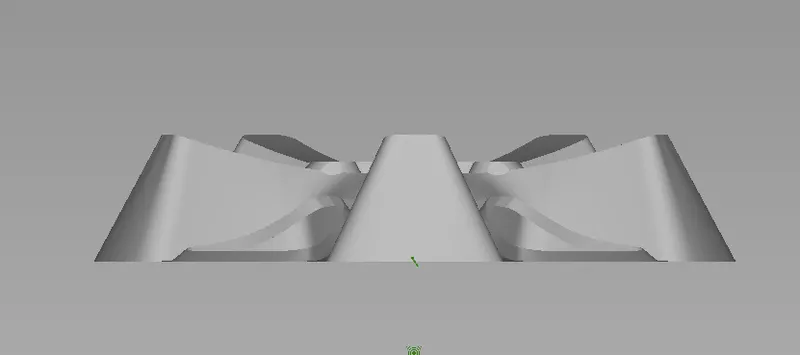
Side View:
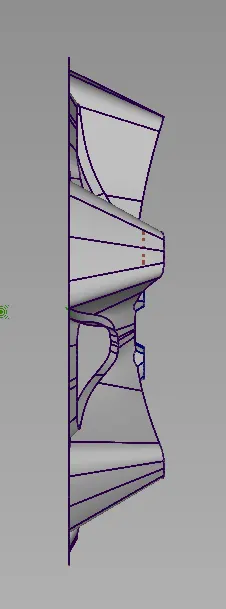
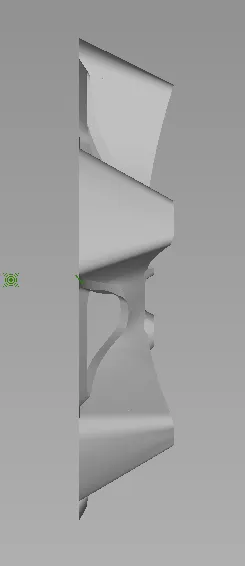
Isometric View:
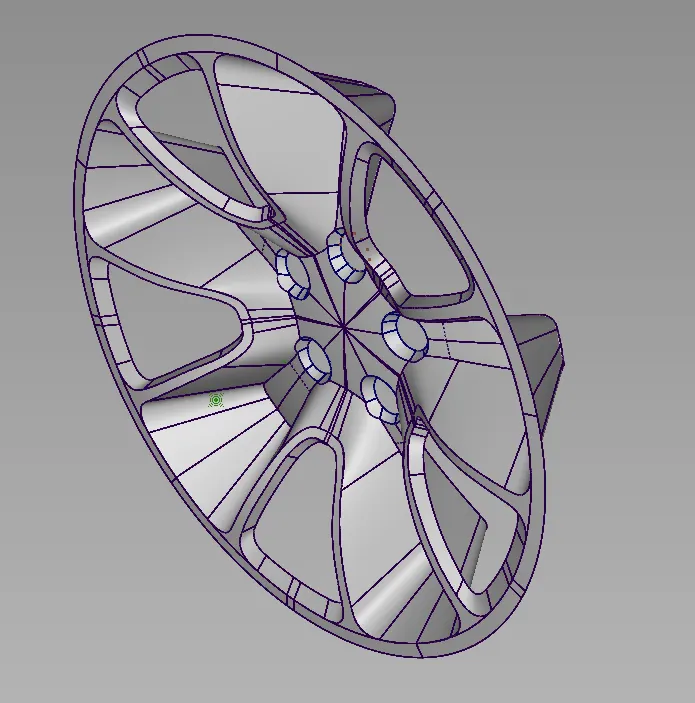
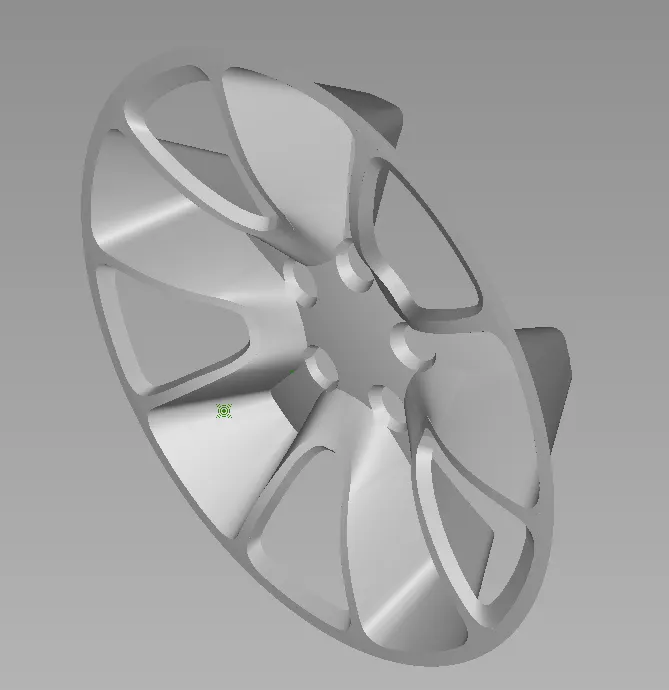
Top View:
Conclusion:
- We learnes how to use freeform blend tool for transitional surface.
- We learnes how to dettach and extend the surface.
- We upgraded Project, Intersect, trim and untrim tool to a medium level.
- We learn how to align the surface while creating complex models.
- We learned how to duplicate number of parts depends on Axis rotation .