Usage of Navigation tool , Timeliner and Clash Detection test using Naviswork
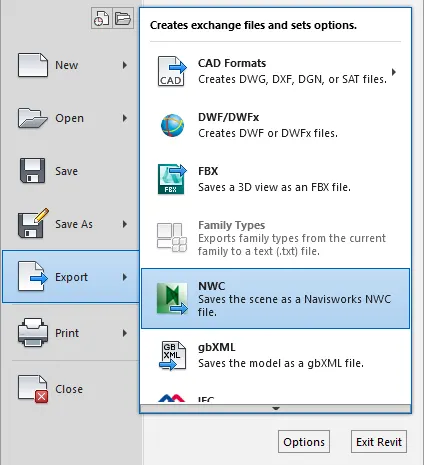
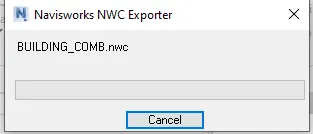
1) Use the Architecture/ Structure Project file developed by you in Week 6 to 8. Export the Revit architecture and structure model to Navisworks Cache file following the export settings discussed in class
ANSWER -
2) Use Navigate Tool to walk around the model and walk through the rooms created and record your moving as animation in your Navisworks file
ANSWER -
UNABLE TO ATTCHE VIDEO FORMAT , SENDING VIDEO BY MAIL OR WHATSAPP
3) Use Navigate tool to use Realism feature to walk through the model and record your moving as animation in Navisworks file
ANSWER - UNABLE TO ATTCHE VIDEO FORMAT , SENDING VIDEO BY MAIL OR WHATSAPP
5) Using the Timeliner feature in Navisworks prepare a schedule for the project developed in week 6 to 8 by adding reasonable assumptions for task start date and end date and simulate the task completion as a visual simulation. Record it and save the timeline simulation to Navisworks file
ANSWER -
UNABLE TO ATTCHE VIDEO FORMAT , SENDING VIDEO BY MAIL OR WHATSAPP