Usage of Navigation tool , Timeliner and Clash Detection test using Naviswork
Ans1.
AIM : To export the Revit architecture and structure model to Navisworks cache file
PROCEDURE :
Step 1 : Install the navisworks mange software and also install navisworks exporters from the Autodesk website
Step 2 : Open the architectural model created using revit software
Go to file menu and select export option in that select NWC file and save the file
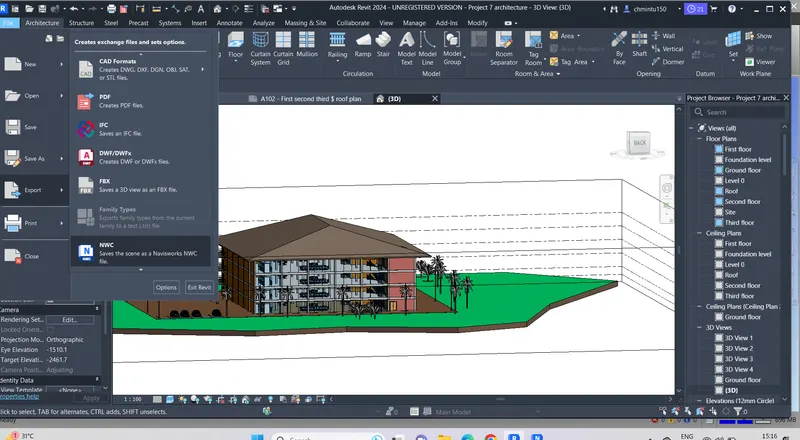
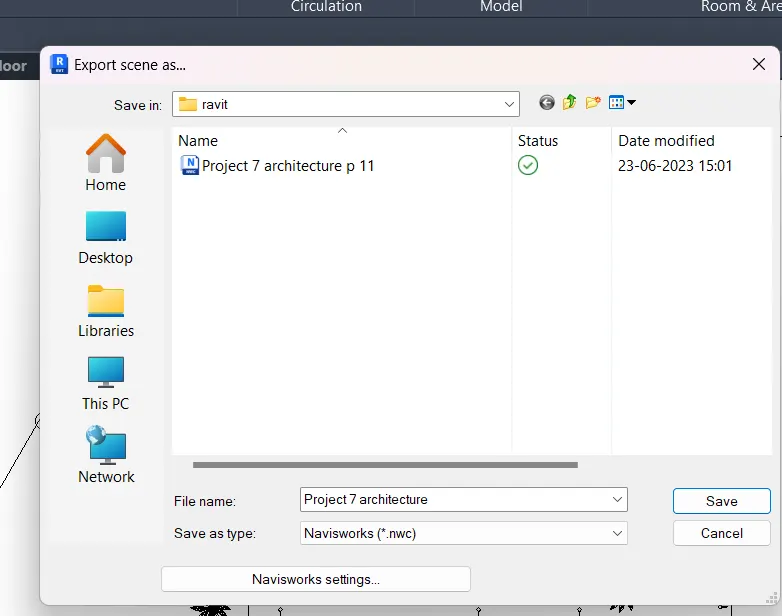
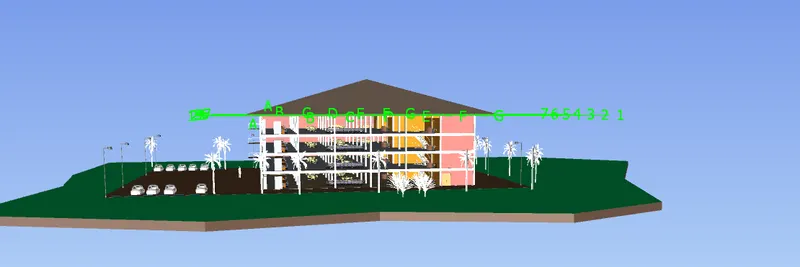
Architectural model is exported to nawiswork
Step 3 : Open the structural model created using revit software
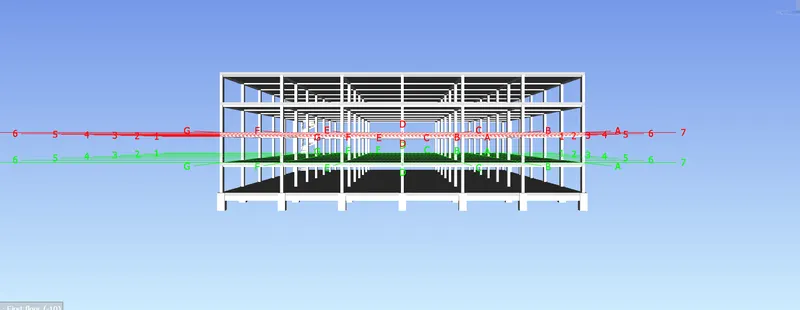
Go to file menu and select export option in that select NWC file and save the file
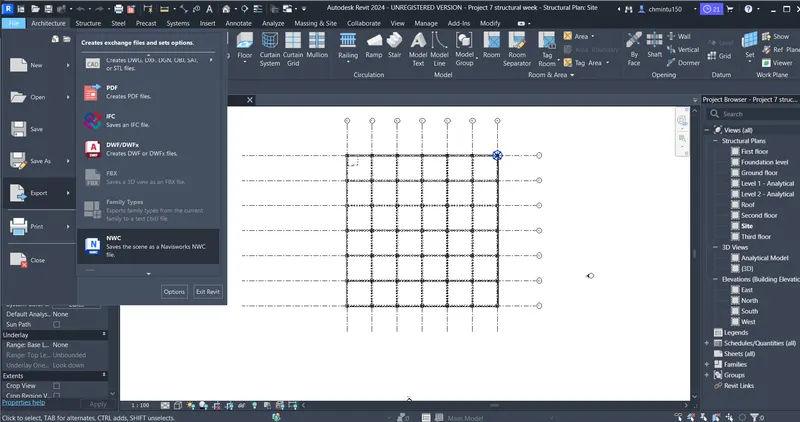
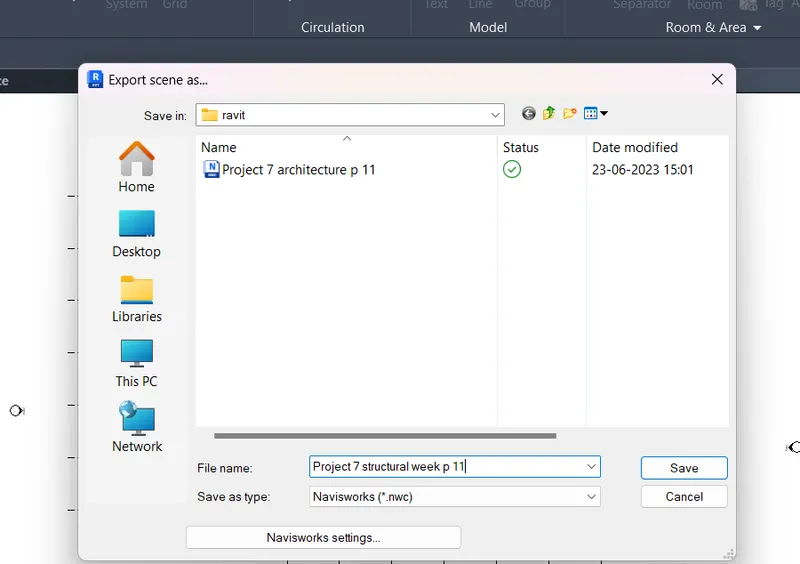
RESULT : Architectural model file and structural model file created using Revit software is exported to Naviswork
Architectural file
Structural file
Ans2.
AIM : To navigate tool to walk around the model and walk through the rooms created and record the moving as animation in the Naviswork file
PROCEDURE :
Step 1 : Open the Architectural file which we have exported
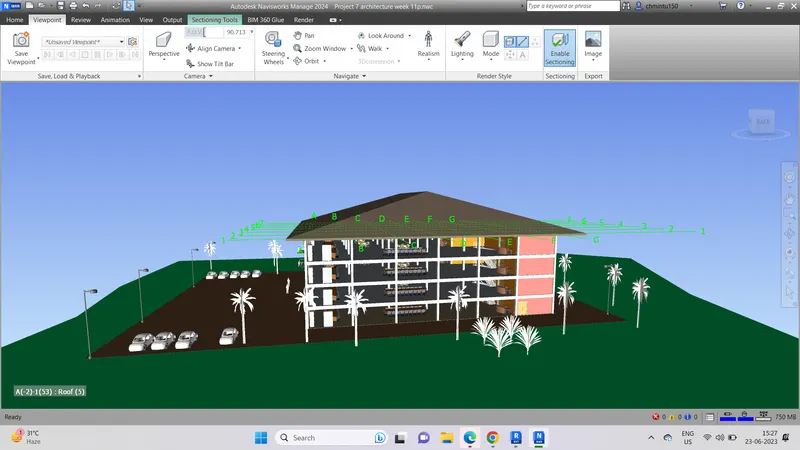
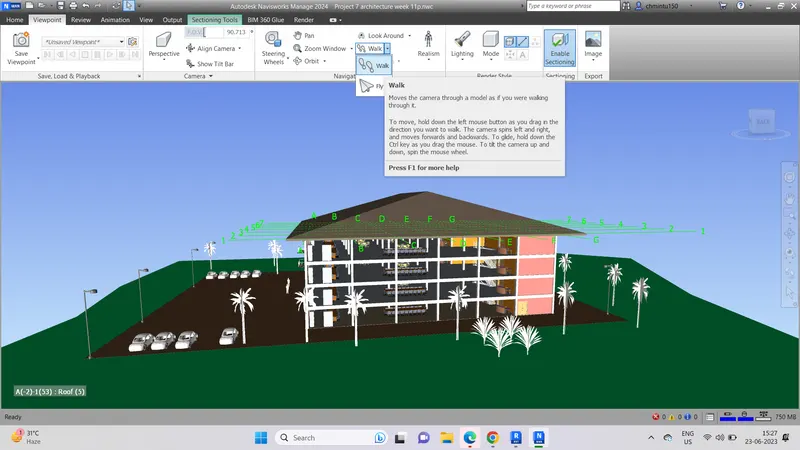
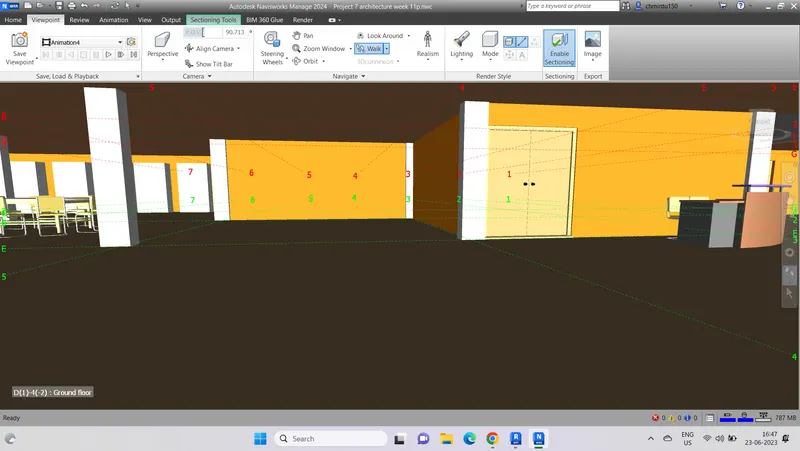
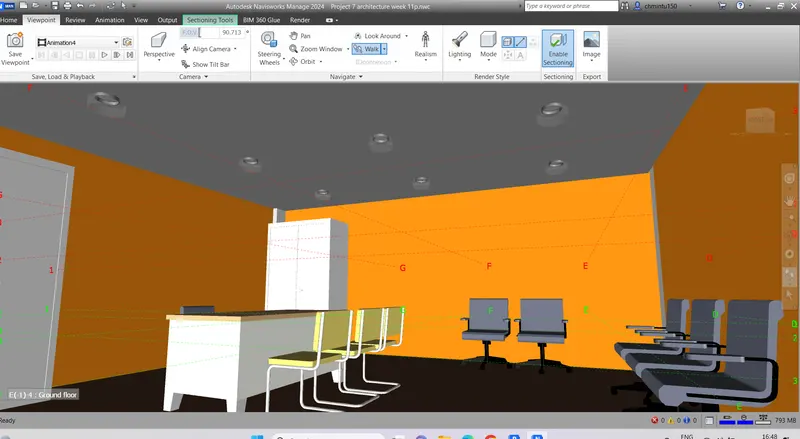
Step 2 : Go to viewport tab in that select walk option
Hall arae
Office area
Extrrior area
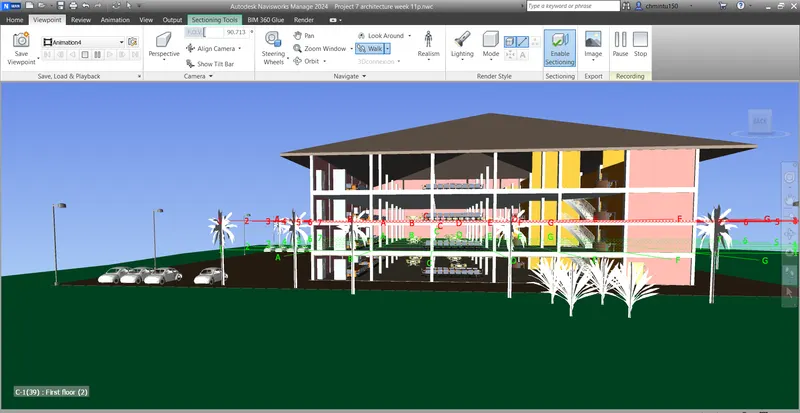
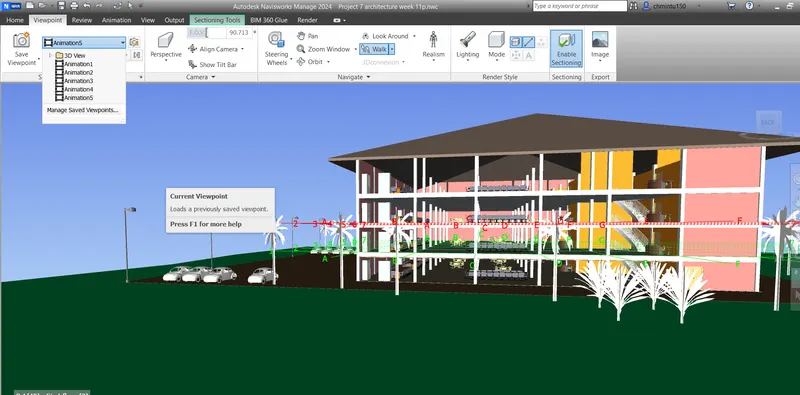
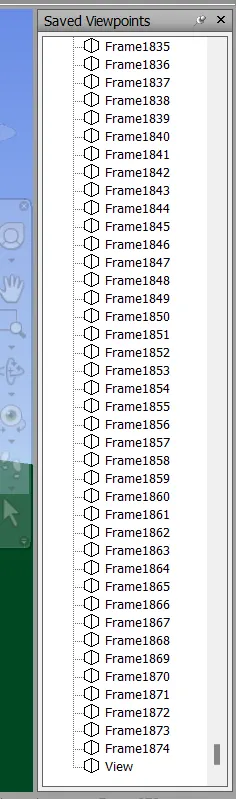
RESULT : With the help of the navigate tool the walk through is recorded and the view port is saved
Ans3.
AIM : Use navigate tool to use realism feature to walk through the model and record moving as animation in Naviswork
PROCEDURE :
Step 1 : Open the Architectural file which we have exported
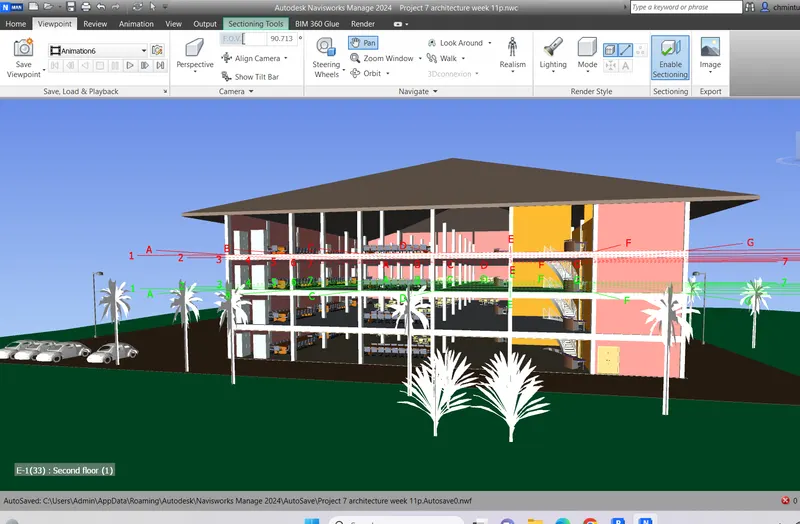
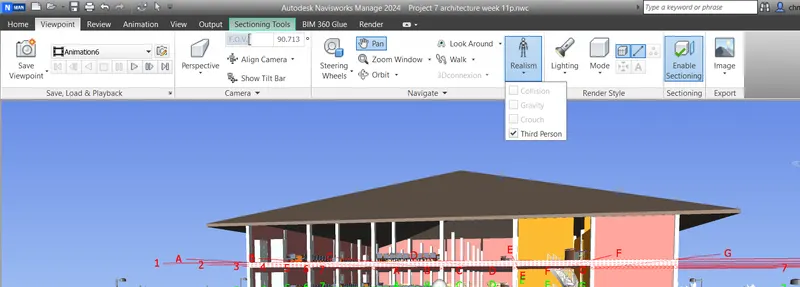
Step 2 : Go to viewport tab in that select Realism option in that select third person
Step 3 : Go to viewport tab in that select walk option and record the animation
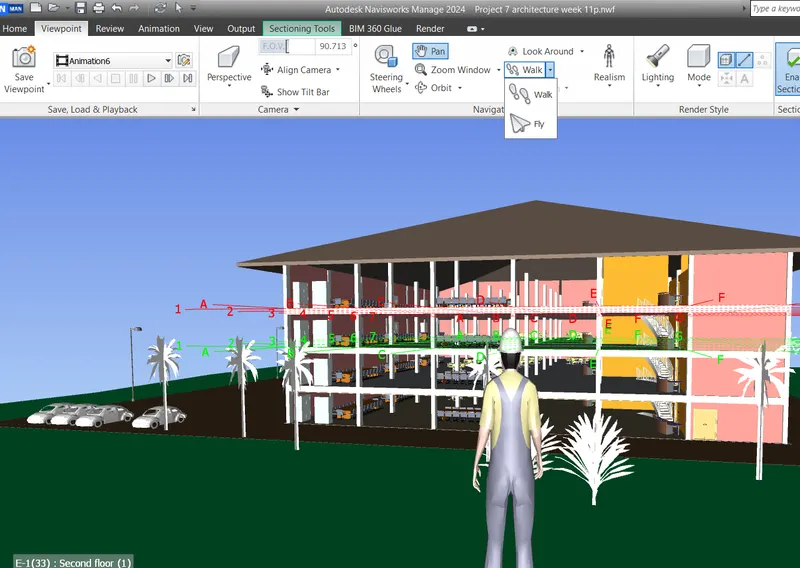
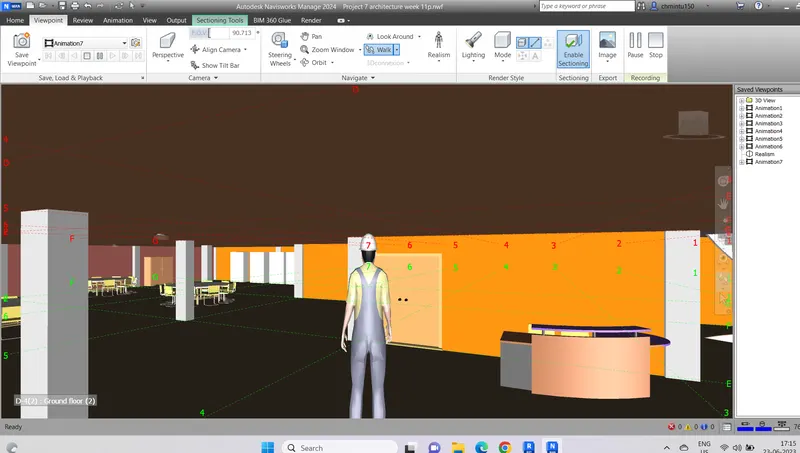
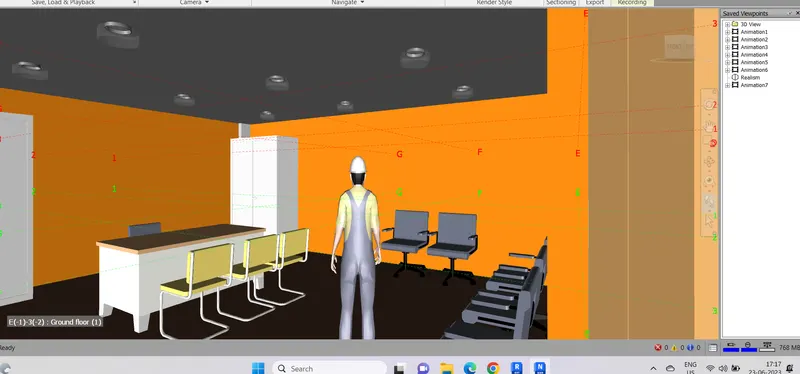
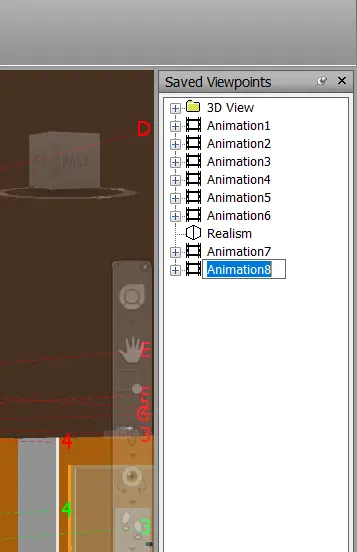
RESULT : With the help of navigation tool third person is added to walkthrough around the model
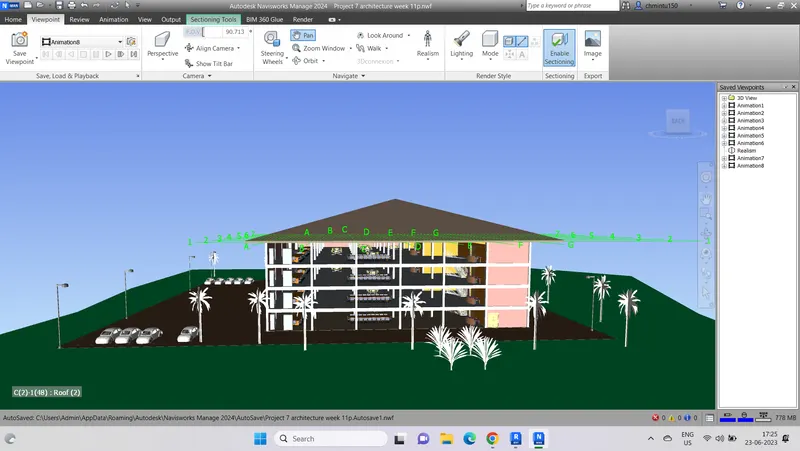
Walk through is recorded by using the walk option
Ans4.
AIM : To create the clash detection test between the architectural and structural model
PROCEDURE :
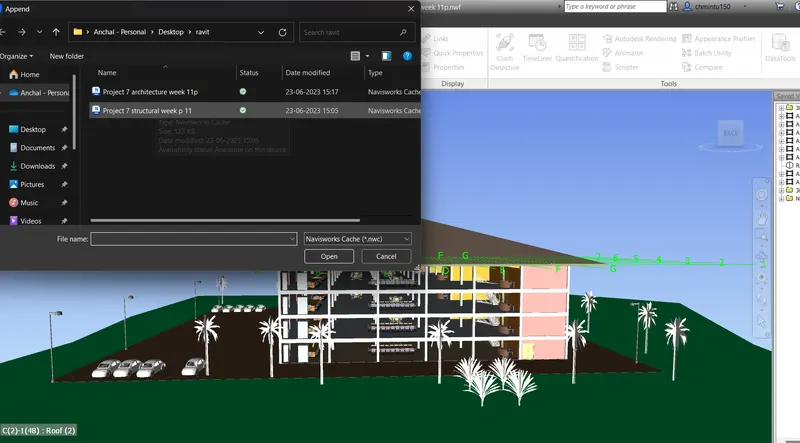
Step 1 : Go to home tab and in that select append in that select append and add structural model to the architectural model
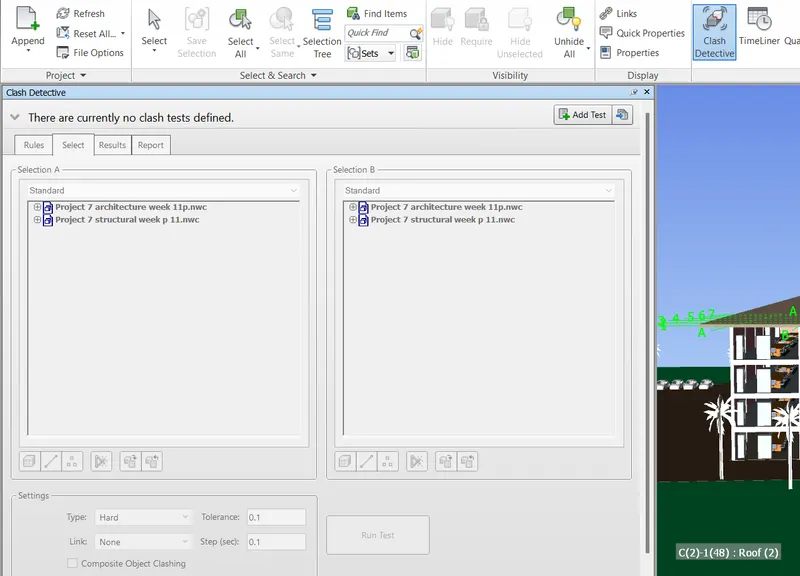
Step 2 : Go to home tab and select clash detective test option
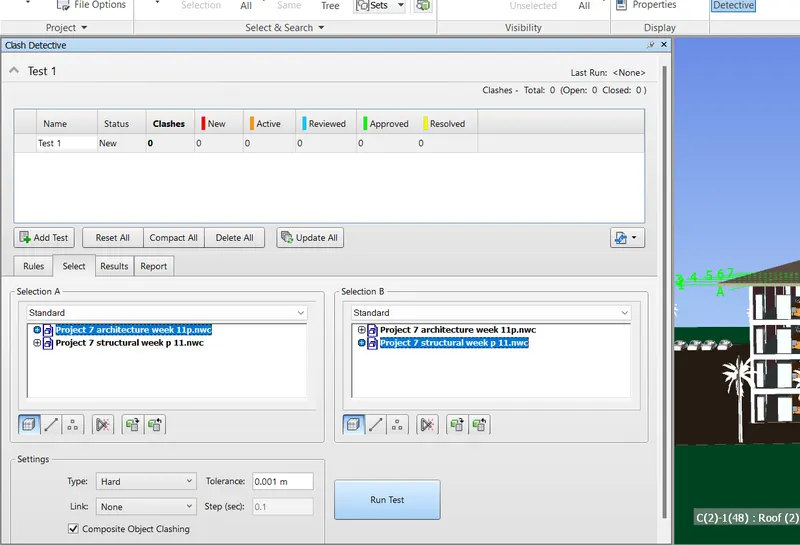
Step 3 : Click on run test the clashes in the model will be visible
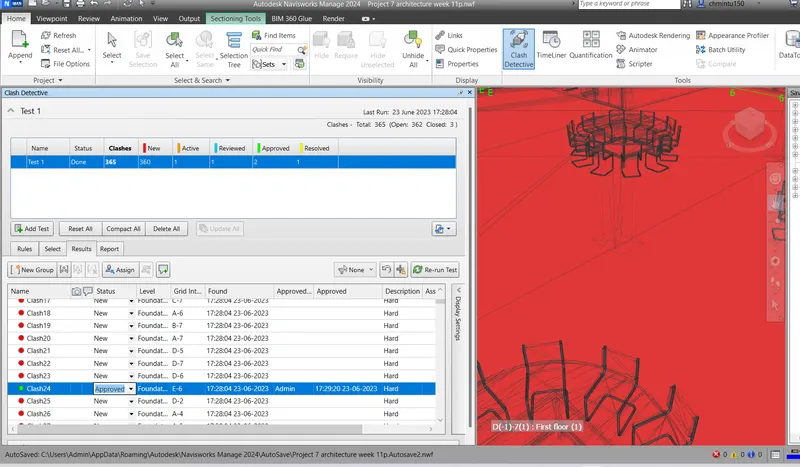
The clashes appeared is 365
Step 4 : List down the clashes which are active, approval, resolved and reviessed
Save the results
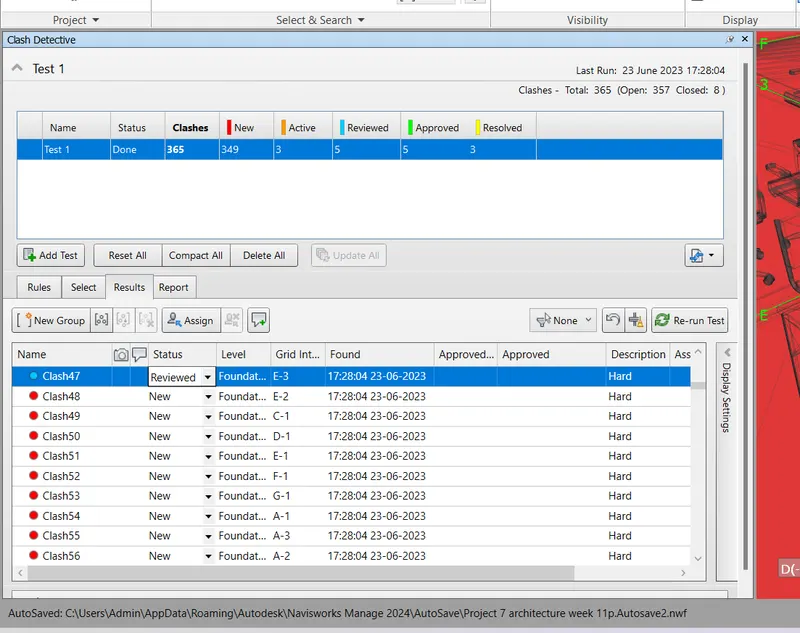
After changing the status of the clash the file is ready to send it for review
RESULT : The clash detective test is done between architectural and structural model
Ans5.
AIM : Using the Timeliner feature in Navisworks we can prepare a schedule for the project by adding reasonable assumptions for task start date and end date and simulate the task completion as a visual simulation
PROCEDURE :
Step 1 : Open the navisworks structural model file
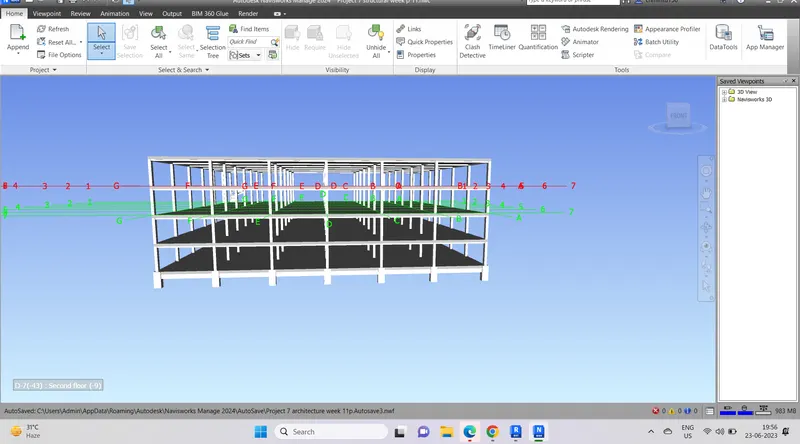
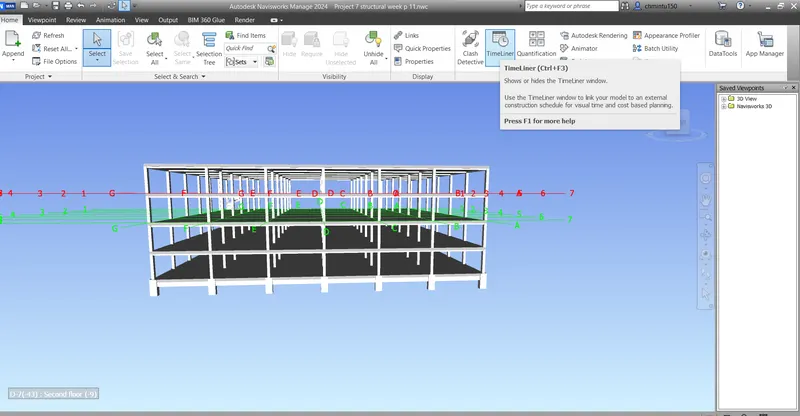
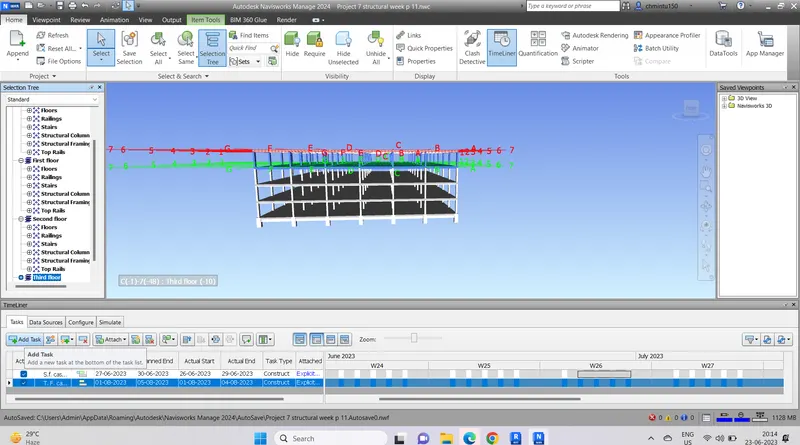
Step 2 : Go to home tab and select timeliner and also select selection tree

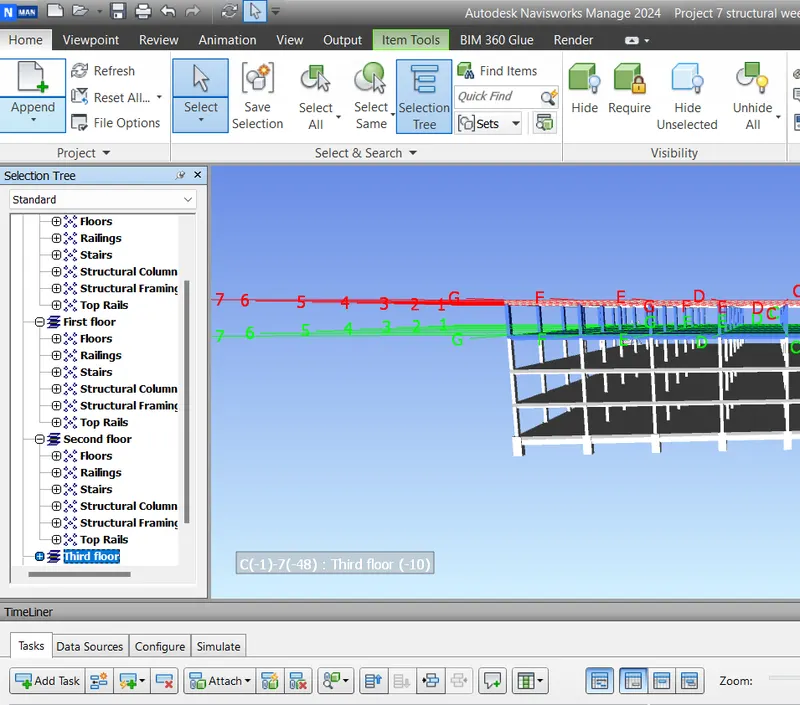
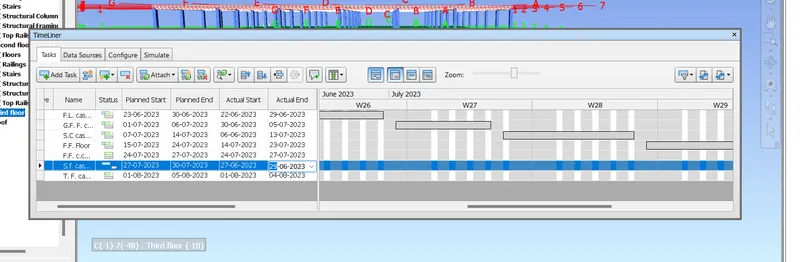
Step 3 : Click on add task and add the task according to the model and also select the items from selection tree and attach the selection to the task by selecting attach current selection and the task type is given and start date and finish date is also given
Step 4 : Now go to simulate in the timeliner dialogue box and run the video
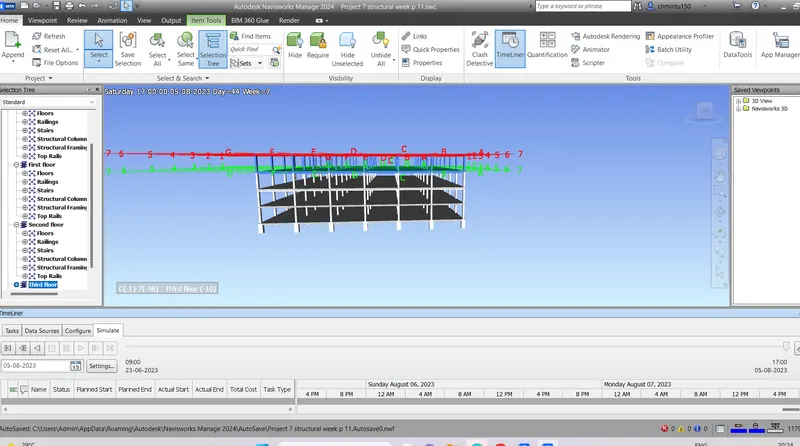
Step 5 : click on export animation and export the animated file
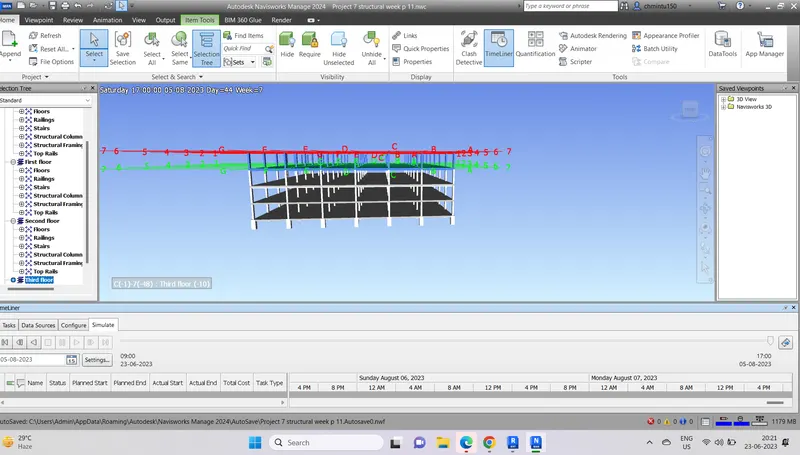
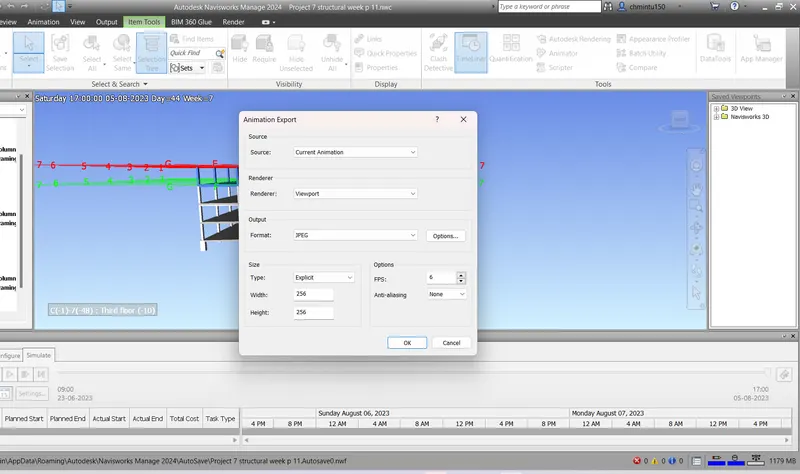
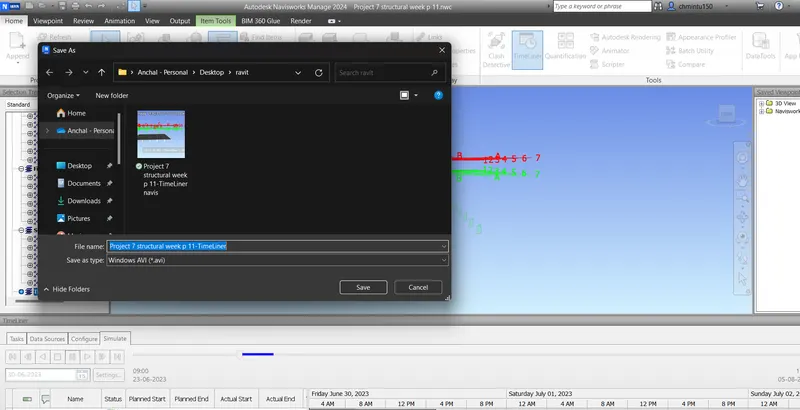
RESULT : By using timeliner feature in Navisworks we have prepared a schedule of the project by adding necessary assumptions for the tasks created and simulated the task completion as a visual simulation and saved the timeliner to Navisworks