Usage of Navigation tool , Timeliner and Clash Detection test using Naviswork
Q1) Ans:-
AIM: To exporting th revit architecture and structure model to navisworks cache file as discussed in th video.
PROCUDURE:
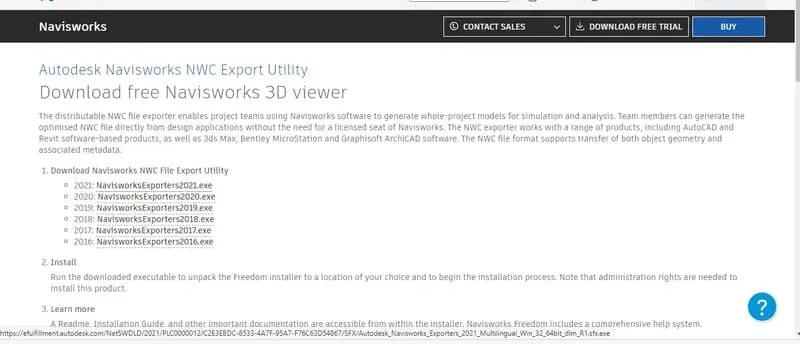
* First of all we have to install the software form autodesk website
* Go to autodesk website
* Search naviswork export utility and download 2021 version
* Click run and extract it.
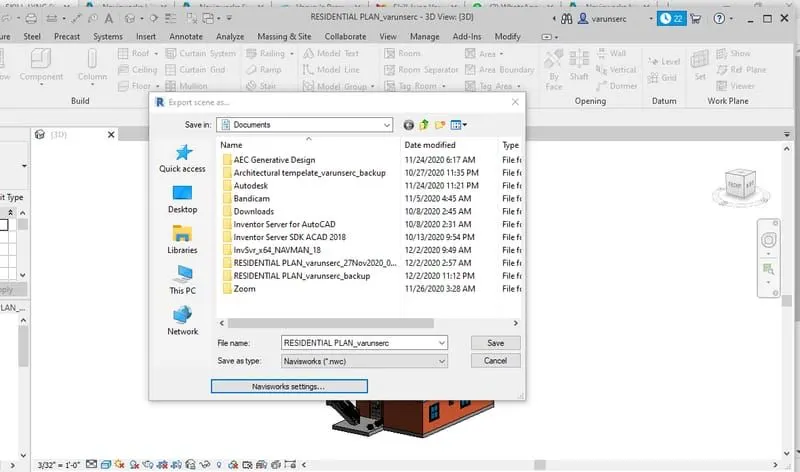
* Open a saved file in Revit application
* Click file and export it into NWC
* save the file which we saved from revit application
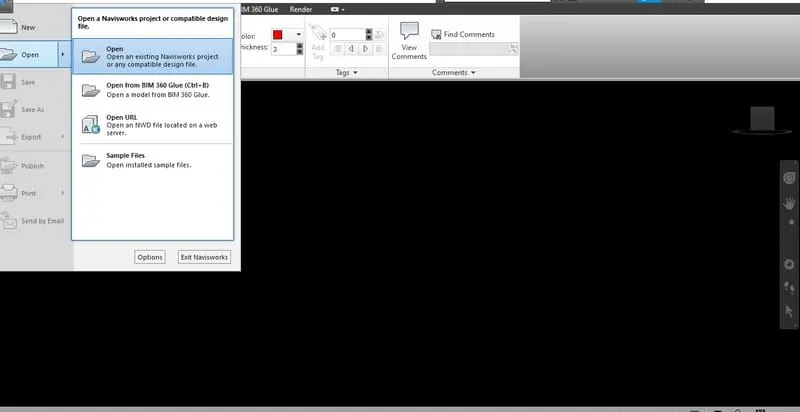
* Open navisworks manage 2021
* Click file menu and choose open
* Open a file which we saved from revit application
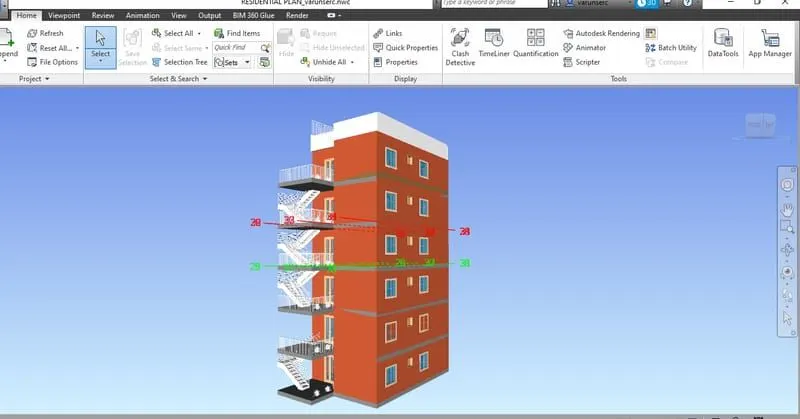
RESULT:
Thus the revit file has been exported to navisworks sucessfully
Q2) Ans:-
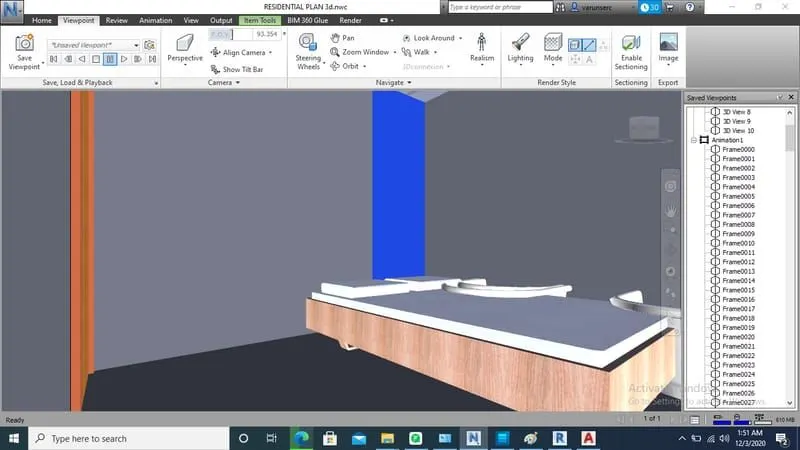
AIM: To creating the walk through model and recording the movements using navisworks.
PROCUDURE:
* Open a navisworks and import a file
* Click walk tool in viewport tab
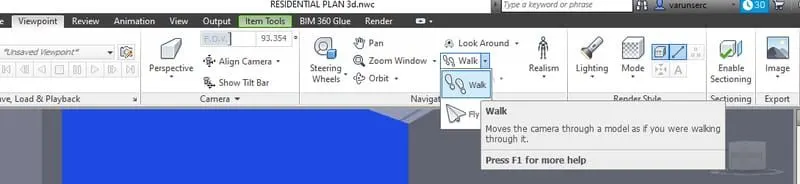
* In the selection tree select the 3d view which you want to walk through
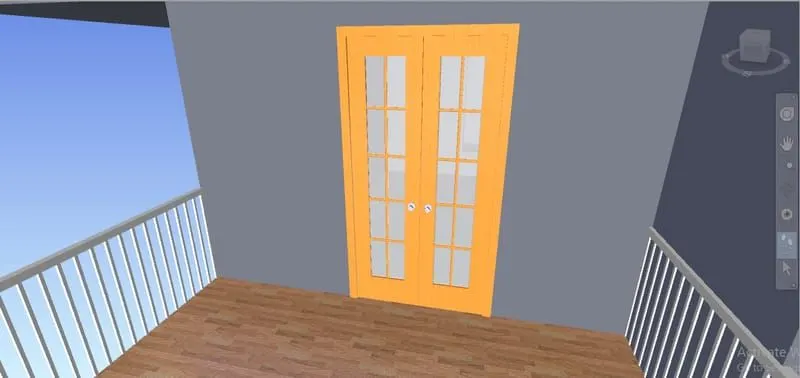
* By using the mouse move as your wish
* Depends upon the mouse moving the screen will moving inside the room as a human walking
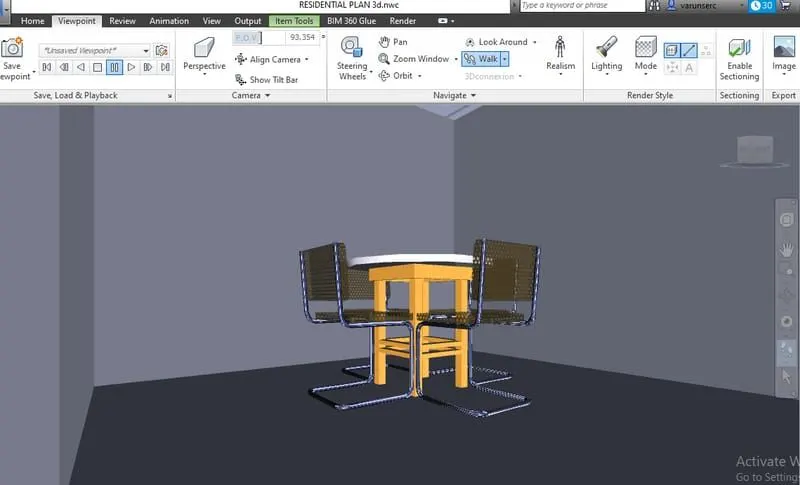
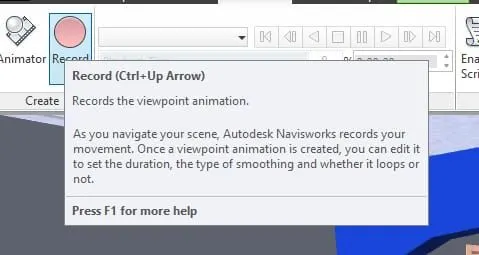
* Click the record option in the viewport
* Once the recording starts move your walk through
* Stop the recording and the saved files will automatically appears in selection tree
RESULT:
Thus the walk thriugh our model using navigation tool has been done sucessfully.
Q3) Ans:-
Aim:- To creating the realism feature to walk through the model using navigation tool is navisworks
PROCEDURE:
*Open a naviswork and import a architectural file
* Click realism tool in viewport tab
* Choose third person option
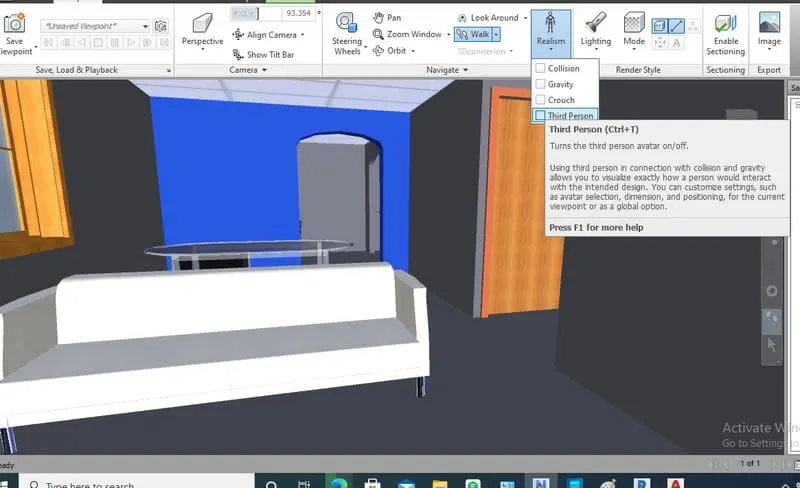
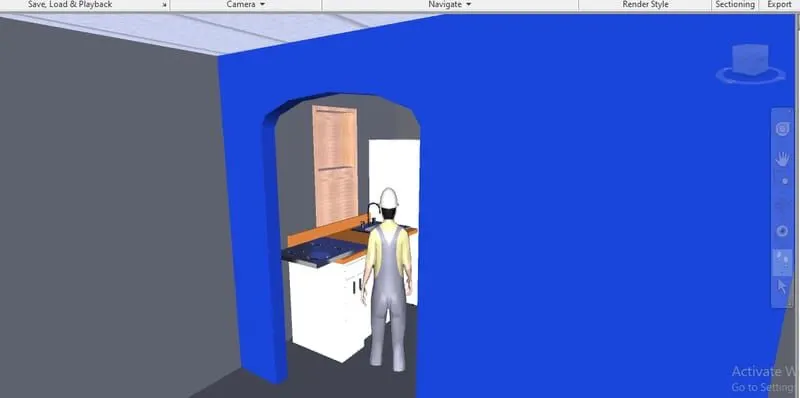
* After clicking the realism option
* A human model will appear in the screen
* From this human human model we can easily walk through and seeing the plan more realistically.
RESULT:
Similarly we can record this walk framings as we did in normal walk through tool
Q4) Ans:-
AIM: To run the clash detection test between two files and listing the clashes using navisworks
PROCEDURE:
* Open a architectural file
* Export it to the navisworks
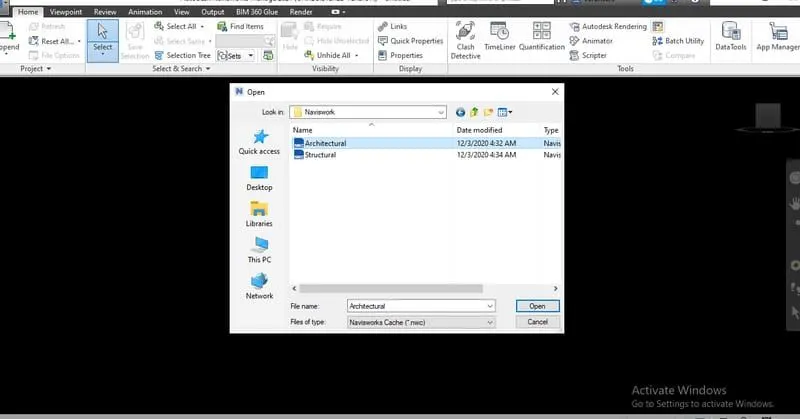
* After exporting the architectural file click append
* Choose append and import structural file into this file
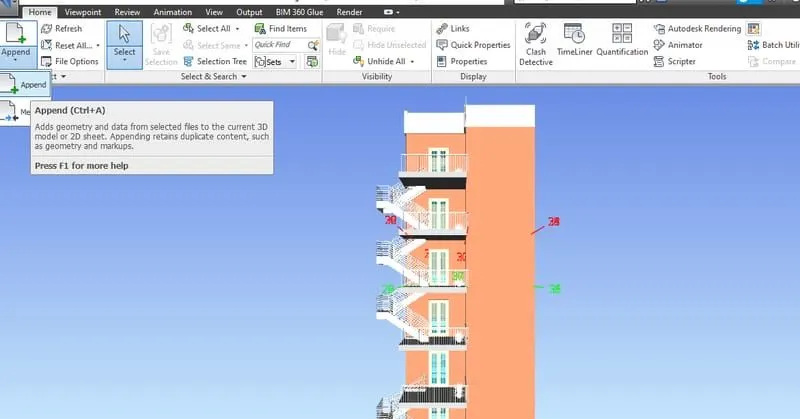
* Once the architectural and structural file has been merged click clash detective to in viewport
* click start test
* click run test
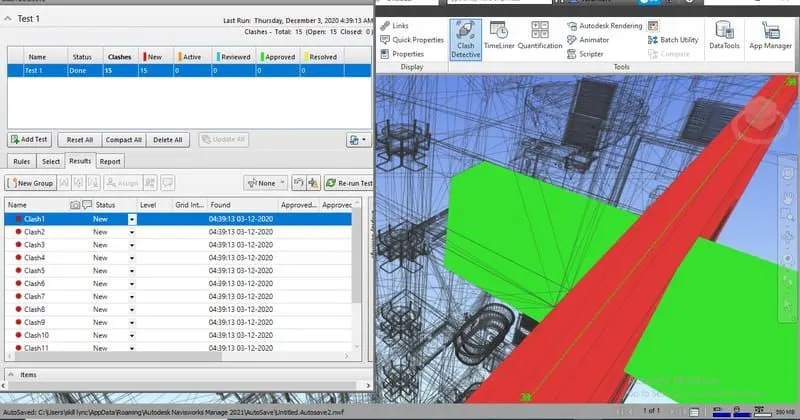
* in the result tab totally 15 clashes has been found
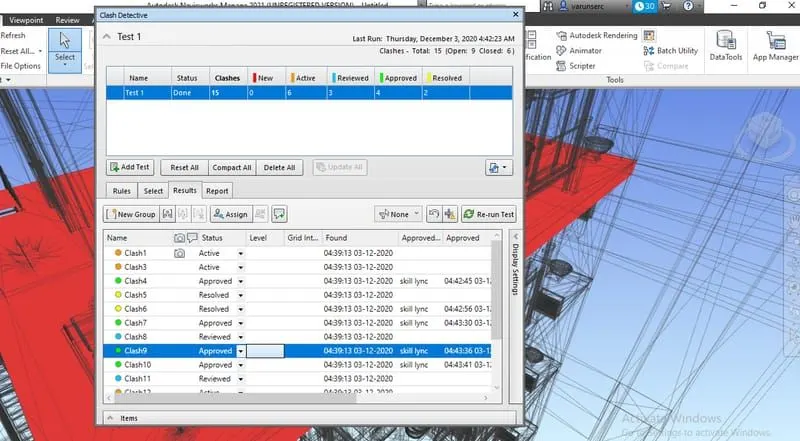
* when you click the clash orange for active
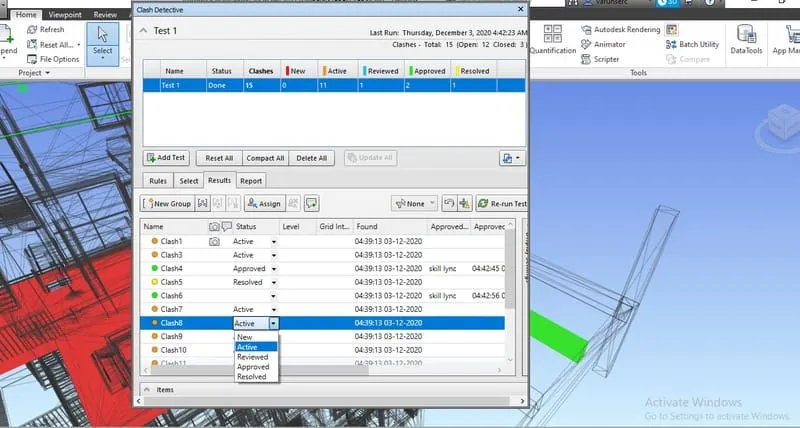
RESULT:
the clash detective test has been done succesfully
Q5) Ans:-
AIM: to creating the schedule of the project using naviswork.
PROCEDURE:
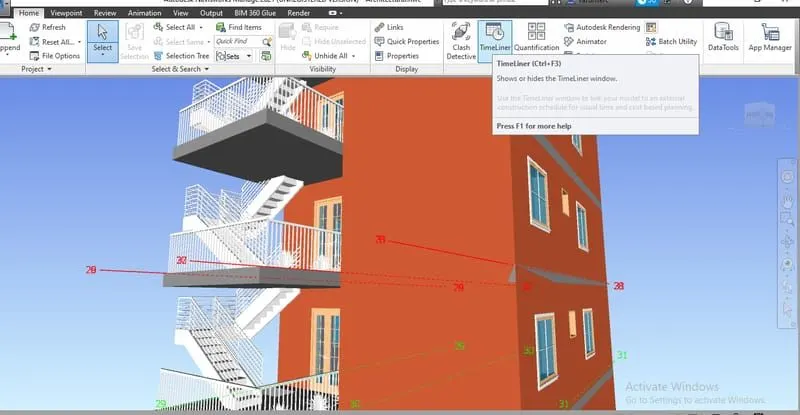
* click timeliner tool in home tab
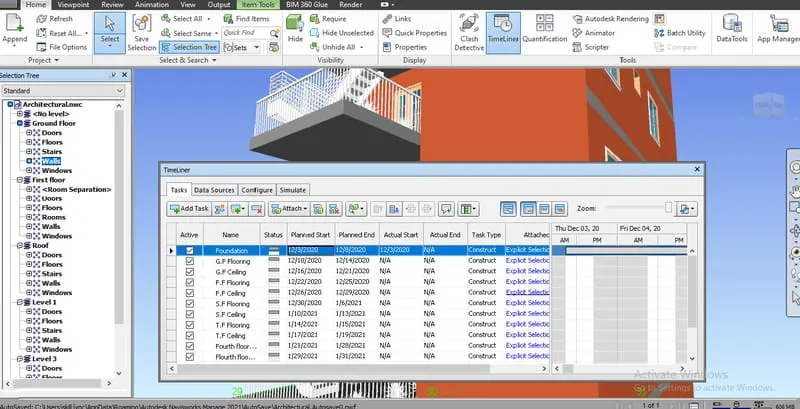
* click add task option
* click attach and choose current selection simultaneously
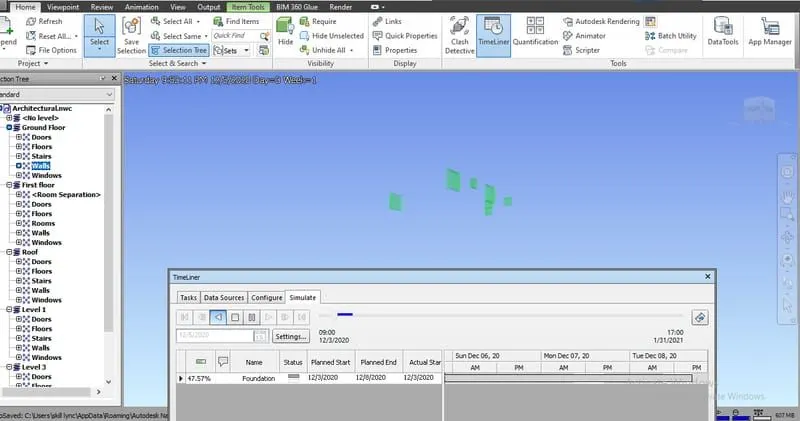
* click simulate tool
* click play option
RESULT:
TIMELINE FEATURES IN NAVISWORK SUCCESFULLY